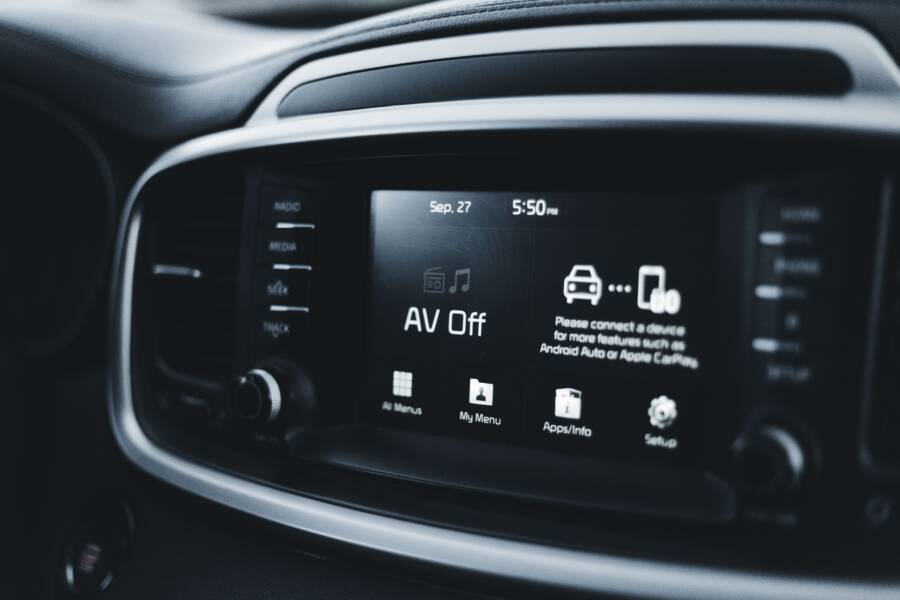
When your smartphone fails to pair with your car, the most effective fix is to toggle Bluetooth off and on, restart both devices, and delete old connection profiles. These minor software conflicts are common for nearly every driver today because wireless standards change and caches get full.
You do not need professional help to fix this recurring annoyance. These steps solve most connection failures and get your audio running again within a few minutes.
Basic Troubleshooting Steps for Your Smartphone and Car
Successful Bluetooth pairing requires both the smartphone and the car to broadcast their availability at the same time. If one side stops searching before the other finishes its request, the link attempt will fail. You must synchronize these two devices to clear the path for a stable connection.
Confirming Discovery Mode
Discovery mode allows your vehicle to see your smartphone and vice versa. Without this setting active, the devices remain invisible to each other, even when they sit right next to the dashboard.
Follow these steps to ensure both systems are ready to talk:
Open the Bluetooth settings menu on your smartphone. Stay on this screen so the device actively searches for new hardware.
Navigate to the phone settings or Bluetooth menu on your car’s infotainment screen.
Select the option to add a new device. The car will now emit a signal for your phone to find.
Watch both screens simultaneously. Your car name should appear on the phone list, or the phone name should show up on the car display.
Tap the correct name on the screen to initiate the handshake process.
Confirm that you do not have any other phones nearby with Bluetooth enabled. If your partner or passenger has a phone that previously paired with the car, the infotainment system might prioritize that connection instead of looking for yours. Turn off Bluetooth on those secondary devices until your primary phone successfully pairs.
Distance and Interference Factors
Bluetooth relies on short-range radio waves to transmit data. While these signals travel through air easily, they struggle when physical barriers or electronic noise block the path. A stable connection requires a clear environment during the initial handshake.
Keep your phone within a few feet of the infotainment console while you attempt to pair it. Placing the device inside a metal compartment, such as a deep center console or a glove box, can dampen the signal strength. You should also ensure the phone is not behind the dashboard or tucked away in a pocket during the setup.
Electronic interference often hides in plain sight. Common disruptions include:
High-powered USB chargers that emit electromagnetic noise.
Tablets or laptops running nearby with their own active Bluetooth radios.
Low-quality phone cases containing metal plates for magnetic mounts.
Thick leather or heavy-duty protective cases that insulate the internal antenna.
If the car fails to detect your device, move the phone closer to the head unit and clear the immediate area of other active electronics. Remove any bulky metallic cases to improve signal clarity. These minor environmental changes often turn a failed pairing attempt into a successful connection.
Clearing Glitches by Resetting Connections
Bluetooth connectivity often fails because of corrupted handshake files or outdated device memory. Your smartphone stores a unique profile for every car it connects to, and your car infotainment system does the same. When these profiles become mismatched due to software updates or unexpected interruptions, the devices struggle to communicate. Clearing these stale connections forces both systems to create a clean handshake, which solves most pairing problems.
Removing Old Device Profiles
You must delete the existing connection profile from your smartphone to ensure a fresh start. This action removes the corrupted link and prevents the phone from trying to use old settings that no longer match the car.
Follow these steps to remove the entry:
Open your phone settings and tap on the Bluetooth menu.
Locate your car’s name in the list of paired devices.
Tap the icon or the gear symbol next to the car name.
Select the option labeled Forget This Device or Remove.
Confirm the choice if the phone prompts you to verify.
After deleting the profile, turn off the Bluetooth setting on your phone for ten seconds. Turning it back on after this short break ensures the phone clears its active search cache. Your smartphone is now ready to perform a new discovery scan without interference from the previous, faulty connection history.
Refreshing the Car Infotainment Cache
Vehicle infotainment systems behave like small computers that accumulate junk data over time. If you have changed your phone recently or performed a major operating system update, the car might hold onto obsolete data that blocks new connections. Refreshing the cache involves clearing all stored devices from the head unit memory.
Access the Bluetooth or phone management settings on your car display to find the list of paired devices. You should select each entry and choose the delete or remove command. If your car lists multiple old phones that you no longer use, delete those as well to free up storage space for your current smartphone.
Some vehicles include a master reset option within the system settings that clears all stored data at once. Use this function if removing individual profiles fails to resolve the issue. Be aware that a master reset wipes your saved radio presets, address book entries, and navigation favorites along with the Bluetooth pairings. Perform a full system restart by turning the car ignition off and opening the driver door for a minute after clearing the cache. This forces the infotainment system to reboot and reinitialize its hardware, which clears out lingering errors in the connection logic.
Software Updates and Compatibility Checks
Keeping your smartphone software current is a primary way to prevent Bluetooth pairing failures. Manufacturers frequently release patches to address specific bugs that interfere with how a device communicates with automotive systems. Without these updates, your phone may attempt to use protocols that the car no longer supports or recognizes.
Why OS Updates Matter for Bluetooth
Bluetooth technology relies on a specific set of rules, or protocols, that govern how data moves between devices. When phone developers release an operating system update, they often include improvements to these protocols. These updates fix connectivity bugs that cause your smartphone to disconnect, fail to pair, or exhibit audio lag.
Car manufacturers also issue firmware updates for their infotainment systems to maintain compatibility with new phone software. If your phone runs a recent version of its operating system but your car uses software from five years ago, the two devices may fail to speak the same language. Updating your phone software ensures it uses the most modern standards available, which often solves lingering compatibility issues.
You should check for updates if your connection struggles to remain active even after a reboot. Follow these steps to find the latest version on your device:
Navigate to the settings menu on your smartphone.
Select the general or system section.
Tap on software update or system updates.
Download and install any available packages provided by the manufacturer.
Installing these updates clears outdated cache files and refreshes the underlying drivers responsible for your wireless radios. Once the phone restarts, try pairing it with your vehicle again. Often, this simple act of software maintenance resolves the conflict without further adjustment.
Checking Manufacturer Support Pages
Not every phone works perfectly with every vehicle model. Sometimes, a specific combination of hardware and software encounters known compatibility issues. Car manufacturers maintain support pages to document these limitations and provide guidance for owners.
You can verify compatibility by searching the official website of your vehicle brand. Most automotive companies offer a lookup tool where you enter your smartphone model and the car year. These pages reveal whether your phone is fully supported, partially supported, or requires a specific software patch to function.
If you cannot find a dedicated lookup tool, check the help section of the car manufacturer website for common Bluetooth known issues. Manufacturers often publish bulletins detailing why certain phones experience problems with their infotainment units. This documentation helps you determine if the issue stems from your settings or a hardware mismatch that requires a dealer visit.
Look for these resources on the brand website:
Official Bluetooth compatibility lists for specific car years and trims.
Knowledge base articles addressing frequent pairing errors for your infotainment system.
Direct links to download firmware updates for your car audio system.
If the manufacturer confirms that your phone is compatible but you still face trouble, the issue likely resides in a corrupted profile or a simple setting error. Always check these resources before you assume your hardware is broken. Information on the manufacturer site clarifies if you need to visit a dealership for a formal firmware update to your car system.
Advanced Solutions When Simple Fixes Fail
Sometimes standard troubleshooting fails to resolve connectivity problems between your smartphone and your vehicle. When basic restarts and cache clears do not work, you may need to perform more technical interventions. These actions reset the communication layer of your phone or identify if the fault lies with hardware rather than simple software settings.
Resetting Network Settings
A network settings reset forces your phone to clear all stored Bluetooth, Wi-Fi, and cellular connection data. This is a powerful step because it removes corrupt configurations that block pairing without erasing your photos, videos, or apps. You will lose saved Wi-Fi passwords, so keep those handy before you begin.
On an iPhone, open your settings menu and tap General. Select Transfer or Reset iPhone, then choose Reset. Tap the Reset Network Settings option and confirm your choice by entering your device passcode. Your smartphone will restart, and once it boots up, the Bluetooth radio will return to its original factory state.
On an Android device, navigate to settings and select System or General Management. Find the Reset options menu, which is sometimes located inside the Advanced or Reset sub-menu. Select Reset Wi-Fi, mobile, and Bluetooth, or Reset network settings. Confirm your action by tapping the reset button. The device clears the stored pairing history and resets the antenna parameters.
Once the device completes the reset, return to your car. Delete the old phone profile from the vehicle infotainment display again, just to be sure. Then, initiate a fresh search from both the car and the smartphone. This process often fixes deep-seated handshake errors that standard menus cannot reach.
Professional Diagnostic Options
You should consider professional assistance if you have verified that your phone pairs with other devices, such as headphones or speakers, but still ignores your car. A hardware mismatch or a faulty communication module in the vehicle infotainment system is often the culprit in these cases.
Car dealerships are your primary resource for these issues. They have access to proprietary firmware updates that are not available to the general public. These updates can resolve specific communication conflicts between the vehicle audio system and newer smartphone models. A technician can also perform a diagnostic scan on the infotainment system to check for internal module failures.
Mobile car audio shops are a valid alternative if you own an older vehicle or an aftermarket radio. These professionals can test the Bluetooth antenna signal strength inside the dashboard. They also determine if the head unit requires a replacement component. You might also consider this route if you want to upgrade your car with a modern Bluetooth adapter that supports current connectivity standards.
Schedule a visit if you notice these signs:
The car display shows an error code whenever you start the pairing process.
Your smartphone connects to every other Bluetooth device except your specific vehicle.
The infotainment system freezes or restarts every time it attempts a new connection.
A mechanic confirms that the car audio system is running outdated internal software.
Professional diagnostics are not always necessary, but they provide a clear path forward when your own troubleshooting efforts yield no results. They help you avoid unnecessary stress by identifying if the problem is a simple software bug or a permanent hardware fault.
Conclusion
Most connection issues disappear when you clear the old data and establish a fresh link. Start by deleting existing profiles from both your smartphone and your car, then restart each device to purge hidden errors.
Updating your software regularly keeps these protocols aligned. A small investment of time spent on system updates ensures your phone talks to your vehicle without constant manual intervention.
Do you still experience drops after trying these steps? Check your car manufacturer website for specific firmware updates tailored to your model.