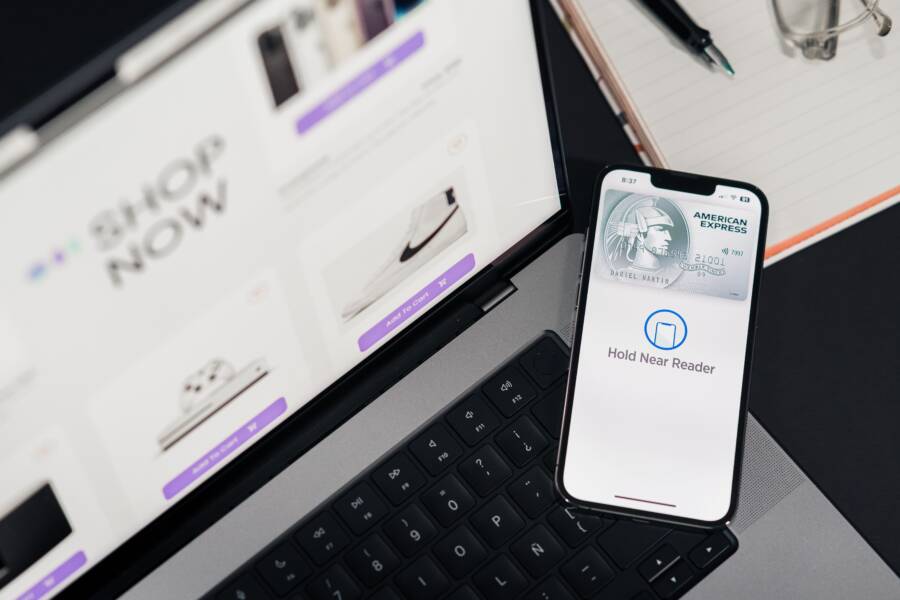
If your phone won’t add a transit card to Wallet, the fix is usually simple: check region limits, device support, payment settings, software updates, and any account restrictions first.
This issue affects both iPhone and Android users, and it can show up even when the transit card looks valid. In many cases, a setting on the phone, the transit app, or your payment account is blocking the add process, so your smartphone needs a quick eligibility check before you try again.
The steps below will help you find the cause, fix setup problems, and use workarounds when Wallet still refuses the transit card.
What Usually Stops iPhone and Android From Adding a Transit Card to Wallet
Most transit card setup problems come down to three things, unsupported service, device limits, or account setup issues. If your iPhone or Android phone won’t add a transit card to Wallet, start with those before trying resets or reinstalling apps.
A transit card can fail to appear even when Wallet opens normally. That usually means the transit agency, your phone, or your account does not meet the setup rules yet. In many cases, the fix is to match the right city, device, and payment account first.
Check whether your transit system is supported in your area
Not every transit agency works with Apple Wallet or Google Wallet. Even if the app lets you start the process, the actual transit system may not accept your city, station network, or card type.
Before trying more fixes, confirm three things:
The city or region you are in
The transit authority that runs the service
The card or pass type you are trying to add
Some systems support only certain passes, such as daily passes or commuter cards. Others do not support every fare card, transfer ticket, or stored value option. That means your transit agency may work with Wallet, but only for part of its fare system.
If you are using a smartphone that travels between cities or rail networks, this check matters even more. A pass that works in one area may fail in another, even under the same Wallet app.
If the transit agency does not support your exact card type, no phone setting can force it to add.
Make sure your device and software are compatible
Compatibility issues are another common block. On iPhone, Wallet transit features usually depend on a supported model and a current iOS version. On Android, support depends on both the phone model and the version of Android installed.
Older phones may still open Wallet, but that does not mean they can add a transit card. Some models can store payment cards yet still lack transit card support. On Android phones, NFC is often required, and it must be turned on for many tap-based transit features.
A quick compatibility check should include:
iPhone model support
Current iOS version
Android version
NFC availability and settings
Any carrier or region limits tied to the phone
If your device is behind on updates, the setup process may stop partway through or fail without a clear error. Updating the software often fixes that, but only when the hardware is already supported.
Look for account, region, or payment setup issues
Account settings can block transit card setup just as easily as hardware problems. Apple ID region, Google account region, device region, and billing details all need to line up with the transit service in many cases.
A mismatch can happen when:
Your Apple ID or Google account is set to a different country
Your device region does not match the transit service area
Your billing address is outside the supported region
Family Sharing or shared account controls limit wallet changes
Some transit cards also require an active payment method or a verified account before they can be added. If the service needs identity checks, a prepaid card, or a linked bank card, setup may fail until that step is complete.
For example, a transit app may ask you to confirm your payment method before it creates the card in Wallet. If that payment method is expired, blocked, or tied to the wrong region, the add process can stop there.
When the card refuses to add, treat account setup like the key in the lock. If the region, billing, or verification details do not match, the door stays closed even when the app looks ready.
How to fix iPhone can’t add transit card to Wallet
If your iPhone won’t add a transit card to Wallet, the fix usually starts with simple checks: update iOS, confirm your Apple account and region, remove setup blockers, and then try the card again. Most failures happen because something small is out of sync, such as a software bug, a region mismatch, or a restricted setting on the phone.
The fastest path is to work through the basics in order. That saves time and helps you spot whether the problem is with the iPhone, the transit service, or the Wallet setup itself.
Update iOS and restart your iPhone first
A fresh restart clears temporary glitches, and an iOS update can fix Wallet bugs that block transit card setup. If the phone has been sitting on an older version, that alone may be the reason the card never finishes adding.
Go to Settings > General > Software Update and install any available update. After that, restart the iPhone and try again. This simple reset often clears a stuck Wallet process or a failed background check.
Older iOS versions may also miss newer transit card support. A card that works on one iPhone can fail on another if the software is behind, even when both phones look fine on the surface. If your smartphone has not been updated in a while, this is the first place to start.
Check Apple Wallet, Apple ID, and region settings
Your Apple ID, Wallet settings, and region need to line up with the transit service. If one of them is off, the card may never appear in the add flow.
First, make sure you are signed in with the correct Apple ID. Then confirm that Wallet is enabled and available on the device. If the transit agency requires a specific country or region, check that your Apple ID region and device region match that service.
A wrong region can block the card completely, even if the app opens without errors. The same issue can happen if you use the wrong account, such as a secondary Apple ID that was never set up for that transit system.
A quick check helps avoid a lot of wasted time:
Confirm the Apple ID is the one tied to your usual App Store and Wallet use.
Check that Wallet is available in Settings.
Match the device region to the transit service when the agency requires it.
Make sure the transit card type is supported in your area.
If the region or Apple ID does not match, the card may never show up in Wallet.
Remove setup blockers like Screen Time, passcode, or network problems
Transit card setup can fail when the iPhone is missing a passcode, has restrictions turned on, or cannot reach Apple or the transit service. A weak connection often breaks the setup screen halfway through.
Start by checking Face ID or passcode. Many Wallet features need device security turned on before a card can be added. If the phone has no passcode, add one and try again.
Then review Screen Time and any device restrictions. A parent control profile, work profile, or content limit can block Wallet changes without making the reason obvious. If you use a VPN, turn it off before retrying. Some transit setups do not work well through a VPN.
Also check the network:
Connect to stable Wi-Fi or a strong cellular signal.
Turn off VPN or security apps that filter traffic.
Try the add process again after the connection is steady.
A shaky connection can look like a Wallet problem, but the real issue is often simple packet loss or a timeout in the setup flow.
Try a clean Wallet reset or contact Apple support if the card still fails
If the setup keeps failing, remove any partial or failed card attempt and try again. A broken attempt can sit in Wallet like a half-open door, and the next setup tries to push against it.
If needed, sign out of the related account and sign back in, but only after you have checked the basics above. Before another attempt, delete any failed transit card entry, then restart the iPhone and add the card again. That gives Wallet a clean run.
You should also check whether Wallet or the transit agency is having a temporary issue. If the service is down, no local fix will help until the provider restores it.
Contact Apple Support if Wallet still refuses the card after a restart, update, and settings check. Reach out to the transit agency too if the card is supported but still will not activate, because some problems live on the service side, not the phone side.
How to fix Android can’t add transit card to Wallet or Google Wallet
On Android, transit card setup usually fails because of a missing permission, an outdated app, or a card conflict tied to the same account or phone. Start with the settings that control tap-to-pay and location access, then move to app updates and cache cleanup. If the problem keeps coming back, test another account or supported device to see where the block starts.
Turn on NFC, location, and the right payment settings
Many transit cards need NFC turned on before they can be added or used. Some systems also check location services, because the phone has to confirm where the card is being set up.
Open your phone settings and check these items first:
NFC is turned on
Location is enabled
Google Wallet has location permission
Tap to pay is set up correctly
Google Wallet is the default payment app if your phone asks for one
If Google Wallet cannot access the needed permissions, the setup may stop without a clear explanation. A transit card can also fail when another payment app is set as default and takes over the tap-to-pay role.
If tap-to-pay settings are wrong, Wallet may look ready while transit enrollment still fails.
Also check whether your phone blocks background permissions for Wallet. Some Android builds limit app access after battery saver changes or privacy updates. That can break setup even when the app opens normally.
Update Google Wallet, Play services, and your phone software
Outdated software is one of the most common reasons a transit card won’t add. Google Wallet, Google Play services, and Android system updates all work together during enrollment, so one old component can break the process.
Update these three parts before trying again:
Google Wallet from the Play Store.
Google Play services through your phone’s system update or app settings.
Android system software under Settings, then System, then Software update.
If any of them are behind, the card may fail to sync or never finish verification. A transit agency may also require a newer Wallet build, even when the phone itself still works fine for other apps.
This matters more on an older smartphone, because transit support often depends on the latest security and payment updates. After updating, restart the phone and retry the add process. That clears stale network states and gives Wallet a clean start.
Clear app cache, remove conflicting cards, and retry setup
If Google Wallet gets stuck, clear its cache before you try again. A bad cache can hold onto a failed transit setup and keep repeating the same error.
Then remove anything that may conflict with the new card. That includes a failed transit card attempt, a duplicate payment card, or a card already tied to another phone. Some transit systems allow only one device per card, so a second setup can get blocked fast.
A quick cleanup usually looks like this:
Open Settings > Apps > Google Wallet
Clear the app cache
Remove any failed transit card entry
Check for duplicate payment cards
Confirm the card is not already linked to another device
If the transit card was partially added before, delete that version first. Otherwise, Wallet may treat the new attempt as a duplicate and stop it. After cleanup, reopen Wallet, sign in again if needed, and retry the setup on a stable network.
Test with another account or device if the problem keeps happening
Some transit cards are locked to one Google account or one phone. If setup fails on the same account again and again, the issue may be tied to the account, not the device.
Try a supported second device if you have one, or sign in with the correct Google account and test there. If the card adds on another phone, your original Android phone is the likely problem. If it fails on both devices, the transit system or account rules are probably blocking it.
Use this quick check to narrow it down:
A phone issue usually follows the device. A card or account issue follows the account. When both fail, the transit provider may need to reset the card on its side before Wallet will accept it.
When the card adds, but tap to pay still does not work
If the transit card appears in Wallet but tap to pay still fails, the problem is usually in one of three places, the phone settings, the card status, or the station reader. A card can look ready on screen and still refuse a gate if NFC, battery settings, or activation steps are still incomplete.
The best approach is to check the phone first, then confirm the card is active, then test the reader. That order saves time and helps you avoid blaming the wrong part of the setup.
Check NFC, battery, and lock screen behavior before riding
On Android, NFC must be on for tap-based transit to work. If NFC is off, the phone may still show the card in Wallet, but it won’t send the signal the reader needs.
On iPhone, the card may need to be the active Wallet pass, and the device usually needs a passcode set up and ready. If the phone is locked down too tightly, or if Wallet is not set up for quick access, the tap can fail at the gate even though the card is stored correctly.
Battery settings can also get in the way. Low Power Mode on iPhone and battery saver on Android may reduce background activity, which can interfere with tap features and wallet behavior. If you’re about to ride, turn those modes off and try again.
A short check before you enter the station helps:
Turn on NFC on Android.
Make sure the correct Wallet card is selected on iPhone.
Confirm the phone has a passcode or device lock ready.
Disable Low Power Mode or battery saver if tap stops working.
Wake the phone and hold it steady near the reader.
If the phone only works after a restart or after you unlock it twice, that usually points to a settings issue, not a bad card.
Make sure the transit card is active and ready to use
Some transit cards do not work the moment they are added. They need a short activation period, and that delay can feel like a failure when the card is actually still finishing setup.
Also check whether the card needs a balance, a linked payment method, or fare loading before the first tap. A stored card with no loaded fare may show in Wallet but still reject at the gate. Some systems also require account verification before the card becomes active.
If the transit app showed a confirmation screen, don’t assume that means the card is usable right away. In some cases, the app only confirms that the card was added, while the transit service still needs time to finish syncing the account.
A card that adds cleanly can still be inactive for a short time, so the first tap may fail even when setup looked complete.
Before you ride, check for these signs:
The card shows an active status in the transit app or Wallet.
Your balance or pass is loaded and visible.
Any required verification email or text has been completed.
The linked payment method is valid and not expired.
If the card still fails after those steps, wait a few minutes and try again. Some systems update faster than others, and the delay is often short.
Know when the station reader is the real problem
Sometimes the phone is fine, and the reader is the weak point. Not every gate or fare box supports digital transit cards in the same way, and older equipment may not read them correctly.
If one gate fails but another works, that’s a strong clue. Try a different reader, a nearby entrance, or a staffed lane if one is open. Look for compatibility signs near the gate, because some stations mark which readers support mobile transit cards.
Transit staff can also tell you if a reader is outdated or temporarily offline. That matters when the card works on your phone but fails only at one station. In that case, the issue is probably the hardware at the gate, not the wallet app.
A simple comparison can help you narrow it down:
If your smartphone taps cleanly but the gate still stays closed, don’t keep retrying the same reader. Move to another gate or ask staff to check the equipment.
Simple checks that save time before you contact support
A few quick checks can save you a long support call. Most transit card setup problems come from a weak signal, an outdated app, a blocked permission, or a rule from the transit agency itself. Start with the basics first, because they solve many cases in minutes.
Run through the fastest five-minute checklist
Begin with the checks that fix the most common setup failures. A simple restart clears temporary glitches, and it often helps the Wallet app or transit app finish a stuck setup step.
Use this short checklist before you try again:
Restart the phone.
Update Apple Wallet, Google Wallet, or the transit app.
Confirm Wi-Fi or mobile data is working.
Turn on NFC if you are on Android.
Check Wallet permissions, location access, and tap-to-pay settings.
Try the add process again on a stable connection.
If the phone recently lost signal or froze during setup, give it one clean retry after the restart. Also check whether battery saver, VPN, or a work profile is blocking the process. These settings can hide in the background and stop the card from loading.
A quick test on the same phone can tell you a lot. If the card fails again after the restart and update, the issue is usually deeper than a temporary app error.
A fresh restart and a stable connection solve more transit card setup issues than most people expect.
Use official transit agency help pages for card rules and limits
Apple Wallet and Google Wallet can only do so much if the transit agency has its own rules. Many agencies publish device requirements, supported cities, card limits, and setup steps on their help pages. Those details matter when the add flow keeps failing for no clear reason.
Check the agency site if the phone looks compatible but the card still will not add. Some systems support only certain passes, only one card per account, or only one device at a time. Others require a verified account, a local billing method, or a transit app login before Wallet can finish the setup.
Look for these details on the agency help page:
Supported phone models and operating systems
Approved cities, stations, or fare zones
Limits on how many cards you can add
Rules for transfers, stored value, or commuter passes
Steps for moving a card to a new phone
This is often the fastest way to avoid guesswork. If Apple or Google Wallet steps do not solve the issue, the transit agency page usually tells you whether the card is blocked by a service rule, a region limit, or a device restriction.
Conclusion
If your iPhone or Android phone can’t add a transit card to Wallet, the cause is usually simple, supported service limits, outdated software, or a setting that is blocking setup. Once you confirm transit support, match your region, and update the phone, most cases are fixed without replacing the device.
For iPhone, the most effective fixes are checking Apple ID and region settings, then updating iOS and removing any Wallet restrictions. For Android, focus on NFC, location access, Google Wallet permissions, Play services, and app updates. A supported setup with the right account and software usually solves the problem.
Try the add process again after those checks. If the card still will not load, contact the transit agency, because the issue may be on their side rather than on your smartphone.