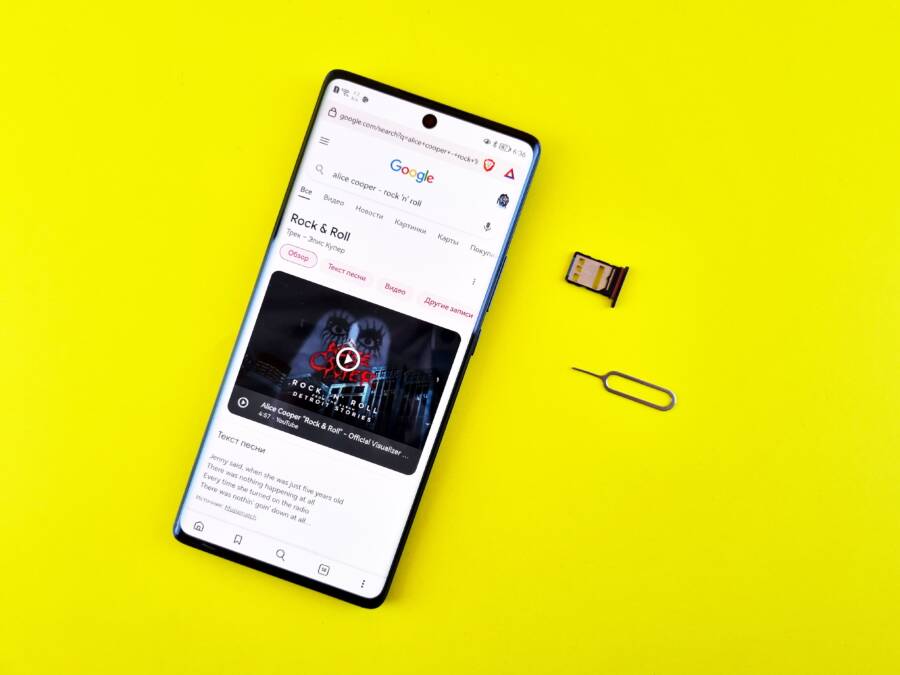
A “SIM not provisioned” error means your cellular network does not recognize your SIM card as an active or valid account holder. When your smartphone displays this message, it stops you from making calls, sending texts, or using cellular data.
You can often resolve this issue by removing and reinserting the SIM card to ensure it has a clean connection. If that fails, restart your smartphone to force the device to re-authenticate with the nearest cell tower. Contacting your carrier is the next logical step if these basic troubleshooting efforts do not restore your connection.
Understanding why this error happens helps you determine whether you have a hardware problem or an account-level restriction. The following sections explain how to identify the cause and apply the right fix to get your service running again.
Understanding What SIM Not Provisioned Means for Your Smartphone
When your smartphone displays a SIM not provisioned error, it indicates a communication breakdown between your device and the cellular carrier network. The SIM card contains a unique identifier that acts as your digital ID for the network. If the carrier system cannot verify this ID, it refuses to authorize your device for calls, texts, or data. This security measure prevents unauthorized users from accessing the cellular network with a stolen or unregistered card.
Identifying Potential Account Restrictions
A common reason for this error is a status issue with your mobile plan. Carriers frequently deactivate SIM cards if there is a payment failure, an expired contract, or a formal request to cancel service. If your account shows as inactive in the carrier database, the network will reject any attempt to authenticate the SIM card. You should log into your online account portal to check for any alerts regarding billing cycles or service suspensions.
Occasionally, the error occurs after you purchase a new smartphone and try to activate an existing SIM card. The system requires time to map your old service details to the new hardware. If this activation process stalls, your device stays in a limbo state where it detects the SIM but lacks the necessary permissions to connect. Most carriers have an automated activation tool that forces the system to recognize the new equipment and provision the card correctly.
Checking for Physical Card Malfunction
Physical damage or oxidation on the gold contact points can also trigger this error. Even tiny scratches or a buildup of debris prevent the smartphone from reading the information stored on the card chip. You can troubleshoot this by removing the SIM tray and inspecting the metal surface for signs of wear. If the card appears clean but still triggers the error, you might need to test it in another device.
If the card fails to work in a second smartphone, the issue is likely with the SIM itself rather than your phone hardware. Over time, the internal circuitry of a SIM card can fail due to heat exposure or simple age. Consider these scenarios to help isolate the problem:
Recognizing Network Synchronization Failures
Sometimes the issue is purely temporary and related to signal handshakes. If your smartphone moves between different cellular zones or recovers from a total signal loss, it might fail to complete the handshake with the nearest tower. This failure often results in a false positive for the provisioned status error.
A simple restart often corrects these synchronization errors because it forces the phone to re-scan for towers and re-send its credentials. If a standard restart does not work, toggling airplane mode for thirty seconds provides the same reset function without a full system reboot. These minor network hitches are common and rarely indicate a permanent issue with your phone or your account.
Easy Steps to Troubleshoot and Fix the Error
You can often resolve the SIM not provisioned error without professional assistance. Most solutions involve simple hardware checks or internal settings adjustments. Follow these steps to restore your cellular connection.
Reseating the SIM Card
Physical connection issues frequently cause SIM errors. Debris or a slight misalignment prevents your smartphone from reading the card properly. You need to remove and inspect the SIM tray to fix this.
Locate the SIM tray pinhole on the side of your device.
Insert a SIM ejector tool or a small paperclip into the hole. Press firmly until the tray pops out slightly.
Pull the tray out gently with your fingers.
Remove the SIM card and inspect the gold contacts for dust, oil, or corrosion. Wipe the metal surface with a clean, dry microfiber cloth. Do not use water or chemical cleaners.
Place the card back into the tray. Pay close attention to the orientation of the chip, as most trays have a notched corner to ensure it only fits one way.
Slide the tray back into the phone until it sits flush with the frame.
Power Cycling Your Device
A standard restart forces your device to clear its temporary memory and initiate a fresh handshake with the nearest cell tower. This process often fixes errors caused by minor communication glitches during tower handoffs.
When you turn your smartphone off and on again, the modem resets its radio connection. It checks the local network for updated carrier configuration files. If the previous connection attempt failed due to a temporary signal drop, the reboot forces the device to re-authenticate your SIM card credentials. Most connectivity issues disappear after this simple refresh.
Updating Network Settings and Software
Outdated system software can conflict with carrier services and block network access. Manufacturers frequently release updates to patch bugs that affect cellular modem stability. You should check for pending updates in your settings menu to ensure your software is current.
Open your settings app and navigate to the System or General section.
Select Software Update to see if a newer version is available.
Install any pending updates and wait for the phone to restart.
In addition to system updates, carrier settings updates contain specific configurations for your mobile network provider. You can usually find these in the About or Network section of your settings. If the option appears, tap Update to refresh your provider information. This process ensures your device communicates correctly with the network towers and recognizes your account status.
When to Contact Your Cellular Service Provider
You should reach out to your cellular service provider when basic troubleshooting steps fail to restore your connection. If you have already restarted your smartphone, checked for pending updates, and verified the SIM card is seated correctly, the issue likely resides within your account or the network registration system. Carriers possess tools that allow them to resynchronize your device with their towers or investigate deeper configuration errors that you cannot fix from your settings menu.
Verifying Account Status
Billing cycles, expired service plans, and account suspensions often cause the SIM not provisioned error. Carriers automatically restrict access to their cellular network if they cannot verify your payment status or if you recently changed your plan details. Even a simple administrative change, such as upgrading your data package, can trigger a temporary block while the system updates your credentials.
You can verify your status quickly through these channels:
Log into your mobile carrier account portal online or via their official app.
Check your notification center for any alerts regarding missed payments or service interruptions.
Review your current plan details to confirm that your account is active and in good standing.
If your dashboard shows that your account is active, you should speak with a customer support representative. Ask them specifically if your IMEI or SIM card ID matches the information in their database. Sometimes, the internal record of your device becomes mismatched during an update, which prevents the network from accepting your signal.
Requesting a New SIM Card
Physical wear and tear on the gold contacts of your SIM card eventually make it unreadable. These small metal plates are sensitive to friction, heat, and moisture, all of which cause oxidation over time. Once the card surface develops scratches or corrosion, your smartphone loses the ability to handshake with the carrier network.
If you suspect your card is damaged, you should order a replacement from your provider. Most carriers offer this service free of charge, especially if your current card is visibly damaged or several years old. You can obtain a new card by visiting a physical retail store to receive one immediately, or by requesting that the provider mails one to your home address.
When you receive the new card, the carrier must perform a final activation step to link it to your phone number. You can often manage this transition through your online account settings or by calling the activation department. Once you insert the new card, your smartphone will likely detect the network and authenticate your connection within minutes. Always dispose of your old card by clipping the metal chip to protect your personal identity information.
Common Questions About SIM Errors
Users frequently encounter confusion when their smartphone displays an error message regarding their SIM card status. These questions often center on why the service stops suddenly or how to distinguish between physical damage and network software issues. Addressing these concerns helps you identify the correct path toward a functional connection without unnecessary frustration.
Will resetting my phone erase my personal data?
Performing a standard restart or even a network settings reset does not delete your photos, messages, or apps. A basic power cycle simply clears temporary cache files and forces the device to reconnect with the nearest cellular tower. Similarly, a network settings reset only clears saved Wi-Fi passwords, Bluetooth connections, and cellular configuration profiles. You should feel comfortable performing these tasks, as they are non-destructive and often clear up communication errors that prevent your smartphone from recognizing the SIM card.
Is my SIM card permanently broken if I see this error?
A “SIM not provisioned” message rarely confirms that your card is permanently broken. Many users mistakenly assume hardware failure when the issue is actually a temporary mismatch in the carrier network database. You can test your card in another compatible device to confirm its health. If the card works elsewhere, your current phone has the problem. If the card fails in multiple devices, you likely need a simple replacement from your service provider.
Why does my phone say this after a software update?
System updates occasionally overwrite or conflict with existing carrier configuration files. When this happens, the smartphone loses the specific instructions needed to authenticate your SIM card with the network. You can resolve this by checking for a pending carrier settings update in your system menu. Manually updating these files aligns your device software with the latest network requirements and typically restores full service functionality.
Does airplane mode help fix provisioning errors?
Toggling airplane mode is an effective way to force your smartphone to perform a fresh handshake with your provider network. This action cuts off all radio frequencies and forces the device to re-register its unique identity upon reconnection. You should leave the setting active for at least thirty seconds to ensure the previous session disconnects entirely. If the error persists after you turn off airplane mode, you can move on to more advanced troubleshooting like checking your account status or reseating the physical card.
Conclusion
Most users resolve the SIM not provisioned error at home by performing basic maintenance. Taking the time to reseat your card or perform a power cycle fixes the vast majority of connectivity failures. These simple steps restore your smartphone functionality without the need for external tools or specialized knowledge.
If these attempts fail, the underlying issue likely rests with your account status or physical hardware wear. Contact your cellular provider to verify your service plan or request a replacement card. Maintaining a healthy connection to your provider is essential for consistent mobile service, so don’t hesitate to reach out for professional support when DIY fixes reach their limit.