A young parent fumbles for a birth certificate while rushing through customs, and a message pops up on their smartphone asking to access a copy they just can’t find. That moment makes the case for keeping legal documents secure yet accessible on your phone. If you travel, work remotely, or handle important contracts, this guide shows you how to store documents safely without turning your phone into a liability.
First, we’ll cover what to store and how to organize it so you can find what you need in a pinch. You’ll learn where to keep copies of passports, driver licenses, birth certificates, wills, property deeds, and contracts, plus practical tips for quick access during travel or emergencies. The aim is to balance convenience with strong protection, so you have fast access without exposing sensitive information.
You’ll also get clear steps to tighten security. We’ll discuss choosing reputable apps, enabling strong encryption, setting up multi factor authentication, and creating safe backups. By the end, you’ll feel confident about managing your documents on a smartphone while reducing the risk of theft or hacks. Secure storage is not just a feature; it’s a reliable habit you can trust in every day.
Weigh the Benefits Against Key Risks
Storing legal documents on your phone can be incredibly convenient, but it also comes with real risks. This section weighs the practical benefits against the key dangers, so you can decide how to store important files without compromising safety. We’ll cover how to balance accessibility with protection, and where to draw the line between convenience and security.
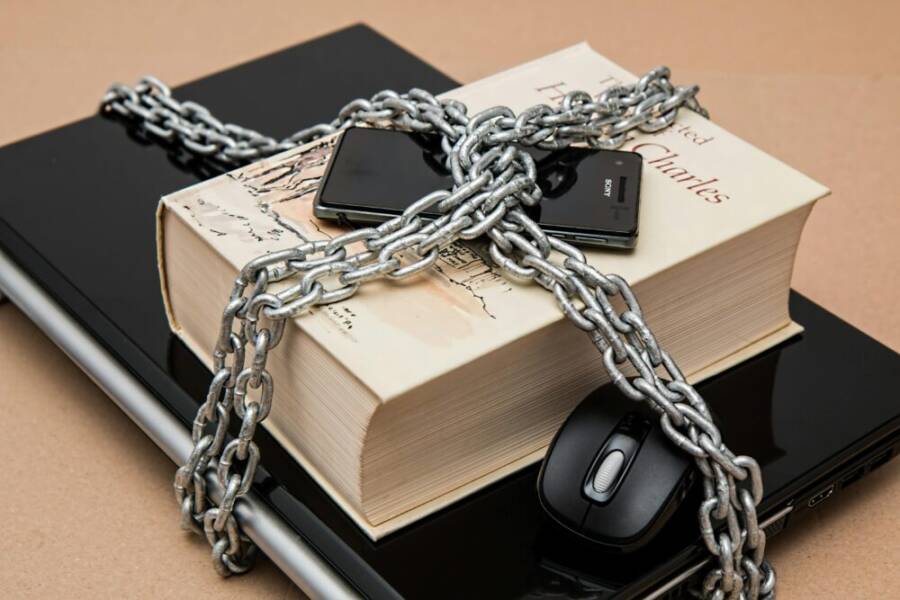
 Photo by https://www.pexels.com/@pixabay
Top Benefits of Phone Storage for Legal Files
Mobile storage shines when you travel or need rapid access to documents. Imagine renewing your ID at the airport or checking a deed while meeting a notary on the go. With the right setup, you can carry essential papers like passports, birth certificates, and contracts in a secure vault on your device, rather than hauling stacks of paper. The advantages are clear:
- Portability on trips: A compact phone can replace bulky folders, making it easy to show proofs of identity or legal documents without backtracking through luggage.
- Easy sharing with your attorney: Secure sharing links and encrypted notes let you collaborate in real time, speeding up responses and approvals.
- Searchability that beats paper: Digital documents are quickly indexed and searchable. Need a clause from a lease or a specific birth date? A quick search saves time.
- Better backup resilience: When paired with offline copies and cloud backups, a few taps can restore crucial files if your phone is lost or damaged.
For context, many travelers rely on on-device storage for speed and convenience, but they pair it with robust security to avoid turning a device into a liability. If you want to see how theft and data risks intersect with mobile use, check reputable sources that discuss smartphone risk trends and the importance of data protection on the go. For example, you can explore insights here: 1 in 10 US smartphone users are victims of theft and related coverage on theft trends worldwide: Increasing rates of phone theft worldwide. These discuss how theft can lead to data exposure even when devices are not actively used.
Main Dangers and How They Happen
While the benefits are real, the risks are equally real. Understanding how they occur helps you build stronger defenses.
- Physical loss or theft: A dropped phone or grabbed device means instant access to copies of sensitive records. In the worst cases, thieves bypass simple locks and exploit unlocked apps. This risk is amplified when devices stay unlocked during travel or in busy public spaces.
- Cyber hacks via phishing and social engineering: Apps and messages can lure you into revealing passwords or granting access to cloud storage. Attackers may pose as legitimate services or individuals you trust, exploiting moments of distraction.
- App vulnerabilities and misconfigurations: Some document apps may not encrypt data end-to-end by default, or they could leak metadata like file names or access timestamps. Poor session management can leave you logged in longer than needed.
- Identity theft risks: Legal documents carry identifiers that scammers could weaponize. Birth certificates, social numbers, and property details are especially sensitive because they can be used to impersonate you or gain access to accounts.
Actionable steps to reduce exposure include enabling strong, unique passwords for document apps, turning on multi-factor authentication, and keeping the device OS and apps updated. Use reputable, well-reviewed apps with explicit encryption claims and robust access controls. For added protection, maintain separate “read-only” offline copies of critical documents on the device and in a trusted backup location. If you want a quick sense of the scale, research shows that theft remains a common gateway for data breaches, underscoring the need for layered defenses and cautious sharing practices. For further context on real-world risks and protective measures, consider exploring trusted sources on mobile theft trends and data security.
- Tip: Consider a dedicated vault app with strong encryption, and avoid storing highly sensitive documents in plain files or unprotected folders. Regularly audit what’s stored on the device and remove items you no longer need.
If you’re building a safety plan, pair these practices with a clear process for emergency access. That includes knowing how to revoke access and how to recover documents from a secure backup if your phone is lost. For more on practical securing steps, see reputable guides and security updates from established sources.
Note: The links above are provided for context and broaden understanding of the risks. Use them to inform your own security choices and to justify the security measures you implement in your own workflow.
Choose Reliable Apps for Secure Document Storage
Storing legal documents on your phone can be incredibly convenient, but only if you choose the right apps and set them up correctly. In this section, you’ll see practical picks for iPhone and Android users, plus a solid bar of features every app should meet. The goal is to keep sensitive files reachable when you need them, while preventing exposure to thieves, scammers, or simple misconfigurations. Below, you’ll find concrete options and quick-start steps you can apply today.
Best Picks for iPhone Users
If you’re on an iPhone, you can pair native protections with trusted third-party options to create a secure vault for scans and PDFs. Start with the Notes app, which supports Face ID or Touch ID locking and end-to-end encryption for protected notes. Create a dedicated folder for legal documents, then lock each note individually to minimize blast radius if your device is compromised. For even tighter privacy in web activity and data handling, enable iCloud Private Relay. This feature helps prevent websites and network providers from building detailed profiles about you while you manage sensitive files on the cloud. When scanning documents, save to a secure Notes folder or the Files app with restricted access, and ensure you always log out of shared accounts after use.
- Notes app with Face ID lock provides a quick, integrated layer of protection. See Apple’s notes security guidance for setup steps and encryption details: https://support.apple.com/guide/security/secure-features-in-the-notes-app-sec1782bcab1/web
- iCloud Private Relay adds privacy for browsing and cloud interactions, reducing trackable data points as you work with documents online: https://support.apple.com/guide/iphone/protect-web-browsing-icloud-private-relay-iph499d287c2/ios
- Quick-start tip: scan documents with your phone’s camera, save as PDFs, and store them in a locked Notes folder or a protected Documents folder in Files. Regularly review access permissions and remove anything you no longer need.
If you want to keep things simple yet secure, you can rely on built-in security features first and add vault-style apps if your workflow requires more layers. Engaging with trusted sources on iPhone security can help you fine-tune settings and stay ahead of evolving threats.
- For additional perspectives on securing valuable information in Apple Notes, consider trusted guides and user experiences that discuss practical workflows and limits of in-device encryption.
Top Choices for Android Phones
Android users have strong, flexible options that work well with legal documents on the go. Google Drive, when protected by strong two-factor authentication (2FA) and a solid backup routine, remains a versatile choice for storage with easy sharing controls and version history. Enable 2FA on your Google account to reduce the chance of account takeovers, and use file permissions to limit who can view sensitive scans. Samsung devices offer Knox, a hardware-backed security platform that creates a trusted execution environment for sensitive files. It helps isolate documents from the rest of the phone’s data, adding a crucial layer when devices are lost or stolen. For local file protection, consider a dedicated Folder Lock app that can password-protect individual folders or files within the device storage.
- Google Drive with 2FA: Strong login security and reliable cloud storage with easy recovery options.
- Samsung Knox: Hardware-backed protection that creates a secure space for files.
- Folder Lock app: Local encryption and access control for sensitive documents.
- Pros: Convenience, cross-device access, and robust recovery options.
- Cons: Cloud storage may still be a target; keep encryption enabled and update apps regularly.
- Quick-start tip: store scanned documents in a dedicated encrypted folder, use 2FA for the Google account, and periodically audit shared links to keep access tightly controlled.
If you’re seeking broader guidance about mobile security on Android, look for reputable security blogs and official support articles that outline best practices for app permissions, backup, and device hygiene. This helps you build a balanced approach that respects both convenience and privacy.
- Helpful reads on Android security practices and secure storage workflows can be found in trusted community and vendor resources.
Must-Have Features in Any App
Choosing the right app means prioritizing features that protect your files now and in the long term. The essentials are straightforward, but they make a big difference in real-world use.
- End-to-end encryption: Your data should be encrypted from the moment it leaves your device until it reaches its destination, with the keys stored only on your devices. This prevents the service provider from reading your documents even if a breach occurs.
- Biometric locks: Use Face ID, fingerprint, or other biometric methods to unlock the app. This adds a barrier against casual access if your phone is lost or stolen.
- No-scan permissions: The app should not require unnecessary access to your camera, microphone, or files beyond what you explicitly need for storage. Avoid apps that request broad, nonessential permissions.
- Regular updates and active maintenance: Security is not a one-off effort. Apps should receive frequent updates that address new threats and fix vulnerabilities. If an app hasn’t been updated in a long time, avoid it.
- Clear audit trails and access controls: Look for features like activity logs, per-file permissions, and the ability to revoke shared access quickly. You should be able to see who accessed a document and when.
- Transparent encryption claims: Prefer apps that publish their encryption standards and provide independent verification where possible.
- Offline access with secure backups: Ensure you can view critical documents without an internet connection and that encrypted backups exist on a trusted cloud or local device.
- End-to-end encryption and biometric locks protect your most sensitive files.
- Avoid apps that push frequent prompts to grant additional permissions or advertise free tiers without ongoing updates.
- A practical setup combines on-device vaults for offline access with encrypted cloud backups for resilience.
- Regularly review your security posture, especially after OS updates or changes in your workflow.
A practical approach is to test a couple of reliable apps, then standardize on one workflow. This keeps security consistent and reduces the chance of gaps. For more background on what to look for in encryption and access control, consult reputable security guides and vendor documents.
- When selecting, verify the app’s encryption model and read user reviews about updates and incident responses. This helps you avoid tools that compromise security for features.
External resources can provide broader context on encryption practices and app security standards. Consider reviewing trusted sources that discuss how to keep your documents safe while staying productive on a phone. For example, you can explore guidance here: https://www.apple.com/privacy/ and https://www.google.com/intl/en_US/security/partnerships/.
By choosing reliable apps and applying disciplined security habits, you’ll protect legal documents without sacrificing the convenience you expect from a mobile life. Keep your device updated, enable strong authentication, and routinely prune outdated files. The result is a secure, accessible library of important papers right at your fingertips.
Boost Your Phone’s Built-In Security
Your phone is a pocket vault for legal documents. Locking it down with strong credentials and trusted protections keeps sensitive files out of reach while staying accessible when you need them. In this section, you’ll learn practical steps to set up robust locks, enable encryption, and limit how apps and services access your files. Think of it as building a layered shield: a complex key, a biometric gate, and controlled access paths all working together. As you read, imagine your smartphone as a secure desk drawer that only you can open.
Set Up Strong Locks and Biometrics
Transition from a simple PIN to a complex passcode, and enable biometrics to speed access without weakening security. Start by choosing an alphanumeric passcode that’s long and unique; avoid predictable patterns or birthdays. Then turn on biometrics, such as Face ID or fingerprint recognition, to add a quick unlock method that becomes harder for someone else to imitate.
Steps to implement:
- Change from a basic PIN to a complex code: go to Settings > Screen Lock and select Password or Alphanumeric Passcode. Create a code with at least 8 characters, mixing letters, numbers, and symbols.
- Enable biometrics: follow prompts to add your fingerprint or face data. Use the same method across devices if you use multiple ecosystems.
- Test recovery options: verify a trusted phone number, backup email, and a secure recovery code. Ensure you can regain access if biometrics fail or you replace the device.
- Practice routine checks: periodically update your passcode and review which apps have lock access. Keep your device OS and apps current to minimize vulnerabilities.
For trusted guidance on biometrics and passcodes, see Apple’s biometric security overview and related setup steps: https://support.apple.com/guide/security/biometric-security-sec067eb0c9e/web. You can also review Android’s guidance on securing your device and enabling biometric protection: https://www.android.com/articles/how-to-secure-android-phone/. A practical note: pairing a strong passcode with biometrics creates a reliable gate that balances convenience with defense.
Turn On Encryption and Remote Wipe
Encryption is the backbone of data protection on your phone. It ensures that even if thieves access your device, the files stay unreadable without the correct key. Verify that encryption is active on your device and configure remote wipe so you can erase everything if the device goes missing. Then link this protection to your legal documents by using trusted storage apps that offer end-to-end encryption.
How to verify encryption and set up remote wipe:
- Confirm device encryption is enabled: on most devices, encryption starts automatically when you set a screen lock. Check in Settings > Security > Encryption to confirm status.
- Enable Find My Device or Find My iPhone: turn on the service and ensure location tracking is active. Use the feature to locate, lock, or erase your device remotely if it’s lost or stolen.
- Set up erase capabilities: in Find My Device or Find My iPhone, enable remote erase with a secure lock screen. Practice a test erase on a nonessential file to confirm the process works.
- Link to legal document protection: use apps that offer encrypted storage and allow you to revoke access quickly. Keep offline backups in a separate secure location as an added safeguard.
For a broader understanding of protecting iOS and Android devices, consult reliable sources on device security practices: Apple’s privacy and security resources (https://www.apple.com/privacy/) and Google’s security partnerships page (https://www.google.com/intl/en_US/security/partnerships/). These references help you stay current on encryption standards and device-level safeguards.
Limit App Access to Your Files
Apps often request access to files, cameras, and cloud storage. Limiting permissions reduces the risk of data leakage if a app is compromised or behaves unexpectedly. Regularly auditing app permissions and adopting a disciplined access policy keeps your legal documents safer on the go.
Practical steps to limit access:
- Review permissions: on both iPhone and Android, regularly check which apps can view or modify your documents. Remove unnecessary permissions, especially for background access.
- Use a VPN on public networks: a reliable VPN reduces exposure when you sync or view sensitive files over public Wi-Fi.
- Schedule regular audits: monthly checks of which documents are in cloud backups and which apps have access. Remove anything you no longer need or use.
- Keep a cautious mindset with sharing: if an app or link requests access to your cloud storage, verify the request before granting. Prefer share links with expiration dates and restricted access.
Extra pointers: a well-structured workflow reduces risk. Store highly sensitive items in an in-app vault or a dedicated encrypted folder, and avoid leaving documents in plain folders. For further guidance on how to tighten file access, see the Android security article on securing Android phones and the iPhone security guidance on protecting data and apps. You can also explore general security best practices from reputable sources to stay aligned with evolving threats.
Organize Files and Set Up Backups
Storing legal documents on your phone pays off when you need quick proof or a reliable copy on the move. But organization matters just as much as security. Start with a simple system you can maintain. Use clear categories, consistent naming, and a robust backup plan. When you can find a file in seconds, you reduce stress in emergencies and save time during travel or legal processes. Below are three focused subsections to help you sort, protect, and recover your documents with confidence.
Smart Ways to Sort Your Documents
Organize by category first, then add tags and strict naming rules so you can locate items fast. Create top level folders for ID, property, and health documents. Within each, use subfolders like “birth_certificate,” “passport,” or “deed” to keep things tidy. Naming conventions matter. Use a predictable pattern such as: DocumentType_TypeDate_ClientOrCase. For example: passport_US_2024-08-01 or birth_certificate_CI_2023-05. Tags can supplement file names for quick searches, especially when a document touches multiple categories. If you scan contracts, add a tag like #contract or #lease to help with cross-referencing. Regularly prune outdated copies and archive anything you rarely need.
Tip: keep a small, offline copy on your device and a separate backup in a trusted cloud location. See file naming experts for best practices and structure examples: “File Naming Conventions” and other authoritative resources. See also templates like law firm file trees for reference.
Key takeaways
- Organize by broad category, then refine with subfolders
- Use a consistent naming pattern for easy search
- Add tags to capture cross-category relevance
- Audit and prune periodically to keep the system lean
Safe Backup Options That Protect You
Backups are your safety net. Rely on a mix of cloud and local copies, with strong security on each layer. Use iCloud or Google Drive with two factor authentication and strong app passwords to guard access. Local USB backups provide an offline option that’s immune to cloud breaches. For regularity, set a backup cadence you can maintain, such as weekly for active documents and monthly for archives. Keep offline copies on a USB drive or encrypted external disk and store it in a secure location. When possible, rotate backups so you’re not depending on a single point of failure.
If you travel often, a portable drive or encrypted USB paired with a separate cloud backup can save you in case a device is lost or stolen. For additional protection, choose backup services with end-to-end encryption and strong access controls. Maintain a quick restore guide so you can recover crucial files in minutes rather than hours.
Further reading and practical guidance on trusted backup practices can help you sharpen your approach. For example, you can explore how file naming and structure support reliable backups, and review cloud providers that emphasize encryption and access controls. Helpful context and guidelines can be found in trusted resources about file management and security best practices: File Naming Conventions, Ten Steps to Better Legal File Naming Conventions, and DIY Folder Structures.
Key takeaways
- Use a layered backup strategy (local + cloud)
- Enable two factor authentication and strong passwords
- Encrypt sensitive backups and store offline copies separately
- Create a simple restore procedure so you can act fast
Handle Loss or Access Issues
Think through what happens if your phone goes missing or you lose access to your cloud account. Immediate steps help you regain control and minimize risk. First, perform a remote lock and erase if necessary to prevent data exposure. Report the theft or loss to your carrier and local authorities as needed. Then, switch to your paper copies and a trusted backup while you restore access. Keep a hard copy of essential documents in a safe place as a safety net, such as a laminated ID or a small folder with vital records. This approach ensures you can continue with essential tasks while you recover digital access.
In the event of access issues, activate account recovery options for cloud storage and any document apps you use. Update passwords, review linked devices, and revoke access on unfamiliar sessions. If a device is recovered, re-authenticate and re-secure it before returning to full use. Planning ahead means you won’t be scrambling when trouble hits; you’ll have a clear, practical path to regain control quickly.
Conclusion
Storing legal documents on your phone is not a set and forget task. It requires a clear plan, smart app choices, solid device defenses, and a reliable backup routine. The key steps are simple: assess the risks, pick trusted apps, secure the device, and organize with dependable backups.
First, assess the risks and decide where you draw the line between easy access and strong protection. Identify which documents truly need mobile access and which can stay offline. This mindset helps you avoid turning your device into a liability.
Second, pick apps that offer real security. End to end encryption, strong access controls, and frequent updates should be non negotiable. Test a couple of options, then settle on one workflow and stick with it. Regularly review permissions and revoke access you no longer need. If you use a cloud option, enable two factor authentication and keep offline copies as a safety net.
Third, lock down your device. Set a strong, unique passcode and enable biometrics. Turn on device encryption and remote wipe. Use a trusted storage app with in app vaults for offline access, and keep critical files in a protected folder that you audit every month. The goal is a layered shield that stops casual snoops and buys you time if a device is lost.
Fourth, organize and back up with care. Use a simple folder structure and consistent naming. Maintain at least two backups, one cloud and one offline. Rotate backups so you are never depending on a single point of failure. Create a quick restore guide so you can recover fast.
If you take one practical step today, scan a single document and save it in a secure, organized location. Don’t let complacency creep in; the peace of mind from these practices is priceless. Trust these methods to keep what matters safe, accessible, and ready when you need it. For more practical tips, subscribe and stay updated.