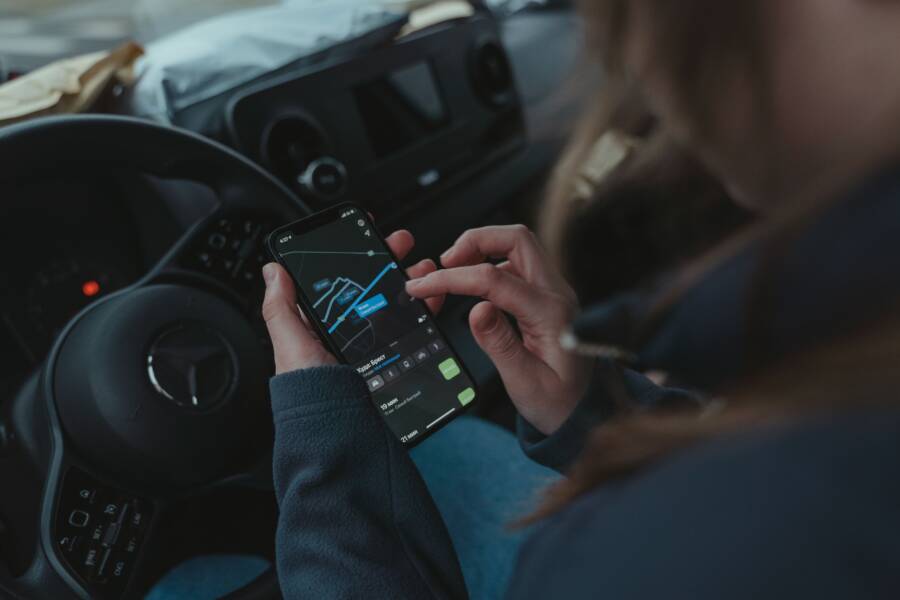
Your phone heats up during navigation because the GPS hardware, mobile data, and screen brightness work together at full capacity. This constant demand for power forces the processor to generate excess heat to keep your maps updated.
You can fix this by lowering the screen brightness, removing bulky cases, or mounting the device where it receives airflow. These small adjustments prevent the hardware from throttling and help your smartphone stay cool during long drives.
Here are the most effective ways to stop your device from overheating while you travel.
Understanding Why Navigation Makes Your Smartphone Hot
Navigation tasks push hardware components to their physical limits. Your smartphone generates heat because the processor, graphics chip, and cellular antenna work in unison to track your location. When these parts run simultaneously, the device produces more thermal energy than the chassis can release. This common issue often happens during long road trips or daily commutes. Understanding these mechanical pressures helps you prevent performance throttling or unexpected shutdowns.
The Impact of High-Brightness Screens on Battery Temp
The display is the largest power consumer on your smartphone. When you set the brightness to its maximum level, the screen requires significant electrical current to push light through the liquid crystal or diode layers. This constant flow of electricity creates resistance and internal heat.
Charging the device while navigating adds another layer of thermal stress. The battery management system generates extra heat during the chemical reaction of rapid charging. If the screen runs at peak brightness during this process, the heat from the display combines with the warmth from the battery. This thermal buildup often leads to a noticeable increase in surface temperature. You can manage this by enabling auto-brightness or dimming the display when direct sunlight does not hit the screen.
Data Usage and Real-Time Map Processing
Navigation relies on constant data exchange to provide accurate routes. Your smartphone maintains an active connection to GPS satellites and cellular towers to update your position every second. These radios remain in a high-power state to ensure your position on the map does not lag.
Processing these map tiles also forces the central processor to work harder. Modern mapping software renders complex, high-resolution graphics that change as you move. Your phone performs the following tasks to maintain this functionality:
It continuously calculates your current coordinates against satellite signals.
It fetches fresh traffic data from remote servers over mobile networks.
It renders graphical overlays to show your path in real time.
This constant loop of calculation and data transmission creates a steady rise in internal temperature. If you rely on mobile data instead of pre-downloaded maps, the antenna works even harder to sustain a strong signal. This extra labor keeps the processor from entering a low-power mode, which traps heat inside the casing. Storing maps offline reduces this load and allows the device to stay cooler during your journey.
Effective Ways to Fix a Phone That Gets Hot While Using Navigation
You can stabilize your device temperature by optimizing how you position the hardware and reducing the load on your system. These adjustments prevent your smartphone from overheating when you rely on GPS for long periods.
Optimal Placement to Keep Your Device Cool
Where you mount your smartphone significantly influences its operating temperature during travel. Avoid placing the unit directly in the path of dashboard air vents if your heater is running, as this forces hot air directly onto the chassis. You should also keep your device out of direct sunlight. Sunlight hitting the glass screen quickly raises internal temperatures beyond safe limits.
The best location for your smartphone is within the path of your vehicle air conditioning. Position the mount so that cool air flows across the back of the device. This active cooling helps dissipate the heat generated by the processor and display. If you lack an air-conditioned vent mount, try to find a shaded spot on your dashboard that stays away from sunlight.
Reducing Background App Load During Travel
Every app running in the background demands CPU cycles and consumes memory. Your smartphone processor manages these concurrent tasks by increasing its clock speed, which generates heat. Closing unused applications before you start your navigation ensures the processor focuses strictly on mapping data.
Take a few seconds to clear your recent apps list before hitting the road. Music players or messaging tools often stay active in the background, drawing power and draining your battery. By limiting the number of active processes, you allow the system to run more efficiently. This reduction in background activity lowers the thermal load and keeps the navigation software running smoothly.
Adjusting Display Settings for Thermal Efficiency
The display screen is a major source of heat in any smartphone. High brightness settings require more power, which creates thermal buildup inside the casing. You can manage this effect by using system settings designed for efficiency.
Enable dark mode in your navigation software and system settings. Dark colors require less energy to display on modern screens, which reduces the total electrical current flowing through the display layers. You should also turn on auto-brightness. This feature adjusts the light output based on your environment, preventing the screen from staying at maximum brightness when it isn’t necessary. These simple changes keep your device cooler without sacrificing your ability to see the route.
Preventing Future Overheating Issues While Driving
Maintaining a stable internal temperature for your smartphone during navigation is about managing heat buildup before it begins. Hardware components produce thermal energy during standard operation, and external conditions often amplify this effect. By adjusting your habits and hardware configuration, you stop performance drops and preserve long-term battery health.
The Role of Case Design in Heat Dissipation
Your phone case acts as a barrier to heat transfer. Most cases use materials like silicone, rubber, or thick plastic to protect the chassis from drops. While these materials are excellent for impact absorption, they are poor at conducting heat away from your device. A thick case traps the thermal energy produced by the processor during GPS navigation.
The heat gets stuck between the back of the phone and the interior of the case. Because the heat cannot escape, the internal temperature rises quickly. This forced insulation triggers thermal throttling, which slows down your processor to prevent damage.
Removing your case before a long drive is a simple way to allow for better airflow. The bare metal or glass back of a smartphone is much better at radiating heat into the surrounding air. If your mount requires a case for stability, look for a thin, hard-shell cover with venting holes instead of a bulky, padded option. Switching to a slim design allows the device to breathe while you travel.
When to Use Offline Maps to Save Your Processor
Continuous mobile data usage keeps your antenna in a high-power state. Navigation apps constantly fetch fresh map tiles, traffic data, and route updates from remote servers. This requires your smartphone to keep its cellular modem active at all times. The modem consumes significant power and generates localized heat during this process.
Downloading maps in advance for your entire route removes the need for this constant data exchange. Once you save the map data locally, the device no longer needs to work hard to pull new information over the network. The radio can operate at a lower power level, which reduces the total thermal load on the processor.
You should download map regions before you leave your home or any location with stable Wi-Fi. This strategy offers several benefits for your device temperature:
The cellular antenna works less to maintain a constant stream of map data.
The processor spends fewer cycles rendering and caching incoming map tiles.
The battery drain is slower because the hardware avoids frequent network requests.
Using offline maps also protects you in areas with poor cellular service. You keep your GPS tracking accurate without the device struggling to ping distant towers. This creates a more reliable and cooler experience during your road trip.
Quick Answers to Common Questions
Users often encounter heat issues while using navigation apps, so finding fast, reliable information is essential. Here are answers to the most frequent questions about managing your device temperature during long drives.
Can I charge my phone while using GPS?
Charging your device while using GPS adds significant heat because the battery draws current while the processor runs at full capacity. If your smartphone feels hot, unplug it for a while to let the temperature drop. If you must charge, use a slow-charging port rather than a high-wattage fast charger to reduce the thermal energy created by the battery.
Does a phone case cause overheating?
Yes, most cases act as insulators that trap heat inside the chassis of your smartphone. Materials like thick silicone or rubber prevent the device from dissipating heat into the air. If you notice your phone becoming warm during navigation, removing the case is a quick and effective way to lower its temperature.
Is it safe to use my phone while it is hot?
Modern devices include safety features to protect hardware from extreme heat. If your smartphone reaches an unsafe level, it will automatically throttle performance, disable non-essential functions, or shut down entirely. While this prevents permanent damage, frequent overheating can degrade your battery health over time.
How do I know if my navigation app is the problem?
You can identify if your app is the culprit by checking your settings. Most modern apps offer battery and thermal management options, such as low-power modes or reduced graphical detail. If your device stays cool during other tasks but heats up only when running maps, try adjusting these app-specific settings to reduce the strain on your processor.
Does mounting position change the device temperature?
Placement is one of the most important factors for thermal management. Keeping your smartphone away from direct sunlight is necessary because solar radiation quickly heats the screen and internal components. If possible, mount your device near an air conditioning vent to provide active cooling, which helps offset the heat generated by constant GPS signal processing.
Conclusion
Managing your device temperature during navigation helps maintain consistent performance and battery health. Simple habits like removing your case, mounting your smartphone in the path of airflow, and downloading offline maps prevent the system from working too hard.
These small, intentional changes keep your hardware running within safe thermal limits. You save your device from unnecessary stress while ensuring a reliable experience on every trip.