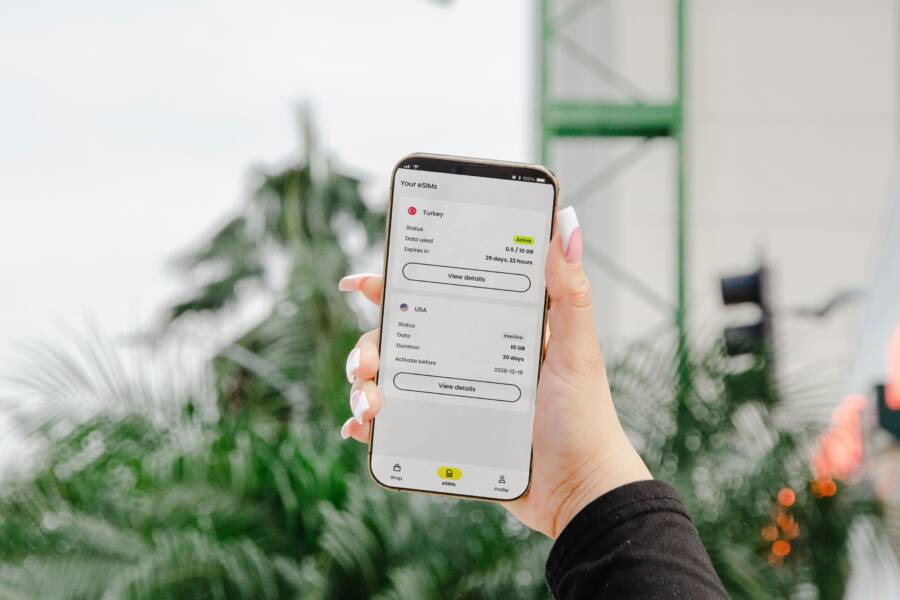
If your smartphone refuses to run two eSIM profiles at the same time, you are likely hitting a wall caused by hardware constraints or conflicting software settings. Most users struggle with this because carriers and manufacturers often hide these limitations behind vague error messages during the activation process.
Dual eSIM capability relies on both your device modem and your current operating system configuration. If one of these components prevents the profiles from communicating, you cannot maintain two active connections simultaneously. You can usually fix this by updating your network settings or adjusting the primary data toggles on your device.
Check your specific model documentation below to confirm if your hardware supports dual active profiles.
Understanding Why Your Smartphone Refuses Two eSIMs
Many users encounter friction when attempting to run two active eSIM profiles. While modern hardware often supports this feature, the setup process fails due to device limitations or locked carrier software. Identifying the root cause requires checking your specific technical specifications before troubleshooting settings or contact support.
Checking Your Hardware Compatibility
Not every device equipped with eSIM technology allows for two active profiles at once. Many older models support eSIM but restrict the radio to a single active network connection. You must confirm your specific device model supports dual active eSIM profiles before you attempt to activate a second line.
You can verify this information within your device settings. Open the Settings app and navigate to the About Phone or General section. Locate the Model Name and search for it on the manufacturer website. Check the specifications for SIM support or network connectivity. Look for terms such as Dual SIM with two active eSIMs or Dual eSIM support.
If your smartphone shows single SIM or hybrid SIM capability, it might only support one active eSIM alongside a physical SIM card. In these cases, you cannot run two eSIMs simultaneously. Knowing this limitation saves you time that you might otherwise spend attempting software resets or carrier calls.
Software Restrictions and Carrier Locks
Carrier locks prevent your device from registering with multiple networks, even if the hardware supports dual eSIMs. If you purchased your phone through a mobile provider, the device may be software-locked to that specific network. This restriction prevents the activation of any secondary eSIM profile from a different provider.
Operating system versions also affect how your device manages multiple network profiles. Outdated software can contain bugs that interfere with the dual SIM manager or cause conflict during the handoff between two profiles. Manufacturers frequently release updates to fix these specific network configuration errors.
Keep your operating system updated to maintain stability. Navigate to your system settings, select Software Update, and verify that you run the latest version. If an update is available, install it and restart the device to clear pending processes. This simple action resolves most conflicts where the device recognizes the hardware but refuses to toggle the second eSIM status. If the issue persists after an update, verify with your carrier that your specific account plan permits dual SIM usage.
Practical Steps to Fix Dual eSIM Connection Issues
When you manage two eSIM profiles on your smartphone, unexpected conflicts often arise between network handoffs. These issues typically stem from improper data routing or corrupted profile configurations within the operating system. You can resolve most connectivity problems by manually adjusting your cellular settings or resetting the specific eSIM profiles that fail to connect.
Managing Your Cellular Data Settings
Your smartphone needs clear instructions on which eSIM to prioritize for mobile data. If both profiles attempt to access the network simultaneously without a defined preference, the modem may drop both connections. You must configure the data settings to ensure one profile remains the primary source while the other handles voice and text services.
To adjust these settings, open your cellular menu in the device settings. Look for an option labeled Cellular Data or Mobile Data. You will see a list of your active eSIM profiles. Select one profile to be the primary data source. Toggle off the setting that allows your device to switch data automatically between SIMs. This prevents the phone from jumping between networks when one signal weakens, which often causes the secondary eSIM to lose its registration status.
If you find that your data connection still drops, try these adjustments:
Assign specific contact names to each eSIM profile so you can identify which line is active for calls.
Set your primary eSIM as the default for mobile data.
Keep the secondary eSIM active only for voice calls if you don’t need data on that line.
Restart your smartphone after changing these settings to force the modem to re-initialize the connection.
Establishing a permanent primary data line stops the constant negotiation between profiles. This stability allows the secondary eSIM to hold its connection to the tower without interruption.
Reinstalling Profiles for Better Performance
Sometimes, the internal configuration files for an eSIM become corrupted during the initial download or after a system update. When a profile displays a “No Service” status despite being enabled, a fresh installation often clears the bottleneck. You should remove the problematic profile and add it back to the device to refresh the handshake with your carrier network.
Start by navigating to your cellular settings and selecting the eSIM that refuses to connect. Choose the option to remove or delete this eSIM. Note that this action does not cancel your service plan with the carrier, but you might need a new QR code or activation link to add it back. Once the profile is gone, restart your smartphone to flush the remaining network cache.
Follow these steps to re-add the profile:
Select the add cellular plan or add eSIM option in your settings menu.
Scan the original QR code provided by your carrier or enter the manual activation details.
Label the new profile clearly to distinguish it from your primary line.
Allow the phone a few minutes to fully register with the local cell towers.
Re-adding the profile forces your smartphone to download a fresh set of authentication keys from the carrier. This process resolves hidden bugs that standard toggles cannot fix. If the secondary eSIM still fails to connect after a clean install, verify that your carrier hasn’t placed a restriction on that specific line for dual-SIM operations.
Common Configuration Conflicts You Should Avoid
Managing two eSIM profiles on a single smartphone often leads to connectivity hiccups if the configurations clash. These conflicts happen when the device modem, software settings, or carrier profiles struggle to share resources. You can identify these bottlenecks by monitoring how your phone switches between networks and how it prioritizes data traffic.
Avoiding Carrier Overlaps
You might experience registration failures when two eSIM profiles originate from the same network provider. This happens because your smartphone modem expects each active SIM to have a unique identifier. When you install two profiles from one provider, the system occasionally confuses the two digital identities during the handshake process with the cell tower.
The phone essentially treats the two profiles as duplicates. As a result, the device modem may refuse to initialize the second connection, or it might drop the first one entirely. This behavior is common because the carrier network sees two identical signals from the same device and blocks the second request to prevent potential fraud or billing errors.
To prevent this overlap, you should verify that your carrier supports multiple eSIM profiles on a single account. If they do not, your smartphone will likely fail to register both profiles simultaneously. You can test this by checking your carrier account dashboard or contacting their support team to confirm your plan supports dual-eSIM functionality.
If you must use two profiles from the same provider, ask the company if they can provision the second eSIM as a distinct line with unique identification settings. Many carriers require you to manage these as separate account entities to avoid the duplication conflict. If the provider cannot offer this, your smartphone will struggle to maintain both connections regardless of how you adjust the settings.
Furthermore, ensure you label each profile clearly in your settings menu to help the system distinguish between them. Giving each eSIM a unique nickname, such as “Work” or “Personal,” helps the internal OS manage the handoff between profiles more effectively. This minor change reduces the likelihood of the system defaulting to the wrong network when you attempt to place a call or send a text.
If the connection remains unstable, remove both profiles and reinstall them one at a time. After you add the first profile, wait for a full signal display before adding the second. This sequential approach gives the modem enough time to establish a unique registration path for each line. It also prevents the smartphone from encountering a conflict during the initial activation sequence.
When to Contact Your Provider for Help
You should reach out to your mobile carrier when standard troubleshooting fails to resolve dual eSIM connectivity errors. Many hardware issues, account-level restrictions, or network-side provisioning mistakes require professional intervention from a technician. If you have already reset your network settings and reinstalled your profiles without success, your provider is the next point of contact.
Identifying Carrier-Side Issues
Your smartphone may have an active eSIM, but the carrier network might block it from using dual SIM features. Contact your provider if you see specific error messages like “SIM not provisioned” or “Activation unsuccessful” after multiple installation attempts. These messages indicate that your account plan does not permit multiple active lines on a single device.
Mobile providers also maintain an Internal Equipment Identity Register. This database tracks device capabilities, and sometimes the system incorrectly flags a dual-SIM-capable device as a single-SIM model. A customer service representative can verify your account status and manually refresh your line’s provisioning parameters to force a correct registration with the network.
Preparing for Support Calls
Gather specific information before calling your carrier to speed up the resolution process. Technicians need accurate data to diagnose complex dual-SIM conflicts efficiently. Have the following details ready when you reach out to your provider:
Your device model number and current operating system version.
The specific error codes displayed on your screen during activation attempts.
Details regarding whether you are using two profiles from the same carrier or two different providers.
Confirmation that you have already performed a factory network reset.
Write down these details before you start the call. Providing this information prevents the technician from asking you to perform basic troubleshooting steps you have already completed. You can also request that they send a new QR code or activation link if the previous ones show as expired or invalid.
When to Request a New eSIM QR Code
Digital profiles sometimes become corrupted or reach their maximum allowed activations. If you see a message stating that your activation code is invalid or already in use, you need a replacement. Contact your carrier to deactivate the old, unusable profile and generate a fresh digital card.
Some providers offer a self-service portal to request new eSIMs, but others require a direct phone call. Requesting a new QR code is a common, effective fix for persistent “No Service” errors on secondary lines. This step ensures that your smartphone receives a clean set of authentication keys, which often clears out lingering communication bugs between the modem and the network tower.
Conclusion
Dual eSIM connectivity relies on specific hardware support, correct software configuration, and clear network provisioning. Always verify that your smartphone model supports two active profiles before troubleshooting further. If the hardware is compatible, prioritize checking for carrier-level locks or outdated system software that may interfere with the modem.
Reinstalling profiles and assigning a primary data line often resolves conflicts between active connections. If these steps fail, your carrier must verify that your specific plan permits dual usage. Contacting their support team for a fresh QR code is a reliable way to refresh your device credentials.
Keep your device software updated to prevent future connection errors. Regular maintenance helps your phone manage multiple digital lines without conflict.