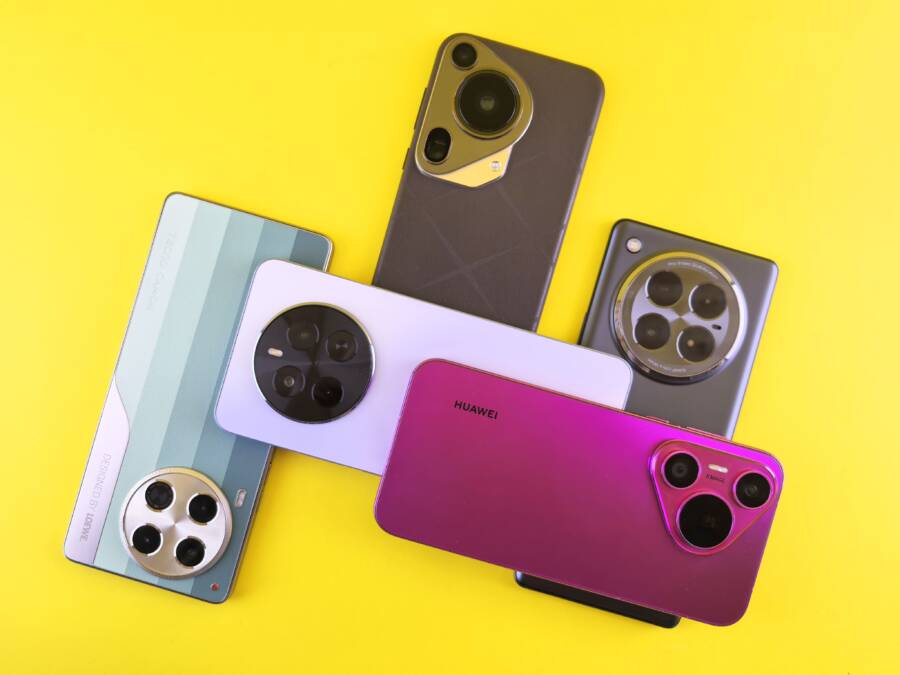
Your phone camera gets hot because high-resolution recording and prolonged use force the internal processor to work at peak capacity. This behavior is normal for any modern smartphone as it manages intensive image processing and sensor power demands.
You can manage this heat by adjusting your settings and environment to keep the device cool. These simple adjustments stop your camera from shutting down during important shots.
Quick Fixes When Your Camera Becomes Too Hot
When your phone begins to feel hot during a recording session, you must act fast to protect the hardware. Immediate intervention prevents permanent damage to internal components and stops the system from forcing a sudden shutdown. By addressing the heat source directly, you allow your device to regulate its temperature effectively and return to normal operation.
Stop Recording and Give the Processor a Break
The fastest way to lower the temperature is to stop the recording process immediately. When you use your camera, the image sensor and the main processor work in tandem to capture, process, and store high-resolution data. This constant activity demands massive amounts of power, which generates significant heat as a byproduct of electrical current moving through the circuits.
Closing the camera app gives these components a necessary rest. Once the app shuts down, the processor stops running intensive real-time image algorithms. You will notice the back of your smartphone begin to cool down within a few minutes of inactivity. Keep the device idle until it reaches a comfortable temperature before you start filming again.
Remove Your Phone Case to Improve Airflow
Many modern cases act as insulators that trap heat against the body of your smartphone. Materials like thick silicone, heavy-duty plastic, or leather prevent the natural dissipation of warmth from the internal heat sinks. If you frequently film in warm environments or record long videos, the case creates an oven effect that accelerates overheating.
Taking the case off is a simple change that exposes the back of the device to the surrounding air. Better airflow allows the heat to escape more efficiently instead of cycling back into the hardware. If you plan to film outside under direct sunlight or in a hot room, remove the case before you press record to keep the system running cool for longer periods.
Smart Settings to Prevent Overheating While Filming
Your phone settings dictate how hard the internal hardware must work during a shoot. By adjusting these configurations, you reduce the thermal load on your processor. These changes help your smartphone remain cool even during long recording sessions.
Lowering the Video Resolution and Frame Rate
The most effective way to prevent heat buildup is to reduce the resolution and frame rate. Recording at 4K resolution forces your smartphone chip to process four times as many pixels as 1080p. This extra workload creates massive amounts of data that push the processor to its limit.
Similarly, jumping from 30fps to 60fps doubles the number of frames your phone handles every second. Each frame requires light sensing, data compression, and storage writes. When you drop to 1080p at 30fps, the processor workload decreases significantly.
Many users find that 1080p at 30fps provides a look that is perfect for social media or casual memories. You gain extra recording time because the hardware operates at a lower, more sustainable temperature. If you do not need the cinematic quality of 4K, stick to lower settings to keep your device stable.
Turning Off Extra Camera Features
Modern phones include advanced features that rely on real-time image processing. While these tools improve the look of your footage, they keep the processor running at high power. Turning off unneeded features prevents the system from generating excess heat.
Consider these adjustments when you prepare to record:
Disable High Dynamic Range (HDR): The phone must combine multiple exposures instantly to create a single HDR frame. This intensive task triggers heat spikes in most smartphone models.
Turn off digital image stabilization: While software-based stabilization is useful, it consumes significant resources as it crops and shifts frames in real time. Use a physical tripod instead to keep your footage steady without taxing the processor.
Limit AI enhancements: Many phones apply filters or scene-recognition algorithms to improve colors or lighting. Turn these off if you plan to shoot for more than a few minutes.
You can often achieve better results by relying on natural light rather than demanding software processing. By disabling these background tasks, your smartphone stays cooler and avoids sudden thermal shutdowns during your best takes.
Environmental Factors That Impact Your Device Temperature
Your smartphone relies on efficient heat dissipation to maintain steady performance during video recording. When you work in warm conditions, the hardware struggles to push internal heat outward, which triggers thermal protection protocols. Understanding these external triggers helps you keep your device stable and prevents unexpected camera shutdowns.
Keep Your Smartphone Out of Direct Sunlight
Solar radiation poses a significant threat to your smartphone even before you start filming. The outer glass and metal casing absorb sunlight, which warms the internal components long before the processor ramps up for high-resolution video. This creates a baseline temperature that is already near the thermal limit of your device.
Once you begin recording, the heat generated by the image sensor adds to this existing solar load. You will find that the camera struggles to stay cool because it cannot shed heat effectively when the ambient surface is already hot to the touch.
Finding shade is the most reliable way to prevent this issue. If you film outdoors, choose a location under a tree, an umbrella, or a building shadow. This simple move prevents your screen and frame from turning into a heat sponge. Your recordings will last longer and your battery will stay cooler when the sun is not beating down directly on the glass.
Avoid Using the Camera in Hot Environments
High ambient temperatures inhibit the cooling process of your smartphone. A phone dissipates heat by transferring it from the internal processor to the outer casing and then into the surrounding air. If the outside air is hot, such as inside a parked car or near a beach during peak hours, this heat transfer stops.
The air around your phone acts like a blanket rather than a cooling medium. When the ambient temperature climbs toward or exceeds 90 degrees Fahrenheit, the internal hardware has almost no capacity to cool itself down. Using the camera in these settings puts your device in a precarious position where it must choose between thermal damage and shutting down your app.
Avoid these scenarios to maintain consistent camera performance:
Hot vehicles: The interior of a car can spike to extreme temperatures in minutes, which causes rapid overheating for any mobile device.
Sand and direct heat: Beach environments combine high air temperatures with reflected light, both of which stress the hardware.
Enclosed spaces: Avoid filming inside small, poorly ventilated rooms that trap heat near your device.
If you must work in these locations, try to keep your smartphone in a cooler bag or use a small portable fan to blow air over the frame while you record. Taking these steps creates a artificial microclimate that allows the device to function as intended.
When Should You Be Concerned About Overheating?
You should worry if your phone becomes too hot to hold comfortably or displays an explicit thermal warning. Modern hardware generates heat during intensive tasks, but crossing the threshold into physical discomfort indicates the internal cooling systems cannot keep up with the load. Once a device reaches these temperatures, you must stop all activity to protect the battery and internal components from potential long-term damage.
Recognizing Normal Versus Excessive Heat
It is normal for your smartphone to feel warm while recording high-resolution video. The processor works hard to manage data, and heat is a natural byproduct of this electrical activity. If you can hold the device without irritation, the cooling systems are functioning as intended.
You need to stop recording immediately if the device feels uncomfortably hot against your skin. Signs that you have reached an excessive heat level include:
The phone surface is painful or uncomfortable to touch.
The screen displays an alert message regarding high temperature.
Performance slows down as the system throttles the processor to save itself.
The camera app closes or fails to save your footage.
If your device exhibits these symptoms, set it down in a cool, shaded area. Do not place it in a refrigerator or freezer, as the sudden temperature drop can cause harmful condensation inside the hardware. Wait for the phone to return to a neutral temperature before you resume usage.
Troubleshooting Persistent Battery Issues
If your device overheats during simple camera tasks, an aging battery might be the culprit. Batteries lose efficiency over time, leading to higher internal resistance during heavy power draws. This resistance generates excess heat that transfers directly to the processor and the rest of the smartphone frame.
You can verify the state of your battery by checking the health settings on your device. Most modern operating systems offer a menu that displays the maximum capacity compared to when the battery was new. If the capacity is significantly below 80 percent, the battery likely struggles to provide stable power under the heavy load required for video recording.
Consider these steps to manage battery-related heat:
Open your phone settings and navigate to the battery health or battery usage section.
Review if specific apps consume more power than expected while the camera is off.
Replace the battery if the system indicates it is degraded or requires service.
Keep the charge level above 20 percent to avoid stressing the chemical components during intensive camera work.
A fresh battery delivers power more reliably, which helps the hardware maintain a stable temperature during long sessions. Checking these settings periodically helps you decide if a simple hardware fix is necessary to stop your camera from overheating.
Conclusion
You can stop your smartphone from overheating by managing your settings, removing restrictive cases, and avoiding direct heat during recording. These adjustments reduce the workload on your processor and allow for better thermal regulation.
Consistent heat management protects your internal components from damage and prevents sudden app shutdowns. Apply these simple steps to ensure your device stays cool while you capture your next video.