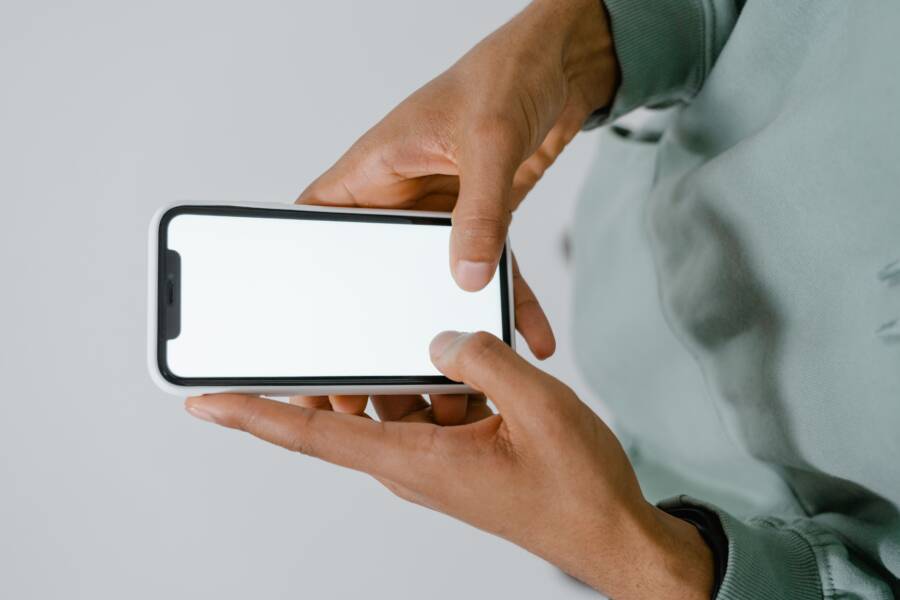
A phone screen that changes size unexpectedly is usually tied to zoom settings, display scaling, gesture features, app glitches, or accessibility options. In most cases, you can fix it without repair.
If your screen seems to grow, shrink, or shift its layout on its own, the problem can feel worse than it is. A smartphone can trigger this behavior after a setting change, a mistyped gesture, or a buggy app update.
The fastest fix is to check the simple settings first, then move on to deeper resets if the issue keeps coming back. Keep reading for the quickest ways to stop the screen size changes and get your phone back to normal.
What usually makes a phone screen change size on its own?
A phone screen usually changes size because of a setting change, a gesture, or a software issue. In many cases, the display is reacting to something you touched without noticing. In others, one app or a hardware problem is sending the wrong signal.
The good news is that the cause is often easy to narrow down. If the whole phone looks bigger or smaller, the problem is usually system-wide. If only one app behaves oddly, the issue is often local to that app or browser.
Accidental zoom and display scaling settings
One of the most common causes is accidental zoom. A quick pinch gesture can enlarge content, and a double-tap may zoom a page or image without you realizing it. On some devices, display size settings also change the way icons, menus, and text appear across the entire phone.
That can make a smartphone seem like it changed size on its own, when the screen itself never changed at all. The layout just uses a different scale. Icons may spread out, text may look oversized, or everything may shrink to fit more on the screen.
Common settings that affect this include:
Display size on Android, which changes how large items appear.
Text size or font size, which can make apps look stretched or cramped.
Zoom settings in browser pages, which stay active until reset.
Display Zoom on iPhone, which enlarges interface elements across the phone.
If the change affects every app, check the main display menu first. If only text looks off, the font setting may be the real cause.
App glitches, browser zoom, and page-level scaling
When only one app keeps changing size, the phone usually is not the problem. Instead, the app may have its own zoom controls, a remembered view setting, or a temporary bug. Browsers are especially known for this, since they can save page zoom levels or react to pinch gestures.
This often happens after an update, a tab reload, or a crash. A website may open at 125% zoom, then stay that way until you reset it. Some apps also cache the last view state, so the layout looks different every time you reopen them.
A quick way to test this is simple:
Open another app and compare the screen size.
Check whether the problem appears in the browser only.
Reset the app or browser zoom to default.
Clear the app cache or restart the app if needed.
If the issue stays inside one app, it usually points to software, not a broken screen.
Accessibility features or touch issues that mimic zoom problems
Accessibility tools can also cause screen size changes. Magnification gestures, zoom shortcuts, and assistive display tools may be turned on by accident. Once enabled, they can make the screen jump, expand, or lock into a larger view with very little warning.
Hardware problems can look the same. A damaged digitizer may read phantom touches, moisture can confuse the screen, and a thick or badly fitted screen protector can interfere with touch input. In those cases, the phone may trigger zoom gestures on its own or act as if someone keeps tapping the screen.
If the display changes size when you barely touch it, look at these signs:
The screen zooms when your fingers are nowhere near a gesture.
Touch input feels delayed, jumpy, or inconsistent.
The problem gets worse near the edges of the screen.
Removing the screen protector changes the behavior.
These clues often point to a touch issue rather than a display setting. That matters, because the fix may be as simple as turning off magnification, or as involved as replacing a damaged screen component.
Quick fixes you can try in under five minutes
Start with the simplest checks first. A screen that changes size is often reacting to a setting, a gesture, or a temporary glitch, so you can usually narrow it down fast. If the problem stops after one quick test, you have a software issue on your hands, not a damaged display.
These fixes work best when you move in order. First, refresh the phone. Then reset any zoom inside the app or browser. After that, check whether accessibility or display zoom is turned on.
Restart the phone and test the problem again
A restart clears small system glitches that can make a screen act strangely. When a phone has been on for days, apps can leave behind temporary errors, and the display can start behaving in odd ways. Restarting shuts those processes down and gives the phone a clean start.
After the reboot, open the same app or page that was changing size. If the screen looks normal again, the problem was likely temporary. If it comes back right away, the issue is still active and probably tied to a setting, app, or touch input.
This quick check also helps you separate software issues from hardware problems. A smartphone screen that still zooms, shrinks, or jumps after a restart may need a closer look at accessibility settings or touch behavior.
Reset the zoom in the app or browser
Next, check whether the problem happens in one app only. If the rest of the phone looks normal, the zoom may be limited to that app or browser tab. Many apps keep their own view settings, and browsers often save page zoom until you change it.
Use the control that matches what you’re seeing:
Pinch out with two fingers if the page is zoomed in.
Pinch in if the content looks too large and shifted.
Open the browser menu and set zoom back to 100%.
Look for in-app display controls, text size options, or reading mode settings.
If the size keeps changing in one browser page, close the tab and reopen it. A saved zoom level can stick around even after you leave the page. That small reset often fixes the problem in seconds.
Turn off screen magnification and display zoom
If text, icons, or the whole interface suddenly looks too large or too small, check the phone’s accessibility and display settings. Screen magnification can be turned on by accident, and display zoom can change the size of everything across the device.
On Android, look in Settings > Accessibility and Settings > Display for magnification, display size, and font size. On iPhone, check Settings > Accessibility > Zoom and Settings > Display & Brightness > Display Zoom. If any of those are active, turn them off or move them back to default.
If the entire interface changes size, the setting is usually on the phone itself, not inside the app.
This step matters because the change can affect every part of the screen at once. In other words, one small setting can make the whole smartphone feel off balance. Resetting it brings the layout back to normal and gives you a clear baseline for the next step if the issue continues.
Check the system settings that change screen size
If your screen keeps changing size, the cause is often hiding in the display menu, not the panel itself. A small change in display size, resolution, or font size can make a phone look like it jumped between layouts. That shift can affect icons, text, and spacing across the whole smartphone.
Start with the system settings before you assume there is a hardware fault. These controls often get changed by accident, especially after a software update or an extra swipe through Settings.
Check display size, resolution, and font size
Display size controls how large icons, menus, and interface elements appear. Resolution changes how much detail the screen shows, and font size changes the look of text inside apps and menus. When one of these shifts, the screen can feel like it suddenly resized itself.
On Android, open Settings > Display and look for Display size, Screen zoom, Resolution, or Font size. Move each setting back to the default or middle option if it was changed. On iPhone, check Settings > Display & Brightness and, if needed, Display Zoom under the display view options. A larger zoom setting makes everything feel bigger, while a smaller one packs more content onto the screen.
A good reset pattern is simple:
Return display size to the default setting.
Put font size back in the middle range.
Restore screen resolution to the phone’s recommended option.
Reopen the app or home screen and compare the view.
If the layout goes back to normal after this, the issue was a system setting all along. If the screen still shifts, keep going and check for features that enlarge the view on purpose.
Review accessibility tools that may be active
Accessibility settings can make a screen look enlarged on purpose. That includes magnification shortcuts, triple-tap zoom, smart zoom, and on some devices, a floating magnifier or lens tool. These features help users read content more easily, but they also cause a phone screen to change size in a way that feels random if you turned them on by mistake.
Look inside Accessibility settings for any zoom feature that is enabled. On iPhone, check Zoom and Accessibility Shortcut. On Android, look for Magnification, Magnification shortcut, or Window magnification. If one of these is active, turn it off and test the screen again.
Some phones also react to gestures that are easy to trigger without noticing. A triple tap, a two-finger swipe, or a shortcut button can activate zoom instantly. If your smartphone keeps enlarging text or the whole display after certain touches, accessibility tools are a strong suspect.
If the screen only changes size after a tap pattern or shortcut, the phone is probably using an accessibility feature, not failing on its own.
Look for gesture settings that trigger accidental zooming
Gesture controls can also make the screen seem unstable. A pinch, double-tap, edge swipe, or shortcut gesture may be set to zoom content during normal use. That can happen in the browser, in map apps, or across the system if gesture-based zoom is turned on.
Check for gesture settings in both the phone and the apps you use most. Browser zoom, one-handed mode, quick launch gestures, and edge panels can all change how the screen behaves. If you swipe from the edge and the layout grows or shifts, that gesture may be tied to a shortcut action.
These are the settings worth checking first:
Pinch-to-zoom in browsers and image viewers, which can stay active on pages.
Double-tap zoom, which often enlarges content without much warning.
Edge swipe shortcuts, which may open panels that change the visible area.
One-handed mode, which shrinks the interface to one side of the screen.
Gesture navigation helpers, which sometimes overlap with display shortcuts.
Try turning off one feature at a time, then test the screen in the same app or page. That makes it easier to spot the real trigger. If the phone stops resizing the moment a gesture is disabled, you have found the source of the problem.
If the problem happens in just one app, fix the app first
If only one app changes size, start there before you touch the whole phone. That usually points to an app-level zoom setting, a bad cache file, or a glitch after an update. The rest of the smartphone can stay perfectly normal while one app keeps acting up.
This matters because the fix is often simple. A browser, social app, or reading app can save its own view state and reopen in the wrong size every time. Once you reset that app, the screen often returns to normal right away.
Update, force close, or reinstall the app
Start with the easiest fix first. Update the app in the App Store or Google Play, then close it completely and open it again. If the issue started after a bug or failed load, that alone may clear it.
If the app still changes size, force close it and relaunch it. On both iPhone and Android, a full close clears the app from memory and can remove a stuck display state. When that does not help, delete the app and install it again for a clean reset.
Use this order:
Install the latest app update.
Force close the app and reopen it.
Reinstall the app if the problem keeps coming back.
A reinstall is useful because it removes old files that may be holding a broken zoom level. It also gives the app a fresh start without touching the rest of your phone.
Clear cached data or reset app settings
On Android, cached data often causes this kind of problem. An app can remember a broken zoom state, then reopen with the same bad layout every time. Clearing the cache removes that stored view data without deleting your account.
Look in the app info menu for Storage or App info, then clear the cache first. If that does not help, clear app data only if you’re comfortable signing back in and setting the app up again. That step is stronger, because it resets more of the app’s stored behavior.
Some apps also keep their own settings page. If you see options for layout, text size, or reading view, reset those too. A cached bad setting can act like a sticky note on the screen, and it keeps coming back until you remove it.
Check the app’s own display or text controls
Many apps have built-in display controls that override the phone’s system settings. Reader modes, text size tools, and zoom controls can make one app look larger or smaller even when the rest of the smartphone is fine. Browsers, e-readers, email apps, and news apps use these settings often.
Look for options such as:
Reader mode, which changes the layout and font size.
Text size, which may be separate from the phone’s main font setting.
Page zoom, which can stay saved for that app or site.
View settings, which often control spacing, margins, or line height.
If the app has its own zoom level, set it back to default and test again. That small reset can solve the problem without changing anything else on the phone.
When the screen itself may be the problem
Sometimes the settings are fine and the app is fine, yet the display still behaves oddly. In that case, the phone screen itself may be sending bad touch signals, or something around it is interfering with the panel. That can make a smartphone look like it keeps changing size when the real issue is touch input, not the image on the screen.
Signs of ghost touch or digitizer damage
Ghost touch is when the phone reacts as if someone tapped it, even when you did nothing. The digitizer, which is the touch layer under the glass, can also get damaged and start reading touches in the wrong spot. When that happens, the screen may zoom by itself, jump between views, or open menus without warning.
These are the clearest warning signs:
The screen moves, taps, or zooms when your hands are away from it.
Touch works in some spots but fails or jumps in others.
The problem gets worse near the edges, corners, or one side of the panel.
The phone opens apps, closes windows, or types random letters on its own.
A restart helps for a while, then the issue returns.
A cracked screen does not always stop touch completely. Instead, it can cause the display to act like a bad microphone, picking up noise that is not really there. If the screen size changes when no gesture should trigger it, that points to a hardware fault more than a software setting.
Protective cases, screen protectors, and moisture problems
Accessories can interfere with touch input more than most people expect. A tight case may press on the edge of the screen. A thick or low-quality screen protector may block touch sensitivity or create false taps. If the protector is misaligned, the phone may read swipes and pinches in the wrong way.
Moisture can cause even stranger behavior. A damp screen, sweaty fingers, or humidity trapped under a protector can confuse the touch layer. The phone may zoom in, shrink content, or behave as if multiple fingers are touching the glass at once.
Check these common triggers:
Remove the case and test the phone for a few minutes.
Take off the screen protector if touch feels unstable.
Dry the screen and your hands before testing again.
Avoid using the phone in heavy humidity, rain, or near steam.
Look for lifted edges, bubbles, or trapped moisture under the protector.
If the display settles down after removing an accessory, you have your answer. That kind of issue is simple, but it can look like a serious screen problem at first. A clean, dry panel often behaves very differently from one covered by pressure or residue.
When to back up data and get repair help
If the screen keeps changing size after you reset settings, remove accessories, and restart the phone, the problem may be beyond a DIY fix. At that point, backing up your data should come first. A failing screen can get worse fast, and a broken digitizer can make it hard to unlock the phone, enter a passcode, or approve a backup later.
Back up your files before repair if you still can:
Save photos, videos, contacts, and messages to cloud storage or a computer.
Sync any app data that matters, such as notes or two-factor codes.
Confirm that your backup finishes before you send the phone in.
Keep your charger, case, and any removed accessories with you, but not on the device.
If touch starts failing more often, back up the phone before the screen becomes hard to use.
You should get repair help when the issue spreads across apps, happens after a drop or water exposure, or keeps coming back after a restart. A technician can test the digitizer, the display connector, and the panel itself. If the screen hardware is failing, replacing the display assembly is usually the real fix.
Conclusion
A phone screen that changes size usually comes down to a zoom setting, a display option, or a buggy app. The best troubleshooting order is simple, check the app or browser zoom first, restart the phone, then test one app at a time.
If the screen still shifts, review accessibility features and display settings, since those can change the whole interface on a smartphone. When the problem only appears after taps, swipes, or pressure on the glass, look for touch damage, a screen protector issue, or moisture.
Most resizing problems are caused by settings or app glitches, and only a smaller number need repair. Once you narrow down where the change starts, the fix is usually easier than it first seems.