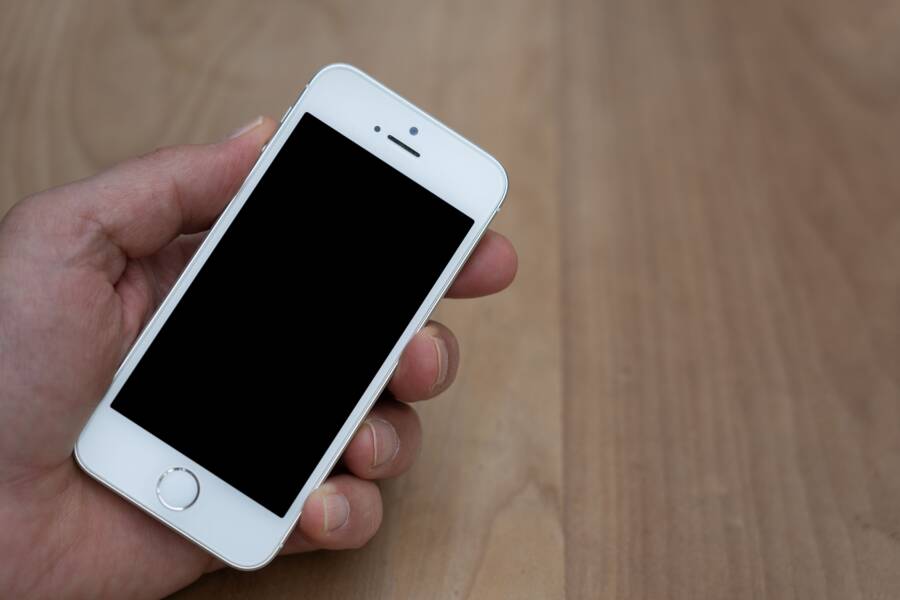
Dead spots after a drop usually point to physical screen damage, a loose internal connector, or pressure damage, and some fixes are simple while others need repair. If part of your phone screen no longer responds, the problem can range from a stuck software layer to a broken display panel, so acting fast matters.
A damaged screen can get worse after more taps, more pressure, or another fall, so it helps to check the symptoms early. This guide shows you how to tell whether the issue is minor or serious, what you can try at home, and when a repair shop is the safer move for your phone or smartphone.
What dead spots on a phone screen look like and why they happen
Dead spots are the parts of a phone screen that stop responding to touch, even though the display may still look normal. On a smartphone, that can show up as one dead corner, a thin strip that misses taps, or a larger patch where nothing happens at all.
The key clue is consistency. If the same area keeps failing after a drop, the problem is usually physical damage inside the screen, not a temporary glitch.
Easy signs your screen has touch damage, not just a software glitch
Start with simple touch tests. Open an app with icons across the screen and tap each one. Then type on the on-screen keyboard and slide your finger across every row. If one zone keeps missing taps or swipes, that area is likely damaged.
A restart can help rule out a frozen app or system hiccup. If the problem stays, try safe mode if your phone supports it. Safe mode disables third-party apps, so it helps separate software trouble from screen damage.
Watch for patterns like these:
One exact area fails every time: That points to hardware damage.
Touches work after a reboot, then fail again: A software issue is more likely.
The screen shows no crack, but touch still fails: Hidden damage under the glass is common.
Gestures work around the spot, but not in it: The touch layer may be damaged in a small section.
If the same spot fails across different apps and after a restart, treat it like hardware damage.
How a drop can create dead zones under the glass
A drop can hurt the screen without leaving a clean crack on the outside. The impact may damage the thin touch layer under the glass, shift the display connector, or pinch the screen where the frame presses against it.
Sometimes the glass survives, but the layers below it do not. A small internal break can interrupt touch signals in one area, which is why part of the screen still works while another part feels “dead.”
Pressure from the frame can also cause trouble. If the phone bends slightly or lands at an angle, the display stack can shift out of place. That makes the problem look random from the outside, even though the damage is local and physical.
On a phone, that means the screen can still light up, show colors, and play video while touch input fails in a few spots. The display and the touch sensor are related, but they are not the same part.
What to do first before you try any fix
Before you press, pry, or reset anything, protect the data and check for physical risk. A phone with dead spots after a drop can keep working for a while, but the damage can spread. The safest first move is to save what matters, then inspect the phone, then map the touch problem so you know what changed.
Back up your phone while the screen still works
If the screen still responds in any area, back up your data right away. Photos, contacts, notes, messages, and app data can disappear fast if the screen fails completely later. A broken display is annoying, but losing personal files is much harder to fix.
Use cloud backup first if you can. iCloud, Google One, or your phone maker’s backup tool can save a lot without much effort. If touch is limited, connect the phone to a computer and copy files directly, or use the desktop app for your device to pull off photos and documents.
If tapping is hard, use what still works. Voice commands, a Bluetooth mouse, an OTG adapter, or a keyboard can help you move through menus. On a smartphone with partial touch failure, those tools can buy you enough control to finish the backup before the screen gets worse.
A quick order of priority helps:
Save photos and videos.
Sync contacts and notes.
Back up messages and app data if your phone supports it.
Copy important files to a computer or external drive.
If the screen is fading, back up first and troubleshoot second. Data recovery is easier before the display dies.
Power down, remove accessories, and check for swelling
After the backup, turn the phone off if you still can. This reduces the chance of more pressure on a damaged display or a short inside the device. Then remove the case, charging cable, and any attached accessories so you can inspect the body clearly.
Look closely at the frame and glass. Check for a bent edge, loose shards, lifted corners, or a screen that no longer sits flush. Those signs often point to deeper impact damage, and they can make touch problems worse over time.
Pay special attention to the battery area. If the back cover looks raised, the phone rocks on a flat table, or the screen is bulging outward, stop there. A swollen battery is a safety issue, and you should not keep pressing on the device or trying random fixes.
If you notice any of these, get help instead of pushing ahead:
The phone feels warm when idle.
The frame looks bent or twisted.
The glass is lifting from the body.
The battery area looks puffed up or uneven.
Do a quick touch test to map the dead area
Once the phone is safe to handle, test the screen in a few different apps. Open the home screen, the keyboard, a notes app, and a browser. Tap across the screen in a grid pattern, then swipe slowly through the dead spot and around its edges. If the phone rotates, test it in both portrait and landscape mode.
Write down where the touch fails. A simple note like “top-right corner misses taps” or “middle strip stops swipes” is enough. That record helps a repair shop narrow the problem fast, and it helps you see whether the damage stays in one place or spreads.
A good test also tells you how serious the issue is. If the same area fails in every app, the problem is likely hardware. If the dead zone changes after a restart or gets larger after a few taps, the screen may be getting worse and needs prompt attention.
Keep the test simple and repeatable. Use the same apps, the same gestures, and the same spots each time. That way, you get a clear picture of the damage before you try any repair step.
Phone screen fixes you can try at home without opening the device
Before you assume the screen is finished, try a few safe checks at home. A restart, a clean surface, and a quick look at touch settings can rule out simple problems that look like dead spots after a drop. These steps won’t fix broken glass or a damaged touch layer, but they can tell you whether the issue is software, pressure, or something more serious.
Restart the phone and update the software
A restart can clear a frozen touch process and reload the system that handles taps and swipes. After a drop, the screen may still work, but the software can act stuck or slow in one area. Test the screen right after the restart, then compare it with how it behaved before.
If the dead spot changes or disappears for a moment, software may be part of the problem. If nothing changes, the issue is more likely hardware. That simple before-and-after check saves time.
Software updates matter too. A crash can leave the phone with a bug, and updates often fix touch-related glitches and display issues. Install the latest update if the phone still responds well enough, then test the same area again.
A quick sequence works best:
Restart the phone.
Test the dead spot in a notes app or on the keyboard.
Install any pending software update.
Test the same area again.
Clean the screen and check for case pressure
Dust, moisture, and skin oil can make touch input feel unreliable. Wipe the screen with a soft microfiber cloth, using light pressure and no harsh cleaner. Then test the area again, because a dirty screen can mimic a dead spot.
Next, remove the case and any screen protector. A tight case can press on the frame and affect touch near the edges, especially after a drop. Screen protector bubbles, cracks, or lifted corners can also interfere with touch and make one section feel unresponsive.
A damaged screen protector can feel like a dead spot, even when the display underneath is still working.
Look for dirt trapped along the edge of the glass, loose debris near the earpiece, or a protector that shifted after impact. If the problem improves once the case is off, you may have found the cause.
Use built-in touch settings or accessibility tools
Some phones include touch sensitivity settings that help with unresponsive taps, especially when a protector is installed. Check the display or accessibility menu for options like touch sensitivity, accidental touch protection, or similar settings. These do not repair damage, but they can make the phone easier to use while you wait for repair.
Accessibility tools can also help you confirm the issue. On many smartphones, you can turn on an assistive touch menu, floating button, voice control, or gesture aid to move around the screen without relying on the dead spot. That makes it easier to back up files or open settings if part of the display still works.
If the phone has a built-in pointer or external input support, try it once. A working touch map with a mouse or assistive tool points to a screen problem, not an app issue.
When the screen needs real repair or replacement
If the dead spots appeared right after a drop, the screen may have physical damage that software can’t fix. A cracked glass panel is one clue, but a phone can also fail under the surface with no visible break. In that case, the touch layer, display, or both may need professional repair.
The main question is simple: does the phone still respond well enough to use, or has the damage gone past a quick fix? Once touch fails in the same area again and again, replacement is often the cleanest answer.
Clues that the digitizer or display is damaged
A bad drop can leave the screen looking partly normal while the hidden layers fail. That is why touch problems, screen noise, and visual defects matter just as much as cracks.
Watch for these warning signs:
No touch response in one area: If taps fail in the same spot every time, the digitizer may be damaged.
Lines on the screen: Vertical or horizontal lines often point to display panel damage.
Discoloration: Bright patches, color shifts, or washed-out sections can mean the LCD or OLED layer is hurt.
Black spots: Dark blobs or ink-like marks usually spread when the panel is damaged.
Flickering: A screen that blinks, flashes, or cuts in and out can have a failing connection or panel.
Spreading dead zones: If the unresponsive area gets larger, the hardware problem is getting worse.
Touch input fails after every restart: When the problem returns each time, software is unlikely to be the cause.
A screen that keeps failing in the same place after a restart usually has hardware damage, not a temporary glitch.
A smartphone can still turn on and show an image while the touch layer is broken. That mismatch is a strong clue. When the picture and the touch response no longer match, the screen stack is often damaged.
Should you repair the screen or replace the phone?
The right choice depends on cost, age, and the phone’s overall condition. A repair makes sense when the phone is still valuable, the battery is healthy, and the rest of the device works well. Replacement makes more sense when the device is already near the end of its useful life.
Use this simple comparison to decide:
Water resistance matters here. Many repairs can reduce the original seal, so a repaired phone may not offer the same protection against moisture. If you depend on that protection, ask the shop how they handle sealing and whether they replace adhesives.
Battery health also matters. A screen repair on a phone with a weak battery can become a poor use of money. If the battery already struggles, putting funds into an old device may not make sense.
A good rule is simple: repair the screen when the phone still has years of useful life left, replace the phone when other parts are failing too. That keeps you from paying for a temporary fix on a device that is already fading.
What to expect from a professional screen repair
A proper repair starts with inspection. The technician checks the visible damage, tests touch response, and looks for signs of frame bending, loose connectors, or internal pressure damage. That first check helps confirm whether the problem is limited to the screen or part of a larger issue.
Next comes display testing. The shop usually verifies whether the image panel, touch layer, and backlight or OLED output all work as expected. If the dead spot came from impact damage, the repair may need a full screen assembly replacement, not just glass.
Some shops replace only the screen assembly. Others also inspect the connectors, frame, and nearby parts to make sure the new screen will sit correctly. That extra check matters, because a bent frame or damaged connector can ruin an otherwise good repair.
After replacement, the technician runs post-repair calibration and touch tests. They confirm that taps register across the full panel, the display looks even, and the phone responds normally after restart. If the screen sits flush and the touch map is clean, the repair is usually on the right track.
For a smartphone, this final check is important. A new screen that works in the shop but fails at home is still a bad repair. A solid result should feel normal from the first tap, with no dead strip, flicker, or delayed response.
How to avoid dead spots after the next drop
The best way to avoid dead spots is to reduce impact at the edges and protect the screen surface at the same time. A sturdy case helps absorb the fall, while smart habits lower the chance that your phone hits hard ground in the first place.
That matters because dead spots usually come from more than one kind of damage. A crack on the glass may be visible, but the touch layer underneath can still fail after the hit. Good protection lowers risk, but no accessory can make a phone fully drop-proof.
Cases, screen protectors, and what actually helps
A good case with raised edges is the first line of defense. Raised lips help keep the display off the ground during a flat drop, and thicker corner padding can soften the blow when the phone lands at an angle.
Screen protectors do a different job. They are mainly for scratch protection and surface cracks, so they can help if the outer glass takes a hit. However, a protector cannot fully stop internal screen damage, because the touch layer and display panel sit below it.
That difference matters after a drop:
Shock protection comes from the case, especially around the corners and edges.
Scratch protection comes from the screen protector, which takes the wear on the surface.
Internal screen damage can still happen if the impact is hard enough.
For the best odds, use both. A case handles most of the force, and a protector gives the glass a better chance of surviving the first impact. Still, if your phone lands hard on a corner or bends on impact, dead spots can happen anyway.
A protector may save the glass. It does not guarantee the touch layer underneath will survive.
Safer habits that lower impact damage
Small habits matter more than people expect. A phone in a loose pocket can slip out when you sit down, and that kind of fall often lands on a corner or edge.
Keep the phone away from table edges, car seats, and counters where it can slide off. Also, avoid balancing it on unstable surfaces, even for a moment.
A few simple habits help cut the risk:
Keep the phone in a secure pocket or bag compartment.
Use a wrist strap if you often hold the phone one-handed.
Try a pop grip or ring holder if it makes the phone less likely to slip.
Put the phone flat, not near edges, when you set it down.
These habits do not stop every accident, but they lower the kind of impact that leads to dead spots. A phone that stays in your hand, or rests on a safer surface, has a much better chance of surviving the next drop intact.
Conclusion
If a phone screen has dead spots after a drop, the safest path is clear: back up your data first, test for software issues, then look for signs of hardware damage. Small fixes like a restart, cleaning, or removing case pressure can help when the problem is minor.
If the same area keeps failing, the touch layer or display panel is usually damaged. In that case, a repair is the right next step, because persistent dead spots rarely go away on their own.
The sooner you check the problem, the better your chances of saving the phone and the files on it.