Ghost images after gaming are often temporary image retention, but they can also point to burn-in, overheating, or display stress. If your phone screen is showing faint traces of a health bar, map, or button overlay, there’s a good chance the problem can improve with simple steps.
Most cases on a smartphone can be reduced with basic care, but permanent burn-in usually needs repair or replacement. The key is knowing what kind of damage you’re dealing with, and the signs are easier to spot than you might think.
What ghost images on a phone screen really are
Ghost images on a phone screen usually mean the display is holding onto a faint trace of what was shown before. In many cases, this is temporary and clears after normal use, especially after the screen changes colors or turns off for a while. If the mark stays put no matter what you open, the problem may be more serious.
Image retention vs. screen burn-in
Image retention is a short-term shadow that hangs around after a bright image has been on-screen. You may notice a faint health bar, keyboard outline, or navigation button after switching apps. If the image fades after a few minutes, a screen change, or a short rest, that points to retention.
Screen burn-in is different. It happens when parts of the display wear unevenly, so a shape stays visible all the time. On an OLED or AMOLED phone, that can look like a permanent ghost of icons, game controls, or status bars.
A quick way to tell them apart is simple:
If the image fades, it’s probably image retention.
If the image stays visible across bright and dark screens, it may be burn-in.
If you only see it in certain apps or colors, the issue may be mild retention.
If it appears on the home screen, lock screen, and settings pages, the damage is more likely lasting.
Why gaming makes the problem more likely
Gaming can make ghost images more common because many games keep the same bright UI elements on-screen for long periods. Health bars, mini-maps, ammo counts, and button overlays often sit in the same spot for hours. That constant pattern puts extra strain on the same pixels.
Higher screen brightness also adds stress. When you push a smartphone display to max brightness during a long session, the pixels work harder and heat builds up faster. Heat does not help uneven wear, especially on OLED and AMOLED panels, which are more sensitive to it.
A few common gaming habits raise the risk:
Long play sessions with static HUD elements
Bright screens used indoors for extended periods
Heat from charging while gaming
Fast-paced games that keep the same interface visible
Repeated use of the same app with fixed controls
The more often the same part of the screen shows the same bright image, the more likely ghosting becomes.
That is why a smartphone used for gaming can show temporary shadows even when the display is still working well. The good news is that mild retention often improves once the screen gets a break.
Quick checks to see if the ghost image is temporary
A temporary ghost image usually fades when the screen gets a break, changes content, or cools down. That makes the first test simple: give the display time, then check whether the mark softens or disappears. If it does, you’re likely dealing with image retention, not permanent burn-in.
Turn the screen off and let it rest
Powering down the phone gives the pixels a chance to recover. On many phones, a faint retained image fades after the screen stays off for a short period, because the display is no longer pushing the same bright pattern in the same place.
Start with 15 to 30 minutes if the ghosting looks mild. If the image is stronger, leave the phone off for a few hours and check again. A clear fade after rest is a strong sign that the issue is temporary.
If the mark gets lighter after the screen rests, that usually points to image retention.
This test works best after gaming sessions, since long play times often keep the same HUD elements on screen. Turn the phone off, let it cool, then open the display again and compare the result.
Change the image on screen and test for fading
Next, replace the current image with something very different. Open a full-screen video, view a dark photo, or switch to a plain app screen. If the ghost image becomes less visible after a minute or two, that is a good sign.
A positive result means the pixels are responding normally and the mark is likely temporary. In other words, the screen is holding a short-term memory of the image, and that memory is fading. That matters because it often improves with rest, lower brightness, and less heat.
A quick comparison can help:
Ghost image fades on new content: likely image retention
Ghost image stays the same everywhere: possible burn-in
Ghost image is only visible on bright backgrounds: often mild retention
Check brightness, heat, and battery drain
High brightness makes ghosting easier to spot, and it can also make the display work harder. After gaming, lower the brightness and look at the same area of the screen again. A mark that looks strong at max brightness may seem much weaker once the screen is dimmer.
Heat matters too. If your phone feels unusually hot after gaming, that can make display issues look worse. A warm phone may show more visible retention, and the effect can linger until the device cools down. Check the back of the phone, the frame, and the area near the charging port.
Battery drain can give you another clue. If the phone lost power fast during gaming and also ran hot, the display likely spent a long time under stress. Let the smartphone cool, lower brightness, and test the screen again after a short break.
A simple check list helps:
Lower brightness before judging the ghost image
Feel the phone for extra heat
Stop charging while testing, if possible
Compare the screen after cooling for 10 to 20 minutes
If the ghost image fades after rest, cooling, or a screen change, you’re probably dealing with a temporary problem. If it stays fixed across different images and brightness levels, the display may need more attention.
How to fix a phone screen that has ghost images after gaming
A ghost image after gaming often gets better with a few simple fixes, especially if the display only held onto a bright HUD or button overlay for a short time. Start by reducing heat, lowering brightness, and giving the screen a break. Those steps remove stress from the panel and often make temporary image retention fade.
If the mark stays visible everywhere after rest, then the issue may be more serious. Still, it pays to try the basic display checks first, because many phones recover once the screen cools and the pixels stop staring at the same image.
Reduce brightness and let the display cool down
Lowering brightness is one of the fastest ways to ease ghost images after gaming. A bright screen pushes more stress through the display, and on OLED or AMOLED panels, that can make retention more visible. Dim the screen, then give it a few minutes before checking again.
Heat matters just as much. If the phone felt hot during play, close the game, stop charging, and let the device rest on its own. A warm smartphone often shows stronger retention, so cooling it down can make the ghost image fade faster.
A simple reset helps in many cases:
Close the game completely
Unplug the charger
Lower brightness to a medium or low level
Leave the phone idle for a while
Check the screen again on a plain background
A hot phone can make temporary ghosting look worse than it really is.
If you were gaming on max brightness, give the display time to settle before you judge the damage. Often, the image looks weaker once the heat drops and the panel is no longer under load.
Use a screen refresh or pixel shifting feature if your phone has one
Some phones include display tools that move static elements or refresh the panel. These features are meant to reduce the chance of one image sitting in the same place for too long. If your phone has them, they can help with mild ghosting after gaming.
The setting names vary by brand, so check under display, screen, or accessibility settings. Some phones hide these tools under options like always-on display, screen saver, or panel refresh. A few models also include built-in pixel shifting, which nudges content slightly so the same pixels do not keep taking the full hit.
That small movement can help when the ghost image is still temporary. It won’t repair a worn display, but it can reduce stress and stop the same UI shapes from staying frozen in place.
If you are not sure where to look, scan for settings tied to:
Display protection
Always-on display
Screen saver
Burn-in prevention
Pixel shift or screen shift
After turning the feature on, use the phone normally and check the screen again later. If the ghost image softens over time, the setting is doing its job.
Play a moving full-screen video or use a pixel-fixing app with care
Moving visuals can sometimes help reduce temporary image retention. A full-screen video with changing colors and motion gives the pixels something new to show, which may help a faint shadow fade. Dark scenes, color bars, or fast-changing patterns are often used for this kind of check.
Some people also try pixel-fixing apps or websites. Use only trusted tools, though. Avoid sketchy apps that ask for odd permissions or flood the phone with ads, because they can cause more problems than they solve.
This approach is useful for mild retention, not permanent burn-in. If the image changes after a moving video or refresh tool, that points to a temporary issue. If the mark stays fixed across different colors and content, the panel may have lasting wear.
A few safe rules help here:
Use a trusted app store or a well-known web tool
Keep the session short at first
Stop if the screen gets hot
Do not use anything that pushes brightness to unsafe levels
A moving screen is like a reset signal for stuck pixels, but it cannot restore worn ones. That difference matters when you decide whether the problem is fixable at home.
Update the phone software and restart the device
Software updates can sometimes improve screen behavior or power management, even if they do not directly repair the display. A newer system version may adjust brightness control, thermal handling, or how the phone manages graphics after heavy use. That can help the screen behave more normally during and after gaming.
A restart helps too. It clears temporary processes, resets display behavior, and gives the phone a clean start. After a long gaming session, a restart can remove small glitches that make ghosting look worse than it is.
Try this sequence first:
Finish the game and close other apps
Install any pending system update
Restart the phone
Let it cool for a few minutes
Check the screen again on a blank or light background
If the ghost image changes after the restart, the issue may be tied to software behavior rather than display damage. That is a good sign, especially on a smartphone that has been running hot or draining battery quickly.
Reset display settings before assuming the screen is damaged
Some display settings can make ghosting seem worse than it really is. Color filters, always-on display, and unusual brightness settings can create a stronger contrast around icons or shadows. Before you assume the panel is damaged, check a few basic options.
Start with brightness and color. Set brightness to automatic or a normal mid-range level, and turn off any vivid color filter or blue light adjustment for testing. If the screen has always-on display enabled, switch it off temporarily and see whether the ghost image still stands out.
It also helps to test the phone on a plain background. A white, gray, or black screen makes faint retention easier to spot, while busy wallpapers can hide what is happening. If the image still appears after these changes, you have ruled out the settings that often confuse the diagnosis.
Look at these items first:
Brightness level and auto-brightness
Color filters or eye comfort modes
Always-on display
Screen saver settings
Any custom display enhancement mode
If the ghost image fades after these checks, the screen may be fine. If it stays locked in place across different settings and content, the panel may need repair or replacement.
When ghost images are probably a real hardware problem
Some ghost images fade after a short rest, but a few point to real display damage. If the outline stays put, comes with color problems, or appears after heat or impact, the screen itself may be wearing out.
That matters because hardware damage behaves differently from temporary image retention. A worn panel doesn’t recover just because the phone cools down, and a cracked or heat-stressed display often gets worse with more gaming.
The image never fades, even after rest
Persistent outlines that stay visible for days are a strong sign of burn-in or display wear. This is more common on OLED and AMOLED panels, where the same bright pixels can age unevenly over time.
If the same health bar, joystick, or notification shape shows up after a long break, that is a warning sign. Temporary retention usually softens after the screen rests, but a burned-in image keeps showing up on different apps, different brightness levels, and even the lock screen.
A good test is simple. Leave the phone off for several hours, then check it on a plain white or gray background. If the shape still sits there like a stain on glass, the display has likely taken lasting damage.
A few signs point more toward burn-in than retention:
The outline looks fixed in one spot
The mark appears on every screen color
The image stays visible after a full night of rest
The ghosting matches old game HUD elements exactly
You also see color spots, flickering, or lines
Ghost images plus other screen defects usually mean a deeper hardware issue. A fading shadow is one thing, but a shadow with green tint, black spots, random flashing, or touch lag points to a damaged panel or a weak display connector.
Color shifts are especially important. If one side of the screen looks yellow, green, or pink, the panel may be failing unevenly. Black spots often mean dead pixels or pressure damage, while flickering can point to electrical stress inside the display assembly.
Touch problems also matter. If the screen misses taps, registers phantom touches, or stops responding in one area, the issue is no longer just image retention. At that point, the display layers or digitizer may be affected too.
Look for combinations like these:
Ghost image plus flicker
Ghost image plus black blotches
Ghost image plus touch delay
Ghost image plus random flashing lines
When ghosting shows up with color faults or touch issues, the screen usually needs repair, not more rest.
The phone was dropped, overheated, or exposed to pressure
Physical damage and heat stress can turn a mild display issue into a real hardware fault. A drop can loosen internal parts, crack the panel layers, or damage the connector that links the screen to the main board. Pressure from a tight case, a backpack, or being sat on can do similar harm.
Gaming can make this worse. If you charge while playing, the phone builds heat faster. A thick case can trap that heat, and the display spends more time under stress. Over time, that can speed up uneven wear or make a weak screen show ghost images more clearly.
If the problem started after one of these events, treat it as a hardware clue:
The phone was dropped before the ghost image appeared
The device got hot during long gaming sessions
The screen was pressed hard in a pocket or bag
The phone charged and gamed at the same time
A smartphone that has been overheated or squeezed may still work, but the display can hold onto damage. If the ghost image appears after these events and never improves, the panel likely needs a technician’s attention.
How to prevent ghost images the next time you game
The easiest way to avoid ghost images is to reduce stress on the display before they start. Lower brightness, limit long stretches of static HUD elements, and keep your phone cool during play. Those habits matter more than any quick fix after the damage shows up.
Lower brightness and use dark mode when possible
Lower brightness reduces the load on the pixels, so the same on-screen image does less harm over time. High brightness makes static game UI elements, like health bars or buttons, harder on OLED and AMOLED displays, especially during long sessions.
Dark mode helps too, because darker pixels work less and put less strain on the panel. If your game has a dark UI setting, turn it on. Many games also let you reduce HUD brightness or make interface elements less aggressive, which gives the screen a break without hurting play.
A few simple habits go a long way:
Keep brightness at the lowest level that still feels clear.
Use dark mode in the phone system and in games when available.
Shorten exposure to bright static elements, like menus and scoreboards.
Turn off unnecessary always-on overlays if the game allows it.
The less time bright static elements sit in one place, the lower the risk of image retention.
Take breaks during long gaming sessions
Short breaks give the screen time to cool and recover. Even a few minutes off every so often can help reduce heat buildup and limit how long the same HUD sits in one spot.
For mobile gamers, this doesn’t need to be complicated. Pause between matches, step away after a couple of rounds, or lock the screen while you grab water. Those small pauses matter more than waiting until the phone feels hot enough to be uncomfortable.
Use a simple routine during long play:
Stop after a match or level.
Lock the screen for a few minutes.
Let the phone cool before restarting.
Resume only when the display feels normal again.
That rhythm helps because the screen gets a reset before static elements stay visible too long. A smartphone that rests often is far less likely to hold onto ghost images.
Avoid leaving pause screens or menus open for too long
Pause screens can be more harmful than active gameplay because they freeze the same shapes in place. Maps, scoreboards, health bars, inventory panels, and lobby screens can all leave faint traces if they stay open for too long.
This matters in games that keep bright icons in fixed positions. If you pause to answer a message, take a call, or step away, don’t leave the screen sitting on the same map or menu for half an hour. That static image keeps pressuring the same pixels the whole time.
A few common trouble spots are easy to spot:
Match scoreboards with bright white text
Minimap corners that never move
Fixed health and ammo bars
Lobby or queue screens with bold icons
If you need to step away, lock the phone or exit the game completely. A smartphone display can hold onto those static shapes faster than many players expect.
Keep your phone cool while playing
Heat is a major factor in display stress, so cooling matters as much as brightness. If the phone gets warm, the screen is under more pressure and ghost images can show up more easily.
Remove a thick case if it’s safe and the phone starts heating up. Heavy cases trap warmth, especially during long gaming sessions. Also avoid direct sunlight, because it adds heat from the outside and makes the phone work harder from the inside.
Charging while gaming is another common cause of excess heat. Skip it unless you really need to top up. If you must charge, keep the session short and watch for warmth near the screen and battery area.
Useful cooling habits include:
Playing in shade or indoors
Giving the phone airflow instead of covering it with blankets or pillows
Taking off a thick case when the device gets hot
Avoiding charging during long sessions unless necessary
A cooler phone puts less stress on the display, which lowers the chance of seeing ghost images later. If you protect the panel while you play, you usually won’t need to fix it after the fact.
When to repair, replace, or contact support
The right move depends on how the ghost image behaves and what the rest of the phone is like. If the shadow fades after rest, you can usually keep using the device and watch it over time. If it stays fixed, spreads, or comes with other screen faults, the display may need service.
What screen repair usually involves
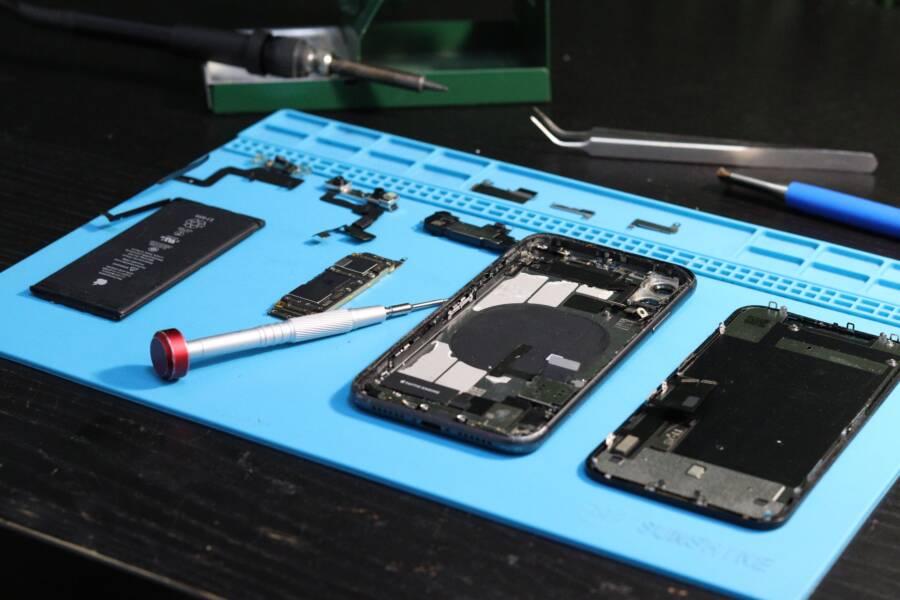
True burn-in usually means the display panel needs replacement. On many phones, the screen is not repaired pixel by pixel, because the worn area is part of the panel itself. A technician may test the display first, then replace the full screen assembly if the damage is permanent.
Repair cost depends on the phone model, screen type, and warranty status. OLED and AMOLED panels often cost more than basic LCD screens, and newer flagships usually cost more than older models. If the phone is still covered by warranty or accidental damage protection, the final bill may be much lower.
A repair shop may also inspect the battery, frame, and connectors. That matters because heat, drops, and pressure can affect more than the screen alone.
How to decide between repair and replacement
Compare the repair price with the age and condition of the phone. If the device is fairly new, works well, and only has screen ghosting, repair often makes sense. You keep a phone that still has good battery life, solid performance, and a clean overall condition.
An older phone is a different story. If it already has a weak battery, cracked glass, charging problems, or slow performance, a screen replacement may cost too much for what you get back. In that case, replacement can be the smarter choice.
A simple way to judge it:
Repair if the phone is recent, otherwise in good shape, and the screen is the main issue.
Replace if the phone is old, has several faults, or the repair cost is close to a new device.
Wait and test if the ghost image still seems temporary after cooling and rest.
What to ask a repair shop before you hand over the phone
Before you leave the phone with anyone, ask a few direct questions. You want to know whether the shop thinks the issue is burn-in, whether they can test the screen first, how long the job takes, and what kind of replacement part they use.
A clear answer up front helps you avoid surprises later. Ask if the replacement is an original part or a high-quality third-party part, and ask whether the display will keep features like touch sensitivity, brightness, and fingerprint support if your model uses them.
You can ask:
Is this likely burn-in or image retention?
Can you test the screen before replacing it?
How long will the repair take?
Is the replacement part original or high quality?
Does the repair come with a warranty?
A good repair shop gives direct answers before it opens the phone.
If the shop avoids those questions, keep looking. For a display issue, you want clear testing, clear pricing, and a part you can trust.
Conclusion
Most ghost images after gaming are temporary, and they often improve with rest, lower brightness, cooling, and simple display checks. If the shadow fades after a break, it is usually image retention.
If the outline stays fixed, or you also see lines, flickering, or color damage, the problem is likely hardware wear. The easiest rule to remember is simple: if the image fades, it is probably retention; if it stays, it may be burn-in.
A phone screen that only shows mild ghosting can often recover with better gaming habits. A screen that never clears usually needs repair or replacement.