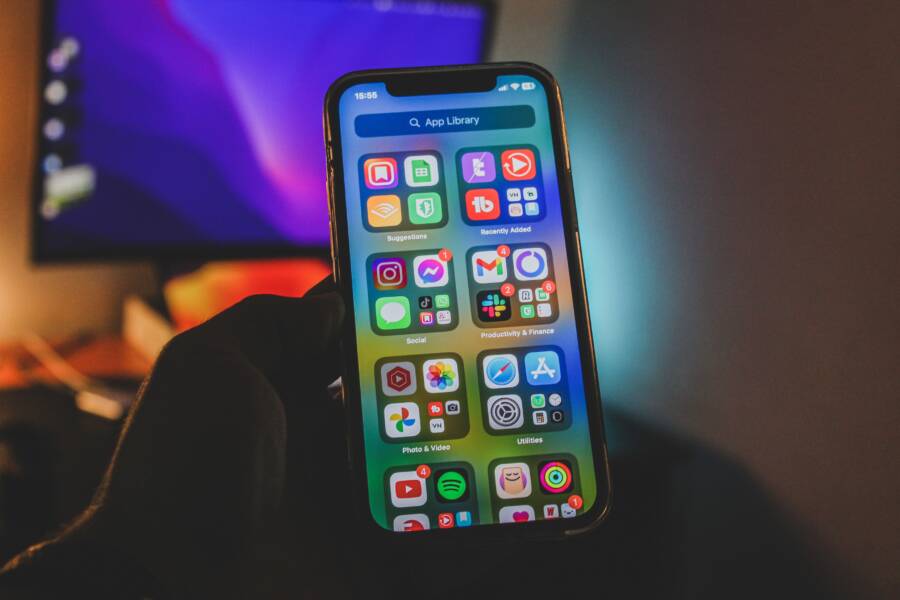
Your smartphone screen suddenly displaying strange colors or a tint after an update is usually a software glitch rather than permanent hardware damage. Most display issues following a system installation stem from temporary calibration errors or corrupted cache files.
You can often restore your original screen quality by adjusting your display settings or performing a simple system refresh. Follow these steps to diagnose and correct your color settings before considering a professional repair.
Checking Your Display Settings for Quick Fixes
System updates sometimes override your saved preferences, leading to unintended changes in your visual output. Before you assume the hardware is failing, look at the software toggles that control color reproduction. A quick visit to your menu might resolve the issue immediately.
Adjusting Color Filters and Accessibility Modes
Accessibility features sometimes trigger color shifts that mimic display degradation. If your screen looks like a film negative or lacks color entirely, a system feature is likely the cause.
On your Android smartphone, open the Settings app and search for Accessibility. Look for the Vision Enhancements menu to check the status of color correction or color inversion. You should also verify that the high contrast mode is off, as this setting often flattens colors and increases saturation to unnatural levels.
For an iPhone, open the Settings app and tap on Accessibility. Select Display and Text Size from the menu. Check these three specific settings:
Invert Colors: If this is active, your smartphone will display inverted color values.
Color Filters: Ensure this is set to Off, as filters for color blindness frequently shift the entire spectrum.
Grayscale: Turn this toggle off to restore full color to your display.
If these settings are already off but the screen still appears off, try toggling them on and then back off again. This action forces the operating system to refresh the display driver and clears potential software glitches lingering from the update.
Resetting Display Profiles and Brightness Settings
Smartphone screens often shift color temperature based on time of day or light sensitivity. Updates sometimes reset these profiles to default or permanent modes that lean heavily into warmer tones.
Look for features labeled Night Light on Android or Night Shift on your iPhone. These settings adjust your color temperature to reduce blue light exposure, which often makes the screen appear yellow or orange. You can find these controls under the Display or Brightness section of your settings menu. If you prefer natural colors, deactivate these features or adjust the intensity slider to a neutral position.
In addition to color temperature, check if your smartphone has a dedicated reading mode or eye comfort shield enabled. These modes suppress specific color channels to reduce eye strain, which often makes white backgrounds appear brown or sepia. Turning off these modes brings back the crisp, cool whites you expect from your device. If the colors remain distorted after disabling these features, consider resetting your display brightness to manual instead of auto to see if the ambient light sensor is causing erratic shifts in your color calibration.
Soft Resets and Cache Clearing Techniques
When your smartphone displays incorrect colors after a system update, the internal software often struggles with temporary files left over from the previous version. These corrupted bits of data conflict with new display drivers, resulting in tints, washed-out images, or distorted hues. You can fix most of these issues by forcing the system to reload its core components or clearing out the temporary memory where these errors hide.
The Effectiveness of a Simple Device Restart
A forced restart acts as a clean slate for your smartphone. It differs from a standard power-off because it cuts the power cycle abruptly, forcing the operating system to stop all background processes immediately. While a normal shutdown allows the software to save states and close apps gracefully, a forced reboot ignores these steps to ensure every active process terminates before the device reboots.
This method is the best first defense because it clears the random-access memory (RAM) and forces the system to re-initialize hardware drivers, including the display controller. If a glitch occurred during the boot sequence after your update, a forced restart reloads the code from your storage into memory. This often resolves minor conflicts that cause strange color profiles to persist.
To perform this on most Android devices, hold the power button for ten to fifteen seconds until the screen goes black and the device restarts. For iPhones, press and quickly release the volume up button, then the volume down button, and finally hold the side power button until the Apple logo appears on your screen. This simple action often removes the color distortion without requiring you to change any system settings or lose your saved data.
Clearing Temporary Data Without Losing Files
Sometimes, your smartphone stores temporary system cache files that contain outdated display configurations. These files sit in a dedicated partition of your storage that the operating system uses to speed up tasks. When an update changes how the screen behaves, these old cache files might instruct the display to use incorrect color values or brightness levels.
Clearing these files does not delete your photos, contacts, or apps. It only removes the temporary data that the system will recreate automatically the next time you use your phone.
Follow these steps to safely clear unnecessary system data:
For Android users, restart your phone into Recovery Mode by holding the power and volume down buttons simultaneously until a menu appears. Use the volume keys to navigate and select the option labeled Wipe Cache Partition, then confirm with the power button. This removes the accumulated system junk that might be interfering with your display settings.
If you use an iPhone, clearing the system cache is more automated. Simply clearing your open apps from the app switcher and performing a hard restart usually accomplishes the same goal, as iOS manages cache files internally and removes them automatically if they become corrupted or obsolete.
Once the cache clears, the system rebuilds its temporary files during the next reboot. Your smartphone will then fetch the correct display calibration data from the new update, which often restores the natural colors of your screen. If the issue remains after this step, you can feel confident that the problem is not a simple glitch in the temporary storage, and you may need to look at deeper software settings.
Solving Software Bugs Through System Updates
When your smartphone shows strange colors after an update, a system bug is the primary suspect. Most manufacturers release software patches specifically designed to fix display glitches introduced in previous versions. These updates often contain refined drivers that communicate correctly with your hardware. Installing the latest patch is the most direct way to resolve bugs that cause color distortion.
Installing Available Firmware Patches
Manufacturers monitor user reports after every major release. If a display bug affects many people, they prioritize a small, secondary update to fix the issue. You should check your settings for any available software updates. A newer version of the operating system often includes the corrected code needed to render colors accurately again.
Navigate to the Settings menu to check for pending updates. Follow these steps to perform a search for new software:
Open your smartphone Settings and look for a section named System or General.
Select Software Update to see if a new package exists for your device.
Download and install any available files immediately, as these often contain critical bug fixes.
Keep your phone connected to a charger during this process to avoid interruptions.
Do not skip these updates even if they seem minor. Sometimes a small security patch contains the specific display driver update that fixes your screen colors. Once the update completes, the system usually recalibrates the screen output automatically.
Reverting to Previous System Versions
Sometimes an update is unstable and causes more problems than it solves. If your screen colors remain distorted even after installing a second patch, the current software version might have a conflict with your specific model. While it is rarely the first choice, some advanced users choose to roll back their software to a previous, stable state.
You should be careful with this process because it often requires a full reset of your smartphone. Backup your photos, contacts, and documents to a cloud service or a computer before you begin. You can find official tools on the manufacturer website that allow you to flash an older system image onto your device.
If you prefer not to perform a manual rollback, consider these alternatives:
Contact the official support channel for your smartphone brand to report the bug.
Check community forums to see if other owners of your specific device found a workaround.
Wait for a manufacturer statement, as they often acknowledge widespread update bugs publicly.
Using these methods helps you confirm if the issue is a widespread software bug or a device-specific glitch. Most of the time, the manufacturer releases a fix within a few weeks of a major update. Being patient or applying the latest patches usually solves the problem without requiring complex technical work.
Knowing When to Seek Professional Repair
Not every screen issue responds to software adjustments or system reboots. Sometimes, a smartphone update exposes a pre-existing hardware defect that was already present but unnoticed. If your screen remains discolored, flickering, or shows permanent lines despite all software troubleshooting, the damage is likely physical. You should stop attempting software fixes and consult a technician when the display behavior remains erratic after a factory reset.
Testing for Hardware Damage Versus Software Errors
You can determine if the culprit is hardware or software with a simple screenshot test. Take a screenshot of your screen while the weird colors are visible. Open that image on another device, such as a laptop or a different smartphone.
If the image looks perfectly normal on the other device, your screen hardware is at fault. This means the display panel itself, or the internal connector, has failed. No amount of software configuration will fix a broken hardware component.
If the screenshot looks just as distorted on the second device as it does on your screen, the issue is software. The operating system is capturing the wrong color data before it even reaches your screen. You should focus your efforts on re-installing the operating system or contacting technical support for your smartphone brand.
Consider these signs that suggest you need a professional repair:
You notice physical cracks or pressure points under the glass that correlate with the discoloration.
The colors change when you press gently on different areas of the screen.
The screen exhibits visible lines that do not move or disappear when you restart the device.
You dropped your phone shortly before the update, and the colors appeared immediately afterward.
Professional technicians have access to specialized diagnostic tools that scan for hardware malfunctions. They can determine if the display panel requires a replacement or if the internal ribbon cable is loose. Since modern displays are bonded directly to the digitizer, home repairs are risky and often lead to further damage. If your smartphone is under warranty, a professional repair center provides the only path to a free or discounted fix.
Conclusion
Most color issues on your smartphone screen after an update are temporary software bugs. You can usually fix these glitches by adjusting accessibility settings, restarting the device, or installing pending software patches.
Perform these steps in order to isolate the cause. If the colors remain distorted after a factory reset and a screenshot test confirms hardware failure, contact the manufacturer for a repair.