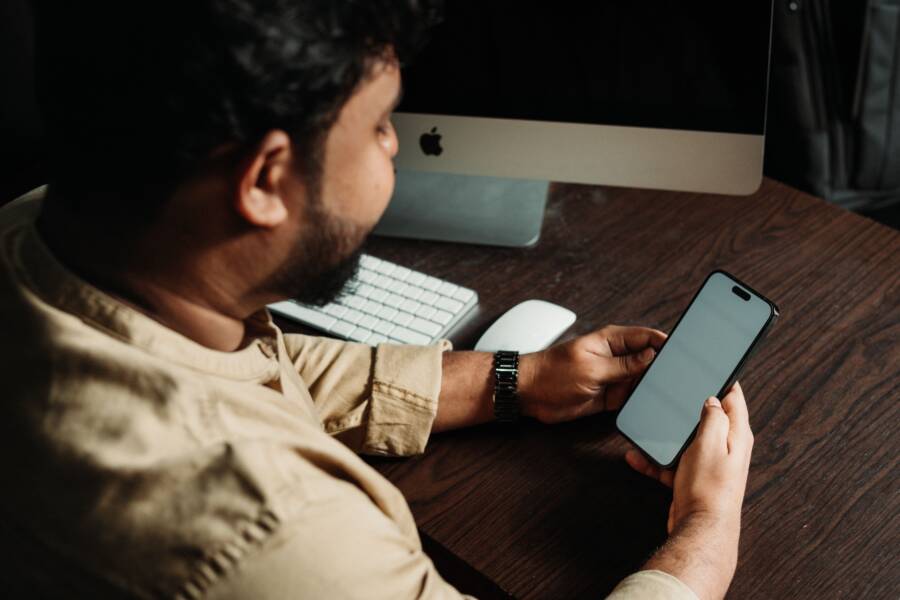
A yellow tint on your smartphone screen is usually a built-in feature rather than a hardware defect. Manufacturers include this setting to reduce eye strain by limiting blue light exposure during evening hours.
You likely enabled a filter like Night Shift, Blue Light Filter, or Reading Mode without realizing it. These modes adjust the display temperature to make colors appear warmer.
You can return your display to its original color balance by checking a few specific menu settings. Follow the steps below to disable this feature and restore your screen to its natural state.
Understanding Why Your Smartphone Turns Yellow at Night
Your smartphone screen shifts to a yellow or amber hue because of a built-in feature designed to protect your eyes. This function, often called Night Shift or Eye Comfort Shield, filters out blue light. Manufacturers include this setting because high-energy blue light can interfere with your sleep patterns if you use your device late in the evening.
The Role of Blue Light
Light consists of different colors that each have their own energy levels. Blue light has a high frequency and is effective at keeping you awake. During the day, sunlight contains high amounts of blue light, which tells your brain to remain alert. Your smartphone emits this same spectrum of light.
When you look at a bright screen before bed, the device tricks your brain into thinking it is still daytime. This suppresses the production of melatonin, which is the hormone that helps you sleep. By shifting the display to warmer tones, your phone reduces the intensity of these stimulating rays.
How Color Temperature Works
Display colors are measured in Kelvin. Lower Kelvin numbers appear warm, like an orange candle flame or a sunset. Higher Kelvin numbers appear cool, like a clear blue sky or a fluorescent bulb.
When you enable a night filter, your smartphone adjusts the color temperature of every pixel. It effectively subtracts the intensity of blue sub-pixels and boosts red and green output. This creates the warm, yellow appearance you notice. While this change might look jarring at first, it aims to create a more relaxed viewing experience.
Why It Happens Automatically
Many devices trigger this filter based on local sunset times. Your smartphone uses GPS or network data to track when the sun goes down in your area. Once the light fades outside, the system automatically activates the warm mode to support your circadian rhythm.
You might notice the shift happening in the background without any input from you. If you prefer a consistent display color throughout the day, you can deactivate the automatic schedule in your settings menu. This ensures the white balance stays cool and crisp regardless of the time on the clock.
The table above illustrates the trade-off between display modes. Choosing the right one depends on your current environment and the time of day you use your smartphone. If the yellow tint bothers you, simply disable the feature to restore the standard color balance immediately.
Quick Ways to Fix the Yellow Tint on Your Screen
You can easily correct a yellow tint by modifying the display settings on your smartphone. Most modern devices include color filters that intentionally warm the screen temperature to reduce eye strain. If your display looks amber or orange, these settings are likely active and can be adjusted or turned off in seconds.
Adjusting Night Shift Settings on iPhone
Apple includes a feature called Night Shift that automatically shifts your display colors to the warmer end of the spectrum after dark. If your screen seems yellow, you can disable this or change how it behaves.
Open the Settings app on your iPhone.
Tap Display & Brightness.
Select Night Shift.
Toggle the Scheduled switch to off if you want to disable the feature entirely.
Move the Color Temperature slider toward the Less Warm side to reduce the yellow tint if you prefer to keep the feature enabled but with a cooler tone.
You can also check the manual toggle in the Control Center. Swipe down from the top-right corner of your screen to access the Control Center. Press and hold the brightness slider icon, then tap the Night Shift button at the bottom to turn the filter off instantly.
Turning Off Blue Light Filters on Android Devices
Android manufacturers use various names for blue light reduction, but these features almost always exist under the display settings menu. Common names include Eye Comfort Shield, Reading Mode, or Night Light.
To turn off these filters on a standard Android smartphone, follow these steps:
Open your phone Settings.
Tap Display.
Look for an option labeled Eye Comfort Shield, Reading Mode, or Night Light.
Tap the menu item to see if it is enabled.
Switch the feature off to return your screen to its standard white balance.
If you have a Samsung Galaxy device, go to Settings, then Display, and select Eye Comfort Shield. You can choose to turn it off completely or switch from Adaptive to Custom to manually adjust the color temperature slider. If you own a Google Pixel or similar device, the feature is usually called Night Light. Simply tap the toggle to deactivate the schedule or the active filter. Many devices also allow you to adjust the intensity of the filter, so you can keep the protection without the heavy yellow cast.
What to Do If the Yellow Tint Stays Even After Changing Settings
If you have adjusted your display temperature and disabled all night modes, but your smartphone screen still appears yellow, the issue might stem from accessibility features. These settings override standard display profiles to assist users with specific visual needs. When enabled, they can shift the color gamut or tint of the entire interface regardless of your primary display configuration.
Checking Accessibility Color Adjustments
Accessibility menus on your smartphone often contain powerful tools that alter how colors display on your panel. Some of these features exist to help users with color blindness or light sensitivity. If you accidentally toggle one of these filters, your screen will display a strange tint that persists even if you turn off the blue light filter.
To reset these potential culprits on an iPhone, navigate to Settings, tap Accessibility, and select Display & Text Size. Scroll down to Color Filters. If this setting is on, toggle it off to see if the yellow tint disappears. Ensure that Reduce White Point is also set to a level that does not darken your display excessively.
On Android devices, the menu names vary slightly depending on your manufacturer. Generally, you should look inside Settings for Accessibility or Vision enhancements. Check for features labeled Color Correction or Color Inversion. Ensure that these are switched off, as they often apply a global color cast that mimics a hardware or software tint. If you use a custom launcher or a theme that modifies system colors, try switching back to the default system theme to rule out software-level interference.
When to Consider a Hardware or Screen Calibration Problem
Persistent yellowing that ignores all software adjustments could indicate a hardware issue within the display panel itself. While this is rare, older panels sometimes develop a yellow cast due to aging adhesives or organic light-emitting diode (OLED) degradation. If your smartphone has suffered a physical drop or pressure damage, the internal screen layers might be failing, causing a discoloration that software cannot fix.
You should perform one final check before assuming the worst. Try taking a screenshot and viewing it on a different monitor or another device. If the screenshot looks perfectly normal on other displays, your smartphone screen is indeed experiencing a hardware fault. If the screenshot also shows the yellow tint, the issue is likely a software bug or a system-wide calibration error.
If the problem is hardware-related, standard adjustments will not help. You should reach out to the manufacturer or a certified repair center for a professional assessment. They have the tools to calibrate your screen or confirm if the display panel requires a replacement. Do not attempt to open the device yourself, as this can void your warranty and cause further damage to the delicate internal components.
Common Questions About Phone Screen Colors
Many users notice a shift in color balance on their display and wonder if their device is broken. You are not alone if you feel your screen looks slightly yellow. This change is often intentional, designed to protect your eyes during late-night use. Below are answers to the most frequent questions regarding smartphone display colors.
Is a yellow tint a sign of a failing screen?
A yellow tint is rarely a sign of hardware failure. Most modern displays appear warmer because of software settings that filter blue light. You can test this by toggling off any night modes or reading features in your display settings. If the white balance returns to a cool, crisp tone, the hardware is working perfectly. A genuine hardware defect usually presents as permanent discoloration, lines, or flickering that ignores software adjustments.
Do all smartphones use the same blue light filter?
Different manufacturers use unique names and methods for these filters. Apple calls its feature Night Shift, while Samsung uses Eye Comfort Shield. Other brands might label it as Reading Mode or Night Light. Despite the different branding, the underlying technology functions the same way. Every system reduces the emission of high-energy blue light to prevent eye fatigue. You can usually find these options inside the main display settings menu on any modern smartphone.
Can I keep the display cool during the day?
You can maintain a consistent color temperature regardless of the hour. Most devices allow you to turn off automatic scheduling for these filters. If you prefer a blue-white balance, simply disable the sunset-to-sunrise toggle in your settings. Some users choose to keep the filter on for a specific intensity or duration that suits their personal comfort. You have complete control over whether your screen follows a schedule or stays at a fixed color temperature.
Does the screen tint affect battery life?
Changing your display color temperature has a negligible impact on battery performance. The primary drain on your battery remains the brightness level and the hardware technology of the screen itself. Using a warm filter does not save significant power, although keeping your overall screen brightness low helps extend battery longevity. If you find your phone battery depleting too fast, check your background app activity or general screen brightness instead of the color settings.
Will a screen protector cause a yellow tint?
Some third-party screen protectors can introduce a slight yellow or amber hue. Cheap plastic or glass covers sometimes lack high optical clarity. If you notice the tint even when your device is powered off, the physical protector is likely the cause. You can remove the protector to see if the display returns to its original color. High-quality tempered glass protectors should not alter the appearance of your smartphone screen.
Conclusion
The yellow tint on your display is a helpful tool for eye comfort, not a permanent hardware failure. Most modern devices adjust color temperatures automatically to reduce blue light exposure during evening hours.
You should aim for a balance that works for your specific lighting needs and color preferences. If the default settings feel too extreme, you can regain full control over your visual experience.
Simply navigate to your display settings and adjust the warmth slider until the screen tone matches your personal liking. This simple change allows you to enjoy comfortable viewing without sacrificing your preferred display clarity.