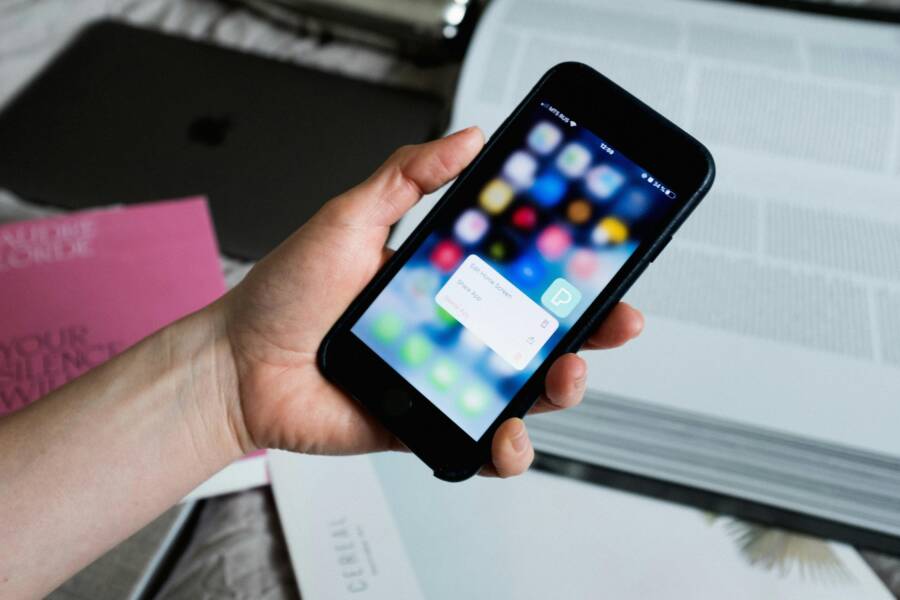
Keeping track of daily errands often feels like a constant struggle. You likely face a flood of responsibilities that vanish the moment you stop thinking about them.
Your smartphone is the most effective tool to solve this problem. It acts as a reliable personal assistant that never forgets an appointment or a grocery list.
This guide covers the basics for both iPhone and Android users to help you stop missing important tasks. You can improve your daily workflow by following these simple setup steps.
Why Your Smartphone is the Best Personal Assistant
You likely carry a device that manages your schedule, contacts, and memories in a single pocket-sized unit. Your smartphone acts as a central hub for your entire life, far surpassing the limitations of outdated organization methods. By moving your planning habits to this hardware, you gain immediate access to your data from anywhere in the world.
Leaving Paper Lists Behind
Paper notes often clutter your desk or end up lost in the bottom of a bag. When you rely on sticky notes or physical planners, you face the risk of your information disappearing when you need it most. If you leave your notebook at the office, you lose access to every task you wrote down for the day.
A smartphone stores your data in the cloud, which makes it permanent and accessible. You can update your grocery list or task board on your phone and see the changes reflected across your laptop or tablet immediately. This synchronization keeps your information safe if you lose your physical device. You no longer need to worry about water damage or misplacing your handwritten reminders. Your digital lists stay waiting for you, organized and ready to view whenever you unlock your screen.
The Power of Location and Time Alerts
Physical notebooks cannot tell you when it is time to perform a specific errand. They remain passive tools that require you to remember to check them. A smartphone changes this dynamic because it tracks your context and prompts you at the exact moment you need to act.
Most modern apps offer two types of triggers that turn your phone into a true assistant:
- Time-based alerts: These notify you at a specific hour or day, helping you keep track of recurring tasks like paying bills or taking medication.
- Location-based alerts: These use your phone GPS to trigger a notification when you arrive at a specific place.
Imagine you set a reminder to buy batteries as soon as you pull into the parking lot of your local hardware store. Because your smartphone knows you are at the store, it pops up the reminder on your lock screen before you step out of the car. This automatic feedback ensures you never forget a errand simply because you entered the wrong building. By using these location features, you stop relying on your own memory and start letting your device handle the details for you.
Getting Started with Apple Reminders on iPhone
The Reminders app comes pre-installed on every iPhone. It is a powerful utility that helps you track daily tasks without needing extra software. Once you open the app, you see a clean interface designed for quick data entry. You can start adding your first tasks immediately after setup.
Creating Your First To-Do Item
Adding a task is a fast process. You simply tap the New Reminder button located at the bottom of the screen. A text field appears, and you type the name of your task. Press the Return key on your keyboard to save it. If you have a busy day, you can also add notes or subtasks to provide extra context for any item.
Your smartphone offers a hands-free method for entering tasks through Siri. You can activate Siri by holding the side button or saying the wake word. Tell your device what you need to remember, for example, “Remind me to buy milk at five PM.” Siri identifies the time and date automatically, then adds the task to your default list. This is helpful when you are driving or have your hands full with other chores.
Organizing Tasks into Lists
Grouping your tasks helps you manage your time effectively. When you mix professional deadlines with personal errands, your screen becomes cluttered and stressful. You can create separate lists to categorize your life, such as work, groceries, or home projects. Managing these lists prevents your focus from shifting during your busy day.
You create a new list by tapping the Add List option in the app menu. Select a color and an icon to represent the category, which makes it easy to spot your list at a glance. For instance, you can use a blue icon for your work list and a green icon for your shopping list.
Moving a task to a different category is simple. You can drag and drop items between lists or use the edit menu to reassign them. Organizing your life this way makes it easy to hide or show specific categories based on your current location or activity. Your smartphone is a capable tool for maintaining order, provided you keep your lists tidy and updated throughout the week.
Using Google Tasks on Your Android Device
Google Tasks integrates directly into your Android experience. You find the app as a standalone download from the Play Store, or you access it through the sidebar in Gmail, Calendar, and Docs. This wide availability makes your smartphone a central command for your daily plans. Because the app connects to your primary Google account, your lists remain accessible regardless of the device you hold. You can add a task while walking to the bus, and then check it off from your desk chair a few minutes later.
Setting Up Recurring Tasks
Many chores require completion on a regular schedule. Paying bills, changing air filters, or checking account statements are perfect examples of tasks that benefit from automation. Instead of creating a new entry every month, you can set these items to repeat automatically.
- Open Google Tasks and tap the plus icon to create a new task.
- Enter the task name, such as “Pay monthly rent.”
- Tap the date and time icon located above the keyboard.
- Select the option that says “Does not repeat.”
- Choose your preferred frequency, such as weekly, monthly, or yearly.
- Set the start date and time before you tap “OK.”
Once you save the task, it appears on your list with a small refresh icon. This indicates the task is now a recurring item. When you mark the task as complete, Google Tasks generates the next instance automatically. You no longer need to worry about manually logging repetitive chores. Your smartphone handles the schedule, so you only focus on finishing the work.
Syncing Across Your Google Account
Your data moves between devices because Google stores everything in the cloud. When you add a task on your smartphone, the app transmits that data to Google servers instantly. You see the same lists when you log into your Gmail or Google Calendar account on a laptop or desktop computer.
This cross-platform compatibility prevents the common problem of fragmented information. If you start your morning with a messy list of errands on your phone, you will see those exact items in the side panel of your browser when you sign into your email at work. You can mark items as finished from any interface, and the status updates everywhere.
This synchronization also creates a reliable backup. If your phone battery dies or you lose the device, your lists remain safe. You simply log in to another device to regain access to every pending item. Your organizational system stays consistent, keeping you productive without manual effort or data transfers.
Pro Tips to Stay on Track Without Getting Overwhelmed
Managing a busy schedule often feels like juggling too many objects at once. You might feel the pressure of an endless to-do list, which causes anxiety rather than productivity. A smartphone provides the perfect structure to maintain order while keeping your stress levels low. By adopting a few simple habits, you transform your device into a filter that removes unnecessary noise from your day. Focus on these specific strategies to regain control of your time and attention.
Using Priority Tags to Focus
Most tasks are not created equal. Some items require your immediate attention, while others can wait until the end of the week. You avoid decision fatigue by tagging these items based on their urgency. This simple classification system ensures you always see the most critical actions first when you glance at your smartphone.
Many apps allow you to assign a priority level like low, medium, or high to each entry. If you use this feature, your device can sort tasks so the high-priority items sit at the top of your list. You stop wasting time searching through minor errands and begin your day with the most meaningful work.
If your current app does not support specific priority tags, use a naming convention instead. Add a prefix like “1-” to your most important items and “3-” to your least important ones. Your list will sort alphabetically, keeping your primary tasks at the top where you can see them. This small change helps you identify what must happen today before you get lost in less significant chores.
The Rule of Three for Daily Planning
It is common to create a list of twenty tasks and feel discouraged when you finish only three. You create a false sense of failure by setting unrealistic expectations for your limited time. Instead, adopt the rule of three to guide your daily planning. This method keeps you motivated because you focus on a manageable target that you can actually achieve.
Pick three primary objectives every morning that provide the most value to your day. You input these as your core goals in your smartphone. Once you finish these three, you treat any additional work as a bonus rather than an obligation. This approach prevents the heavy feeling of a massive backlog and keeps your momentum high.
If you find yourself finishing your three goals early, you can always add more items to your list. This flexibility allows you to balance your ambition with your actual capacity. You feel a sense of accomplishment by checking off your daily targets consistently. Over time, this rhythm builds confidence and prevents the burnout that comes from chasing an impossible schedule.
Conclusion
Using a smartphone for daily organization removes the mental clutter that often stops you from finishing tasks. You now possess the tools to set time-based alerts, manage lists, and coordinate your schedule without extra help. These digital features replace fragile paper notes and ensure your plans stay accessible at all times.
Try using these reminder settings for one full week. You will likely notice a change in your daily productivity and overall clarity. A consistent habit keeps your schedule tidy and your goals within reach.