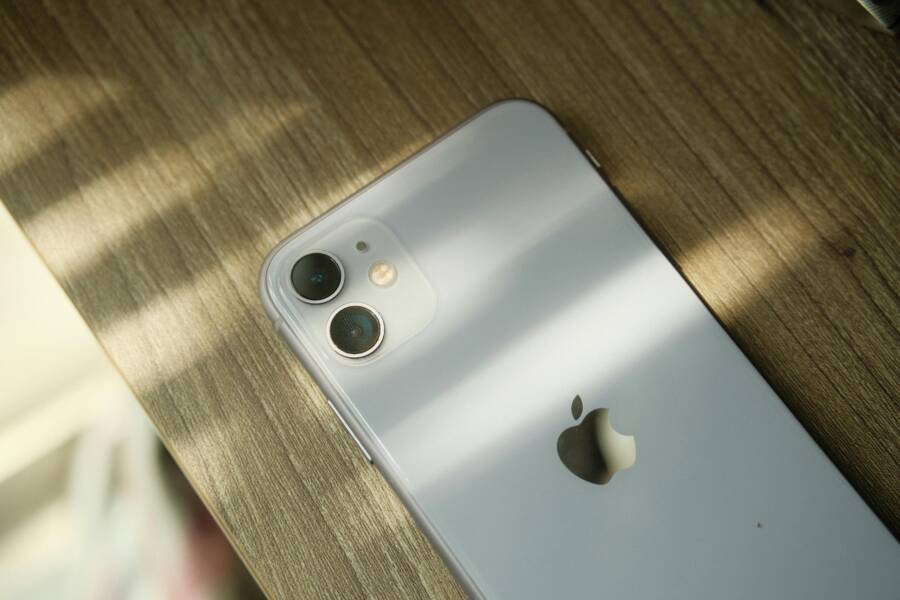
A camera flash that won’t fire can turn a simple photo into a blurry mess, especially when you need light fast. On both iPhone and Android, the problem often comes down to a setting, low battery, overheating, app conflicts, camera permissions, or hardware damage.
The good news is that you can usually narrow it down without guessing. With a few quick checks first, then deeper fixes if needed, you’ll be able to spot whether your phone flash is blocked by software or needs repair.
That matters because a flashlight that fails in one app but works in another points to a different issue than a flash that never turns on at all. Here’s how to move through the fixes in a calm, step-by-step way and get your smartphone flash working again.
Start with the fastest checks on your phone
Before opening the Camera app again, start with the simple stuff on your phone. Flash problems often come from a setting, a power limit, or a blocked lens, and those are easier to fix than a hardware fault.
A few quick checks can save time, especially when the camera flash works sometimes but not others. Move through these first, because they tell you a lot about where the problem starts.
Make sure the flashlight and camera flash are not turned off in settings
Flash behavior changes based on the camera mode and the settings you choose. On both iPhone and Android, the flash can usually be set to Auto, On, or Off, and the wrong choice can make it seem broken.
Check the flash icon in the Camera app before taking another photo. If it is set to Off, the flash will not fire at all. If it is on Auto, the phone decides when to use it, which can be confusing in bright rooms or during close-up shots.
Some camera modes also disable flash on purpose. Portrait mode, video mode, and certain night or beauty modes may block flash use or switch to a different light option. In addition, low power settings can reduce or disable flash behavior, so look at both the Camera app and your system settings.
A quick check list helps here:
- Flash icon: Make sure it is set to Auto or On when you need it.
- Camera mode: Switch out of portrait, video, or special modes if flash is unavailable.
- System settings: Review battery saver or low power options that may limit flash use.
If the flashlight works but the camera flash does not, the issue is often a mode or setting, not the hardware.
Check the battery level, low power mode, and overheating warnings
A low battery can stop the flash from firing. Many phones block flash use when power gets too low, because the flash draws a burst of energy that the phone may not want to spend.
Low power mode can do the same thing. If your iPhone or Android device is in battery saver mode, turn it off and test the flash again. Also check for overheating warnings, because a hot phone may disable the flash to protect the battery and internal parts.
This is one of the fastest checks you can do on any smartphone:
- Look at the battery level.
- Turn off low power or battery saver mode.
- Let the phone cool down if it feels warm.
- Try the flashlight and the Camera app again.
If the flash starts working after the phone cools down or charges a bit, you’ve likely found the cause.
Clean the flash area and remove anything blocking the lens
Dust, fingerprints, and grime can make the flash look weak or uneven. A thick case, a cracked screen protector, or a loose accessory can also block light or confuse the camera sensor.
Inspect the flash opening with a steady light source. Wipe the area gently with a soft, dry cloth, and make sure nothing sits over the camera module. If you use a bulky case, remove it and test again, because even a small obstruction can leave photos looking dark on one side.
When the flash is covered, the camera may still fire, but the result can look dull, dim, or strangely shadowed. A clean, open lens area gives the flash the best chance to work the way it should.
Check camera app problems before assuming the flash is broken
A flash problem often starts inside the app, not inside the phone itself. If the flash worked yesterday and stopped during normal use, a camera glitch is a likely cause.
That matters because a frozen app can block the flash even when the hardware is fine. A quick reset, another app test, or a software update can point you in the right direction before you assume the flash needs repair.
Force close the Camera app and open it again
A stuck Camera app can hold on to a bad setting or a temporary glitch. Closing it fully and reopening it gives the app a fresh start, which often clears the problem right away.
This is especially useful when the flash worked before but suddenly stopped in the middle of normal use. Maybe the camera froze after switching modes, or maybe the flashlight icon stopped responding. Either way, a restart can reset the app without changing anything else on your phone.
On an iPhone, swipe up from the bottom and pause, then swipe the Camera app away. On Android, open the recent apps view and close the Camera app from there. After that, open the app again and test the flash.
If the flash comes back, the issue was likely temporary. If it still fails, move on with the same calm approach. A smartphone app can act up for no obvious reason, and a reset is often the cleanest first step.
Test the flash with another app that uses the camera
Try the flash in a different camera app if you have one. You can also test with a flashlight app, or even a social app that has camera access, like Instagram, Snapchat, or Facebook.
This helps you see whether the problem belongs to one app or to the phone itself. If the flash works in another app, the Camera app is probably the one causing trouble. If it fails everywhere, the issue may be deeper.
A simple test can save a lot of time:
- Open a second app that uses the camera.
- Turn on the flash or flashlight feature.
- Take a photo or switch on the light.
- Compare the result with the Camera app.
That small comparison gives you a clearer picture. One app failing points to software trouble. Every app failing points you toward settings, battery limits, or hardware checks later in the process.
Update the camera app and your phone’s software
Old software can cause strange flash behavior. App updates and system updates often fix bugs tied to camera controls, flash use, and permissions.
On iPhone, check for iOS updates in Settings, then look for any Camera-related app updates in the App Store. On Android, open the Play Store for app updates and check your system update menu in Settings. If your camera app came from the phone maker, its update may arrive through the system update process.
If the flash stopped after a recent change, an update can matter even more. A bug in the app or the phone software may block flash use until the next fix arrives. After updating, restart your phone and test the flash again.
Keeping the phone updated also helps the camera app work better with the rest of the device. That includes permissions, power controls, and other settings the app depends on every time you open the camera.
Review permissions, camera modes, and phone settings that can block flash
When the flash works in one place and fails in another, the cause is often a setting rather than damage. Camera access, shooting modes, and privacy limits can all change how your phone handles flash, especially inside third-party apps.
A quick settings check can save a lot of guesswork. On both iPhone and Android, a smartphone can block flash behavior when permissions are restricted, power tools are active, or the app is locked into a mode that controls light differently.
Turn on camera permissions and check app restrictions
Some apps need full camera access before flash features work the way you expect. If permission is limited, the app may open but still fail to control the camera light correctly.
Check the app’s privacy settings first, then look at any parental controls, Screen Time limits, or app restrictions. These settings can change camera behavior in the background, even when the app itself looks normal.
If you use a social app or third-party camera app, make sure it has permission to use the camera and, if needed, the microphone and photos. A blocked permission can stop the app from switching on flash or from saving photos properly.
A quick review helps:
- Camera access should be allowed for the app you are testing.
- Privacy controls should not block camera use.
- Parental controls or app limits should not restrict camera features.
If the built-in Camera app works but another app does not, permissions are a likely reason.
Switch out of portrait, burst, or night modes if flash is unavailable
Some shooting modes change flash behavior or turn it off completely. Portrait mode, burst mode, and night mode often use their own light rules, so the flash may stay unavailable even when the setting looks fine.
Start with basic photo mode first. That gives you the cleanest test, because it removes extra processing that can interfere with flash. If the flash works there, compare it with other modes one by one.
This simple test can show whether the issue is tied to the mode itself. On a phone camera, special modes often make smart choices for the scene, but those choices can hide the flash setting you want.
Reset system settings that may affect the camera
If the flash still acts up, a settings reset can help when something in the phone’s configuration is causing the problem. This is best used after simpler fixes, since it clears out changes that may be hard to spot.
A reset can remove camera-related conflicts, broken preferences, or settings that limit flash use. It won’t repair damaged hardware, but it can restore normal behavior when the phone’s software has drifted out of line.
After the reset, test the flash in the Camera app first, then in any other app you use often. That gives you a clear read on whether the phone settings were the real blocker.
Try deeper fixes when the flash still will not work on your phone
If the flash still fails after the basic checks, the problem is usually hiding deeper in the phone’s software or hardware. At this point, the goal is to separate a temporary glitch from a real fault, then move only as far as needed.
A smartphone can act normal in most apps and still block the flash under certain conditions. That is why the next steps matter, especially when the light refuses to work again and again.
Restart your phone the right way
A full restart can clear small system bugs that affect the camera and flash. Temporary memory issues, frozen services, or a stuck camera process can all disappear after the phone starts fresh.
Use a normal shutdown and power-up cycle, not just a screen off and on. That gives both iPhone and Android a clean reset and stops background processes that may have locked the flash. After the phone comes back on, open the Camera app and test both the flash and flashlight.
If the flash works after a restart, the problem was likely temporary. If it fails again later, keep going, because the phone may have a deeper settings or hardware issue.
Back up your data and reset network or device settings if needed
Sometimes a settings reset clears hidden conflicts that affect camera behavior. Network resets can help with app communication, while broader device resets can remove odd settings that interfere with the flash or camera app.
Before any bigger reset, back up your photos, contacts, and important files. That step matters because a reset can wipe saved preferences and other data tied to the phone’s setup.
Use resets carefully and keep them practical:
- Start small with a network reset if camera issues seem tied to app connections or updates.
- Move higher only if needed to a device settings reset when the flash still misbehaves.
- Back up first so you can restore your files and accounts later.
A reset is useful when a phone has collected one bad setting too many. It won’t fix damaged parts, but it can clear software conflicts that are hard to spot.
Look for signs of a hardware problem
When the flash fails in every app, hardware becomes the main suspect. A cracked camera module, water damage, or a flash that never turns on at all often points to a physical fault.
Pay close attention to these warning signs:
- Visible damage around the camera or flash area
- Water exposure or moisture under the lens
- Flash failure in every app, including the flashlight
- No light at all, even after restart and settings checks
If you see any of these signs, more setting changes usually will not help. The flash may need repair, part replacement, or a technician’s inspection.
When to get repair help for your iPhone or Android phone
If the flash still refuses to work after the basic checks, the problem may be bigger than a setting or app glitch. At that point, repair help is the smart next move, especially when the phone has taken a hit, gotten wet, or started failing after an update and reset.
The key is to separate a software hiccup from real damage. Once the flash stops responding across apps, stays dark after restarts, or shows visible wear, a technician can test the part directly and save you from guessing.
Use warranty, manufacturer support, or a trusted repair shop
If your phone is still under warranty, start with the manufacturer. Apple Support, Samsung, Google, and other phone makers can run diagnostics and tell you whether the flash problem is software-related or tied to hardware. That can prevent you from paying for a repair you do not need.
Physical damage is another clear sign to stop troubleshooting. A cracked camera area, moisture under the lens, or a flash that flickers instead of firing often points to a hardware fault. In those cases, a trusted repair shop or official service center is the safer choice.
Before you hand over the phone, back up your data and note what you already tried. That gives the technician a clean starting point and helps avoid repeated tests.
A good repair visit should give you answers, not more guesswork:
- Warranty coverage can reduce or remove repair costs.
- Manufacturer diagnostics can confirm whether the flash LED or camera module failed.
- Trusted repair shops can inspect damage and quote the repair before any work starts.
If the flash is physically damaged, more settings changes will not fix it.
Decide whether the camera module needs replacement
If the flash still fails after updates, resets, app tests, and a full restart, the camera module or flash LED may need replacement. That is the most likely outcome when the flashlight never turns on, the camera flash fails in every app, or the issue returns right after each reset.
A technician can test the part with tools you do not have at home. If the module fails the test, replacement is usually the practical fix. On some phones, the flash is tied closely to the rear camera assembly, so repair may involve more than swapping a small bulb.
For a quick read on the likely outcome, use this simple rule:
- Software fixes worked, keep using the phone and monitor it.
- Flash fails in every app, get a hardware check.
- Damage is visible, ask about part replacement right away.
That keeps the repair process simple and focused. If the flash still acts up after every software fix, the phone is telling you it needs hands-on service.
Conclusion
A camera flash that stops working on an iPhone or Android phone usually has a simple cause. Start with the basics, check the flash setting, battery level, heat, app behavior, and permissions before assuming the hardware is broken.
If the flash works again after a reset, update, or app switch, the fix was likely on the software side. If it still fails everywhere, or shows signs of damage, repair is the next step.
That steady approach saves time and avoids guesswork. With the right checks, most smartphone flash problems can be narrowed down fast, and the phone often ends up working normally again.