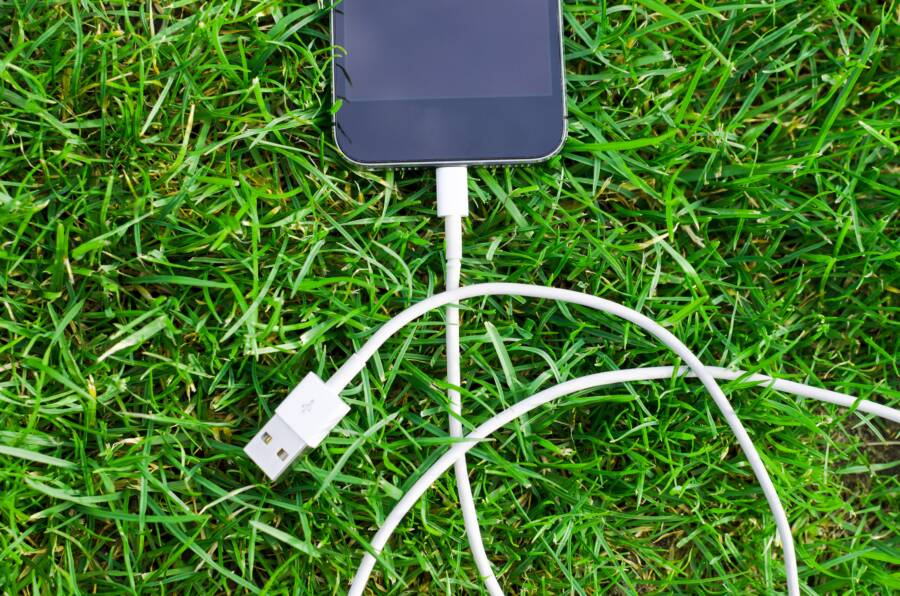
Your smartphone displays a charging icon, yet the battery percentage remains stuck or refuses to climb. This annoying issue is rarely a sign that your battery is permanently dead; instead, it is often a software glitch or a minor hardware handshake failure between your device and the power source.
Most modern phones use intelligent power management systems that sometimes get confused by background processes or minor calibration errors. These systems misread the actual voltage levels, which stops the interface from updating the capacity correctly.
You can resolve this behavior by performing a few targeted resets and checks on your device. Follow these steps to diagnose the cause and bring your smartphone battery indicator back to normal.
Quick Fixes for Charging Percentage Errors
When your device shows a charging icon but the battery percentage refuses to climb, the problem often stems from a temporary glitch in the power management software. These display errors occur when the operating system loses track of the actual charge state or fails to process incoming data from the charging port. You can resolve these issues through simple resets and routine maintenance on your smartphone.
Performing a Hard Restart on Your Device
A hard restart is the most effective way to clear temporary memory bugs that disrupt your interface. Unlike a standard power cycle, this process forces the hardware to cut off power from the battery for a few seconds. This action clears the cache and forces the processor to re-read the battery status from the hardware sensor.
To perform a hard restart on most current models, follow these steps:
Press and quickly release the volume up button.
Press and quickly release the volume down button.
Hold the side power button until the screen goes black and the manufacturer logo appears on the display.
Once the device reboots, plug it into your charger. The interface should recalibrate the connection and display the correct charging progression. If the percentage still fails to rise, the issue might be deeper than a simple memory error.
Checking for Recent Software Updates
Outdated operating systems are a frequent cause of battery calibration problems. Manufacturers often release updates to fix bugs in the power management code that prevent your smartphone from recognizing the actual state of the battery. If your system software is behind, the phone might struggle to communicate with the charging controller.
You should always verify your device status in the settings menu:
Go to your system settings.
Select the section for software or system updates.
Tap to check for available downloads.
If an update is waiting, install it immediately. A fresh installation often refreshes the system drivers, which resolves communication errors between the battery and the user interface. Keep your smartphone updated to ensure the power management system correctly interprets voltage levels during charging. If you still see no progress after the update, the problem could involve your charging cable or the physical port itself.
Investigating Hardware and Charging Accessories
If your phone screen shows a charging icon but the percentage remains flat, the problem might be your physical equipment. A faulty cable or an underpowered wall adapter often fails to deliver the necessary voltage to trigger a successful charge cycle. Before you assume the internal battery has failed, inspect your hardware to ensure a healthy connection.
Testing Different Cables and Power Adapters
Your charging cable often suffers from internal wear that is not visible to the naked eye. Wires can fray or break near the connector, which limits the power flow even if the exterior insulation looks fine. If your smartphone does not register a steady rise in battery percentage, a damaged cable is a frequent culprit.
Try a different, known-working charging cable to determine if your current one is the source of the trouble. If the charging progress still stalls, shift your focus to the power adapter plugged into the wall. Many modern devices require specific voltage profiles to charge effectively.
Follow these tips to isolate power delivery issues:
Use an original manufacturer cable if possible, as third-party cables often lack the proper shielding or wiring for high-speed charging.
Swap your current wall brick for another one that provides at least 10 watts of power.
Avoid charging through secondary ports on computers or vehicle USB slots, as these often provide insufficient power to jumpstart a stalled battery process.
If your smartphone begins to charge normally with a different adapter, your original power block has likely reached the end of its life. If the problem persists across multiple cables and adapters, the issue may reside within the physical charging port of your device.
Cleaning the Charging Port Safely
Dust, lint, and fabric debris frequently accumulate inside the charging port of a smartphone. This material acts as an insulator, which prevents the pins on your charging cable from making direct contact with the port terminals. A weak connection can trick the phone into displaying a charging icon while failing to send actual power to the battery.
Turn off your phone completely before you attempt any physical cleaning to prevent a short circuit. Use a bright light to peer directly into the charging port. You will likely see compacted debris at the base if the port is clogged.
Use only non-conductive tools to clear the obstruction:
Take a thin piece of plastic, such as a wooden toothpick or a plastic dental pick, to gently scrape the bottom of the port.
Work carefully around the central connector tab, which is fragile and can break if you apply too much pressure.
Avoid metal items like paperclips or needles, as these can easily scratch the contact pins or cause a permanent electrical short.
Blow compressed air into the port to clear out the loose dust you have dislodged.
Once the port looks clean, plug your charging cable in again. You should feel a firm click as the connector seats properly. A solid, clean connection allows your smartphone to recognize the incoming voltage immediately and begin increasing the battery percentage as expected.
Advanced Methods to Recalibrate Your Smartphone Battery
When standard restarts and cable checks fail to resolve a charging percentage error, your device may need a manual recalibration. This process forces the operating system to map the actual voltage levels of the battery cells against the software interface again. By completing a full discharge and recharge cycle, you reset the internal sensor data that reports charge capacity.
Performing a Full Discharge and Recharge Cycle
Calibration requires you to drain the battery entirely so the smartphone power management chip registers the zero percent state. This step corrects software errors where the interface incorrectly displays power levels. Follow these steps to complete the cycle effectively.
Use your smartphone as you normally would until it reaches zero percent and powers off on its own.
Wait another hour or two to ensure the battery reaches its lowest possible voltage state.
Plug the device into its original wall charger and do not turn the power on.
Leave the phone connected without interruption until the screen or status light indicates it has reached 100 percent.
Keep the charger connected for an additional hour after the indicator hits 100 percent to allow the battery to top off completely.
Perform a final forced restart while the charger remains connected to finalize the new data points.
If you interrupt this process before the phone reaches 100 percent, the calibration will likely fail because the software misses the peak voltage reading. Consistent power delivery remains essential throughout this entire reset window.
Identifying Potential Battery Health Degradation
Sometimes the hardware inside your smartphone reaches its natural chemical limit. Lithium-ion batteries lose capacity over time, and they eventually stop holding a charge efficiently. You can check the internal health metrics to see if physical degradation is the reason your battery percentage won’t rise.
Most modern operating systems include a dedicated menu to monitor battery health. On an iPhone, navigate to settings, tap battery, and select battery health to see the maximum capacity percentage. Android users can often find similar data in the device care or battery settings menu, although some models require third-party diagnostic apps to view the raw health statistics.
If your capacity shows below 80 percent, the battery is likely at the end of its lifespan. Look for these warning signs that indicate a professional replacement is necessary:
The phone shuts down suddenly even when the indicator shows plenty of charge remaining.
The back of the smartphone feels warm or appears slightly swollen or warped.
The battery drains rapidly within an hour of light usage despite a full charge.
If these symptoms persist after you perform a software calibration, the issue is physical. Contact an authorized service center to install a new battery. Replacing a degraded component is the only way to restore normal, consistent charging performance if the hardware can no longer store electricity properly.
When to Seek Professional Repair Services
You should consider professional assistance if you have exhausted basic software resets and hardware checks without success. While home troubleshooting handles most common glitches, persistent power issues often indicate deeper component failures. A professional technician can safely inspect the internal circuitry and determine if your battery or motherboard requires a part replacement.
Identifying Signs of Physical Damage
Physical damage often creates symptoms that standard software fixes cannot address. If you notice structural changes to your device, stop using it immediately and seek repair services. A failing lithium-ion battery can expand, creating significant internal pressure that risks further damage.
Watch for these specific physical warning signs:
Your screen appears to lift away from the frame of the smartphone.
The back panel shows signs of warping or bowing outward.
You see discoloration on the display that looks like pressure marks.
The device feels abnormally hot even when it is not actively charging.
These signs often point to a swollen battery. Because punctured or leaking batteries are fire hazards, you should leave the handling of these components to trained professionals. They possess the proper tools and safety protocols to remove damaged hardware without triggering a thermal event.
When Software Calibration Is Not Enough
Sometimes the logic board inside your phone fails to regulate power flow correctly. This problem differs from a dead battery because the hardware itself cannot manage the energy received from the charging port. If you have ruled out a faulty cable and performed a full reset but the percentage still refuses to climb, the internal charging controller likely needs a repair.
A professional technician will run diagnostic tests to check the voltage intake of the motherboard. They can verify if the charging port, the charging IC chip, or the battery connector is the source of the failure. Attempting to open the case to verify these connections on your own carries a high risk of snapping ribbon cables or damaging delicate surface-mount components. If your device remains under warranty, a professional repair center will also ensure that you do not void your manufacturer coverage during the fix.
Conclusion
Most charging percentage issues resolve through a simple software restart or by replacing a damaged cable. If your smartphone continues to display a static percentage, perform a full calibration cycle to reset the internal power sensor.
Persistent errors often signal hardware failure or a degraded battery that can no longer hold a charge. If troubleshooting steps fail to restore normal function, contact an authorized service center immediately. Using a faulty or swollen battery puts your device at risk for further internal damage.