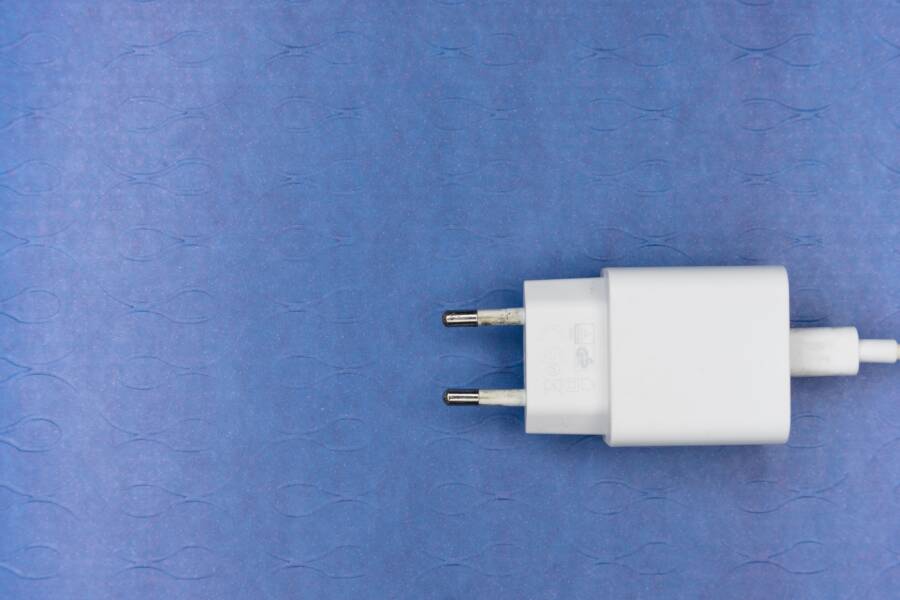
When your smartphone stops charging before it hits 100 percent, the battery is likely confused or reaching the end of its natural life. This frustrating issue often stems from a simple software calibration error or degraded hardware components that need a quick adjustment.
You don’t need a professional technician to fix this at home in most cases. Simple troubleshooting steps can restore your device to its full capacity if the internal cells are still healthy. Read on to learn how to identify the cause and revive your charging process.
Common Software Glitches That Prevent a Full Charge
Your smartphone relies on internal software to track the battery level. Sometimes, this tracking system loses sync with the actual physical state of the battery. When this happens, the operating system might report that the battery is full or stuck at a specific percentage when it is not. This error creates a false limit on your charging capacity, causing the phone to stop drawing power prematurely. Fixing these software bugs does not repair physical damage, but it often corrects the display and allows the device to recognize its true capacity again.
Calibrating Your Battery to Correct Percentage Readings
Calibration resets the connection between your software and the physical battery cells. The system needs to learn the true bottom and top ends of your battery capacity to display accurate information. You should perform this process once every few months to maintain accuracy.
Use your smartphone until it turns off on its own.
Leave the device powered off and connect it to the official wall charger.
Charge the phone uninterrupted until the indicator shows 100 percent.
Keep the device plugged in for at least one additional hour after it reaches full capacity.
Unplug the charger and restart your phone to finalize the reset.
This procedure forces the operating system to redefine the zero and hundred percent markers. It acts as a baseline check for the power management chip. If the battery still stops charging early after this reset, the issue may involve persistent background tasks or hardware health.
Checking for Rogue Apps Draining Your Power
Apps that constantly run in the background can interfere with the charging process. If a specific process demands too much energy, the battery temperature might rise during charging. Most smartphones intentionally slow down or halt charging when internal temperatures reach critical levels to prevent damage. You can investigate these power-hungry applications through the system settings.
Go to your battery usage menu to see a detailed list of apps and their energy consumption. Look for apps that show a high percentage of usage even if you have not used them recently. These rogue apps often keep the processor awake, preventing the device from entering an efficient charging state.
If you identify an app consuming excessive power, you have several options:
Update the app to the latest version, as developers often fix battery leaks in new releases.
Restrict background activity for the app within the battery settings menu.
Delete the application if you do not use it regularly.
After cleaning up these processes, monitor the charging speed again. When the smartphone no longer manages excessive heat or constant background work, it usually returns to a normal charging cycle. This keeps the battery cooler and allows it to reach a full charge without premature interruptions.
Hardware Problems and Physical Charging Hurdles
Sometimes, a smartphone stops charging because the physical connection between the power source and the battery fails. You might assume the battery itself is dead, but a simple mechanical obstruction or a faulty accessory often causes the problem. Checking your hardware is a logical step before you consider expensive repairs or replacing the entire device.
Cleaning the Charging Port Safely
Lint, dust, and pocket debris accumulate inside the charging port over time. This debris creates a physical barrier that prevents the charging cable from seating firmly against the pins. If the connection remains loose, the device may stop drawing power intermittently or refuse to charge past a low percentage.
You must be careful when cleaning this area to avoid damaging the delicate metal pins. Follow these safety rules to protect your port:
Power off your phone completely before you start.
Use a non-conductive tool like a plastic toothpick, a wooden toothpick, or a specialized anti-static brush.
Gently probe the bottom of the port to loosen any impacted dust or fibers.
Shake the device upside down or use a quick burst of compressed air to remove the loose particles.
Avoid using metal needles or paperclips, as these tools can easily scratch the charging pins or cause an electrical short. If you feel any resistance while cleaning, stop immediately to prevent snapping the tool inside the port. You should see a clear, metallic interior once the debris is gone. After the port is clean, try plugging in your cable to check if the connection feels secure and stable.
Testing Alternative Cables and Power Adapters
Your charging hardware endures significant wear and tear from daily use. A frayed cable or a degrading wall adapter often provides insufficient voltage to the smartphone, which leads to slow charging or unexpected interruptions. When the power delivery drops, the phone might pause the charging cycle to protect its circuitry from unstable power.
Verify your hardware components by swapping them one at a time:
Switch to a different charging cable, as internal wires often break while the outer casing remains intact.
Use a different wall adapter to rule out a failing power brick that no longer supplies the rated wattage.
Test your charger with another device to see if the issue follows the cable or stays with your phone.
A low-quality or third-party cable may also lack the necessary data pins to communicate correctly with the phone. This handshake failure prevents the battery from pulling the maximum power it needs for a full charge. Always test with a manufacturer-certified cable if you suspect your current setup is the source of the problem. If a new cable and adapter fix the issue, you simply need to replace your damaged accessories to restore full charging performance.
Understanding Battery Aging and Lithium-Ion Health
Modern smartphone batteries rely on lithium-ion chemistry to store power. This technology provides high energy density, but it degrades naturally over time. Each time you charge and discharge your device, tiny chemical changes occur inside the cells. Eventually, these changes reduce the total capacity of the battery. If your phone stops charging early, the internal management system might be struggling to adapt to these shifts in chemical potential.
The Lifecycle of Lithium-Ion Cells
Every battery has a finite number of charge cycles. A single cycle counts when you use 100 percent of your battery capacity, whether you do it all at once or spread it over several days. As you accumulate hundreds of these cycles, the electrolyte inside the battery slowly breaks down. This wear limits how many lithium ions can move back and forth between the electrodes. Because the battery holds fewer ions, it physically stores less energy than it did when new. Your smartphone software often monitors these changes, but it may miscalculate the actual capacity as the battery health drops.
Recognizing Signs of Natural Chemical Degradation
You can usually tell if your battery is reaching the end of its life by watching for specific behaviors. While a software bug causes a temporary percentage error, genuine chemical aging produces consistent results. If your device consistently shuts down at 10 percent or jumps from 20 percent to 5 percent in minutes, the hardware is likely failing.
Some indicators of a worn-out battery include:
The phone feels physically warm even during light tasks.
The battery percentage fluctuates erratically while the device is in use.
Your smartphone powers off unexpectedly even when the status bar shows plenty of remaining charge.
The device refuses to charge beyond a specific point, such as 80 or 90 percent, because the internal resistance has grown too high.
How Internal Resistance Impacts Charging Speed
Internal resistance represents the opposition to the flow of current within the battery. As a battery ages, its internal resistance increases significantly. When you plug in your smartphone, the charger pushes energy into the cell. If the resistance is too high, the battery cannot accept the full charging current safely. The battery management system senses this increased heat and resistance as a risk factor. To protect the cell from thermal runaway or physical damage, the system stops the charging process early. This limitation is a built-in safety feature designed to prevent the battery from swelling or catching fire. Replacing a degraded battery is often the only permanent fix when internal resistance becomes too high for the charging system to manage.
When It Is Time to Seek Professional Help
Most charging issues resolve with software resets or a good port cleaning. However, your smartphone hardware eventually reaches a point where DIY fixes stop working. You should consider professional repair services if you have exhausted all basic troubleshooting steps. Persistent power problems often indicate a deeper fault that requires specialized tools or parts to correct.
Identifying Unfixable Hardware Failures
You need expert assistance if the device shows clear signs of internal physical damage. A swollen battery is a primary example of a dangerous hardware failure. If you notice the screen lifting or the back casing bulging, stop using the phone immediately. Batteries expand when the internal chemistry fails and produces gas. This condition is a fire hazard and requires a technician to handle the unit safely.
Other physical signs that point toward professional service include:
The phone becomes extremely hot to the touch while sitting idle.
You see visible corrosion or burnt pins inside the charging port.
The device shuts down abruptly despite reporting a high percentage.
You hear a rattling noise inside the chassis after a drop or impact.
Evaluating Warranty and Repair Costs
Check your manufacturer warranty before you visit a repair shop. Many brands cover battery defects if the health drops below a certain percentage within the first year. Contacting official support ensures you use genuine parts that maintain the device’s original performance standards. Authorized service providers also keep your warranty intact, which provides long-term security.
If your warranty has expired, compare the repair cost against the current value of your smartphone. Replacing a battery is usually affordable, but motherboard damage can be expensive. If a repair shop quotes a price nearing half the cost of a new phone, consider upgrading instead. Reliable shops provide a clear estimate for parts and labor before they start any work. Ask for a diagnostic fee waiver if you decide to proceed with the repair.
Choosing a Reputable Repair Provider
Look for technicians with certifications from your smartphone manufacturer. These professionals undergo specific training and follow strict protocols for handling sensitive components. Avoid shops that use unverified or generic batteries, as these often fail prematurely or pose safety risks. Ask friends for local recommendations or check online reviews to confirm the track record of the service center. A trustworthy technician explains the repair process, offers a warranty on their labor, and keeps your data privacy in mind while working on your device.
Best Practices to Extend Your Battery Life Daily
You can maintain your smartphone battery health and prevent early charging cutoffs by managing how you consume power. Small adjustments to your daily habits reduce the chemical stress on your battery. These habits also keep the internal charging system accurate for longer periods.
Optimize Your Charging Habits
Your battery lasts longer if you avoid extreme charge levels. Lithium-ion cells experience the most stress when charged to 100 percent or drained to 0 percent. Most modern devices include features to manage this automatically.
Keep your battery between 20 percent and 80 percent whenever possible. This narrow window reduces the voltage strain on the internal cells. If your smartphone supports “Optimized Battery Charging,” turn it on in the settings. This feature learns your daily routine and waits to finish the final 20 percent of the charge until you usually wake up or start your day.
Manage Background Power Consumption
Excessive heat is the primary enemy of battery longevity. High internal temperatures occur when too many apps run in the background. Use the following methods to keep your device cool and efficient:
Limit location services to only the apps that require them for core functions.
Disable “Background App Refresh” for social media or news apps that constantly pull data.
Use the built-in dark mode if your smartphone has an OLED display, as dark pixels consume less power.
Lower your screen brightness or enable “Auto-Brightness” to reduce the most significant constant power draw.
Monitor Battery Health and Temperature
Your smartphone provides internal metrics regarding its health and current power usage. Check these statistics regularly to spot trends before they become problems. If you notice your phone stays warm even during basic tasks, a rogue process is likely consuming too much energy.
Keep in mind that high ambient temperatures also degrade battery capacity. Do not leave your device in a hot car or near other heat sources for extended periods. A cooler battery maintains its ability to hold a full charge and prevents the system from triggering early cutoffs. Focus on these simple routines to keep your power system stable over the long term.
Conclusion
Most charging interruptions occur because of minor software bugs or physical debris in the port. Calibration fixes the communication between the system and the battery, while cleaning restores a stable physical connection. These simple steps often solve the problem without the need for expensive repairs.
Lithium-ion batteries eventually lose capacity through normal chemical use. You can extend the life of your smartphone by keeping it cool and maintaining charge levels between 20 and 80 percent. These habits improve daily performance and postpone the need for hardware replacements.