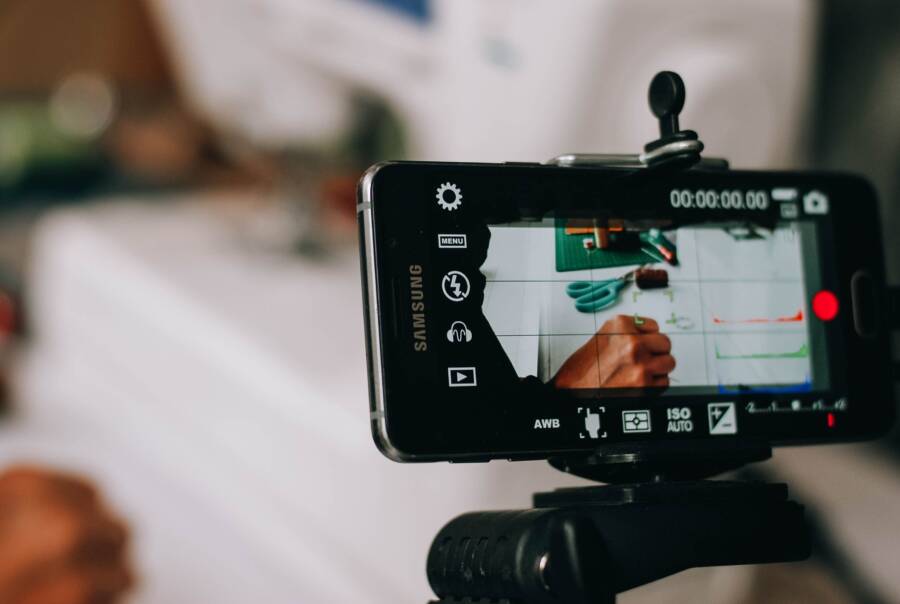
Most phones stop screen recording in the background because of battery limits, app permissions, system rules, or memory pressure. If your phone cannot keep screen recording running in the background, the fix is usually a mix of setting changes, app checks, and a little cleanup.
Different smartphone brands handle background tasks in different ways, so the same recording app can work on one device and fail on another. That’s why it helps to check power settings, update the app, and free up storage before you start troubleshooting.
The good news is that this problem usually has a clear cause, and you don’t need advanced tools to fix it. Next, you’ll see the settings and checks that most often keep screen recording running the way it should.
First, find out what is actually stopping the recording
Before you change settings, identify the failure point. A phone screen recording that stops in the background usually falls into one of three buckets: the app crashes, the phone pauses it, or the system kills it to save resources. Each one points to a different fix, so a quick check now saves time later.
A crash usually looks sudden. The screen recording app closes on its own, throws you back to the home screen, or shows an error message. That usually means the app itself has a bug, a permission problem, or a conflict with another app.
A pause feels different. The recording may stop when you switch apps, lock the screen, or answer a call, but the app stays open. That often points to a system rule, a background restriction, or a feature limitation on your phone.
When the device is killing the app, the whole phone often feels strained. Apps may reload often, animations stutter, and screen recording stops after multitasking or running a heavy app. In that case, memory pressure or aggressive battery management is usually the real cause.
Check whether the app is crashing, pausing, or being killed in the background
Start by watching exactly what happens the moment the recording stops. That detail tells you more than the error message does.
If the app crashes, it often disappears from the recent apps list or relaunches fresh when you open it again. On a smartphone, that usually means the app cannot handle something in the background, such as another app overlay, an outdated version, or a permission it needs but doesn’t have.
If the app pauses, the recording app may still be visible, but the capture ends as soon as you leave it. Some phones also block background recording on the lock screen or while protected content is open. That points to a system limitation, not a broken app.
If the phone kills the process, you may notice the app was fine until the device got busy. Heavy games, low storage, too many open apps, or a hot battery can push the phone to shut down background tasks. In plain terms, the phone is protecting itself.
A quick way to sort it out is this:
Start a short test recording.
Open another app for 10 to 20 seconds.
Lock the screen, if your recording app allows that.
Reopen the recorder and see whether it crashed, paused, or fully stopped.
If the app closes by itself, treat it as an app problem first. If it stops only when you leave the app, look at system restrictions next.
Look for battery saver, power optimization, or memory cleanup tools
Many phones shut down background apps before you even notice. The goal is to save battery and keep the device responsive, but screen recording apps often get caught in the process.
Check for settings with names like Battery Optimization, Adaptive Battery, App Power Management, Device Care, or Smart Manager. These tools can limit background activity, restrict high-drain apps, or clear memory when the phone thinks it helps. On some devices, they work almost like a strict gatekeeper for your smartphone’s background tasks.
Also look for built-in cleanup tools that close apps automatically. They often sound helpful, but they can end a recording without warning if the app stays active for too long in the background. That matters even more on phones with tight RAM limits or older hardware.
If you find one of these settings, check whether your screen recording app is listed as restricted, optimized, or sleeping. When possible, set it to unrestricted, not optimized, or allowed to run in the background. Different brands use different labels, but the idea is the same, stop the phone from treating the recorder like a disposable app.
A good rule is simple, if your phone has a built-in tool that saves power by closing apps, it can also stop screen recording. That is often the hidden reason the recording ends the second you switch tasks.
Change the settings that most often stop screen recording from running
If a phone screen recording stops in the background, the first settings to check are power limits, app permissions, and any feature that freezes apps when you leave them. These controls often interrupt the recorder even when it looks open and ready. A few small changes can keep the session alive long enough to finish the job.
Turn off battery saver and stop the phone from restricting the recorder
Low power mode is one of the most common reasons screen recording ends early. It reduces background activity, limits performance, and may shut down the recorder as soon as the phone thinks it should conserve power. On a smartphone, that can happen before you notice a problem.
Open your battery settings and look for Battery Saver, Low Power Mode, or any app power restriction option. Turn off battery saver before recording, then check whether the recorder is set to unrestricted or not optimized. If the phone offers a battery usage list, make sure the recording app is not marked for aggressive saving.
For longer recordings, leaving the phone plugged in helps. A charged or charging device is less likely to throttle background tasks, and some phones relax power limits when connected to a charger. That matters if you’re recording a long tutorial, app walkthrough, or game clip.
If battery saver is on, the phone may treat screen recording like a background task it can cut short.
Allow background activity, notifications, and always-on permissions
Screen recording apps often need more than basic storage access. They may need permission to stay active in the background, draw over other apps, record audio, and keep a notification visible while the session runs. If any of those permissions are missing, the app can stop without warning.
Check the app permissions page and confirm access for the settings below:
Background activity or background use, so the app can keep running after you switch apps.
Overlay or display over other apps, if the recorder uses floating controls.
Storage access, so the video can save correctly.
Microphone access, if you want voice audio in the recording.
Notification access, when the app uses a persistent alert to stay active.
On some Android phones, the app also needs to stay in Recent apps or be locked in memory. That may sound minor, but it matters. If the system clears it from memory, the recording can stop the moment you open something else. Some brands call this lock, pin, or keep active.
Disable aggressive data, sleep, or app refresh limits if they are closing the session
A recorder can fail even when it seems open if the phone freezes apps behind the scenes. That happens with sleep settings, background refresh limits, and data controls that pause activity when the screen turns off. These options are easy to miss because they sit outside the recorder itself.
On iPhone, check Background App Refresh and make sure it is allowed for the screen recording app if the app uses it. Also review any Low Power Mode or sleep-related setting that reduces background work. On Android, look for Unrestricted data, Auto-start, Background data, or brand-specific battery rules that stop apps when the display goes dark.
If your phone has a feature that puts apps to sleep, hibernates them, or clears them after inactivity, turn it off for the recorder. The app may still appear open, but the system can close the session in the background. That is why a recording sometimes ends while the app icon still sits on the home screen.
When in doubt, test one setting at a time. Start a short recording, switch apps, lock the screen if your recorder allows it, and see whether the session stays alive. A few minutes of testing usually reveals which phone setting is acting like a silent shutoff switch.
Make sure the recording app itself is not the problem
If your phone screen recording stops in the background, the app may be the weak link. A damaged install, an outdated version, or a strict app limit can cut the session short even when your phone settings look fine. Before changing more device settings, rule out the recorder itself.
Update the app, clear its cache, or reinstall it cleanly
An old or corrupted app can fail in ways that look like a phone problem. Cached files may conflict with the current version, and a bad install can break permissions, audio capture, or background recording behavior. That is especially common after a system update on a smartphone.
Start with the simplest fix, then move to the heavier one only if needed:
Update the screen recording app through the App Store or Google Play.
Clear the app cache if you’re on Android and the app offers that option.
Restart the phone, then test a short recording.
Reinstall the app if the problem keeps coming back.
Before you uninstall, back up any saved recordings that matter. If the app stores clips locally, copy them to cloud storage, a computer, or your photo gallery first. Otherwise, you may lose finished recordings along with the app data.
A clean reinstall helps when the app opens normally but behaves badly in the background.
If the recorder works after a fresh install, the problem was probably inside the app, not the phone. That is a useful split because it saves you from chasing the wrong setting.
Check whether the recorder has time limits, watermark rules, or hidden background limits
Some screen recording apps stop for reasons that have nothing to do with bugs. Free apps often cap recording length, force a watermark, or require the app to stay visible while capturing. Built-in tools may also stop when the screen locks or when you leave the recorder for too long.
Read the app’s limits before you trust it for a long session. Look for details such as:
Maximum recording length, which can end the clip at a set time.
Foreground-only capture, which means the app must stay open on screen.
Lock screen restrictions, which stop recording when the phone sleeps.
Watermark rules, which sometimes come with fewer recording options.
Audio limits, which can affect background recording with microphone input.
This comparison matters because free recorders, built-in tools, and paid apps often behave very differently. A built-in recorder may be stable but limited. A free third-party app may allow more features but close the session in the background. A premium recorder may keep running longer, with fewer interruptions and clearer file saving.
If the app page or settings mention background limits, treat that as a hard boundary. No phone setting will fix a feature the app does not support.
Choose a better screen recording app if the current one is too limited
If the app keeps failing after updates and reinstalling, it may simply not fit the job. A better recorder should stay stable in the background, handle audio cleanly, and save files without confusion. It should also avoid extra overlays that get in the way or conflict with other apps.
When you compare options, look for these basics:
Stable background recording, especially if you need to switch apps.
Good audio support, including microphone and internal audio if your phone allows it.
No forced overlay clutter, since extra floating buttons can trigger conflicts.
Clear file saving, so recordings appear in Photos, Files, or a known folder.
Simple export options, which make it easy to back up clips later.
A reliable recorder should behave predictably on your smartphone. If the app hides its limits, fails after app switching, or loses recordings after a crash, move on. The best choice is the one that matches how you actually record, not the one with the longest feature list.
One useful test is to record a short clip, switch apps, lock the screen if allowed, then check where the file saves. If that process feels shaky, the app is the problem and the fix is to replace it.
Fix common phone issues that can break long background recordings
Long screen recordings put extra pressure on a phone. They use storage, memory, battery, and heat management all at once, so even a small problem can stop the session early. The safest approach is to clear space, reduce load, and remove anything that makes the device work harder than it should.
Free up storage and memory before you record
Screen recordings need room to save video files and enough working memory to keep the app running. If your phone is close to full, the recording may stop, save incorrectly, or fail before you notice. That risk goes up with long sessions, because video files grow fast.
Start by closing apps you do not need. Background tabs, messaging apps, games, and cloud sync tools all use RAM, and a busy phone has less room for a recording app to stay stable. Then delete large files you no longer need, such as old videos, duplicate photos, or downloaded media.
A little extra headroom matters. Leave more free space than the bare minimum, especially if you plan to record for several minutes or longer. That gives the phone enough room to write the file smoothly instead of scrambling for storage at the end.
Before you press record, check these basics:
Close extra apps that you are not using.
Remove large videos, downloads, or cached files.
Leave free storage for the recording file and temporary system use.
Avoid starting a recording when the phone storage is nearly full.
A smartphone that feels “fine” during normal use can still fail under recording load. A quick cleanup lowers that risk right away.
Prevent overheating during longer recordings
Heat can make a phone slow down or shut down background tasks. When the device gets hot, it may throttle performance, limit app activity, or stop recording to protect itself. That often happens during long captures, especially if the screen stays on at high brightness.
Lower the screen brightness before you start. It reduces heat and battery drain at the same time. If your phone uses a thick protective case, remove it for the recording so heat can escape more easily. Also avoid direct sunlight, since even a short recording in a warm spot can push the phone too far.
Recording in a cooler place helps more than many people expect. A desk indoors is better than a car, a sunny window ledge, or a crowded pocket. If you notice the phone getting warm during testing, shorten the session or let it cool down first.
Keep these habits in mind:
Turn brightness down to a comfortable level.
Remove bulky cases if the phone runs hot.
Stay out of direct sun and hot rooms.
Record in a cool, open area when possible.
If the phone feels hot to the touch, background recording becomes less reliable.
Update the operating system and restart the phone if recording still fails
System bugs can break screen recording even when your settings look right. An OS update often fixes problems with audio capture, background app handling, and stability during long sessions. If the recorder keeps stopping, check for an update before you keep troubleshooting.
A restart also helps more than people expect. It clears temporary glitches, resets background processes, and removes short-term conflicts that can build up during normal phone use. If the recording app worked earlier but fails now, a restart is one of the quickest ways to reset the device state.
Use this simple order:
Check for the latest operating system update.
Install it if one is available.
Restart the phone after the update finishes.
Test the screen recording again with a short session.
If the problem disappears after a restart, the issue was probably a temporary software glitch. If it keeps happening, the phone likely needs one more fix, such as a settings change or a better recording app.
Use the right setup for stable recording, especially on Android and iPhone
A stable screen recording starts with the right setup. On many phones, the recorder only stays reliable when the app remains active, the battery stays steady, and the device has enough room to keep working in the background. If the setup is off, the recording can stop halfway through, even when the app looks fine at first.
This matters most on Android and iPhone because each platform handles background activity a little differently. A good setup gives you a clean test before the real recording, which saves you from losing a long clip later.
Keep the recorder open in the foreground when the phone requires it
Some phones do not truly support background recording, even if the app seems to allow it. In that case, the recorder has to stay open on screen, or at least remain in the recent apps view, or the phone may end the session when you switch away.
That limitation is easy to miss because the app can look active while the system is already closing it in the background. On certain Android models, this happens when the phone clears apps to save memory. On iPhone, the recording tool may also stop if the device moves into a state it does not support for that session.
The safest habit is simple. Keep the recorder visible until you know it can handle background use, and avoid switching apps unless you have tested that behavior first. If the app has to stay on screen, treat that as a normal requirement, not a flaw in your setup.
If the recording only works while the app stays open, the phone is asking for foreground use, and that setting has to stay that way.
When you plan a long capture, keep the recorder pinned in recent apps if your phone allows it. That small step can make the difference between a complete video and a cut-off file.
Test audio, microphone, and screen lock behavior before the real recording
A short test run tells you more than a long guess. Record for a few seconds, then open another app, lock the screen if your phone allows it, and check whether the session keeps going. If it stops at any of those points, you know the setup still needs work.
Audio deserves the same check. Make sure the microphone picks up your voice if you need narration, and confirm whether system audio is being captured on your device. Some phones allow both, while others limit internal audio in certain apps or modes.
A quick test checklist helps you catch problems early:
Start a short recording and speak normally into the microphone.
Open another app and watch whether the recording continues.
Lock the screen, if the app supports that, and see what happens.
Play back the clip to confirm both video and audio saved correctly.
If the app drops audio, switches to silence, or ends when the screen turns off, you can fix it before the real session begins. That is especially important for tutorials, app demos, and calls on a smartphone, where one missed setting can ruin the whole recording.
Use a charger or power bank for long sessions
Long recordings put steady pressure on the battery. A charger or power bank helps keep the phone from dropping into power-saving mode, shutting down background tasks, or slowing down when the battery gets low. It also reduces the chance of sudden shutdowns during a long session.
This matters even more for gameplay, step-by-step tutorials, and long calls. Those sessions keep the screen active, use more processing power, and create more heat. When the phone is already working hard, a stable power source gives it one less reason to stop the recording.
Charging during recording is helpful, but the source matters. Use a reliable cable and a power source that keeps the connection steady. If the cable is loose or the charger cuts in and out, the phone may react by changing performance or interrupting the app.
Before you start, check these basics:
Plug in the phone or connect a power bank.
Make sure battery saver is off.
Keep the phone in a cool place.
Test a short recording first if the session will last a while.
A steady charge will not fix every background recording issue, but it removes one of the most common causes of failure.
When to reset settings or ask for device support
If your phone screen recording still stops in the background after you’ve checked battery settings, permissions, storage, and heat, the next step is a reset or support request. Start with the least disruptive reset first, because that often fixes broken permissions or a bad app rule without wiping your phone. Only move to a factory reset when everything else has failed.
Try a settings reset before a full factory reset
A full factory reset should be the last resort. It erases apps, settings, and local data, so it’s too aggressive for a problem that may come from one bad permission, one stuck battery rule, or one broken app preference. A safer reset is usually enough to clear the setting that keeps killing the recording.
On many phones, the better first moves are:
Reset all settings, which restores system preferences without deleting personal files.
Reset network settings, if the recorder depends on cloud sync, app login, or voice capture tied to a connection.
Reset app preferences, which can restore disabled permissions, background limits, and default app behavior on Android.
Recheck permissions after the reset, because a reset can turn off access the recorder needs.
These options are useful when the recorder worked before and then failed after a software change, app update, or setting tweak. They often fix broken permissions, hidden battery rules, or app defaults that no longer match your setup. In other words, they repair the rails without tearing up the whole track.
A factory reset makes sense only when the phone has wider system problems, repeated crashes, or settings that keep breaking after each fix. If you get to that point, back up your data first, then treat the reset as a final repair step, not a shortcut.
If one setting seems haunted, reset the setting. If the whole phone is unstable, then consider a factory reset.
Contact the phone maker or app developer if the recorder still quits
If the recorder still stops after a settings reset, the problem may be inside the phone firmware or the app itself. That is the point where support can help faster than trial-and-error. The more exact your details are, the easier it is for them to spot the cause.
Before you reach out, gather this information:
Phone model, such as the exact device name.
OS version, including the current Android or iPhone software build.
Recorder app name, plus the version number if you can find it.
What happens when it fails, such as crashing, pausing, or stopping after app switching.
When it happens, like during screen lock, after a few minutes, or when another app opens.
Any recent changes, such as an OS update, app reinstall, or battery setting change.
That level of detail helps support teams narrow the issue quickly. If you send a vague report like “screen recording stops,” they have to guess. If you say “screen recording stops when I switch to another app on a Samsung Galaxy with Android 14,” they can start in the right place.
For the fastest result, contact the phone maker when the problem looks system-wide, and contact the app developer when only one recorder fails. Both teams may ask for a short test clip or screen capture of the error, so keep one ready if you can.
Conclusion
If your phone cannot keep screen recording running in the background, the fix is usually simple once you find the real limit. Start with power optimization, then allow background activity, update or replace the app, clear storage, and check for overheating.
Most of the time, the phone is not broken. A setting, permission, or app restriction is stopping the recording before it can finish.
The most useful first check is power optimization. On many smartphone models, that is the setting most likely to end a recording early.