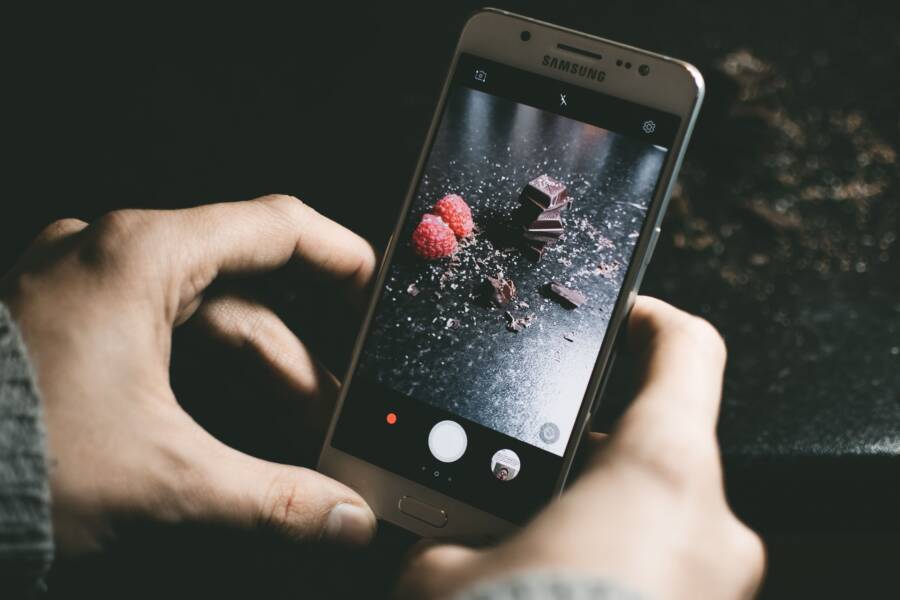
Your smartphone refuses to save photos when the battery is low because the operating system triggers a power-management protocol. This mechanism stops non-essential background processes, including the high-energy tasks required to write image data to your storage.
If you find yourself stuck at a low percentage, the device prioritizes system stability over new file creation. You can override these restrictions by disabling power-saver modes or connecting your device to a reliable power source. Below are the steps to regain camera functionality when your battery is fading.
Why Your Smartphone Stops Saving Photos During Low Power
When your battery level drops, your smartphone shifts its operational priorities. It switches to a conservative mode to ensure essential functions like cellular connectivity remain active. This transition affects the camera app because capturing, processing, and storing images demands a high amount of power.
The Role of System Battery Management
Your smartphone contains a sophisticated power-management system designed to extend the life of the battery during critical moments. When the charge hits a specific threshold, typically 20 percent or lower, the operating system limits background processes. This protects the internal components from potential damage caused by voltage drops during high-energy tasks.
Hardware safety is the primary driver behind these restrictions. Taking a photo forces the processor to spike in activity while the flash and storage controller pull significant current. If the battery is already struggling to supply consistent voltage, these spikes could cause the entire system to crash or restart unexpectedly. By preventing high-energy operations, the phone avoids sudden power failure.
Many manufacturers include specific settings that enforce these protections:
Battery Saver Mode: This setting reduces processor speed and turns off non-critical hardware features to preserve energy.
Performance Throttling: The system intentionally slows down internal operations to prevent the battery from heating up or failing under load.
Background Activity Limits: The operating system stops apps from syncing data or performing heavy computations, which often includes the post-processing required to save high-resolution photos.
These protocols prioritize the longevity of your lithium-ion battery. Frequent low-voltage dips can accelerate chemical degradation inside the cell, reducing its capacity over time. Your device limits these intense tasks to keep the battery within a safe operating window.
Understanding Write Errors and Storage Restrictions
When you press the shutter button, your smartphone initiates a complex sequence of tasks. It captures raw sensor data, processes that data into a viewable image file, and finally writes that file to your flash storage. Each of these steps consumes a measurable amount of electricity. If the battery is near empty, the system may block the final write command to prevent the device from cutting off mid-process.
This interruption often leads to an error message because the storage controller cannot confirm the file has been successfully written to the memory chip. If the phone allowed the write operation to proceed with insufficient power, the file system could become corrupted. This is why the device prioritizes system stability over saving your new images.
The phone also manages how it uses temporary storage during these events:
Prioritized Task Queuing: The operating system keeps the phone call and messaging functions at the top of the priority list while demoting media storage tasks.
Cloud Sync Suspension: Features like automatic cloud backups for photos stop immediately to save power and cellular data usage.
Write-Locking: In extreme cases, the system enters a read-only state for certain directories to prevent data loss.
If you find that your camera works but fails to save, the hardware is likely unable to sustain the power flow needed for the write cycle. Connecting the smartphone to a charger typically solves this problem instantly. Once the power supply becomes stable, the system resumes normal operations and allows the camera to save files to your storage again.
Managing Power and Storage to Resolve Camera Errors
When your device refuses to save photos, the cause is often a combination of low power and limited internal space. You can resolve these issues temporarily by adjusting your system settings to prioritize image capture over background battery conservation. These adjustments provide enough overhead for the camera to function while you locate a power outlet.
Toggling Power Settings for Instant Access
Disabling battery saver mode forces the smartphone to allocate more power to the camera system. This is a temporary measure, as it drains the remaining charge faster than normal operation. You should revert these changes once you finish capturing your images to prevent the device from shutting down unexpectedly.
On Android devices, pull down the notification shade to locate the Battery Saver icon. If you don’t see it, open your Settings app, tap Battery, and select Battery Saver to toggle it off. Some models have a separate mode under Camera settings that allows high-performance capture even when the overall system battery is low.
For iOS users, the process is equally straightforward. Open the Settings app, tap Battery, and turn off the Low Power Mode switch. Alternatively, you can disable this mode through the Control Center by tapping the yellow battery icon. Once you turn off these restrictions, the processor gains the necessary voltage to complete the write cycle for your high-resolution photos.
Clearing App Cache and Managing Internal Storage
If you still encounter errors after disabling power-saving modes, your internal storage might be near capacity. Smartphones need a small buffer of empty space to process new images effectively. When storage is full, the device struggles to write data, especially when the battery lacks the extra energy to manage complex file operations.
You can clear temporary data to make room for your files quickly. On Android, go to Settings, tap Storage, and select Apps. Choose frequently used applications like social media platforms or browsers, then tap Clear Cache to remove temporary files that occupy space. Avoid clearing app data, as this removes your saved logins and preferences.
On an iPhone, you can offload unused apps to reclaim space immediately. Navigate to Settings, tap General, then select iPhone Storage. The system lists apps by size; select an app you don’t use often and tap Offload App. This action removes the application but keeps your personal documents and data, freeing up the space needed for your camera to save new photos. If you need more space, delete large video files or move photos to a cloud service when you regain a stable cellular or Wi-Fi connection.
Smart Strategies to Prevent Future Camera Failures
Preventing future camera failures requires a balance between how you manage your storage and how you treat your battery. Most users run into issues because the smartphone demands peak performance exactly when the system resources are at their lowest point. By adjusting your backup habits and maintaining your hardware properly, you keep your camera ready for every shot, even when the battery is not fully charged.
Optimizing Cloud Backup Settings
Storing photos on your device uses local memory, but syncing them to the cloud creates a heavy drain on your battery and cellular data. Local storage happens directly on the internal flash memory of your smartphone, which is fast and accessible. Cloud sync acts as a secondary copy, moving those files to a remote server over your internet connection.
If your smartphone attempts to upload large image files while the battery is low, it creates an unnecessary power demand. High-resolution photos require significant radio activity to upload, which heats up the battery and can cause the system to freeze the camera app. You should configure your photo app to sync only when the phone is on a stable Wi-Fi connection and preferably plugged into a charger.
Follow these adjustments to protect your battery:
Open your gallery or photo application settings.
Look for the backup or sync menu.
Toggle on the option labeled “Sync over Wi-Fi only” or “Upload when charging.”
Disable background auto-sync if you notice your battery dropping quickly throughout the day.
This configuration prevents the phone from initiating high-power data tasks during moments where you are already running low on energy. Your images remain safe on your device until you have access to a power outlet.
Battery Maintenance and Best Practices
Your battery health dictates how your smartphone handles voltage drops. As lithium-ion batteries age, their internal resistance increases, meaning they cannot supply a steady stream of power to the processor during intense tasks. If you notice your camera fails to save photos even at 30 or 40 percent battery, your battery may be losing its ability to hold a charge under stress.
Voltage drops happen when the camera processor demands a burst of power to process and write a high-quality image. If the battery is degraded, the voltage dips below the threshold required by the storage controller, forcing the system to abort the operation to prevent a complete crash.
Pay attention to these signs of a failing battery:
Your smartphone shuts down unexpectedly while you are taking photos.
The battery percentage jumps from 20 percent to 5 percent in just a few minutes.
The device feels unusually warm to the touch during simple operations.
If you experience these symptoms, replacing the battery is often the only permanent fix. Consistent power delivery is required to handle the high-speed data transfer that occurs every time you snap a photo. When the hardware remains healthy, your smartphone manages these power spikes without interrupting your workflow.
When Should You Contact Professional Support?
Most photo-saving issues stem from battery constraints or storage limitations that you can manage at home. However, you should contact professional support if standard troubleshooting steps fail to restore your camera functionality. Persistent hardware failures indicate internal faults that go beyond software settings or low-power protocols.
Identifying Persistent Hardware Faults
If you keep your smartphone plugged into a charger and still receive error messages while taking photos, the issue likely sits within the hardware components. A healthy battery should provide enough voltage for the camera even during heavy processing. If the device repeatedly crashes or restarts when you press the shutter button, the power management integrated circuit or the battery itself might be failing.
Contact a technician if you notice these specific hardware symptoms:
The camera app crashes every time you open it, regardless of your battery percentage.
Your smartphone displays persistent “Write Error” or “Storage Access Denied” alerts even when the device has plenty of free memory.
The rear camera lens produces blurry images or displays internal artifacts that suggest physical damage to the module.
Your phone gets extremely hot to the touch in the camera area even during short, basic tasks.
Professional technicians have access to diagnostic software that detects deep-level hardware errors. If your phone has a loose cable connecting the camera sensor to the logic board, no amount of software configuration will fix the issue. A professional can open the chassis, inspect these connections, and perform a proper repair.
Navigating Warranty and Repair Options
Before you book a repair appointment, verify your current warranty status. Most manufacturers provide limited coverage for hardware defects that occur under normal usage. If your smartphone is still under warranty, unauthorized repairs or third-party interference might void your coverage, so you should prioritize official service centers.
Follow these steps before you visit a repair shop:
Back up your photos and personal data to a cloud service or an external drive.
Perform a full factory reset if the shop requests it to rule out deep software corruption.
Remove your SIM card and any external memory cards.
Check your manufacturer website to confirm if your device qualifies for a free repair or a replacement unit.
Third-party shops often offer faster turnaround times if you are out of warranty. However, verify that they use genuine parts, especially for camera modules and battery replacements. High-quality parts prevent future compatibility issues and ensure your smartphone continues to operate according to the manufacturer specifications. Always ask for a written quote and a warranty on the repair work before you hand over your device.
Conclusion
You can resolve camera save errors by disabling power-saver modes or clearing temporary storage files on your smartphone. These adjustments provide the necessary overhead for the device to process images during moments of low battery.
Keep your charging habits consistent and manage your local storage to prevent future interruptions. Prioritizing these maintenance steps ensures your camera remains ready to capture important memories whenever you need it.