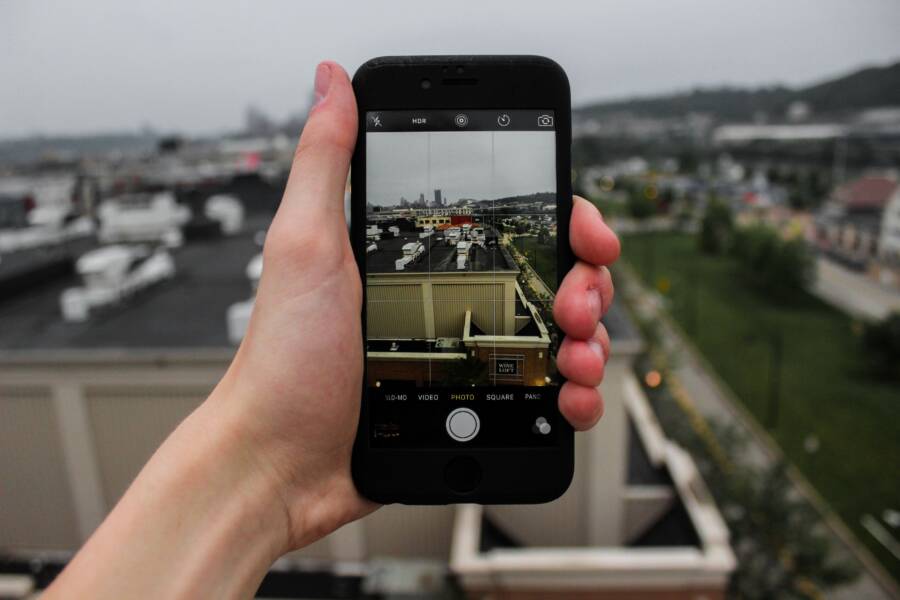
You take a photo, press the shutter, and then receive an error message stating your smartphone cannot save the image. This sudden failure is incredibly frustrating, especially when you depend on your device to capture important moments.
Most of the time, this issue stems from storage permission conflicts or a corrupted app cache caused by third-party camera software. These apps sometimes struggle to gain the necessary system access to write files to your device gallery.
You can resolve this by re-adjusting your system permissions and clearing the temporary data for the problematic application. Following these troubleshooting steps will restore your ability to save photos properly.
Quick Fixes to Try First
Before you assume your smartphone hardware is failing, perform a few basic checks. Small software glitches often mimic serious physical defects. These initial steps resolve the majority of photo saving errors without requiring technical expertise or data loss.
Checking Your Storage Capacity
A smartphone requires a specific amount of free space to process and store new image files. When your internal storage reaches capacity, the operating system prevents new files from being written to the disk. This safeguard protects existing data from corruption. If your device displays a warning about low storage, free up space by deleting unused applications, clearing cached files, or moving media to cloud storage.
On Android, follow these steps to verify your available space:
Open the Settings app.
Tap on Battery and device care or Storage.
Review the breakdown to see how much space remains.
On iOS, navigate to the storage menu by using these steps:
Open the Settings app.
Select General.
Tap on iPhone Storage to view a visual summary of your usage.
If you find that your device is nearly full, remove large video files or offload apps you rarely use. Once you regain a few gigabytes of space, attempt to take a photo again.
Verifying App Permissions
Your camera app needs explicit permission to interact with your internal storage. If these permissions are revoked, the camera may trigger the shutter but fail to write the final image to your gallery. Updates to your operating system or security patches sometimes reset these settings without warning. Checking these permissions confirms the application has the necessary access to save files.
For Android devices, check your settings with this process:
Long-press the camera app icon.
Tap the App Info or information icon.
Select Permissions and ensure Camera and Files and media are set to Allowed.
On an iPhone, verify access using this method:
Open the Settings app.
Scroll down to find the Camera app settings or the Privacy and Security menu.
Confirm that the app has the required permissions to access your photos and library.
If the permissions were disabled, toggle them back to the active state and restart the camera application. This usually corrects the issue immediately and allows your smartphone to store new images again.
Resolving Conflicts with Third Party Camera Apps
Third-party camera applications often offer advanced filters or manual controls that native smartphone software lacks. However, these programs frequently struggle to integrate with the system architecture, leading to save errors or silent failures when capturing images. If your primary camera works fine but a secondary app refuses to save files, the conflict usually resides within the application configuration or outdated software packages.
Clearing App Cache and Data
Temporary files accumulate as an app processes data, but sometimes these files become corrupted. When this happens, the app cannot communicate effectively with the storage directory on your smartphone. Clearing the cache often resolves these minor technical hurdles without affecting your personal photos or system settings.
Navigate to your device settings to perform this cleanup:
Open the Settings app and select Apps or Application Manager.
Locate the problematic camera app in the list and tap it.
Select Storage or Storage and Cache.
Tap Clear Cache to remove temporary items.
If the problem persists after clearing the cache, you might need to select Clear Data or Clear Storage. Be aware that this action performs a more thorough reset. It deletes saved login profiles, custom app settings, and internal configuration files. You will likely need to re-grant storage and camera permissions the next time you open the application. Think of this as a factory reset for that specific app.
Updating or Reinstalling the Software
Software developers frequently release patches to fix bugs that interfere with file saving processes. If you run an older version of an application, it may be incompatible with your current operating system updates. Checking for a pending update in the Google Play Store or Apple App Store is the first step toward fixing these write errors.
Perform the following steps to ensure your software is current:
Open your app store and search for the camera application.
Check if an Update button is available on the app page.
Install any available updates and restart your smartphone.
If the app is already up to date, a fresh installation often resolves lingering configuration issues. Uninstall the application entirely to remove any deep-seated corrupted files from your system. Restart your smartphone to clear the memory before you download and reinstall the app from the store. A clean install provides the application with a fresh path to access your storage, which often clears the roadblocks that prevent files from saving correctly.
Advanced Troubleshooting for Persistent Issues
If basic storage checks and permission updates fail, your smartphone may have deeper software conflicts or system-level inconsistencies. These persistent errors often hide in the background, out of reach of standard app settings. Before you consider a factory reset or repair shop, a few diagnostic procedures can isolate the exact source of your photo saving failure.
Testing Your Device in Safe Mode
Safe mode acts as a diagnostic environment that loads only the core software required for your smartphone to function. It disables all third-party apps, allowing you to determine if a downloaded program is responsible for the file-writing conflict. If the camera works perfectly while in this mode, you can be certain that a recently installed app is preventing your photos from saving.
Follow these steps to enter safe mode on most Android devices:
Press and hold the power button until the power-off prompt appears on your screen.
Tap and hold the “Power off” icon until the “Reboot to safe mode” option appears.
Select OK to restart your device in this restricted state.
Once the phone reboots, you will see a “Safe mode” badge in the corner of your display. Open your camera app and attempt to take a photo. If the image saves correctly, a third-party application is the culprit. You should then restart your phone normally and begin uninstalling your most recent apps until the issue disappears. iPhone users lack a native safe mode, but you can achieve similar results by identifying and deleting problematic apps recently installed through the App Store.
Checking System File Permissions
Sometimes the issue is not with the camera app itself, but with the underlying system files that manage media storage. A corrupted file system or an incomplete operating system update can break the path between your camera and the internal gallery folder. If your smartphone OS is missing a critical patch, it might lack the instructions required to write new data to specific storage sectors.
Check for pending updates by navigating to your system settings. Look for a section labeled “Software Update” or “General,” and verify that you are running the latest version provided by the manufacturer. Updating your OS replaces outdated or corrupted system files with healthy ones, which often fixes bugs that affect media saving.
If your storage permissions remain locked even after an update, you may be dealing with a file system error. This often occurs if the device suffered a forced shutdown or a crash during a previous write operation. While rare, persistent file system corruption may eventually require a full factory reset to rebuild the directory structure. Always back up your important data to a cloud service or a computer before attempting a factory reset, as this action will erase everything currently stored on your smartphone.
Preventing Future Photo Saving Errors
You can stop recurring camera save errors by managing how your smartphone interacts with storage and third-party software. Many users face these interruptions because of cluttered background processes or outdated security settings. Establishing a routine for device maintenance keeps your gallery functional and prevents the frustration of lost photos.
Maintaining Sufficient Storage Headroom
Your smartphone needs a buffer of free space to handle temporary image processing. When storage levels dip below a few gigabytes, the system often blocks new file creation to prevent data corruption. Aim to keep at least five to ten percent of your total capacity open at all times. This provides enough room for system updates and standard file operations.
Regularly audit your device to avoid reaching the critical threshold:
Review your photos and videos once a month to remove blurred shots or accidental screen captures.
Offload large media files to a cloud service or an external hard drive.
Uninstall apps that you have not opened in several months.
If you consistently run out of room, consider using an automatic backup service. These tools sync your images to a remote server and offer a feature to delete local copies once the upload completes. This keeps your internal storage lean without forcing you to sacrifice your personal collection.
Auditing App Permissions Regularly
Operating system updates sometimes change how your smartphone manages security and file access. If you notice a specific app stops saving photos after a software patch, verify that its permissions remain intact. You should periodically check your privacy settings to ensure only trusted applications have permanent access to your media files.
Review your permission list using these general categories:
Access to storage or files and media for your primary camera and photo editing apps.
Camera access settings for social media applications that use the lens directly.
Limit access for apps that do not require photo library interaction to function. Restricting these permissions reduces the risk of software conflicts and adds a layer of privacy to your daily activity. If an application demands excessive access, it is safer to find a more reputable alternative.
Managing Third Party Camera Integration
Advanced camera apps often cause issues if they conflict with your built-in system software. Because these programs run alongside the default camera, they may attempt to access the same hardware resources simultaneously. To avoid this, try to stick to one primary camera app for daily use. If you prefer a specialized editor, ensure you update it immediately when new versions become available in your app store.
If a specific app causes repeated saving failures, remove it from your device. Persistent bugs in third-party software usually point to poor optimization rather than a fault in your hardware. Replacing unreliable apps with stable, well-reviewed software prevents future errors and creates a more dependable experience for your smartphone photography.
Conclusion
Restoring your ability to save photos usually involves simple adjustments to storage permissions or clearing the cache of the specific camera application. You can resolve most conflicts by verifying your available internal storage, resetting app access, or performing a clean update of your software.
If these steps do not fix the issue, the problem might reside within the third-party app itself. Reach out to the developer support team for further assistance if the error persists. Maintaining your smartphone through regular storage audits and permission checks keeps your device responsive and ready for every shot.