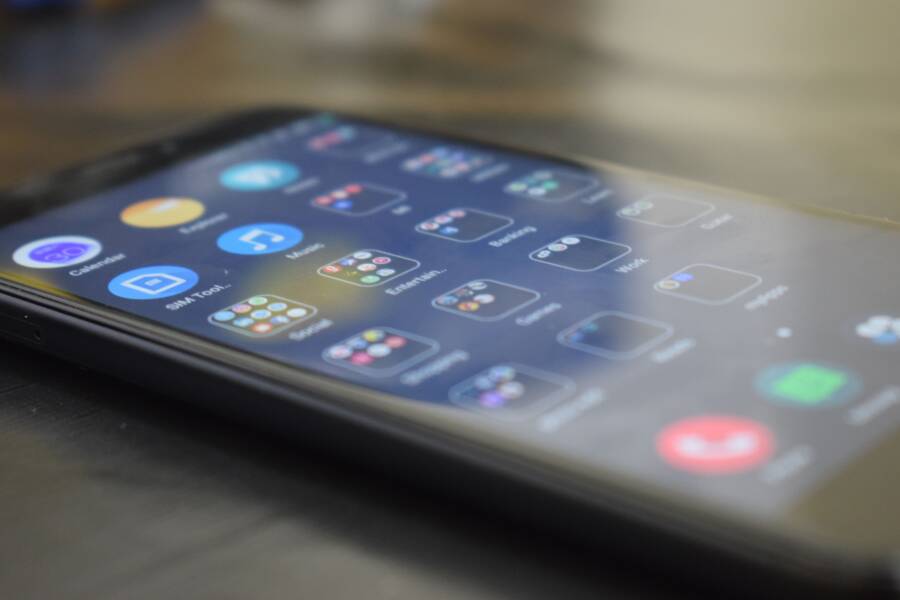
A phone that can’t keep the app drawer organized usually has a software issue, a launcher setting problem, or an app conflict. In many cases, your smartphone is changing app order after an update, syncing the wrong layout, or resetting the launcher without warning.
The good news is that this is usually fixable without a factory reset. Below, you’ll see the most common causes, the settings that move apps around, and the steps that can get your app drawer back under control.
Find the reason your app drawer keeps changing on its own
A phone app drawer usually changes for a clear reason, even when it looks random. The most common causes are launcher settings, recent updates, new apps, or sync features that restore an older layout. Once you identify which one is active, the drawer becomes much easier to control.
Check whether your launcher is auto-sorting apps
Many launchers do not keep apps in a fully manual order unless you tell them to. Some sort by name, others by date added, and a few switch between a custom layout and an automatic one after a restart or update. If your app drawer keeps reshuffling, start in the launcher settings and look for sort options, app drawer layout, and folder behavior.
On Android, these controls often sit inside the home screen or launcher menu. Look for settings such as:
App drawer sort order
Alphabetical sorting
Recently installed apps first
Custom order
Folder suggestions or automatic grouping
If the drawer keeps snapping back into place, the launcher may be enforcing its own sort rule.
Also check whether the launcher groups apps into folders on its own. Some launchers hide this inside layout settings, while others apply it after an update. If you want a stable setup, use one layout mode and avoid switching between grid, list, and auto-sort options on the same smartphone.
Look for updates that changed your app layout
A sudden change often points to an update rather than a bad setting. Phone OS updates can reset parts of the launcher, remove old preferences, or change how the app drawer behaves. Launcher updates can do the same, especially if the app changes its default sort order or refreshes its layout tools.
App updates can also move things around. When an app gets reinstalled or updated, it may appear as a newly added item, which can bump it to the top of a date-based drawer. That is why a phone that looked organized last night can feel messy by morning.
If the app drawer changed after an update, check three places:
Phone system updates in Settings.
Launcher app updates in the Play Store or app store.
Recent app updates for apps that now appear in a different spot.
Notice if a new app or sync setting is reshuffling things
A new app can change the order of the drawer, especially if your launcher sorts by date added. Some apps also create folders, add shortcuts, or request home screen placement during installation. If the drawer moved right after you installed something, that app may be the trigger.
Sync settings can be just as disruptive. A cloud backup restore may bring back an older layout, while a work profile can add a separate set of apps that mixes into the drawer view. Account sync may also repopulate apps after you sign in on a new device, which can make the drawer look different even if you never touched the settings.
Watch for these common triggers:
Cloud restore pulling back an old arrangement
Work profile apps appearing in a separate or merged drawer
Account sync restoring apps in a fresh order
New installs jumping ahead because of date-based sorting
If your smartphone keeps rearranging apps, the cause is usually hiding in one of these areas. Find the sort rule, check for recent updates, and look at any sync or restore feature before you start moving icons around again.
Use the built-in settings that control app drawer organization
The best fix is often already in the launcher. If your app drawer keeps reordering itself, change the built-in layout settings first, then test the result before you move on to deeper fixes.
Most phones let you control whether apps stay in a custom order, follow alphabetical sorting, or display in a grid view. The exact menu name changes by launcher, but the goal is the same, turn off any option that keeps rearranging your apps behind the scenes.
Switch from automatic sorting to a manual layout
Open your launcher settings and look for the app drawer section. Depending on the phone or launcher, you may see terms like App drawer sort order, Drawer layout, Home screen settings, or Apps screen settings.
If your launcher supports it, pick the option that gives you the most control:
Custom order keeps apps where you place them.
Alphabetic order locks apps into a steady A to Z list.
Grid view shows apps in fixed rows and columns, which makes changes easier to spot.
If you see anything like recently installed first, automatic grouping, or smart sorting, turn it off. Those features are useful for quick setup, but they often cause the drawer to reshuffle after updates or new installs.
If the drawer keeps changing after every restart, an automatic sort rule is still active somewhere in the launcher settings.
The exact path varies by brand. Samsung, Pixel, OnePlus, Xiaomi, and third-party launchers all label these menus a little differently. Still, the goal is simple, remove any setting that tells the phone to decide the order for you.
Clear the launcher cache if the app drawer acts buggy
If icons jump around, folders disappear, or your changes do not save, the launcher cache may be the problem. Cache stores temporary files, and when those files get stale or corrupted, the app drawer can behave like it forgot your last setup.
Clearing cache is a safe first repair because it does not erase your app data, saved logins, or personal files. It is much safer than clearing all data, which can reset launcher preferences and remove your home screen layout.
Use it when the drawer starts acting unstable after an update, a restart, or a layout change that never sticks. In many cases, a quick cache clear is enough to let the launcher rebuild clean files and stop misbehaving.
A simple way to think about it:
Clear cache when the drawer looks buggy or ignores your changes.
Clear all data only when you are ready to rebuild the launcher setup from scratch.
If your smartphone keeps dropping folders or shuffling icons for no clear reason, cache is one of the first places to check.
Reset only the home screen layout, not your whole phone
A launcher reset is not the same as a factory reset. A launcher reset only returns the home screen and app drawer to default behavior, while a factory reset wipes the entire device and starts over.
This is a useful middle step when the app drawer will not stay organized, but the rest of the phone works fine. It can fix broken layout settings, odd sorting behavior, and launcher glitches that survive normal changes.
Depending on the launcher, a reset may remove:
Custom app drawer order
Folders and folder names
Widget placement
Home screen icon arrangement
It should not erase your photos, messages, or apps, but it will usually make you set up the launcher again. That tradeoff is often worth it when the drawer keeps reverting no matter what you change.
If you have already tried manual sorting and cache clearing, a launcher reset can give the app drawer a clean starting point without touching the whole smartphone.
Fix launcher problems that keep resetting your changes
If your app drawer keeps snapping back after you rearrange it, the launcher itself is often the problem. A temporary glitch, a bad update, or a restrictive device setting can make changes disappear as soon as you leave the screen or restart your phone. Start with the simplest fixes first, because they often solve the issue without touching the rest of your smartphone setup.
Force stop the launcher and reopen it
A launcher restart can clear short-term glitches that keep your changes from sticking. When the app drawer acts frozen or reverts after every edit, force stopping the launcher gives it a clean restart without resetting your whole phone.
Go to Settings > Apps > See all apps, then find your launcher. On many phones, it will be listed as the home app, such as the stock launcher or a third-party option. Tap Force stop, then return to the home screen and reopen the app drawer.
This is a quick step worth trying before deeper fixes. It often helps when the launcher has a temporary memory issue, especially after an update or a long uptime.
If the drawer saves your changes after that, the problem was likely a minor glitch. If it still resets, move to the next fix instead of spending time reordering everything again.
Try a different launcher if your current one will not save changes
Some built-in launchers are stable and simple, while others are limited or buggy. The stock launcher is usually the most integrated choice, since it matches the phone’s system features and needs no extra setup. A third-party launcher like Nova Launcher or Microsoft Launcher can give you more control, especially if the default one keeps losing your layout.
That said, a third-party launcher is not always better for every person. It adds another app to maintain, and some phones may treat it differently during updates or battery optimization. Still, if the built-in launcher refuses to save your app drawer changes, a more reliable launcher can solve the problem fast.
A good way to compare the two is:
If your phone keeps resetting app order no matter what you do, switching launchers is often the most practical fix. Use the stock launcher if you want fewer variables, but try a trusted third-party launcher if stability is the main issue.
Check permissions, battery limits, and device optimization settings
Aggressive battery settings can stop a launcher from keeping its changes. Some phones limit background activity, block syncing, or pause processes that the launcher needs to remember your layout. When that happens, the drawer may look fine for a while, then reset after sleep mode, restart, or a system cleanup.
Open your phone’s battery or app management settings and look for the launcher. Make sure it is not set to be restricted, optimized too heavily, or treated like an unused app. On some Android devices, you may need to allow background activity, turn off battery optimization for the launcher, or remove it from any app-sleep list.
These settings matter because the launcher may need to store layout changes in the background. If the system keeps cutting it off, your custom order never gets saved properly. A few taps here can make the difference between a drawer that stays organized and one that keeps drifting back to default.
If your phone uses a device care app, storage optimizer, or vendor-specific power manager, check there too. Those tools often handle app behavior more aggressively than standard Android settings, and they can quietly undo the launcher work you just did.
Keep the app drawer organized after you fix it
Once the app drawer is stable, the next step is keeping it that way. Small habits matter here, because most clutter starts with one new install, one automatic shortcut, or one quick drag-and-drop change you never revisit.
A phone app drawer stays organized when you control what gets added, use a few simple grouping tools, and save a backup before something changes. That gives you a cleaner setup now and less work later.
Install apps more carefully so new icons do not create clutter
New apps are one of the fastest ways to break a clean app drawer. If your launcher lets you choose where new apps appear, set that option before you install anything else. Some phones add icons to the home screen automatically, while others place new apps at the top of the drawer or into a recent-apps view.
Turn off automatic shortcut creation when possible, especially if you already prefer to open apps from the drawer. After each install, take a second to check whether the app landed where you expected. That tiny check takes less than a minute, and it prevents the drawer from turning messy over time.
A simple routine helps:
Install the app.
Check whether it added a home screen shortcut.
Move it into the right folder or remove the shortcut.
Review the drawer before installing the next app.
That habit sounds small, but it stops clutter before it spreads across the whole smartphone.
Use folders, search, and favorites the smart way
Folders reduce the need to rearrange icons every time you add an app. Group similar tools together so the drawer has a clear structure, such as banking apps in one folder, social apps in another, and work tools in a third. That setup keeps your most-used apps easy to find without forcing you to maintain a perfect manual order.
Search matters too. If your launcher has a strong app search bar, you do not need every app visible at once. That gives you room to keep the drawer simpler, which often works better than trying to fit everything into a carefully ordered grid.
Pinned favorites also help. Keep a few core apps at the top or in a fixed spot, such as:
Bank app and payment tools
Email and calendar
Messaging and camera
Work apps you open daily
The fewer apps you move by hand, the less chance you have of breaking the layout again.
Back up your home screen so you can restore it later
Some launchers include backup and restore tools, and they are worth using if your layout took time to build. A backup protects your app drawer after phone updates, device changes, and accidental resets. It also helps if a launcher update wipes part of your setup or reshuffles the drawer without warning.
Before a major change, save the current layout if your launcher offers that option. Then, if something goes wrong, you can restore the same app order instead of rebuilding everything from scratch.
This is especially helpful when you switch to a new phone or reinstall your launcher. Your apps may return, but the layout often does not. A saved backup gives you a clean way to bring back the arrangement you already trust.
If your launcher supports export or cloud backup, use it regularly. That way, the next time the drawer gets disturbed, you can restore it in a few taps instead of starting over.
When the app drawer still will not stay organized
If your app drawer keeps resetting after you fix it, the problem is usually deeper than sorting preferences. At that point, the launcher may have a bug, the app layout may be tied to a sync setting, or the phone may be restoring an old setup behind the scenes. A few careful steps usually solve it, but stubborn cases need a stronger fix.
Update the phone software and the launcher app
Missing updates can leave bugs unfixed, and those bugs often show up as a drawer that won’t keep its order. A system update may repair launcher behavior, while a launcher update may fix sorting, folder handling, or layout saving problems that the phone software can’t touch.
Check both places. In other words, update the phone system and the launcher app, because each one can affect how the app drawer behaves.
After updating, restart the phone and test the drawer again. If the layout stays put, the issue was likely tied to old software. If it still shifts around, the update may have removed a conflict, but not the root cause, so keep going with the next fix.
Back up your data before a factory reset if nothing else works
A factory reset is the last step, and it only makes sense in stubborn cases, especially when the drawer resets after every reboot or every new app install. If the phone keeps undoing your changes no matter what you try, a reset can clear out the deeper problem, but it also wipes the device clean.
Back up the important stuff first. Save your photos, contacts, messages, and anything else you can’t lose. If you use cloud backup, confirm that it finished before you reset, because a partial backup can leave you stuck rebuilding more than just the app drawer.
A reset is a lot easier to handle when you already have a restore plan. After the phone comes back, set up the launcher again, apply one sorting method, and test it before reinstalling everything at once. That gives you a clean starting point instead of repeating the same problem on a fresh device.
Conclusion
A phone that cannot keep the app drawer organized usually has a sorting setting, launcher glitch, or update-related change behind it. In most cases, you can fix it without replacing the phone or wiping everything.
Start with the app drawer sort settings, then clear the launcher cache, and if the problem keeps coming back, try a different launcher. If needed, update the phone software and only move to a factory reset after backup is complete.
With the right settings in place, your app drawer can stay stable again. Once it does, keeping your smartphone organized becomes much easier.