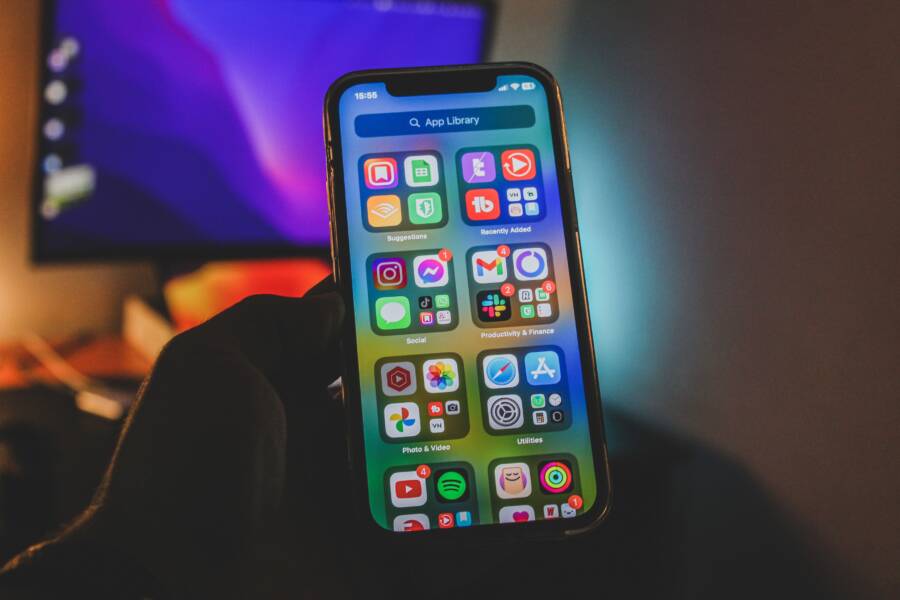
Your phone’s recent apps list usually disappears because of a system setting, launcher issue, memory management, battery optimization, or a software glitch. In simple terms, “recent apps visible” means the app switcher keeps showing the apps you opened lately instead of clearing them too early.
That problem is annoying when you need to switch back and forth quickly, especially on a smartphone you use all day. The good news is that most fixes are simple, and the steps below will help you check the settings, launcher behavior, and software issues that cause it.
What Usually Causes the Recent Apps Screen to Disappear on a Phone?
A missing recent apps screen usually comes down to one of three things: normal app clearing, a setting that limits the app switcher, or a software conflict. If the list only looks shorter than usual, the phone may be working as designed. If apps vanish too quickly, the screen won’t open at all, or the behavior started suddenly, that points to a setting change, launcher problem, or app interference.
Normal app clearing versus a real problem
Every smartphone manages memory in its own way, so recent apps do not always stay visible for long. Some phones close background apps more aggressively to save battery and keep performance steady. That can make the recent apps list look sparse, especially after a reboot or after the phone has been under heavy load.
A short list is usually normal when:
the phone was restarted recently
the system has low memory pressure
you only opened a few apps
the phone clears inactive apps after a while
A real problem shows up when the app switcher behaves strangely. For example, it may disappear entirely, return to the home screen too quickly, or stop showing apps that you just used a minute ago. In that case, the issue is often tied to a glitch, a launcher conflict, or aggressive memory management that is going too far.
If the recent apps screen changes after a restart or a few hours of use, that is often normal. If it changes after a new setting or app install, treat it as a software problem.
The key difference is consistency. Normal behavior changes with use, but a fault keeps showing up in the same way.
Settings that can hide or limit recent apps
Several built-in settings can make it seem like recent apps are missing. Battery Saver is a common one, because it limits background activity and can change how the phone keeps apps in memory. On some phones, memory cleanup tools also close apps automatically, which makes the recent apps list look shorter than expected.
Gesture navigation can also get in the way. On certain devices, a swipe gesture may conflict with the app switcher or make it harder to open. App pinning is another possibility, since a pinned app can change how the switcher behaves when you try to leave it.
Many phone brands use their own optimization tools, and those tools can be strict. Samsung, Xiaomi, OnePlus, Oppo, and similar brands often include battery or RAM management features that are more aggressive than stock Android settings. If the issue started after changing launcher options, recent app limits, or battery settings, that is a strong clue.
Common settings to review include:
battery saver or low power mode
automatic memory cleanup
gesture navigation settings
app pinning or screen pinning
launcher permissions and home screen settings
If the screen comes back after changing one of those options, the phone was probably not broken. It was just configured to clear or hide the app list more aggressively.
When a third-party app is the cause
Third-party apps cause more app-switcher problems than many people expect. Cleaner apps, security tools, and task killers often try to close background processes, and that can interfere with the recent apps screen. A custom launcher can do the same thing if it does not handle Android’s app switcher correctly.
Accessibility apps are another common trigger. Because they can sit between the system and the interface, they may change how gestures, overlays, or navigation buttons work. After a new app install or an update, the problem may start right away, which makes the timing easy to miss.
A simple way to narrow it down is to ask what changed last:
Did you install a cleaner, booster, or antivirus app?
Did you switch launchers or enable a new home screen theme?
Did a system update or app update happen right before the issue began?
If the answer is yes, that app is a likely suspect. Removing it, disabling its special permissions, or testing the phone in safe mode can help confirm whether it is the reason the recent apps screen disappears.
Check the simplest fixes before you change anything deeper
Start with the easy checks. A phone that won’t keep recent apps visible often has a temporary glitch, a navigation setting conflict, or a memory tool that is clearing the list too quickly. Before you change launcher settings or reset anything, test the basics first.
Small software issues can hide in plain sight. A smartphone may look broken when it only needs a restart, a navigation swap, or a battery feature turned off. That is the fastest way to separate a simple setting problem from a deeper fault.
Restart the phone and test the problem again
A restart clears temporary system errors that can affect the recent apps screen. If the task switcher stopped responding after an update, long uptime, or a heavy app session, a fresh boot can reset the process and bring it back to normal.
Try a normal restart first. If the issue stays, do a full power off, wait about 30 seconds, then turn the phone back on. That gives the system a cleaner reset and can clear stuck processes that a quick reboot misses.
After the phone starts again, open several apps and check the recent apps view right away. If it works after the restart and then fails later, the problem is probably temporary rather than permanent.
A quick restart often clears the same kind of temporary glitch that makes an app switcher look frozen or incomplete.
Switch between gesture navigation and button navigation
Navigation style can change how recent apps works on Android. If you use gesture navigation, a swipe conflict may make the task switcher feel delayed, hidden, or hard to open even when the phone is working normally.
Switching to button navigation is a simple test. If the recent apps screen appears with buttons but not with gestures, the phone is fine and the gesture setup is the problem. The reverse is also true, if the issue appears only with buttons, the navigation bar or launcher may be involved.
Check the current setup in your system settings, then try the other option for a short test. On many phones, the menu is under Settings > System > Gestures or Settings > Display > Navigation bar. The exact path varies by brand, but the goal is the same, find out whether the navigation method is blocking the task switcher.
If the problem disappears after you change the navigation mode, you do not need a deeper repair yet. The phone is probably responding normally, and the current gesture layout just does not fit the way you use it.
Turn off battery saver, memory cleaner, or device optimization tools
Battery and memory tools can clear recent apps faster than you expect. That includes battery saver, adaptive battery, RAM boost, and one-tap cleaner tools built into the phone or added by another app. These features are designed to free memory and reduce background use, but they can also make apps vanish from recents almost immediately.
Check each optimization feature one at a time and test the app switcher after each change. If recent apps stays visible once a feature is off, you found the cause.
Look for settings with names like these:
Battery Saver or Low Power Mode
Adaptive Battery
RAM Boost, Memory Expansion, or Memory Optimization
Device Care, Phone Manager, or Cleaner
One-tap boost or auto-clean
These tools are common on Android phones, especially on models that include their own system manager. If your smartphone clears recent apps too aggressively, one of these settings is usually the reason. Turning it off for a test is safer than changing advanced system settings, and it often solves the problem in minutes.
Fix the phone settings that control recent apps behavior
If recent apps keep disappearing, the problem often sits in the phone’s own settings. Battery controls, launcher behavior, and outdated system software can all change how the app switcher works, so apps reload instead of staying easy to return to. A few targeted checks usually reveal the cause.
Check whether app limits or background restrictions are too strict
Aggressive battery settings can push apps out of memory sooner than expected. When that happens, the phone may reopen an app from scratch instead of keeping it ready in recent apps, which feels like the switcher is not holding anything.
Open the battery settings for the problem app and look for options such as restricted, optimized, or unrestricted. If the app is set to save power too aggressively, change it to unrestricted or allow background activity. That helps the phone keep the app alive longer after you switch away.
Background data limits can also interfere. If an app cannot refresh properly in the background, some phones treat it more aggressively and clear it sooner. That matters most for apps that sync often, such as mail, messaging, and cloud storage.
A quick check list helps here:
Review each app’s battery setting
Turn off battery optimization for apps you use often
Allow background data if the app depends on live updates
Re-test recent apps after each change
If one app keeps vanishing while others stay put, its battery or background rule is usually the first place to look.
Review the launcher and home screen app settings
Your launcher controls the home screen and often affects the app switcher too. A custom launcher can change gestures, animations, or multitasking behavior, and a buggy one may clear recents too early or fail to display them correctly.
If you use a third-party launcher, switch back to the phone’s stock launcher for a test. That simple step helps isolate the issue fast. If recent apps works normally with the default launcher, the custom home screen app is likely the cause.
Also check any launcher settings related to:
gesture shortcuts
hidden apps
app drawer behavior
recent apps buttons or swipe actions
Some launchers add their own navigation rules on top of the system ones. On a smartphone, that can create a conflict that looks like a system failure when it is really a launcher mismatch. If the problem started after installing a new launcher theme, update or remove it before looking deeper.
Update the phone software and system apps
Outdated software can cause strange multitasking behavior. A phone may show glitches in recent apps, app switching, or gesture responses until the system and core apps catch up with the latest fixes.
Start with the main system update under Settings > System > Software update, or the equivalent path on your device. After that, check for Google Play system updates, since those patches also affect core Android behavior on many phones. If your carrier provides separate updates, install those too.
System apps matter as well. The launcher, Android System WebView, and other built-in components can affect how the phone switches between apps. When one of those parts falls behind, recent apps may act erratic, especially after a major update or app install.
A good update order is simple:
Install the main phone software update
Check Google Play system updates
Update carrier settings if your phone offers them
Reboot and test the app switcher again
Older software often causes memory and multitasking glitches that are hard to see at first. Once everything is current, the recent apps screen usually behaves more consistently.
Focus on the one app that keeps disappearing
If the recent apps problem only happens with one app, start there. That usually means the phone itself is fine, and the app has a bug, a corrupted file, or a strict setting that is causing the trouble.
This is the fastest way to narrow the issue. One bad app can act like a loose wire in an otherwise working circuit, so fix that app first before changing deeper phone settings.
Update or reinstall the app that keeps disappearing
An app update often fixes small bugs that affect multitasking, recent app behavior, or background refresh. If the disappearing problem started after an app update, the next update may already contain a correction.
If the app is already current and still misbehaves, reinstall it instead. A fresh install removes damaged app files, clears broken local settings, and gives you a clean copy of the app. That helps when the app launches oddly, fails to stay in recents, or started acting up after a crash.
Use this simple rule:
Update first when the app is behind on version changes or the issue started recently.
Reinstall next when updates do not help, or when the app still behaves strangely after a restart.
Before reinstalling, make sure your login details are saved. Some apps sign you out, and others store important data only in the cloud.
Clear cache, then test again
On Android, cache is temporary app data, while data is the app’s saved local settings, logins, and stored files. Clearing cache can remove broken temporary files without touching your account, so it is the safer first step.
Clearing data is more serious. It can reset the app like a fresh install, but it may also remove login details, offline content, and custom settings. Only clear data if you know the app’s sign-in details and you understand what syncs to the cloud.
A good testing order looks like this:
Clear the app cache.
Reopen the app and use it again.
Check whether it still disappears from recent apps.
Clear data only if cache did not help and you know your account details.
If one app keeps vanishing, cache cleanup is safe to try first. Data removal should wait until you know what the app will lose.
Look for app-specific battery or notification restrictions
Some apps limit their own background behavior, and phone settings are only part of the picture. Messaging apps, browsers, and social apps often include their own battery, sync, or notification controls that affect how long they stay active.
Check the app’s internal settings for options such as background refresh, auto-close, power saving mode, or notification pause. A browser may stop refreshing tabs in the background. A messaging app may delay updates if battery use is restricted. A social app may also close faster if its own settings favor lower resource use.
Review these places first:
the app’s battery or power settings
in-app notification controls
sync or refresh options
data saver settings inside the app
If the problem only happens in one app, these controls matter more than the phone’s general settings. Once that app stays stable in recents, the rest of the phone usually follows normal behavior again.
When to suspect a deeper phone problem
If recent apps still disappear after the basic settings checks, the phone may have a deeper software or hardware issue. At that point, the problem is less about one toggle and more about the system itself, because Android, the launcher, or device storage may be failing to keep the app switcher stable.
A deeper issue usually shows up when the behavior is consistent, affects more than one app, or comes back after every restart. If you have already ruled out battery settings, launcher conflicts, and bad apps, it’s time to test the phone in a cleaner state.
Use safe mode to see whether a third-party app is causing the issue
Safe mode starts the phone with only the built-in system apps. It temporarily turns off downloaded apps, which makes it easier to see whether something you installed is breaking recent apps behavior.
If recent apps works normally in safe mode, a third-party app is likely the cause. That includes launchers, cleaner tools, accessibility apps, and battery boosters. If the problem still happens in safe mode, the issue is probably deeper in the system.
The test is simple:
Restart the phone into safe mode.
Open a few apps.
Check the recent apps screen.
Compare that behavior with normal mode.
This is one of the clearest ways to isolate the problem on a smartphone without guessing. If safe mode fixes it, remove the most suspicious apps first, then test again.
Check storage and memory pressure
Very low storage can make a phone behave badly in small but obvious ways. When internal storage gets crowded, the system has less room for temporary files, app data, and background tasks, so recent apps may load oddly or disappear too quickly.
A phone that is nearly full may also slow down, freeze for a moment, or close apps more aggressively. That does not always mean the device is failing, but it does mean the system is under stress.
Free up space by removing:
unused apps
old photos and videos
downloaded files you no longer need
After you clear storage, restart the phone and test the app switcher again. If the phone starts holding recent apps normally, low storage was part of the problem. If not, the issue is probably elsewhere in the system.
Know when to back up and get help
If the problem survives safe mode, storage cleanup, and app checks, a factory reset may be the last software step. Treat it as a final option, and back up your photos, messages, contacts, and important app data first. A reset wipes the phone clean, so you want a copy of everything you need before you begin.
If the issue still appears after a reset, contact the phone maker or your carrier. They can check for device-specific faults, warranty options, or repair paths. In many cases, a support team can tell you whether the problem points to the software, the launcher, or the hardware.
At that point, the pattern matters more than the symptom. A phone that keeps losing recent apps after a clean reset needs direct support, not another round of random settings changes.
Conclusion
A phone that cannot keep recent apps visible usually needs a simple fix first. Start with a restart, check your navigation settings, and turn off battery or memory tools that clear apps too aggressively.
If that doesn’t solve it, update the phone and test the apps that keep disappearing. A system-wide issue points to settings, software, or launcher behavior, while an app-specific issue usually stays tied to one problem app.
Most cases are fixable without replacing the phone. The right fix depends on whether the recent apps screen is failing everywhere or only inside a single app.