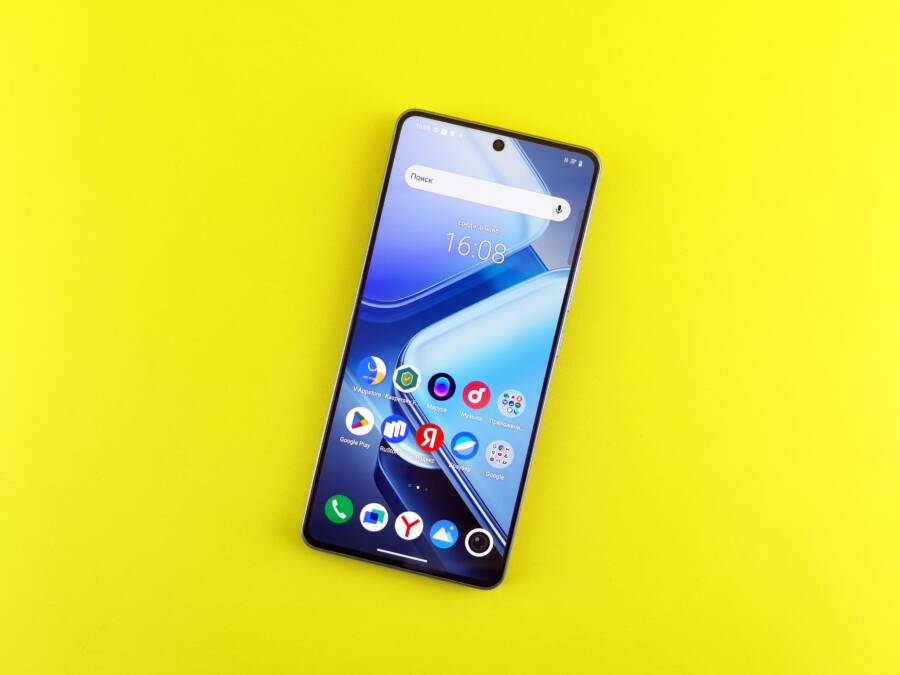
Your icon pack keeps resetting because something on the phone is overriding the launcher settings, usually the launcher itself, a theme engine, battery restrictions, or missing permissions. On many phones, the fix is simple once you find the exact setting that keeps forcing the default icons back.
This problem can show up after a reboot, a software update, or when the launcher gets killed in the background, which is especially common on some Android phone models and a few third-party launchers. The steps below will help you pin down the cause, keep the icon pack applied, and stop the reset from happening again.
Why your custom icon pack keeps reverting
A custom icon pack usually reverts because another layer on the phone keeps taking control. The launcher may lose the setting, the system theme may replace it, or Android may stop the launcher from saving its state after a restart. On some smartphone models, the icon pack also disappears when the app is restricted in the background or when the launcher cache gets corrupted.
The good news is that this problem usually has a clear cause. Once you know which layer is overriding the icons, the fix becomes much easier.
Your launcher is not fully supporting the icon pack
Some launchers apply icon packs only partly. A few support custom icons on the home screen but fall back to defaults in the app drawer, folders, or after a reboot. Others keep the setting only as long as the launcher stays active in memory.
This happens often with third-party launchers, especially when they are newer, lightly maintained, or heavily customized by the phone maker. It also shows up after switching launchers, because the old launcher data can conflict with the new one. If you set an icon pack, then restart the phone and see stock icons again, the launcher may not be saving the selection correctly.
Common signs include:
Icons change after every reboot
The pack applies to some apps but not all
The theme resets after changing wallpapers or home screen layouts
The launcher asks you to reapply the pack after an update
A stable launcher matters here. If the app does not fully support icon packs, the setting can vanish without any warning.
System settings or themes are overriding the icons
On many phones, the launcher is not the only thing managing appearance. OEM theme engines, wallpaper themes, and built-in customization tools can override custom icons behind the scenes. That is why an icon pack may look fine for a while, then disappear after you change the wallpaper or apply a theme.
This is common on Samsung, Xiaomi, and OnePlus devices, where theme apps or system-wide appearance tools can replace launcher choices. Pixel-style customization layers can also interfere, especially if you switch between built-in wallpaper theming and a third-party icon pack. The result feels random, but the phone is usually following its own theme rules.
If you use one of these phones, check whether a theme, wallpaper style, or icon style setting is active. A saved icon pack in the launcher can get overwritten as soon as the system refreshes the home screen. In other words, the launcher is trying to remember your choice, while the theme engine keeps pulling the phone back to default.
If the icon pack keeps reverting only after a wallpaper or theme change, the system theme is usually the real problem.
Battery saving, cache, or app restrictions are breaking the save
Aggressive battery optimization can stop the launcher from keeping its settings. When Android limits background activity, the launcher may not finish writing the icon pack selection to storage. After a reboot, app refresh, or memory cleanup, the phone opens with default icons again.
Cache problems can cause the same issue. If the launcher cache is corrupted, the app may load an old home screen state instead of the saved one. That can make the icon pack disappear even when you never changed the setting yourself. Restricted background data, “put unused apps to sleep” options, and app hibernation tools can also interfere.
A few settings are worth checking right away:
Remove battery optimization for the launcher.
Allow background activity for the launcher app.
Clear the launcher cache, then reapply the icon pack.
Check whether the phone is auto-optimizing unused apps.
Make sure the icon pack app itself is not being restricted.
If the pack keeps reverting after every refresh, this is often the reason. The launcher is not failing to apply the pack, it is failing to save it long enough to survive the next restart. For many Android phones, that small background restriction is all it takes to break the setup.
Use the Right Launcher and Icon Pack Combination
The launcher and icon pack have to work well together, or your phone may keep falling back to default icons. A strong pairing gives the launcher a better chance of saving your choice, surviving reboots, and keeping the same look after updates. On many Android phones, the fix starts with compatibility, not with deeper troubleshooting.
A good setup usually has three parts: a launcher that supports icon packs properly, an icon pack that fits that launcher, and a habit of reapplying the pack after major changes. If one part is weak, the whole setup can reset. That is why the same icon pack may stay put on one smartphone and keep reverting on another.
Check whether the launcher supports icon pack locking
Open the launcher settings and look for options tied to icon pack control. The wording changes by app, but useful items often include apply, lock, backup, restore, or save layout. Some launchers also let you export the home screen setup, which can help preserve icons after a restart or theme change.
If you see a save or backup option, use it after applying the pack. That gives the launcher a stored copy of your layout, which can help when the phone reloads the home screen. Launchers also differ in how well they remember icon choices, so a more stable launcher often keeps custom icons better than a lighter or heavily themed one.
A few settings are worth checking inside the launcher:
Icon pack selection in Appearance, Theme, or Home Screen settings
Layout backup or restore tools
Locked desktop or home screen protection
Folder and app drawer icon settings
Any option that says “reset to default” or “auto apply”
If your launcher has no way to lock or save the layout, it may still work, but it is more likely to forget the pack later. In that case, a different launcher often solves the problem faster than repeated reinstallation.
Make sure the icon pack matches your launcher
Not every icon pack works the same way across launchers. Some packs are built with specific launchers in mind, while others only style part of the home screen or app drawer. That means a pack can look perfect in one app and incomplete in another.
Before you blame the phone, check the pack details in the Play Store or inside the launcher. If the pack lists supported launchers, make sure yours is included. Some packs also rely on adaptive icons or manual icon changes, so they may not replace every app icon automatically.
This matters even more on a busy setup. A launcher that handles icon packs well may apply the theme to most apps, while another launcher only changes the home screen shortcuts. The result looks inconsistent, and after a reboot, it can seem like the pack reset when it only lost part of the mapping.
Reapply the pack after changing themes or launchers
Any launcher update, theme change, or switch between home apps can clear the current icon pack setting. After that happens, go back into the launcher and select the pack again instead of assuming it stayed active. It only takes a moment, and it often fixes the reset right away.
A simple routine works best:
Open the new launcher or updated launcher settings.
Select the icon pack again.
Save the layout or backup if the option exists.
Restart the phone and check whether the icons stay in place.
If you use theme engines, custom skins, or more than one home app, reapply the pack any time you change one of those pieces. That keeps the launcher, theme, and icon pack on the same page, which is exactly what a stable setup needs.
Step-by-step fixes that usually stop icon packs from resetting
When an icon pack keeps resetting, start with the launcher itself, then move to battery settings, software updates, and a clean reapply. In most cases, the problem is one of those four things. Once you clear the blocker, the launcher usually keeps your custom icons after a reboot.
Clear the launcher cache and restart the phone
Cached data can hold old icon mappings, broken layout files, or a stale home screen state. When that happens, the launcher may reopen with the wrong icons or ignore a new pack entirely. Clearing the cache gives the app a fresh start without wiping your saved data.
Use this order for the best chance of success:
Force stop the launcher in app settings.
Clear the launcher cache.
Restart the phone.
Open the launcher and apply the icon pack again.
If the pack still acts up, clear the cache once more after you reapply it, then reboot again. That extra restart helps the launcher write the new setting into storage. On many Android phones, this fixes the reset problem without touching anything else.
Turn off battery optimization for the launcher and theme app
Battery optimization can interrupt the launcher before it saves your icon pack choice. If Android puts the app to sleep too early, the home screen may look fine for a moment, then revert later or after a reboot. This happens often on a smartphone with aggressive power-saving rules.
Open the battery or app battery settings and check both the launcher and any theme app you use. Look for options like Unrestricted, Not optimized, or Allow background activity. If your phone offers unrestricted background activity, turn it on for the launcher and the icon pack app.
A simple check can save time:
The launcher should be allowed to run in the background.
The theme app should not be restricted.
App sleep or hibernation should stay off for those apps.
Data saver should not block their background access.
If the launcher cannot stay active long enough to save the layout, the icon pack may reset after every restart.
Update the launcher, icon pack, and phone software
Outdated apps often break after a system update or reboot. The launcher may still open, but its icon support can fail if the app no longer matches the current phone software. The same goes for the icon pack app, which may need a newer version to stay compatible.
Check the Play Store on Android or the App Store if you use an iPhone-style launcher setup. Update the launcher, the icon pack, and any related theme app first. Then check the phone’s system update screen, because older system versions can also cause settings to revert.
Do this before deeper troubleshooting, especially if the problem started right after an update. A fresh app version often fixes bugs that look like random resets. If you use a third-party launcher on a smartphone, this step matters even more because launchers depend on system rules that change often.
Delete and reapply the icon pack the clean way
Sometimes the launcher keeps a damaged copy of the old layout. In that case, the cleanest fix is to remove the current pack and start over. That clears out any bad mapping before you apply the new one again.
Follow this simple reset process:
Open the launcher settings and remove the current icon pack.
Clear the launcher cache if the icons still look stuck.
Reapply the icon pack from the launcher or theme menu.
Save the layout or lock the home screen if that option exists.
Restart the phone and check the icons again.
Keep the process neat. Don’t switch between multiple packs during setup, because that can leave the launcher with mixed icon data. A full remove-and-reapply usually works better than changing one setting at a time and hoping it sticks.
Back up your home screen layout before changing anything
A backup saves you from repeating the same setup work if the issue comes back. Many launchers let you export the home screen, restore a saved layout, or sync it through cloud backup. If yours does, use it before you test fixes.
Backups matter most when you have folders, widgets, or a carefully arranged app grid. A reset can wipe that layout along with the icon pack, and rebuilding it by hand takes time. With a saved copy, you can restore the screen in a few taps instead of starting from zero.
If your launcher supports it, look for:
Export or backup layout
Restore from file
Cloud sync or account backup
Auto-backup after changes
A good backup also helps you compare what changed if the icons reset again later. That makes troubleshooting faster, because you can test one fix at a time without worrying about losing your setup.
Check phone settings that can undo your custom icons
If your icon pack keeps resetting, the cause is often inside the phone’s own settings. Built-in themes, permission limits, and cleanup tools can all override launcher choices, even when the launcher still shows the pack as active. On some Android phones, the fix is as simple as turning off a system theme or stopping an app cleaner from wiping launcher data.
Review theme settings on Android skins
Many Android skins include their own theme engine, and that engine can take control of your icons behind the scenes. The launcher may still show the icon pack as selected, but the phone’s theme layer can replace it after a reboot, wallpaper change, or refresh of the home screen.
This happens often on phones with custom software such as Samsung One UI, Xiaomi HyperOS or MIUI, and OnePlus OxygenOS. A theme, wallpaper style, or icon style setting can quietly override the launcher choice. If your custom icons disappear after you apply a new theme, that is usually the first place to look.
Open the phone’s theme or personalization settings and check for anything that controls icons directly. Then try switching to a neutral theme, a default wallpaper, or the system’s plain icon style. If the icons stay in place after that, the theme layer was the problem.
A few settings are worth checking right away:
Active themes, especially ones that change icons
Wallpaper-based styles or color palettes
System icon shape or icon style options
Theme store settings that auto-apply visual changes
A launcher can only do so much if the system theme keeps replacing its choices.
If your phone lets you disable theming for icons only, use that option. Otherwise, stick with a neutral theme while testing your icon pack. That gives the launcher a clean path to save your custom setup.
Look for app permission or storage problems
Your launcher and icon pack may also need the right permissions to remember settings. If Android blocks storage access, notification access, or background activity, the app may apply the pack once and then lose it after a restart. In short, the setting never gets stored properly.
This is easy to miss because the pack can look fine right after you apply it. Later, when the phone reboots or clears memory, the custom icons are gone again. That usually means the app did not keep enough access to save its layout or backup files.
Check the app info page for both the launcher and the icon pack app. Then review permissions such as:
Storage or files access
Notifications, if the launcher uses them for change alerts
Background activity or unrestricted battery access
Any special permission the launcher needs to manage home screen data
If storage access is off, turn it back on and reapply the icon pack. If the phone has a privacy or security menu that limits app behavior, make sure it is not blocking the launcher. A restricted launcher can behave like it works, while quietly forgetting your settings in the background.
Stop automatic app cleanup or device maintenance tools
Phone cleaner apps and device care tools can also undo your custom icons. They may clear launcher cache, wipe app data, or close the launcher before it saves your layout. Some devices even run these tools on a schedule, which makes the reset feel random.
Look through any built-in maintenance features on the phone. Device care, memory boosters, RAM cleaners, and battery optimization tools can all interfere with launcher data. If you use a third-party cleaner, check whether it has an option to remove app data or “optimize” unused apps automatically.
Turn off any feature that clears app data on a schedule. If the tool lets you exclude apps, keep the launcher and icon pack off the cleanup list. That small change can stop the phone from undoing your setup after every maintenance run.
If your smartphone keeps reverting icon packs overnight, this is a strong clue:
Open device care or cleanup settings.
Look for scheduled optimization.
Disable automatic data clearing.
Add the launcher to any exclusion list.
Reapply the icon pack and restart once.
A cleaner app should not touch the app that controls your home screen, but many do. Once you stop automatic cleanup, the launcher has a better chance of keeping your custom icons in place.
When the icon pack still resets, try these last-resort fixes
If the icon pack keeps reverting after the usual fixes, the problem is usually deeper in the launcher setup or the phone’s app data. At this point, a launcher reset, a different home app, or a clean reinstall can break the loop. These steps take more effort, but they often fix the kind of stubborn reset that keeps coming back.
Reset the launcher settings and set everything up again
A full launcher reset makes sense when the icon pack fails after repeated reboots, cache clears, and battery tweaks. It wipes out the old home screen state, which can remove corrupted layout data that keeps forcing the icons back to default.
Before you do it, accept that you’ll need to rebuild the setup afterward. That means folders, widgets, app placement, and the icon layout itself. If the home screen is packed with custom widgets or a carefully arranged grid, take a screenshot first so you can recreate it faster.
A clean reset works best when the launcher seems stuck in a bad state. Use it if the same icon pack keeps resetting even after you reapply it several times, because the app may be holding onto broken configuration data.
After the reset, set up the screen in this order:
Apply the icon pack first.
Rebuild folders and app groups.
Add widgets last.
Restart the phone and check whether the setup holds.
A launcher reset is the point where you stop patching the old setup and start fresh.
That fresh start can feel tedious, but it often fixes the issue faster than repeating small tweaks. On a smartphone with a messy home screen history, a reset can remove the conflict that nothing else touched.
Try a different launcher or a different icon pack
Some phones simply work better with another launcher. If your current one keeps losing icon settings, test a different app that has stronger icon pack support or better stability with your phone model. A launcher that works well on one device can behave poorly on another, especially with custom Android skins.
It also helps to test a different icon pack. That tells you whether the problem sits with the pack or the launcher. If a second pack stays in place, the original pack may be incomplete or poorly matched to your launcher. If both packs reset, the launcher is the more likely weak point.
A quick way to compare is to test one variable at a time:
If the new combination stays stable, you’ve found the better pair. On many phones, that is the real fix, because launcher and icon pack compatibility matters more than brand names or download counts.
Reinstall the launcher only if the problem keeps coming back
Reinstalling the launcher can fix corrupted app data, but only after you save a backup or screenshot of your layout. Once the app is removed, the current home screen setup may disappear with it, along with folders, widget placement, and icon arrangements. That is why this should be the last step, not the first.
Use reinstalling when the reset keeps returning after every reboot or app update. A fresh install clears damaged files that a normal cache wipe won’t touch. It can also remove an old backup state that keeps restoring the wrong icon set.
Before uninstalling, do this first:
Save a home screen backup if the launcher supports it.
Screenshot each page of the home screen.
Note any widget settings you want to restore.
Confirm you know which launcher is set as the default.
After reinstalling, apply the icon pack again right away and test it with a restart. If the icons hold this time, the old installation was the source of the problem. If they still reset, the issue is likely coming from system themes or a phone setting outside the launcher itself.
Conclusion
A phone that keeps resetting custom icon packs usually has one clear cause: the launcher, the system theme, or battery restrictions is overriding your settings. Start with launcher compatibility, then check for theme interference, clear the launcher cache, update the apps, and save a backup once the icons stay put.
That simple path solves most cases, especially on a smartphone with aggressive power management or built-in theme controls. If one launcher or icon pack keeps failing, a better-matched combination often fixes the problem faster than repeated resets.
Once the root cause is removed, most phones can hold custom icon packs without trouble.