There Is a Frequency That the Wealthiest Families Have Used for Generations and Most People Will Never Know It Exists
>>> Open the Door <<<

Worried about losing track of all those photos on your phone? This quick guide shows you how to move all your photos from your smartphone to your laptop fast, with clear steps for Windows and Mac.
You’ll learn three reliable options: wired USB transfers for speed, fast wireless methods for convenience, and cloud backups for ongoing sync. The tips work with both Android and iPhone, so no matter your setup, you’ll get your library onto your computer in minutes rather than hours.
Whether you prefer a cable, a quick wireless transfer, or a cloud solution, this guide keeps things simple and actionable. If you’re juggling a busy smartphone library, these steps help you regain organizing power without the headache.
Thousands of People Were Struggling With Money Until They Discovered This One Ancient Secret Hidden in Sound
>>> Unlock It Now <<<

Fast wired transfers with a USB cable
When time is tight, a direct USB connection is often the fastest way to move photos from your phone to your computer. Wired transfers preserve original quality and minimize the risk of skipped files during large batches. Below are practical, step-by-step guides for common setups. Each method prioritizes speed, reliability, and straightforward verification so you can start editing or backing up right away.
What If the Only Thing Between You and the Life You Deserve Is a Hidden Wealth Code Waiting to Be Activated
>>> Open the Door <<<

Android to Windows PC using a USB cable
- Connect your phone to the PC with a USB cable. You may see a notification asking for permission to allow access to photos and files.
- On your phone, select File Transfer (MTP) as the connection type.
- On the PC, open File Explorer and locate your Android device under Drives or This PC.
- Open the DCIM or Pictures folder to locate your photos. If you keep images in other folders, navigate there as needed.
- Select the photos you want to copy. You can choose all by pressing Ctrl + A, then copy (Ctrl + C) and paste (Ctrl + V) into a destination folder on your PC.
- Verify the transfer by opening a few files in the destination folder to confirm they’re intact and in full quality.
- Safely eject the device from Windows before unplugging the cable.
This method keeps the original image quality intact, which makes it ideal for large transfers or when you need to maintain precise color and detail.
Android to Mac with USB cable
- Connect your Android phone to the Mac using a USB cable. If you haven’t set this up before, you might need to grant permission on the phone to connect for file transfer.
- On the Mac, ensure the phone is set to File Transfer (MTP) so the computer can access the device storage.
- Use a transfer tool if needed. The official Android File Transfer app provides a simple bridge between Mac and Android devices.
- Open the file browser on the Mac and locate the phone’s storage. Look for the DCIM or Pictures folder, or browse to the specific folders where your photos live.
- Copy the desired photos to a folder on your Mac. Drag and drop or use copy/paste.
- Confirm the transfer by opening several images from the Mac folder to ensure they’re complete.
- Eject the Android device safely before unplugging.
For Mac users, Android File Transfer is a straightforward solution that minimizes setup friction. If you’d prefer a different approach, MacDroid offers an alternative for broader file management tasks. You can explore these options here: Android File Transfer on Mac (MacUpdate) and MacDroid on the App Store. These tools provide reliable, fast access to Android content from macOS.
External links:
- Android File Transfer for Mac: https://android-file-transfer.macupdate.com/
- MacDroid — Manager for Android: https://apps.apple.com/us/app/macdroid-manager-for-android/id1476545828
- Android File Transfer: https://android.p2hp.com/filetransfer/index.html
iPhone to Mac via Finder or Photos
- Connect the iPhone to the Mac with a USB cable.
- On the iPhone, unlock it and trust the computer if prompted.
- Open Finder on macOS or the Photos app. In Finder, select the iPhone in the sidebar; in Photos, choose Import.
- In Finder, click Import to copy all new items or Import All New Photos. In Photos, select Import All New Photos or chosen items.
- Choose a destination folder on your Mac so you can find the imports easily.
- Start the import and monitor progress. After completion, you can choose to delete the photos from the iPhone if you want to reclaim space.
- If you need broader compatibility with devices that don’t support HEIC, consider converting HEIC to JPEG during import or after the fact.
Transferring via Finder or Photos on macOS is typically fast and reliable. If you’re unsure about HEIC compatibility with other devices or apps, you can convert files during or after transfer to ensure smooth viewing across platforms.
Helpful note: If you encounter HEIC files and need broader compatibility, you can convert during import or use the Photos app to export in JPEG when needed.
iPhone to Windows PC with USB
- Connect the iPhone to the Windows PC using a USB cable. Unlock the iPhone and trust the computer if prompted.
- Open the Photos app on Windows. In the top-right, choose Import, then From a USB device.
- The app will scan for photos on the iPhone. Select the photos you want to import, or choose Import All, and pick a destination folder on your PC.
- Start the import and watch the progress. After the transfer finishes, you can review the new photos in the destination folder.
- If you prefer keeping files in the cloud, iCloud for Windows provides an alternate path to sync photos, letting you access your library across devices.
Using the Windows Photos app for direct imports from an iPhone is a reliable, fast method that keeps your metadata intact and gives you immediate access to newly imported shots.
External links for additional context:
- Transfer photos from iPhone or iPad to a Mac with Finder: https://support.apple.com/en-us/102375
- Import from a camera or phone in Photos on Mac: https://support.apple.com/guide/photos/import-from-a-camera-or-phone-pht6c803201/mac
- Apple support article on transferring photos to your computer: https://support.apple.com/en-us/120267
This wired approach keeps you in control of the transfer, minimizes delays, and helps you verify every file as you go. For most users, a USB cable is the simplest, fastest way to move a large batch of photos without compressing or altering the originals. If you’d like, I can tailor these steps to your exact devices and preferred file organization system.
Quick wireless transfers without cables
Moving photos from your phone to your laptop doesn’t always require a USB cable. Wireless transfers save time, reduce clutter, and let you keep shooting while your library moves in the background. In this section, you’ll learn three reliable wireless paths: AirDrop for iPhone to Mac, Nearby Share or Quick Share for Android devices, and cloud-based transfers that work across platforms. Each method has its own strengths, so you can pick the one that fits your workflow best.
AirDrop for iPhone to Mac
AirDrop is the fastest way to move photos between Apple devices when you’re working offline or in a pinch. It creates a direct, peer-to-peer connection that bypasses the internet entirely, making it ideal for large batches and high-resolution transfers.
- Quick setup: on both devices, enable Bluetooth and Wi Fi. This primes the connection so your devices can discover each other.
- On the iPhone, open the Photos app and select the photos you want to move.
- Tap Share, then AirDrop, and choose your Mac from the list.
- On the Mac, accept the incoming file transfer and save it to your chosen folder.
What makes AirDrop stand out is speed. Because the transfer happens directly between devices, you avoid network congestion and cloud upload times. It’s especially handy when you’re moving hundreds or thousands of photos. If you’re new to AirDrop, Apple’s official guide is a solid reference that covers setup and troubleshooting: Use AirDrop to send items to nearby devices. For broader device compatibility or alternate workflows, Mac users sometimes explore Android file transfer tools, but AirDrop remains the fastest option for iPhone to Mac in most scenarios. If you want a quick reference, you can also try this official transfer article: Transfer photos and videos from your iPhone or iPad to your Mac or Mac with AirDrop.
Tips for best results
- Keep both devices unlocked during the transfer and within close range.
- Disable VPNs and heavy network apps that might interfere with discovery.
- If AirDrop doesn’t appear on the Mac, verify that both devices are signed in to iCloud and that visibility is set to Everyone or Contacts Only as needed.
External reading: Use AirDrop to send items to nearby Apple devices.
Nearby Share and Quick Share for Android devices
Android devices offer two strong wireless paths for quick photo moves: Nearby Share and Quick Share. Both routes rely on local connections, not the internet, which means you get rapid transfers even in areas with poor cellular service.
- Enable the feature on both devices and set device visibility to contact or everyone as needed.
- On the Android phone, open the gallery or Photos app, select the photos, and choose Share.
- Pick the receiving device from the list. The recipient will receive a prompt to accept the transfer.
- Accept on the PC or Mac, and choose a destination folder if prompted.
Direct Wi Fi Direct connections between devices are usually faster than routing files through the cloud. This is especially noticeable when you’re moving large batches or very high-resolution images. If you’re using Windows, you can enable Nearby Sharing in Settings and pair with nearby devices for fast local transfers. For Android users, Google’s quick-share flow is designed to be quick and simple, reducing the steps needed to get your photos onto a computer.
If you want to explore more about how to enable and use these features on Windows, Microsoft’s guide covers nearby sharing setup and sharing options. For Android, the Quick Share ecosystem has evolved with Windows integration, including a companion app that streamlines transfers. A useful starting point is the Quick Share for Windows app, which helps you share photos wirelessly between Android and Windows PCs. These tools make it easy to offload recent shots without cables, especially when you’re shooting on the fly.
External links for context:
- Share things with nearby devices in Windows
- Share files between Android & Windows with Quick Share
- The New Quick Share App for Windows – Android
Wireless transfers via cloud apps
Cloud-based transfers give you a universal, device-agnostic path to move photos. With cloud apps, you upload from your phone and then download on your laptop. This method shines when you need access to your library from multiple devices or when you’re not in the same room as your computer.
How to set up quick cloud transfers
- Google Photos: Install the Google Photos app on your phone, enable backup and sync, and upload your photos. On your laptop, open Google Photos in a web browser or use the desktop app to download selected images or albums.
- iCloud: On iPhone, ensure iCloud Photos is enabled. On your Mac or Windows PC, open the iCloud Photos folder or the iCloud web interface to access and download photos.
- OneDrive: Install OneDrive on your phone and enable Camera Upload. On your laptop, open OneDrive and sync or download the photos you need.
Key considerations
- Internet speed matters. Uploads and downloads depend on your connection, so a fast home network speeds things up significantly.
- Storage limits apply. Free tiers can fill up quickly if your camera rolls are large or if you shoot in RAW. Consider upgrading or selecting specific albums to sync.
- Organization matters. Cloud transfers are convenient, but you’ll want to curate what gets uploaded to avoid clutter on your laptop.
Speed versus file size
- Cloud transfers are convenient for ongoing sync and multi-device access, but they can be slower for large batches, especially if your internet is modest.
- Local wireless transfers (AirDrop, Nearby Share, Quick Share) beat cloud transfers for sheer speed, as they bypass the internet entirely.
- USB still leads in raw speed, but wireless methods offer unmatched convenience for regular backups and on-the-go migrations.
If you’re looking for a robust cloud setup that works across platforms, Google Photos, iCloud, and OneDrive each offer unique strengths. Consider your device ecosystem, how you access your photos, and whether you want automatic backups or selective uploads. For a broader look at moving photos wirelessly, Apple’s and Microsoft’s official guides provide practical, step-by-step instructions, while Android’s Quick Share ecosystem offers rapid options for Windows users. When you’re ready to mix methods, cloud backups can stay in place as a safety net, while AirDrop or Nearby Share handle rapid, occasional migrations.
External links for further reading:
- Transfer photos and videos from your iPhone or iPad to your Mac or PC using iCloud Photos
- Share things with nearby devices in Windows
- Share files between Android & Windows with Quick Share
Remember, the best approach depends on your setup and priorities. If you want a quick and reliable wireless path, start with AirDrop for iPhone to Mac or Nearby Share for Android to a nearby PC or Mac. For ongoing access and multi-device workflows, cloud apps provide a powerful, hands-off solution that keeps your photos available wherever you go. If you’d like, I can tailor the steps to your exact devices and preferred file organization system.
What If the Only Thing Between You and the Life You Deserve Is a Hidden Wealth Code Waiting to Be Activated
>>> Open the Door <<<
Cloud options for moving and backup
Cloud storage provides a reliable safety net for your photo library. It keeps your images accessible across devices, frees up space on your phone, and helps you back up your memories automatically. Below are practical, step-by-step paths for Google Photos and Google Drive, as well as iCloud with Windows and Mac integration. Use whichever ecosystem matches your devices, or mix methods for redundancy.
Google Photos and Google Drive basics
Backing up from your Android or iPhone to Google Photos is straightforward, and you can access or download your photos on a laptop at any time. Start by turning on backup and sync on your phone, then use a web browser on your laptop to retrieve or download individual photos, albums, or entire libraries. If you also want to store non-photo files, Google Drive can act as a companion backup location—organize files in Drive folders and link them to Google Photos for easy retrieval. This approach keeps your original image quality intact and makes cross-device access hassle-free. For quick downloads, you can open photos.google.com on your laptop, select items, and download them directly to your computer.
- Quick access tip: Open the Google Photos web interface to review your backups and export options. You can download single images or whole albums without losing metadata.
Helpful resources:
- Download photos or videos to your device – Computer: https://support.google.com/photos/answer/7652919?hl=en&co=GENIE.Platform%3DDesktop
- Back up photos & videos – Computer: https://support.google.com/photos/answer/6193313?hl=en&co=GENIE.Platform%3DDesktop
Why this matters for smartphone users: Google Photos provides automatic backup that reduces the risk of losing shots when you swap devices or upgrade. If you work with large RAW libraries, you can manage storage by selecting high-quality exports or keeping originals in Drive where space allows. If you want to add Drive as a backup path, install Drive for desktop and set a folder on your PC as the upload target. This reduces the friction of moving from phone to laptop because your files gather in one central place.
To broaden your option set, consider combining Google Photos with Google Drive for a robust two-tier approach: Photos handles your media library, while Drive stores project files, documents, and raw photo exports. For more formal setup details, Google’s official guides are useful references to get you started.
Google Photos overview and backup guidance
iCloud Photos and OneDrive on Windows/Mac
If you’re in the Apple ecosystem, iCloud Photos is the simplest way to keep your iPhone, iPad, and Mac in sync. Enable iCloud Photos on your iPhone and your Mac, and then access or download images on Windows via iCloud for Windows or through the iCloud web interface. Storage limits apply to both iCloud Photos and iCloud storage, so you may need to upgrade if you shoot a lot or capture RAW images.
- On iPhone: Settings > [your name] > iCloud > Photos, then enable Sync this iPhone.
- On Mac: System Settings (or System Preferences) > Apple ID > iCloud > Photos, ensure Sync this Mac is turned on.
- On Windows: install iCloud for Windows, sign in with the same Apple ID, and enable Photos. You can then view your library in the iCloud Photos folder or through the iCloud web interface.
If you prefer OneDrive, you can use OneDrive on your iPhone to enable Camera Upload and then access those photos on your Windows or Mac laptop by syncing the OneDrive folder. OneDrive acts as a convenient bridge for Windows users who want a simple, separate back-up path in addition to iCloud.
Key notes on storage:
- iCloud offers 5 GB of free storage; paid plans increase space for larger libraries.
- OneDrive storage varies by plan; it can complement iCloud by providing an independent backup location for your camera roll exports.
Helpful resources:
- Set up and use iCloud Photos: https://support.apple.com/en-us/108782
- Set up iCloud Photos on all your devices: https://support.apple.com/guide/icloud/set-up-icloud-photos-mm7e90c1ba48/icloud
- Set up iCloud for Windows on your PC: https://support.apple.com/guide/icloud-windows/set-up-icloud-for-windows-icwee190673a/icloud
For Windows users who want to keep all photos in a single place, OneDrive can be a practical companion to iCloud. You’ll have both a device-specific sync and a cross-platform access path, which helps when editors or family members prefer different ecosystems.
Working with iCloud and Windows is common. Apple’s official guides outline setup steps and troubleshooting you can rely on, ensuring your library remains accessible across devices.
External reading:
- Transfer photos and videos from iPhone or iPad to your Mac or PC using iCloud Photos
- Set up iCloud for Windows on your PC
What to choose and why
- If you live inside the Apple ecosystem, iCloud Photos is the most seamless option for syncing photos across iPhone, Mac, and even Windows via iCloud for Windows.
- If you want a cross-platform solution with strong web access, Google Photos is your best bet. It works well with Android and iPhone alike and integrates with Google Drive for non-image files.
- If you prefer a hybrid approach, use iCloud for day-to-day syncing on Apple devices and keep a separate OneDrive folder for large projects or RAW exports. This gives you redundancy and flexibility across devices.
External links for broader context:
- Google Photos: Get started and manage your library: https://support.google.com/photos/answer/6193313?hl=en&co=GENIE.Platform%3DDesktop
- Apple support on iCloud Photos and Windows integration: https://support.apple.com/guide/icloud-windows/set-up-icloud-for-windows-icwee190673a/icloud
Bottom line: Cloud backups provide a hands-off way to protect your photos while giving you flexible access from any device. Pair cloud storage with a quick local transfer routine to ensure you always have a copy in the exact place you need it. If you’d like, I can tailor these steps to your specific devices and preferred folder structure.
Organizing and troubleshooting to finish strong
Moving a large photo library can feel overwhelming. This section gives practical ways to organize before you transfer, quick fixes for common hiccups, and smart habits to keep future transfers fast. Think of it as the finishing touches that make your move smooth, reliable, and easy to manage.

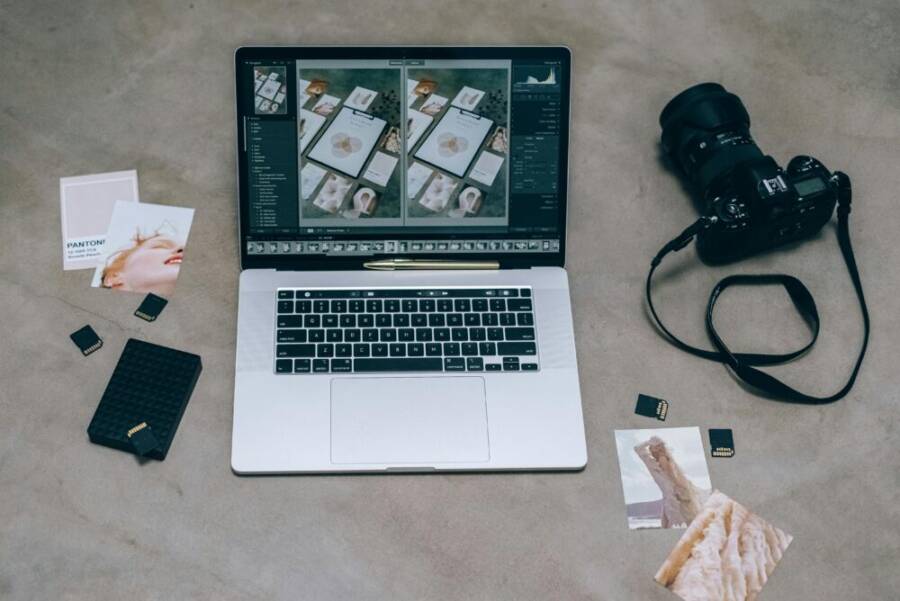
Photo by Leeloo The First
Prepare your library before transferring
Building a simple, consistent folder structure before you start saves hours later. Create top-level folders by year (for example 2024, 2025) and subfolders by event or month (2025/2025-07-Trip-to-Beach). This helps you locate shots quickly after the move and makes selective backups painless. Remove obvious duplicates first to reduce the volume you copy. A small test batch is worth it: move a few dozen photos first, verify integrity, and confirm dates, names, and metadata stay intact before you tackle thousands of files.
Consider labeling folders clearly: one main year folder, with subfolders named by month or event. This approach makes future backups incremental rather than an all-at-once chore. If you shoot RAW, decide early whether you want to keep originals in a high-capacity drive or export to JPEG for everyday editing. To reinforce this plan, you can glance at practical ideas from trusted sources like 3 Easy Ways to Organize Your Digital Photos, which recommends a clear year-based structure and deliberate deduplication. For deeper ideas, check this outline from a respected tech publication:
- 3 Easy Ways to Organize Your Digital Photos: https://www.pcmag.com/explainers/easy-ways-to-organize-your-digital-photos
Start with a small test batch. Transfer 50–100 files to your destination, verify that all metadata (date, location, camera model) transfers intact, and confirm your folder structure is easy to navigate. This preflight check helps catch issues early, so you don’t end up redoing thousands of files.
Common problems and fixes
Even the smoothest transfers hit snags now and then. Here are frequent issues and fast remedies you can use right away to keep momentum.
- Cables not recognized or devices not showing up: switch to a different USB cable or port. Some cables are power-only, which won’t transfer data. Try a high-quality data cable and a different USB port on your computer.
- Device prompts requesting permission: ensure you grant the necessary access on the phone. Reconnect if the prompt doesn’t appear, and check that the device is set to the correct transfer mode (MTP for Android, Photos or File Transfer for iPhone where applicable).
- Slow transfers: close background apps, pause cloud syncing temporarily, and use a wired connection for large batches. If speed still lags, try a different USB port or a powered hub.
- Unavailable or corrupted files: run a quick check by opening several files in the destination. If some files are corrupted, re-copy from the original source and verify again. If you’re moving from a device with many large RAW files, consider copying in smaller chunks.
- Files not preserving metadata: ensure the transfer method preserves metadata and that you aren’t converting formats unintentionally. When in doubt, copy to a local folder first, then organize and reimport if needed.
If you want to dive deeper into USB transfer quirks and fixes, this Microsoft support discussion offers practical steps for USB transferring issues and how to diagnose related problems: https://learn.microsoft.com/en-us/answers/questions/3988766/transferring-photos-from-phone-to-pc-via-usb-but-t
Tips to speed up future transfers
Keeping your workflow efficient pays off in the long run. Try these habits to stay ahead of data congestion and clutter.
- Move new photos soon after shooting. The longer you wait, the more you risk missing shots, or forgetting what’s new in your library.
- Organize by date as you go. A consistent date-based approach makes automated backups and future migrations painless.
- Use wired transfers for large batches. A direct USB connection is typically the fastest, preserving quality with minimal risk of partial transfers.
- Maintain a regular backup routine. Create a monthly habit to copy new photos to a dedicated drive or cloud backup. This reduces last-minute scrambles and guarantees a safe, organized archive.
- Keep a concise backup plan. If you manage multiple devices, designate a primary transfer method (wired for big batches, cloud for ongoing sync) and a secondary method as a fallback.
For ongoing cross-device accessibility, cloud backups can stay as a safety net while you rely on AirDrop or Nearby Share for quick, in-the-moment migrations. If you’d like, I can tailor these steps to your exact devices and preferred folder structure, ensuring your library stays organized across all platforms.
Conclusion
Transferring photos from your smartphone to your laptop comes down to three solid options: wired USB for speed, wireless transfers for convenience, and cloud backups for ongoing access. A USB cable remains the fastest route for large batches and preserves full image quality, while AirDrop or Nearby Share offer quick, cable-free moves when you’re near your computer. Cloud services give you hands off syncing that works across devices, handy for multi-device workflows and remote access.
You can mix methods to fit your routine. Use USB for big moves, wireless for on the go quick transfers, and cloud for backups and cross-device viewing. Start with the fastest method that fits your setup and test a small batch to confirm everything lands exactly as you expect. If you’d like, share your setup and I’ll tailor a streamlined, repeatable routine for you.
If you’re ready to try, pick the method that matches your devices and move those photos today. Tell me which path you chose and how it went.
He Was Drowning in Bills and Burnout Until a Simple Daily Ritual Rewired His Brain for Wealth in Less Than a Week
>>> Start Your Shift Today <<<
