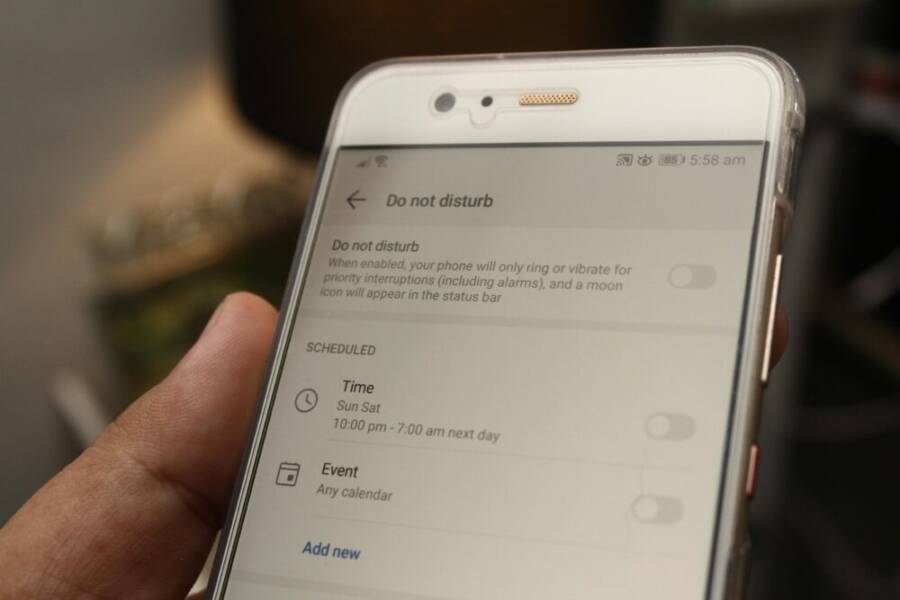
If your phone feels like a constant buzz, you’re not alone. This guide shows you how to silence the noise and reclaim focus by turning off non-essential notifications.
You’ll find practical, step by step actions for both iPhone and Android. The goal is clear: cut distractions, save battery, and reduce stress while keeping essential alerts.
By the end, you’ll have a simple setup that helps you stay in control. Small tweaks here add up to calmer days and fewer interruptions, with your most important apps still working exactly when you need them.
Why turning off non-essential notifications boosts focus and saves battery
Distractions from constant alerts don’t just break your flow. They also drain battery life and make it harder to get quality rest. In this section, you’ll learn what counts as non-essential alerts, why muting them matters for daily performance and sleep, and simple steps you can take today to reclaim control over your smartphone experience.
What counts as non-essential notifications
Non-essential notifications are the messages and banners that pull your attention without serving a critical need in the moment. They flood your screen, ping you at inopportune times, and pull focus away from current tasks. Clear examples include social media promos that flash up during work, game alerts that buzz when you’re in a meeting, ad banners that pop within apps, and routine app reminders that you rarely act on quickly.
Essential alerts, by contrast, are those that convey time-sensitive or safety-related information. Think messages from family or close friends, security alerts about your accounts or device, and urgent warnings like severe weather or travel disruptions. These notifications serve a direct, immediate purpose and bypass your need to stay in the moment for longer than necessary.
To put it plainly, non-essential alerts are the noise. Essential alerts are the signal. The more you reduce the noise, the easier it is to hear the signal when it truly matters.
- Social media promos: These often arrive in batches and can tempt you to open apps you’ve abandoned for a reason.
- Game alerts: They pull you back in just as you’re wrapping up a task or enjoying personal time.
- Ad banners: They appear across apps and can distract you from your current activity.
- App reminders: They remind you of things you might forget later, but they rarely require immediate action.
For readers curious about how notifications affect brain function, research has explored how constant interruptions impact attention and cognitive load. You can explore reviews on how notifications influence cognition and mental effort, which helps explain why muting can feel like a relief for focus. Read more about the broader science here: https://pmc.ncbi.nlm.nih.gov/articles/PMC5403814/ and see how mere presence of a smartphone can affect cognitive capacity here: https://www.journals.uchicago.edu/doi/full/10.1086/691462.
Personal productivity and sleep benefits
Fewer alerts mean fewer interruptions. Short, frequent interruptions fragment thinking, increase task-switching costs, and make it harder to complete deep work. When you reduce non-essential notifications, you create longer, uninterrupted blocks for focused effort. The payoff shows up quickly: you finish tasks faster, maintain better concentration, and feel more in control of your day.
Sleep also improves when your phone stops buzzing at all hours. Notifications that arrive near bedtime or during the night disrupt wind-down routines and fragment sleep cycles. The brain processes these interruptions, even if you don’t consciously react, which reduces sleep quality and leaves you groggy the next day. With fewer non-essential alerts, you’re likelier to fall asleep faster and enjoy deeper rest.
Real-world outcomes you can expect after muting non-essential alerts include:
- Longer stretches of uninterrupted work time, especially during peak productivity hours.
- Reduced morning grogginess due to fewer late-night buzzes.
- Improved ability to set boundaries with digital devices, leading to calmer evenings.
- Better overall mood and stress management from fewer constant interruptions.
To support this, consider how researchers describe cognitive load and distraction. Studies show that even resisting the lure of a notification can help preserve attention for important tasks. If you want deeper context, see the broader examination of notifications on mental health and productivity here: https://neurosciencenews.com/smartphone-notifications-cognition-22048/ and further insights on how notifications influence mental health can be found at https://www.pausa.co/blog/research-how-notifications-impact-mental-health.
Quick wins you can try today
Small, practical changes add up fast. Start with three to four actions and adjust as you go. Here are simple, effective moves you can implement today to quiet non-essential alerts without missing what truly matters.
- Turn off non-critical banners
- Go through your notification settings and disable banners for apps that rarely require immediate action.
- Keep banners on for critical apps like messaging or security tools so you still receive urgent notices.
- Limit notifications during work or study hours
- Create a focused time block where you silence non-urgent alerts.
- Use a curated list of allowed apps that can ping you only if something truly important happens.
- Enable a basic Do Not Disturb window in the evening
- Schedule a nightly window to silence non-essential alerts.
- Allow calls from favorites or repeated calls so you don’t miss emergencies.
- Review a few apps you touch the most
- Identify apps that tend to flood you with promos or reminders.
- Decide which ones are essential to your current routine and mute the rest.
If you want a quick context on why these steps work, science supports the idea that reducing interruptions can help protect cognitive resources and improve sleep quality. For a broader view, explore resources on how notifications affect cognitive performance and sleep, such as the studies linked above. You can also read about practical approaches to digital detox and notification hygiene here: https://www.chanty.com/blog/smartphone-detox/.
By implementing these steps, you’ll heighten your device discipline and gain more control over your daily rhythm. The goal isn’t to block every alert but to keep the meaningful signals while letting you focus on what truly matters. This simple tuning step is one of the fastest ways to improve both productivity and rest.
Audit your current notifications to know what to disable
Before you start turning off alerts, it helps to take a clear inventory. An audit reveals which apps push non essential notifications and how often they interrupt you. This section walks you through a practical review process, so you can make informed decisions and stay productive without losing important updates.
Inventory your apps and alerts
Take a systematic look at every app that can send notifications. For each one, note:
- Notification type: banners, sounds, previews, or all of the above.
- Frequency: how often you receive alerts (hourly, daily, weekly).
- Importance: does it inform you of something urgent or is it mostly promotional?
A simple method is to write these details in a notebook or a notes app. Record the app name, the notification behavior you observed, and your default setting. This keeps you from rechecking later and helps you spot patterns. If an app rarely needs real-time alerts, mark it for silencing or heavy restriction. For Android users, the process often starts in Settings > Apps & notifications > [App name] > Notifications. For iPhone users, go to Settings > Notifications and review each app’s entry. If you want a quick reference on how to audit systematically, you can explore examples like A Notification Audit and practical steps from reputable guides.
Useful starting point links:
- A Notification Audit: practical examples of reviewing each app and trimming what you don’t need.
- Control notifications on Android: guidance on locating and adjusting per app settings.
- It’s time to turn off some notifications: actionable steps to quiet banners and non urgent alerts.
Identify high frequency or low value alerts
Once you map out the landscape, flag the offenders. Focus on apps that ping you often or deliver content that rarely requires immediate action. This is the fast lane to relief. Reducing these first yields quick wins without risking essential communications.
Key targets typically include:
- Social media promos that flood your screen during work.
- Game alerts that interrupt focus during tasks or meetings.
- Ad banners that appear inside apps and distract from your current activity.
- Routine reminders from apps that you rarely act on quickly.
If you want a deeper read on how frequent interruptions affect you, check out studies on cognitive load and attention. A couple of solid resources discuss how notifications influence cognition and how simply having a smartphone nearby can affect mental performance. See the following for context:
- A study on cognition and smartphone presence
- Research on notifications and mental health
After identifying high frequency or low value alerts, decide how to change their behavior. In many cases, muting or silencing these apps will cut noise significantly while preserving access to essential information.
Decide which alerts are essential
With the list pared down, establish a clear standard for what counts as essential. Essential alerts include time sensitive updates from family or close contacts, security notices about accounts or devices, and urgent warnings like severe weather or travel changes. These alerts should bypass common silencing when you truly need them.
Create a simple rule: mark essential alerts as exceptions and silence everything else. A practical approach is to:
- Allow urgent conversations from trusted contacts to break through.
- Keep security and banking alerts active only during specific times if possible.
- Schedule alerts for critical apps to surface in a predictable way, not randomly throughout the day.
If you’re unsure about a particular app, start by muting it and track whether you miss something important. You can always reintroduce it later if necessary. For Android and iPhone users alike, the essential vs non essential framework helps you maintain control without missing critical updates.
To support this approach, consider reading about practical notification management strategies and related guidelines from trusted sources. For example, Android’s official guidance on notification controls provides step by step actions to manage lock screen and notification behavior, which you can adapt to your needs. You can also read up on general tips for reducing notification clutter and keeping only the alerts that matter.
Disable non essential notifications on iPhone
Notifications can be both helpful and distracting. This section focuses on practical, per-app controls that let you decide which alerts you actually need. You’ll learn how to tailor banners, sounds, and previews for individual apps, so you stay informed without getting overwhelmed.
 Photo by Daniel Moises Magulado
Per-app notification control
Customize alerts for each app to fit your routine. Start by opening Settings and navigating to Notifications. From there, tap the specific app you want to adjust. You’ll typically see options like:
- Banners: Choose temporary banners that appear at the top of the screen.
- Sounds: Decide if a sound will accompany the alert.
- Badges: Display a number on the app icon to indicate unread items.
- Previews: Control whether message content is shown in alerts.
Set these preferences to something that feels unobtrusive yet reliable. For apps you don’t need in real time, consider turning off banners and previews while keeping essential channels open. If you want a quick reference on how to manage per-app alerts on iPhone, Apple’s guidance is a solid starting point: Turn notifications on or off for a specific app on your iPhone.
External links for per-app customization:
- https://support.apple.com/en-us/120681
- https://support.apple.com/guide/iphone/change-notification-settings-iph7c3d96bab/ios
- https://support.apple.com/en-us/120684
Use Notification Summary and Focus modes
Apple offers a scheduled approach to non essential alerts. Group low-priority notifications into a Summary that appears at a designated time, so you’re not chasing alerts throughout the day. Focus modes let you mute alerts during study, work, or family time while allowing critical communications to get through.
To set up a Summary, choose Settings > Notifications > Scheduled Summary, then pick the apps you want included and decide the delivery times. For Focus, go to Settings > Focus. Create a new Focus or customize an existing one, then choose which people and apps can break through.
Tips for best results:
- Include only low-priority apps in the Summary.
- Pair Focus with Do Not Disturb for deeper quiet during important tasks.
- Schedule summaries around peak work hours or family time for maximum usefulness.
- Review and adjust monthly as your routines shift.
Helpful references on Focus and Summary:
- Change notification settings on iPhone: https://support.apple.com/guide/iphone/change-notification-settings-iph7c3d96bab/ios
Manage lock screen and banner settings
Control what shows up on the lock screen and when banners appear. This helps you reduce clutter while preserving crucial messages. For lock screen visibility, consider disabling previews for most apps and reserving full previews for essential communications, such as messages from trusted contacts. Use banners selectively; many apps can deliver quiet alerts during busy moments.
Practical tips:
- Turn off lock screen previews for non-critical apps.
- Enable banners only for alerts that you truly care about in the moment.
- Keep time-sensitive messages accessible by allowing banners from trusted contacts or financial apps.
If you want to read more about how to fine tune lock screen behavior, Apple’s notification controls guide is a good resource to consult.
Do Not Disturb for sleep
A consistent sleep routine benefits a clear mind the next day. Configure a sleep schedule that silences all but the most critical calls. In Focus you can set a Sleep Focus with a strict rule set. Allow calls from Favorites or enable Repeated Calls so you don’t miss emergencies.
Sleep-focused settings to consider:
- Schedule a nightly quiet period that aligns with your bedtime.
- Permit calls from close family or trusted numbers in case of urgent needs.
- Keep critical apps available for alerts that matter during the night.
This approach creates a reliable wind-down routine while preserving safety and connection when needed.
Image credits for the section:
- Photo by Daniel Moises Magulado on Pexels
[Note: For readers who want more depth, see Apple’s official notifications resources linked above and explore how Scheduled Summary and Focus modes can reduce daily interruptions without sacrificing essential alerts.]
Disable non essential notifications on Android
Quieting the buzz on an Android phone starts with understanding how notifications are organized and controlled at the app level. This section walks you through practical, step by step actions to mute non essential alerts while keeping the ones that matter. You’ll learn how Android uses notification channels, how to mute or disable channels for each app, and how to prune lock screen clutter without sacrificing important updates.
 Photo by Andrey Matveev
Tackle notification channels by app
Android introduced notification channels to give users finer control over alerts. Each app can create one or more channels, and users can customize or mute each channel independently. This means you don’t have to turn off all alerts from an app; you can silence only the least important ones.
- How channels work: When an app posts a notification, Android assigns it to a channel. Users can mute a channel, set its importance level, or change its behavior (sound, vibration, or lights) without affecting other channels from the same app. This separation is powerful for apps that cover multiple functions, like email, messaging, or social media.
- Practical steps: Open Android Settings, go to Apps & notifications, select the app, and choose Notifications. Here you’ll see the list of channels the app provides. Tap a channel to adjust its options. You can mute it, disable sound, change vibration, or hide previews. If a channel isn’t crucial during work hours, set it to “Silent” or switch off its notification type entirely.
- Quick tip: Some apps use channels for different features (for example, a social app might have a general feed channel and a direct messages channel). Prioritize the channels that align with your routine and silence the rest.
- Official guidance you can consult: Android’s Create and manage notification channels article explains how to structure channels for user choice and developer flexibility. Read more here: https://developer.android.com/develop/ui/views/notifications/channels. You can also skim the overview on how notifications work in Android at https://developer.android.com/develop/ui/views/notifications.
If you want a quick reference on per-app channel management, start with the app you use most often and check whether it offers distinct channels for messages, promotions, and updates. Muting the promos channel while leaving chat notifications active is a common first win.
Mute or block noisy apps
Some apps flood you with non essential alerts that add little value to your day. Social apps often push reminders, event promos, and momentum-building badges; promotional and news apps can drown your notification tray with daily deals and headlines. Here’s how to regain control without losing important updates.
- Social media reminders: Turn off non urgent banners and prompts. Keep your messages and direct alerts intact, but mute promotional chatter that arrives in batches.
- Promotional apps: Pause or limit daily deals and push notifications that aren’t time sensitive. If a promo bursts in during work, it disrupts your focus. Silence those alerts or set them to a less intrusive channel.
- News and entertainment apps: Disable breaking news alerts if they interrupt tasks. Instead, use a daily digest notification at a fixed time, so you control when you catch up.
- How to apply this on Android: In Settings > Apps & notifications > [App name] > Notifications, choose the channels you want to silence. For some apps you may see the option to “Block all” for a channel; use it for the noisiest sections.
- Realistic example: If you rely on a social app for messages but not promotions, mute the promo channel and leave the chat channel active. If an app doesn’t offer granular controls, you may consider disabling all notifications temporarily and re-enabling only essential alerts.
For additional guidance on how different apps structure their channels and what to mute, you can review the Android developer resources on channels and their purposes: https://developer.android.com/develop/ui/views/notifications/channels and the general notifications overview at https://developer.android.com/develop/ui/views/notifications.
Use Do Not Disturb or Focus modes
Do Not Disturb (DND) and Focus modes provide a blanket quiet while letting through critical alerts. They’re ideal for work blocks, family time, or wind-down evenings. The key is to customize safe exceptions so you don’t miss anything truly important.
- Setup basics: Enable DND or Focus from Quick Settings or Settings. You can tailor the schedule to your day, specifying days and times when alerts are muted.
- Safe exceptions: Allow calls from favorites, repeat calls, or a trusted list. Permit alarms and calendar reminders to surface even during DND. Some phones let you allow messages from specific people or apps.
- Customization tips: Create separate Focus modes for work, personal time, and sleep. For work, allow work-communication apps; for sleep, restrict everything except critical contacts or security alerts.
- Practical workflow: Pair DND with a short notification digest. For example, during study time you can receive a daily summary instead of constant pings.
- Where to find it: Android’s Focus modes are typically in Settings > Notifications > Do Not Disturb or Sound & Vibration > Do Not Disturb. You can also add rules to allow exceptions by contacts or apps.
For more on Android’s DND and notification controls, see the Android developer overview of notifications (linked earlier). These controls are designed to preserve the essential signals while cutting noise.
Manage lock screen and notification dots
Lock screen clutter makes it hard to see what matters. Reducing what shows up on the lock screen and turning off notification dots can streamline access to essential info.
- Lock screen content: Disable previews for most apps to keep sensitive information private. If you must see previews, limit them to messaging from trusted contacts or critical apps.
- Notification dots: Dots indicate unread items on app icons. If you find them distracting, turn them off or restrict them to essential apps. This reduces the visual clutter without disabling the app entirely.
- Banners and summaries: Keep banners for important alerts but remove them for non urgent updates. Combining this with Do Not Disturb provides a calmer home screen experience.
- How to adjust on Android: Settings > Apps & notifications > Notifications often includes options to hide content on the lock screen and disable notification dots globally or per app.
If you want extra depth, Android’s official notification controls documentation covers how to tailor lock screen and dot behaviors across devices and apps. It’s a good reference as you refine your setup.
Images and links provide practical context and visual cues as you optimize your Android experience. For more official guidance on how Android handles notification channels and user controls, you can consult:
- Create and manage notification channels: https://developer.android.com/develop/ui/views/notifications/channels
- About notifications: https://developer.android.com/develop/ui/views/notifications
- Control notifications on Android: https://support.google.com/android/answer/9079661?hl=en
By applying these steps, you’ll shrink unnecessary alerts while keeping critical information within reach. It’s all about customizing the flow: fewer pings, more clarity, and a phone that serves you instead of dominating your day.
Maintain control with smart habits and quick resets
Smart habits and fast reset routines are your best allies for keeping notifications under control. When you treat focus as a daily practice, you create a buffer against constant pings while still catching the moments that matter. Think of it as tuning a radio: you want clear signals, not every frequency. Below are practical, repeatable habits you can adopt now, plus quick resets to reclaim control when things start to creep back in.
Set a weekly notification review
A weekly check-in prevents pileups and keeps your settings aligned with your current routines. Set aside 10 minutes on a consistent day each week to reassess which alerts truly deserve your attention.
- Review the top offenders: Identify apps that push the most banners, sounds, or previews. If they don’t serve a real need during your week, silence them or mute the channel.
- Adjust the channels you use: For apps that offer multiple notification channels, switch to the most discreet option. For example, keep direct messages on, but mute promotions or reminders.
- Reconfirm essential alerts: Make sure your most trusted contacts, security alerts, and critical apps stay enabled. Remove any exceptions that no longer apply to your life.
- Document changes: A quick note helps you track what worked and what didn’t. If you notice a pattern, you can refine further next week.
A simple ritual works well: 1) open your phone’s notification settings, 2) skim recent pings by app, 3) decide whether to keep, mute, or disable, 4) save a brief note about why. If you want extra guidance, a practical look at mindful phone habits can provide helpful context. For deeper reading, see resources like Freedom’s guide on mindful phone use and dopamine-aware strategies. You can explore it here: https://freedom.to/blog/mindful-phone-habits/
To keep this habit actionable, pair it with a quick mental check: “Is this alert something I need right now, or can it wait until later?” This question keeps you centered on your priorities rather than reflexively grabbing the next notification.
Create a daily wind-down for devices
End-of-day routines set the tone for tomorrow. A calm wind-down reduces evening interruptions, makes nights more restful, and helps you wake up with a clearer head. Build a simple nightly ritual that silences non essential alerts before bed and during quiet hours.
- Start with a 30 to 60 minute pre-sleep window: Put devices on Do Not Disturb or Focus mode, and choose who can break through.
- Move essential tasks to a fixed time: If you rely on a few apps for important information, schedule a brief check at a specific, predictable time rather than letting them ping randomly.
- Create a soft transition: Use a low brightness mode, warmer colors, or grayscale to reduce the lure of social apps as you unwind.
- Establish a predictable quiet hour: Decide when alerts go quiet every night and stick to it. This consistency reinforces better sleep habits and less daytime stress.
If you want an example routine, try this sequence: 1) enable Sleep or Work Focus mode at your normal bedtime, 2) mute non essential apps, 3) silence home screen notifications, 4) leave calls from favorites enabled only if needed. A well crafted nightly routine can be your best defense against sleep disruption caused by constant notifications.
For further inspiration on living with fewer interruptions, you can read about living better in the age of notifications. The article discusses practical steps to reduce distractions and protect attention spans: https://medium.com/the-coffeelicious/living-better-in-the-age-of-notifications-76cded7b00ca
A quick tip: consider turning off notifications for non urgent apps during the hours you typically wind down. The goal is a clean slate when you wake up, not a flood of alerts that pull you back into the day too early.
Use automation to stay in control
Automation makes consistency effortless. Simple schedules, quiet hours, or smart replies can reduce attention grabs without making you choose between usefulness and calm.
- Schedules: Set predictable times when only essential alerts come through. This keeps you in charge of when you engage with your phone.
- Quiet hours: Create blocks during focused work, family time, or sleep. Let non essential apps pause their alerts during those blocks.
- Smart replies: For messages that don’t require a full response, use quick replies. This cuts the back and forth and minimizes the number of times you pick up your phone.
- Context-aware rules: If you often lose focus during specific tasks, add rules that reduce interruptions during those activities.
Automation should feel like a guardrail, not a jail. It should support your priorities and reduce friction, not create new friction. If you’re new to automation, start small with a couple of rules and expand as you become comfortable.
If you’re curious about the broader concept of notification management and its effect on focus, consider exploring related guidance from reputable sources. For example, you can read about how notification strategies influence productivity and mental load in accessible formats here: https://neurosciencenews.com/smartphone-notifications-cognition-22048/ and broader insights about notifications and mental health here: https://www.pausa.co/blog/research-how-notifications-impact-mental-health
Practical implementation ideas:
- Create a bedtime Focus that blocks non urgent alerts and only allows critical contacts.
- Set a weekday daytime rule that limits non essential pings to a single digest at a designated time.
- Use smart replies for low urgency interactions to prevent constant phone checks.
Small automations, when used consistently, compound into meaningful control over your day. The goal is to reduce dead time spent chasing every ping, while still catching the moments that truly matter.
External links and further reading
- A practical guide to mindful phone habits: https://freedom.to/blog/mindful-phone-habits/
- Living better in the age of notifications: https://medium.com/the-coffeelicious/living-better-in-the-age-of-notifications-76cded7b00ca
- Notifications and mental health context: https://www.pausa.co/blog/research-how-notifications-impact-mental-health
By following these habits, you’ll build a predictable rhythm that keeps notifications useful, not distracting. It’s about clarity, control, and the peace of a device that serves you rather than the other way around. As you implement each habit, your smartphone becomes a tool that enhances your day instead of a constant interruption.
Conclusion
Small changes compound fast. A focused setup that silences non essential notifications lets you reclaim time, sharpen focus, and sleep better, all while keeping truly important alerts intact. Start with a quick audit, apply per app controls, and use Do Not Disturb or Focus modes to maintain a calmer smartphone experience. If you test a tweak this week, share your results or questions in the comments so others can learn from your approach.