creators juggle ideas, deadlines, and a growing audience all at once. A smart phone notification setup helps them stay in the loop without breaking focus. In this guide we’ll show you how to prioritize alerts, tailor device behavior, and design workflow driven notifications for smoother days.
You’ll learn practical steps to filter noise and catch only the signals that matter. We’ll cover how to categorize alerts by project, client, and platform, so you never miss a critical message. By the end you’ll have a personalized system that reduces interruptions while boosting momentum.
This approach isn’t about blocks or bans on notifications. It’s about smarter timing and smarter signaling. We’ll walk through test patterns to refine your setup for long term gains, so your creator workflow stays steady even on busy days.
Why creators need a smart notification setup
A smart notification system isn’t a luxury for creators. It’s a productivity backbone. When demands come from every app, platform, and client, a thoughtful setup helps you stay in the flow longer, deliver on deadlines, and protect creative momentum. Below, you’ll see how interruptions add up and what a smart configuration can actually deliver for your filming, editing, and posting cycles.
The cost of interruptions
Small distractions may seem harmless, but they compound quickly. Picture a routine day: you start a 20 minute editing pass, then a ping from a messaging app pulls you away for 60 seconds. You return to the task and find you’ve lost your place. That happens several times a day, and the math adds up.
- Context switching costs add up to real time lost. Studies show that switching between tasks can erase meaningful productive minutes each day, which means less output in the same workday. This isn’t just about time wasted on a single interruption; it’s about the cumulative drag across a project timeline. For creators, that translates to longer edits, delayed reviews, and tighter publish windows.
- The impact on momentum is tangible. When you’re mid-scene or mid-cut, a sudden alert can derail your rhythm. Rebuilding that momentum often takes more time than the momentary distraction itself.
- Creative cycles are sensitive to flow. Filming a sequence, color grading, or crafting caption copy benefits from sustained focus. Even brief breaks can reset your cognitive footing and require a fresh read of the material, which slows the overall process.
A practical way to see the math is to look at a typical 2 to 3 hour creative block. If you experience 4 interruptions in that window, each snapping you out of flow for roughly 2 minutes, you’re looking at around 8 minutes of lost productive time. If this pattern holds across a full workday, you’re losing a substantial chunk of your output week after week. That’s not just inconvenient; it directly limits how much you can create, review, and post. For more context on how interruptions erode output, see research on context switching and productivity.
To understand the scale, consider a serial creator juggling filming, editing, and social posting. A single 60 second alert during a shoot can derail a take, forcing a reshoot later. In the editing suite, a 2 minute distraction can mean rechecking footage, reapplying settings, and re-syncing audio. Over time, these small hits accumulate into a slower publishing cadence and frustrated creative momentum.
If you want a deeper dive into the numbers behind interruptions and focus, this overview compiles research on context switching and its impact on output. It’s worth a read when you’re deciding how strict your notification rules should be.
What a smart setup delivers
A well crafted notification strategy pays off across your daily workflow. It moves you from reactive to purposeful, helping you stay engaged with the task at hand rather than chasing every ping. Here are concrete benefits you can expect, tied to common creator activities like filming, editing, and posting.
- Steady focus during core tasks: When alerts are filtered, you can sustain a productive rhythm during long sessions like color grading or sound design. This reduces the number of context switches and helps you finish tasks faster.
- Faster approvals and feedback loops: Prioritized notifications from clients or collaborators can land in a dedicated channel. That means quicker reviews, fewer back and forths, and a smoother path from rough cut to final cut.
- Cleaner daily routine: A smart setup creates a predictable pattern for notifications. You’ll know exactly when alerts arrive and how to handle them, which keeps mornings, lunches, and end-of-day wrap ups orderly.
- Improved posting cadence: With smart filters, you won’t be chasing every comment or like. Instead you’ll receive high signal alerts that matter for your next post, caption, or story, helping you publish consistently.
- Better device behavior: You can tailor how your phone behaves during shoots or shoots breaks. For example, you might mute non essential apps while filming, then enable a quick post window once a scene wraps.
- Fewer urgent bottlenecks: When you rely on a few trusted channels for critical updates, you reduce the risk of missing important messages. That clarity helps you plan the next steps with confidence.
- Reduced cognitive load: With less noise, your brain can focus on the creative work. That translates to more precise edits, sharper framing, and clearer copy.
To learn more about practical benefits and how teams apply similar setups to a variety of roles, see articles that explore optimizing interruptions and reducing context switching. These sources provide relatable examples and data you can apply to your own workflow.
If you want a closer look at how a smart notification strategy can transform your day, consider the signals you rely on most. Prioritize alerts that affect timing, quality, and delivery. Treat every notification as a potential interruption or a useful signal, and design your system around the ones that truly move your project forward. And yes, your smartphone is a central tool in this system, but it should work for you, not fight you.
External references to deepen understanding:
- The hidden cost of context switching and how it erodes daily output. The Hidden Cost of Context Switching
- What interruptions do to focus and productivity in creative workflows. What’s the True Cost of Interruptions? It’s Bigger Than You Think
- How distractions steal minutes from work and what to do about it. Every Distraction Costs You 23 Minutes
- Strategies to mitigate context switching in development and creative work. The Hidden Cost of Context Switching for Developers
- Tips for reducing distraction from notifications at work. Mitigating The Distraction Of Notifications And Other Interruptions At Work
Tip: A smart notification setup starts with a simple rule: separate signals that matter from the noise that doesn’t. It’s about long term gains, not a perfect first pass. Start with a few high impact alerts, test, and adjust as you go. Your future self will thank you.
Core components of a great notification setup
A solid notification system for creators centers on clarity, timing, and control. It isn’t about silencing every ping; it’s about ensuring the right signals reach you at the right moment. Below, you’ll find practical components you can implement now. Each piece helps you protect your focus while staying in sync with clients, collaborators, and your audience.
Prioritized alerts that matter most
Start with three simple categories that map to real-world creator needs: must read now, can wait, and information only. This structure keeps your attention on what truly moves projects forward and prevents you from chasing every message.
- Must read now: Urgent client messages, last-minute changes to a shoot outline, critical feedback on a draft. These alerts demand immediate action or acknowledgement.
- Can wait: Scheduling updates, routine check-ins, non-urgent comments. These messages deserve attention, but not at the expense of current work.
- Information only: Newsletters, status updates that you can review later, or posts that don’t require a response. These should surface in a low-priority channel or window.
Real-world examples for creators:
- Client messages about a pending approval for a rough cut.
- Urgent project updates that shift a filming schedule.
- Important mentions that tag you in a post or reel with a deadline.
Quick setup checklist
- Create three notification channels or rules per app: Must Read, Can Wait, Info Only.
- Assign a default rhythm: Must Read alerts come to your main device, Can Wait to a secondary device or quiet window, Info Only to a read-only feed.
- Set a single “check time” per hour to review Can Wait and Info Only, so you’re not chasing every ping.
- Turn on visual banners for Must Read with a distinct color, so you spot critical alerts at a glance.
- Test for a week and tune thresholds based on how often you actually need to respond within the required window.
For further ideas on how to triage signals, see articles on prioritizing alerts and reducing interruptions in creative work. A concise overview of the impact of context switching can help you justify the changes you make.
Choosing the right devices and apps
A great notification setup uses the devices and apps you already rely on, but with smarter defaults. Consider how to distribute alerts across phones, tablets, wearables, and desktops, and how to keep everything aligned across iOS and Android.
- Phones and tablets: Use device-specific modes to quiet nonessential apps during filming or editing. On iOS, Focus modes can silence noncritical apps, while Android users can rely on Notification categories and priority settings to similar effect.
- Wearables: A smartwatch or fitness band can deliver high-signal alerts without pulling you into your phone. Use them for must-read updates and quick approvals.
- Desktops: Reserve your computer for work-critical alerts during editing and reviews. A desktop notification system can mirror essential signals from your phone to avoid switching devices.
- Cross-platform tools: Email, chat apps, and project management platforms should be wired into a single prioritization scheme. If a client messages you on Slack, that alert should map to Must Read, not Info Only, on all devices.
Comparing iOS and Android features helps you structure a consistent experience:
- Focus modes and notification summaries on iOS provide a clean way to batch alerts and present a daily digest.
- Android’s notification channels and Do Not Disturb controls let you fine tune sound, vibration, and visibility for each app.
Cross-platform tools to tie everything together
- Email rules can mirror Must Read messages from clients and collaborators.
- Chat apps can be configured to push high-signal alerts to your Must Read channel while silencing casual mentions.
- Project apps can surface task updates that impact deadlines, filtered to Can Wait or Must Read as appropriate.
Pro tips
- Keep a small number of core apps in Must Read to avoid fragmentation.
- Regularly review which apps actually deliver value as Must Read signals.
- Consider a dedicated “work device” or profile to maintain separation from personal usage.
Sound, vibration, and visual cues
Distinct cues help you recognize the type of alert without looking. The goal is to create a cue language your brain can read instantly, so you don’t have to pause and interpret every ping.
- Distinct sounds: Use a unique tone for urgent client messages, another for project updates, and a third for informational posts. Keep the tones short and non-intrusive to avoid jarring moments.
- Vibration patterns: Assign a quick double tap for urgent messages, a steady single buzz for scheduling updates, and a light buzz for informational posts. Vibration should be noticeable but not overwhelming.
- On-screen banners: Choose banners with high contrast and a limited color palette to avoid sensory overload. A banner for Must Read might appear in red or orange, while Can Wait uses a cooler hue.
- Color cues: Open with a color language that your eyes recognize quickly. For example, red for urgent, blue for scheduling, and gray for information. Consistency is key to fast recognition.
Practical examples
- A client message with a tight deadline uses a loud, short notification and a red banner.
- An editing progress update uses a softer color and a muted banner, visible when you glance at the screen.
- A post idea or social update surfaces as an information banner in a neutral color.
A note on smartphone usage: test how your alerts feel in real-life scenarios, such as during a shoot or on a long editing block. The right sounds and banners should help you decide quickly whether to act now or wait.
External references that expand on handling notifications and focus modes can provide deeper context. For broader perspectives, explore resources on notification management and focus strategies from credible sources.
Time based schedules and focus windows
Time is your most valuable asset. A well planned schedule aligns focused work blocks with your energy, studio time, and posting windows. Build focus windows around your filming, editing, and posting cadence.
- Focus times: Block out periods when you need deep work. Use a calendar-based rule to mute nonessential alerts during these blocks.
- Daily routines: Create morning, midday, and end-of-day routines with tailored notification behavior. This keeps you moving through routine tasks without constant disruption.
- Calendar-based rules: Tie notifications to calendar events. For example, during a scheduled filming block, permit only Must Read alerts and hide Can Wait or Info Only messages unless they relate to the shoot.
Example schedules for creators
- Filming days: 8:00 AM to 11:00 AM shooting, 11:00 AM to 1:00 PM breaks, 1:00 PM to 4:00 PM review and logging footage. Mute nonessential apps during filming, and enable a post-block window for essential updates.
- Editing blocks: 9:00 AM to 11:30 AM and 1:30 PM to 4:00 PM. Keep Must Read alerts on, can wait alerts silenced, and set a daily digest for information only after 4:00 PM.
- Posting windows: Schedule a daily slot for caption writing and posting tasks. Allow quick alerts from analytics or client feedback, but limit nonessential pings during this window.
Tips for building effective focus windows
- Align blocks with natural energy peaks. If you edit best in the morning, keep Must Read alerts tight then.
- Use calendar triggers to re-evaluate alerts at the start and end of each block.
- Test and adjust regularly. Small changes can yield big improvements over weeks.
Further reading from credible sources on focus and notification management can help you tailor these rules to your workflow. The right approach is practical and repeatable, not abstract.
Getting a smooth setup is about incremental changes that fit your life. A few deliberate tweaks today set you up for more productive days tomorrow. For more ideas on how others structure their notification rules to stay in flow, check out the suggested readings linked in this section.
Workflow patterns for different creator tasks
Efficient creators tailor their phone behavior to distinct tasks. The right workflow patterns reduce interruptions, speed up reviews, and keep momentum high. Below are three focused patterns you can adopt, each tied to a core part of a creator’s cycle: live streaming and real time chats, video editing and post production, and content planning plus social posting. Use these patterns as templates and adapt them to your own tools and routines. Think of your phone as a set of connected workstations rather than a single catchall device.
Live streaming and real time chats
During streams, alerts can pull you out of the moment. Set up a clear, predictable signaling system that protects your on-screen flow while still keeping you connected to essential activity.
- Separate channels for alerts: Create Must Read, Can Wait, and Information Only streams. Must Read covers chat alerts, donations, and guest invites that require quick decisions or acknowledgment. Can Wait handles scheduling updates and non urgent comments. Info Only surfaces posts or general mentions you can review later.
- Pause non essential alerts: Use a Focus or Do Not Disturb configuration that silences non critical apps during live streams. If your platform supports it, enable a stream mode that automatically lowers notification priority across non essential apps.
- Manage guest invites and donations smartly: Route guest invites to a dedicated channel with a single tap to accept or schedule. Donations can trigger a separate, high visibility banner on screen or a quick confirmation action to acknowledge the giver without breaking your rhythm.
- Separate devices or profiles for streams: If possible, use a dedicated device or a separate profile for live streams. This creates a clean boundary between streaming tasks and everyday use, making it easier to keep essential signals in view without noise from personal apps.
- Quick post window after streams: When a stream ends, switch to a brief post window. This can be a 10 minute digest where you review final comments, thank donors, and confirm the next stream details.
Practical setup example: On your main phone, configure Must Read to push to your streaming device with a loud banner and a distinct color while Can Wait and Info Only push to a secondary device. This way, during a stream you see only what truly matters and you can step back to respond later without losing the moment.
Tips for optimizing during long sessions
- Keep a single, predictable review time per hour to check Can Wait and Info Only messages. This prevents backlogs from piling up.
- Use a wearable for high-signal alerts when your hands are busy. A quick glance at a watch can confirm if a message needs immediate action.
- Prepare a triage checklist for live events. If a new alert appears, decide within 5 seconds whether it’s Must Read, Can Wait, or Info Only.
Video editing and post production
Editing and post production demand deep focus, precise timing, and smooth collaboration. A disciplined notification approach helps you hit deadlines without sacrificing quality.
- Deadlines as the north star: Treat every due date as a Must Read trigger. Slack or email updates that impact timelines should flow to this channel as soon as they arrive.
- Client feedback and asset deliveries: Route client comments, revision notes, and asset shipments to a dedicated feedback window. Use a daily digest to surface only the most urgent items.
- Batch feedback alerts: Instead of reacting to every ping, collect feedback into a single digest at set times. Schedule two review windows per day and keep action items in a single list to avoid scattered replies.
- Set a review window: Give yourself a defined time slot to respond to feedback, for example 60 minutes after a digest lands. This keeps you moving while ensuring clients feel attended to.
- Separate devices for review and production: If you can, use one device for incoming feedback and another for actual editing tasks. This separation reduces the friction of switching contexts.
- Automate asset deliveries: Use automation to notify you when a new asset arrives and to route it into your editing project. A consistent pipeline reduces misfiled items and wasted time.
Practical workflow approach: Create a daily feedback digest sent to your Must Read channel at a fixed time, then reserve the rest of the day for work blocks. When a new asset arrives, your system can auto-tag it for your review, so you only act when you’re in the designated review window.
Helpful practices to protect your edit time
- Silence non essential chats during heavy edits and enable a quick review window after cut checks.
- Use a dedicated project management view to track due dates and deliverables, with alerts mapped to Must Read or Can Wait as appropriate.
- Keep a clear archive of client messages to avoid re-reading the same notes.
Content planning and social posting
Planning and publishing content require reminders without pulling you away from creative work. The goal is a streamlined brief that travels with you through the day.
- Route social mentions into a digest: Collect comments, mentions, and relevant trend notes into a single daily briefing. Review this digest at a fixed time, then decide what to action.
- One daily briefing: Keep a single, concise summary that covers ideas for posts, upcoming collaborations, and platform changes. This prevents multiple scattered reminders across devices.
- Automation to triage comments: Use smart filters that push high signal mentions to your Must Read channel while moving routine interactions to Can Wait or Info Only.
- Keep creators informed about platform changes: Route policy or feature updates to an Info Only stream, so you’re aware without over reacting to every change.
- Coordinated posting windows: Schedule a daily window for caption crafting, asset review, and posting. Allow essential alerts from analytics or client feedback, but mute non urgent pings during this period.
Implementation tips for planning and posting
- Create a digest workflow that aggregates mentions from major platforms and surfaces them in one place.
- Use a single daily briefing to map ideas to upcoming posts, getting feedback on a predictable cadence.
- Implement automation rules that triage comments and save you time, especially on busy days.
Illustrative example: You might set up a daily 9:00 AM briefing that includes audience questions, potential post ideas, and platform changes. Any urgent platform updates appear in Must Read, while casual mentions appear in Info Only.
Further ideas to stay in the loop without losing momentum
- Regularly audit your digest sources. Remove low value mentions to keep the briefing tight.
- Use platform-specific digests to capture nuanced signals, then translate them into your content calendar.
- Balance your load with a dedicated posting window that aligns with your audience’s peak times.
This section provides practical patterns you can apply to your workflow today. Adapt the rules to your tools, and you’ll notice fewer interruptions, quicker responses, and steadier progress across live streams, edits, and posts.
Practical setup steps for iOS and Android
A well tuned notification system keeps your creative flow intact while still keeping you in the loop. This section gives you practical, step by step guidance for iOS and Android, plus cross platform and wearable strategies. You’ll learn how to structure alerts, automate routines, and keep your workflows aligned across devices. Think of your smartphone as a focused instrument rather than a noisy hub. The goal is clarity, speed, and predictability in how you receive signals.
iOS setup checklist
Setting up Focus modes and automation on iPhone is straightforward, but the real win comes from pairing Focus with a thoughtful alert summary and per app controls. Here’s a practical path you can follow.
- Enable Focus modes: Start with Do Not Disturb, Personal, and Work. Each Focus should mute non essential apps, but allow critical tools to break through when you need them. To configure, go to Settings > Focus and choose a Focus to customize.
- Create notification summaries: Batch non urgent alerts into a daily or hourly summary. This reduces constant interruptions and lets you review non time sensitive items in a dedicated window.
- Customize per app alerts: For high impact apps like client messaging or project management, set these to Must Read within your Focus. Non essential apps should be silenced or limited to Can Wait or Info Only.
- Automate routines with Shortcuts: Build automations that switch Focus on at specific times or locations. For example, start Work Focus when you connect to your studio Wi Fi or when you open your editing app. Shortcuts can also enqueue a daily digest at a fixed time.
- Quick testing and iteration: Start with a small set of high value alerts. Test for a week, then adjust which apps or times get through. The fastest gains come from small, repeatable tweaks.
- Visual and haptic cues: Use banners and colors to distinguish Must Read alerts at a glance. Pair sounds and vibrations with high priority items so you know what needs immediate action without looking.
Apple’s official guidance is a solid companion as you tailor Focus to your needs. See how to set up a Focus on iPhone for a clean, step by step walk through and learn the core options you’ll rely on daily. You can also turn Focus on or off quickly from Control Center, which helps during shoots and editing blocks. For detailed setup steps, check the official guide here: Set up a Focus on iPhone and this quick on/off guide: Turn on or schedule a Focus on iPhone.
Practical tip: Treat Focus like a craft. Start with three to four Must Read apps and one Can Wait stream. Review the digest once an hour to stay current without breaking flow.
Android setup checklist
Android offers deep control through notification channels, Do Not Disturb tuning, and automation. Here’s how to build a reliable, creator friendly setup.
- Use per app notification channels: Create distinct channels for urgent messages, project updates, and routine comments. Set high priority for Must Read channels and lower priority for Info Only.
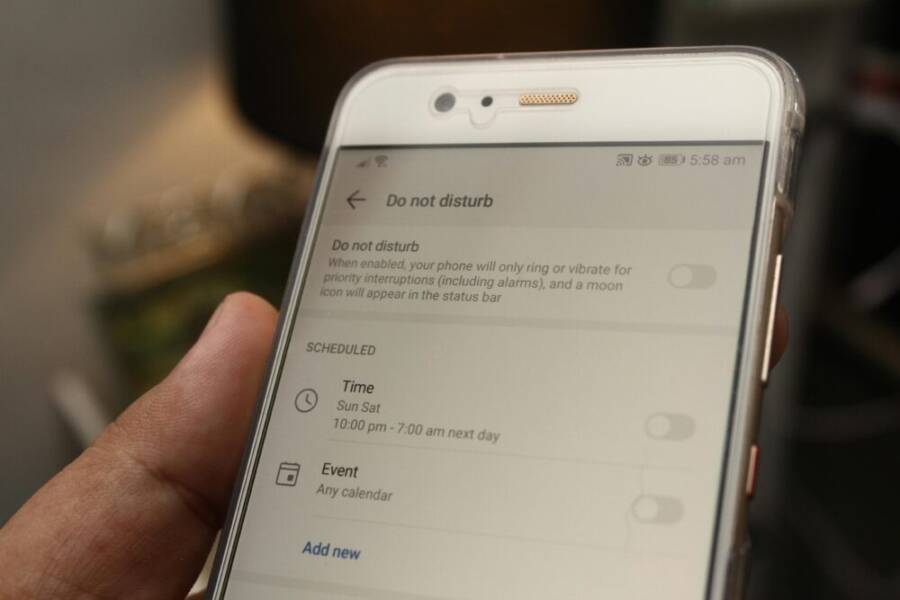
- Tune Focus modes and Do Not Disturb: Schedule or trigger DND when you’re filming or editing. Customize which apps can bypass DND and how alerts appear on the lock screen.
- Leverage automation for advanced users: Tasker provides powerful rules to switch profiles, mute specific apps, and push digest notifications at set times. If you’re comfortable with automation, it can shrink response times and keep you in flow.
- Cross device consistency: Mirror Must Read alerts to your wearable when possible. This keeps you in the loop without interrupting the task at hand.
- Quick review windows: Establish a daily digest window for Can Wait and Info Only messages. A single session per hour reduces backlog and clarifies what needs action.
- Testing and refinement: Start with a handful of apps and a simple rule set. Each week, prune or expand channels based on what actually moves projects forward.
Android’s built in tools, like notification channels and Do Not Disturb, let you craft a tailored experience without third party apps. If you want deeper automation, Tasker is the go to for power users who want precise control over timing, app behavior, and cross device signals.
For more context on iOS and Android notification customization, see the Apple and Android focus related resources linked above and explore standard Do Not Disturb tuning guidance from reputable sources. These references provide solid ideas you can adapt to your exact workflow.
Cross platform and wearables
A cohesive setup across devices keeps you in the same signaling language no matter which device you’re using. This section helps you align iPhone, Android, and wearables so signals stay consistent and actionable.
- Syncing across devices: Use a single priority scheme across all devices. Must Read alerts should appear as banners with clear color cues on iPhone, Android, and wearables. A unified digest minimizes the chance of missing important messages as you move between devices.
- Wearables for glanceable alerts: Smartwatches are ideal for high signal items that require quick acknowledgement. Use them for Must Read prompts that you don’t want to delay when you’re away from your phone.
- Keeping badges consistent: Ensure the same apps show consistent badge counts or activity indicators across devices. A mismatch can cause you to overlook time sensitive items.
- Cross platform reminders: Email, chat, and project management tools should push rules that land in Must Read on all devices. Non urgent updates flow to Can Wait or Info Only.
- Consistency in app behavior: Make sure Focus or DND rules are mirrored on each platform when you can. If a channel is Must Read on one device, it should be Must Read on the others as well.
To deepen your understanding of cross platform notification behavior, review official guidance for iOS Focus and Do Not Disturb, plus Android notification settings. These foundations help you build a consistent experience that travels with you.
Practical note: When you introduce a wearable, avoid overloading it. Aim for 1–2 Must Read alerts per glance to prevent fatigue. The wearable should augment your awareness, not become a constant distraction.
Putting it all together, you’ll have a streamlined, predictable signaling system that supports live streams, editing sessions, and content planning. The right mix of cross platform rules keeps you in flow and responsive where and when it matters most. For a quick recap, use a digest driven approach: three channels, one hourly review, and a daily high signal window for Must Read alerts, regardless of device.
Ongoing optimization to stay on track
Keeping a creator workflow in rhythm means continuous, small optimizations. This section explains how to measure impact, tune your setup over time, and use smart tools to stay on track without sacrificing momentum. You’ll find practical metrics, quick adjustment methods, and guardrails that keep humans in control while technology takes care of routine signals.
 Photo by Daniel Moises Magulado
Measuring impact and tuning
To keep your notification system effective, start with simple, repeatable metrics. Track how quickly you respond to Must Read messages, how often you miss critical alerts, and how much time is spent on tasks after an interruption. These data points reveal whether your rules actually improve flow or inadvertently slow you down.
- Response time: Measure the average time from alert receipt to acknowledgment or action. A lower number signals a healthier signal flow.
- Missed alerts: Count instances where a Must Read message passes without action within the required window. A rising count means you may need stricter channels or clearer triage.
- Time spent on tasks: Compare time spent on a task before and after a notification tweak. A net decrease in idle time and context switching is a win.
- Flow continuity: Note how often you revert to the same stage after an interruption. Fewer re-reads and re-reads mean steadier progress.
Quick tuning methods you can apply today:
- Adjust your triage thresholds in 10–15 minute steps. If you notice too many urgent items slipping through, raise the bar for What is Must Read.
- Consolidate digest times. Move from multiple review moments to one hourly digest to reduce interruption frequency.
- Use a daily end-of-day review window. A short check-in helps you re-align channels for the next day without dragging you out of focus.
If you want deeper context on measuring productivity in knowledge work, see credible sources that discuss focus time and signal management. For example, you can explore how uninterrupted work blocks correlate with output quality and pace. The right metrics give you a clear path to better days.
- External reading: The hidden cost of context switching and how it erodes daily output
- External reading: Are notifications destroying your work
Using AI and automation to help
Smart summaries and auto triage can reduce cognitive load while keeping humans in control. Look for features that compile long threads into concise briefs, flag critical items, and propose initial responses that you approve.
- Smart summaries: Apps can generate brief digests from long conversations or multi-page briefs. This helps you decide whether to act now or skip for later.
- Auto triage: Automatic routing of alerts into Must Read, Can Wait, or Info Only based on keywords, sender, or project status. This keeps your attention on what matters most.
- Suggestion features: Some tools offer suggested replies, scheduling adjustments, or action items. Use these as starting points, then tailor them to your style and project demands.
Guardrails to keep humans in control:
- Require a human confirmation for high-stakes actions (like publishing a post or approving a contract).
- Keep a fallback alert if the AI misclassifies something urgent. A quick, visible override protects you from misses.
- Regularly audit AI rules. Set a weekly check to ensure the AI aligns with current project priorities and client needs.
If you’re curious about practical AI-driven workflow patterns, consider reading about how teams reduce interruptions with smart summaries and triage. These concepts translate well to creator workflows, from filming to posting.
- Example: A YouTube creator receives a daily digest that summarizes comments, sponsorship mentions, and analytics, with Must Read flags for any item tied to deadlines or approvals.
References for broader context on AI-assisted productivity and safe automation can provide helpful viewpoints as you experiment with guardrails and automation rules.
Conclusion
A smart notification setup helps creators stay in the flow without losing momentum. Start simple with three alert channels and one hourly digest, then test and refine based on real results. Your next step is to implement the minimal rules, watch how they improve focus, and adjust as needed. Share what works for you and try the recommended approach to see faster, steadier progress on filming, editing, and posting.