He Was Drowning in Bills and Burnout Until a Simple Daily Ritual Rewired His Brain for Wealth in Less Than a Week
>>> Start Your Shift Today <<<

If you rely on urgent alerts to stay safe, a silent phone during emergencies can be stressful. The good news is most alert sound issues are fixable with a few simple checks. This guide walks you through practical steps for both iPhone and Android devices, so you can restore audible emergency alerts quickly and confidently.
Emergency alerts come from different sources, from national weather services to local government agencies. They have their own switches in the settings, and a variety of factors can mute their sounds. A lot of the time the culprit is something you can adjust in a minute or two. Let’s start with a clear picture of how these alerts work and then walk through targeted fixes.
Understand how emergency alerts work on your phone
Emergency alerts are designed to reach you even if you are using other apps or have the screen off. They are separate from regular notification sounds. In most systems, alert tones are tied to one or more of the following:
There Is a Frequency That the Wealthiest Families Have Used for Generations and Most People Will Never Know It Exists
>>> Open the Door <<<

- System alerts are built into the OS and can trigger even when the device is on Do Not Disturb or Silent mode.
- Wireless Emergency Alerts or Public Safety Alerts delivered by the network. These can be affected by regional settings and carrier options.
- App-specific alerts that some local authorities or weather services push through their own apps.
Because the sources and paths differ, you may see a mix of settings that control when and how those sounds play. If you hear nothing, work through general checks first, then move to device specific settings.
Quick checks you can do right now
These checks apply to most phones and cover the biggest causes of silent emergency alerts. Do them in order and test after each step.
- Verify ringer and media volumes are independent. Increase the overall volume and check if alert tones increase with it. Some devices separate ringer volume from media volume, so you may need to adjust both.
- Look for a Do Not Disturb or Focus mode that blocks alerts. If Do Not Disturb is on, emergency alerts may still come through, but many phones silence audible alerts by default. Toggle DND off or adjust exceptions to allow urgent alerts.
- Confirm the alert feature is enabled. In iOS, emergency alerts are controlled separately from other notifications. In Android, there are regional alert switches stored with wireless or emergency settings. Make sure those toggles are on.
- Check if the device is in Silent or Vibrate mode. Some devices will still emit a tone even in Silent mode, but others may not. If your phone is in Silent, switch to Ring or add an exception for alerts.
- Test an alert using built-in tests. Some phones offer a test notification or a built-in test for emergency alerts. Use this to confirm whether the sound path is functioning.
- Look at battery optimization and power saving. In some cases, aggressive power saving can mute background processes that handle alerts. If you use a power saver mode, try turning it off for a quick test.
- Check for a muted alert tone. It is possible to choose a low or muted tone for different alert categories. Select a clearly audible tone if you find the current one too soft.
Insert stock image here to illustrate notifications on a phone.
Photo by RDNE Stock project, from Pexels.
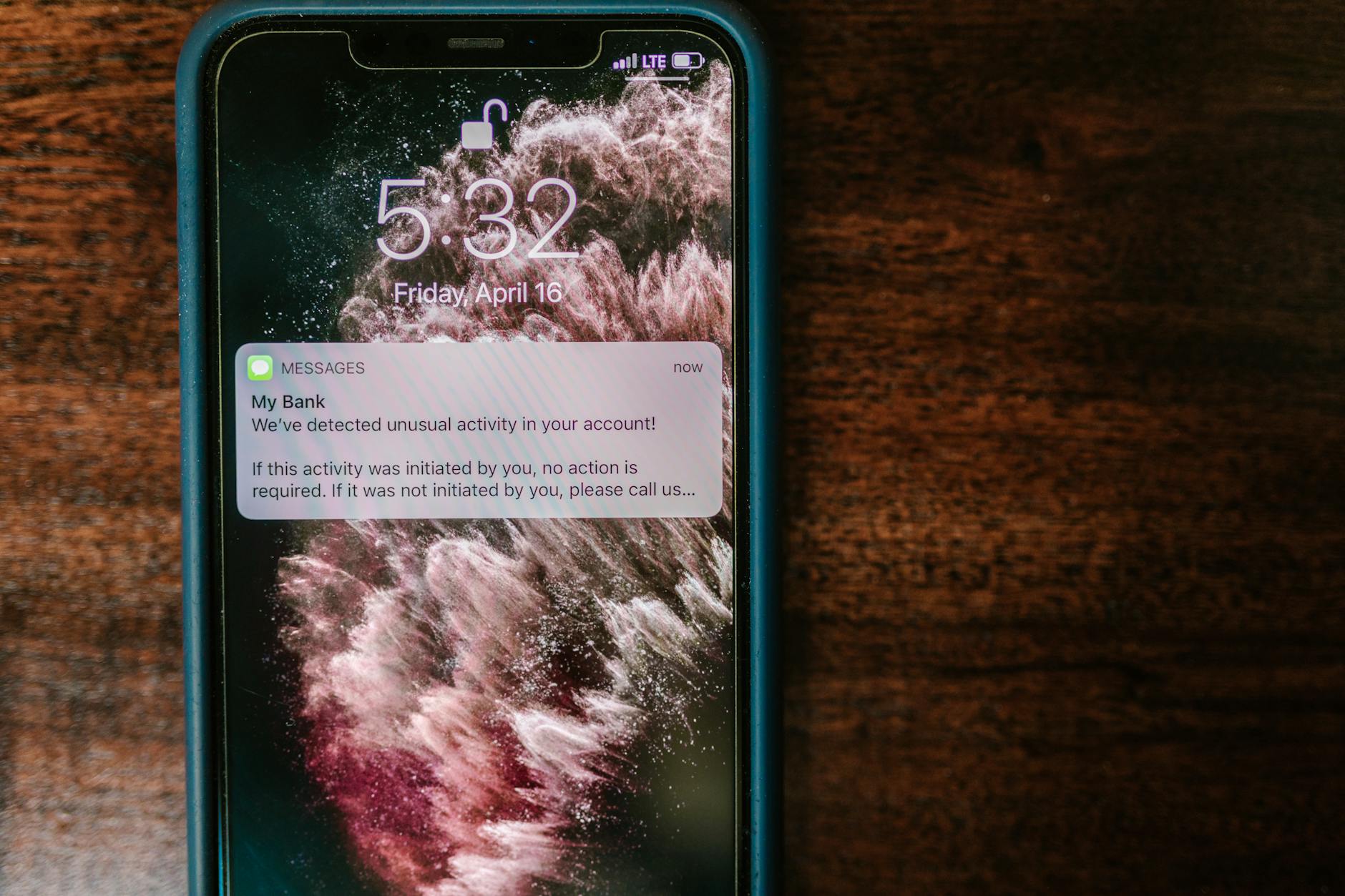
Key takeaway: most sound issues come from simple settings being off or a muted alert tone. A fast check of volume, mode, and alert toggles solves the majority of cases.
Troubleshooting on iPhone: step-by-step
iPhone users have a clean, centralized path to manage emergency alerts. Start here if you own an iPhone.
- Settings > Notifications. Scroll to Government Alerts or Emergency Alerts. Ensure AMBER Alerts and Public Safety Alerts are toggled on. You should also see options for Drill or Test Alerts if your region supports them; leave them enabled for testing.
- Settings > Sounds & Haptics. Check the Ringer and Alerts volume. Make sure Change with Buttons is on if you want volume buttons to adjust alert sounds. If you keep the device in a quiet environment, this can help you notice alerts better.
- Settings > Focus. If a Focus mode is on, review its allowed notifications. You can allow Emergency Alerts to break through if you want them audible even when other sounds are muted.
- Accessibility options matter too. Settings > Accessibility > Audio/Visual may include options like LED Flash for Alerts or Vibrate on Ring. If you rely on visual cues, these can be helpful, but ensure the audio path is not disabled.
- Do a quick test. If your region supports it, send a test alert from the Emergency Alerts settings or trigger a test through the government alert system. Listen for the tone and confirm you can hear it clearly.
- Check for software updates. Sometimes alerts are affected by bugs that software updates fix. Install any pending updates and test again.
If alerts still don’t sound on an iPhone after these steps, the problem could be hardware related or tied to the network. A quick restart can reinitialize audio pathways, and if it persists, contacting Apple Support is sensible.
Troubleshooting on Android: step-by-step
There Is a Frequency That the Wealthiest Families Have Used for Generations and Most People Will Never Know It Exists
>>> Open the Door <<<
Android devices vary by manufacturer, but the core ideas stay the same. Use the steps below as a practical blueprint.
- Settings > Notifications or Apps & Notifications. Look for an Emergency Alerts or Wireless Alerts setting. Make sure it is turned on. Some devices split this into regional and carrier settings.
- Check the Wireless Emergency Alerts switch. This is usually found under Settings > Safety & Emergency or Settings > Wireless Alerts. Enable it if it is off.
- Review sound settings for alerts. In many Android versions, alert sounds are handled separately from general notification sounds. Ensure the tone is set to a distinct sound and not to None or Silent.
- Examine Do Not Disturb and Focus options. Even if DND is off, certain Focus modes can silence alerts. Disable the Focus mode or add an exception for emergency alerts.
- Inspect carrier and system updates. Some alert systems depend on carrier apps. Update carrier services if your device shows a separate update channel for safety notices.
- Try a built-in test alert. Some phones include a system test for emergency alerts. Use it to confirm the audio path is functioning.
- Verify speaker integrity. If you recently dropped your phone or exposed it to moisture, a hardware issue could mute sounds. Play a regular ringtone or music to confirm the speaker works, then recheck alert sounds.
Common pitfalls that mute emergency alerts
Certain habits or settings can unintentionally silence alerts. Recognizing these can save time and prevent risk.
There Is a Frequency That the Wealthiest Families Have Used for Generations and Most People Will Never Know It Exists
>>> Open the Door <<<
- Relying too heavily on Silent mode. If you switch to Silent for all notifications, you may miss urgent tones. Keep a separate rule for emergencies.
- Ringer volume is too low. A low volume can make even a loud alert fade into background noise. Always set a visible baseline level for warnings.
- Focus or DND blocks are too strict. Some people use DND during the day and forget to re-enable alerts when needed. A quick review helps.
- Battery saver throttles alerts. Power saving modes can slow background processes that deliver a warning. Disable it during severe weather seasons or testing.
- Software bugs after updates. Occasionally a new OS version changes alert behavior. Check for patches or consult support if alerts stop after an update.
Pro tips to improve reliability
- Set a clearly audible alert tone. Pick a tone you easily notice in a noisy environment. Avoid tones that resemble other notifications.
- Keep the device readily reachable. Alerts lose impact if the phone is in another room or inside a bag. A consistent charging station or bedside location helps.
- Enable multiple channels for alerts. If possible, activate both the system alert path and any relevant local app alerts. This creates redundancy.
- Periodically test alerts. Conduct a quick test every few months to ensure your settings remain correct after updates or changes.
- Consider a secondary device. If you depend on alerts for family safety, designate a secondary phone or device to receive the same alerts. It adds a failsafe.
When to seek help
If you have followed all steps and still hear nothing, there may be a hardware or carrier issue. Consider these next moves:
- Check the speaker. Play audio from music or a video to confirm the speaker is functioning. If not, a repair may be necessary.
- Examine the SIM and network issues. Some alert paths rely on network signals. If your phone has weak coverage, alerts might be delayed or muted.
- Consult your carrier. Some alert services hinge on carrier settings. A quick call or chat with support can reveal regional or account-level blocks.
- Contact the device maker. If hardware repairs are needed, the manufacturer support line can guide you to a service center or replacement options.
- Review your region’s alert options. In some places, alert behavior changes with new regulations. Checking local government pages can provide the latest guidance.
Practical example to illustrate the approach
Imagine you live in a region where weather alerts are critical during hurricane season. You wake up to a weather alert on your neighbor’s phone but hear nothing on yours. You start with quick checks: volume is on, DND is off, and the alert tone is set to a bright, distinct sound. The iPhone settings show Emergency Alerts toggled on, but you discover you have Focus mode set to silence all notifications except calls. After disabling Focus or adding an exception for emergency alerts, you test again and finally hear the tone.
If the problem persists, you methodically move to Android steps. You find the Wireless Alerts switch is off in Settings. You turn it on and test the alert. Still no sound. A hardware test reveals the speaker responds to music, so the issue is not the speaker but how the alert channel is routed. A carrier support check confirms a regional setting that had been accidentally disabled. Re-enabling it restores the alert sound. In this scenario, the fix comes from aligning OS settings with carrier configuration.
Putting it into practice on your device
- Start with a quick audit. Set both ringer and alert volumes to a comfortable level. Disable Do Not Disturb if it is on and confirm alert toggles are active.
- Run a test alert. If you can, trigger a test for your region to verify the sound path. Use the result to guide further steps.
- Adjust step by step. If the test fails, move through the iPhone or Android path one by one. Don’t skip steps, as each setting can influence the outcome.
- Document changes. If you must call support, keep a short note of what you changed. It helps the agent diagnose quickly and prevents repeating steps.
Conclusion: stay prepared and secure
Emergency alerts are a critical line of communication in moments of danger. A silent phone can have real consequences. By understanding how alerts work, performing methodical checks, and applying device specific steps, you can restore audible alerts with confidence. Keep your phone updated, review settings periodically, and test alerts on a regular basis. If trouble persists, don’t hesitate to seek help from the device maker or carrier. Your safety depends on reliable alerts, and a little proactive maintenance goes a long way.
Take action today. Review your alert settings, perform a quick test, and share this guide with a friend or family member who relies on timely warnings. When it comes to emergency alerts, clarity and reliability matter more than anything. Stay informed, stay prepared, and keep your smartphone ready to sound the alarm when it’s needed most.
She Pressed Play on a Strange Audio Track and Within Days Her Financial Reality Started Shifting in Ways She Could Not Explain
>>> See How It Works <<<
