She Pressed Play on a Strange Audio Track and Within Days Her Financial Reality Started Shifting in Ways She Could Not Explain
>>> See How It Works <<<

A blank attachment is more than an annoyance. It stops you from getting the information you need and can slow down a busy day. Whether it’s a PDF from a coworker, a travel itinerary, or a receipt from an online store, the moment you tap to open it and nothing loads can feel frustrating. The good news is most blank attachments have a simple, fixable cause. With a few careful checks, you can pinpoint the issue and get back to your task quickly.
This guide walks you through practical steps you can try on your smartphone. We’ll cover quick checks, app data resets, permission settings, and reliable ways to verify file integrity. You’ll learn how to avoid blank opens in the future and what to do if the problem is stubborn. Let’s start with the obvious culprits and move toward longer fixes that actually work.
Common reasons why attachments open blank on a smartphone
Blank openings typically come from one of three places: the file or its source, the viewing app, or the device itself. A corrupt download or a file that wasn’t saved correctly can show up as blank. Some attachments fail to render if the app you use to open them is outdated or has a bug. Permissions and storage access can also block files from loading. Finally, a temporary network hiccup or a device in low power mode might interrupt a download or rendering.
He Was Drowning in Bills and Burnout Until a Simple Daily Ritual Rewired His Brain for Wealth in Less Than a Week
>>> Start Your Shift Today <<<

If you see a blank page but a tiny loading icon stays visible, it usually points to a temporary issue. If the screen is completely blank or text is missing, the file itself or the viewer is likely at fault. In most cases, you can fix the problem with a few deliberate steps. Ready to tackle it?
Start with quick checks you can do in seconds
- Check your connection: A slow or dropped connection can stall downloads and render attempts. Switch from mobile data to WiFi or vice versa to test responsiveness.
- Confirm the file is complete: If you got the attachment from email or a download link, try downloading it again. A partial file often opens slowly or not at all.
- Verify the source: Attachments from untrusted sources can be blocked by your mail app or device. If you’re unsure, save the file to your device and scan it for safety before opening.
Where to begin if the file is still blank
- Try a different viewer: Sometimes the problem is the app you’re using. If you’re opening a PDF, try a different PDF reader; if it’s a DOCX, try a different word processor. On a smartphone there are usually several free options.
- Open from another location: If you downloaded the file from a link, try opening it from a cloud drive or your email app instead. Moving the file to a different location can help the viewer render it properly.
- Save and re-open: Save a copy of the attachment to your device, then reopen the copy. This bypasses any hiccup tied to the original download.
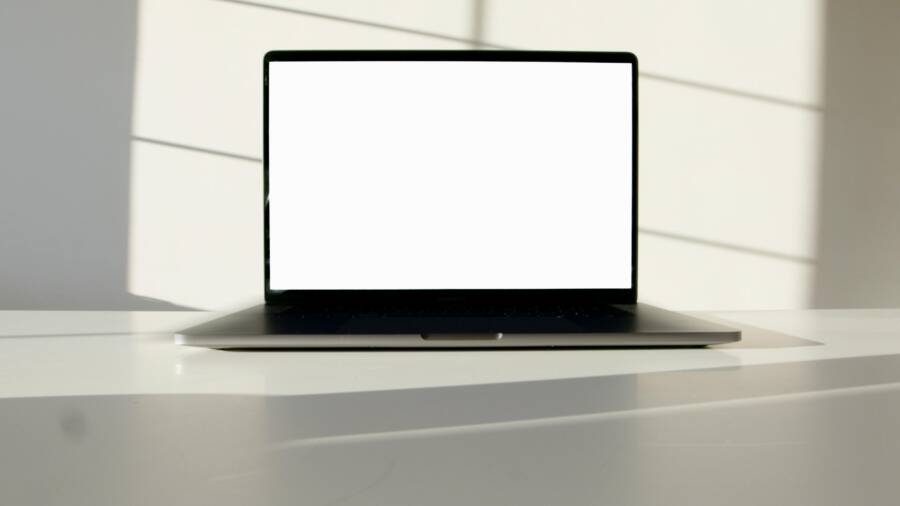
Image: When a file won’t render, a fresh start helps Photo by Polina Zimmerman
What causes a blank attachment image, and how to address it The image above illustrates the typical issue: the file exists but the content doesn’t render. This happens when the viewer can’t parse the data or the file is incomplete. Saving a fresh copy often resolves this. If it doesn’t, try another app or obtain the file from a different source.
Clear app data or cache for your viewing apps
- Android users: Clear cache first. Go to Settings, Apps, find the viewer app (for example, your email app or a PDF reader), then Storage and tap Clear Cache. If that doesn’t help, choose Clear Storage or Clear Data. Be aware this may log you out of the app and reset preferences, so have your login details handy.
- iPhone users: iOS doesn’t expose cache in the same way. Instead, offload the app to remove temporary data and reinstall it. Go to Settings, General, iPhone Storage, select the app, tap Offload App, then reinstall from the App Store. The file will still be on your device if you saved it locally, but the app will have a fresh setup.
Why clearing data can fix rendering issues A corrupted cache can fool an app into thinking a file is different from what it actually is. Removing that cache forces the app to fetch the latest version of the file, which often clears up the problem. It’s a quick reset that helps most people avoid more drastic steps.
Try a different app or method to view the attachment
- External viewers: If your normal viewer stalls, try a different app. For PDFs, apps like a different reader or even a browser can render it. For documents, a cloud app or file manager can do the job.
- Web previews vs local copies: If you can access the file through a web preview, try that route first. Sometimes the cloud rendering is more robust than the on-device viewer.
Check permissions and storage access
She Pressed Play on a Strange Audio Track and Within Days Her Financial Reality Started Shifting in Ways She Could Not Explain
>>> See How It Works <<<
- Android: Some apps need explicit permission to access storage. Go to Settings, Apps, select the app, then Permissions. Make sure Storage is allowed. If you’re on Android 11 or newer, look for files and media permissions and enable access accordingly.
- iOS: Ensure the app has access to Files and Folders if you rely on the Files app. Go to Settings, scroll to the app, and enable the necessary permissions. Allowing access helps the app locate and render the file correctly.
What to do if the file is truly corrupted
- Re-download from the original source: If you can, download again from the primary link or ask the sender for a fresh copy. A clean download fixes most corruption problems.
- Test on another device: Open the file on a computer or another phone. If it still won’t render, the file is likely corrupted and needs a new version.
- Check the file type compatibility: Some file types are not supported by the viewer you use. If you suspect this, convert the file to a common format on a computer or use a more capable app on your phone.
Handling attachments from email
- Preview settings: Some email apps auto-preview only, which can fail for certain file types. Try saving the attachment to your device first, then open it with a dedicated viewer.
- Download preferences: Ensure your email app isn’t set to block large attachments or to download only when connected to WiFi. Modifying these settings can prevent incomplete downloads.
- Attachment size: Large files can time out on slow networks. If possible, request a smaller version or a link to the file in cloud storage.
When a reset is necessary
If none of the above steps work, a broader reset can help. Start with a soft reset by restarting the phone. If issues persist, consider updating the operating system or reinstalling the offending apps. On a stubborn device, a full reset might fix the problem, but back up important data first.
Smartphone tips to prevent future blank attachments
- Keep apps updated: Regular updates fix bugs that can cause rendering problems. Enable automatic updates where possible.
- Maintain storage health: A phone with limited storage can struggle to render files. Periodically clear caches and remove unused files.
- Use reliable sources: Attachments from known senders or reputable sites are less likely to be corrupt. If a link looks odd or the sender is unfamiliar, proceed with caution.
- Prefer cloud access for large files: Storing attachments in a trusted cloud service and opening them from there can reduce download errors and speed up access.
- Back up important attachments: Save copies to at least two places. A quick backup protects you when a file becomes unreadable on the device.
Troubleshooting an email attachment step by step
- Step 1: Save the attachment to your device instead of opening it directly from the email.
- Step 2: Open the saved copy with a viewer that matches the file type.
- Step 3: If it still shows blank, try a different viewer or convert the file on a computer.
- Step 4: If the sender can’t provide a new copy, ask for a link to a cloud version you can view online.
When to seek help
If the issue remains after all these steps, there could be a deeper problem with the device or with a specific app. Check the device’s support resources or contact the app’s help desk. If other files open normally on the same app, the problem is likely with that particular attachment rather than the viewer.
There Is a Frequency That the Wealthiest Families Have Used for Generations and Most People Will Never Know It Exists
>>> Open the Door <<<

Conclusion
A blank attachment on a smartphone is usually a solvable puzzle. Start with quick checks, move through app data resets, and broaden your approach to permissions and alternate viewers. By testing a few reliable strategies, you can confirm whether the issue lies with the file, the app, or the device. With the right approach, you’ll spend less time wondering why and more time getting your work done.
If this guide helps you fix the problem, share your experience in the comments. Have another quick tip that worked for you? I’d love to hear it. And remember, keeping your apps and OS up to date is one of the simplest ways to prevent blank openings in the future. Small, consistent steps save time and reduce frustration.
Photo by Polina Zimmerman
She Pressed Play on a Strange Audio Track and Within Days Her Financial Reality Started Shifting in Ways She Could Not Explain
>>> See How It Works <<<