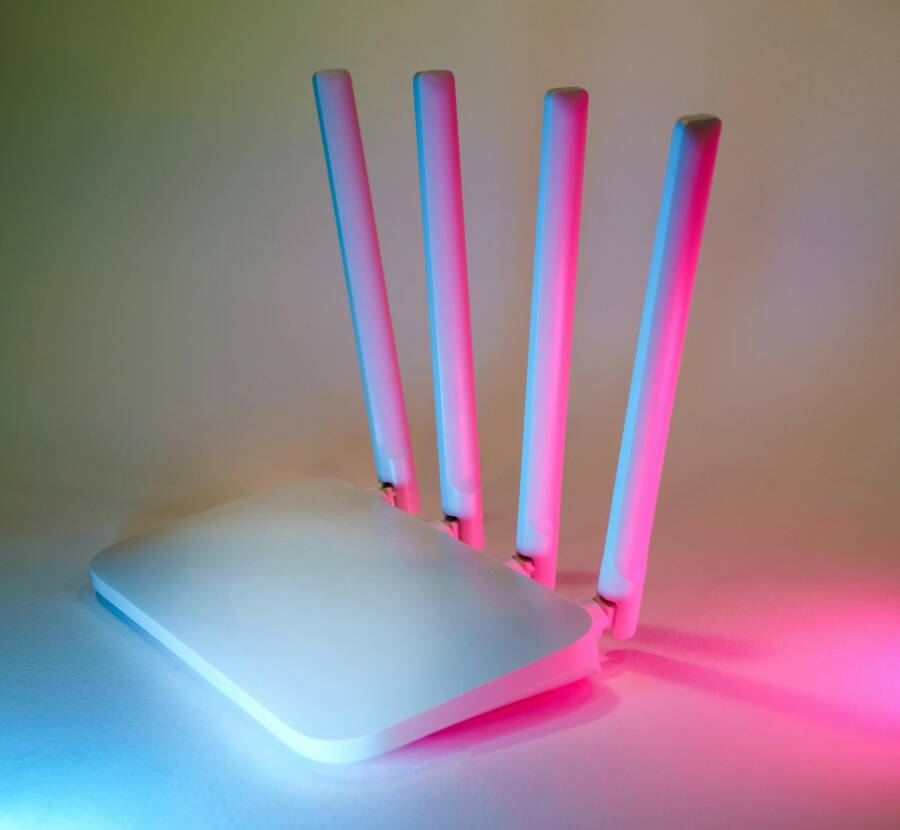
If your phone won’t join the new router after an upgrade, you are not alone. Other devices may connect just fine, but your phone stalls at the join screen. This happens more often after a router upgrade because the network name, password, or security settings can change. Small changes can block a familiar device from seeing or trusting the new signal. The good news is you can fix most of these issues quickly with a few simple steps.
This guide walks you through practical, step by step fixes. It’s written for everyday users and doesn’t assume tech experience. If you’re using a smartphone, you’ll find clear paths tailored to iPhone and Android devices. Follow the steps in order, and you should get back online fast. We’ll cover why these problems show up, how to reset connections, and what to adjust if things still don’t work. By the end you should have your phone connected again and your home network back to normal.
Start by checking the basics. The fastest fixes fix the majority of issues after an upgrade. If something seems off, you’ll know where to look. The goal is simple: get your smartphone back on the network with minimal fuss. Let’s begin with quick checks that usually solve the problem.
Start with Basic Checks to Get Connected Fast
These steps address the most common causes after a router upgrade. They’re easy to follow and don’t require technical know how.
- Restart everything in the right order. Power cycles refresh how devices see the network. Start with the modem. Unplug it for 30 seconds, then plug it back in. Wait a minute for the lights to settle. Next, restart the router the same way. Finally, reboot your phone. After a minute or two, try reconnecting. A fresh start can fix stubborn handshakes between devices and the new router.
- Double check the Wi Fi name and the password. Upgrades often change the SSID or the password. Look at the router label or the router app to confirm the exact network name and the code. If the network you want isn’t showing, hide or broadcast settings may be off. Once you have the correct details, try connecting a different device first to confirm the new credentials work. If another device connects, your phone’s problem is likely specific to its stored settings.
- Reduce distance and interference. Move closer to the router to improve signal strength. Thick walls, metal appliances, and microwaves can degrade the signal. The 2.4 GHz band travels farther through walls, while the 5 GHz band offers better speed up close. If your router supports both bands, try both to see which gives a steadier connection on your phone.
- Check for a simple hiccup in settings. Sometimes a short mismatch in security mode or a disabled broadcast channel blocks access. A quick look at the router app can reveal if something obvious is off. If you notice odd settings, revert to defaults and test again. You can re customize later.
These basic steps solve most issues in minutes. If your phone still won’t connect, moving on to fresh network management makes sense.
Forget the Old Network and Reconnect Fresh
Phones cling to old network details. Forgetting the old network forces the device to start from scratch and allows it to pick up the updated router settings. This is especially important after a router upgrade when SSID or password changes. The process is quick on both iPhone and Android.
- Steps to forget Wi Fi on iPhone and Android
On iPhone, go to Settings then Wi Fi. Tap the info icon next to the network you want to remove, and choose Forget This Network. Then reconnect using the new password when the new network appears.
On Android, open Settings then Network and Internet then Wi Fi. Tap Saved networks (or Manage Networks) and find the old network. Tap Forget or Remove. After that, scan for the network again and enter the new password.
- Choose the right band if you see multiple options
Some routers publish two networks with the same name or separate names for the 2.4 GHz and 5 GHz bands. If you see two options, pick the one that matches your situation. If you’re far from the router, pick the 2.4 GHz network for better reach. If you’re close and want faster speeds, try the 5 GHz option. If the router has a hidden network, you might need to enable broadcasting in the app first and then connect.
After you forget and reconnect, your phone gets a clean slate. It will test the new network and store the correct password. If the signal appears but the phone still won’t connect, move to the next set of fixes.
Choose the Right Wi Fi Band for Your Phone
Understanding bands helps after an upgrade. The 2.4 GHz band travels farther and penetrates walls more easily, making it a solid choice for devices that are far from the router. The 5 GHz band provides faster speeds but has a shorter range. If your router supports both and your phone connects slowly, try a closer spot or switch bands to see what works best. If your router has a feature to steer devices to a specific band, you can disable it while testing, then re enable once you know what works.
Adjust Settings for Compatibility Issues
This section helps you handle software and router mismatches without diving into tech jargon. The goal is to make the router and your phone play nice together. You’ll notice one theme throughout: keep things simple and up to date.
- Update your phone software and router firmware
First, check your phone for updates. On iPhone, go to Settings General Software Update. On Android, open Settings System Software Update. Install any available updates. These updates fix bugs that can block connections or cause odd network behavior.
Then check the router firmware. Open the router admin page. The address is usually 192.168.1.1 or 192.168.0.1, or you might access it through a companion app from the router maker. Look for a section labeled Firmware or Software Update. If a newer version is available, install it. Outdated firmware can block devices from joining new networks or disrupt security features.
- Tweak router security and filters
Security settings can block devices that do not match the expected method. Look for WPA2 or WPA3 settings and choose a mode your devices support. If the router is set to only allow certain devices via MAC filtering, disable that temporarily to test. Also check guest mode. If it is on, turn it off to see if your phone can join the main network.
Logging into common routers is straightforward. For TP Link devices, find Wireless settings and select Security; you may see WPA2 Personal as the default. For Netgear, go to Wireless Settings and choose the appropriate security mode. If you are unsure, revert to WPA2 Personal with AES for broad compatibility. After you make a change, save and try reconnecting.
Smartphone compatibility matters too. Some older devices have trouble with newer security standards. If you still have trouble after these adjustments, a temporary fallback to a simpler security mode often helps while you plan a longer term fix.
Try Advanced Fixes if Problems Persist
If the problem lingers after the basic steps, there are a few more options that carry low risk. They are not flashy, but they can save you time and frustration. Take a breath before you start these fixes; there is a small chance you will need to re enter some login details.
- Reset Network Settings on Your Phone
On iPhone, open Settings General Reset Reset Network Settings. This removes saved networks and VPN settings but leaves your apps intact. It is a strong reset for network recall.
On Android, the path can vary by manufacturer. Typically you find it under Settings System Advanced Reset Options Reset Wi Fi, mobile and Bluetooth settings. This clears all saved networks and reminds the phone how to connect to Wi Fi again. After the reset, reconnect to the new network using the updated password.
- If nothing helps, consider a router reset
If the router is not broadcasting correctly or settings got tangled during an upgrade, a factory reset is a last resort. This returns the router to its original state. You will need to set up the network again from scratch, including SSID and password. Be sure to write down the changes you make so you can recreate them later. This step can fix stubborn problems, but it is more disruptive, so use it only if other fixes fail.
- Check for interference and channel changes
Some routers choose a crowded channel after an upgrade. If you can access the router app, switch to a less busy channel. In crowded apartment buildings, changing channels can make a big difference. If you cannot easily change channels, setting the router to a fixed channel with less interference can help.
If you are comfortable with these steps, you should have a path forward. If not, a quick call to your service provider can save time and prevent accidental misconfigurations.
Conclusion
In many cases a phone not connecting to a new router after an upgrade is a simple mix of name, password, or setting differences. Start with basic checks, then remove old network settings, and finally fine tune the bands and security. If problems persist, update software on both ends and consider a targeted reset of network settings on the phone. A slower, methodical approach works well here.
Key takeaways
- Restart devices in the right order to refresh connections.
- Verify exact network name and password on the router or app.
- Forget old networks and reconnect with the updated credentials.
- Use the correct band for your situation and test both if needed.
- Keep all devices up to date and adjust basic security settings for compatibility.
- Reset network settings on the phone if you run into stubborn issues.
If nothing works, a call to your internet service provider can help troubleshoot line or routing problems. With these steps, you’ll be back online soon and ready to test smoother, faster Wi Fi on your smartphone. Hang in there; you’ll be connected again before you know it.