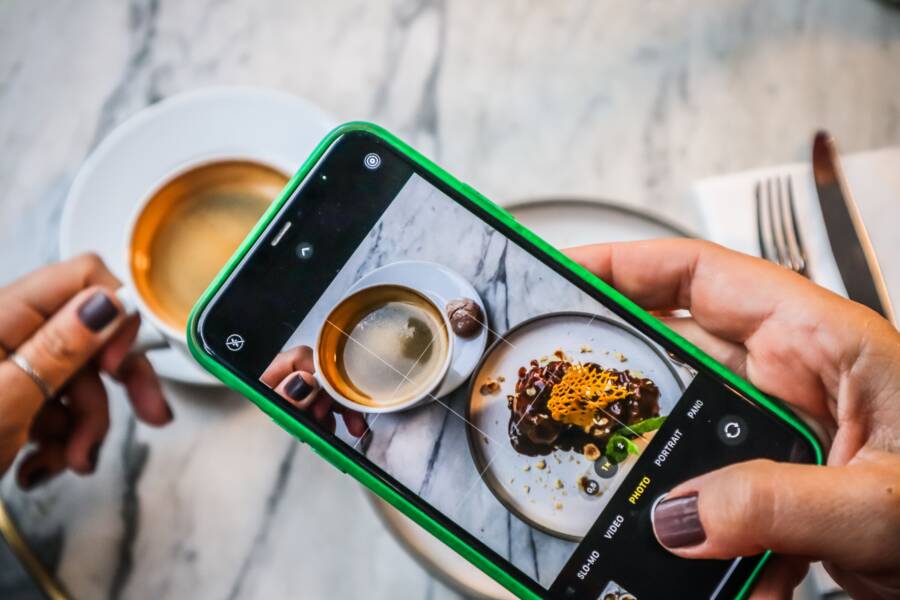
You can take high-quality images of any screen with your smartphone by adjusting your shooting angle and locking your focus. You do not need professional equipment to eliminate those distracting moire patterns and unwanted light reflections.
Glare and wavy lines usually occur because your camera sensor struggles to interpret the refresh rate of the display. Most of these issues vanish when you position your camera correctly and manually manage your exposure.
Follow these simple adjustments to capture clear, professional results every time you point your device at a monitor.
Why Your Smartphone Screen Photos Look Distorted
Photos of computer monitors or television screens often appear distorted because of how your smartphone camera interacts with the display technology. Digital displays do not emit a steady light like a lamp. They flicker at high speeds to refresh the image. Your camera captures these rapid changes at a different speed, which results in dark horizontal bars or wavy lines across your final image.
Understanding the Moiré Pattern Effect
This pattern, often called a moiré effect, occurs when the fine grid of your screen pixels conflicts with the grid of pixels on your camera sensor. Because both surfaces use a repeating pattern, they create an interference effect when layered. The result is strange, rainbow-colored wavy lines that ruin your otherwise clear photo. This phenomenon is common when you photograph high-resolution screens with a smartphone camera because both systems try to resolve the same tiny pixel structure.
How Refresh Rates Cause Dark Bars
Most monitors refresh their display cycles dozens of times per second. Your camera shutter speed often moves faster than the screen can refresh its own pixels. If your shutter clicks while the screen is in the middle of a refresh cycle, the camera records the screen as partially dark. You see these dark bands because the sensor literally captured the screen during the brief moment it was turning off or updating its image.
Managing Reflection and Glare
Screens act like mirrors because of their smooth, glass surfaces. When you point your camera at a screen, it picks up light from the room, windows, or ceiling lamps. This glare washes out the colors and hides the text you intend to capture. Since your smartphone lens is small, it captures light from many angles simultaneously, making it difficult to find a position that avoids these reflections. Understanding these hardware limitations helps you predict when a shot will fail, allowing you to move or change your lighting before you press the shutter button.
Mastering the Perfect Angle to Reduce Glare
Eliminating glare is the most effective way to improve the quality of your screen photos. When you align your camera correctly, you remove the reflective film that obscures text and images. Proper positioning prevents light sources from bouncing off the display and back into your lens.
Choosing the Right Shooting Position
Distance plays a major role in how much reflection your camera captures. If you stand too close to the screen, you force the camera to focus on the individual pixels, which often creates an unwanted blurry effect or focal distortion. Conversely, standing too far back increases the surface area that your lens sees. A wider view naturally captures more of the room, including windows and overhead lights that cause glare.
Find the sweet spot by starting about two feet away from the monitor. You should then slowly adjust your distance until the entire screen frame fits within your viewfinder. If you see your own reflection or the room behind you, step slightly to the left or right. Even a small shift in your physical position changes the angle of incidence, which often pushes the glare out of the frame entirely.
- Keep your lens parallel to the screen surface to maintain uniform focus.
- Avoid shooting from a side angle, as this causes trapezoidal distortion where one side of the screen looks wider than the other.
- Use the zoom feature on your smartphone if you need a tighter shot rather than physically moving closer, as this helps maintain a cleaner, more stable image.
How to Block Ambient Light
Managing the light in your environment is just as important as your physical stance. Screens act like mirrors, so every light source in the room fights for space on the glass surface. A darker room offers the best results because it minimizes the external light your lens can pick up. You can achieve professional, high-contrast images by controlling the light hitting the display.
Start by turning off overhead lights or closing nearby curtains to prevent direct beams from hitting the monitor. If you cannot dim the room, use your own body to create a shadow over the screen. You can also craft a simple DIY shade using a dark piece of cardboard or a coat held above your phone to block glare from top-down lighting.
These small changes transform the final output of your smartphone photos:
- Close all blinds and curtains to eliminate exterior light sources.
- Dim your room lights until the screen is the primary light source in your field of vision.
- Position your body to block stray light beams that hit the screen from the sides.
When the room is dark, your camera sensor focuses exclusively on the light emitted by the display. This adjustment prevents the sensor from being overwhelmed by environmental light, leading to sharper details and much more accurate color representation.
Taming the Moire Effect with Smart Focus
When you see wavy, rainbow-colored lines across your screen photos, you are witnessing the moire effect. This interference happens because the camera sensor and the screen pixels struggle to align. You can solve this by finding the sweet spot for your focus and distance. Smart management of your smartphone camera settings will neutralize these patterns before you tap the shutter button.
Adjusting Distance to Eliminate Interference
The moire effect occurs when the physical resolution of your screen clashes with the grid structure of your smartphone camera sensor. These two grids compete to interpret the light, which creates the visible wave patterns. To stop this, you must change the magnification level so the camera does not see the individual sub-pixels of the monitor.
Most users find the ideal distance by moving their phone between 18 and 24 inches from the display. If the lines persist, pull back another few inches. You can also use the optical zoom on your device if you need a tighter frame. Moving the lens further away often helps the sensor blend the pixel grid into a solid image instead of resolving the distinct lines.
- Start at a distance where the screen fills most of your viewfinder.
- Shift your position forward or backward by small increments if you see any waves.
- Use your smartphone zoom lens to change the perspective without needing to physically walk closer.
- Avoid digital zoom, as it creates additional artifacts that worsen the visual interference.
Using Exposure Compensation Effectively
Overexposure is a common culprit when your photos look washed out or lack contrast. Your smartphone camera often tries to brighten the entire scene, which causes the screen to look like a glowing white box rather than a readable display. You should manually lower the exposure brightness to bring back the missing detail.
Tap the screen on your smartphone when the camera app is open. A small sun icon or a slider usually appears next to the focus box. Drag this slider downward until the image looks darker and the colors appear punchy. Lowering the brightness helps the sensor capture the specific text or images on the screen without being blinded by the backlight.
A slightly darker image is always easier to edit later than a washed-out, overexposed photo. If you bring the exposure down manually, the dark areas of the screen remain true to their color. This process allows your smartphone to accurately render the interface without the distraction of bright glare. Always check the preview on your screen to ensure the text remains legible before you take the final shot.
Essential Post-Processing Quick Fixes
You can often rescue a sub-par screen photo with basic adjustments in your photo gallery app. Modern image editing tools inside your smartphone offer enough control to fix common contrast, color, and cropping errors without needing desktop software. These quick modifications bring clarity to otherwise flat or washed-out images.
Cropping and Straightening for Professional Impact
Perspective distortion often occurs when you hold your phone at an angle. Even if your framing was slightly off, you can correct the geometry of the screen in your editor. Most gallery apps include a perspective or skew tool that allows you to realign the edges of the monitor so they appear perfectly rectangular again.
Use the crop tool to remove distracting elements from the edges of your frame, such as desk clutter or nearby room items. A tight crop keeps the focus on the content you intend to capture. Make sure to straighten the horizon line so the monitor edges align with the vertical and horizontal guides in your app. This simple task immediately makes a photo look intentional and clean.
Adjusting Contrast and Sharpness
Smartphone sensors often produce images that look slightly dull compared to the high-contrast light of an actual display. You can restore the punchy look of the original screen by nudging the contrast and black point sliders. Increasing the contrast helps text stand out against the background, while slightly darkening the black point hides minor noise or haze in the shadows.
Do not over-sharpen your image, as this adds jagged edges around letters and icons. Only apply a small amount of sharpening to improve legibility. If your photo still looks soft after these edits, check if your lens was clean before you took the shot, as smudges are the primary cause of hazy, low-contrast photos.
Correcting Color Temperature and Tint
Monitors often appear too blue or too yellow due to the ambient light in the room or the specific color profile of the screen. You can fix this by adjusting the white balance settings in your edit menu. Move the temperature slider toward the yellow end if the image looks too cool or blue. Conversely, shift it toward the blue side if the screen looks unnaturally orange or warm.
The tint slider is helpful for removing green or purple color casts that sometimes appear on photos of LED displays. Adjust this slider until the whites on the screen look neutral. Getting the white balance correct makes the entire image feel natural and readable, which is especially important if you are photographing documentation or code.
Quick Reference for Editing Workflow
Follow this sequence for the most efficient results when cleaning up your images.
Focus on these steps every time to maintain a consistent style. You will find that these minor tweaks save most images that initially appear unusable.
Conclusion
Successful screen photography depends on your ability to control the environment and your camera settings. Always turn off the flash, adjust your shooting angle to eliminate glare, and use manual focus lock to stop the moire effect. These small adjustments prevent common digital distortions and keep your images sharp.
Consistent practice with your specific smartphone model is the fastest way to improve your results. Every camera sensor responds differently to display refresh rates, so experiment with these techniques until you find what works best for your device. With these habits in place, you will capture clear, professional images every time.