Ever run out of space on your phone while traveling, with memories stuck in video clips you can’t share or review easily? This guide shows simple, practical ways to store travel videos from your phone without a laptop so your moments stay safe and ready to relive. You don’t need fancy gear or tech fluency to keep what you shot intact.
From cloud options to portable hardware, there are a few solid routes that fit a busy travel schedule. Cloud apps offer automatic backups and easy access across devices, letting you free up space with confidence. If you prefer not to rely on internet access, portable drives and wireless hubs provide reliable storage that travels with you.
We’ll walk through quick steps you can follow on the go, using common tools most people already have. Learn how to choose the right method based on how much video you capture, how often you travel, and where you’re headed. The goal is to keep your footage organized, safe, and easy to enjoy later.
By the end, you’ll know when to back up to the cloud, when to copy to a portable drive, and how to manage storage so your next trip won’t stall because of full memory. You’ll also pick up practical tips for freeing up space without losing quality, so you can keep filming without worry. This guide is built for travelers who want simple, reliable solutions that work in real life, not just in theory.
Check Your Phone Storage Before Videos Pile Up
Before you start filming or offloading, take a quick moment to confirm how much space you actually have. A tidy storage plan saves you from scrambling later when the gallery fills up. This section walks you through how to check your current storage, estimate video sizes, and decide what to delete or move first. Keeping your phone organized now means fewer surprises on the road.
Find and Measure Your Video Files
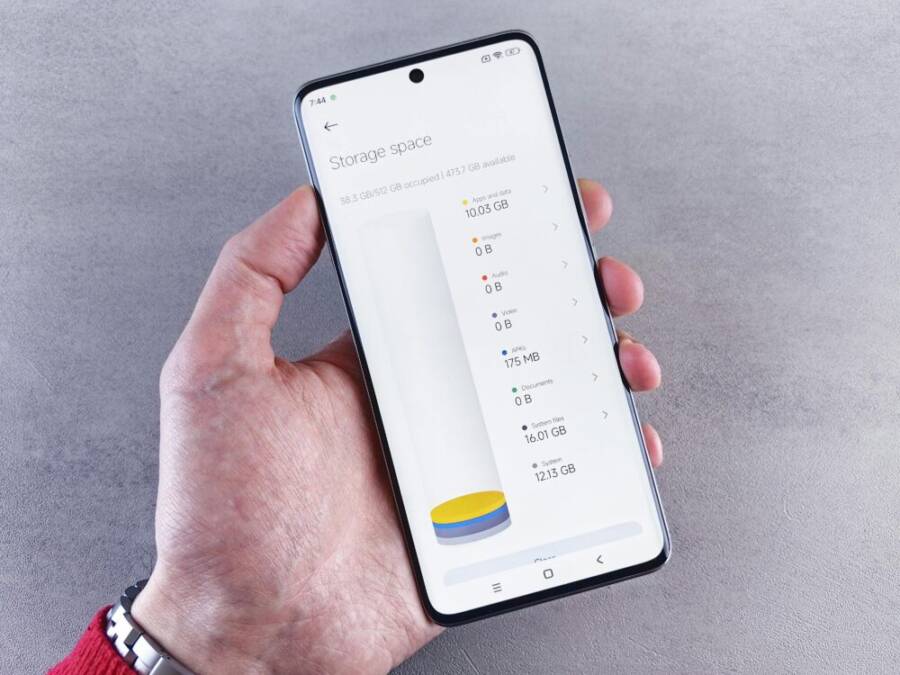
Step by step, here is how to quickly assess what’s taking up space and how big your video files are likely to be:
- Open your phone’s settings and locate the storage section. Most devices show a breakdown by apps, media, and system data. This gives you a clear picture of where space is going.
- Sort or filter by media or videos if your device offers that option. This makes it easier to gauge how much space video clips consume, particularly if you shoot a lot of 4K or high frame rate footage.
- Note the average size of your clips. For example, a 1-minute 4K video can range widely, but you can use a practical baseline like 350 MB per minute for high quality mobile footage. If you shoot with a lower resolution, your clips will be smaller.
- Check the remaining free space after accounting for new footage. Aim to keep at least 20–30% of your total storage free for system operations and app data.
- Identify safe delete candidates. Start with apps you rarely use, old videos you’ve already backed up, or large files that you can re-record or replace later.
If you want an exact method, compare your latest video sizes in your gallery or video player. Some apps display file size alongside each clip, which makes planning even easier. For practical backups on the go, consider this rule of thumb: if a clip is more than 500 MB and you’re nearing full capacity, set it aside for offloading to another device or the cloud. Quick, deliberate checks now prevent last minute headaches during a trip.
Photo by Andrey Matveev on Pexels
 Photo by Andrey Matveev
Free Up Space Fast Without Losing Memories
When you’re in the middle of a trip, a few fast moves can reclaim space without erasing memories. Focus on actions that preserve your favorite moments while clearing the clutter.
- Offload unused apps. Remove apps you haven’t touched in weeks. If an app holds data you value, consider archiving its data to a cloud service instead of a full deletion.
- Clear cache and temporary files. Apps accumulate cache that can consume significant space over time. A quick cache clear often frees up space with little risk to your videos.
- Move photos and videos to albums or external storage. Create a dedicated travel album and relocate older clips to a separate archive. This makes it easier to locate the best moments later and reduces the chance of accidental deletion.
- Use cloud backups for new footage. If you have reliable internet access, enable automatic backups to a trusted cloud service. This protects your files and frees device storage for new shots.
- Avoid full wipe. It’s tempting to start fresh, but you may regret losing favorites. Instead, review your most important clips first and back everything up before removing the rest.
If you want to streamline the process, plan a daily backup routine during your trip. A 10-minute habit at the end of each day can keep your library manageable and safe. For Android users, you can explore the cloud backup options within your Google account settings to ensure continuous synchronization with minimal effort. For iPhone users, iCloud Photos can be configured to back up while you travel, keeping your library up to date across devices. Remember to verify backups after you enable them so you know your memories are protected.
Photo by Annie Spratt on Pexels
 Photo by Annie Spratt
How to integrate links naturally:
- If you’re unsure how to check storage on your specific device, see Apple’s guidance for iPhone storage checks, which walks you through the steps from Settings to app usage. https://support.apple.com/en-us/108429
- For Android, the official Help Center covers freeing up space and managing storage, which aligns with the quick wins above. https://support.google.com/android/answer/7431795?hl=en
- If you want a quick technical overview of how much space different media types typically use, this guide can help you estimate more accurately. https://www.asurion.com/connect/tech-tips/how-much-storage-does-my-phone-have/
By following these steps, you can confidently manage storage on the go. The key is to act now, not later, and to keep a simple backup plan in place. Your future self will thank you when you pull out the phone to relive that perfect sunset clip without waiting for a transfer.
Upload Videos to Cloud Storage from Your Phone
Backing up travel videos to the cloud is the simplest way to keep memories safe without a laptop. Cloud storage frees up space on your device, makes sharing easy, and lets you access clips from any device later. This section covers two solid paths: using Google Photos or Google Drive for automatic backups, and alternative services like iCloud or Dropbox if you have a preferred ecosystem.
Set Up Google Photos or Drive for Easy Backups
Google Photos is a reliable workhorse for mobile video backups. It can automatically back up new clips, organize them by date, and keep a secure copy in the cloud. If you already use Google services, this integrates smoothly with other apps on Android and iOS.
- Get the app: Install Google Photos from the App Store or Google Play.
- Sign in: Use your Google account. If you don’t have one, create it in a few minutes.
- Enable back up: In Photos, go to Settings > Back up & sync and switch it on. Choose the backup speed and whether to back up over Wi‑Fi only or mobile data as well.
- Select what to back up: Pick Photos and Videos to ensure clips are saved automatically. You can also choose specific albums to back up if you want to limit data usage.
- Check free limits and plans: Google Photos offers a generous amount of free storage, with paid options if you exceed that limit. Use the free tier to start and upgrade only if you need more space.
- Optional: Google Drive integration: If you store raw files or larger projects, you can keep a direct link to Drive for file sharing or offline access from your phone.
If you’re curious about how to set this up on Android or iPhone, these guides walk you through the steps in detail:
- Back up photos and videos – Android: https://support.google.com/photos/answer/6193313?hl=en&co=GENIE.Platform%3DAndroid
- How to back up photos with your Google Account on Android: https://guidebooks.google.com/android/usetheappsonyourphone/syncyourphotos
- Easy Steps to Backup Your Videos on Google Photos: https://www.flexclip.com/learn/backup-videos-on-google-photos.html
- How to Back Up Photos and Videos to Google Photos on Android: https://www.howtogeek.com/how-to-back-up-photos-and-videos-to-google-photos-on-android/
Tips to optimize backups on the go:
- Use high‑quality video settings that balance quality and size. If you shoot in 4K, consider backing up at a lower resolution by default if bandwidth is a concern.
- Turn on Wi‑Fi only backup when possible to save data. You can still enable mobile data backups for critical moments if you’re on a limited plan.
- Periodically review your backups to keep the most meaningful clips accessible. Create a “Trip Highlights” album in Photos to avoid scrolling through raw footage later.
If you want a quick technical overview of typical space usage for different media, this resource offers a practical reference: https://www.asurion.com/connect/tech-tips/how-much-storage-does-my-phone-have/
Using Google Photos or Drive helps you stay organized on the road and ensures your videos survive if something happens to your device. A daily or endpoint backup habit pays off, especially after a long day of filming.
Use iCloud or Dropbox If You Prefer Other Services
Not everyone wants to stick with the Google ecosystem. If you’re rooted in Apple devices or simply prefer another service, iCloud and Dropbox are solid alternatives that work well on phones, tablets, and computers.
- iCloud on iPhone: Enable iCloud Photos to back up new videos automatically. Go to Settings > [Your Name] > iCloud > Photos, and switch on iCloud Photos. Your clips then sync across all Apple devices signed in with your Apple ID.
- iCloud on iPad and Mac: Access your videos by opening the Photos app on any device signed in to the same Apple ID. This creates a seamless cross‑device library.
- Dropbox on iPhone or Android: Install the Dropbox app, sign in, and enable Camera Uploads or automatic video backup. Dropbox keeps a copy in the cloud and provides easy sharing links.
- Cross‑platform sharing: Dropbox links let you share specific videos with friends or travel companions without giving them direct access to your entire library.
Practical steps to get started:
- For iPhone users, turn on iCloud Photos for automatic, device‑to‑cloud syncing.
- For Android users, enabling Google Photos is one option, but Dropbox or OneDrive can serve as a reliable secondary backup.
- When you need access anywhere, generate a share link from the cloud app and send it to friends or family. This avoids bulky file transfers and keeps your device lean.
Helpful resources to guide setup and usage:
- Apple support guide for back up with iCloud: https://support.apple.com/en-us/108429
- Android storage and backup help center: https://support.google.com/android/answer/7431795?hl=en
- How to back up or restore data on your Android device: https://support.google.com/android/answer/2819582?hl=en
By aligning your backup method with your device ecosystem, you keep your travel videos safe and accessible without needing a laptop. The right cloud service makes it possible to review clips on a tiny screen and then decide which ones to keep, edit, or share.
Connect Portable Drives to Your Phone No Laptop Needed
When you want to store travel videos without lugging a laptop, portable drives are the simplest solution. A fast USB‑C drive can transfer large files quickly, keep your footage safe, and free up space on your phone for new adventures. This section covers how to pick the right drive and how to transfer files with minimal hassle, so you can focus on capturing the moment rather than fiddling with cables.
Pick the Right USB Drive or SSD for Phones
Choosing the right drive means matching speed, capacity, and compatibility to your phone’s port. For most phones, a USB‑C external SSD or a rugged USB‑C drive delivers the best blend of durability and speed. Look for models that offer solid read and write speeds and ample storage to handle long trips or high‑resolution video. In practice, two brands stand out for phone use: SanDisk and Samsung. Both offer USB‑C equipped drives that work well with Android and iPhone devices when you have a USB‑C to USB‑C or USB‑C to Lightning adapter as needed.
- SanDisk Portable SSDs: A 1TB or 2TB option gives you ample space for multiple travel days of footage. They are compact, durable, and commonly come with USB‑C connectors for quick transfers. If you’re aiming for a balance of price and performance, the SanDisk Extreme Portable SSD series is a reliable choice.
- Samsung T Series SSDs: The Samsung T7 Shield or T5 Shield models bring ruggedized cases and strong transfer speeds in a compact package. These are great if you’re often on the move and worry about rough handling in transit.
- Check phone port type before buying: If your phone has USB‑C, you’re set for direct USB‑C drives. If you still use a micro USB or require a USB‑C to USB‑A adapter, confirm compatibility and data transfer support with your chosen model.
If you want a sense of current market options, these sources provide clear comparisons and up‑to‑date recommendations:
- The best external SSDs we’ve tested and reviewed, including SanDisk and Samsung options: https://www.pcmag.com/picks/the-best-external-ssds
- The best portable SSDs of the year, with top picks and upgrade paths: https://www.nytimes.com/wirecutter/reviews/best-portable-ssd/
For quick shopping references:
- SanDisk 1TB Portable SSD with USB‑C up to high speeds (example listing): https://www.amazon.com/SanDisk-1TB-Portable-SSD-SDSSDE30-1T00-G26/dp/B0C5JQ68FY
Tips to ensure a smooth experience
- Verify compatibility with your phone’s charging/data port and any adapter you might need.
- If you shoot a lot of 4K video, prioritize drives with fast sustained write speeds to avoid buffering during transfers.
- Choose a drive with a rugged or weather‑resistant build if your trip involves outdoorsy activities.
For a deeper look at current portable SSD options, you can consult reputable testers and reviewers, like PCMag and Wirecutter, which evaluate speed, reliability, and value across models. These insights help you pick a drive that will last through many trips without faltering.
Step-by-Step File Transfer Guide
Transferring video from your phone to a portable drive is straightforward, but a steady approach saves time and reduces the risk of a corrupted file. Here’s a simple step by step you can use on most Android and iPhone setups.
- Plug in the drive
- Use the USB‑C cable that came with the drive or a reliable USB‑C hub if you’re connecting to a phone that lacks a direct port.
- If your phone supports USB‑OTG, enable it in your settings when prompted.
- Open a file manager or media app
- Many phones show an external drive as a separate location in the Files app on iPhone or the My Files/Files app on Android.
- If you don’t have a built in file manager, install a reputable third party app with robust copy features.
- Locate your videos
- Navigate to the folder where your clips are stored. For many phones this is under DCIM or Camera.
- If you’ve just shot new footage, sort by date to pinpoint the latest files quickly.
- Select and copy
- Choose the clips you want to move. For large batches, select all or use a multi‑select feature.
- Choose Copy or Move depending on whether you want to keep a local copy on the phone.
- Transfer to the drive
- Open the external drive location and paste the files.
- Watch the progress indicator. Large transfers may take some time, so avoid unplugging mid transfer.
- Verify the transfer
- After copying, open a few clips from the drive to confirm they played correctly.
- If everything looks good, safely eject the drive before unplugging to avoid data corruption.
Practical tips to speed things up
- If you shoot a lot of footage, do a quick purge of duplicate or low value clips before moving. This reduces the transfer time and the amount of data you’re carrying.
- Use high quality transfer modes only when you have a stable connection and a long battery life. If you’re in a hurry, copy the most important clips first, then backfill later when you have a stable connection.
- For iPhone users, you can also use the Files app to move files to an external drive, though the built in options may feel slower for large batches.
- If your drive supports USB 3.1 or USB 3.2, enable those capabilities in the settings if your phone allows it. Faster transfer speeds cut down the time you’re tethered to one device.
If you want to compare transfer speeds and real world performance, check out reviews from trusted outlets that test hands‑on speeds for SanDisk and Samsung portable SSDs. The real world results help you plan how long a transfer will take on a typical travel day and whether a daily offload makes sense for your trip pattern.
Quick example
- You shoot two 10 minute 4K clips on day one. Each 10 minute clip averages about 3.5 GB. With a 700 MB/s drive, the transfer should complete in a few minutes, leaving you space for new footage without waiting hours. Having a dedicated portable drive for travel videos can dramatically cut transfer times and keep you filming.
To help you compare options and get practical guidance, these resources provide current benchmarks and user experiences:
- The best external SSDs for everyday use, including practical speed tests: https://www.cnet.com/tech/computing/best-external-hard-drive-ssd/
- A detailed roundup of portable SSDs with real world speed notes: https://www.pcmag.com/picks/the-best-external-ssds
By following the steps above, you can move quickly from capture to backup, even when you’re on a tight schedule. A portable drive turns your phone into a capable, camera‑ready backup system, so you can keep filming and recall every moment later.
Extra Phone Tricks to Store More Videos on the Go
When you’re traveling, every gigabyte counts. These practical tricks help you store more videos on your phone without a laptop, keeping memories close and easy to share. You’ll learn fast compression tips and smart file transfer methods that fit a busy travel schedule. Think of your phone as a compact newsroom: capture, compress, and beam out memories in a few quick steps.
Compress Videos Quickly with Free Apps
Reducing video size without sacrificing quality is a reliable way to free up space on the fly. Use a video compressor app or your phone’s built in editor to shrink 4K footage down to HD or a workable 1080p without obvious quality loss. The goal is to keep the moments you want while freeing space for the next day’s adventures.
- Free apps that do the job well. On Android, a popular option is the freely available video compressor app that focuses on size reduction while preserving visual detail. On iPhone, dedicated shrink apps provide simple sliders to balance file size and clarity.
- Built in editors can save you time. Many phones offer a quick compression feature in the Photos app or the native video editor. This keeps your workflow smooth without loading new software.
If you want reliable, tested options, consider a few well-known picks:
- Compress Video Size Compressor for Android, available in the Google Play Store. It specializes in shrinking videos while keeping quality acceptable. Compress Video Size Compressor on Google Play
- Video Compress – Shrink Vids for iPhone, available in the App Store. It’s designed to reduce file size so you can send clips quickly or free up space. Video Compress – Shrink Vids – App Store
- If you want a broader overview of popular free tools, a tech roundup provides quick comparisons and usage notes. Top Free Video Compressor Apps for Android and iPhone
A practical tip: compress only if you’ll still recognize the footage after shrinking. For most travel clips, 4K or 2K can be downscaled to 1080p with minimal loss per second of viewing. When in doubt, test a short sample clip first to confirm the balance between file size and clarity. If you’re using a phone with limited processing power, compress during a brief break in the day to avoid slowing down your filming cadence.
Smartphone cameras often record with formats that are easy to compress. If you’re aiming to share quickly with friends or post on social, a smaller file size can mean faster uploads and less data usage. Keep a few baseline settings in mind: 4K at 30fps compressed to 1080p at 30fps typically yields a noticeable but acceptable drop in data size.
For a smooth workflow, keep one compression app configured to run automatically when you reach a threshold of free space. This helps you preserve notable moments while still collecting new footage. If you want an even faster route, use your built-in editor for a quick trim and then apply a light compression pass. The result is a lean clip ready for sharing or archiving.
External resources can help you compare options and find the best fit for your setup. [Best external SSDs for everyday use] provides context on storage speed and reliability you’ll value when you move files later, especially if you pair compression with a portable drive.
Share Large Files Phone-to-Phone
When you need to pass big videos to travel companions or back up on another device without a laptop, direct phone to phone transfers are a lifesaver. Rely on proximity sharing methods like Nearby Share or AirDrop when possible, and don’t overlook apps that speed up transfers and keep data secure. The key is to know what works in airports, hostels, and remote stops where WiFi can be spotty.
- Nearby Share and AirDrop. If your phones are within reach, you can transfer large videos quickly without uploading to the cloud. These features are designed for seamless transfers between devices on the same platform or ecosystem.
- App based transfers. When devices aren’t compatible for direct sharing, a trusted file transfer app can bridge the gap. Use apps from reputable developers that support large file transfers over local networks or Bluetooth.
- Smart etiquette for fast sharing. Before moving files, confirm the recipient device is ready and has enough space. Share only the intended clips and keep a backup plan in case the recipient needs the files again later.
For reference, exploring practical guidance on fast transfers can be helpful. A recent roundup covers a range of options for moving large videos between devices and suggests best practices for speed and reliability: The Best External SSDs and Quick Speed Tests. It’s useful when you later decide to offload from a phone to a portable drive and want to estimate how long transfers take in real life.
If you’re within the Apple ecosystem, AirDrop remains a strong choice for iPhone to iPhone transfers. It works well for sending high quality clips without degrading the file. For Android users, Nearby Share mirrors this experience and expands the convenience to other Android devices and select Chromebooks. These methods keep your workflow on the move simple and fast.
A practical workflow example:
- You finish filming a 12 minute travel diary in 4K. You compress the file to 1080p using a free app, cutting the size significantly.
- You then share the compressed file with a fellow traveler via Nearby Share. They receive the clip within seconds, no data plan required.
- If you need to transfer a raw, uncompressed version later, you can do a targeted share to a secondary device using the same method, then keep both copies for safety.
If you want more context on cloud backups and why you might still choose to ship large files locally, consider a quick read on cloud service integrations and transfer speed notes: a broader guide to moving and backing up media on the go provides useful comparisons and expectations. Video Backup and Transfer Speed Guide
Tips to ensure reliable transfers
- Use a fast wireless hub or direct USB-C to USB-C connection when possible. This minimizes the time you spend tethered to one device.
- Keep the receiving device prepared. Have a folder ready to receive the video, and confirm there’s enough space.
- If you’re in a crowded area with interference, choose a quieter moment to transfer, ensuring the file arrives intact.
By understanding your options for direct transfers, you can keep sharing during the trip without hunting for a computer. The combination of compression and quick transfers means your travel videos stay within reach, no matter how long your journey lasts.
External resources to help you compare transfer speeds and practical experiences with portable storage solutions include hands-on speed tests and real world performance notes. These insights help you plan how long a transfer will take on a typical travel day: [Best external SSDs for everyday use] and [A detailed roundup of portable SSDs with real world speed notes].
Top Tips to Keep Videos Safe and Accessible Always
Travel often means capturing memories on the fly. The goal of this section is simple: keep your videos safe, organized, and easy to access no matter where you are. We’ll cover practical, low-friction strategies you can implement today, so your footage remains reliable from takeoff to return.
1) Build a rock-solid backup routine on the go
Backups are your first line of defense against lost footage. A steady routine reduces stress and frees you to film more confidently. Here’s a practical approach you can follow daily.
- Choose a primary backup path. If you’re online, cloud storage is the easiest route. If you’re offline, rely on a portable drive as your offline archive. The key is consistency.
- Automate when possible. Turn on automatic cloud backups for new clips during hotel downtimes or after a day of shooting. Automation minimizes forgetfulness and builds reliability.
- Create a quick daily ritual. Spend 10 minutes at day’s end to offload recent clips to your chosen backup. It’s a small habit that pays off when you look back at your trip.
Quick reasoning: a simple routine prevents backlog and reduces the chance of deleting precious footage by accident. If you’re curious about how travelers manage space and backups, you can explore community experiences like the one-discussion thread on storing travel media: https://www.reddit.com/r/onebag/comments/ykjwam/whats_your_photovideo_storage_solution_when/
- For more curated guidance, consider a practical write-up that emphasizes moving older files to a cloud or hard drive when space runs tight: https://www.minniislearning.com/blog/how-to-keep-photos-organized-while-traveling
These resources illustrate real-world approaches to keeping clips safe while you focus on the moment.
2) Keep videos organized with clear naming and metadata
Organization saves time and prevents frustration when you want to revisit, edit, or share clips later. A thoughtful structure makes a big difference.
- Create a simple naming convention. Example: “YYYYMMDD_Location_Event_ClipNumber.mp4.” Consistency lets you sort quickly and locate highlights on the fly.
- Tag key details in the filename or metadata. Include location, subject, and camera settings if you shoot pro or semi-pro footage. This helps when you’re trying to assemble a recap later.
- Use albums or folders deliberately. In cloud storage and on your device, group clips by day, location, or project. A dedicated “Trip Highlights” album can be a lifesaver.
- Add a short log file. A plain text note listing shoot days, gear used, and notable moments helps you reconstruct context without replaying every clip.
Why this matters: when you have 500 clips from a two-week journey, good naming and tagging turn chaos into a clean, searchable library. If you want a quick read on how to keep travel media in order, a helpful overview is available here: https://www.minniislearning.com/blog/how-to-keep-photos-organized-while-traveling
A practical tip: periodically prune. Delete duplicates and clearly lower-value clips to keep your library lean while preserving the moments that truly matter.
3) Secure your videos without sacrificing accessibility
Security and accessibility often pull in different directions. You want protection from loss and theft, but you still need to access clips quickly when you’re away from home.
- Use device lock and app-level protections. Enable PIN, biometric unlock, or password protection for your video apps and cloud storage. This adds a barrier if a phone gets into the wrong hands.
- Encrypt sensitive backups. If you store raw footage or personal moments in cloud storage, consider an extra layer of encryption offered by the service or a trusted third-party app.
- Control sharing carefully. When you generate share links, set permissions to view-only and limit expiration as needed. This prevents accidental leaks while keeping clips shareable with friends and family.
- Keep offline access in mind. Download the most meaningful clips to a local drive when you know you’ll be offline, but keep the rest in the cloud for flexibility.
Practical note: even with strong protections, you should still keep a secondary copy in a different location. This is a simple, effective hedge against device loss, theft, or cloud outages.
If you’d like a deeper look at security best practices for travel media, Wired’s take on storage management includes practical tips for keeping photos and videos from taking up space while maintaining access: https://www.wired.com/story/how-to-keep-photos-videos-taking-up-space/
4) Ensure accessibility for yourself and others
Accessibility means more than just being able to access clips on a phone. It covers speed, reliability, and ease of sharing with travel companions or editors back home.
- Prepare for offline viewing. When you’re on a flight or in a remote area, keep a local offline copy of your top clips. A small portable drive or a downsized version in cloud storage can be a lifesaver.
- Optimize for quick previews. Use short highlight reels in 1080p or even 720p for fast sharing, especially if your data or bandwidth is limited. You can still keep the full 4K masters safely stored elsewhere.
- Make sharing simple. If you travel with friends or a team, create a shared folder with a clear structure and access rules. This minimizes back-and-forth and speeds up collaboration.
In practice, accessibility also means thinking about where your audience is. If you frequently post to social media from your phone, keeping clips optimized for quick upload reduces wait times and data usage.
For a broader perspective on keeping media accessible across devices, consider the general guidance on cloud storage and speed considerations here: https://www.cnet.com/tech/computing/best-external-hard-drive-ssd/
5) Select the right mix of cloud and local storage
Choosing the right balance between cloud storage and local backups is vital. A well-balanced approach gives you safety, speed, and flexibility.
- Cloud storage as the default. Use cloud backups for most daily footage. It frees up phone space and makes your clips accessible from anywhere.
- Local backups for offline reliability. A portable SSD or rugged drive keeps a durable offline copy, especially useful when internet access is unreliable.
- Evaluate data usage and costs. If you travel internationally, roaming charges or slow connections can influence your choice. Prioritize offline backups for heavy days and cloud backups for lighter days.
If you want to compare typical usage and best practice, you can review general guidance on backing up media with cloud services here: https://www.wired.com/story/how-to-keep-photos-videos-taking-up-space/
6) Quick checklist you can use on the road
- Back up new clips to cloud daily when possible.
- Offload to a portable drive at least once every two days.
- Rename and organize clips before moving them.
- Enable device security and encrypt important backups.
- Create offline copies of top moments for quick access.
This simple checklist helps you stay on top of your footage without slowing down your trip. If you’d rather read a practical example of how others handle on-the-go storage, the Reddit thread mentioned earlier offers real-world insights into travelers’ storage solutions: https://www.reddit.com/r/onebag/comments/ykjwam/whats_your_photovideo_storage_solution_when/
By following these top tips, you keep your travel videos safe and accessible, no matter what the road throws at you. The goal is to protect memories while staying flexible enough to share and relive them whenever you want. If you’re ready, apply these steps on your next trip and notice how much smoother your video workflow becomes.
Conclusion
Storing travel videos without a laptop is not only possible, it can be simple and reliable. The core paths are cloud backups, portable drives, and smart phone apps that manage space and transfers. Each option serves a different travel style, but they all preserve memories while keeping your phone light and fast.
Cloud storage offers seamless access across devices. It grants automatic backups and easy sharing, so you can relive moments on any screen. If you travel with spotty internet, combine cloud backups with a local plan to stay protected. This approach works great for a busy itinerary and frequent uploading from a smartphone.
Portable drives provide offline reliability. A compact SSD gives fast transfers and a durable archive for long trips. They shine when you shoot a lot of high quality video and need to offload quickly. Pair a drive with a simple transfer routine, and you gain freedom from internet dependence.
Video management apps help you squeeze more from every upload. Compress cleverly, rename files, and organize clips into trips and highlights. Using these apps keeps your library tidy and cuts wasted space. A well tuned mix of cloud and local storage is ideal for many travelers.
Pick one primary path and act now. Set up automatic cloud backups, or schedule a daily offload to a portable drive, or establish a quick compression and move routine on your phone. The goal is a fast, hands free workflow that keeps you filming and sharing with ease. What’s your go to storage trick? Share in comments and subscribe for more practical tips.