Thousands of People Were Struggling With Money Until They Discovered This One Ancient Secret Hidden in Sound
>>> Unlock It Now <<<

Family photo chaos can fill up your smartphone storage without asking, thanks to shared albums and automatic backups that keep shooting in the background. Common culprits include iCloud Family Sharing and Google Photos libraries that auto back up other people’s images. This post shows easy steps to stop your phone from backing up everyone’s photos, so you gain space and better privacy. In minutes, you can adjust settings on iPhone and Android and keep your own memories where you want them.
Why Your Phone Backs Up Everyone’s Photos Without Permission
Automatic backups are meant to protect memories, but they can spill private images across family accounts or shared libraries. This section explains why backups sometimes include photos from others, how it happens on both major platforms, and what you can do to regain control. Think of your smartphone as a backstage crew member: it dutifully saves every shot it can reach unless you tell it to stand down. By understanding the mechanics, you can stop the leaks without losing the convenience of automatic backups.
How shared storage and family setups cause cross-access
Many people share a single storage plan or library with family members to save money, but that setup often blurs boundaries between personal and shared images. When a family or partner shares cloud storage or a photos library, the default posture is openness. If one person’s settings allow others to view or back up their photos, those images can flow into others’ devices or feeds. This happens more often than you might think, especially when multiple devices are linked to the same account or plan. For example, iCloud Family Sharing lets families pool storage, but photos can appear across devices if privacy boundaries aren’t tightened. Similarly, Google Photos Partner Sharing can unintentionally expose content when configured too loosely. To keep your own memories private, you need to tighten these settings and understand how each ecosystem handles shared access. Learn more about how sharing works on these platforms and the privacy implications, using resources from Apple and Google communities. Example discussion on iCloud sharing provides real-world context for when family members see each other’s photos.
iPhone and iPad: when iCloud Family Sharing brings photos into view
On the iPhone side, Family Sharing and shared iCloud storage simplify life but can blur personal boundaries. If you join a family group and enable shared photo access, other family members may see or back up photos from devices in the group. This can happen even if you think your photos are private, especially if your devices are synced across iCloud accounts or if a family member’s device has broader access permissions. If you’re noticing photos that don’t belong to you appearing in your Photos app or backups, it’s a sign to review who has access and what is being backed up. Apple’s own support threads and user discussions offer practical guidance on stopping unintended sharing while keeping the convenience of shared storage. For context, a long-running Apple Support Community discussion highlights how family photo sharing can surface across devices and how to adjust settings to restore separation.
There Is a Frequency That the Wealthiest Families Have Used for Generations and Most People Will Never Know It Exists
>>> Open the Door <<<

Android and Google Photos: partner sharing and shared libraries
On Android, Google Photos introduced features like Partner Sharing and shared libraries to simplify collaboration and memory keeping. When Partner Sharing or a shared library is enabled, photos from connected accounts can automatically appear on other members’ feeds and backups. If a partner or family member can access your account, they might see or back up images you didn’t intend to share. Recent updates show Google revising settings to give users more control, but the underlying challenge remains: shared access can translate into unintended backups. If you notice photos that don’t belong to you appearing in your library or backups, review the Partner Sharing and shared library settings in Google Photos and adjust permissions accordingly. For a deeper dive into this topic, you can explore coverage of Google Photos settings changes and user feedback on partner sharing. {{Google Photos privacy and partner sharing resources}}.
Signs your photos are being backed up without your explicit permission
- You notice unfamiliar images appearing in backups or shared libraries.
- Family members can access photos that you thought were private.
- Your device shows backup activity on accounts you don’t recognize.
- Photos show up across devices that belong to others in your family circle. Acknowledging these signs early helps you correct course before more memories leak. The key is to map who has access to your storage, which albums are included, and how backups are triggered on each device.
Quick fixes to regain control
- Review account permissions: Open your iCloud or Google Photos account settings and audit which family members or partners have access. Remove access for anyone who shouldn’t see your photos.
- Separate personal and shared spaces: If possible, use separate storage plans or libraries for personal photos. This helps keep memories private even if you’re sharing a plan for other reasons.
- Turn off automatic backup for specific albums: You can disable backup for albums that contain sensitive images. This keeps those photos off the central backup stream while preserving your overall photo workflow.
- Enable strong privacy controls: Use two-factor authentication, review connected devices, and monitor third-party apps that have permission to access your photos. These steps reduce the risk of accidental cross-access.
- Periodically review backups: Set a reminder to audit your backups quarterly. Privacy settings evolve, and a quick check now and then prevents long-term exposure.
How to implement the fixes on iPhone and Android
- iPhone: Go to Settings > [your name] > Family Sharing to review who is in the group and what is shared. Then check iCloud > Photos and ensure that “Shared Albums” or “People & Apps” permissions align with your privacy preferences. If you use iCloud Storage, consider whether you need to keep everyone on the same plan or if separate plans would better protect your personal photo stream. For practical guidance, you can read about how sharing storage affects privacy in family setups.
Example: If your family uses shared storage but you want personal photo privacy, create a separate iCloud Photo Library or simply disable photo sharing within Family Sharing. - Android: Open Google Photos, tap your profile icon, and go to Photos settings > Shared libraries or Partner Sharing. Review who has access and adjust the sharing options, including whether new photos are automatically shared or backed up to the partner library. If you find that screenshots or other media are being shared unintentionally, tweak the settings there too. You can also review privacy protections in Google’s own help materials to understand how to control data sharing across accounts.
Related reading and resources
- For iCloud sharing questions and privacy boundaries, see discussions and guidance on how family sharing intersects with photos.
https://www.discussions.apple.com/thread/251500106 - For Google Photos privacy controls and partner sharing behavior, explore official and community discussions.
https://support.google.com/photos/answer/12840331?hl=en - If you’re curious about how shared storage affects visibility of photos in practice, a practical overview from a trusted Apple-focused site provides helpful context.
https://www.simplymac.com/icloud/if-i-share-icloud-storage-with-family-can-they-see-my-pictures - Updates and community response around Google Photos partner sharing settings show how users adapt to changes and regain control.
https://9to5google.com/2025/03/06/google-photos-partner-sharing-from-other-apps-screenshots-change/ - Additional perspective on why photos might appear across devices in family setups and what to do about it.
https://discussions.apple.com/thread/255348417
By understanding how shared storage and family accounts work, you can prevent your phone from backing up or displaying others’ photos without permission. The goal is straightforward: keep your memories private while retaining the convenience of automatic backups. If you want a quick checklist to follow, scroll to the next section for a concise, step-by-step guide you can put into action today.
Easy Steps for iPhone Users to Stop iCloud Photo Backups
If you’re trying to reclaim privacy and storage on your iPhone, stopping automatic photo backups is a smart move. This section walks you through practical, step-by-step actions you can take right now. You’ll learn how to disable iCloud Photo syncing, tighten family sharing controls, and clean up your photo library so your personal images stay where you want them. Think of your iPhone as your personal vault for memories—when you switch off the automatic flow, you keep control without losing the convenience of other features. These steps are designed to be quick, clear, and effective whether you’re at home or on the go with your smartphone.
Turn Off iCloud Photos Sync Right Now
Turning off iCloud Photos stops the automatic back up of new pictures to Apple’s cloud. To do this, open Settings, tap your name, then choose iCloud and Photos. Toggle off iCloud Photos. When you do this, new photos will stay on the device and won’t sync to iCloud. If you want to keep existing backups, you can download copies to a computer or external drive before making the switch. Before you go, consider if you still want some photos to back up. You can selectively back up specific albums by turning off Photos in iCloud for those albums only. This keeps your essential memories safe while reducing the chance of private images appearing on other devices. If you need a quick read on the broader implications, Apple’s support pages walk through what happens when you disable iCloud Photos and how to manage your library locally.
Remove Family Sharing and Shared Albums
Family Sharing can blur boundaries between personal and shared photos. Start by going to Settings > [Your Name] > Family Sharing and review who is in the group and what is shared. If you don’t want photos to automatically appear on others’ devices, adjust the “Photos” sharing option to restrict access or disable it entirely. Also check the Albums app for any albums marked as shared and remove them if needed. The goal is to keep your personal library private while still enjoying shared storage for other files. You’ll gain better control over what gets backed up and who can see what. If you ever need to reinstate sharing, you can reenable it with clear boundaries in place. This approach protects sensitive images without sacrificing the convenience of a shared plan.
Clear Out Optimized or Recently Deleted Photos
Optimized storage and the Recently Deleted folder can quietly eat up space. Open Settings, tap General, and check iPhone Storage. Look for Optimized Storage and decide whether you want to keep full-resolution originals on the device or store them mostly in the cloud. If you enable Optimize iPhone Storage, your device will keep smaller versions locally and store full versions in iCloud when available. For photos you’ve decided to keep, delete anything you no longer need and remove items from Recently Deleted to free space. As a quick tip, regularly review that folder since items there stay for 30 days by default. Keeping a strict routine helps you avoid surprises when you next plug your device into a computer for a backup. If you prefer local redundancy, consider periodically exporting a curated set of memories to an external drive or computer. This ensures you always have access to important photos even if cloud storage is limited.
Android Guide: Stop Google Photos from Saving Shared Pictures
In this section, you’ll learn practical steps to stop Google Photos from automatically backing up images that aren’t yours. Whether you’re sharing a library with a partner or a family plan, small tweaks now can keep personal moments private while preserving the convenience of the cloud. We’ll cover how to disable or prune shared libraries, tighten partner sharing, and confirm your settings across devices. Think of Google Photos as a helpful assistant, not a gatekeeper. With the right adjustments, it only backs up what you want.
Pause Backup and Free Up Space in Google Photos
If you want immediate relief from automatic backups, start by pausing the backup feature in Google Photos. Open the app, tap your profile icon, then go to Backup and sync and switch it off. This stops new photos from uploading to the cloud right away. Next, review device backups and delete older or unwanted backups to reclaim space. It’s smart to explain to family members why you’re changing settings, especially if they rely on shared libraries. If you use a shared library, consider opting out to prevent others from seeing your private images. For persistent issues, a quick check of Google One settings can help you confirm where your photos flow. Learn more about managing shared storage and opt-out options from Google’s help guides and community discussions. For context, see how users discuss opt-outs and privacy boundaries in practice. https://support.google.com/photos/answer/12840331?hl=en
Key takeaways:
- Turn off backup in Google Photos to stop new uploads.
- Delete device backups you don’t need to free space.
- Opt out of shared libraries if privacy matters more than convenience.
Fix Shared Libraries and Partner Sharing
Shared libraries and Partner Sharing are designed for easy collaboration, but they can unintentionally expose personal photos. Start by reviewing who has access and how new photos are handled. In Google Photos, go to the Library tab and manage members. If you don’t want new pictures added automatically, adjust the sharing settings so only certain albums or no new content are shared. It’s also wise to check Google One settings, especially if you’re using a family plan. In a few taps you can pause sharing or remove members, which dramatically reduces cross-access. If you’re unsure where a photo came from, inspect the shared library history and permissions. Clear controls now prevent future surprises. For official guidance on stopping shared access, consult Google’s support pages and related user discussions. https://support.google.com/photos/answer/6280921?hl=en&co=GENIE.Platform%3DAndroid
Practical steps:
He Was Drowning in Bills and Burnout Until a Simple Daily Ritual Rewired His Brain for Wealth in Less Than a Week
>>> Start Your Shift Today <<<

- Library tab > manage members to remove unauthorized access.
- Review and adjust Partner Sharing to minimize cross-stream backups.
- Confirm Google One family sharing settings to ensure private albums stay private.
Check Other Apps and Phone Backup Settings
Many apps and system settings can trigger backups beyond Google Photos. Start by reviewing your Android backup configuration under Settings > System > Backup to see what gets saved and where. Some apps like Telegram or Facebook may initiate backups or upload media automatically into other cloud services. A good habit is to review app permissions and disable unnecessary backup or media access for apps you don’t trust with your photos. This is especially helpful on devices with multiple users or family profiles. If you notice unexpected backups, revisit the permissions for those apps and trim access accordingly. For deeper control, consult Google’s guidance on app permissions and privacy dashboards. https://support.google.com/photos/answer/14216276?hl=en
She Pressed Play on a Strange Audio Track and Within Days Her Financial Reality Started Shifting in Ways She Could Not Explain
>>> See How It Works <<<

Tips:
- Verify which apps have backup permissions and revoke anything not essential.
- Use the privacy dashboard to monitor data access across apps.
- Periodically audit backup settings to keep your phone’s photo flow predictable.
External resources to help you stay in control:
- Stop sharing an album & manage settings in Google Photos to prevent unintended access. https://support.google.com/photos/answer/6280921?hl=en-GB&co=GENIE.Platform%3DAndroid
- Start or stop sharing with your family in Google One to control storage sharing. https://support.google.com/googleone/answer/9004015/start-or-stop-sharing-with-your-family-android
- Change app permissions on your Android phone to limit data access. https://support.google.com/android/answer/9431959
This approach keeps your photo privacy intact while still allowing smooth use of your smartphone’s backup features. If you want more detail on how to effectively manage shared libraries across devices, you can explore step-by-step guides from Google support and trusted community forums. The goal is clear: you control what gets backed up, while your personal moments stay private.
Bonus Tips to Keep Your Storage Private and Organized
Keeping your photo library private and tidy can feel like a balancing act. You want the convenience of automatic backups, but not the risk of private images slipping into the wrong hands. These practical tips help you tighten controls, reduce clutter, and maintain a clean, privacy-friendly storage setup. Think of your storage like a well-organized toolbox—every item has a place, and you know exactly where to find it.
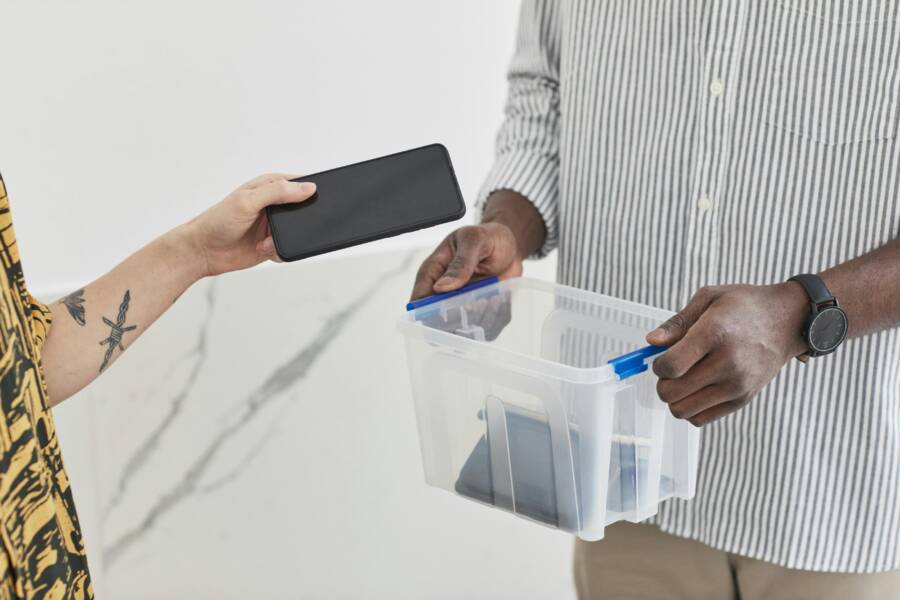
 Photo by Andy Barbour
Create private zones within your storage
- Separate personal from shared content: Use distinct albums or folders for memories you want private. In both iPhone and Android ecosystems, you can keep certain folders out of automatic backups and still access them locally.
- Use Locked Folder or private albums: Lock sensitive content behind a passcode or biometric barrier when the option exists. This keeps private images hidden from casual browsing and reduces accidental exposure.
- Put sensitive shots in dedicated spaces: Move intimate or work-related photos to a private area before syncing or sharing. This minimizes the risk of cross-access across family plans or partner sharing.
Why it matters: when your private space is clearly separated, you regain control over what gets backed up and what stays on the device.
Tighten permissions and access
- Audit who can see what: Regularly review who has access to shared libraries, family plans, and linked devices. Remove any member who should not see your photos.
- Limit auto-backup triggers: In many apps, you can choose which albums back up automatically. Disable automatic backups for sensitive albums while keeping others flowing smoothly.
- Check connected apps: Revoke permissions for apps that don’t need access to your photos. A quick permissions sweep reduces the chance of unintended uploads.
Helpful reminder: privacy controls are not a one-off task. Set a quarterly check to ensure settings still align with your needs.
Streamline backups with smart selections
- Back up what you truly value: Prioritize key memories for automatic cloud backup and opt out of backup for screens, tutorials, or random screenshots if they don’t need cloud storage.
- Use local backups as a safety net: Regularly export important photos to a computer or external drive. Local copies can be a reliable fallback if cloud storage changes or access issues occur.
- Consider per-device backups: If multiple people use the same device family plan, keep backups separate when possible. This reduces cross-access risk and keeps your memories under wraps.
This approach keeps your most important moments protected while preserving the convenience of backing up essential files.
Enforce a simple cleanup routine
- Schedule quick reviews: Set a monthly or quarterly date to prune duplicates, delete blurry shots, and remove screenshots you don’t need.
- Use smart sorting: Create automatic rules to move similar images into dedicated folders. This makes future backups faster and your library easier to navigate.
- Archive instead of delete: For photos you’re not ready to delete, move them to an archive folder that isn’t included in regular backups. You can revisit them later if needed.
A small regular routine prevents storage from spiraling out of control and keeps your privacy intact.
Stay informed with trusted guidance
- For iPhone users, review how Family Sharing and iCloud settings impact privacy and backups. Staying current with Apple’s guidance helps you act quickly if a change affects your library.
- For Android users, keep an eye on Google Photos privacy updates and sharing controls. A quick settings check can stop unintended cross-access.
To deepen your understanding, check official guides and privacy hubs from Google Photos and Apple Support. For example, Google’s privacy resources explain how to control shared libraries and partner sharing, while Apple’s discussions illuminate real-world scenarios of family sharing and photos. How Google Photos protects your privacy & keeps you in control and related help pages provide actionable steps.
Key takeaways:
- Create private zones and lock down access.
- Audit permissions and limit automatic backups for sensitive content.
- Back up selectively and keep local copies for extra security.
- Establish a regular cleanup routine to maintain privacy and order.
Following these tips, you can keep your storage private and organized without sacrificing the benefits of cloud backups. If you want a quick start, begin with a private folder setup, then schedule a 15-minute monthly review to stay on top of your photos. For further reading, explore Google’s and Apple’s official privacy resources linked above.
Conclusion
Taking control of automatic backups frees up space and restores privacy on your smartphone. For iPhone users, recap these steps: turn off iCloud Photos, review Family Sharing to limit what gets shared, disable or limit Shared Albums, and decide whether to keep iCloud Storage shared or move to separate plans. On Android, pause Google Photos backup, prune or disable shared libraries and Partner Sharing, and double check app backup permissions and Google One settings. These actions stop cross access without sacrificing the convenience you rely on.
A quick settings audit now pays off later. Check both platforms for who can see what, which albums or libraries are included, and which devices are linked to your accounts. If you see unneeded backups or unfamiliar activity, fix it immediately. Keep important photos backed up locally as a safety net and apply the same privacy discipline to other apps that handle media. Your goal is a clean, predictable flow where only you decide what gets stored in the cloud.
Think of privacy as a habit you can maintain with small, regular checks. Enable private zones for sensitive shots, limit automatic backups for specific albums, and periodically audit permissions across both ecosystems. A tidy setup means less clutter and fewer surprises when you open your gallery or switch devices. The outcome is peace of mind, plus extra space for the memories you actually want to preserve in the cloud.
If you found a fix that works, share it in the comments so others can benefit. For readers seeking more guidance, check out related reads on photo management, local backups, and privacy controls for iPhone and Android. Your practical tips can help someone else regain control and keep their memories exactly where they belong.
What If the Only Thing Between You and the Life You Deserve Is a Hidden Wealth Code Waiting to Be Activated
>>> Open the Door <<<
