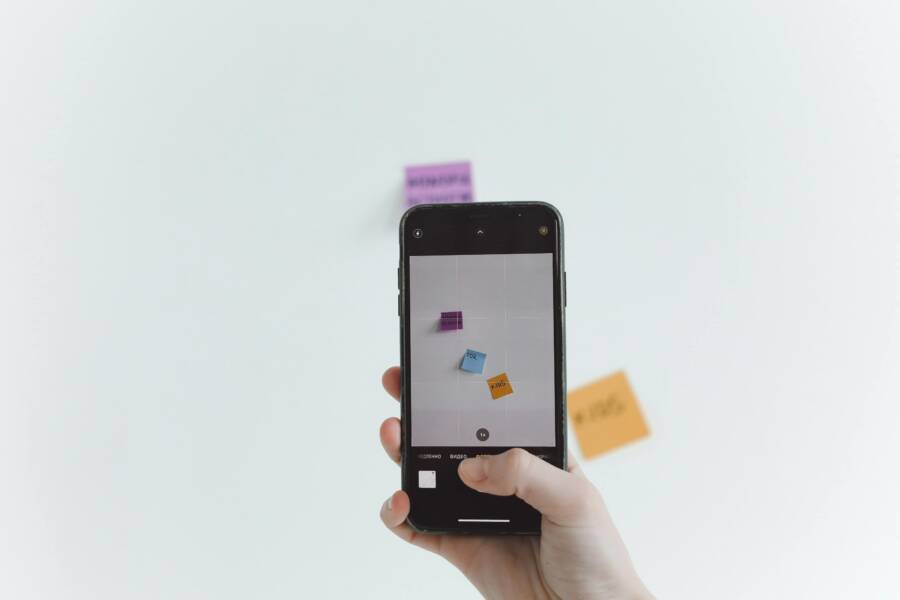
You can capture clear, crisp indoor photos with your smartphone by managing available light and stabilizing your device. Harsh flashes often create flat images with blown-out highlights, but you don’t need them to get great results.
Natural light and steady hands are the real secrets to sharp photography. This guide shows you how to adjust your settings to maximize clarity without any extra hardware.
Why Your Smartphone Struggles With Low Indoor Light
Your smartphone camera relies on physical light to produce a clear image. When you move indoors or into dim environments, the sensor receives significantly less light than it needs. To compensate for this, the software inside your device must work harder to interpret the scene. This process often results in lower image quality compared to photos taken in bright sunlight. Understanding these technical limitations helps you adjust your technique to get better results.
Understanding Camera Shake and Motion Blur
A smartphone camera captures light by opening its shutter for a specific duration. In well-lit areas, this duration is extremely short because plenty of light hits the sensor immediately. However, the camera must keep the shutter open longer in dark rooms to gather enough light for a visible image. During this extended exposure, your hand movements become a major problem.
Even a tiny tremor or a slight shift in your grip causes the image to blur. Because the sensor is recording for a longer period, it captures the movement of your hand as streaks or smudges across the frame. This effect is known as motion blur. To prevent this, you need stability. Resting your elbows on a table or using a tripod helps hold the smartphone perfectly still. If you cannot use external support, hold your breath or tuck your elbows tightly into your ribs while shooting.
The Role of Digital Noise in Dim Photos
When the light levels are too low, your smartphone attempts to brighten the image by increasing the sensitivity of the sensor. This process is similar to turning up the volume on a recording. While it makes the image brighter, it also magnifies the background interference, which creates grain or digital noise. You will notice this as small, colored specks or a fuzzy texture that ruins the smooth parts of your photo.
This noise reduces the fine detail and sharpness that your lens would otherwise capture. You can minimize this during the shooting process by choosing a spot with more light, such as standing closer to a window or a desk lamp. If moving isn’t an option, use manual exposure controls to lower your ISO setting. A lower ISO forces the smartphone to capture a cleaner image, though you must pair this with a very steady hand to avoid motion blur. Balancing these settings is the key to clearer images in dark spaces.
Essential Techniques for Stabilizing Your Shots
You can gain professional control over your images by minimizing camera movement. Even with a high-end smartphone, light sensitivity requirements in dark rooms often force longer exposure times. A rock-steady hold prevents the blur that ruins otherwise perfect indoor photos.
Proper Holding Techniques for Better Stability
Many people hold their device loosely with one hand, which invites jittery movement. Instead, grip your smartphone firmly with both hands to increase surface contact. You should position your thumbs near the shutter button while your other fingers wrap around the body of the phone for maximum support.
Tucking your elbows firmly into your ribs creates a human tripod effect. This stance transfers the weight of the device to your core muscles, which move far less than your wrists or shoulders. If you stand with your feet shoulder-width apart, you provide a wider, more solid base for your body. This combined posture reduces micro-vibrations that occur when you hold your arms away from your torso. You should also exhale slowly just before you press the button to minimize the subtle movement of your chest as you breathe.
Using Surfaces to Steady Your Smartphone
When you encounter very low light, relying on your hands alone might not provide enough stability. You can use furniture or structural features to transform your environment into a camera support system. Placing your smartphone directly onto a flat tabletop or a sturdy shelf removes the risk of hand shake entirely.
Leaning your body or your elbows against a flat wall provides a massive boost in stability. You can also rest the bottom edge of your smartphone against the wall or a heavy book to anchor the device while you compose the frame. These techniques allow you to keep the shutter open longer without needing a bulky external tripod.
Consider these common objects for stabilizing your shots:
- Tables or desks: Place the device flat and use a timer to prevent accidental movement when you press the button.
- Walls or door frames: Lean your shoulder or elbow against the structure to lock your body in place.
- Chairs or stools: Use the back of a wooden chair to prop up the phone at eye level.
These surfaces effectively eliminate motion blur during long exposures. Always check the texture of the surface to ensure your device does not slide during the process. By securing your smartphone against a solid object, you create the potential for crisp, clear photos that rival professional equipment.
How to Find and Use Better Indoor Light
Finding the right light source is the most effective way to improve your photos. Your smartphone sensor needs plenty of clean light to capture detail, color, and sharp lines. When you rely on overhead lights, you often end up with harsh shadows under the eyes or an orange color cast. Switching to directional light sources fixes these common issues immediately. You should look for soft, consistent light to create depth and clarity in your indoor images.
The Power of Natural Window Light
Natural light from a window is the best source for high-quality photos. It provides a soft, directional glow that mimics professional studio setups without the need for expensive equipment. Sunlight through a window creates natural highlights and shadows, which add dimension to your subject.
Turn off all overhead artificial lights before you begin. These bulbs often conflict with the natural light, causing messy color imbalances and distracting glare. Position your subject near a window so the light hits them from the side. Side lighting defines the shape of objects and reveals fine textures better than front lighting. If the sunlight is too bright or harsh, hang a thin white curtain or a translucent sheet over the glass to diffuse the light. This simple change turns direct sun into a soft, flattering wash of light that produces crisp results on your smartphone.
Working With Ambient Artificial Lighting
You cannot always rely on the sun when you take photos at night or in windowless rooms. When you must use artificial light, your goal is to find sources that provide steady, neutral illumination. Table lamps, floor lamps, and even computer monitors serve as useful light sources if you position them correctly.
Avoid mixing different types of bulbs in your scene. For example, using a warm yellow floor lamp next to a cool white ceiling bulb confuses the camera settings. Your smartphone will struggle to balance these conflicting colors, which leads to muddy skin tones and unnatural image quality. Pick one primary light source and turn off the others for the cleanest result. Place the lamp slightly to the side of your subject to create soft shadows rather than flat, front-facing light. You can also bounce the light off a white wall or a piece of poster board to soften the glow and cover more area evenly. Always check your screen to ensure the light reaches your subject without creating dark patches or extreme highlights.
Manual Camera Adjustments to Improve Clarity
Default smartphone settings often prioritize a balanced image, but this frequently leads to motion blur in low-light conditions. You can gain control by overriding the automatic processing of your device. Small changes to how you interact with the camera interface help you lock in focus and manage brightness before the shutter clicks.
Adjusting Exposure Levels Before You Tap
Most smartphone camera apps feature a tap-to-focus function that does more than just sharpen your subject. When you tap on the screen, your phone identifies the area you want to be clear and sets the exposure for that specific point. In dim rooms, the camera often misinterprets the scene and tries to brighten dark shadows. This automatic boost increases the shutter speed time and introduces digital noise.
You can prevent this by manually dragging the brightness slider down after your initial tap. Look for a sun icon or a vertical bar that appears next to the focus box. Sliding this icon toward the bottom reduces the overall exposure. Even if the screen looks darker, this action forces the camera to use a faster shutter speed. A faster shutter speed captures less light but keeps the image sharp by freezing movement. Experiment with this adjustment until the highlights are crisp and the noise is manageable.
Utilizing Pro Mode or Third-Party Camera Apps
If your default camera app offers limited control, you might need a more advanced interface. Many modern devices include a Pro or Manual mode that unlocks settings hidden from the casual user. These tools let you manage the ISO and shutter speed independently of the phone software.
High ISO settings allow for more light but create digital grain. You should prioritize a lower ISO setting (like 400 or 800) to keep your image clear. Since lowering the ISO reduces the sensitivity of the sensor, you must balance this by controlling the shutter speed. A slower shutter speed works if you keep your smartphone steady, but you should keep it above 1/30th of a second for handheld shots.
Third-party applications such as Adobe Lightroom or Halide offer additional features for demanding conditions. These apps provide precise sliders for white balance and exposure that react quickly to your input. You can test your results by taking several shots with different shutter speeds to see which setting produces the best balance of light and detail. Using these manual controls allows you to push your smartphone hardware to its limit without relying on the unpredictable nature of automatic mode.
Conclusion
Capturing sharp photos indoors relies on three specific pillars: steadying your smartphone, finding high-quality light, and managing your exposure settings. By stabilizing the device, you eliminate the motion blur that often ruins low-light shots. Moving closer to natural window light allows your sensor to capture detail without relying on high sensitivity settings.
Refining your final image requires manual adjustments to exposure and ISO rather than trusting automatic modes. Every camera behaves differently in dim conditions, so practice remains the most effective way to master these adjustments. Take time to test these techniques in various rooms to see how your specific device responds to light.