Have you ever found a text you didn’t write popping up on your phone, and that scary moment wondering who is really in control? This guide explains why messages can come from your device and what you can do right away to stop it.
You’ll learn the most common causes, from rogue apps and sneaky malware to system bugs and spoofing scams, and how they show up on both Android and iOS phones. We’ll walk you through practical steps you can take now to stop outgoing texts, protect your accounts, and reduce the risk of future intrusions.
By the end, you’ll know exactly which actions to take, when to check for suspicious apps or settings, and when to reach out to your carrier or security tools for help. This is a calm, clear plan you can follow without tech anxiety.
Identify the root causes of messages you didn’t write
When you see a message that you didn’t author, the root cause is usually one of a few common culprits. This section breaks down the main possibilities and how to verify them quickly. The goal is to give you a clear map so you can stop suspicious texts at the source and prevent future incidents.
Malware or spyware on your phone
Malicious apps or hidden spyware can gain enough control to send texts without your knowledge. These programs often run in the background, piggyback on normal messaging, or siphon data to spread scams. Signs to watch for include unknown apps showing up on your device, unusually high data usage, and strange battery drain.
To scan, remove, and prevent malware on Android and iOS, start with a trusted security app and run a full device scan. Review recently installed apps and revoke any you don’t recognize. On Android, check for apps you don’t recall installing and disable or uninstall them; on iPhone, update iOS and remove any profiles or configuration apps you didn’t install. Keep your system up to date, avoid sideloading apps from untrusted sources, and enable automatic updates. For hands-on steps to remove malware from Android devices, see this guide: https://us.norton.com/blog/malware/how-to-remove-malware-from-android-phones. Regularly reboot your device after uninstalling suspicious software and consider a factory reset only if you cannot remove the threat. For more about spyware detection and removal, you can also explore additional resources like tutorials and reviews from reputable security sites: https://www.youtube.com/watch?v=mqxvyqltyi0, https://uk.norton.com/blog/how-to/detect-spyware?srsltid=AfmBOor-DeP-MWQszTUZobbLquZodzMHElsqc4KVJsMPyEleED-G_WRp.
Takeaway: The presence of unknown apps, odd battery or data patterns, and sudden changes in device behavior are red flags. Acting quickly reduces the risk of further mischief.
SIM swapping and account compromise
SIM swapping is when an attacker tricks your mobile carrier into porting your phone number to a new SIM card. Once in control of your number, they can receive texts, reset account credentials, and instruct your phone to send messages on their behalf.
Warning signs include new carrier or service activity on your account, unexpected PIN or password changes, and texts about account changes that you did not initiate. To defend your number, secure your carrier account with a strong, unique password, enable two-factor authentication where possible, and add a SIM PIN or port freeze with your carrier. You should also set up robust recovery options and avoid sharing verification codes.
For in-depth protection steps, see resources like “Understanding and Preventing SIM Swapping Attacks” and “Prevent SIM Swapping Attacks”: https://www.bitsight.com/blog/what-is-sim-swapping, https://securityplanner.consumerreports.org/tool/prevent-sim-swapping-attacks. These guides walk you through locking down your account, enabling extra verification, and recognizing early warning signs of a swap attempt.
Takeaway: If your number is compromised, the attacker can control your texts. Tighten carrier protections now and monitor account changes closely.
Malicious or over-permissioned apps
Some apps have permissions to send messages or access the SMS log. If you granted more access than an app needs, it can misuse those rights to send texts or read your messaging history.
Quick checks you can perform:
- Review app permissions on both Android and iOS.
- Revoke SMS send or SMS log access for apps you don’t recognize or no longer trust.
- Stick to official app stores and avoid sideloaded apps.
- Remove apps that you can’t clearly identify or that seem suspicious.
A practical starting point is to review permissions and revoke SMS rights for anything unfamiliar. For a general guide on app permissions, see “Understanding App Permissions”: https://www.mcafee.com/learn/understanding-app-permissions and “How to check app permissions on Android and iOS”: https://proprivacy.com/guides/check-app-permissions. Additionally, if you suspect a specific app, review how to detect which app is sending SMS on Android: https://android.stackexchange.com/questions/176288/detect-which-app-is-sending-sms. Always keep your device from installing apps outside trusted stores: change permissions as needed with the built-in settings on your phone. For Android users, you can start with Google’s official guidance: https://support.google.com/android/answer/9431959?hl=en.
Takeaway: Limiting permissions and removing unrecognized apps cuts off a major channel for misused messaging. Regular permission audits prevent silent fallout.
Software glitches or bugs
Not every unwanted message is caused by a hacker. Sometimes, software glitches or buggy updates can trigger messages to appear or be sent in error. This can happen after an OS update, with messaging apps, or due to corrupted data on the device.
Simple checks you can perform:
- Restart your phone to clear temporary glitches.
- Install any pending OS or app updates; developers frequently fix known issues.
- Back up your data before performing more drastic measures like a factory reset.
- If issues persist, test with a different messaging app to see if the problem is app-specific.
If you suspect a bug, start with a soft reset, apply the latest updates, and back up important information. For additional guidance on messaging reliability and common fixes, you can review resources such as “Why Text Messages Failed to Send & How to Resolve” and “What to Do If You Can’t Send Texts from Your Android Phone”: https://www.engagelab.com/blog/text-message-failed-to-send, https://www.androidpolice.com/android-phone-not-receiving-texts-fix/. These steps help you distinguish a bug from a security issue.
Takeaway: Not all strange texts are malicious. A bug or glitch can create the same symptoms, so confirm stability after updates and keep reliable backups.
Spoofed messages and smishing tricks
Spoofing makes a text appear to come from you or someone you know, even though it originates elsewhere. Attackers can imitate local numbers or random strings to trick recipients into replying or clicking nefarious links.
Key signs of spoofing or smishing:
- Texts that claim urgent actions or ask for personal information.
- Messages that reference a familiar name or number that seems off.
- Links or prompts to share passwords, codes, or financial details.
Recognize a scam by slowing down before replying. Do not share sensitive information or click suspicious links. If a message looks suspicious, verify by calling or messaging through official channels, not through the number in the text.
To understand spoofing and how to shield yourself, review “SMS spoofing: What it is and how to protect yourself” and “Smishing in Cybersecurity: Spot and Stop SMS Phishing”: https://us.norton.com/blog/mobile/sms-spoofing, https://brilliancesecuritymagazine.com/cybersecurity/how-to-recognize-and-avoid-smishing-scams. For actionable tips on avoiding smishing, see “Avoiding Smishing Attacks | How to Spot Text Message Scams”: https://www.bitlyft.com/resources/avoiding-smishing-how-to-protect-yourself-from-text-message-scams. These resources help you spot scams and keep your personal data safe.
Takeaway: Treat suspicious texts as scams. Do not reply, do not open links, and verify through official channels. Spoofing can mimic your identity, but careful scrutiny protects you.
External resources for deeper reading
- Malware removal and phone security: Norton’s guide to removing malware from Android: https://us.norton.com/blog/malware/how-to-remove-malware-from-android-phones
- Spyware detection tips: Norton and Avast guidance on detecting spyware on iPhone and Android: https://uk.norton.com/blog/how-to/detect-spyware?srsltid=AfmBOor-DeP-MWQszTUZobbLquZodzMHElsqc4KVJsMPyEleED-G_WRp, https://www.avast.com/c-how-to-remove-spyware-from-iphone
- SIM swapping protection: Bitsight and Consumer Reports security planner guides: https://www.bitsight.com/blog/what-is-sim-swapping, https://securityplanner.consumerreports.org/tool/prevent-sim-swapping-attacks
- App permissions and control: McAfee and ProPrivacy guides on checking and managing app permissions: https://www.mcafee.com/learn/understanding-app-permissions, https://proprivacy.com/guides/check-app-permissions
- General spoofing and smishing: Norton SMS spoofing page and BitLyft smishing guide: https://us.norton.com/blog/mobile/sms-spoofing, https://www.bitlyft.com/resources/avoiding-smishing-how-to-protect-yourself-from-text-message-scams
If you want to tailor this section further to your audience, I can adjust the tone and add more platform-specific steps for certain Android or iPhone models.
Step-by-step fixes you can try today
If you’re seeing messages that you didn’t write, you have a practical path to stop them fast. Below are focused, repeatable actions you can take right now. The goal is to cut off the source, secure your accounts, and prevent future occurrences. Think of this as a toolkit you can pull from in order, with quick wins first and deeper protections next. While you work, keep your smartphone nearby and use it as your primary control center for security.
Scan for malware and clean up apps
A clean device starts with a scan. Here’s a simple, repeatable process to identify and remove unwanted software.
- Run a trusted security app and perform a full device scan.
- Review recently installed apps and uninstall anything unfamiliar or suspicious.
- Reboot the device after removing suspect apps, then recheck to ensure the threat is gone.
- Keep apps and the OS updated to close security gaps.
Notes for Android and iPhone users:
- Android users should audit installed apps, disable or uninstall ones you don’t recognize, and use a reputable security tool for ongoing protection.
- iPhone users should ensure iOS is up to date and remove any profiles or configuration apps you didn’t install.
Helpful resources:
- For hands-on Android malware steps, see Norton’s guide on removing malware from Android phones. https://us.norton.com/blog/malware/how-to-remove-malware-from-android-phones
- If you suspect spyware, consult guides from reputable sites on detection and removal. See Norton’s spyware guidance and Avast tips. https://uk.norton.com/blog/how-to/detect-spyware?srsltid=AfmBOor-DeP-MWQszTUZobbLquZodzMHElsqc4KVJsMPyEleED-G_WRp, https://www.avast.com/c-how-to-remove-spyware-from-iphone
Takeaway: Unknown apps, odd battery or data patterns, and sudden behavior changes are red flags. Act quickly to minimize damage.
Tighten SIM and account security
Protecting your number is the fastest way to prevent attackers from steering messages or locking you out.
- Add a SIM PIN at the carrier level and enable any available port protection or SIM lock features.
- Enable account alerts and review recent activity with your carrier.
- If your service supports it, temporarily pause SIM swap risk or set a port freeze until you confirm everything is secure.
- Strengthen recovery options and use unique, strong passwords for your carrier and related accounts.
Where to go for deeper protection:
- Learn how to stop SIM swapping and secure your phone number. https://www.pcmag.com/how-to/stop-sim-swappers-cold-7-ways-to-protect-your-phone-number
- Additional steps to prevent SIM swap attacks are covered in consumer-focused security resources. https://securityplanner.consumerreports.org/tool/prevent-sim-swapping-attacks
- If you’re with a major carrier, check their fraud and security guidance to set up extra protections on your account. Examples include account fraud protections and PIN requirements. See carrier-specific guidance as needed.
Takeaway: A stronger carrier barrier makes it much harder for attackers to hijack your number. Monitor for changes and act quickly at the first sign of trouble.
Review message app permissions and settings
Controlling app access to messaging features is a direct way to stop misused texts.
- Check SMS and messaging permissions for every app. Remove or revoke SMS send or read permissions for apps that don’t need them.
- Disable background SMS access for apps you don’t recognize or trust.
- Rely on official app stores and avoid sideloading.
- Use built-in spam and filtering features on your device.
Platform-specific guidance:
- Android: Review app permissions in Settings, then revoke SMS rights where needed. See guidance on checking app permissions for Android. https://proprivacy.com/guides/check-app-permissions
- iOS: Review app permissions in Settings, and disable SMS-related access for unfamiliar apps. For general permission management, see ProPrivacy’s step-by-step guide. https://proprivacy.com/guides/check-app-permissions
- Built-in spam filters exist on both platforms; enable them and customize filtering levels.
Extra reading on blocking spam:
- A practical guide to stopping spam texts on iPhone and Android. https://www.visible.com/blog/10-ways-to-stop-spam-texts-on-iphone-android
- If you want more control, consider configuring SMS filtering on iOS with trusted tools. https://guide.scamshield.gov.sg/getting-started/setup-sms-filtering/setup-sms-filtering-on-ios
Takeaway: Limiting permissions reduces an attacker’s ability to use messaging features. Regular permission audits are a powerful habit.
Update OS and reboot the device
Staying current with software updates closes security gaps that criminals exploit.
- Follow the official update path for your platform and install available OS updates.
- Check for app updates after the OS update and install them as well.
- Create a fresh backup before major updates or resets.
- Reboot after updates to ensure all changes take effect and to clear temporary issues.
Update pathways:
- Android: Check and install the latest OS version and security updates. https://support.google.com/android/answer/7680439?hl=en
- iOS: Keep iPhone up to date with the latest iOS version. OS update steps vary by device, but install any pending updates promptly. You can also review guidance on keeping devices updated. https://www.cisa.gov/resources-tools/training/keep-your-devices-operating-system-and-applications-date
- For a broader how-to on updating devices, see Android’s update guide. https://www.android.com/intl/en_in/articles/update-android-phone/
Safe reboot checklist:
- Save any ongoing work.
- Power off completely, then turn back on.
- Check essential apps for any issues after reboot.
- Verify that messages are behaving normally before continuing.
Takeaway: Security updates fix known flaws and reduce risk. A quick reboot after updates helps solidify the changes.
Back up data and consider a factory reset if needed
When problems linger, a clean slate can be the right move. Know when and how to reset without losing essential data.
- Back up your data first. iCloud for iPhone, Google Drive for Android, or local backups work well.
- If you proceed with a reset, restore only essential apps from trusted stores after the factory reset.
- After restoring, reconfigure security settings and reinstall trusted apps rather than restoring all data blindly.
- If possible, test critical functions right away to confirm stability before resuming full use.
Factory reset considerations:
- Android: How to reset your Android phone without losing data can be done in a controlled manner. https://www.techlicious.com/tip/how-to-reset-android-phone-without-losing-data/
- iPhone: Restoring from a backup keeps your personal data safe while you reestablish a clean environment. https://helpdesk.mbts.edu/hc/en-us/articles/30835813238420-Restoring-your-iPhone-or-Android-Phone-from-a-Backup
- If you prefer a cautious approach, review guidance for resetting while preserving important information on both platforms. https://www.android.com/intl/en_uk/articles/how-to-reset-android-device/
What to back up:
- Contacts, photos, messages you want to keep, and essential app data.
- Ensure critical apps you rely on are reinstalled from trusted stores after a reset.
Takeaway: A factory reset is a last resort, but it can remove deeply hidden threats. Back up first, then reinstall only trusted software.
External links for deeper reading and practical steps:
- Malware removal and phone security basics. https://us.norton.com/blog/malware/how-to-remove-malware-from-android-phones
- SIM swapping protection and related safeguards. https://www.pcmag.com/how-to/stop-sim-swappers-cold-7-ways-to-protect-your-phone-number
- App permissions and control: step-by-step guides for Android and iOS. https://proprivacy.com/guides/check-app-permissions
- SMS spoofing and Smishing awareness. https://us.norton.com/blog/mobile/sms-spoofing
If you want to tailor this section further to your audience, I can adjust the tone and add more platform-specific steps for certain Android or iPhone models. For readers in the US, it helps to reference carrier-specific tools and the latest regulatory guidance as needed. And if you’d like, I can weave in a short checklist you can print or save as a quick-reference card.
Protect your data and prevent future incidents
Protecting your data starts with solid basics and steady habits. In this section, you’ll find practical steps to harden access to your phone and accounts, choose safer messaging options, enable smart protections, and maintain ongoing security hygiene. Think of these as a layered shield:密码, apps, and routines all working together to keep you in control.
Strengthen login and carrier protections
Locking down access to your device and carrier portals dramatically reduces the chance of someone sending messages from your account. Start with strong, unique credentials and then layer in PINs, passcodes, or biometrics on both your device and your carrier’s tools. Two-factor authentication (2FA) for key accounts adds a second line of defense you can’t ignore.
- On your device: use a passcode or biometrics (fingerprint, face ID) and enable auto-lock after a short inactivity window. These measures keep strangers from using your phone even if it’s lost or stolen.
- In your carrier account: enable a PIN or password specific to the carrier portal, and consider port freeze or SIM PIN options if available. These features stop unauthorized changes to your SIM and account settings.
- On critical accounts: enable 2FA wherever possible. Use an authenticator app rather than SMS for the strongest protection, and keep backup codes in a secure password manager.
A quick-start checklist:
- Enable device biometrics or strong passcodes on iOS and Android.
- Turn on 2FA for your email, cloud storage, banking, and app stores.
- Set up a SIM PIN or port freeze with your carrier.
External resources you can consult for deeper protection and carrier-specific steps:
- Protect your T-Mobile account from fraud
- Biometric Sign-In & Authentication Security Features | T-Mobile
- How do I set up and manage two-factor authentication? | Mint Mobile
- T-Mobile PIN Setup Guide
- How do I set up Two-Factor Authentication (2FA) for your US Mobile account
If you’re using the iPhone or Android ecosystem, you’ll also want to verify that your main messaging apps honor these protections. For example, Apple’s and Google’s guidance on biometric authentication and phone security complements how you lock down the device itself. See discussions on biometric authentication and carrier protections for more context.
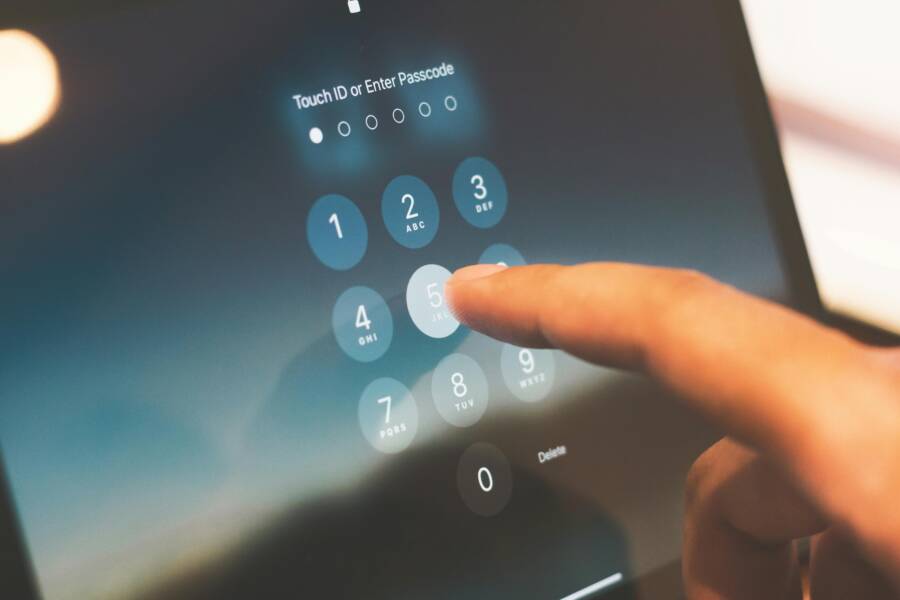
Visual cue: a quick glance at your device’s lock settings helps you confirm these protections are active.
 Photo by indra projects
Takeaway: Strong login controls and carrier safeguards create a strong first line of defense. Don’t skip 2FA on accounts that touch your personal data.
Use encrypted and safer messaging options
Encrypted messaging apps protect the content of your conversations from prying eyes. They’re especially valuable for sensitive discussions, financial details, or personal data you don’t want exposed. It’s important to know when to use traditional SMS versus encrypted apps.
- When to use encrypted apps: for private chats, business communications, and any conversation that could reveal critical personal or financial information. Encrypted apps like Signal or WhatsApp ensure messages are protected in transit and at rest.
- When SMS is acceptable: for lightweight, non-sensitive communications or when you’re communicating with someone who cannot use an encrypted app. SMS is convenient but lacks end-to-end encryption and can be vulnerable to SIM swap and network-based interception.
Practical guidance:
- Enable end-to-end encryption by default with trusted apps and avoid cross-platform gaps where possible.
- If you must text sensitive data, keep it to a minimum and consider sharing via a secure channel instead.
- Encourage key contacts to adopt encrypted messaging so you can switch more conversations over time.
Choosing the right app involves weighing privacy features and user familiarity. Signal is widely recommended for privacy minded users; WhatsApp offers broad reach but has privacy trade-offs. If you companion a conservative privacy stance, default to a safer app for most sensitive exchanges and reserve SMS for casual topics.
External resources you can consult for deeper comparisons:
- Signal vs WhatsApp: Which Is Better for Privacy?
- Signal Review 2025: Secure Messenger (Pros and Cons)
- If you could only choose between SMS and WhatsApp what would you choose and why
- Tightening up Text Message Security with Signal Private Messenger
If you want a quick win, start conversations with trusted contacts on an encrypted platform and keep SMS for when encryption is not essential. This reduces exposure if a SIM swap or account breach occurs.
Takeaway: Encryption matters. Start moving conversations to safer options and keep SMS as a fallback only when necessary.
Enable built-in security features and spam protection
Most phones ship with strong built-in filters and security warnings. Turning these on gives you automatic protection against spam, spoofed messages, and unknown senders. A monthly security check helps you stay on top of changes in apps, permissions, and device health.
Steps to enable protections:
- Turn on spam filters for messaging apps. Look for an option like “Filter unknown senders” or “Block unknown senders” and adjust the sensitivity to avoid false positives.
- Enable blocks for unknown or suspicious senders. Many platforms let you automatically reject or quarantine texts from numbers not in your contacts.
- Activate security warnings and alerts. Some devices warn you about phishing attempts or suspicious links in messages.
- Do a quick monthly security check: review recent app installations, permissions, and any new suspicious activity.
Platform-specific pointers:
- iPhone: use Screen, filter, report, and block text messages in the Messages settings.
- Android: review app permissions, enable unknown sender filtering, and adjust spam settings in the Messages or Messages + apps.
External references you can explore:
- Screen, filter, report, and block text messages on iPhone
- iOS 26 can easily filter out texts from unknown senders
- SMS filtering in iOS and Android
- How to Stop Spam Texts: Simple Steps to Protect Your Phone
Incorporate a monthly check into your routine:
- Review message blocking rules and unknown sender lists.
- Confirm your backup codes and 2FA methods are current.
- Scan for new device connections or unfamiliar apps.
Takeaway: Built-in protections reduce friction and block many common threats before they reach you. A regular check keeps protections aligned with your current usage.
Practice ongoing security hygiene
Security is a habit, not a one-time fix. A simple, repeatable routine keeps you ahead of threats and minimizes risk from weak links in your chain.
Weekly or monthly routine you can adopt:
- Review app permissions: remove access you don’t need, especially for SMS and messaging.
- Monitor data usage: unusual spikes can signal hidden apps or background activity.
- Watch for unusual charges: check carrier bills and app purchases for anything unfamiliar.
- Keep backups current: verify that your backups run automatically and that you can restore quickly.
A concrete checklist you can follow:
- Check app permissions on Android and iOS; revoke SMS-related rights for unknown apps.
- Update OS and apps; reboot after updates.
- Run a quick backup check to ensure data integrity.
- Review login activity on essential services and update passwords as needed.
Platform-specific guidance you can use:
- Best Practices for Device Hygiene
- 13 iPhone Security Settings You Should Enable Right Now
- Your phone being monitored: signs and checks
- SMS filtering and blocking guidance
External reading to deepen your understanding:
- Best Practices for Device Hygiene
- How to stop SIM swapping and protect your phone number
- ProPrivacy guides on app permissions
- How to protect yourself from SMS spoofing and smishing
Takeaway: A steady hygiene routine minimizes risks and makes it easier to spot anomalies early. Regular checks keep you in control.
Images and visual context
- A focused photo showing a fingerprint or passcode entry can illustrate how device security protects your data. Photo by indra projects https://www.pexels.com/@indraprojectsofficial
- A simple infographic could illustrate the four layers of protection: device access, encrypted messaging, built-in protections, and ongoing hygiene.
External links embedded naturally
- Protect your T-Mobile account from fraud
- Biometric Sign-In & Authentication Security Features | T-Mobile
- How do I set up and manage two-factor authentication? | Mint Mobile
- T-Mobile PIN Setup Guide
- How do I set up Two-Factor Authentication (2FA) for your US Mobile account
- Signal vs WhatsApp: Which Is Better for Privacy?
- The One Setting That Filters Spam Texts on Your Smartphone
- iOS 26 Can Easily Filter Out Texts From Unknown Senders
- SMS filtering in iOS and Android
- How to Stop Spam Texts: Simple Steps to Protect Your Phone
- Best Practices for Device Hygiene
- 13 iPhone Security Settings You Should Enable Right Now
- Your Phone Is Being Monitored: Signs, Codes, and Protection
- SMS filtering and blocking guidance
- How to Stop SIM Swappers Cold: 7 Ways to Protect Your Phone Number
If you’d like, I can tailor this section further to your audience by adding more platform-specific steps for certain Android or iPhone models, or by weaving in a printable quick-checklist you can drop into a user’s pocket or a post-ready PDF.
Get help if the problem persists
If you still see messages you didn’t write after trying the quick fixes, it’s time to involve support teams. You’ll want to communicate clearly with your carrier and device maker, collect essential data, and know what to expect from a professional check. Think of this as coordinating with a trusted tech team to restore control over your smartphone and messages.
What to tell your carrier and device maker
When you reach out, provide a concise set of details to help agents jump to the root cause faster. Share:
- Recent unusual messages you didn’t author
- Any changes to your SIM or carrier account
- Your device model and OS version
- Screenshots of the messages and any error alerts
- Security steps you already tried, such as malware scans or a reboot
This information helps frontline agents confirm whether the issue is spoofing, a SIM problem, or a software glitch. If you’re speaking with a carrier, mention any sign of SIM swap attempts or account changes that appeared without your consent. For device maker support, highlight any unusual app behavior, new profiles, or unexpected battery or data spikes.
Helpful context from trusted sources can guide your conversation. For instance, carriers and consumer protection sites emphasize reporting scams and securing your account, which you can reference when describing symptoms and steps taken. See resources on recognizing and reporting spam texts and official safety guidance as you prepare what to say. Links like these can ground your discussion with support:
- “Stop Unwanted Robocalls and Texts” (FCC)
- “How to Recognize and Report Spam Text Messages” (FTC)
Takeaway: A precise, dated log of events and actions makes the support process smoother and faster.
What to collect before you call or chat support
Before you contact help, assemble a quick bundle of evidence. This not only speeds up the process but also reduces back-and-forth questions.
- Message logs: note the exact texts you didn’t write, with timestamps
- Installed apps list: especially any unfamiliar or recently updated apps
- Screenshots of the messages and any alerts on screen
- A short note of suspicious activity: new numbers, unfamiliar contacts, or sudden password changes
- A simple backup plan: confirm you have a current backup and know how to restore if needed
Having a backup plan is essential. Back up your data to a secure location, and confirm you can restore messages, contacts, and essential app data if a factory reset or device reconfiguration is advised.
For reference, there are reputable guides on how to approach support, protect yourself from tech support scams, and stay safe online. These can inform how you present your case and what you ask for during the chat or call. See credible resources on reporting scams and securing accounts as you prepare your notes.
Takeaway: A prepared packet of information reduces friction and helps agents resolve the issue faster.
What to expect from a professional check
When you connect with tech support, you’ll go through a structured process. Expect steps that balance account security with device health checks. Here’s how the typical flow unfolds, so you’re not caught by surprise.
- Security reviews: agents verify your account status, recent sign-ins, and any phone number changes. They look for SIM swap indicators and verify recovery options.
- Malware and app checks: a thorough sweep of the device for spyware or rogue apps, plus a review of permissions and recent installs.
- Network and carrier checks: investigation into messaging paths, SMS routing, and possible carrier-side issues.
- Guided remediation: you’ll receive a plan with immediate actions and longer term protections, such as stronger 2FA, SIM locks, or profile removals.
- Timelines and follow-ups: most issues are solvable in a single session, but some cases require a few days for deeper checks or carrier confirmations.
If you’re uneasy about response times, keep a simple backup plan ready and ask for a written or emailed summary of findings and next steps. You can reference credible guides on recognizing scams and the standard steps support teams perform to set expectations.
External references and background reading can help you understand what’s happening behind the scenes. For example, resources on SIM swapping and how carriers defend accounts offer useful context when you’re discussing protection steps with support teams.
Takeaway: A professional check typically starts with a security review, moves through malware and network checks, and ends with concrete steps to restore safe messaging.
Notes for readers in the United States: you may want to consult official safety guidance from government or consumer protection sources to support your case with support teams. Practical steps often include enabling carrier protections, tightening account security, and using trusted apps for messaging. If you’d like, I can tailor the language for a specific carrier or device maker and add a printable quick-reference sheet to accompany this section.
Conclusion
If your phone sends messages you didn’t write, act quickly and follow a clear sequence: scan for malware, review app permissions, secure your SIM and accounts, and keep software up to date. A smart, layered approach stops the threat at multiple points and reduces the chance of a repeat incident. Stay vigilant by enabling built in spam protections and practicing solid security hygiene on your smartphone; regular checks save time and stress.
Take decisive steps now: run a trusted antivirus scan, uninstall unfamiliar apps, set a strong carrier PIN or port freeze, enable 2FA on key accounts, and back up your data before any major changes. By tightening protections and sticking to a routine, you’ll maintain control over your messages and your personal data. If you want, I can tailor a quick printable checklist for your preferred device.