What If the Only Thing Between You and the Life You Deserve Is a Hidden Wealth Code Waiting to Be Activated
>>> Open the Door <<<

Shaky phone footage can derail a great idea, but proper stabilization in editing can restore clarity and impact. This guide explains why shakiness happens and how stabilization helps, with practical steps you can follow.
You’ll learn a practical, step by step process that works on both mobile apps and desktop software. From quick one tap fixes to fine tuned adjustments, the methods are suited for everyday clips like a park stroll or a school project, and they translate to professional results when you need them. Expect clear, doable instructions that you can apply to your next smartphone video, without needing fancy gear.
Understand shake patterns and set stabilization goals
Shaky footage happens in a flash, but identifying the exact patterns helps you choose the right fixes. In this section, you’ll learn how to recognize common shake patterns in phone footage and how to set clear stabilization goals that keep the subject framed and the edit clean. Think of it as diagnosing the problem before you treat it, so your editing workflow feels precise rather than guesswork.
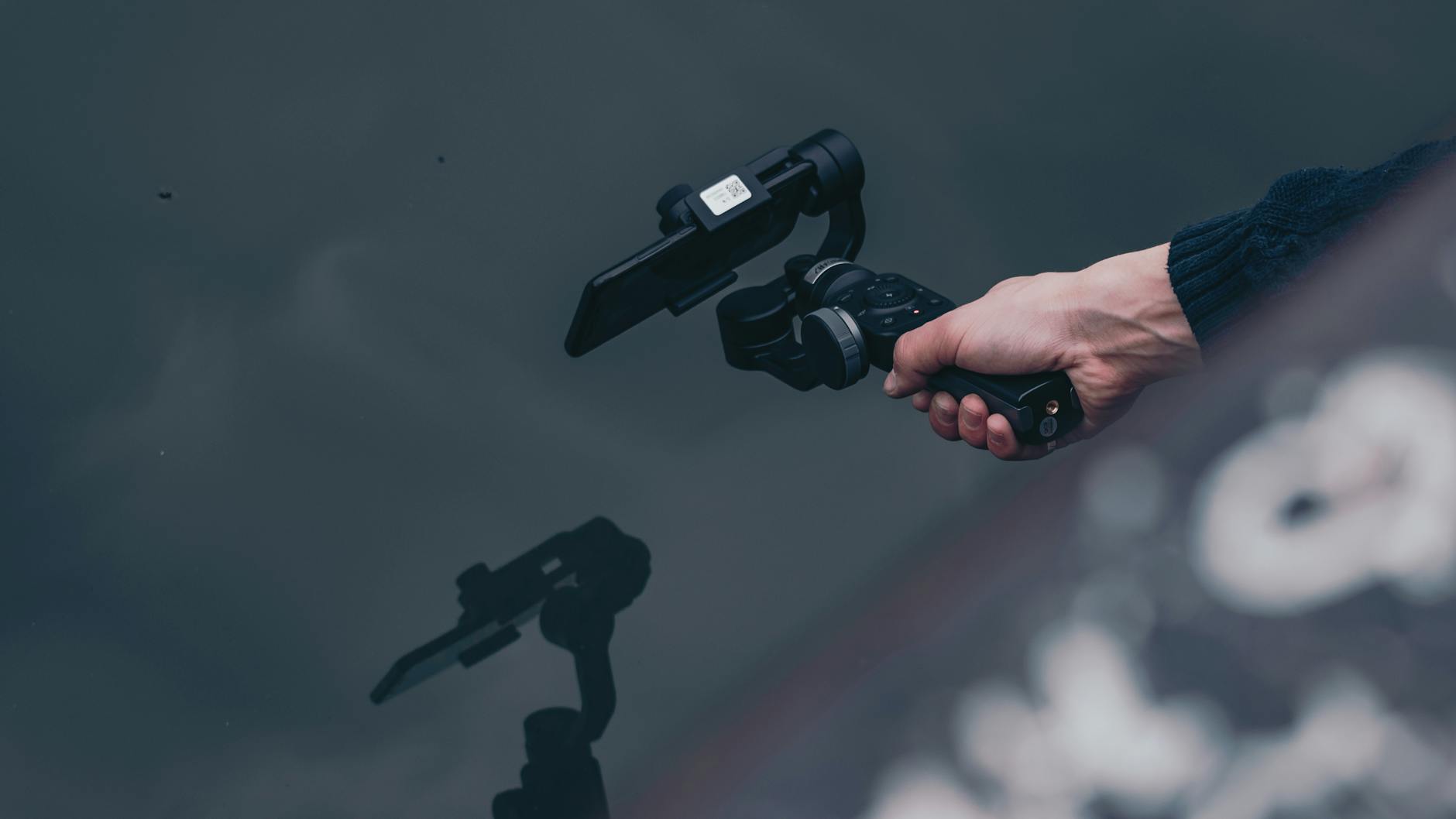 Photo by TimSon Foox
He Was Drowning in Bills and Burnout Until a Simple Daily Ritual Rewired His Brain for Wealth in Less Than a Week
>>> Start Your Shift Today <<<

Identify common shake types in phone footage
When you film on a smartphone, several shake patterns tend to show up. Each one signals a different adjustment in post and sometimes in your shooting approach as well.
- Wobble remains steady side to side or up and down, like a train car bump. You’ll notice the frame starts to drift when your steps are uneven or you’re moving with a lot of foot traffic. The result is a soft, looping motion that can blur motion within the frame rather than the camera moving cleanly.
- Jiggle is rapid micro-movements that feel like a tiny tremor. This often comes from tense hands or quick micro-adjustments as you try to keep a subject in frame during a walk or a brisk turn. Jiggle can look like minor but persistent shakes that flicker across the shot.
- Rolling shutter effects occur when the camera reads the frame line by line. If you pan quickly or move while recording, objects in the scene can appear to skew or skew left and right. This is common on phones with rolling shutter sensors and shows up most during fast motions or when you ride in a car.
- Abrupt pans and quick direction changes create jarring shifts in the frame. If you swing the phone from left to right or tilt up suddenly, the stabilization system has to compensate a lot, which can produce a wobbly or overly cropped look.
How to think about these in practical terms: if you were walking while filming and the horizon tilts left and right, you’re dealing with wobble. If a friend moves their head as you walk and the image jiggles, that’s jiggle. If you’re in a car and the scenery appears stretched or skewed during a fast pan, that’s rolling shutter at work. Recognize the pattern and you’ll know what to target in your stabilization plan. For deeper reading on why these patterns occur and how editors respond, see resources that explain rolling shutter and stabilization trade-offs.
- If you want a quick read on wobble and rolling shutter causes, this discussion provides helpful context: https://www.reddit.com/r/videography/comments/1cxo58f/what_is_causing_this_wobble_effect_on_my_clip_and/
- A practical overview of camera shake in handheld filming can offer tips you can apply right away: https://studioasatir.ir/en/camera-shake-in-handheld-filmmaking-common-problems-and-pro-solutions/
To reduce these effects, keep your smartphone stable during capture whenever possible. A simple grip change or a light brace can make a big difference. If you must shoot handheld, plan short segments and cut between takes to keep motion readable and natural.
Set clear stabilization goals for clean results
Stabilization is not a one-size-fits-all fix. It reshapes the image, can crop the frame, and may affect sharpness. Before you push the stabilization sliders, decide what you want the final look to be. This helps you avoid overprocessing a clip that should stay hand-held for a more documentary feel.
- Define the maximum crop you’re comfortable with. Most editors allow you to stabilize up to a certain percentage of the image, but excessive stabilization can zoom into the frame and reveal more artifacts or reduce perceived sharpness.
- Prioritize the subject. If the person or object in the shot is the key element, you might accept a slight shake in the background to keep the subject in frame rather than losing focus on what matters.
- Balance speed and fidelity. Heavy stabilization can introduce warping or unnatural motion. If the goal is a natural look, opt for moderate stabilization that preserves some organic movement.
A simple decision flow you can follow:
- Assess the clip: Is the subject consistently in frame, and is the motion essential to the story?
- Choose a stabilization amount: Start with mild stabilization that keeps framing intact without crushing fine details.
- Review the frame edges: Check for excessive cropping that hides the subject or removes important context.
- Decide on minor shake tolerance: In some scenes, a little shake adds realism. Use it to maintain natural movement if the subject remains clear.
- Final check: Look for artifacts like artificial warping or edge blur. If visible, dial back a notch or adjust settings like smoothness or masking.
A practical tip: stabilization often reduces sharpness. If you see a soft result after applying stabilization, you can compensate by slightly increasing the sharpness or refining the deblurring in a secondary pass. This approach keeps the footage readable without pushing the processor too hard.
For further reading on how stabilization impacts resolution and sharpness, you can explore discussions about stabilization and image quality here: https://www.vegascreativesoftware.info/us/forum/what-is-resolution-of-stabilized-video-clip–98490/
When deciding how much stabilization to apply, remember the audience and platform. Social clips benefit from cleaner motion but should still feel real. A polished, overly smooth clip can feel fake if the story relies on dynamic energy. Use a light touch, especially for mobile footage that captures real moments like a quick park stroll or a classroom activity.
In our next sections, you’ll find step-by-step guidance on applying stabilization efficiently in both mobile apps and desktop editors, plus a practical workflow to balance speed and quality for typical smartphone clips.
Quick stabilization methods you can use on a phone or tablet
Shaky footage happens to the best of us, especially when you’re capturing on the go. These quick stabilization methods are designed for fast results on mobile devices. Whether you’re editing during a school project, a family stroll, or a quick social clip, you’ll find practical steps you can apply right away. Below you’ll find straightforward, repeatable workflows for three popular mobile apps and two free tools that don’t require a steep learning curve. The goal is to smooth motion while preserving the natural feel of the moment. Where helpful, I’ve linked to reliable guides so you can dive deeper if you want extra context.
CapCut, iMovie, and YouCam Video quick start
If you’re using CapCut, iMovie, or YouCam Video, you can usually stabilize with a single, clear action. Here are easy, in-app steps you can follow, in order, and remember to save a copy after stabilization so you can compare results or retry if needed.
- CapCut (mobile)
- Open your clip in CapCut and tap Stabilize in the bottom toolbar.
- Choose a stabilization level. Start with a mild setting to avoid overcropping or warping.
- Preview the result and adjust if needed. If you’re happy, export and save a copy in your project.
- Save a duplicate version of the stabilized clip to keep your original intact.
- iMovie (iOS)
- Import the clip into iMovie and tap the clip to reveal editing options.
- In the toolbar, locate Stabilization and check the box labeled “Stabilize” (or the equivalent slider).
- Let iMovie analyze the shot; then scrub the timeline to verify framing.
- Export a duplicate of the stabilized clip to preserve the original version.
- YouCam Video (mobile)
- Load the video you want to fix and select Stabilize from the editing tools.
- Apply a gentle stabilization strength to avoid excessive warping.
- Play back and fine tune if necessary.
- Save or export a new copy to keep both versions available.
If you want a quick deeper look into CapCut stabilization, you can check a practical guide that walks through the Stabilize panel and how to adjust stability levels. See a concise resource here: https://www.capcut.com/resource/stabilize-video-iphone. For iPhone stabilization approaches, Apple’s ecosystem often suggests native edits plus third-party aids, which you can explore in a general overview here: https://www.capcut.com/resource/stabilize-video-iphone and related iOS editing discussions.
In all three apps, your stabilization step usually introduces a little crop and can soften detail. A good habit is to keep the stabilization mild and then sharpen slightly in a separate pass if needed. If you plan to post to social media, starting with a lighter pass helps maintain a natural look.
When a simple fix is enough with Google Photos or VN Video Editor
If you’re after a no-fuss route and you don’t mind a bit of tradeoff in quality for speed, Google Photos and VN Video Editor offer reliable quick fixes. These tools shine when you need results fast without learning a new interface.
- Google Photos (Android and iOS)
- Open the clip and choose Edit, then select Stabilize.
- Apply stabilization at a conservative level to avoid excessive cropping.
- Preview the clip to ensure the subject remains steady and in frame.
- Save a copy of the stabilized version to preserve the original footage.
- VN Video Editor (mobile)
- Import your clip into VN Video Editor and navigate to the stabilization option.
- Set stabilization to a mild level; avoid overprocessing which can distort motion.
- Review the render to confirm that the subject stays readable and framed.
- Export a duplicate of the stabilized video so you can compare against the original.
What you can expect from these free tools: stabilization is typically fast, often completing in the background while you edit other clips. The results are usually good enough for casual sharing, campus projects, or personal clips. You may notice slight softness or minor edge artifacts, especially in scenes with fine textures. Watermarking and export quality depend on the specific tool and account tier, so watch for any limitations if you’re preparing a polished piece for a client or portfolio.
For quick context on how free stabilization methods influence image quality and speed, you can explore a general overview of stabilization trade-offs here: https://www.vegascreativesoftware.info/us/forum/what-is-resolution-of-stabilized-video-clip–98490/. If you want extra guidance on iMovie specifically, there are comprehensive Mac and iOS tutorials that walk through analyzing and applying stabilization in the app: https://www.hitpaw.com/video-stabilizer-tips/imovie-video-stabilization.html.
In short, use Google Photos or VN Video Editor when speed matters more than absolute control. They’re ideal for rough cuts, social clips, and quick proofing. If you require a more refined result, you’ll likely reach for CapCut or iMovie with a light touch, then move to a desktop workflow for final polish.
Links referenced above provide quick explanations or extended steps to help you choose the right approach for your workflow. For example, CapCut’s own stabilization resources outline how to apply and adjust the effect for different shots, which can help you calibrate strength without overdoing it. You can read a practical CapCut guide here: https://photography.tutsplus.com/tutorials/how-to-quickly-stabilize-videos-in-capcut–cms-108875. For iMovie users, a thorough guide covers analyzing stabilization and adjusting settings to avoid excessive warping: https://www.hitpaw.com/video-stabilizer-tips/imovie-video-stabilization.html.
If you’re balancing speed and quality, think of stabilization as a finishing touch rather than a cure-all. Start with small adjustments, test on different devices, and save multiple copies to compare outcomes. In the next sections, you’ll find quick workflows that keep momentum in your editing session while still delivering steady, readable footage.
Desktop editors that give the strongest stabilization results
When you need rock solid stability for shaky footage, desktop editors often offer deeper control and cleaner results than mobile apps. These tools let you fine tune how the motion is rebuilt, preserve more of the original sharpness, and provide consistent behavior across longer clips. Below are two practical sections: a robust approach with DaVinci Resolve and a lighter, quicker path with accessible desktop options. If you’re balancing speed with quality, you’ll find strategies that fit both professional polish and speedy proofing.
DaVinci Resolve stabilization modes and workflow
DaVinci Resolve exposes three main stabilization modes that affect how the image is treated during the fix: Perspective, Similarity, and Translation. Each mode targets a different kind of motion and is useful for specific scenarios. Perspective stabilizes by adjusting camera movement as if you’re changing the viewpoint within a 3D space. This tends to work well when you’re dealing with camera rotation, zooms, or a lot of tilt, especially if you want to maintain a panoramic sense of the scene. Similarity keeps the image scale steady while reducing overall motion, which is ideal when you want to preserve consistent framing without introducing dramatic crops. Translation focuses on panning and shifting motion in the frame, good for footage where the subject remains relatively stationary and the camera moves side to side. Understanding these modes helps you pick the best tool for your exact problem and avoids overcorrecting.
When to use each, in a nutshell:
- Perspective: choose when the shot has noticeable camera rotation or zooms and you want the stabilization to feel like a virtual reframe rather than a pure crop.
- Similarity: best for steadying motion while keeping the subject size and framing as close as possible to the original shot.
- Translation: apply when the motion is dominated by lateral shifts and you want to minimize cropping while keeping motion natural.
A simple four step workflow you can apply in Resolve:
- Import your clip and create a timeline so you can compare before and after side by side.
- Apply stabilization and select the mode that matches the shake pattern you identified.
- Tweak the settings to balance smoothness, crop, and motion. Check edges for artifacts and adjust masking if needed.
- Export a duplicate of the stabilized version for comparison with the original and for client reviews.
For readers who want deeper dives into how the modes differ, these resources provide helpful context:
- Stabilization modes: how they work and when to use them in Resolve forums. https://forum.blackmagicdesign.com/viewtopic.php?f=21&t=104339
- In-depth discussion on the exact differences between Translation, Perspective, and Similarity. https://www.reddit.com/r/davinciresolve/comments/12ycyb9/indepth_difference_between_stabilization_methods/
- A practical guide that outlines multiple stabilization approaches in Resolve. https://borisfx.com/blog/how-to-stabilize-video-in-davinci-resolve/
Practical tip: Resolve can crop aggressively if you push stabilization too hard. Start with mild corrections, then gradually increase as you confirm the subject stays in frame without obvious warping. If you see soft results, a secondary pass that sharpens slightly can restore perceived detail.
When you’re aiming to publish a final piece, Resolve’s stability options give you the control you need to make a mobile clip look like it was shot with intention. It’s especially valuable for desk-based workflows where you want consistent results across a reel or a project with multiple takes.
Lightweight desktop options for quick fixes
If you don’t need the full power of a high-end editor, a lightweight desktop workflow can deliver fast stabilization with minimal overhead. Shotcut and iMovie are practical choices for quick fixes, especially when you’re juggling multiple clips or need to deliver proofs fast. These tools tend to be friendlier on hardware and offer a shorter learning curve, which makes them ideal for students, casual projects, or on-the-fly edits at the office.
Shotcut provides straightforward stabilization settings that you can adjust without diving into complex color or audio work. It’s a solid option when you want reliable results without loading a heavy suite. You’ll commonly adjust shakiness and smoothing, then review the result to ensure there’s no too-aggressive cropping or odd warping. To get a handle on stabilization specifics in Shotcut, you can review discussions in the community forums where users share their preferred settings and workflows. https://forum.shotcut.org/t/stabilization-settings-descriptions-and-tendencies/2139
iMovie on Mac offers a clean stabilization path with a simple pipeline: import, apply stabilization, review framing, and export. The built-in Stabilization control is easy to adjust, and the app handles the analysis in the background as you scrub the timeline. If you want a concise guide to how iMovie handles shaky clips and how to tweak the strength, see the official guidance from Apple and trusted tutorials. https://support.apple.com/guide/imovie/stabilize-shaky-clips-mov52b5a78a6/mac
When you’re weighing these two options, factor in your hardware and your editing cadence. Shotcut runs well on modest setups, while iMovie benefits from macOS optimization and a familiar interface if you’re already in the Apple ecosystem. Both options strike a balance between speed and quality, which makes them suitable for quick turnarounds like class projects, event recap videos, or social clips that still demand readable motion.
What If the Only Thing Between You and the Life You Deserve Is a Hidden Wealth Code Waiting to Be Activated
>>> Open the Door <<<
Hardware considerations that matter for desktop stabilization
- CPU and RAM: Stabilization is compute heavy. A modern multicore CPU with 8 GB or more RAM helps smooth processing.
- GPU acceleration: If your editor supports it, enabling GPU acceleration can speed up previews and render times.
- Storage speed: SSDs reduce load times and keep playback steady during previews.
- Power management: Stabilization can push laptops to higher power use, so keep a reliable power source handy during long edits.
For readers seeking a quick read on how free or lightweight tools impact image quality and workflow speed, there are helpful discussions that compare stabilization trade-offs across platforms. https://www.vegascreativesoftware.info/us/forum/what-is-resolution-of-stabilized-video-clip–98490/
In practice, start with a lightweight tool when you’re just testing a concept or assembling a rough cut. Move to a desktop editor with stronger stabilization controls if the project requires precise framing and consistent motion across scenes. The most important thing is to keep the subject readable and the motion believable.
Quick reminder: during any desktop workflow, keep a few copies of your project at different milestones. A stable baseline helps you compare results without redoing work, and it gives you a safety net if the stabilization introduces unexpected artifacts. For readers who want to explore the balance between speed and quality further, the next sections offer concrete steps you can apply in real projects.
Advanced techniques to handle tricky footage
Shaky footage can wobble a good idea into the background. These advanced techniques help you tame complex motion without losing your subject or the story’s pace. Use them as needed when you face stubborn shakes, rolling shutter quirks, or fast camera moves. The goal is to preserve clarity while keeping the edit believable and engaging.
Warp stabilization and motion tracking
Warp stabilization is the workhorse for correcting camera shake. It analyzes the motion between frames and applies a virtual camera path that smooths the overall movement. For tricky footage, you combine warp stabilization with motion tracking to anchor specific elements, like a moving subject or a foreground object, so they stay put as the background shifts.
A simple, practical approach:
- Start with a mild stabilization amount to see how much the clip crops and how the motion feels.
- If the subject drifts, enable motion tracking on that element. Lock the tracking to the subject, then apply stabilization to the rest of the frame.
- Review frame by frame for artifacts. Look for unnatural warping around edges and adjust the smoothness or masking to reduce it.
This technique is especially helpful when the camera has been panning or moving, and you want to preserve a sense of space. It can be a bit crop-hungry, so you may need to compensate with a secondary crop or a careful reframing pass. For a deeper dive into how warp stabilization works and real-world tips, see reliable guides like Adobe’s tutorial on stabilizing shaky footage with Warp Stabilizer. You can learn more here: https://helpx.adobe.com/premiere/desktop/add-video-effects/commonly-used-effects/stabilize-shaky-footage-using-warp-stabilizer.html
If you’re working with desktop software, you’ll find a clear path by aligning motion tracking to the moving subject first, then applying stabilization to the rest of the scene. This keeps the subject readable while the background smooths out. When used well, warp stabilization can salvage clips shot in moving vehicles or while you walk along a crowded street. For context on how other editors balance tracking and stabilization, a related read explains the practical differences between perspective, similarity, and translation stabilizations in professional tools: https://www.reddit.com/r/davinciresolve/comments/12ycyb9/indepth_difference_between_stabilization_methods/
Tip: tracking can fail if the target leaves the frame or re-enters with a different scale. In such cases, switch to a broader mask or re-target the track to a nearby, more stable region. If you see persistent distortion around the subject, back off the stabilization amount and rely on selective stabilization or a combination with cropping.
Cropping wisely and reframing
Cropping wisely is more than cutting out edges; it’s about keeping the subject in focus while reducing the visible impact of movement. Reframing helps you preserve composition as the stabilized image begins to drift from the original framing. A thoughtful approach keeps the audience visually grounded.
Practical tips:
- Plan a safe action area: identify a region in the frame where the subject stays readable even after stabilization crops. This reduces the risk of losing critical context.
- Use a two-pass strategy: first stabilize with a light crop, then reframe slightly to maintain the subject’s position as the motion smooths out.
- Maintain balance between subject and background: if you crop too aggressively, the shot can feel isolated or unbalanced. Keep enough surrounding space to preserve context.
- Animate cuts rather than push stabilization hard: when the action is dynamic, shorter takes with minor stabilization can look more natural than a single long shot with heavy stabilization.
A practical workflow you can apply:
There Is a Frequency That the Wealthiest Families Have Used for Generations and Most People Will Never Know It Exists
>>> Open the Door <<<

- Apply mild stabilization to the clip and note how much the frame crops.
- Enable a secondary reframing pass to shift the composition back toward the subject.
- Use masking to hold the subject steady while the edges crop, reducing visible jitter around the subject.
- Cross-check on mobile devices to ensure the result remains readable on smaller screens.
Cropping judiciously can be the difference between a clip that feels polished and one that looks overprocessed. If you’re working with a smartphone capture, you’ll often notice a natural limit to how far you can crop before the image becomes soft. In those cases, compromise by reframing rather than aggressive cropping. For a practical reference on how crops interact with stabilization, see discussions around Warp Stabilizer’s cropping behavior: https://helpx.adobe.com/premiere/desktop/add-video-effects/commonly-used-effects/stabilize-shaky-footage-using-warp-stabilizer.html
If you want a quick comparison of cropping outcomes, another useful resource covers practical tips for maintaining framing during stabilization in After Effects and similar tools: https://www.reddit.com/r/premiere/comments/1ieegjm/warp_stabilizer_crops_way_too_much_my_video/
When reframing, keep the viewer oriented. Small shifts in composition can feel intentional if they align with the story beat. A subtle pan or tilt after stabilization can mimic a real camera move and preserve the sense of place.
Balancing stabilization with audio and speed
Stabilization affects more than visuals. It can shift audio timing, create subtle speed changes, and alter perceived motion. If the clip becomes detached from its audio cues or the rhythm of a scene, you’ll notice it in the first playback. The fix is a small, deliberate workflow that keeps audio in sync and motion believable.
Key considerations:
- Audio drift: stabilization can create tiny pauses or micro-delays in the timeline, especially if you’ve added masking or manual keyframes. Always check the audio waveform after stabilization.
- Sync with dialogue or music: a smooth visual should not outpace the audio. If stabilization introduces a mismatch, adjust the audio track or re-sync with precise nudges.
- Speed adjustments: heavy stabilization may require minor speed changes to keep motion natural. A tiny speed ramp can help the viewer read the movement without looking fake.
- Frame rate considerations: if you stabilize across a long clip, you might see temporal artifacts. Ensure your project settings match the clip’s frame rate to minimize stutter or jitter.
Practical steps to fix mismatches:
- After stabilization, scrub to the sections with dialogue or key audio moments.
- If you hear a mismatch, zoom in and nudge the audio track by a few frames to re-sync.
- Check if the visual motion still aligns with motion in the audio, like footsteps or camera pans in a scene.
- If necessary, adjust the stabilization strength slightly and re-check the audio alignment.
- For longer projects, consider a separate pass focusing only on audio to ensure consistency across scenes.
If you’re editing a project that includes ambient sound or quick cutaways, a light touch on stabilization helps preserve the natural rhythm. For more on how stabilization interacts with video and audio workflows, look at practical tutorials that address the interplay between motion correction and sound design: https://www.vegascreativesoftware.info/us/forum/what-is-resolution-of-stabilized-video-clip–98490/ and general guidance on stabilizing while maintaining audio alignment.
In simple terms, treat stabilization as a finishing pass that can reveal or hide audio timing issues. A few minutes spent cross-checking audio with stabilized visuals saves headaches later. When you’re ready to finalize, run a quick test across devices to ensure the rhythm holds up whether someone is watching on a phone, tablet, or computer.
These techniques give you a solid toolkit for tricky footage. They let you recover readability and storytelling impact from shaky clips while keeping the process efficient. In the next sections, you’ll find practical, field-tested workflows that keep your project moving without sacrificing quality.
Review, export, and future tips
After you stabilize a shaky clip, a thoughtful review and smart export choices can make the difference between a good video and a great one. This section breaks down a practical workflow for evaluating results, choosing the right export settings, and planning for future shoots to keep motion steady from the start. You’ll find quick comparison methods, clear checklists, and actionable tips you can apply right away.
Before and after quality check
A quick comparison is the fastest way to confirm you’ve achieved tangible improvement without losing important details. Use a simple before/after method and a concise quality checklist to stay objective.
- Quick compare method: Place the original on the top track and the stabilized version on a separate track. Toggle between them at normal playback speed and at 50% speed to notice subtle differences in grain, edge sharpness, and cropping. This helps you see if stabilization introduced artifacts or excessive zoom.
- Quality checklist:
- Edges: Look for warp, edge softness, or new halos around high-contrast areas. If edges look artificially sharpened or smeared, dial back the stabilization or adjust masking.
- Blur: Check for new soft areas, especially along moving subjects. If the subject texture turns fuzzy, consider a lighter stabilization pass or a secondary sharpening pass after stabilization.
- Crop and framing: Note how much the image has been cropped. If the subject drifts toward the frame edge, it’s a sign you may need to reframe or apply a secondary crop more carefully.
- Motion readability: The subject should stay readable and the movement should feel natural. If the motion appears robotic or squashed, reduce stabilization strength.
- Consistency across clips: If you’re working with a sequence, ensure the stabilization look remains uniform from one clip to the next.
- Practical tip: keep a duplicate of the original clip and a separate stabilized version for each shot. This makes testing different strengths easier and protects the original footage.
For deeper context on how stabilization affects image quality and crop behavior, explore resources about stabilization workflows and edge handling. For example, reading discussions on crop behavior in stabilization can help you calibrate your expectations: https://helpx.adobe.com/premiere/desktop/add-video-effects/commonly-used-effects/stabilize-shaky-footage-using-warp-stabilizer.html
When you review, trust your eyes more than the numbers. If the result feels smoother but pulls you away from the story, back off a notch. A natural, readable motion beats a perfectly rigid but obvious fix every time.
Export settings and watermark considerations
Exporting is where you set the final balance between image quality and file size. The choices you make depend on where the video will be shown, how fast you need it, and what device your audience uses most.
- Resolution and frame rate: Match the export resolution to the target platform. If the clip will play on social media or a phone, 1080p at 30 fps is usually a safe baseline. For slow motion or high-detail footage, 60 fps can be advantageous if your project supports it. If bandwidth is a constraint, consider lowering the frame rate to 24 or 25 fps for smoother playback on constrained connections.
- Bit rate and file size: Higher bitrates improve detail and color, but they also increase file size. Start with a moderate bitrate and test on the target devices. If your clip looks soft on mobile devices, a small bitrate increase can help without making the file unmanageable.
- Color and audio settings: Keep color profiles consistent with your project. If you’re delivering for a quick review, a standard Rec. 709 color space works well. Audio should stay aligned with video; ensure sample rate and channels are appropriate for the platform.
- Watermarks: Free or trial tools often add watermarks or limit export quality. If you’re sharing proofs with teammates or clients, use a tool that allows watermark-free exports or export from a paid plan. Watermarks can undermine perceived quality and distract from the stabilization work.
- Quick reference resources: For authoritative guidance on exporting for social and mobile viewing, see best practices from major editors and communities. These discussions cover frame rate choices, resolution considerations, and how to preserve sharpness after stabilization: https://helpx.adobe.com/premiere/desktop/render-and-export/export-files/best-practices-for-exporting-video-for-social-media-and-phones.html
- Practical note: if you’re testing different outputs, keep side-by-side comparisons. A small change in bitrate or frame rate can affect compatibility across devices. A routine proof across a phone, tablet, and computer helps catch unexpected playback issues early.
- Watermark considerations in free tools: Free versions of editors sometimes apply watermarks or restrict export quality. If your project is client-facing, plan to use a paid tier or a desktop workflow that allows clean exports. This helps you avoid surprises during delivery.
If you want a deeper dive into how to balance bitrate, frame rate, and resolution for different platforms, you can read broader discussions on video bitrate and export myths here: https://blog.frame.io/2024/02/26/video-bitrates-and-export-myths/
- For quick guidance on social exports from Adobe apps, the official best practices page is a solid starting point: https://helpx.adobe.com/premiere/desktop/render-and-export/export-files/best-practices-for-exporting-video-for-social-media-and-phones.html
A practical approach is to export two versions: a sharp master at a higher quality for archiving, and a lighter version optimized for social sharing. This way you preserve detail while ensuring fast downloads and smooth playback on mobile devices.
Tips to prevent shake in future shoots
Prevention is the best cure for shaky footage. When you plan ahead, you can capture steadier material and reduce the workload in post. Here are practical, field-tested tips you can apply right away.
- Steadier grip and stance: Hold the camera with both hands, elbows tucked in, and feet shoulder-width apart. If possible, plant one foot slightly in front of the other for balance. A comfortable, solid stance reduces micro-mitches that translate into frame wobble.
- Use a stable stance: If you don’t have a tripod handy, improvise with a stable surface. Rest elbows on a rail, park bench, or your knee when crouching. The steadier your base, the less motion appears in the footage.
- Plan shots with motion in mind: For scenes that require walking or moving, plan cut points where you can switch to a stable setup or a short tripod shot. Short segments are easier to stabilize later.
- Shoot with a wider frame when possible: A wider frame contains more room around the subject. If stabilization crops the image, the extra margin helps keep the subject in frame. This is especially true when you anticipate aggressive stabilization or long pans.
- Quick checklist for on-location shooting:
- Confirm a stable stance and grip before you press record.
- Use a light brace or improvised rest when you can.
- Favor longer, stable takes over many quick moves.
- Leave room in the frame for cropping during stabilization.
- Smart padding and planning: If you know you’ll stabilize later, shoot with a little extra motion in the background. It gives editors more room to work with when smoothing motion without clipping essential cues.
- Real-world reminder: when possible, shoot with a wider frame to preserve context. It helps maintain the story and reduces the risk of losing key elements when stabilization crops the frame.
- Handy reference: for guidance on how shooters reason through stabilization in practice, see practical resources that discuss shooting with stabilization in mind and the trade-offs involved: https://www.reddit.com/r/premiere/comments/1ieegjm/warp_stabilizer_crops_way_too_much_my_video/
In addition to in-camera steadiness, plan your shoots with a light, repeatable workflow. If you can rehearse a few steady movements and shoot multiple takes, you’ll yield cleaner options in post. The goal is to make stabilization easier, not to depend on it as a rescue tool.
- A final note on future shoots: keep a mental checklist for each sequence. Confirm camera grip, footing, framing, and the potential need for a wider frame. This simple habit pays off when you’re assembling a longer project with multiple shaky moments.
- For quick guidance on how to prevent shake in the field, you might explore community tips and tutorials on stabilization concepts as you prepare your next shoot: https://studioasatir.ir/en/camera-shake-in-handheld-filmmaking-common-problems-and-pro-solutions/
These practical steps let you reduce future shakes, improve your editing efficiency, and deliver steadier results across devices. When you combine smart planning with mindful shooting and careful post, you’ll find stabilization becomes a natural part of your workflow rather than a painful fix.
- If you want a concise overview of best export practices to pair with future-proof shoots, consider the broader guidance on exporting for various devices: https://helpx.adobe.com/premiere/desktop/render-and-export/export-files/best-practices-for-exporting-video-for-social-media-and-phones.html
By applying these strategies, you set up a smoother path from capture to delivery. The goal is stable motion that serves the story, not a perfectly silent camera. In the next sections, you’ll see how to implement these ideas in both quick mobile workflows and more robust desktop pipelines.
Conclusion
Stabilizing shaky footage comes down to choosing the right mix of shooting habits and post production tweaks. Remember the patterns you see on the screen, set clear goals for crop and framing, and pick the method that fits your workflow, whether you’re on a smartphone or a desktop editor. Start with mild stabilization to preserve natural motion, then fine tune with masking or reframing as needed. Try multiple tools from CapCut to DaVinci Resolve or iMovie to find what feels most reliable for your project, and keep a few copies to compare results side by side. If you’ve had success with a specific combo, share your results and tips so others can learn from your approach.
Thousands of People Were Struggling With Money Until They Discovered This One Ancient Secret Hidden in Sound
>>> Unlock It Now <<<
