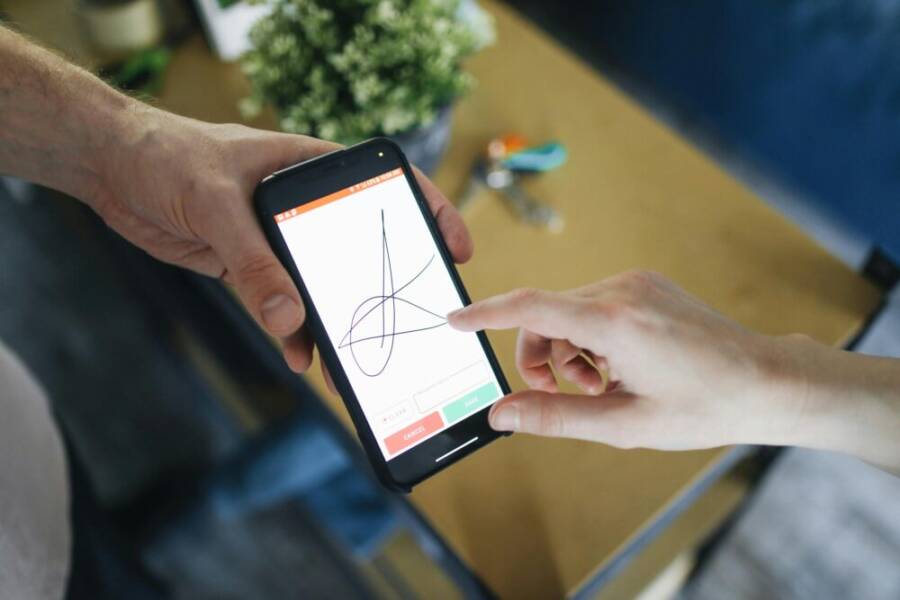
Are you signing contracts on your phone more often than you think? This guide shows you how to handle everyday agreements with confidence, from leases to service contracts and freelance work. You’ll learn a practical, step by step approach that fits real life today, not a manual’s theory.
What makes mobile signing appealing is convenience. You can review documents, add your signature, and send everything back in minutes, without hunting for a printer or a scanner. The benefits go beyond speed: digital signatures often come with clear audit trails and built in safety features that protect your data. With the right tools, your phone becomes a secure contract hub you can trust.
We’ll walk through the essential steps, from choosing a trusted signing app to confirming the final version of a contract. You’ll see how to prepare documents, verify identities, and store signed copies safely. You’ll also learn common pitfalls to avoid, such as unclear terms, missing dates, or weak security practices that can undermine an agreement.
By the end you’ll feel ready to sign confidently on the go. This is a practical, no fluff guide designed for everyday use, with simple tips you can apply right away. If you’re using a smartphone to handle important agreements, you’ll finish with a clear, secure process and a ready to go checklist. Mobile signing is not just convenient; it can be reliably safe when you follow the basics.
Why signing contracts on your phone is convenient
Signing contracts on your phone isn’t a niche habit anymore. It’s a practical, everyday tool that fits into busy lives. You review, sign, and send from wherever you are, with minimal fuss. This section highlights why using your phone for signatures speeds up processes, cuts clutter, and keeps everything organized in one place.
 Photo by Polina Tankilevitch
Save time and stay organized
Mobile signing accelerates workflows in real life. Instead of printing, scanning, and mailing, you can review a document, apply your signature, and return it in minutes. This is especially valuable for urgent contracts, service agreements, or freelance work where every hour matters. The digital trail created by e signatures makes it easy to verify when a document was signed, by whom, and under what terms.
To stay organized, keep all signed materials in one secure place. Use a dedicated folder in your cloud storage and adopt a consistent naming convention like: [DocumentType_Company_Date_Signature]. Practical tips:
- Create a version log: when you update or re-sign, save a new version with a clear suffix (v1, v2, final).
- Tag documents by project or client so you can filter later.
- Use reminders for expiring contracts or renewal dates.
- Maintain a uniform signing process across devices to avoid confusion.
A few tool tips to boost reliability:
- Enable automatic backups of signed PDFs to your preferred cloud service.
- Use two factor authentication where available to protect access.
- Verify that the recipient receives the final, correctly labeled file.
For those who juggle multiple deals, these practices reduce back-and-forth and help you stay on top of versions. Links with real-world proof show how speed and clarity come from digital signing practices. For example, many users report faster document completion times when using electronic signatures. Learn more about how this transforms business processes: Benefits Of Using Electronic Signatures For Transforming Business Agreements and Benefits of signature apps.
Access from anywhere and on any device
Phone signing works across devices when you rely on cloud sync. Start a contract on your phone, finish it on a tablet or laptop, and everything stays in sync. Cloud synchronization means your progress, templates, and signatures are available wherever you work. That continuity matters, especially when you’re on the go.
Offline options add even more resilience. Many signing apps let you preload documents, apply your signature offline, and then push the signed copies once you regain connectivity. This is a simple but powerful way to avoid delays caused by spotty network coverage. It also helps during travel, remote work, or client meetings away from Wi-Fi.
When you sign on a phone, security remains front and center. Use biometric authentication if available, keep your device screen locked, and periodically review connected devices. The convenience of mobile signing does not have to compromise safety.
To deepen your understanding, consider these trusted reads on mobile signing advantages: The Mobile Advantage: E-Signatures on the Go and 5 Benefits of Electronic Signature For Your Organization. They explain how speed, accessibility, and clear audit trails come together to simplify agreements.
What you will learn in this guide
This article introduces you to the practical steps for signing on a phone. You’ll discover the tools that make signing easy, a step-by-step workflow, and how to keep documents secure. You’ll also see common scenarios and smart tips to avoid pitfalls.
In this section, you can expect to find:
- An overview of popular signing apps and how to choose one that fits your needs.
- A simple, repeatable signing workflow you can apply to leases, service contracts, and freelance agreements.
- Security best practices to protect your digital signatures and documents.
- Real-world scenarios with actionable tips to handle signatures on the go.
To build confidence, you might want to read about the broader benefits of electronic signatures for organizations and individuals: 5 Benefits of Electronic Signature For Your Organization and Benefits Of Using Electronic Signatures For Transforming Business Agreements. These resources reinforce how mobile signing can be reliable, compliant, and efficient.
Choose the right tools for mobile contract signing
You need reliable tools to sign contracts on your phone without worry. Built-in features work for simple tasks, but apps add security and proof. Pick based on your needs, like legal strength or ease of use. This keeps your smartphone signatures valid and safe.
What counts as a legally binding signature on a phone
Electronic signatures hold up in most places. Laws like the ESIGN Act and UETA make them equal to handwritten ones. A valid e-signature shows your intent to sign, links to the document, and uses a reliable method. You and the other party must agree to go digital.
Courts accept these if you can prove consent and authenticity. Your phone captures this through timestamps or logs. Most contracts, from leases to service deals, qualify.
Some documents still demand a wet ink signature. Think wills, family law papers, or court orders in certain states. Check the rules first. Mobile signing shines for everyday use, but print and sign by hand if required. This avoids disputes later.
Built in options on iOS and Android
Your phone has free tools for basic signing. They handle PDFs and images without extra downloads. Use them for quick, low-risk agreements.
On iOS, open a PDF in the Files or Mail app. Tap the markup icon (pencil). Draw your signature with your finger or Apple Pencil, resize it, and place it. Save or share the file. Android users do the same in Google Drive or Photos. Select markup, add a signature from your saved ones, and export.
These options stay safe with these steps:
- Lock your screen with a strong passcode or biometrics.
- Sign over secure Wi-Fi or data.
- Verify the document before and after to catch changes.
- Store copies in encrypted cloud folders.
Built-in tools lack advanced tracking, so pair them with secure sharing. They suit personal notes or informal deals on your smartphone.
Popular third party apps for contracts
Apps like DocuSign, HelloSign (now Dropbox Sign), and Adobe Sign take mobile signing further. They support PDFs, Word docs, and images. Prices start free for basics, then $10 to $25 per month for pro features.
DocuSign offers templates and reminders. It creates audit trails with timestamps, IP logs, and email proofs. Authentication uses email, SMS, or biometrics.
HelloSign focuses on simplicity. Drag and drop fields for signatures, dates, initials. Free for three docs monthly; paid plans add unlimited sends. Trails show views and signs.
Adobe Sign integrates with Acrobat. Fill forms, track status, and get compliant seals. Starts at $10 monthly. All three verify users via knowledge-based checks or two-factor codes.
| App | Key Formats | Starting Price | Audit Trail Features |
|---|---|---|---|
| DocuSign | PDF, Word, Img | Free tier | Timestamps, IP, email logs |
| HelloSign | PDF, Docx | Free (3/mo) | View/sign history, envelopes |
| Adobe Sign | PDF, forms | $10/mo | Status tracking, certificates |
Choose by volume. High use calls for paid plans with storage and teams. These apps make your phone a pro signing station.
Sign securely and legally: step by step
Signing on your phone can be fast and reliable when you follow a clear, legally sound process. This section lays out a practical, step by step approach you can apply to most contracts, from service agreements to leases. You’ll learn how to verify the document, apply the signature correctly, and manage more complex signing workflows with confidence. The goal is to keep things simple, while meeting legal and security standards that protect you and the other party.
Prepare the document and check details
Before you sign, make sure you are working with the correct version and that all the key terms are accurate. The easiest way to avoid disputes is to slow down at this stage and read carefully.
- Verify the version: Open the latest copy stored in your cloud folder or on the signing platform. Confirm a visible version date or version number. If you’re unsure, request a fresh download of the document.
- Check names exactly as they appear: Compare the signer names to official IDs or business records. A misspelled name can cause delays or disputes later.
- Review dates and timelines: Confirm signature deadlines, renewal periods, start dates, and any termination windows. A missed date can derail the entire contract.
- Scrutinize terms and clauses: Look for critical elements like payment terms, deliverables, scope of work, and liability limits. Pay attention to any unusual clauses or hidden charges.
- Identify attachments and addenda: Ensure all referenced schedules, exhibits, and amendments are attached and current. If something is missing, flag it before signing.
- Read before signing: A signature on a contract is a promise. If anything is unclear, ask for clarification or a revised draft. It’s better to pause now than fix problems after you’ve signed.
- Security and integrity: Confirm the document is not altered after you open it. Use a trusted app that shows a clear audit trail and keeps a protected copy of the final version.
For guidance on maintaining strict security and legal compliance, see reputable resources such as detailed discussions on secure electronic signatures and their legal standing, for example guides like Secure Electronic Signatures: A Complete Guide and Legal Compliance for E-Signatures: Insights from OneSpan.
Sign steps: add signature, initials, date
Placing signatures, initials, and dates on a contract should be straightforward, but different situations call for different approaches. Here’s a practical framework you can adapt on smartphone signing apps or built in tools.
- Signature placement options:
- Typed signature: Type your name and request a digital font style. This is fast and widely accepted for everyday agreements.
- Drawn signature: Use a finger or stylus to draw your signature. This mirrors a handwritten sign and works well for less formal documents.
- Signature image: Upload a scanned image of your actual signature. Reserve this for documents where authenticity is critical and the platform supports image appendage securely.
- Where to place signatures and initials:
- Signatures typically go at the end of the document on the signature line. If the contract has multiple signers, place each party’s signature on their respective line.
- Initials should appear on every page where terms change or where a clause could be disputed, usually in the footer or a designated initial box.
- Date fields should accompany each signature or be placed near the signature line to show when the agreement was executed.
- Date formats: Use a clear format, such as MM/DD/YYYY or DD/MM/YYYY, depending on local practice or the contract’s defined standard. If the document specifies a format, follow it.
- When to sign digitally vs print and sign:
- For routine business agreements, a fully digital workflow is usually enough. It provides an auditable trail and is legally recognized in most jurisdictions.
- Some documents may require a wet ink signature, such as certain real estate deeds or specific court filings. Check local rules before choosing your method.
- Security best practices during signing:
- Sign on a trusted device with up to date security, and enable biometrics or a strong passcode.
- Ensure you sign over a secure network or VPN, not public WiFi.
- Keep the final signed file in encrypted storage and back it up automatically.
If you want a quick reference, many organizations rely on established e signature platforms that deliver robust signatures, clear trails, and reliable legality. You can compare options and validation features in guides like The Must Have E-Signature Guide for Legal Professionals and Secure Electronic Signatures: A Complete Guide. These resources explain how to preserve intent and authenticity during mobile signing.
Handle attachments, multiple signers, and routing
Complex contracts often involve more than one signer, witnesses, or supporting documents. Here’s how to handle these scenarios smoothly on your phone.
- Add signers and set the signing order: Create a signing workflow that defines who signs first, who signs last, and who needs to review before signing. A clear order helps avoid back and forth.
- Include witnesses or third parties: If the contract requires a witness, add them in the signing flow and place their signature line where appropriate. Verify they have the authority to witness the agreement.
- Attach supporting documents: Upload schedules, amendments, or attachments and ensure they are referenced in the main document. Attachments should be verified as part of the final bundle to prevent separate, unlinked documents from causing confusion.
- Keep the audit trail intact: Use platforms that capture timestamps, IP addresses, device types, and recipient actions. This creates a strong record if questions arise later.
- Notifications and reminders: Enable automatic reminders for pending signatures or approaching deadlines. This helps you stay on track without manual follow ups.
- Compliance considerations: Ensure the signing process aligns with local laws and industry regulations. Some sectors have strict rules about who can sign and how signatures are captured.
For further reading on the legality and security of e signatures, consider resources like Legal Compliance for E-Signatures: Insights from OneSpan and Best practices for eSignatures: Legally binding and secure, which discuss how to maintain trust and enforceability across different jurisdictions.
To keep your workflow efficient, tailor your approach to the document type. For simple service agreements, a straightforward signer list and a single attachment may be enough. For complex partnerships, a multi signer flow with multiple attachments and a detailed audit trail becomes essential.
Get the most from your mobile signing tools by choosing apps that support multi signer workflows, robust identity checks, and clear, tamper proof records. For a practical comparison of popular options, you can explore reviews and feature summaries from DocuSign, HelloSign, and Adobe Sign. Their ecosystems provide reliable templates, field placement, and progress tracking that fit busy schedules.
External resources you may find helpful:
- Secure Electronic Signatures: A Complete Guide
- The Must Have E-Signature Guide for Legal Professionals
- Legal Compliance for E-Signatures: Insights from OneSpan
- Best practices for eSignatures: Legally binding and secure
By following these steps, you can manage signing tasks on your phone with confidence. The combination of careful preparation, precise placement of signatures, and well organized workflows reduces risk and speeds up contracts. The result is a streamlined process you can trust, whether you’re closing a freelance gig or finalizing a lease.
Security, privacy, and best practices
Protecting your data and your reputation matters as you sign contracts on the go. This section lays out practical, actionable steps to keep your information safe, verify who you’re dealing with, and handle edge cases with confidence. Whether you’re at home or on the road, a secure workflow means fewer risks and clearer records.
Protect your device and data
Your phone is a doorway to sensitive documents. Treat it like a portable safe. Start with a strong lock screen and turn on device encryption so files stay protected if the device is lost or stolen. Regularly review app permissions; revoke access you don’t need, especially for document apps, cloud storage, and email.
Keep the operating system up to date. Updates patch security flaws and introduce improved protections. Enable automatic updates if possible so you’re always protected without thinking about it. Back up important documents automatically to a trusted cloud service. This makes recovery easy if you need to re-sign or share a corrected version.
A few quick habits to cement today:
- Use biometric unlock when available, paired with a strong passcode as a fallback.
- Avoid saving login credentials in browsers on shared devices.
- Encrypt backups and store them in a separate, secure location.
- Review device connections periodically, and sign out of apps you no longer use.
If you want extra assurance, look for signing platforms that provide clear audit trails and tamper-evident records. These features help you prove the document you signed is the one you intended.
For further reading on mobile security best practices, see guides like Best practices for eSignatures: Legally binding and secure and Secure Electronic Signatures: A Complete Guide. These resources outline how to preserve integrity and enforce compliance across different setups. You can also explore the practical perspectives on mobile contract signing in resources like Mobile contract signing: A simple guide for you.
Remember, a secure process starts with a secure device. Your smartphone is the hub, not the weak link.
Trust, verify, and keep records
An audit trail is your best defense when questions arise later. A robust signing process records who signed, when, and from which device. Always confirm signer identity and obtain explicit consent before applying a signature. This protects both parties and reduces disputes.
Key practices:
- Audit trail readiness: Ensure your signing app captures timestamps, device type, IP address, and the recipients’ actions. This data is invaluable if a dispute surfaces.
- Confirm identity and consent: Use two factor or biometric verification for signers when available. Require an explicit confirmation that the signer agrees to the terms.
- Keep signed copies: Store final, signed documents in encrypted folders. Maintain a small, organized archive with version numbers and dates.
- Validate signer intent: Look for explicit statements of intent to sign and to be bound by the contract. If the document looks rushed or unclear, pause and seek clarification.
In practice, you’ll want a clean, repeatable workflow that produces a trustworthy record. Many teams adopt a single platform for all agreements to simplify audits and reduce human error. If you handle sensitive contracts, consider adding a secondary check, such as a separate confirmation email or message to verify the signer’s details.
For deeper context on the value of a solid audit trail and identity verification, review resources like The Must Have E-Signature Guide for Legal Professionals and Legal Compliance for E-Signatures: Insights from OneSpan. These explain how to balance speed with accountability across jurisdictions.
When wet ink is still needed
Digital signing works for most everyday contracts, but some situations still call for a physical signature. Real estate deeds, certain court filings, and some government documents may require a handwritten mark or an original ink signature. Knowing when this applies helps you plan ahead and avoid delays.
Practical guidance:
- Know the exceptions: Check the governing law or client requirements to confirm whether a digital signature is acceptable. If in doubt, ask for a quick written confirmation.
- Use a compliant hybrid approach: If a wet signature is required, you can sign digitally for the preliminary agreement and print a clean copy to sign in person. Exchange scanned PDFs for electronic records while keeping the actual signed document on file.
- Preserve the workflow: Even when a physical signature is needed, keep your digital process intact for reminders, version control, and audit trails. Digital copies of the wet-signed document can be stored securely alongside other records.
Edge cases can vary by country and industry. When you encounter a scenario that looks unusual, pause and verify the legal requirements with the other party or a counsel. The goal is to avoid a situation where a contract looks complete but fails to meet enforceability criteria.
If you want to explore the broader legal landscape, consider resources like Best practices for eSignatures: Legally binding and secure and Secure Electronic Signatures: A Complete Guide. These explain how to align your process with prevailing laws while keeping convenience intact. Also, a practical read on mobile signing advantages provides real-world perspectives on when a digital path works best.
By understanding when to use digital versus physical signatures, you keep speed without compromising legality. Your smartphone stays efficient, not risky, when the rules are clear and consistently followed.
Common scenarios and practical tips
Signing contracts on your phone covers a wide range of everyday agreements. This section translates that reality into practical steps you can apply now. You’ll see how to handle leases, service agreements, and medical forms with confidence, while staying secure and compliant. Each subsection offers concrete tips, quick checks, and real-world caveats to keep you protected and efficient on the go.
Rental and lease agreements
Signing a lease on your phone is incredibly convenient, but it pays to be thorough. Start by confirming you’re working with the right document version, and that all key terms are crystal clear before you apply a signature.
- Term length and renewal: Verify the lease start date, duration (12 months, 24 months, or month-to-month), and renewal options. Note any automatic renewal clauses and how to opt out.
- Payment terms: Check the rent amount, due date, late fees, and whether utilities or renter’s insurance are included. Confirm whether you’ll sign any addenda about pet policies or parking spaces.
- Attachments and exhibits: Ensure all rider documents, such as rules or maintenance addenda, are attached and current. If something is missing, request an updated file before signing.
- Signatures and initials: Place your signature on the designated line and initial every page if required. If you’re co-signing, track each signer’s portion to avoid delays.
- Security and delivery: Use a trusted signing app with audit trails. Save a final, encrypted copy to your cloud storage and share the lease only with verified parties.
For additional context on lawful, secure online leases, you may want to explore resources like Electronic Lease Signing: Costs, Legality & Best Practices and How to Sign a Rental or Lease Agreement Online. These discussions help you understand what to watch for and how to avoid common mistakes.
- Example reference: Electronic Lease Signing: Costs, Legality & Best Practices
- Example reference: How to Sign a Rental or Lease Agreement Online
- Example reference: How to sign a lease agreement with an e-signature
Photo: A close look at a lease document on a phone, with a pen and a laptop nearby.
Photo by Karola G, https://www.pexels.com/@karola-g
Service contracts and freelance work
Service agreements and freelance work orders are about clarity. On mobile, you want a clean flow from scope to payment terms so both sides know what to expect.
- Define scope and deliverables: List the tasks, milestones, and acceptance criteria. Clarify the work you’ll perform and what constitutes completion.
- Payment terms: State rate, billing cadence, and method. Include late payment penalties or early payment discounts if applicable.
- Change management: Include a simple process for scope changes, including how adjustments to price or deadlines are handled.
- Signers and approvals: Identify all parties who need to sign, and whether initials or acknowledgement on each page are required.
- Documentation and retention: Keep a final signed copy in a secure folder. Use a versioned file name and note the signing date for easy reference.
When choosing a signing app for service contracts, look for features like field validation, reusable templates, and clear audit trails. This helps you maintain a consistent, professional approach across clients. For further reading, see guides on e-signature best practices and legal enforceability across jurisdictions.
- Example reference: Best practices for eSignatures: Legally binding and secure
- Example reference: Legal Compliance for E-Signatures: Insights from OneSpan
Photo: A freelancer reviewing a contract on a phone with a laptop in the background.
Photo by Karola G, https://www.pexels.com/@karola-g
Medical consent and digital forms
Digital medical forms require extra care around privacy and consent. Treat sensitive information with stricter controls and ensure you understand how your data is used and stored.
- Privacy and consent: Be aware of who can access the data, how it will be used, and how long it is retained. Look for explicit consent checkboxes and a plain explanation of data sharing.
- Minimum data collection: Only provide information that is necessary for the form. Avoid sharing redundant personal details unless required.
- Device security: Sign forms on a device with up-to-date security features. Use biometric unlock or a strong passcode, and avoid signing over public networks when possible.
- Storage and access: Save signed medical forms to encrypted folders or a secure health app. If you share forms with providers, confirm they will store and protect your data properly.
- Handling sensitive information on mobile: Use apps with robust privacy controls, and routinely review device permissions for health apps and document viewers.
If you’re unsure about a form’s privacy terms, ask the provider to explain how data will be used and who can access it. For further context, you can explore reputable resources about privacy and consent in digital forms.
- Example reference: Secure Electronic Signatures: A Complete Guide
- Example reference: Legal Compliance for E-Signatures: Insights from OneSpan
Photo: A healthcare professional reviewing a digital consent form on a phone.
Photo by Karola G, https://www.pexels.com/@karola-g
Images and visuals help readers scan these scenarios quickly. They also provide a sense of legitimacy when showing how a document looks on a phone screen. If you want to add a visual, consider a photo that mirrors real-life signing moments on a smartphone, like a contract on a phone with a pen nearby.
Conclusion
Signing contracts on your phone is now a practical, reliable part of everyday workflow. This guide covered choosing the right tools, preparing documents, placing signatures correctly, and keeping records secure. You learn to verify versions, protect your device, and maintain a clear audit trail that supports enforceability. Smartphone signing speeds up responses, reduces clutter, and keeps everything neatly in one place.
The best approach blends built in features with trusted signing apps to fit your needs. Prioritize meeting legal requirements, protecting data, and using a repeatable workflow across devices. With careful preparation and strong security habits, mobile signing becomes a safe, predictable part of business or personal life.
Give it a try today and sign a simple contract on your phone to see how the process feels. If you run into questions or have tips from your own experience, share them below and start a conversation with other readers.