He Was Drowning in Bills and Burnout Until a Simple Daily Ritual Rewired His Brain for Wealth in Less Than a Week
>>> Start Your Shift Today <<<

Emergency alerts are quick, official messages that help you stay safe during severe weather, public safety events, and other emergencies. They’re designed to reach you fast, even if you’re not actively using your phone. In this guide you’ll learn how to turn on these alerts on both iPhone and Android, choose which alerts you want to receive, and test them to be sure they work.
You’ll start with a simple overview of how emergency alerts work and why they matter in real life. Then you’ll see step by step instructions for configuring alerts on iPhone and Android, so you can tailor notifications to your needs. The guide also covers quick testing and basic troubleshooting so you’re not guessing when it counts.
As you set things up, you’ll learn practical tips on privacy and battery impact. You’ll pick which alert categories to receive, understand how to review alert settings periodically, and avoid draining your phone’s power during an alert. All this adds up to a reliable, ready-to-use system for your daily smartphone routine.
Understand Emergency Alerts and Why They Matter
Emergency alerts are quick, official messages that help you stay safe during severe weather, public safety events, and other emergencies. They reach your phone even if you’re not actively using it. This section explains how alerts travel to your device and why turning them on matters for you and your family.
He Was Drowning in Bills and Burnout Until a Simple Daily Ritual Rewired His Brain for Wealth in Less Than a Week
>>> Start Your Shift Today <<<
What alerts are and how they reach your phone
Alerts originate with authorities like weather and public safety agencies. They travel through wireless networks and, in some cases, via a data connection when you’re on WiFi. From there, the message lands on your phone as a banner, sound, or vibration. Some alerts look the same across most phones, while others can be specific to your carrier or device settings. In practice, you’ll see alerts pop up quickly with essential information about what’s happening and what to do next. For more on how these systems work, you can visit official guides such as the Wireless Emergency Alerts pages from the FCC and FEMA, which explain the flow of messages from the source to your device:
- https://www.fcc.gov/consumers/guides/wireless-emergency-alerts
- https://www.fema.gov/emergency-managers/practitioners/integrated-public-alert-warning-system/public/wireless-emergency-alerts
Why you should enable alerts and what to do when you hear one
Enabling alerts gives you a safety net that can save time in crises. They provide timely guidance from trusted sources, which can be faster than searching for updates yourself. When you receive an alert, act on the official directions rather than trusting rumors. Common actions include seeking shelter during severe weather, following evacuation orders, or heed official guidance on staying safe. Alerts are authoritative and practical, not promotional messages or junk noise. If you want a deeper understanding of the alert infrastructure, the Integrated Public Alert & Warning System and related FEMA resources offer detailed explanations of alert types and dissemination:
- https://www.fema.gov/emergency-managers/practitioners/integrated-public-alert-warning-system
Set Up Emergency Alerts on iPhone: A Clear, Step by Step Guide
Emergency alerts can be a lifesaver when seconds matter. This section walks you through enabling government and public safety alerts on your iPhone, personalizing how they appear, and verifying that everything works. The goal is to make sure you’re protected without being overwhelmed by constant notifications. Keep in mind that some options may vary by region and iOS version, so you might see slightly different wording on your device.
Enable Government and Public Safety Alerts on iPhone
Start by turning on the essential alerts that authorities use to warn the public. This is a quick check that can pay off in serious situations.
- Path: Settings > Notifications > Government Alerts. Turn on AMBER Alerts and Emergency Alerts if available. If your device shows Public Safety Messages or Presidential Alerts, enable those too.
- Availability varies by region and iOS version. Some alerts may not appear in every country or on every carrier.
Why this matters: these alerts surface without you needing to open an app, delivering actionable guidance when time is tight. If you want to learn more about how these systems operate, official resources outline the flow from alert originator to your screen. For a deeper dive, see Apple’s guidance on emergency and government alerts and related public safety content.
- https://support.apple.com/en-us/102516
Personalize alert tones and display options
Customizing alerts helps you notice them in busy environments and keep important messages distinct. Here are simple, practical tweaks you can make today.
- Alert sounds: Choose a sound that stands out. Consider a tone that you only assign to emergency alerts so it isn’t confused with other notifications.
- Banner versus alert style: Decide whether you prefer banners that show briefly at the top or alerts that take up more of the screen.
- Vibration: Enable a strong vibration pattern if you often use silent mode. A unique haptic cue can make emergency alerts hard to miss.
- Hearing in noisy places: If you work in loud environments, pair a loud alert sound with vibration and ensure your phone’s volume is set high enough to cut through ambient noise.
- Practical tip: use a distinct tone for emergency alerts to help them stand out in your overall notification mix.
If you want a reference on managing these settings with carrier-specific options, see resources from major carriers and device manufacturers that cover Wireless Emergency Alerts and related controls.
- https://www.verizon.com/support/knowledge-base-206948/
Test and verify on iPhone
There isn’t a universal self-test for all alert types, but you can confirm that alerts are enabled and perform a safe test if your carrier or iOS offers a test option. Before you test, check volume and Do Not Disturb settings to ensure the test is audible.
- Quick verification checklist:
- Confirm Government Alerts are toggled on in Settings > Notifications > Government Alerts.
- Check your device volume is up and Do Not Disturb is not silencing banners or sounds.
- Look for a test option through your carrier or iPhone settings, and follow the prompts if available.
- If a test isn’t available, you can rely on real alerts to validate functionality after a weather event or public safety notice.
- After testing, revisit your preferences to ensure you’re still receiving the alerts you want.
Note on caution: when performing any tests, do so in a safe environment and avoid triggering alerts unintentionally. If you’re unsure about test availability, Apple’s support pages offer guidance on emergency alerts and how they appear on iPhone.
- https://support.apple.com/en-us/102516
Quick reference: after you set up, you should see alerts appear as banners with quick actions and audible signals. If you encounter missing alerts or you’ve recently changed regions or carriers, recheck the settings and consult your carrier’s support site for any regional restrictions. For additional official information on alert types and dissemination, refer to FEMA’s resources.
- https://www.fema.gov/emergency-managers/practitioners/integrated-public-alert-warning-system
These steps create a reliable default that makes sure you’re not left in the dark during emergencies. By tailoring tones and display options, you can stay informed without getting overwhelmed by nonessential notifications. If you’re curious about how iPhone and public safety alerts interact with wearable devices, Apple’s support articles cover iPhone and Apple Watch behavior in these scenarios.
- https://support.apple.com/kb/HT213331
Smartphone users often want a quick, practical setup that fits into daily life. With these steps, you’ll have a clear path to timely warnings when every second counts. If you want to extend protection to family members, consider guiding them through these steps as well, so everyone stays informed in a coordinated way.
Set Up Emergency Alerts on Android: A Practical Guide
Emergency alerts can be a life saver when seconds count. This Android-focused guide shows you how to turn on Wireless Emergency Alerts (WEA) and other channels, fine tune how you receive them, and test to make sure everything works. The goal is to have reliable, attention grabbing alerts without being overwhelmed by chatter from apps you don’t need during a crisis. Let’s walk through practical steps you can take today.
Turn on Wireless Emergency Alerts (WEA) and other alert channels
Start by locating the alert controls on your Android phone. Depending on the maker and the Android version, you’ll typically find these under Settings > Safety & Emergency or Settings > Advanced Features. Here are the common toggles you should review or switch on:
- Severe Weather alerts
- Amber Alerts
- Emergency Alerts (presidential or public safety messages, if available in your region)
- Other carrier or device specific alerts that may appear, such as natural disaster notices or test messages
Availability varies by carrier and device. Some brands present these options in slightly different menus, but the gist remains the same: enable the core safety alerts so you don’t miss critical guidance when you’re away from the news. For a broader look at how these alerts are managed on Android, see resources like Android’s guidance on emergency alerts and the FCC’s Wireless Emergency Alerts explanation.
- https://www.android.com/articles/emergency-phone-alerts-android/
- https://www.fcc.gov/consumers/guides/wireless-emergency-alerts
If you’re curious about carrier specific paths, you’ll often see quick access through the Safety app or the Settings app’s notification area. For example, many Galaxy devices offer a straightforward path from Settings to Emergency Alerts, allowing you to toggle each category individually. If you want to see a carrier-specific walkthrough, Samsung’s support materials lay out where to find and adjust these alerts on Galaxy phones.
- https://www.samsung.com/us/support/answer/ANS10001579/
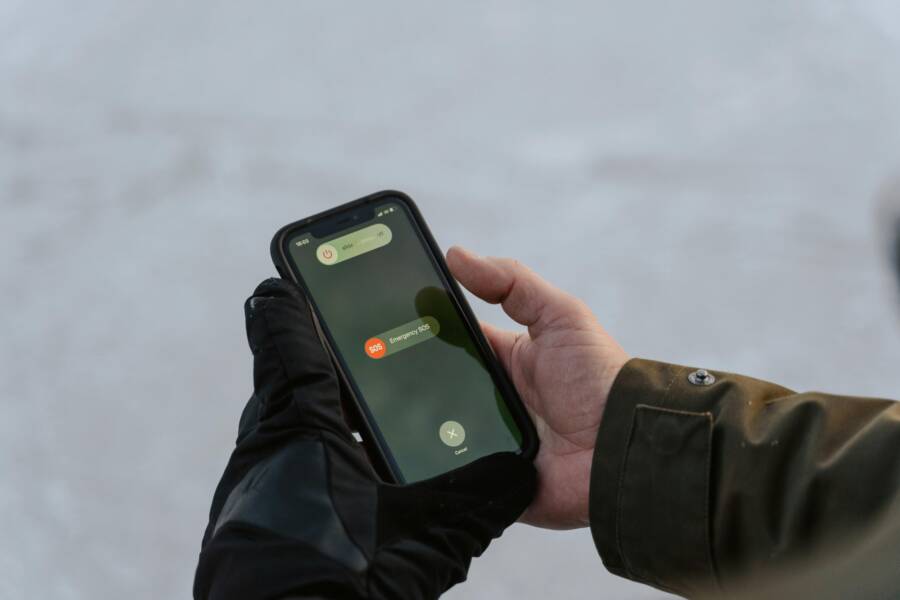
Image suggestion: a smartphone showing an alert banner on the screen can visually reinforce the concept of WEAs.
Photo by Tima Miroshnichenko on Pexels.

Photo by Tima Miroshnichenko
Fine tune alert channels and notification behavior
Next, tailor how alerts appear and when they push through your daily noise. Android lets you control system level delivery and individual app behavior, so you can keep essential alerts visible while muting less urgent notices.
- System-level delivery: Keep WEAs and other critical alerts set to high priority so they wake the screen, vibrate, or play a distinct sound. If your phone supports it, enable a dedicated alert tone that’s unique from other notifications.
- Per-app management: Review app notification settings for apps that tend to flood your banner space. You can mute non-urgent alerts while preserving high-priority warnings from trusted sources.
- Do Not Disturb (DND) interactions: Configure DND to allow emergency alerts to break through. This ensures you don’t miss critical messages during sleep or meetings.
- Notification channels: Use separate channels for different alert types where available. For instance, you might keep weather alerts as a high-priority system channel and park social or news alerts in a lower-priority channel.
A practical approach is to classify alerts into two tiers: essential and informational. Essential alerts come from authorities or safety networks and should always reach you. Informational alerts from apps can be muted or grouped. If you want a quick reference, Android’s article on managing emergency alerts provides a solid baseline, with additional guidance from Android Magazine.
- https://www.android.com/articles/emergency-phone-alerts-android/
- https://www.android.com/safety/physical-safety/
Tips to keep non urgent alerts in check:
- Use a distinct notification sound or vibration pattern for emergency alerts so you can recognize them instantly in a crowded environment.
- Enable “interruptions” only for essential alerts during work hours, then broaden channels in the evenings if you’re home.
- Periodically review alert categories to avoid outdated settings. A once-a-quarter audit keeps your alerts relevant without becoming noise.
If you want real-world paths to adjust these settings on popular Android skins, you can check Google Pixel and Samsung Galaxy specific guides. They walk you through the exact taps to reach alert controls and customize delivery.
- https://support.google.com/android/answer/9319337?hl=en
- https://www.samsung.com/us/support/answer/ANS10002524/
Test and troubleshoot on Android
Testing is the best way to confirm you’ll get the right messages when it matters. Use built-in test options if your device or carrier offers them, or rely on real world alerts during events to verify behavior. Here’s a practical plan:
- Check network and location: WEAs travel through cellular networks, but a solid data connection helps ensure delivery. Make sure your device is not offline or in airplane mode during tests.
- Do Not Disturb settings: Ensure DND allows emergency alerts to bypass silence. If you routinely use DND, make a quick exception list for emergencies.
- Battery optimization: Some phones limit background activity to save power. Whitelist the alert apps or disable aggressive battery optimization for the safety apps you rely on.
- Permissions: Confirm the alert apps have necessary permissions to send notifications and access required services. If a main alert channel relies on a specific app or service, ensure it’s allowed to run in the background.
- Real-world validation: If a regional public safety test happens, observe how the alert appears and sounds. That real event confirms end-to-end delivery and can highlight any regional quirks.
For Android users, a trusted source explains how to manage emergency alerts and what to expect during tests. It’s a good foothold if you want deeper, step-by-step validation.
- https://www.android.com/articles/emergency-phone-alerts-android/
If you need more technical insights, a dedicated Android Stack Exchange discussion covers testing emergency broadcasts and how to interpret the results. This can help if you ever see delayed or missing tests.
- https://android.stackexchange.com/questions/207846/how-to-test-emergency-broadcasts
A final quick-check checklist you can run on any Android phone:
- WEAs and alert channels are enabled in Settings.
- Your preferred tones and Do Not Disturb rules are set to let emergencies through.
- Your device has a strong network connection, and the alert app or system service has permission to run in the background.
- A test or real alert appeared as expected, with a clear banner and audible cue.
If you need a quick, authoritative overview of how WEAs operate and how to keep up with updates, refer to the FCC’s Wireless Emergency Alerts page. It explains who disseminates the alerts and how different networks handle them.
- https://www.fcc.gov/consumers/guides/wireless-emergency-alerts
Images help illustrate what to expect when an alert lands. Consider placing a photo after this subsection to reinforce the concept of immediate, attention grabbing notices on Android devices.
Thousands of People Were Struggling With Money Until They Discovered This One Ancient Secret Hidden in Sound
>>> Unlock It Now <<<

Photo by Tima Miroshnichenko
By setting up WEAs correctly, tuning how you receive alerts, and confirming the test path works, you create a reliable safety net for you and your family. If you want to expand protection, guide those closest to you through these steps as well; everyone benefits from timely, trustworthy warnings during emergencies.
Best Practices for Managing Emergency Alerts
Emergency alerts can be a lifesaving lifeline, but only if you receive the right messages without being overwhelmed by noise. This section brings practical, easy-to-apply best practices for managing alerts across iPhone and Android. You’ll learn how to prioritize, protect privacy, and keep your device running smoothly while staying informed when it counts.
Keep alerts useful and reduce noise
The goal is clarity, not chaos. Limit alert types to those that truly matter for your location and daily life. Focus on weather warnings, public safety notices, and other critical alerts from trusted authorities. Anything that isn’t actionable or relevant can quickly become background noise.
- Distinguish sounds and vibrations: Assign a unique sound or vibration pattern to emergency alerts so they stand out in a crowded environment. A distinct cue helps you react quickly even when your phone is on silent.
- Prioritize alerts: Use two tiers—essential and informational. Essential alerts come from official sources and should always wake your device. Informational alerts from apps can be muted or grouped.
- Avoid duplicates: If multiple sources send the same alert, rely on the original, authoritative channel. Duplicates waste your attention and can create confusion.
- Simple rules for quick decisions: If the alert is weather related and there is an immediate safety impact, treat it as high priority. If it’s a non-urgent update or a routine test, mute or skip unless it’s from a source you trust.
A practical rule of thumb is to keep the core alert categories enabled (weather, evacuations, public safety) and review optional channels once a quarter. This keeps you informed without drowning in chatter. For a broader framework on reducing alert fatigue, you can explore industry guidance such as Ten Keys to Improving Emergency Alerts, Warnings, and Notifications from official safety organizations.
- https://www.cisa.gov/resources-tools/resources/public-safety-communications-ten-keys-improving-emergency-alerts-warnings-and-notifications
In daily use, treat alerts as a trusted siren rather than a constant stream. If an alert clogs your banner space or your device’s notification shade, adjust the category or channel to restore balance. Remember, the aim is timely, actionable information, not a flood of messages.
Privacy and location considerations
Location data helps alert systems tailor messages to your area, increasing accuracy when emergencies unfold nearby. However, sharing location can raise privacy concerns if not handled correctly. Understanding these tradeoffs helps you control what you share and how it’s used.
- Why location matters: Accurate location helps authorities push the right guidance to you, especially during severe weather or local incidents. If you frequently travel, ensuring your device can determine your position improves the relevance of warnings.
- Manage permissions thoughtfully: Check which alerts rely on location data and adjust accordingly. On iPhone, you can review permission settings for alert-related apps, while Android users can manage permissions in the Privacy or App Permissions sections.
- Sharing versus not sharing: In most cases, enabling location for alert systems is optional but beneficial. If you’re uncomfortable, you can limit sharing to your device’s system-level alerts and disable app-level location access. Some regions also offer non-location-based alert delivery, which still provides official warnings without exposing precise whereabouts.
- Stay informed about policy: Different platforms and carriers handle data differently. Reading official guidance helps you understand how your data is used and what controls you have.
To dive deeper into how iPhone and Android handle alerts and privacy, see Apple’s guidance on emergency alerts and Google’s Android privacy resources.
- Apple: About emergency and government alerts on iPhone
https://support.apple.com/en-us/HT202743 - Android: Android privacy settings and permissions
https://www.android.com/intl/en_us/safety/privacy/
If you want a quick checklist for privacy settings specifically tied to alert apps, that guidance from Android’s help resources provides a solid starting point.
- Get help during an emergency with your Android phone
https://support.google.com/android/answer/9319337?hl=en
Battery life and staying up to date
Emergency alerts rely on your network and can affect battery life, especially when alerts force the screen on or require frequent transmissions. Keeping your OS and apps current is one of the simplest ways to ensure reliable delivery and minimal power drain.
- Stay current: Regular OS and app updates include improvements to alert delivery, security fixes, and power management. Enable automatic updates where possible for critical security patches.
- Quick post-update checks: After an OS update, run a few quick checks to confirm alerts still reach you as intended.
- Confirm alert categories are enabled and sounds are distinct.
- Verify Do Not Disturb settings allow emergency alerts to break through.
- Ensure background activity for alert services isn’t restricted by battery optimization.
- Practical tips to extend battery life:
- Limit high-frequency location checks to essential alert channels.
- Use a single, strong alert tone for emergencies and a separate, softer tone for less urgent notices.
- Keep your device charged and avoid letting it run into critical battery states during storms or emergencies.
If you’re curious about concrete battery-saving ideas, the following resources offer practical guidance and tested tips from reliable sources:
- Tips to Extend Android Battery Life https://www.android.com/intl/en_in/articles/tips-to-extend-android-battery-life/
- 5 Quick Fixes to Extend Your Android Phone’s Battery Life https://uk.pcmag.com/batteries-power/9960/9-tips-to-boost-your-android-phones-battery-life
- Why your Android battery is draining fast and how to fix it https://www.asurion.com/connect/tech-tips/5-ways-to-minimize-android-battery-drain/
A simple post-update routine helps you stay on top of things:
There Is a Frequency That the Wealthiest Families Have Used for Generations and Most People Will Never Know It Exists
>>> Open the Door <<<

- Check alert categories and sounds.
- Verify network connectivity and location permissions if needed.
- Review DND exceptions so emergencies can break through when necessary.
- Run a quick test if your carrier or device offers a test option, or rely on real alerts to confirm delivery.
If you’d like a concise, ongoing reference for alert behavior and best practices, FCC resources cover how Wireless Emergency Alerts operate across networks.
- FCC Wireless Emergency Alerts
https://www.fcc.gov/consumers/guides/wireless-emergency-alerts
Images and visuals can reinforce your understanding. A simple screenshot or photo after this subsection helps readers see what to expect when an alert lands on their device.
Photo by Tima Miroshnichenko
https://www.pexels.com/@tima-miroshnichenko
By following these practices, you create a reliable alert system that keeps you informed without draining your battery or cluttering your notification shade. Share these steps with family and friends so everyone stays prepared when emergencies happen.
Quick Verification and Troubleshooting Checklist
When emergencies pop up, you need confidence that your alerts will reach you. This section gives you a concise, practical checklist to verify alert delivery on both iPhone and Android. It covers testing steps, what to do if you miss an alert, and how to keep alerts reliable through updates. Think of this as your go-to quick guide for peace of mind.
Step by step test plan
Testing alerts should be straightforward and safe. Use built in test options when available, and avoid using real emergencies for testing. Here are concrete steps you can follow for both iPhone and Android.
- iPhone tests
- Volume and Do Not Disturb: Ensure the volume is up and Do Not Disturb is not silencing banners or sounds.
- Government alerts: In Settings > Notifications > Government Alerts, confirm AMBER Alerts and Emergency Alerts are toggled on. If Public Safety Messages or Presidential Alerts exist for your region, enable them.
- Test options: If your carrier or iOS offers a test, follow the prompts exactly. If not, rely on real alerts to verify delivery after a weather event or public safety notice.
- Verification: Look for banners, sounds, and vibrations that match your personalized settings.
- Android tests
- WEAs and channels: Turn on Severe Weather alerts, Amber Alerts, Emergency Alerts, and any carrier specific notices in Settings > Safety & Emergency or the equivalent path for your device.
- Priority and DND: Set emergency alerts to high priority so they wake the screen and sound even if you have DND on. Allow interruptions for emergencies.
- Per-app checks: Review each alerting app’s notification settings to ensure essential alerts stay visible while less critical alerts are muted.
- Test options: Use built in testing if provided by your carrier or device. If not, monitor during an actual public safety test or weather alert to confirm delivery.
- Verification: Confirm a clear banner appears with an audible cue and the alert is not muted by battery or privacy settings.
- Quick cross check
- Network: Ensure you have a solid data or cellular connection during tests.
- Location permissions: If alerts rely on location, confirm the permission is allowed and accurate.
- Re-test after changes: If you modify any setting, run a quick test again to confirm the change took effect.
For deeper background on how these systems work, see official guides from the FCC and FEMA. These resources explain who disseminates alerts and how they get to your device.
- https://www.fcc.gov/consumers/guides/wireless-emergency-alerts
- https://www.fema.gov/emergency-managers/practitioners/integrated-public-alert-warning-system/public/wireless-emergency-alerts
If you want to compare iPhone and Android paths, Apple and Google offer authoritative introductions to emergency alerts and related settings.
- https://support.apple.com/en-us/102516
- https://support.google.com/android/answer/9319337?hl=en
Tip: keep a simple post-test checklist handy. Confirm core alert categories are enabled, sounds are distinct, and Do Not Disturb rules allow emergencies through. This helps you avoid surprises when a real alert arrives.
What to do if you miss an alert
Missing an alert can happen for several reasons. Use this practical sequence to recover quickly and minimize risk.
- Check alert history and notifications
- On iPhone, review banners that may have appeared briefly and verify in Notification Center if the alert was delivered.
- On Android, inspect the notification shade and the Safety or Messages apps for any missed warnings.
- Review and adjust settings
- Confirm that the relevant alert categories are still enabled and that volume is sufficient.
- Reassess Do Not Disturb and focus modes to ensure emergencies can break through when needed.
- If you use multiple alert channels, consider prioritizing the most trusted sources.
- Carrier and region considerations
- Some alerts are regional. If you’ve recently moved or changed carriers, re-check availability and settings.
- Check the carrier’s support site for any regional restrictions or known delivery issues.
- Short fallback plan
- If alerts seem unreliable, set weather and public safety apps to push notifications with a dedicated, loud tone for emergencies.
- Keep the Weather app and official government channels in a primary position so you still get timely guidance.
- Contact support when needed
- If you suspect a persistent delivery problem, contact your carrier or device manufacturer support for guidance on WEA or government alert behavior.
For official guidance on alert delivery and handling edge cases, refer to Ready.gov and FCC resources.
- https://www.ready.gov/alerts
- https://www.fcc.gov/consumers/guides/wireless-emergency-alerts
When you’re done, test again in a safe way or wait for the next legitimate alert to confirm everything is functioning as expected.
Keep your device updated
Updates are not a chore; they are the best way to keep alerts reliable. OS updates, carrier settings, and app updates can all improve how alerts arrive and display.
- Stay current
- Enable automatic updates for the OS and for crucial alert apps.
- Regularly check for carrier settings updates, which can affect how messages are delivered.
- Post update checklist
- Confirm alert categories are enabled and the tones remain distinct.
- Verify Do Not Disturb still allows emergency alerts to break through.
- Ensure background activity for the alert services is allowed and battery optimization won’t block updates.
- Simple maintenance habits
- Schedule a quarterly check of alert categories and notification channels.
- Keep a strong, unique alert tone for emergencies and a softer tone for informational messages.
- Ensure your device stays charged and responsive, especially during severe weather.
If you want quick references on updates and their impact on emergency alerts, these resources are helpful.
- https://support.apple.com/en-us/102516
- https://www.android.com/articles/emergency-phone-alerts-android/
A few visuals can reinforce this habit. After this section, consider an image showing a phone with an alert banner to illustrate the moment an alert lands.
Photo by Tima Miroshnichenko
https://www.pexels.com/@tima-miroshnichenko
By keeping your alerts up to date and running through regular checks, you ensure you’re never left in the dark during a real event. Share these steps with family and friends so everyone stays informed and prepared.
Conclusion
Enable essential alerts first, then tailor how they appear so you only get the warnings that matter. Customize tones, display options, and notification behavior on your smartphone, then test regularly to confirm delivery. Keep your device and apps updated so alert delivery stays reliable when it counts. Bookmark this guide and share it with friends and family so everyone stays informed and prepared.
What If the Only Thing Between You and the Life You Deserve Is a Hidden Wealth Code Waiting to Be Activated
>>> Open the Door <<<
