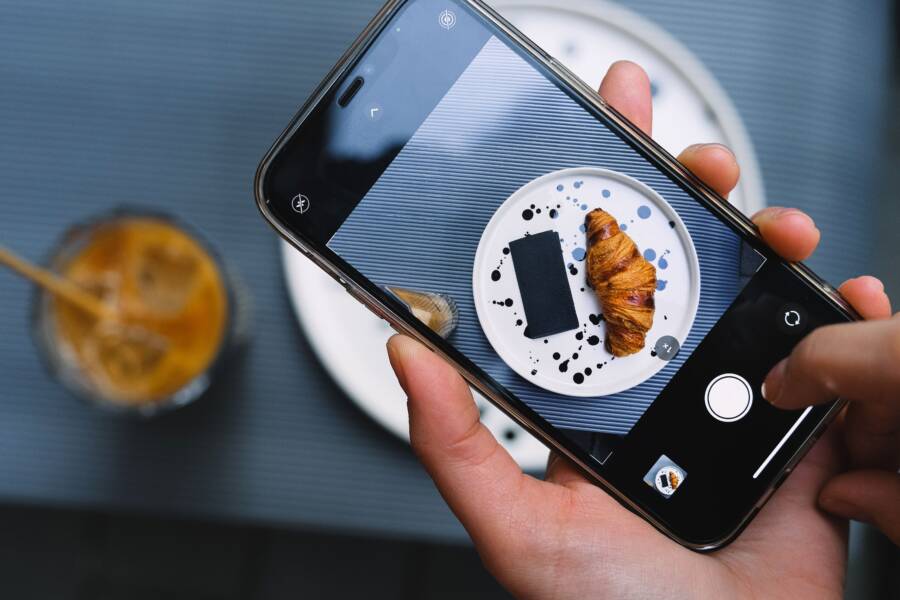
To eliminate glare on receipts, position your light source at a forty-five degree angle to the side rather than directly above the document. This simple adjustment prevents harsh reflections from bouncing off glossy paper into your camera lens.
Clear photos ensure your optical character recognition (OCR) software extracts accurate data every time. You will save significant time on expense tracking and avoid the frustration of manual data entry errors.
Using your smartphone correctly turns a tedious chore into a quick, reliable habit. Follow these steps to improve your image quality and workflow starting today.
Why Glare Ruins Your Scans and How to Prevent It
Glare creates washed-out patches on your receipt, which hides important details like the total amount or date. When your smartphone camera faces a reflective surface, the light bounces back directly into the sensor. This blast of brightness blinds the OCR software, making it impossible for the application to read the text accurately. Understanding how light interacts with paper helps you capture clean images every time.
Understanding Light Sources and Reflection
Direct overhead lighting is the primary cause of poor scans. Many kitchen or office lights point straight down at your table, which creates a high-intensity beam. When this light hits the glossy finish of a receipt, it reflects like a mirror. This reflection is the main reason for those white blobs on your digital copies.
The angle of incidence describes how light hits a surface and bounces away. If the light source hits the paper at a sharp angle relative to your lens, the glare goes straight into your camera. By changing the position of the paper or the light source, you alter the path of that reflection. You want the light to hit the paper and bounce away from your smartphone rather than into it. Placing your paper slightly to the side of the direct beam breaks the cycle of harsh reflection.
Finding the Perfect Indirect Lighting Setup
You can eliminate glare by moving your receipt into softer, diffused light. Natural light from a nearby window is often the best choice for scanning. Windows provide a large, wide source of illumination that avoids the pin-point intensity of a ceiling bulb. Place your document on a flat surface near the window but avoid standing directly between the light and the paper. This keeps your own shadow out of the frame while maintaining enough brightness for a clear photo.
If you must scan indoors under artificial light, turn off your smartphone flash immediately. Built-in camera flashes are too close to the lens and cause immediate, unavoidable reflections on any semi-gloss receipt paper. Instead, try these steps to improve your scan quality:
- Move away from the direct path of overhead fixtures to reduce contrast.
- Tilt your phone slightly to find an angle where the reflection disappears from the viewfinder.
- Use a piece of matte-finish paper as a background to soak up stray light.
- Increase the distance between your device and the receipt to let the camera focus without catching light glare.
Diffused light is your best friend when capturing documents. If the room feels too dark, turn on a lamp but point it at a wall rather than directly at the receipt. The reflected light that bounces off the wall creates a smooth, even glow that illuminates your target without the harsh glare that ruins data extraction.
Step-by-Step Guide to Perfect Document Captures
Achieving high-quality images of your receipts requires a mix of steady physical positioning and smart use of your device software. A clear scan minimizes the time you spend correcting errors during data entry. By stabilizing your smartphone and aligning the document properly, you create the best possible conditions for your app to extract accurate text.
Positioning Your Smartphone for Maximum Clarity
The most common cause of blurry or skewed receipts is a shaky hand or an incorrect camera angle. You must hold your smartphone parallel to the document to prevent perspective distortion. If the lens is tilted, the bottom or top of the receipt appears stretched, which confuses the text recognition software.
Find a stable surface to rest your hands or elbows to keep the device steady. Hold the phone directly above the center of the receipt while keeping the screen plane level with the paper.
Manage the focus manually if your camera struggles to lock onto the fine print. Tap the area on your screen where the numbers are most visible before you trigger the shutter. This action forces the lens to prioritize the sharp edges of the text rather than the background. Maintain a consistent distance from the receipt, typically around six to eight inches, to allow the autofocus enough room to function accurately.
Utilizing Grid Lines and Cropping Tools
Most smartphone camera apps include a grid overlay feature to help you keep your photos straight. Enable this setting in your camera preferences to display vertical and horizontal lines across your screen. These lines provide an instant reference to ensure your device stays perfectly level with the edges of your receipt.
Align the edges of the paper with the grid lines before you take the photo. If the receipt is crooked, rotate the paper on your desk until it runs parallel to the lines on your display.
Use the following practices to refine your results:
- Turn on the grid lines in your system camera settings.
- Center the receipt within the frame while aligning the paper edges with the outer grid squares.
- Leave a small margin of empty space around the edges to ensure no critical data gets cut off during the processing phase.
- Apply the cropping tools inside your scanning app immediately after the capture to remove distracting backgrounds.
Cropping the image removes shadows or surface textures that fall outside the receipt edges. Clean edges help the optical character recognition tool isolate the relevant numbers and text more efficiently. Consistent use of these built-in tools results in a polished, readable digital file every time you process an expense.
Essential Tips for Handling Difficult Documents
Scanning crumpled or faded receipts requires specific physical handling to get a readable digital copy. A clear image depends on the surface quality of your paper, so preparing the document before you activate your smartphone camera is a necessary step. Small adjustments to how you present the receipt to the lens often prevent the need for retakes.
Flattening Receipts for Better Scanning
Paper often arrives in your wallet folded, wrinkled, or tightly curled. These imperfections cast tiny shadows that distort text and confuse character recognition software. You can fix this by smoothing the document before you begin.
A simple, non-destructive way to flatten a receipt is to place it under a heavy book for a few minutes. The weight distributes evenly across the fibers and relaxes the creases. If you are in a rush, run the edge of a credit card firmly along the back of the receipt while holding it against a flat desk. Avoid using heat like an iron, as many receipt papers use thermal ink that turns completely black when exposed to high temperatures.
Adjusting Exposure and Contrast Settings
Your smartphone camera often tries to balance light for the entire room, which leaves your receipt looking too dark or washed out. You can take control of this by using the manual exposure tools found in your camera interface.
Before you snap the photo, tap the center of your screen where the text appears. A small sun icon or a slider usually pops up next to the focus square. Drag this slider down if the white background of the receipt looks too bright or washed out. This lowers the exposure, which helps the camera capture the contrast between the black ink and the paper. If the receipt is faint, increase the exposure slightly to make the numbers stand out.
These manual adjustments change how the sensor reads light levels on the specific surface of your document. By locking the exposure on the receipt rather than the surrounding desk, you produce a sharp, high-contrast image. This helps your expense software read the total, date, and merchant name without errors.
Choosing the Right Scanning Tools and Apps
Selecting the correct tool changes how you manage your expenses. Your smartphone is a capable scanning device, but the software you pair with the hardware determines your output quality. Many users find the native camera app sufficient for simple tasks, while dedicated scanning apps offer automated features that save time during heavy workloads.
Comparing Built-in Camera Features Versus Scanning Apps
Your device camera is often the fastest way to capture a single receipt. Most modern phones include high-resolution sensors that perform well in good lighting. If you only need to store an occasional image for personal records, the native camera app avoids the need for extra software installations. You simply point, shoot, and save the image to your cloud storage or photo gallery.
However, dedicated scanning apps offer specific benefits when you process multiple receipts. These applications automatically detect the edges of your document and adjust the perspective to ensure a flat, top-down view. They also apply filters that increase the contrast between ink and paper, which makes text much easier for automated systems to read.
Consider these differences when selecting your method:
Use the native camera app if you have a single, flat, well-lit receipt and just need a quick visual record. This method remains the best choice for minimal storage needs. On the other hand, a dedicated app is more effective if you handle large batches of receipts or require searchable PDF files.
Dedicated scanners often include optical character recognition, or OCR, which extracts numbers and merchant names directly from the image. This feature is a major time-saver because it populates expense reports without manual typing. If you manage recurring business expenses, the small cost of an advanced scanning app pays for itself through time saved. Test both methods with a few different receipts to see which workflow fits your specific needs.
Conclusion
Clear document scans rely on managing light and distance. You prevent glare by positioning your smartphone at an angle, which directs reflections away from the camera lens. Using diffused light or natural window brightness also produces better results than harsh overhead bulbs.
Consistency in your scanning process turns a repetitive task into an efficient habit. You save significant time by removing the need for repeated attempts or manual data corrections later. Start setting up your workspace today to capture clean and accurate records every time.