She Pressed Play on a Strange Audio Track and Within Days Her Financial Reality Started Shifting in Ways She Could Not Explain
>>> See How It Works <<<

Every ping pulls your attention away from the moment and into a stream of tiny distractions. This is digital noise, the background chatter that makes it hard to focus and stay calm. You’ll notice it in a phone that always seems to be listening, waiting for the next alert.
By 2025 most people get around 46 push notifications a day, and that constant interruption drains focus, wastes battery, and uses data. The more alerts you receive, the more your phone lights up, the more you lose track of what matters. That constant buzz can leave you feeling overwhelmed and stressed.
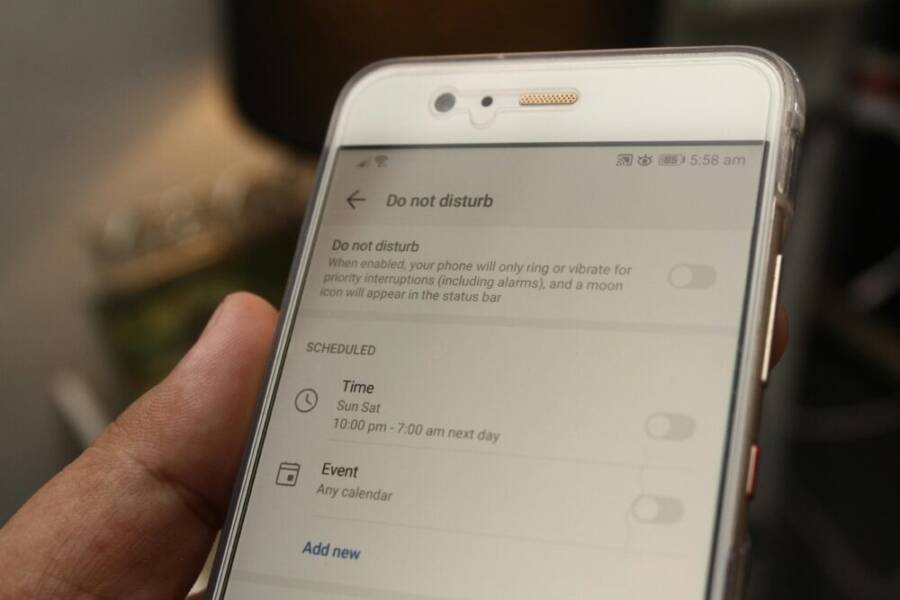
Four practical moves you can start today. First, trim the noise by turning off nonessential alerts and keeping only the essentials visible. Second, use a focus schedule or Do Not Disturb mode to create quiet times during work or study. Third, tidy up app permissions and notification channels so important messages come through without the rest. Fourth, batch check apps and limit background data so your screen stays calm between moments of use. These steps help your smartphone stay helpful, not hectic.
Identify the sources of digital noise on your phone
Digital noise comes from many small sources that steal your attention. When you know where the interruptions originate, you can cut them down effectively. This section breaks down the main culprits and how to tame them on both iOS and Android devices. Think of your phone as a steady drumbeat in your day—you want a few clear rhythms, not a loud, constant pounding.
There Is a Frequency That the Wealthiest Families Have Used for Generations and Most People Will Never Know It Exists
>>> Open the Door <<<

Notifications from apps
App notifications are the most visible form of digital noise. They can arrive as banners, sounds, or badges, sometimes all at once. The goal is not to stop all alerts but to control which apps are allowed to interrupt you and how they do it.
- Understand the types: notification banners pop up on screen, alerts require action, and badges show unread counts. Each type can be tuned separately.
- Quick wins: mute nonessential apps, silence them during focus periods, and avoid sounds for everything but urgent messages.
How to adjust on iOS:
- Open the Settings app, tap Notifications, and select an app. Turn off Allow Notifications or customize alerts by style and sounds.
- Consider using Focus modes to silence everything except essential apps during work or study times.
How to adjust on Android:
- Open Settings, choose Apps & notifications, then Notifications. Pick a recently sent app and tailor its notification type.
- Restrict interruptions by choosing quiet hours or enabling Do Not Disturb during key moments.
Practical tip: start with messaging and social apps. They typically generate the most frequent interruptions. If you need to stay reachable, allow calls and essential work apps while keeping others quiet. For additional guidance on tailoring app alerts, see how to manage push notifications on iOS and Android. For step by step details, you can consult Android Help and Apple support pages.
Relevant resources:
- Android: Control notifications on Android
- iPhone: Change notification settings on iPhone
- General guidance: How to Turn On or Off App Notifications on Mobile Phone
Calls, videos, and system sounds
Voice calls, video playback, and keyboard clicks all add to the noise floor. Even small sounds can interrupt your focus and pull you back to the screen.
- Lower the overall volume without losing essential cues: keep ringer at a sensible level, but mute nonessential sounds like media in the background.
- Limit vibration and haptics during work periods to reduce tactile interruptions.
- Separate ringer from media volume so you can keep important alerts audible while muting background sounds.
How to adjust on iOS:
- Settings > Sounds & Haptics. Use the volume slider to set ringer and alert volumes, and turn off Change with Buttons if you don’t want the ringer to follow the physical volume buttons.
How to adjust on Android:
- Use the volume buttons, then open Settings > Sound > Volume to balance Ringtone, Media, and Notifications.
- Disable vibration for nonessential alerts by adjusting vibration settings in the same menu.
Tip: consider enabling silent or Do Not Disturb during deep work blocks and only allowing critical calls or messages through. If you need a quick way to confirm the current ringer behavior, you can check the quick access panels on both platforms for a glance at volume and vibration settings.
Push alerts vs banners
Push alerts and banners are two ways devices deliver real time information. They differ in urgency and visibility, and understanding the distinction helps you reduce distraction.
- Push alerts are real-time messages that require attention or immediate action.
- Banners are lightweight, often transient prompts that show briefly at the top of the screen.
To reduce distraction:
- Opt for quieter delivery options when possible, such as disabling some banners or delaying nonurgent alerts.
- On iOS, you can tailor how alerts appear via Notification settings for each app and use Focus modes to filter what arrives.
- On Android, adjust notification channels to decide which types of alerts can appear as banners or silently in the notification shade.
Applying these controls helps you keep critical information accessible without turning your phone into a constant buzz machine. If you want a quick starter guide, review the articles on how to manage push notifications on iOS and Android, and explore how to customize banner styles for less intrusive delivery. For a deeper look, see resources covering notification management on both major platforms.
Master notification control with Focus and Do Not Disturb
Tuning notifications isn’t just about silence. It’s about reclaiming your time and your attention. Focus modes and Do Not Disturb (DND) let you steer when and how alerts arrive, so you can work, rest, or enjoy personal time without constant interruptions. The goal is to create a small set of reliable, quick-switch setups you can rely on every day.
 Photo by Daniel Moises Magulado
Set up Focus or Do Not Disturb by activity
Create distinct modes for work, sleep, and personal time, then switch between them in a couple of taps. On iPhone and Android, you can predefine what to silence and which apps can still alert you during each mode.
- Work mode: silence nonessential apps, allow calls from favorites or a specific list, and keep calendar alerts if you need reminders.
- Sleep mode: mute almost everything except people you designate as important, and disable calls unless you choose a trusted contact option.
- Personal time: let a few family or close-friend apps through, but mute work emails and social feeds.
How to set up on iPhone:
- Open Settings > Focus, then choose a Focus (Do Not Disturb, Personal, or Work) or create a new one.
- Customize allowed notifications, and set a schedule if you want it to activate automatically at certain times or locations.
- Use the Home Screen and Lock Screen options to further filter what you see during that Focus.
How to set up on Android:
- Open Settings > Modes (or Do Not Disturb) and create custom modes, like Work, Sleep, and Personal.
- For each mode, pick which apps are allowed to interrupt and whether alarms bypass the mode.
- Schedule modes for specific times or activities, so you don’t have to switch manually every day.
Tips for fast switching:
- Add Focus quick actions to the Control Center on iPhone and the Quick Settings panel on Android.
- Name your modes clearly to avoid confusion during a busy day.
- Sync with routines: a morning Focus for deep work, a post-lunch Break mode, and an evening Wind-Down mode.
Helpful resources:
- Apple: Set up a Focus on iPhone
- Apple: Turn on or schedule a Focus on iPhone
- Android: Limit interruptions with Modes & Do Not Disturb on Android
Create per-app notification rules
Fine-grained controls keep only essential apps interrupting you during focused moments. You can set exceptions for calls and messaging apps while blocking others.
Steps you can follow:
- Identify your core apps: messaging, calendar, email, and any tools you rely on for work.
- For each app, decide whether to allow banners, sounds, or badges during Focus or DND.
- Add exceptions for calls and messaging apps if staying reachable is important.
iPhone guidance:
- Settings > Notifications, pick an app, then adjust Allow Notifications, notification style, banners, sounds, and badges.
- In Focus settings, choose which apps and people are allowed to send you alerts during that Focus.
Android guidance:
- Settings > Apps & notifications > Notifications, select an app, and tailor its alert behavior.
- In Modes or Do Not Disturb, specify which apps and contacts can interrupt you, and whether calls from favorites come through.
Platform-specific tips:
- For iOS, use Focus to filter both app alerts and certain people.
- For Android, use notification channels to separate urgent and nonurgent alerts, then apply DND rules accordingly.
Concrete examples:
- Allow essential work apps to send banners in Work mode but mute everything else.
- Permit calls from teammates during Sleep mode only if you have a trusted contact list.
- Keep calendar alerts active across modes to avoid missing important events.
External resources:
- Apple support articles on Focus setup and scheduling
- Google support on Do Not Disturb and Modes
Use notification summaries and quiet hours
Batching non-urgent alerts reduces the mental load. Notification summaries gather less critical messages and surface them at designated times. Quiet hours ensure your phone stays calm during key moments.
How to implement on both platforms:
- Determine a two to four times during the day when you’ll check non-urgent alerts.
- Enable notification summaries (iOS) or schedule quiet hours (Android) to push or delay non-urgent alerts.
- Keep urgent alerts active, such as messages from important people or calendar reminders.
Benefits you’ll notice:
- Improved focus during deep work blocks.
- Reduced battery usage from constant screen refreshes.
- Lower stress from a predictable notification rhythm.
Step-by-step for iPhone:
- Open Settings > Notifications > Scheduled Summary and turn it on.
- Choose which apps participate in the summary and the delivery window.
- Use Focus to suppress nonessential alerts during work or sleep.
Step-by-step for Android:
- Open Settings > Notifications > Do Not Disturb > Schedule.
- Create a quiet hours window and select which apps can still interrupt you.
- Tailor exceptions for calls or messages from favorites or work contacts.
Why this helps:
- You still receive important updates, but in a controlled cadence.
- Your battery benefits from fewer wakeups and less screen lighting.
- You gain mental clarity by not reacting to every ping.
External sources:
- Android: Limit interruptions with Modes & Do Not Disturb on Android
- Apple: Focus and notification management guidance
- Additional reading on Do Not Disturb settings on Android communities
Images and visual tips:
- A screenshot or diagram showing a typical daily schedule with Work, Sleep, and Personal Focus blocks can help readers visualize switching between modes.
End of section note: Set up simple, reliable modes first. You can fine-tune later, but the real win is having a quick, consistent way to reclaim your attention whenever you need it. For more hands-on steps and visual guides, refer to the official support pages linked above.
What If the Only Thing Between You and the Life You Deserve Is a Hidden Wealth Code Waiting to Be Activated
>>> Open the Door <<<

Tidy up apps and background activity
A calmer phone surface starts with fewer apps vying for attention in the background. When apps wake up to refresh data, play a tiny notification chorus, or auto-start after a reboot, they drain battery, chew data, and pull your focus away from what matters. In this section, you’ll learn practical, step by step ways to trim background activity, keep essential tasks humming, and reclaim control over your home screen. We’ll cover both iOS and Android so you can apply these changes on the devices you use every day.
Limit background data and auto-start
apps can wake up behind the scenes to fetch updates, sync data, or run tasks. That activity keeps your phone busy even when you aren’t using it, which means more battery drain and more chances of interruptions. The goal is to restrict what happens in the background while preserving essential functionality.
- Why it matters
- Background activity shortens battery life and uses data you pay for, especially if you have a data cap.
- It also increases the chance of disruptive notifications at inopportune moments.
- You still get timely information from apps that truly need to update when you open them.
- iPhone and iPad (iOS)
- Go to Settings > General > Background App Refresh. Turn Background App Refresh off for apps that don’t need it, or set it to Wi-Fi only to limit cellular data use.
- For high-priority apps, leave Background App Refresh on but limit the frequency of updates. This keeps critical apps current without constantly waking the device.
- If you want to further control data usage, enable Low Data Mode in Settings > Cellular > Cellular Data Options (or Settings > Mobile Data > Data Options) and apply it system-wide or per-app as needed.
- Consider using Focus modes to silence updates during deep work while still allowing essential apps to refresh when you choose.
- When updating apps, keep only trusted apps allowed to refresh in the background.
- Android
- Open Settings > Apps & notifications > See all apps, and select an app. Tap Background restriction or Background restrictions (wording varies by vendor) and switch off background activity for nonessential apps.
- For a broader approach, go to Settings > Network & internet > Data usage > Data saver and enable it. This reduces background data for apps in general.
- Use Data usage > Background data to permit or restrict background data on a per-app basis.
- Some devices offer a global Battery optimization or Adaptive battery feature. Enabling these helps prioritize foreground tasks and reduce background wakeups.
- You can also enable Do Not Disturb during focused work periods to prevent nonessential background activity from drawing attention.
- Quick wins you can apply today
- Disable auto video previews and auto-play on social apps if available.
- Turn off background fetch for news or weather apps when you don’t need real-time updates.
- Use Focus or Do Not Disturb to prevent background activity from becoming a distraction during work.
Helpful resources
- Apple: Refresh content in apps you’re not actively using on iPhone
- Apple: Use Low Data Mode on iPhone and iPad
- Android: Background execution limits and restrictions on starting activities from the background
Images
 Photo by Brett Jordan
Uninstall or disable unused apps
An uncluttered device starts with fewer apps competing for space, memory, and attention. Identify rarely used apps and remove them or disable them so they don’t wake up your phone for updates or background tasks.
- Why this helps
- Fewer apps means fewer background processes, fewer notification channels to manage, and less temptation to open new content.
- It also reduces the chance of accidental taps that pull you into a rabbit hole of apps you don’t actually need.
- How to identify candidates
- Look at screen time or battery usage to see which apps consume energy with little value.
- Consider apps you signed up for once but no longer rely on.
- iPhone (iOS)
- Long-press an app on the Home Screen until it wiggles.
- Tap the minus icon or choose Remove App, then pick Delete App to remove it from the device.
- If you prefer not to delete, you can offload the app: Settings > General > iPhone Storage > select the app > Offload App. This frees space but preserves documents and data.
- Use the App Library to hide apps from the Home Screen without uninstalling.
- Android
- Open Settings > Apps & notifications > See all apps.
- Tap an app you rarely use and choose Uninstall or Disable. Disabled apps don’t run and won’t appear on the app drawer.
- If you’re unsure, you can re-enable later from the same menu.
- Some devices offer a “Disable” option for preinstalled apps; use it when available to reduce clutter and background activity.
- Quick checks
- Review your most recently installed apps and remove any that aren’t essential to your daily routine.
- Create a one-page pantry list of apps you actually use, then compare against your Home Screen layout.
Nice-to-know links
- Delete apps on Android
- Remove or delete apps from iPhone
- Manage unused apps on Android
Images
- If you decide to illustrate this section, consider a photo showing a clean Home Screen with folders and a few essential apps. Photo by Brett Jordan can be reused if relevant.
Organize apps and home screens to reduce clutter
A tidy layout reduces the urge to check every notification. When essential tools are easy to reach and everything else sits out of sight, your smartphone becomes a focused device rather than a buzzing hub. Let’s build a simple, sustainable arrangement you can stick with.
- Start with a minimal main screen
- Put only the must-have apps you use daily on the primary Home Screen.
- Place work, calendar, messaging, and a few essential tools within a quick reach.
- Use folders to create a clean grid
- Group related apps in clearly labeled folders, like “Work Tools,” “Media,” or “Productivity.”
- Keep folders compact; a 4×4 grid with a few folders often feels calmer than a sea of icons.
- Create a secondary space for less-used apps
- Reserve a separate Home Screen or a dedicated App Drawer (Android) for apps you seldom open.
- This reduces the temptation to tap on new notifications while you’re focused.
- Design with a deliberate rhythm
- Use a consistent color or icon style to help your brain recognize where to look.
- Avoid cramming too many apps into a single area; white space signals rest and reduces cognitive load.
- Practical layout tips
- Keep the top row for your most important apps and the bottom dock for rhythm and timekeeping tools like calendar, clock, and reminders.
- Use one large, unmistakable icon for a core task (e.g., a task manager) rather than several small icons that could distract you.
- Quick-start example
- Home Screen: Calendar, Messages, Email, Clock
- Folder A: Communication (Slack, Teams, WhatsApp)
- Folder B: Productivity (Notes, To-Do, Reminders)
- Folder C: Media (Music, Podcast, Camera)
- App Drawer or Second Screen: Social media, Games, Shopping
- How this reduces interruptions
- Fewer icons on the main screen means fewer chances to trigger impulse checks.
- Clear grouping makes it easier to find what you need without scanning everything.
- A calm layout reduces visual noise, which supports better focus during work or study.
Images
- If you have a clean, well-organized home screen, include an image showing a simple layout with folders. Photo by Brett Jordan can be used to illustrate the concept.
External references and further reading
- Organize the Home Screen and App Library on your iPhone
- Delete apps on your iPhone or iPad
- How to manage unused apps on Android devices
End of section note Start with a small, repeatable layout you can keep consistent each day. The point is to make focus frictionless, not to chase perfection. For deeper visuals and step-by-step examples, explore the linked Apple and Android guidance and examples from users who have decluttered their home screens.
Images for the section
- Photo by Brett Jordan (if used in this section, credit remains the same)
External links
- Apple support on organizing the Home Screen and App Library
- Google support on managing unused apps on Android
- Additional guidance on deleting apps on iPhone and Android
Note: The links provided above appear in context with the guidance and are included to help readers implement the steps quickly.
Improve audio and environmental noise
Audio is a silent antagonist to focus. Even when notifications are muted, the soundscape around you can pull attention away from the task at hand. By tuning built in features and using a few practical habits, you can keep your phone from becoming a constant source of noise. This section covers actionable steps to reduce both on device audio noise and ambient environmental noise so you can stay in the zone longer.
There Is a Frequency That the Wealthiest Families Have Used for Generations and Most People Will Never Know It Exists
>>> Open the Door <<<
Use built in noise cancellation and mic features
Noise cancellation and smarter mic settings are your first line of defense. They reduce the background chatter that makes calls tiring and videos harder to follow. When you switch on these features, your voice comes through more clearly while less ambient noise slips in.
On iPhone:
- Start a call or use a voice app.
- Open Control Center by swiping down from the top right (or up from the bottom on older models).
- Tap the Mic Mode (or Mic) icon and select Voice Isolation to suppress background noise or Wide Spectrum to capture more of the environment if you’re in a quiet setting and want natural sound. Note: Voice Isolation is designed to keep your voice front and center, especially in noisy places.
On Android:
- Begin a call with the Phone app.
- Tap the three dots for More options during the call.
- Enable Noise cancellation or look for a similar mic enhancement in your device’s call settings. Tip: The exact labels can vary by maker (Pixel, Samsung, OnePlus, etc.). If you don’t see a toggle in the call menu, check the main Settings app under Sound or Accessibility.
Quick comparison:
- iPhone provides per call mic modes directly in the control surface, making it easy to switch on the fly.
- Android tends to offer a single toggle in the Phone app, with broader mic enhancements appearing in accessibility or sound settings.
If you want deeper guidance, review Apple’s Mic Mode guide and Google’s noise reduction options for the Phone app. These official sources walk you through the available controls on current devices and show how to test the difference in real time.
Supporting reads:
- Apple: Mic Mode and noise control on iPhone
- Google: Noise reduction in the Phone app
Control volume and media playback noise
Balancing volume helps you stay engaged without being jolted by loud clips or calls. Fine tuning the sound levels across ringer, alerts, and media creates a calmer listening environment and reduces the chance you’ll be pulled out of focus by sudden spikes.
What to do:
- Set a comfortable baseline volume for media. Test in both quiet and noisy spaces, aiming for a level you can sustain for extended periods without fatigue.
- Keep ringer and media volumes separate. This lets you hear important alerts without media noises intruding on your focus.
- Enable volume limits where available. This protects your hearing and keeps predictable sound levels.
iPhone specifics:
- Settings > Sounds & Haptics > Headphone Safety lets you enable Reduce Loud Sounds and set a decibel cap.
Android specifics:
- Settings > Sound & vibration > Volume to balance Ringtone, Media, and Notifications.
- Some devices offer a per-app or per-device limit; check Developer options for options like Absolute volume or per-app caps.
Media playback and calls tips:
- Pause videos when you’re deep into a task. If autoplay is on, disable it in the app’s settings.
- For calls in noisy spaces, use wired or Bluetooth headphones with built in noise suppression. If you must use the speaker, move to a quieter spot and keep the mic closer to your mouth.
- When watching videos, try lowering the overall volume and using captions to stay in the loop without loud audio surges.
Useful resources:
- Apple headphone safety and volume controls
- Android sound and volume management
Ambient sound measurement and third party tools
Knowing the surrounding noise level helps you decide when to switch on noise cancellation or activate a Focus mode. A quick read of decibels can save your concentration during long study sessions or busy commutes.
What to look for in tools:
- A straightforward decibel meter with real time readings.
- Clear charts or history so you can spot patterns across the day.
- A readable interface that doesn’t distract you from the task.
Popular options you can try:
- NIOSH Sound Level Meter (iOS and Android): A trusted source for accurate readings. Use it to gauge your baseline and track spikes.
- Decibel X (iOS): Offers detailed graphs and a history log to see how noise changes over time.
- Sound Meter (Android): A simple, real time dB gauge suitable for quick checks.
How to use effectively:
- Place the phone’s microphone at roughly ear height and point toward the likely noise source.
- Start with a quiet room baseline (around 30-40 dB). Move to your typical work area and note the average level.
- If readings routinely exceed 55-60 dB during work, consider enabling Noise Cancellation or turning on a Focus mode during those periods.
- Log readings at different times to identify noisy patterns (morning chatter, hallway traffic, coffee shop background hum).
Practical tips:
- Use ambient readings to decide when you need to switch modes, not just for one-off moments.
- Pair measurements with a quick manual check of your device’s NC or Focus settings to confirm the change has the desired effect.
- Remember to balance accuracy with convenience; you don’t need perfect data to make smarter noise choices.
Where to learn more:
- Official support pages for each app often explain calibration and interpretation steps.
- Look for guides that describe how to translate dB readings into actionable device settings.
Putting it into practice
- Start by enabling noise cancellation on calls when you’re in a noisy environment.
- Set a daily routine where you check ambient noise once in the morning and once during a mid day break to decide if you should switch to a Focus mode.
- Use a simple measurement routine: one quick decibel read, adjust settings, and repeat only if the space changes.
By combining built in mic controls, thoughtful volume management, and ambient noise readings, you create a calmer audio environment. Your focus gains a reliable ally in your pocket rather than a relentless source of disruption. For further exploration, tap into the official guidance from Apple and Google, and try a trusted decibel app to start your noise awareness journey.
External references and further reading
- Apple support on Mic Mode and noise control
- Google support on noise reduction features in the Phone app
- Decibel X app page (iOS)
- NIOSH Sound Level Meter app page
- Android volume and sound settings guides
If you’d like, I can tailor this section to align even more closely with your style guide or add Taiwan-centered examples to reflect local usage patterns.
Conclusion
Reducing digital noise comes down to four practical strategies: trim notifications, master Focus or Do Not Disturb, limit background activity, and tidy up apps and home screens. Each move cuts interruptions, conserves battery, and strengthens focus on your smartphone. Try one or two changes this week, such as silencing nonessential apps during deep work or batching nonurgent alerts, and watch your daily flow improve. A quieter phone delivers clearer thinking, quicker decisions, and a more productive day.
She Pressed Play on a Strange Audio Track and Within Days Her Financial Reality Started Shifting in Ways She Could Not Explain
>>> See How It Works <<<