Are you tired of scrolling circles that never end because your apps keep piling up on your home screen? The simple move of organize social media apps on your phone can change how you use your device every day. This guide helps you reclaim time and focus without sacrificing access to what you love.
In this introduction we’ll cover a practical approach you can apply now. You’ll learn how a clean layout reduces distractions, saves battery life, and streamlines your smartphone usage. By the end you’ll have a clear plan to keep your most used apps within easy reach and your feed in check.
Think of this as a step by step routine you can repeat weekly. You’ll start with a quick audit of what you really need, then set up folders, prioritized docks, and notification controls. The goal is to make your phone a tool that serves you, not the other way around.
Declutter Your Home Screen for Quick Access
Your home screen acts as the gateway to your smartphone. A cluttered one buries your favorite social media apps under layers of icons. Clear it now to grab Instagram or TikTok with one tap. This approach cuts swipe time and keeps your focus sharp.
Decide What Belongs on the Main Screen
Pick your top apps with care. Limit them to 3-5 you open every day, like Facebook, WhatsApp, or Twitter. Place these in your dock at the bottom or the top row for instant reach.
Start with a quick scan. Ask yourself which social apps you check first each morning. Those earn prime spots. Move the rest off screen. On most smartphones, long-press an icon and drag it away.
Follow this simple outline to choose wisely:
- Daily essentials only: Stick to apps you launch at least once a day. For social media fans, that’s often messaging and feed scrollers.
- Dock priority: Reserve the dock for cross-device needs, such as phone calls, camera, and your main social hub.
- Top row backup: Use this for secondary picks if your dock fills up. Test for a week; swap if needed.
This setup mirrors a clean desk. You see tools right away and ignore the rest. Check out how one user streamlined their Android home screen for real-world proof.
Create Simple Folders for Quick Reach
Folders group apps without hiding them deep. Aim for 2-3 broad ones to avoid new clutter. Name them short and clear, like “Social”, “Messages”, or “Media”.
Drag one icon onto another to start a folder. Add your picks inside. For social media, toss Instagram, Snapchat, and LinkedIn into “Social”. Keep it to 5-7 apps max per folder. Too many defeats the point.
Here are smart naming tips:
- Use one word where possible: “Chats” beats “All My Messaging Apps”.
- Color code if your phone allows: Blue for social, green for media.
- Place folders mid-screen: Easy thumb access without crowding edges.
You’ll swipe less and smile more. Folders act like desk drawers, tidy yet handy. See these steps to organize your entire phone for folder ideas that stick.
Hide or Remove Apps You Rarely Use
Swipe away icons you tap once a month. This clears space while apps stay installed and ready. Long-press and select “Remove from Home Screen” on iOS or Android. No delete needed.
Your app drawer holds the hidden crowd. Access it with a swipe up or down. It’s perfect for seldom-used social tools like old forum apps.
Hide instead if you prefer. iOS lets you remove apps from view entirely. Android offers similar options in settings. But double-check first. Don’t bury a key app by mistake; search the drawer if lost.
This method shrinks visual noise fast. Think of it as archiving files, not trashing them. For more on decluttering without losing access, try these proven tactics. Your smartphone feels fresh, and social apps shine.
Group Apps by Function to Find What You Need Fast
Grouping apps by function helps you locate what you need in seconds. When you organize by purpose, you reduce guesswork and cut the time you spend tapping through screens. This approach keeps your most used tools within easy reach while still leaving room for breadth. Below are practical ways to implement this strategy and keep your phone tidy.
Separate Social, Work, and Media Apps
Clarity comes from clear categories. Create three core groups on your home screen or in dedicated folders: Social, Work, and Media. This separation helps you jump between priorities without sifting through unrelated apps.
- Social: Instagram, TikTok, Facebook, Twitter, WhatsApp
- Work: Email, collaboration tools, project apps
- Media: Photo editors, music, video players, streaming apps
Placement matters. Put these folders in a logical zone that matches how you use your phone. A common pattern is to keep Social and Work in the middle rows, with Media toward the edges for quick access when you’re idle or relaxing. If you want a quick read on real-world organization, check out How to Organize Your Phone from Get Organized HQ for practical folder ideas and methods.
For further inspiration and validation, see how a real user streamlined their home screen on Android, which demonstrates moving from clutter to focused groups and faster access. The approach mirrors the separation of burdens and boosts efficiency. This kind of structure makes it easy to grab Instagram or your workspace tools in one tap.
External references:
- How to Organize Your Phone — https://getorganizedhq.com/how-to-organize-your-phone/
Label Folders Clearly and Use Consistent Names
Keep folder names short and consistent to reduce cognitive load. Short labels prevent your eyes from scanning too long a list, which speeds up recognition. Aim for 1 or 2 word names that instantly convey purpose.
Naming ideas you can start with:
- Social
- Chats
- Media
- News
Consistency matters. If you call one folder Social, don’t mix in “Social Apps” later. Use the same structure across all folders and devices so you know where to look every time. You can also adopt a simple color cue, like blue for social and green for media, to speed recognition on a small smartphone screen.
If you want concrete examples of folder layouts that work, this practical guide shows how to organize a broader range of apps in a way that sticks. It’s a quick read and easy to translate to your own setup.
External references:
- 7 Easy Steps to Organize and Declutter Your Phone — https://www.thehappyspaceco.com/blog/7-easy-steps-to-organize-and-declutter-your-phone/
Use Visual Cues Like Emojis or Colors
Visual cues help your brain recognize folders at a glance. Emojis on folder names or color-coding your folders can shave precious seconds off every action. On a small screen, a splash of color or a familiar emoji becomes a quick mental shortcut.
- Emojis: 🗂️ for folders, 📷 for media, 💬 for messages, 💼 for work
- Colors: assign a distinct color to each category if your device supports it
Keep visuals subtle and consistent. A lot of people overdo color coding and end up with a chaotic look that slows them down. Start simple: one emoji and a single color per category, then adjust as you get used to the layout.
For a straightforward reference on broader “how to organize your phone” ideas, you can explore other practical methods that emphasize quick recognition and ease of use.
External references:
- How to Organize Your Phone — https://getorganizedhq.com/how-to-organize-your-phone/
- 6 Tips to Organize Apps on Your Home Screen — https://www.aarp.org/personal-technology/how-to-organize-apps/
Note: The sections above are designed to slot into your article without duplicating existing content. If you’d like, I can tailor the folder names to suit specific apps you use most often.
Boost Efficiency with Shortcuts and Widgets
To move faster with social apps, you don’t need more apps – you need smarter access. Shortcuts and widgets make your most-used actions and feeds appear at a tap, not after a sequence of swipes. This section covers practical ways to implement widgets that deliver live updates and quick posts, plus shortcuts that handle routine tasks in a snap. Think of it as building a miniature command center on your phone that keeps you in the flow.
Widgets for Live Updates and Quick Posts
Widgets give you at-a-glance information and one-tap actions right from your home screen. They’re especially useful for social apps because you can preview your feed, compose a post, or set up a reminder without opening the full app.
- Social feed preview: A widget can show your latest posts or a curated selection from accounts you follow. This helps you decide whether you want to engage, without launching the app.
- Quick compose: Tap-to-compose widgets enable you to draft a post in seconds. Some widgets support text, image attachments, and basic formatting, so you can capture thoughts quickly before they fade.
- Calendar reminders for posts: If you run campaigns or want to maintain a consistent posting schedule, a widget can surface upcoming posts or reminders. This keeps your content plan visible and actionable.
- Enable widget access for your most-used apps: On iOS and Android, you can grant widget access to apps you rely on daily. This reduces the time spent navigating to each app and streamlines your workflow.
Real-world proof exists across platforms. For example, home screen widgets are widely adopted to provide bite-sized controls and live updates, boosting daily efficiency. See discussions around social feed widgets and their setup across devices for practical ideas you can adapt (easily accessible with a quick search). If you’re curious about the broader impact of widgets on usability, a detailed look at another domain shows how home screen widgets boost overall app usability and quick access.
- Quick reading: Boost your app’s usability with home screen widgets
- Practical setup and ideas: Fox News tech hacks for home screen widgets
Tip: Start small with one or two widgets for your most active apps. Review after a week and adjust which actions live on the home screen. It’s all about eliminating friction so you can post, reply, or check updates without thinking about where to tap next.
Shortcuts for Common Actions
Shortcuts reduce friction by turning multi-step tasks into single taps. On most phones, you can create shortcuts that start a new post, reply to a message, or save a post for later with a few keystrokes or a long press.
- Start a new post in one tap: Create a home screen shortcut that opens your preferred social app’s composer with the cursor already in place. Some apps support prefilled templates, so a single tap can insert hashtags or prompts.
- Reply to messages quickly: A shortcut can open a conversation and ready the reply field so you can craft a response without navigating through menus.
- Save posts for later: When you come across something you want to revisit, a save-to-read-later shortcut lets you stash it in a folder or reading list inside the app.
- Setting up shortcuts on many phones: The exact steps vary, but the pattern is similar:
- Long-press the home screen and choose “Add shortcut” or “Add to home screen.”
- Pick the action from the list of supported apps.
- Customize the label and icon so it’s instantly recognizable.
- Place shortcuts where your thumb naturally rests, typically near the dock or in the bottom row.
- Consistency is key: Use the same shortcut names across devices. This makes your muscle memory faster and reduces mis-taps.
Shortcuts pay off when you combine them with widgets. For example, a quick post shortcut paired with a “new post” widget minimizes the steps from idea to publish. If you want a ready-made blueprint, many users share their favorite shortcut setups online. Take a moment to adapt those templates to your own apps and posting habits.
Smart Search and App Libraries on Your Phone
A strong search experience and an organized app library are often the silent heroes of quick access. When you can find the right app in a moment, you skip endless swiping and scrolling, keeping your mind focused on the task.
- Smart search: Most phones offer a system-wide search that crawls apps, contacts, messages, and content. Train it to surface your social apps first so you can open a chat, post, or feed in seconds.
- App libraries and drawers: Many devices group apps into an alphabetized or category-based library. This keeps your home screen clean while still giving you fast access to everything you own.
- Reducing home screen clutter: By relying on search or a compact app drawer, you reduce the number of icons on your main screens. Fewer icons mean less cognitive load and quicker action when you want to post or respond.
- Quick setup tips:
- Pin your most-used apps to the top of the app drawer for instant reach.
- Enable a system-wide search widget if your device supports it, so you can start typing to locate both apps and content.
- Use consistent naming for app shortcuts and folders to improve recognition and speed.
If you want a practical read on organizing a broader set of apps, check out guides that walk through setting up folders and libraries in a few simple steps. For example, a recent guide highlights easy methods to create a clean, responsive home screen that emphasizes speed and clarity.
- Helpful overview: 7 Easy Steps to Organize and Declutter Your Phone
By combining widgets, shortcuts, and smart search, you create a responsive environment where your social media tools are always within reach. This triad reduces friction, keeps notifications manageable, and makes your phone feel like a well-tuned instrument rather than a cluttered toolbox. If you’re ready to tailor this setup, start with one widget and one shortcut, then expand as you confirm what saves you the most time.
External references and additional inspiration:
- Real-world widget usage and setup ideas: Social Media Widgets and Quick Access
- Broader widget benefits and implementation: Boost your app’s usability with home screen widgets
- Practical home screen organization reference: How to Organize Your Phone
If you’d like, I can tailor these sections to highlight specific apps you use most, or adjust the tone to be more concise for a quick-read format.
Protect Your Time: Notifications and Privacy
Managing notifications and protecting your privacy are essential for keeping your day focused. When your phone lights up with every app, your attention splinters and your time slips away. This section helps you tighten controls without sacrificing access to what you want.
 Photo by Daniel Moises Magulado
Tighten Notification Settings to Reduce Noise
Not all alerts deserve your attention. Start by turning off banners for low-priority apps and enabling quiet hours at night. Banners interrupt you mid-task; without them, you regain focus and control over when you check updates.
- Prioritize essential alerts: messages from family, critical work apps, and security notifications.
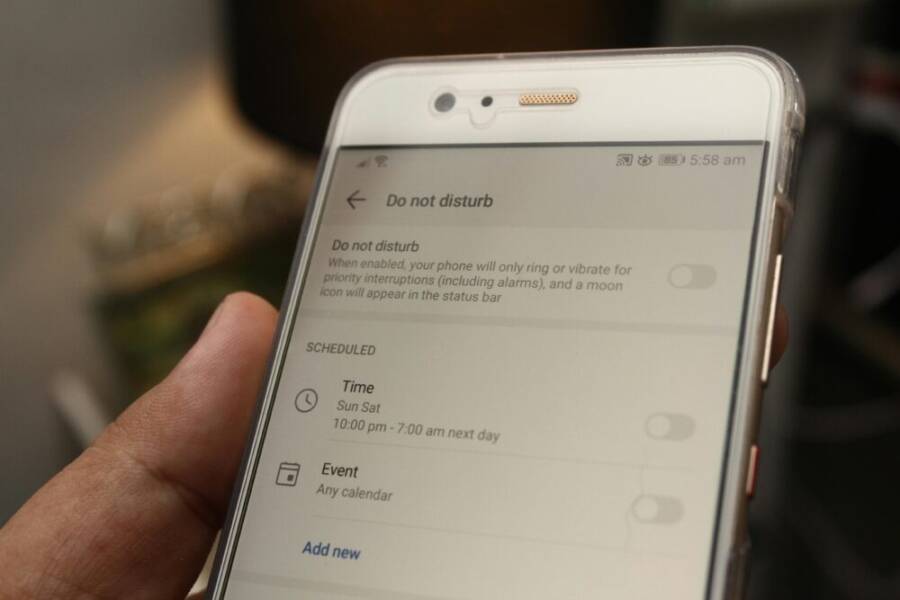
- Use Do Not Disturb or Focus modes during deep work or meetings.
- Schedule quiet hours to protect sleep and morning routines.
A practical approach is to create a short list of apps that can still wake you up or require immediate action, and silence the rest. You’ll notice fewer interruptions, more steady progress, and a calmer phone experience. For further ideas on trimming distractions, see resources like how to manage smartphone notifications to reduce digital distractions and reclaim time, which discusses focusing and silencing nonessential alerts.
- External reference: https://www.snapshotbrainfuel.com/en/magazine/lifestyle/how-to-manage-smartphone-notifications-reduce-digital-distractions
Review App Permissions Regularly
Permissions often creep in ways you don’t notice. Periodically review what data each app can access and remove anything unnecessary. This not only protects privacy but also reduces the potential for background activity that drains battery and slows your device.
- Check location, contacts, microphone, and photo access for each social app.
- Revoke permissions that don’t directly support the app’s core function.
- Revisit settings after app updates, as permissions can shift.
Regular audits keep your data in your hands and reduce the risk of data leakage. If you’re unsure where to start, a quick audit template can guide you through essential checks without overwhelming you. For a broader take on reclaiming control over your digital life, see resources that outline practical steps to reclaim attention and privacy online.
- External reference: https://www.nirandfar.com/hack-back-phone-distractions/
Privacy Tips for Social Apps
Your privacy is made in layers. Start with strong authentication, limit data sharing, and keep a clean privacy footprint. These practices pay off in faster sign-ins, fewer data leaks, and better account control.
- Enable two-factor authentication on all accounts that support it.
- Use a strong, unique password for each service and consider a reputable password manager.
- Review and limit data sharing, such as location history, ad personalization, and contact syncing.
- Update privacy settings on each platform to control who can see your content and what data is collectable.
A simple privacy routine can be done in minutes and compounds over time. For deeper reading on practical privacy habits for social apps, explore reliable guides and tools that help you understand what data apps collect and how to minimize exposure.
- External reference: https://www.nirandfar.com/hack-back-phone-distractions/
Images and additional visuals can anchor these concepts. Consider placing a relevant photo after the intro to visually cue readers into the topic of notifications and privacy, such as a screenshot of Do Not Disturb settings or a privacy dashboard on a phone. Photo credits apply where images are used.
Maintenance Plan to Stay Organized
A solid maintenance plan keeps your phone setup fresh and fast. By dedicating a few minutes each month, you prevent clutter from creeping back and you preserve quick access to your favorite social apps. This section outlines a practical, repeatable routine you can adopt right away. Think of it as a lightweight personal optimization ritual for your smartphone that pays off in smoother mornings and less distraction during the day.
Set a Monthly Quick Audit
A quick audit should take about five minutes and focus on three نkeystone checks: top apps, folders, and app names. Start by identifying which apps you actually use daily and which ones have become occasional visitors. Move rarely used apps out of your main screens or dock so they don’t crowd your go-to setup. Clean up folders by trimming contents to keep each folder tight and purposeful.
- Review top apps: Confirm the 3–5 you open most often and ensure they sit where your thumb lands naturally.
- Clean up folders: If a folder feels crowded, split it or relocate one or two apps to a separate category.
- Update names: Shorten or standardize folder and app names to speed recognition.
A focused five-minute audit keeps your system lean without sacrificing access to the tools you rely on. When in doubt, compare your current layout to last month’s, and note any changes that improved speed or reduced friction. To see a real-world approach to decluttering and monthly maintenance, explore a practical Digital Declutter Checklist that covers phone, email, and storage upkeep. It’s a handy reference for keeping your digital space tidy: https://organizeeveryroom.com/digital-declutter-checklist/
If you want a quick visual cue on how others approach this, a concise guide on organizing a phone offers clear steps you can copy to your routine: https://www.hgtv.com/lifestyle/clean-and-organize/how-to-organize-your-phone
Update Layout After New Apps or Features
Phone ecosystems evolve. New apps arrive and existing ones frequently change how they look or behave. Stay flexible and be ready to reorganize when needed. A balanced approach avoids overhauling your entire screen every time there’s a minor update.
- Reassess after major app updates: If an app adds a new feature, consider moving that feature to a more accessible spot.
- Adjust the dock as your routine shifts: You may start using a new app more often, so give it a prime position.
- Maintain a lightweight zone system: Keep a middle row for work-related tools and a side area for entertainment or leisure apps.
The goal is not perfection but efficiency. You want a layout that responds to how you use your phone now, not how you used it six months ago. For a simple, proven approach to weekly or monthly layout tweaks, see the practical guidance in a quick-read that shows how to organize a broader set of apps: https://thehappyspaceco.com/blog/7-easy-steps-to-organize-and-declutter-your-phone/
If you’re curious about a real-world example of adapting layouts with new apps, another good resource walks through moving from clutter to a focused group setup: https://www.thehappyspaceco.com/blog/7-easy-steps-to-organize-and-declutter-your-phone/
Keep a Simple Record of Your System
Documenting changes is as important as making them. A short note about what you adjusted and why helps you reproduce the same results later. This doesn’t have to be elaborate—just a few bullet points saved in a note app or a tiny journal works well.
- What changed: Note the new layout decision, such as “moved X to Dock” or “created Y folder.”
- Why it matters: Write a line on how the change improved access or reduced friction.
- When to revisit: Set a reminder for the next audit date and briefly reflect on whether the change still holds value.
A minimal record keeps you from losing track as apps update, and it helps you spot patterns that improve your workflow. If you want a ready-made template to guide your monthly notes, you can adapt a simple format like:
- Month: [e.g., April]
- Changes: [brief list]
- Result: [short note on impact]
- Next step: [one action for the next cycle]
For a broader take on keeping a tidy phone and maintaining your setup, a compact guide offers actionable steps you can borrow: https://www.thehappyspaceco.com/blog/7-easy-steps-to-organize-and-declutter-your-phone/
If you prefer a focused, printable approach, a digital declutter checklist can serve as a quick reference during your audit: https://organizeeveryroom.com/digital-declutter-checklist/
Tips to maximize the value of your maintenance log:
- Keep it tiny and readable. Use one line per change.
- Include dates to track progress over time.
- Review the log during each monthly audit and adjust as needed.
By keeping a simple record, you create a runnable blueprint you can reuse whenever your app lineup shifts. It’s a small habit with a big payoff in consistency and speed. For readers who want a structured framework, a short guide on easy phone organization offers direct, repeatable steps you can apply across devices: https://www.thehappyspaceco.com/blog/7-easy-steps-to-organize-and-declutter-your-phone/
End each maintenance cycle with a quick sanity check: if your top apps still load in under a second and your most-used icons stay in reach, you’ve nailed the plan for another month. A tiny routine, big impact, and a clear path to keeping your social apps accessible when you need them most.
Conclusion
Organizing social media apps on your phone boosts efficiency and reduces distraction, letting you focus on what matters. The core steps—declutter the home screen, group by function, and add shortcuts plus widgets—create a repeatable routine you can use every month. This approach makes your smartphone a tool that serves you, not the other way around. Try the plan this week by auditing your top apps, fixing the dock for quick access, and adding one widget or shortcut. If you test it, drop a note on what saved you the most and which tweak you’ll keep.