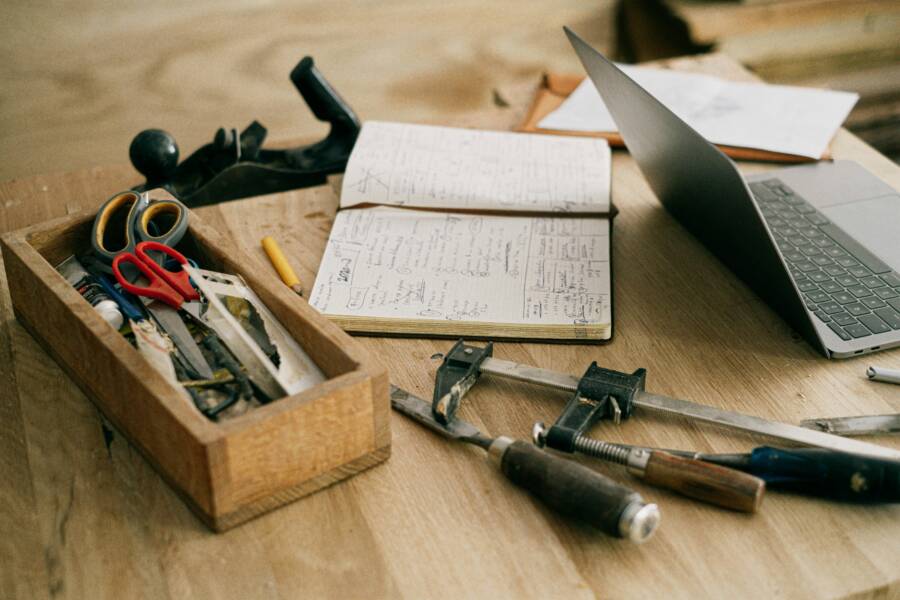
Getting home improvement projects documented clearly saves time on the next build and makes repairs a breeze. When you have a simple, repeatable system for photos and notes, you can track decisions, materials, and costs without digging through clutter. This guide shows you how to set up a central hub, keep a clean folder structure, and connect every photo to relevant notes. Start by building a small, reliable system today. Create your first project folder and snap a few files to begin.
Set up a simple, scalable storage system for Home Depot project photos and notes
The core idea is straightforward: one central hub that holds photos, notes, receipts, and plans, plus a clear folder structure that you can grow over time. Consistency matters because it makes search fast and future projects easy to reuse. A simple cloud plus local backup plan keeps everything safe and accessible from any device.
What you gain by a scalable system
- Quick access across devices so your partner, contractor, or family can review progress.
- Fast search using keywords, dates, and project names.
- Reusable templates and folder maps that reduce setup time on new projects.
- A reliable record of decisions, measurements, and costs for budgeting and repairs.
A practical folder map helps you stay organized. Here’s a starter layout you can customize:
Projects
- Decking
- Photos
- Notes
- Receipts
- Plans
- Kitchen Remodel
- Photos
- Notes
- Receipts
- Measurements
- Painting
- Photos
- Notes
- Receipts
- ColorSwatches
Choose a cloud storage approach that fits your life, then add a local copy. For example, store everything in a main cloud drive like Google Drive or OneDrive and back up to an external hard drive every month. That way you can access files from a phone on the go and still have a safe, offline copy. The goal is simple: fast access now and reliable recovery later.
A central hub and a predictable naming system make future projects faster
Pick one main location for all files. If you start on a computer, keep everything in a dedicated folder that syncs to the cloud. If you rely on a mobile device, use the same structure inside the cloud app. The key is to keep files in one place so you never have to hunt.
Quick tips to keep everything in one place
- Use a single top-level folder named after your project type or the main project.
- Create subfolders for photos, notes, receipts, and plans.
- Regularly check that new items land in the right place and use consistent naming.
Sample folder map to copy or adapt
Projects
- Decking
- Photos
- Notes
- Receipts
- Plans
- Cabinet Upgrade
- Photos
- Notes
- Receipts
- Measurements
Naming consistency matters
A simple, repeatable naming scheme helps you sort and search fast. A robust format is:
ProjectName_YYYYMMDD_Stage_Description.jpg
- ProjectName: Decking, KitchenRemodel, etc.
- YYYYMMDD: the date you saved the file
- Stage: planning, shopping, assembly, finish, or cleanup
- Description: brief tag like “railing_photo” or “before_measured”
Notes about dates in file names
Dates appear in the file names but not in the folder titles. This keeps folder names clean and makes it easy to sort by date when you open a folder. If a file has multiple dates, choose the most relevant one for the file and keep it consistent across all photos of that stage.
Capture and organize Home Depot project photos
Photographing at key stages creates a rich record you can revisit for repairs, renovations, or sharing with family. Keep the photo count reasonable. Too many shots can overwhelm later search; a focused set saves time and stays useful.
What to photograph at each project stage
Planning
- Plans and sketches, product labels, and list of chosen materials
- A photo of the space before work begins
- A shot of the project scope board or notes from the planning app
Shopping
- Receipts and product boxes with labels
- Photos of selected materials in the store or on the job site
- Close-ups of measurements or cut plans you’ve written
Assembly
- Installed components from multiple angles
- Close-ups of joints, fasteners, and finishes
- A mid-project progress photo to show the build status
Finish
- The completed area from doorways and corners
- Before and after comparisons side by side
- Any remaining touch-up tasks or final measurements
Cleanup
- A tidy space with everything packed away
- Photos of small details that matter later, like sealant lines or trim gaps
A short checklist for each stage helps you stay on track
- Planning: capture plans, labels, and the material list
- Shopping: save receipts and product IDs
- Assembly: photograph key connections and measurements
- Finish: take a wide shot and a close look at details
- Cleanup: document final dimensions and any notes for future repairs
Tips for high quality, searchable images
Good lighting makes a big difference. Natural light works well, but avoid harsh direct sun that creates strong shadows. Stand steady, or use a simple tripod or a stable surface to minimize blur. Focus on the area you want to remember, not every inch of the project. Add captions with a quick note about what’s shown, and use keywords like the product name, color, and room.
Make photos easy to find later
- Add short captions with a few relevant keywords
- Use tags for quick filtering, such as “measured,” “color swatch,” or “installed”
- Use OCR to pull details from receipts and save the text in the notes field
- Attach a metadata note to each image with the project name and stage
Organize notes and measurements
Notes and measurements go hand in hand with photos. A clear, brief template helps you capture essential details without friction. Connect notes to photos so you have context when you review later.
Templates that speed up note taking
One-page project log
- Project name
- Date
- Room or area
- Key measurements (length, width, height)
- Materials list with quantities and costs
- Major decisions and color choices
- Next steps and a rough timeline
A quick receipts and costs sheet
- Item, store, cost
- Date purchased
- Receipt image reference
- Leftover materials and estimated usage
A simple decisions journal
- Decision title
- Rationale in 2–3 bullets
- Alternatives considered
- Impact on budget and timeline
Link notes to photos for full context
Pairing notes with photos creates a complete story. A straightforward approach works well:
- Include the photo file path or a photo reference ID in the note
- Create an index page that lists each photo with a short caption and its corresponding note
- Use a simple linking system in your cloud folder: Photo_References.xlsx or a Notion page that shows the image with notes inline
A basic index page helps you zoom to context fast. If you keep a single, searchable index, you can review a project’s entire history in minutes rather than hours.
Tech tools and daily habits for organizing photos and notes
Choose tools that fit your routine and devices. The goal is to save time, not add steps. A light, consistent workflow keeps you moving.
Apps and workflows that fit how you work
- Google Drive or OneDrive: central place for files, easy to share, reliable search
- Notion: lightweight database pages for notes, templates, and photo galleries
- Apple Notes: quick capture on iPhone or iPad, great for fast ideas and measurements
- Photos app or Finder on Mac: organize photos by albums and tags
- Quick starter kit: create a Projects folder in your cloud, add subfolders for Photos and Notes, make a simple one-page project log, and save a few receipts
Regular review routines to keep it tidy
- Weekly 15 minute check: file new items, tag photos, and verify naming conventions
- Monthly archive: move finished projects to Archive, prune outdated items, and confirm backups
- Backup reminder: ensure both cloud and local copies exist, test a restore occasionally
A steady routine is the backbone of a long lasting system. When you set a weekly cadence, the work stays manageable and the data remains reliable.
Images that fit the guidance

Photo by Mikhail Nilov
Conclusion
- Set up a single hub for all files. Keep Photos, Notes, Receipts, and Plans in one place.
- Use a consistent folder structure and a repeatable file naming system for easy search.
- Capture at key stages and add captions with keywords to improve findability.
- Tie notes to photos with a simple reference system and an quick index page.
- Build a simple routine: weekly review, monthly archiving, and regular backups.
Start small and build up. Finish a single project, then add a second with the same structure. Before long, your library of Home Depot projects will be organized, searchable, and ready for whatever the next build brings. Quick start checklist:
- Set up hub: one main folder in the cloud plus a local backup
- Name files consistently: ProjectName_YYYYMMDD_Stage_Description.jpg
- Snap photos at planning, shopping, assembly, finish, and cleanup
- Create a one-page project log and a simple receipts sheet
- Review weekly and archive finished projects
This approach keeps your home projects clear, helps with budgeting, and makes future improvements a lot simpler.