She Pressed Play on a Strange Audio Track and Within Days Her Financial Reality Started Shifting in Ways She Could Not Explain
>>> See How It Works <<<

Feeling overwhelmed by endless alerts? Muting stressful content on your phone can restore calm and focus in minutes. This guide shares simple, practical steps that work on both iPhone and Android, so you can cut noise without missing what matters, from urgent calls to important messages. You’ll learn quick tweaks like prioritizing notifications, setting quiet hours, and using app filters so your smartphone serves you, not the other way around.
Identify the main stress points that flood your phone
Feeling overwhelmed by constant notifications is common in today’s connected world. This section breaks down the top stress points that flood a typical smartphone and shows practical, plain-language steps to regain calm. You’ll learn how to trim the noise without missing what truly matters, so you stay informed, not frazzled.
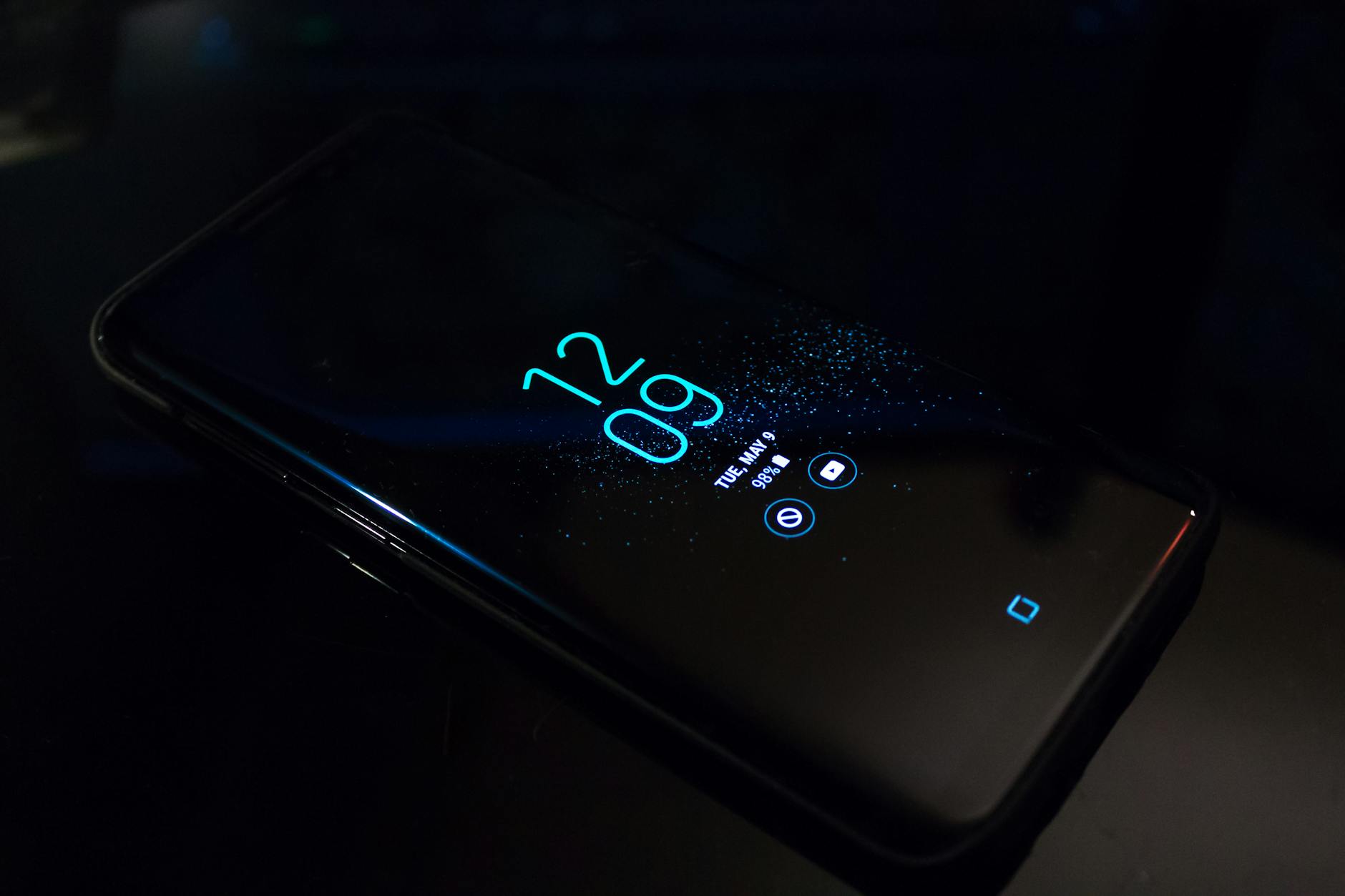 Photo by Noah Erickson
News alerts and breaking headlines on your smartphone
Constant headlines create a sense of urgency that trains your brain to react to every ping. The feeling isn’t just mental; it drives stress hormones and interrupts focus. To cut back without missing critical information, start by prioritizing sources and setting boundaries around how you receive breaking news.
There Is a Frequency That the Wealthiest Families Have Used for Generations and Most People Will Never Know It Exists
>>> Open the Door <<<

- Tune government and emergency alerts thoughtfully: You may still want Amber Alerts or severe weather notices, but you don’t need every push for every outlet. On iPhone, you can manage these in Settings > Notifications, then scroll to Government Alerts and toggle types on or off. On Android, use Settings > Notifications to control alert channels and reduce chattering apps. These settings let you stay informed about real emergencies while reducing noise from less critical outlets. Learn more on Apple’s support page and the Android guidance from Google.
- Set a curated news routine: Decide a specific time window to check headlines instead of constant monitoring. Use a single, trusted source for quick briefings and reserve your device for alerts that truly matter.
- Mute or silence non-urgent feeds: If you rely on multiple news apps, mute push alerts from those that overwhelm you. You can still open the apps when you’re ready to read.
If you want a broader read on how people handle alert fatigue, a recent article explains the tradeoffs and practical outcomes of turning down notifications. For context on platform differences, you can review official guidance from Apple and third-party sources as needed.
Links to useful resources:
- Apple support: About emergency and government alerts on iPhone
- Android help: Control notifications on Android
- Article: How to disable emergency alerts on Apple and Android phones
Social media buzz and messaging noise on your smartphone
Social feeds are designed to pull you in. Each match of like, comment, and share pulls your attention away from more important tasks. Muting feeds and muting topics helps reclaim time without severing connections.
- Muting feeds and snoozing posts: On most platforms, you can silence a creator’s posts for a period or mute the entire feed. This prevents new posts from showing up in your main timeline while keeping the account intact for when you want to revisit it.
- Unfollowing or muting topics: If a topic keeps resurfacing, mute that topic or unfollow accounts that repeatedly clutter your feed. You can usually manage these options in the app’s settings under following, notifications, or topics.
- Platform differences:
- iPhone: Focus modes and notification settings apply across apps.
- Android: App-specific notification controls give you granular options such as sound, vibration, and lockscreen visibility.
- Across platforms, you can also use “Do Not Disturb” during focused work periods and re-enable after.
A practical takeaway is to treat social apps like channels you visit, not the source of all your information. If you’re curious about how others handle this, some users report success with stopping non-essential notifications and visiting the apps on a scheduled basis instead of real time.
Work prompts and reminders during downtime
Work alerts often intrude when you switch off. These prompts can steal downtime, fragment family moments, and sap energy for personal projects. The goal is to separate work life from personal life while staying responsive to essential duties.
- Disable non-urgent work notifications: If a project app sends frequent reminders that aren’t time-sensitive, mute its notifications or set a quiet period.
- Schedule work hours on your device: Use a calendar or Focus/Do Not Disturb mode to block work alerts during evenings and weekends. For example, set a nightly “Work Off” window and only allow calls or messages from important contacts.
- Create a clear boundary backstop: Use a dedicated personal profile or focus mode that signals your status to colleagues. A simple message like, “I’m off work after 6 pm. I’ll respond tomorrow morning,” can set expectations and reduce interruptions.
If you want more structured guidance on reducing distraction, you can explore practical strategies through widely shared tips on muting alerts and separating work from personal life. It helps to remember that you control the notification stack, not the other way around.
Helpful resources and further reading:
- Guidance on notification management for iPhone and Android from official sources
- Real-world tips for reducing social media notification overload
- A balanced look at Focus modes and how people use them in daily life
End of section.
Mute with built in controls on iPhone and Android
Muting stressful content on your phone starts with clear, practical steps you can take right now. On iPhone and Android, built in controls help you quiet the noise without losing track of what truly matters. In this section, you’ll learn how to set up Focus modes on iPhone, configure Do Not Disturb for Android, and fine tune app and notification behavior so your phone serves you instead of pressuring you.
Photo by Noah Erickson
iPhone Focus modes and Do Not Disturb
iPhone Focus modes give you a powerful way to tailor notifications by context. You can create custom Focus profiles that allow only the people and apps you deem essential to break through, then schedule them to activate automatically. Here’s a straightforward way to set this up.
- Create a custom Focus: Open Settings > Focus, tap the + icon, and choose Custom. Name it something intuitive like “Work Time” or “Quiet Evening.”
- Choose allowed people and apps: In the Focus settings, tap People to allow calls from favorites or repeated calls, and tap Apps to permit only certain apps to send alerts.
- Add filters so only what matters passes through: Focus filters let you fine tune what content is visible. For example, you can keep Messages from a select group available while blocking others.
- Schedule or automate: Tap Add Schedule or Location to trigger the Focus at specific times or when you arrive at a location. You can also tie Focus to a Sleep schedule for a calmer night routine.
- Manage notifications when Focus is on: Decide whether banners appear, sounds play, or the lock screen shows alerts. You can keep silent notifications while preserving critical help, like calendar reminders or urgent messages.
Practical note: Focus modes apply across apps, so you don’t have to mute individually every app. If you ever need to revert, a single tap turns Focus off. For deeper guidance, Apple’s official setup guide walks you through creating and managing Focus modes step by step. You can also review additional tips on refining Focus to fit daily routines.
- Learn more about Focus setup on iPhone: https://support.apple.com/guide/iphone/set-up-a-focus-iphd6288a67f/ios
- Turn Focus on or off and schedule it: https://support.apple.com/guide/iphone/turn-a-focus-on-or-off-iph5c3f5b77b/ios
- A broader look at Focus modes: https://medium.com/macoclock/master-apples-focus-modes-the-only-guide-you-ll-ever-need-a6014916e2aa
For a quick visual, imagine Focus as a doorway you choose. When you step through, only the invitations you want to accept can enter. Everything else rests outside until you decide to reopen the door.
Android Do Not Disturb and per app alerts
Android offers granular control through Do Not Disturb and per app notification channels. This makes it easy to silence everything except the people or apps you care about most. Here is how to get precise with your muting.
- Activate Do Not Disturb quickly: Swipe down to open Quick Settings and tap Do Not Disturb. You can choose a standard profile or customize one for your needs.
- Mute by app or category: In Settings > Notifications, you can mute specific apps or adjust categories within each app to stop sounds and banners.
- Set notification channels: Many apps use channels for different types of alerts. For example, you can mute marketing messages while keeping important messages visible.
- Override Do Not Disturb when needed: If you still want occasional alerts during a tight focus window, you can enable exceptions for specific people or apps.
- Schedule routines: Create a daily quiet period, then let essential communications slip through during emergencies or time sensitive moments.
These steps reduce interruptions while keeping you responsive to urgent matters. For deeper details, official guidance from Google covers how to control notifications on Android across devices, including handling locks screen alerts and default behaviors.
- Control notifications on Android: https://support.google.com/android/answer/9079661?hl=en
- Limit interruptions with Modes & Do Not Disturb on Android: https://support.google.com/android/answer/9069335?hl=en
- About notifications on Android developers: https://developer.android.com/develop/ui/views/notifications
A helpful analogy: Do Not Disturb on Android is like putting a waitlist on your door. Only the calls you designate as important get in, while everything else waits in a queue until you’re ready.
Fine tune with app specific settings
Both platforms empower you to tailor notifications for individual apps. This is where the fine tuning pays off: you can mute entire apps or allow a few high priority alerts, depending on your daily needs.
- On iPhone: Open Settings > Notifications, select an app, and adjust its alert style, sounds, badges, and whether notifications appear on the lock screen. If you only want to silence non-urgent apps during Focus, rely on Focus filters to keep essential apps audible.
- On Android: Settings > Notifications > [App Name] lets you control channel behavior, including sound, vibration, and whether apps show on the lock screen. You can group apps by importance, so critical tools like messaging or calendar remain visible while others stay quiet.
- Why this helps: App-specific controls stop the flood of routine alerts from becoming stress signals. You stay in control of your attention, not the other way around.
If you’re unsure where to start, begin with the apps that push the most notifications. Mute or adjust them one by one, then observe how your focus improves. The goal is a lean notification stack that supports your day rather than derails it.
For further reading on the mechanics of app level controls, you can explore official resources that detail notification settings and how they interact with system wide modes.
- iPhone notification management overview: https://support.apple.com/guide/iphone/notifications-ios
- Android notification channels and settings basics: https://support.google.com/android/answer/9536314?hl=en
- Android developer guidance on notifications: https://developer.android.com/guide/topics/notifications/notification-overview
Images and practical examples are a great way to see how these settings work in real life. If you’re looking to tailor this for readers who prefer visuals, consider pairing your guide with screenshots showing each step. The goal is a hands-on, repeatable approach readers can copy to their devices.
Key takeaways from this section
- Create context-based Focus or Do Not Disturb profiles to silence noise while keeping essential alerts.
- Use scheduled triggers and location awareness to automate quiet periods.
- Manage per app notifications to prevent familiar culprits from derailing your day.
- Test changes during a low-stress period to fine tune what matters most.
By setting up Focus on iPhone and Do Not Disturb on Android, you gain a reliable control layer. Your phone becomes a tool that supports your rhythm, not a source of constant tension. If you want, you can test a one-week routine and adjust as you observe which alerts still pull your attention away from what you’re doing.
Optional resources and further reading:
- Apple Focus and schedule guidance
- Android Do Not Disturb and notification controls
- Best practices for managing notifications across devices
Images credit and citations
- Photo by Noah Erickson, on Pexels
End of section.
Shape what reaches you by tuning content and feeds
Your phone mirrors your attention. When you shape what reaches you, you reclaim focus, reduce stress, and keep the stuff that actually matters in view. This section lays out practical, copy-ready steps to tailor news alerts, social feeds, and email prompts so your device becomes a tool for calm, not a constant distraction. You’ll learn concrete tweaks you can apply today on both iPhone and Android, plus a few trusted resources to deepen your setup.
Limit news and topic alerts
News alerts can flood your screen with urgency, even when you don’t need immediate updates. The goal is to stay informed on what matters while trimming the noise. Start by prioritizing sources and setting clear boundaries around how you receive breaking news.
- Curate sources carefully: Pick a small number of trusted outlets, and keep their alerts to essential updates only. This reduces the chance of a constant stream of headlines pulling you into your phone.
- Use alert controls in the apps: Many news apps let you customize alerts by topic, region, or severity. Turn off noncritical categories and keep only the ones that truly matter.
- Set a daily news window: Check headlines at a specific time, rather than letting notifications ping throughout the day. Pair this with a single quick brief to stay informed without becoming overwhelmed.
- Disable non-urgent push alerts: If you receive frequent breaking news alerts from multiple apps, mute or silence those that aren’t time sensitive. You can still open the apps when you want a deeper read.
- Take advantage of emergency channels with care: Government and weather alerts can be lifesaving, but you don’t need every outlet’s alert. Limit to the most relevant channels and leave others off to avoid chatter.
If you want a deeper guide on dialing back alert noise, official support pages offer straightforward steps for iPhone and Android. For a quick how-to, explore Apple’s guidance on emergency alerts and Google’s Android notification controls.
- Apple support: About emergency and government alerts on iPhone
- Android help: Control notifications on Android
- Article: How to disable emergency alerts on Apple and Android phones
A useful path to explore further is to reset your default news routine. This keeps you informed while you stay in control of when and how you see updates.
What to expect after you tune in:
- Fewer pings, more breathing room.
- News you actually want seen in time.
- A clearer sense of what deserves your attention versus what is noise.
Tame social feeds and content streams
Social feeds are built to capture attention, not to serve your workflow. Muting keywords, hiding posts, and pausing or unfollowing accounts can dramatically reduce stress while preserving connections you value.
-Mute or snooze posts from troublesome creators: Most platforms let you silence a creator’s posts for a specified period or mute the entire feed. This keeps the account intact for when you want to revisit it, but stops the daily deluge. -Mute topics or keywords: If a topic keeps resurfacing, mute it or block specific words. This helps prevent repeated posts from triggering stress. Look for muted words or phrases in your privacy or content settings. -Unfollow strategically: If an account consistently adds friction, unfollow or mute it. You don’t have to sever ties completely; you can keep a lighter connection and still review content when you choose. -Platform-specific approaches:
- iPhone users gain cross-app focus options through Focus modes and broader notification settings.
- Android users benefit from granular per-app notification controls that let you suppress sounds, vibrations, or lock-screen alerts for specific feeds.
- Across platforms, Do Not Disturb or Focus can be activated during work or deep-work blocks to maintain momentum.
A practical takeaway is to treat social apps as channels you visit, not the primary source of all information. For readers who want more ideas, there are profiles of how people manage social feeds to protect focus and sanity.
- Resetting feeds to reduce junk: How to manage unwanted content in your feeds
- Filtering hate speech and confusing clips: A practical guide to cleaner social viewing
- Mute words on Twitter/X and similar features on other platforms: A quick how-to
Tips you can try today:
- Start with the apps that push the most notifications. Mute or adjust them one by one and observe the effect on your focus.
- Use topic muting for recurring themes you don’t want in your feed.
- Consider a scheduled check-in with social apps rather than real-time scrolling.
If you want more hands-on examples, check out guides that explain muting words and refining feeds across major platforms. These resources provide step-by-step settings you can follow.
- How to reset your social media algorithms to improve feed quality
- How to mute words on Twitter/X and similar controls on other networks
- How to mute and block words across Twitter, Facebook, and Instagram
Manage emails and push prompts
Emails and push prompts are often the hardest to escape because they feel perpetual. The aim here is to pause marketing and nonessential newsletters while keeping the door.open for important messages.
- Create smart rules for email: Use filters to separate marketing emails from essential messages. Send marketing emails to a separate folder or mark them as promotions to keep them out of your primary inbox.
- Schedule email checks: Limit email review to two or three times a day. Use focus modes to dim inbox distractions during work blocks.
- Pause recurring prompts: Turn off or limit recurring prompts from apps that push nonurgent notifications. If a reminder is useful, you can enable it only during certain hours.
- Block nonessential newsletters: Unsubscribe from newsletters you rarely read. If you must keep some, set them to a digest format or a weekly summary.
- Manage push prompts on your devices: Use app settings to disable nonessential push notifications. Many apps offer quiet hours or reduced alert levels.
For deeper guidance, professional sources demonstrate best practices for handling marketing emails and newsletter fatigue. You can also consult official help pages for iPhone and Android notification controls to apply the same principles across devices.
- Apple support: Notification management overview
- Android support: Notification channels and settings basics
- Android developer guidance on notifications
Practical tip: Keep a short list of essential prompts that must reach you in real time, such as security alerts, calendar reminders, or urgent messages from trusted contacts. Everything else can wait for a designated check-in time.
In addition to the steps above, you can pair this approach with a routine that fits your life. For example, set a daily 20-minute window to handle mail and prompts, then silence the rest of your day. This creates a cadence that protects focus but remains responsive when something truly matters.
External resources for further reading and practical guidance:
- Guidance on notification management for iPhone and Android from official sources
- Real-world tips for reducing social media notification overload
- Best practices for managing notifications across devices
Key takeaways from this section
- Use topic and keyword muting to reduce stress signals in feeds.
- Unfollow or mute accounts that consistently raise your stress level.
- Apply app-specific settings to maintain essential alerts while quieting the rest.
- Establish a predictable routine for checking emails and prompts to protect focus.
By shaping how your content reaches you, you reclaim control over your day. A purposeful approach to alerts lets you stay informed without turning every ping into a distraction. If you want, you can test a one-week routine and adjust as you observe which alerts still pull your attention away from what you’re doing.
External links for quick setup and deeper reading:
- Apple News and notification settings overview
- Google Android notifications control guide
- Tips for reducing social media notification overload
Images and practical examples
- Photo by Noah Erickson, on Pexels
End of section.
There Is a Frequency That the Wealthiest Families Have Used for Generations and Most People Will Never Know It Exists
>>> Open the Door <<<
Build calm routines with quick actions you can use every day
A calmer day starts with simple, repeatable actions you can do in minutes. By creating ready-to-go profiles, using fast muting shortcuts, and planning quiet hours before bed, you set your phone to work for you rather than pulling you away. Here are practical, drop-in strategies you can implement today on both iPhone and Android, with links to official guidance so you can tweak them precisely to your needs.
Create ready to use Focus profiles
Having pre-set modes lets you switch context in an instant. Think of Work, Sleep, and Family as “calm switches” you can flip when different moments demand different attention levels. The goal is to keep the essentials flowing while quieting the rest.
- Work profile: Allow calls from key teammates and essential apps only. Keep notifications for calendar reminders and urgent messages, and mute nonessential social and news apps. Schedule this Focus to run during core work blocks to preserve momentum.
- Sleep profile: Silence almost everything except alarms and safety alerts. You can still receive calls from a chosen list in case of emergency, but the goal is to create a true wind down. If you’re someone who makes last-minute changes to plans, a single tap should still let a spouse or closest family member reach you.
- Family profile: Prioritize family communications while muting work noise. Keep calls and messages from household members or the one or two people you designate as urgent, and mute promotional apps and nonessential updates.
How to switch quickly when moments change:
- On iPhone: Use Focus quick actions from the Control Center to toggle between profiles. You can also automate Focus with time, location, or app usage so the switch happens without you thinking about it. Apple’s guide provides a step-by-step setup and management flow. Set up a Focus on iPhone
- On Android: Do Not Disturb and Modes can be activated from Quick Settings. You can create multiple profiles such as Work, Personal, or Sleep, and switch between them with a tap. Google’s guidance covers how to configure Modes and time-based rules. Limit interruptions with Modes & Do Not Disturb on Android
If you want a ready-to-use template, start with:
- Work Time: Only essential apps and people; notifications for calendar events stay on.
- Quiet Evening: Only calls from close family; social apps muted after 8 pm.
- Morning Focus: Allow calendar reminders and any urgent project tools; everything else muted.
A quick mental model: Think of Focus as a doorway that you can control. When the door is closed, you’re free to work or rest without constant interruptions. When it’s open, you know exactly who and what can enter.
There Is a Frequency That the Wealthiest Families Have Used for Generations and Most People Will Never Know It Exists
>>> Open the Door <<<
For deeper setup ideas, Apple’s official Focus guide is a solid resource, and Android’s Modes docs provide practical, device-specific steps.
- Set up a Focus on iPhone: https://support.apple.com/guide/iphone/set-up-a-focus-iphd6288a67f/ios
- Turn Focus on or off and schedule it: https://support.apple.com/guide/iphone/turn-a-focus-on-or-off-iph5c3f5b77b/ios
- Limit interruptions with Modes & Do Not Disturb on Android: https://support.google.com/android/answer/9069335?hl=en
Practical takeaway: Create one Work Focus, one Sleep Focus, and one Family Focus. Test them for a week, adjust who can reach you, and which apps are allowed to surface alerts. The aim is to reduce cognitive load while keeping critical messages accessible.
Key resources for reference:
- Apple Focus overview
- Android Do Not Disturb and Modes
- Practical examples of cross-device Focus usage
Make quick muting fast with shortcuts
Speed matters when you need to quiet the noise in a hurry. The best approach is to set up one-tap muting from the home screen or Control Center (iPhone) or Quick Settings (Android). This gives you instant control during a busy moment, a long meeting, or a family mealtime.
- One-tap muting on iPhone: Use the Focus button in Control Center to toggle a profile at a glance. If you’re already using a Focus, a single tap can switch to a more restrictive or more permissive state, depending on your needs. The key is to keep the gesture simple and reliable.
- Quick mute on Android: The Do Not Disturb tile in Quick Settings lets you mute all but the essentials. You can also set a custom duration for a quick, temporary quiet period, which is useful for focused work blocks or social events.
A practical pattern that readers find helpful: create a weekend quiet shortcut and a weekday quiet shortcut. Weekends might be stricter, with only family calls allowed, while weekdays may allow urgent work messages but silence nonessential apps.
How to apply this in practice:
- iPhone: Swipe to Control Center, tap Focus, and choose your pre-set. If you want an even faster action, add a Home Screen widget that mirrors a Focus status or a single button that toggles a specific profile.
- Android: Swipe down to Quick Settings, tap Do Not Disturb, and select your preferred profile. If you need a longer quiet period, set a custom duration within the same window.
For more detailed instructions, Apple’s and Google’s official pages walk you through creating, customizing, and using muting shortcuts across devices.
- Apple Focus setup and quick actions: https://support.apple.com/guide/iphone/set-up-a-focus-iphd6288a67f/ios
- Google Do Not Disturb and Modes help: https://support.google.com/android/answer/9069335?hl=en
Tips to maximize effectiveness:
- Pair muting with a clear status message. A short note in your status or auto-reply can set expectations when you’re in a quiet mode.
- Use a short, predictable muting routine for daily life. Consistency reduces the mental load of deciding what to mute each time.
A simple analogy helps here: muting is like closing the door to your room. You still hear the outside world when you choose to open it, but you control when and how you answer.
Key takeaways:
- One-tap muting from home screen or Control Center speeds up quiet moments.
- Use a small set of muting shortcuts that map to your daily rhythm.
- Combine muting with a status message to set expectations with others.
External references for quick setup:
- iPhone Focus and quick actions
- Android Do Not Disturb and Modes
Plan quiet hours before bed
A consistent wind down signals your brain that the day is ending. Planning quiet hours before bed reduces late-night scrolling, improves sleep quality, and makes mornings easier. The plan is simple: set a nightly mute routine, stick to it, and let your body and mind wind down in a predictable rhythm.
Benefits of a pre-bed wind down:
- Reduces exposure to blue light and stimulating content late at night.
- Lowers stress hormones by creating a calm, predictable end-of-day routine.
- Improves sleep onset and sleep quality by removing unexpected interruptions.
Step-by-step setup for a smooth nightly routine:
- Define a fixed bed time and start time for wind down. Earlier is usually better if you wake early.
- Create a Sleep Focus on iPhone that silences most apps and disables non-essential alerts. You can still allow essential calls or messages from trusted contacts.
- On Android, configure Do Not Disturb for the hours preceding your sleep. Allow alarms and a few critical contacts, but mute social and marketing alerts.
Practical nightly routine you can try:
- 60 minutes before bed: Enable Sleep Focus or Do Not Disturb. Dim your screen, stop heavy tasks, and close work apps.
- 30 minutes before bed: Review only urgent messages or family chats. Silence nonessential apps and turn off social notifications that sneak into your bedtime.
- In bed: Keep your phone out of reach or in Do Not Disturb mode with a soft alarm for waking up. Use a dedicated alarm clock if possible to minimize the urge to scroll.
If you want more guidance, official support pages show how to set up Sleep Focus on iPhone and how to schedule Do Not Disturb on Android. These steps make it easy to automate your nightly routine so it happens consistently.
- Set up Sleep Focus on iPhone: https://support.apple.com/guide/iphone/turn-sleep-focus-on-or-off-iph7cdb86325/ios
- Android Do Not Disturb scheduling basics: https://support.google.com/android/answer/9069335?hl=en
Quick-start checklist for a better night:
- Pick a firm bed time and stick to it for at least one week.
- Use Focus or Do Not Disturb to quiet non-essential alerts.
- Keep screens dim and avoid non-productive scrolling in the hour before bed.
External resources for further reading:
- Apple Sleep Focus overview
- Android bedtime relaxation and notification controls
Practical takeaway: A nightly, predictable wind down reduces the overwhelm that comes from late-night pings. It also makes mornings feel calmer because you aren’t starting the day from a notification deluge.
Images and practical examples
- Photo by Noah Erickson, on Pexels
End of section.
7 day starter plan to mute stress and reclaim calm
If your phone feels louder than your thoughts, this short, practical plan can help you reclaim calm in just a week. Each day builds on the last, guiding you to audit your current habits, apply built-in controls, curate feeds, and fine tune for balance. You’ll gain more control over what reaches you while staying connected to what truly matters. Use this as a template you can adapt to your routines and preferences.
Day 1 to Day 2: Audit and set baseline
Start by identifying which apps and alerts cause the most stress and note your current notification habits. A quick audit reveals where the noise comes from and what you actually need to see.
- Make a simple list: top offenders by category (news, social, work, email).
- Track a 24-hour period of alerts to spot patterns, like evening pings or weekend reminders.
- Note your emotional reactions to each type of notification. Do some pings spike anxiety or disrupt focus more than others?
After the audit, set a baseline you can measure. Decide on a minimal set of nonnegotiable alerts (security alerts, calendar reminders, urgent messages from trusted contacts) and a plan to reduce everything else. For a deeper look at audit methods, this article on reclaiming attention offers clear steps you can adapt to your devices. If you want quick guidance on where to start, this guide explains how to review notifications in practical terms.
Useful reads:
- Change notification settings on iPhone and Android to see what matters
- How to audit your current alerts for better focus
Key takeaway: a concrete baseline makes it easier to judge what to mute and what to keep.
Day 3 to Day 4: Implement built in controls
Now that you know what to mute, put the built in controls to work. Set up Do Not Disturb or Focus modes on both iPhone and Android and test their behavior.
- iPhone Focus modes: Create a custom Focus that allows only essential people and apps through. Schedule it for work blocks or family time.
- Android Do Not Disturb: Configure a quiet profile that silences nonessential alerts but still lets urgent messages through.
- Test across scenarios: a typical work afternoon, a family dinner, and a late-night wind-down. Note which alerts slip through and adjust.
For a quick start, it helps to use Focus or Do Not Disturb as a global mute layer instead of muting each app individually. If you want a deeper dive, Apple’s official setup guide walks you through creating and managing Focus modes step by step, while Google’s guidance shows how to configure Android Modes and time-based rules.
Recommended resources:
- Apple: Set up a Focus on iPhone
- Google: Limit interruptions with Modes & Do Not Disturb on Android
Metaphor for mindset: Think of Focus as a doorway. When you close it, you control what can enter. When you reopen, you’re ready to engage intentionally.
Day 5 to Day 6: Content controls and feeds
Your phone mirrors your attention. By shaping what reaches you, you reclaim focus and reduce stress. This day focuses on tweaking feeds, muting topics, and unsubscribing from newsletters that add stress.
- Limit news alerts: pick a small set of trusted sources and tailor alerts to the essentials. Use in-app alert controls to filter by topic or severity.
- Tame social feeds: mute troublesome creators, hide posts, or unfollow accounts that predictably raise stress. Use topic muting for recurring themes you don’t want in your feed.
- Manage email and newsletters: unsubscribe from newsletters you rarely read and set smart rules to route marketing emails away from your primary inbox.
A practical pattern is to treat feeds like channels you visit rather than the source of all information. If you want a deeper look at how people manage feeds, explore guides that explain muting words and refining feeds across major platforms.
Key actions you can take now:
- Mute or snooze posts from creators that overwhelm you
- Unfollow or mute topics that resurface too often
- Use per-app notification controls to keep critical alerts while quieting the rest
If you’d like, you can read up on how to reset social media algorithms or how to mute words on various networks for more precise control.
What to expect after this step:
- Fewer pings from nonessential sources
- A cleaner, calmer inbox and feed
- More mental bandwidth for important tasks
Helpful resources for setup and deeper reading:
- iPhone and Android notification management
- Social media muting and feed customization guides
Key takeaway: a cleaner content pipeline reduces cognitive load while preserving access to important information.
Day 7: Review and adjust
Wrap up the week by reviewing the impact of your changes. Reassess results and refine settings for a balance between calm and staying informed.
- Compare the audit baseline with current feelings of stress and focus.
- Adjust Focus and Do Not Disturb settings based on real-life use. If you still feel overwhelmed at certain times, tweak which apps are allowed through.
- Create a simple maintenance routine: a quick weekly review of alerts, feeds, and newsletters. This keeps your system lean and your mind clear.
If you want more guidance, official resources provide solid step by step directions for reviewing notification settings and adjusting Focus on iPhone and Android. You can also explore practical articles that discuss balancing calm with staying informed.
Final checks you can run:
- Ensure essential alerts always get through
- Confirm you have a predictable window for checking emails and news
- Maintain a quiet hour near bedtime to improve sleep quality
Optional resources:
- Apple Focus and notification management guides
- Android notification controls and modes
- Practical tips for reducing social media overload
End of section.
Conclusion
You now have a clear, practical path to quiet your phone without losing what matters. A week of audits, built in controls, feed tweaks, and quick muting can restore control and calm to your days, even during busy seasons. Try the 7 day starter plan and tailor it to your routine; small, consistent changes beat big overhauls. Share what worked for you and what didn’t, so others can benefit from your experience and we can refine the guidance together.
There Is a Frequency That the Wealthiest Families Have Used for Generations and Most People Will Never Know It Exists
>>> Open the Door <<<