What If the Only Thing Between You and the Life You Deserve Is a Hidden Wealth Code Waiting to Be Activated
>>> Open the Door <<<

A family member swipes your phone and you notice private messages and photos in plain sight. It’s a quick reminder that on a shared device, privacy can vanish in seconds. Locking apps on your phone with a password gives you real control again, so strangers can’t peek without permission.
Protecting private moments and sensitive information matters, especially with kids around or when you lend your device for quick tasks. A simple password on key apps like banking, social media, and photo galleries creates a barrier that’s easy to manage and hard to bypass. It’s a small step that makes a big difference in everyday security.
Most smartphones can lock apps without extra tools or fees. On Android devices you’ll find built‑in options that let you protect individual apps, while iPhone users can rely on features like Guided Access for temporary limits or third‑party apps for deeper protection. The exact steps vary, but the goal stays the same: keep private areas private.
In this post you’ll learn a straightforward overview of how to lock apps on your phone with a password, covering both Android and iPhone approaches. You’ll see practical, step by step instructions, plus quick tips to choose strong passwords and manage what you lock. By the end, you’ll know how to secure the apps that matter most and why this small habit pays off every day.
She Pressed Play on a Strange Audio Track and Within Days Her Financial Reality Started Shifting in Ways She Could Not Explain
>>> See How It Works <<<

Why Lock Individual Apps on Your Phone
Locking individual apps gives you a precise, no-nuss approach to privacy. It protects sensitive information without forcing you to lock your whole device. When you know which apps stay accessible and which stay private, you regain control after handing your phone to family, friends, or colleagues. This section breaks down why app locks matter, what they protect, and how they work in practice on modern Android and iPhone devices.
Why app locks matter for privacy
Your phone holds a treasure trove of personal data: banking details, messages, photos, and login tokens. A quick glance from a curious eye can reveal more than you want. App locks add a barrier that is easy to manage and hard to bypass. They act like a personal security cabinet for digital life. Even if someone has physical access to the device, they face an extra step before reaching your private information. This layer of protection is especially helpful in shared homes or workplaces where devices move between hands frequently.
Beyond daily privacy, app locks support data hygiene. You can lock apps that store credentials or synced content to reduce accidental exposure. The result is a calmer, more in-control smartphone experience. If you ever lose trust in a single app’s security, an additional lock reduces risk while you evaluate other privacy measures.
How app locks enhance security on a shared device
Sharing a phone with family or coworkers increases the risk of accidental breaches. App locks act as a quick, scalable solution. You can tailor protections for different groups:
- Lock banking or payment apps to prevent unauthorized transactions.
- Protect social networks to keep private messages and posts out of reach.
- Keep photo galleries secure to limit access to personal memories.
- Apply locks to work apps that contain customer data or certificates.
The benefit is straightforward: you decide what stays private without locking down the entire device. This approach keeps your day-to-day use smooth while adding a practical security layer. For many people, it’s enough to prevent casual snooping while enabling fast, legitimate access when needed.
Practical guidelines for choosing which apps to lock
Not every app needs a password. Start with the most sensitive or high-risk categories and expand as you grow comfortable. Consider these factors:
- Data sensitivity: Do the app’s contents or functions reveal financial information, health data, or personal identifiers?
- Frequency of use: Are you often handing the phone to others during short tasks? Lock apps that are frequently accessed by others.
- Access patterns: Do you use a single sign-on or persistent login that could be exploited if left unlocked?
- Convenience vs. protection: Balance friction with protection. The goal is sustainable security, not constant annoyance.
A practical approach is to lock a core set of apps first, then add others as you discover what you’re comfortable with. You’ll quickly find the right rhythm that keeps you protected without slowing you down.
How app locks work across Android and iPhone
Both major platforms offer built-in ways to lock individual apps, though the exact steps differ. On Android, you often find per-app lock options within the privacy or security sections, sometimes requiring a separate launcher or settings tweak. iPhone users can rely on features like Guided Access for temporary restrictions, or they can use third-party apps for deeper protection. The overall concept remains the same: you set a password, pattern, PIN, or biometric option that gates entry to the app.
If you’re curious about how these protections stack up in real-world use, there are practical comparisons that help weigh the risks and benefits of each platform. It’s not just about theory; it’s about knowing what works for your daily setup and how to implement it quickly. For a deeper look at platform differences and security implications, you can explore detailed discussions and guides such as those comparing Android and iPhone security features and how they apply to app-level protections. Android vs iPhone security comparisons offer useful context for choosing the right approach for your devices.
Steps you can take today to start locking apps
Getting started is simple. Here’s a straightforward path you can follow right now:
- Identify the most sensitive apps you want protected, such as banking, password managers, messaging, and photo galleries.
- Open the app’s settings to check for a built-in lock option. If available, enable it and set a strong password or biometric lock.
- If the app lacks a native lock, explore system-level options or trusted third-party solutions that have good reviews. Always check permissions and reviews before installing.
- Test the protection by asking a trusted friend to attempt access. Confirm that your chosen lock method works smoothly and that you can still access your apps quickly when needed.
Real-world considerations and limitations
App locks are a powerful tool, but they aren’t a silver bullet. They don’t encrypt data inside the app or protect against advanced malware that targets credentials. They don’t stop someone from viewing notifications if the device is unlocked. They also rely on safe password practices; a weak password defeats the purpose. Use strong, unique passwords and, when possible, enable biometric options for a faster but secure unlock experience.
To maximize protection, pair app locks with broader habits: keep your device updated, review app permissions regularly, and use a reliable password manager. This multi-layer approach yields the best balance of convenience and security.
Quick takeaway
Locking individual apps gives you targeted privacy protection without sacrificing ease of use. It’s a practical step for anyone who shares a device or wants to safeguard sensitive information. Start with the most valuable apps, test the setup, and adjust as you go. A few minutes of setup now can save you a lot of worry later.
For more on how app locks fit into a broader privacy strategy on both Android and iPhone, see coverage comparing platform security features and practical locking approaches. A detailed guide on locking practices and data protection can be found here: A complete guide to locking individual apps on your devices.
Simple Ways to Password Lock Apps on iPhone
Protecting privacy on a shared device starts with locking the apps that hold your most personal data. In this section, you’ll find practical, easy-to-follow methods to password lock apps on iPhone. Whether you use iOS 18 features or rely on built-in app options, you’ll discover reliable steps that keep your private information safer. The tips below are designed to be quick to implement and effective in daily use.
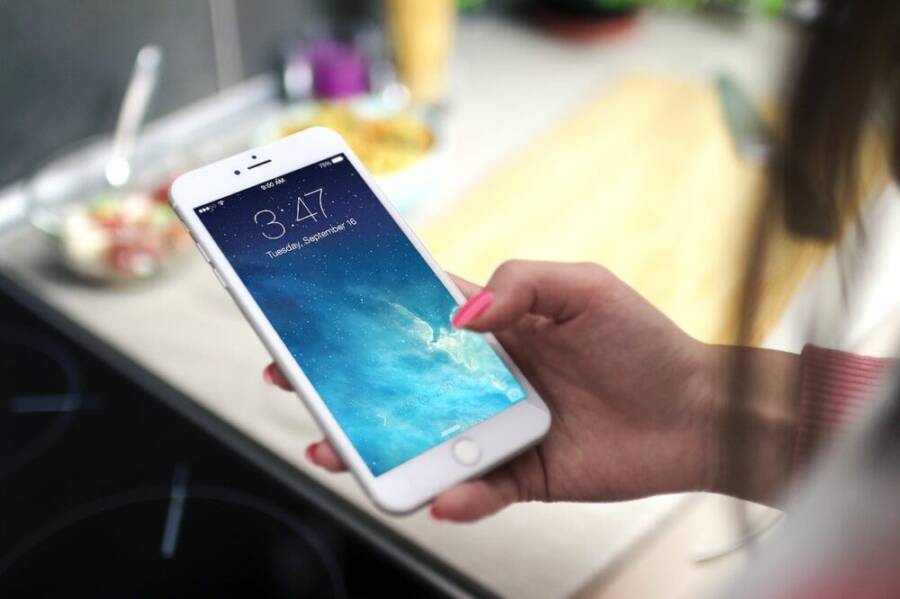
 Photo by JÉSHOOTS
Lock Apps with Face ID or Passcode in iOS 18
Press and hold the app icon to reveal quick actions. Choose the option that says Require Face ID or Require Passcode, then confirm. The app will move to a hidden area where it can only be opened after authentication. This approach works for any app and uses the device’s existing security. It’s built into iOS, so there’s no extra app to install and no extra cost.
Key steps:
- Press and hold the target app icon.
- Tap Require Face ID or Require Passcode.
- Confirm the choice and test access.
Pros include convenience and a consistent experience across apps. You won’t have to manage separate passwords for each app, and the biometric option makes unlocking fast. If you’re new to iPhone’s privacy features, this method offers a low-friction starting point. For a broader comparison of how iPhone’s protections stack up, you can explore official guidance on locking or hiding apps on iPhone. https://support.apple.com/guide/iphone/lock-or-hide-or-an-app-iph00f208d05d05/ios
If you want deeper context on how Face ID and app privacy relate to overall device security, this overview may help: https://tileris.com/android-vs-iphone-security-2025/
How this approach fits into everyday life: imagine lending your phone to a family member for a quick task, knowing crucial apps remain private. It’s not a perfect fortress, but it provides a clear barrier that’s easy to deploy.
Use Screen Time on Older iPhones
If your device doesn’t support per-app locks as smoothly, Screen Time gives a practical alternative. Go to Settings > Screen Time > App Limits. Set a time limit on sensitive apps or block apps with a passcode. This isn’t a true lock, but it prevents casual use and nudges you to reconsider access after a set period. It works particularly well for shared devices in families or small offices where you want to curb usage rather than completely block it.
What you’ll do:
- Open Settings and select Screen Time.
- Create App Limits for categories or specific apps.
- Use a Screen Time passcode to prevent easy overrides.
This method balances control with ease of use. It’s especially helpful for younger users or guests who should not access certain content. For more on how Screen Time can be set up, Apple’s guide is a solid reference: https://support.apple.com/en-us/108806. For a broader discussion about practical limitations and alternatives, read Set schedules with Screen Time: https://support.apple.com/guide/iphone/set-schedules-with-screen-time-iphb0c7313c9/ios
If you’re exploring more ways to manage usage on older devices, consider how Screen Time complements other privacy measures rather than replacing them. It’s a thoughtful stopgap when per-app locks aren’t available.
Activate Built-in Locks in Popular Apps
Many popular apps now offer their own lock mechanisms. WhatsApp, for example, provides a Screen Lock option in Settings > Privacy > Screen Lock, where you can enable Face ID or Passcode. Banking apps often include a similar feature to protect sensitive financial data. Enabling these in-app locks means you rarely need to switch between system settings and app settings.
Practical examples:
- WhatsApp: Settings > Privacy > Screen Lock, turn on Face ID/Passcode.
- Banking apps: Look for a similar Lock or Security setting within the app and enable biometric or password protection.
This approach keeps sensitive data guarded within each app, so even if the device is unlocked, your most important information remains protected. When selecting apps to lock, prioritize those that handle money, health data, or personal identifiers. If you want more concrete steps for specific apps, you can browse the official support pages or trusted guides that walk you through the exact menu paths.
For broader context on how built-in app locks compare with system-level protections, this guide provides useful insights: https://www.reliable-security-guide.com/lock-apps-iphone
Images and user experiences can vary by app version, but the core idea remains simple: lean on the app’s own security controls for direct access protection, and combine with iPhone’s built-in privacy features for layered defense.
Thousands of People Were Struggling With Money Until They Discovered This One Ancient Secret Hidden in Sound
>>> Unlock It Now <<<

Images can be a helpful cue for readers. If you’d like a visual guide to in-app lock settings for popular apps, Apple’s documentation and community tutorials often contain screen captures and walk-throughs that illustrate the exact steps.
Note: When combining these methods, you can tailor protections to your daily routine. For instance, use Face ID within WhatsApp for quick access and rely on Screen Time for broader enforcement on a family device.
What to know about this approach
- Pros: Keeps data inside the app, simple for users who prefer per-app controls.
- Cons: Requires action inside each app, which can be inconsistent across apps or versions.
- Quick tip: If a banking or password manager app offers its own lock, enable biometric quiet access as a first line of defense.
External references can help you see the bigger picture of app-level protections and how they align with platform security. Explore a detailed comparison of app privacy options across platforms here: https://tileris.com/android-vs-iphone-security-2025/
Inserting a real-world example helps illustrate the value. Imagine you hand your phone to a family member to take a quick photo. You’ve locked WhatsApp and your photo gallery within the app itself, while the rest of the device remains accessible. This layered approach minimizes risk without turning your phone into a fortress.
What to do next
- Review each app you use daily and check for a lock option.
- Enable biometric or strong passcodes where available.
- Test access with a trusted friend to verify the flow.
If you want more depth on how to use in-app locks across different apps, Apple’s official guidance can be a handy start: https://support.apple.com/guide/iphone/lock-or-hide-or-an-app-iph00f208d05d05/ios
Takeaway: Built-in app locks empower you to protect the most sensitive data without compromising overall usability. Pair them with system-level privacy features for a robust, layered defense.
Images and credits
- Photo by JÉSHOOTS on Pexels. Source: https://www.pexels.com/@jeshoots
Best Tips and Apps for Extra Phone App Security
Protecting private moments on a phone means more than one shield. App level security adds a precise barrier where it matters most. In this section, you’ll find straightforward tips and reliable apps that strengthen privacy without slowing you down. Whether you’re on Android or iPhone, these practices help you keep sensitive data out of sight when you share your device or hand it to someone else. Think of it as adding a lock to the drawers that hold your personal life.
Start with core protections and a simple habit
For real impact, pair a strong app lock with smart daily habits. Use a password that’s unique for app security, not the same one you use for multiple sites. Enable biometric unlock when it’s available for speed and security. Regularly review which apps truly need protection and prune any that don’t.
Key steps to begin:
- Identify the top targets: banking, password managers, messaging, and photo storage.
- Check each app’s built-in lock options and turn them on if present.
- Add a system-level lock as a backup in case an app’s protection is bypassed.
- Test the setup after you enable it to confirm the flow works well.
A simple habit goes a long way. If you use a smartphone across devices, keep your security posture consistent so you don’t forget where protection lives.
Practical tips for Android and iPhone users
Both platforms offer ways to guard apps, but approaches differ. On Android, per‑app locks are common in security settings or via trusted third-party tools. iPhone users get powerful options through built‑in features and selective in‑app controls. The goal is to create a layered approach that stays usable in daily life.
Tips you can apply today:
- Use per‑app locks for high‑risk apps first, then extend to others as needed.
- Prefer biometric options when available for faster access with strong protection.
- Use in‑app locks for apps that handle money or sensitive data, in addition to device-level protections.
- Review app permissions periodically to limit data access.
If you want a broader read on how these approaches compare, a detailed discussion on platform differences can help you decide which path fits your devices best. Android vs iPhone security comparisons provides useful context for choosing the right approach for your devices.
Recommended built‑in features and where they shine
Built‑in options often offer a reliable starting point. They stay up to date with system updates and do not require extra installs. On iPhone, features like Face ID or Passcode tied to app access can be very convenient. Android users frequently find per‑app locks in the Settings, sometimes paired with a separate security app if the stock options don’t cover everything.
Highlights:
- Built‑in per‑app locks on Android provide focused protection for high‑value apps.
- Face ID or Passcode on iPhone can gate individual apps quickly and reliably.
- In‑app locks from popular apps add a secondary layer of protection inside the app itself.
- Screen time or app limits on older devices can deter casual use when per‑app locks aren’t available.
For a broad look at how built‑in protections compare, this guide offers useful context: Locking apps across platforms.
When to use third‑party app locks
Third‑party tools can fill gaps when stock options fall short. Look for reputable developers with transparent permissions and strong reviews. Features to prioritize include biometric support, incident recovery options, and the ability to lock multiple apps with a single master passcode. If you’re exploring Android or iPhone solutions, these options tend to appear in online roundups and user forums.
Illustrative examples you might encounter:
- Android: AppLock Pro or similar multi‑app lock utilities that support fingerprint or pattern protection.
- iPhone: Apps that offer locker functionality, sometimes requiring jailbreaking for deeper control (not recommended for most users).
When evaluating third‑party tools, check recent reviews and confirm that the app has not requested intrusive permissions. A useful starting point for Android and iPhone options is a consolidated list of top app locks: 6 Best App Locks for Android Phone and iPhone in 2024.
Real‑world scenario: layered privacy in action
Picture this: you hand your smartphone to a friend for a quick photo. You’ve enabled an app lock on your gallery and on your messaging app, and you’ve added a biometric unlock for the overall device. The friend can still use the phone, but your most sensitive data stays out of sight. This layered approach minimizes risk without breaking the flow of everyday use.
If you want a deeper dive into how layered protections compare across platforms, see the practical breakdown here: Top app lock guidance.
Quick-start checklist
- Identify the apps that hold the most sensitive data.
- Enable built‑in app locks where available.
- Turn on biometric unlock if it’s offered.
- Use in‑app locks on apps that store money or health data.
- Consider a trusted third‑party lock if stock options don’t cover all needs.
- Test with a trusted friend to confirm the unlock flow and accessibility.
This fast setup can dramatically improve privacy without a heavy lift. For users seeking Apple‑specific guidance, Apple’s official instructions cover per‑app controls and privacy features that can complement your strategy: Lock or hide or an app on iPhone.
What to watch out for and how to stay ahead
No protection is perfect. App locks don’t encrypt data inside an app or defend against all malware. They also can’t stop someone from seeing notifications if the device is unlocked. Use a strong master password for your device, enable automatic updates, and pair app locks with a password manager to keep credentials secure. Regularly reviewing permissions and keeping your OS current reduces risk further.
A practical takeaway: start with the most valuable apps, test the setup, and adjust as your usage changes. You’ll build a privacy routine that grows with your needs.
External resources can help you see how app locks fit into a broader privacy strategy. Check out additional perspectives on platform protections and practical locking methods at A complete guide to locking individual apps on your devices.
Takeaway: A thoughtful mix of built‑in features, per‑app protections, and smart habits offers strong, repeatable privacy gains. A few minutes now saves more minutes later.
Images and credits
- Photo by JÉSHOOTS on Pexels. Source: https://www.pexels.com/@jeshoots
Conclusion
Locking apps with a password is a simple, practical privacy upgrade for any smartphone user. On Android, built in per app locks make it easy to gate access to banking, messages, and galleries. On iPhone, you have fast options like Require Face ID or Passcode for individual apps, plus Screen Time as a flexible option when per app locks aren’t available.
The core idea is clear: start with the most sensitive apps and add protections as needed. Biometric unlocks offer speed without sacrificing security, while strong, unique passwords keep stubborn attackers at bay. A layered approach that combines app locks with device level protections gives you a strong, usable shield.
She Pressed Play on a Strange Audio Track and Within Days Her Financial Reality Started Shifting in Ways She Could Not Explain
>>> See How It Works <<<
Today you can take a few concrete steps. Identify the key apps to protect, enable their built in locks, and test the flow with a trusted friend. If your device lacks native options, consider trusted third party tools or in app protections while staying mindful of permissions. Share these tips with family or colleagues who borrow your device, and you’ll boost everyday safety together.
Safe, steady progress matters. A small setup now translates to calmer days ahead and more peace of mind when you hand over your smartphone.
There Is a Frequency That the Wealthiest Families Have Used for Generations and Most People Will Never Know It Exists
>>> Open the Door <<<
