What If the Only Thing Between You and the Life You Deserve Is a Hidden Wealth Code Waiting to Be Activated
>>> Open the Door <<<

Want fresh emojis that fit how you talk today? Emoji sets come from a global process, and you can speed things up with a few simple steps on your smartphone.
In this guide you’ll learn where new emojis come from, quick ways to get them now, and platform specifics for iPhone and Android. You’ll also find troubleshooting tips if new icons don’t show up as expected.
By the end, you’ll know practical moves to expand your emoji menu without waiting for big updates. This helps you express yourself more clearly in everyday chats, without extra hassle.
Where new emojis come from and how they reach your phone
New emoji icons start as a global standard and then travel through platform teams to land on your keyboard. The process can feel slow, but it’s a careful, multi-step system that aims to reflect how people actually communicate. In this section, you’ll learn how emojis move from the Unicode approving body to the screens of iPhone and Android users, with concrete examples and practical timing tips.
He Was Drowning in Bills and Burnout Until a Simple Daily Ritual Rewired His Brain for Wealth in Less Than a Week
>>> Start Your Shift Today <<<

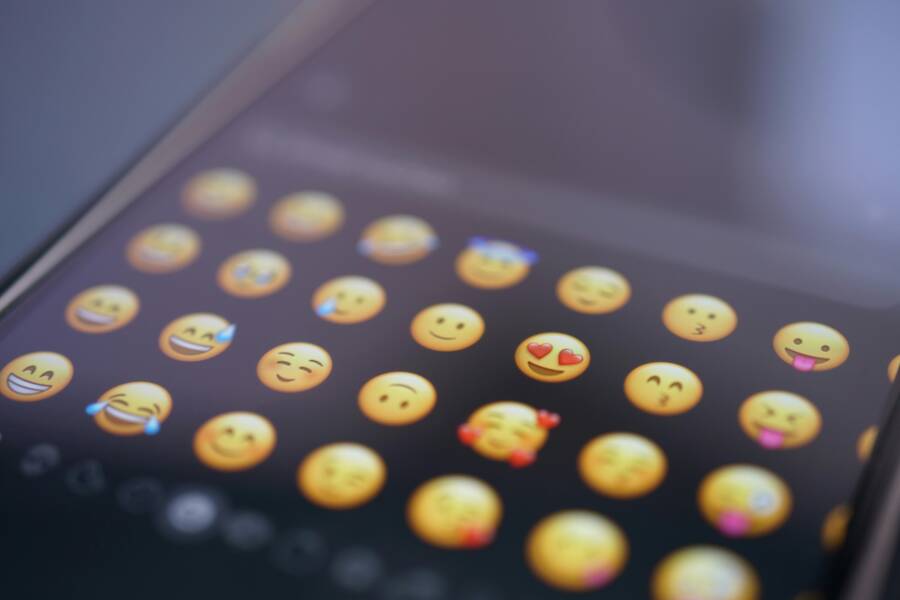
 Photo by Tim Witzdam
The role of Unicode and platform updates
Emoji ideas begin with proposals to the Unicode Consortium, the global standard keeper for text. Unicode reviews proposals through a structured process and, if approved, releases a version with new emoji characters. This is the official stamp that a concept has become part of the universal emoji set. For example, the Unicode team released new emojis in versions such as Unicode 17.0, which included several fresh icons after careful evaluation. You can see the official release details and the list of new emojis on Unicode’s site and related coverage on Emoji news hubs like Emojipedia. When a new emoji is approved, platforms decide when to bring it to users.
- Example: A concept like a new “splatter” symbol or a face with bags under the eyes moves from Unicode’s approval to images that platforms will display.
- Platform adoption: Apple, Google, Samsung and other vendors then design their own visual styles and plan the rollout.
A new emoji may arrive in a system update or a keyboard app update. Timing varies by device and region, so you might see a symbol in one country before another, or on a device’s OS update before a third party keyboard adds it to its library. For a concrete look at how Unicode releases map to platform updates, check the official Unicode 17.0 emoji release page and follow up on platform coverage from major emoji news sources. See also coverage on Emojipedia’s new emoji pages for that release cycle. For more details, explore:
- Unicode emoji release information: https://www.unicode.org/emoji/charts-17.0/emoji-released.html
- Emoji news and new releases: https://emojipedia.org/new
How iPhone and Android teams adopt new emojis
iPhone and Android take different paths to deliver new emojis, even though the end goal is the same: give users access to fresh ways to express themselves.
- iPhone (iOS): Adoption centers on iOS updates and App Store updates. When Apple updates iOS, a new emoji set is included in the OS and keyboards, and some emoji assets may arrive via updates to the Apple Color Emoji font. In practice, a reader might see a new emoji first as part of an iOS release, then later within apps that update their own emoji libraries.
- Android: Adoption depends on device makers and Google Play updates. Google provides a base emoji set, but individual manufacturers may adjust the visuals or timing. Third party keyboards can also push updates, but the core availability usually follows OS or app updates rather than a universal date.
Tips to stay in sync with new emojis without waiting for a major refresh:
- Check for OS updates first: on iPhone, go to Settings > General > Software Update. On Android, open Settings > System > System update or Software update.
- Check for app updates, especially keyboard apps: search for “Gboard,” “SwiftKey,” or other keyboards in the Play Store or App Store and install the latest version.
- Look for emoji or font updates in the App Store or Google Play, since some emojis arrive as font assets separate from the OS.
For a sense of timing, some readers see new icons appear within weeks of a Unicode release, while others may wait longer depending on carrier and device support. If you want to follow current trends, recent timelines and coverage from Apple and Google product blogs often note when new emojis are rolling out to devices.
What If the Only Thing Between You and the Life You Deserve Is a Hidden Wealth Code Waiting to Be Activated
>>> Open the Door <<<
What to expect after a Unicode release
Once Unicode approves new emojis, several factors shape when you’ll actually see them on your phone.
- Availability varies by device and region. A symbol might appear on newer models sooner than older devices.
- Emoji sets can differ between fonts. The same emoji character can look different depending on the font used by the OS or app.
- Apps may lag behind the OS. Some messaging apps update their own emoji libraries at their own pace, which can delay visibility in chats even after the OS has the emoji.
A quick example helps here. A new emoji is added to the Unicode standard, say a unique “fingerprint” symbol. First, it becomes part of the system fonts in the OS after an update. Then a third party keyboard may add the symbol to its own library, and finally a messaging app could display it in chats. In practice, you might notice the emoji first in the system keyboard, then in your favorite chat app a week or two later.
- Quick takeaway: monitor both OS and keyboard app updates to catch new icons fastest.
- Quick takeaway: regional rollout can mean you get the emoji earlier in some countries and later in others.
External sources provide ongoing updates on which emojis are included in Unicode releases and how platforms implement them:
- What’s new in Unicode 16.0: https://blog.emojipedia.org/whats-new-in-unicode-16-0/
- New emojis in 2024 2025 overview: https://blog.emojipedia.org/new-emojis-in-2024-2025/
- Android and iOS emoji adoption timelines: https://blog.google/products/android/new-android-features-december-2025/ and https://ios.gadgethacks.com/how-to/new-emoji-ios-18/
References and deeper dives
- Unicode official release page for Emoji 17.0: https://www.unicode.org/emoji/charts-17.0/emoji-released.html
- Emojipedia coverage on new emoji candidates and rollouts: https://emojipedia.org/new
If you want a broader view on how a specific new emoji travels from proposal to your device, you can explore JoyPixels’ guide on submitting an emoji to Unicode and the related process: https://joypixels.com/blog/how-to-submit-an-emoji-to-unicode
—
In the next subsection, we’ll compare what to expect from iPhone versus Android in practical, day to day terms and show quick steps to verify if your device has the latest icons.
Ways to get new emojis now
If you want fresh emoji expressions without waiting for the next big OS release, there are practical steps you can take today. This section covers three reliable paths: keeping your device software up to date, refreshing or adding an emoji keyboard, and exploring emoji fonts or third party packs. Each path has clear, actionable steps for both iPhone and Android so you can expand your emoji toolkit quickly and safely.
Update your device software to the latest version
Keeping your phone up to date is the most straightforward way to access new emojis. Updates often include new emoji sets, improved font assets, and better compatibility with apps that display emoji.
- For iPhone:
- Open Settings > General > Software Update. If an update is available, tap Download and Install.
- Before updating, back up your device via iCloud or a computer. If the update is large, ensure you have a stable Wi-Fi connection and enough battery or plug in your device. If the update is slow, start late at night or pause other downloads to allocate bandwidth.
- If wireless updates aren’t appearing, you can also update using a Finder (on macOS) or iTunes (on Windows). Apple’s guide walks you through back up, connect, and update steps.
- Helpful reference: Update iPhone or iPad (Apple Support) provides step by step wireless and manual update instructions. You can read more at Apple’s official support pages.
- For Android:
- Go to Settings > System > System update (or Software update on some devices). Check for updates and install if available.
- Before updating, back up important data. If the update is large, connect to Wi-Fi and keep the device plugged in or sufficiently charged. If you don’t see an update, try checking again later, as carriers and device manufacturers roll out updates in stages.
- If your device offers a firmware or build number check, review any notes about new emoji assets included in the release.
- See official guidance on checking and updating your Android version for dependable, device-specific steps.
- Practical tips you can apply now
- Ensure you have at least a few hundred megabytes of free storage before starting.
- Use a stable Wi-Fi connection to avoid partial downloads that can corrupt the update.
- If you’re mid-update, avoid interrupting the process. A paused or failed update can require starting over.
Why this matters: OS updates bundle the most reliable, system-wide emoji changes. You’ll get new icons across the keyboard, messaging apps, and system fonts in a single, supported package. If you’re behind on updates, this is your fastest route to a broad set of fresh emoji characters.
External references for the update process
- Update iPhone or iPad and related wireless or manual methods: https://support.apple.com/en-us/118575
- Update your iPhone, iPad, or iPod touch with Finder: https://support.apple.com/en-us/109046
- Check & update your Android version and learn about update nuances: https://support.google.com/android/answer/7680439?hl=en
Update or switch your emoji keyboard
If you want emojis now without waiting for an OS update, refreshing your built in keyboard or installing a trusted third party keyboard can help you access newer emoji packages sooner.
- Refreshing the built in keyboard on iPhone
- Open the keyboard in any app and go to the App Store to update the Apple Color Emoji font assets if they’re delivered separately.
- If you notice missing or lagging emojis, a quick restart of your device can refresh the font caches that feed the emoji set.
- Refreshing the built in keyboard on Android
- Update the default keyboard app in the Google Play Store or Galaxy Store. It can push new emoji assets alongside other typing features.
- If you’re using a stock Android keyboard, a quick cache clear of the keyboard app can sometimes resolve display issues with new icons.
- Installing a popular third party emoji keyboard
- For iPhone: Gboard from Google and SwiftKey from Microsoft are widely used options. These keyboards bring their own emoji libraries and may include quicker updates to new icons.
- For Android: Gboard and SwiftKey are also popular choices, with a broad user base and active update cycles. Third party keyboards can push new emoji sets even when your OS hasn’t rolled them out yet.
- Important risks and checks:
- Third party keyboards require additional permissions (full access or data-sending capabilities in some cases). Review app permissions carefully.
- Choose trusted apps with strong reviews and clear privacy policies. Install only from official stores (App Store or Google Play) to minimize risk.
- How to enable and test
- Install the keyboard, then go to Settings > Keyboard > Keyboards to enable it.
- When you first switch, give the keyboard permission to access text input, language, and emoji resources if prompted.
- Open a messaging app and send a test message to confirm new emojis display as expected.
What to watch for: third party keyboards can appear with different emoji designs or fonts from the system, which might affect readability across apps. If you run into display issues, switch back to the stock keyboard and test in a few apps to compare.
Where to learn more
- Gboard – the Google Keyboard on iPhone App Store listing shows setup and features: https://apps.apple.com/us/app/gboard-the-google-keyboard/id1091700242
- SwiftKey on Google Play for Android: https://play.google.com/store/apps/details?id=com.touchtype.swiftkey&hl=en_US
Try emoji fonts or third party packs
Some devices support font changes or font packs that alter how emoji look. This can be a quick way to refresh your emoji style without changing keyboards or OS.
- What emoji fonts and packs do
- Emoji fonts are font files that carry the emoji glyphs. By switching to a different font, emojis in supported apps can take on a new look.
- Font packs may replace system fonts for compatible apps and can sometimes change how emojis appear in messaging and social apps.
- How to install them safely
- Use reputable sources and avoid apps that claim to alter system font without root access on devices that require it.
- On Android, tools like font installers or font-changing apps can apply new emoji fonts, but they may require special permissions or, in some cases, a reboot.
- On iPhone, font changes are typically more restricted. Look for supported font apps that explicitly state emoji compatibility and ensure they come from trusted developers.
- How to switch back if things don’t look right
- If a font pack or emoji font causes unreadable icons or broken rendering in apps, revert to the original system font. Reboot the device if necessary to ensure the default emoji set reloads correctly.
- Compatibility considerations
- Some apps may display emojis from the font differently or fail to render them if the app uses its own emoji assets.
- Test across a few popular apps to ensure readability and consistency.
Practical note: until a unified OS update lands, emoji fonts and packs provide a flexible alternative to refresh your look. If you run into issues, remove the font pack and return to the default font to restore expected rendering.
External references and further reading
- How to get iPhone emoji on Android with font changes and safe methods: https://gadgets.beebom.com/guides/how-to-get-iphone-emoji-on-android
- No root methods to get iPhone style emojis on Android: https://www.airdroid.com/android-tips/get-iphone-emojis-on-android/
- Quick guide on transforming Android emojis to resemble iPhone styles: https://lifewire.com/iphone-emojis-for-android-4172697
If you want to explore the latest emoji updates in more depth, you can check out Emoji-focused resources that track Unicode releases and platform adoption. For example, Unicode’s official emoji release pages and Emojipedia provide ongoing coverage and visuals that help you compare how the icons look across platforms. These can be useful references as you decide which path to take for your everyday messaging.
Thousands of People Were Struggling With Money Until They Discovered This One Ancient Secret Hidden in Sound
>>> Unlock It Now <<<

External sources for broader context
- Unicode emoji release information: https://www.unicode.org/emoji/charts-17.0/emoji-released.html
- Emojipedia coverage on new emoji candidates and rollouts: https://emojipedia.org/new
By combining these approaches, you can expand your emoji repertoire quickly and keep chats expressive and current. If you’d like, I can tailor these steps to your specific device model and OS version in the next section.
Platform specifics: iPhone vs Android
Understanding how new emojis arrive and appear on each platform helps you speed up access and avoid frustration. In this section we compare iPhone and Android paths, explain what to expect week by week, and share practical steps you can take now to see fresh icons in your messages and apps.
iPhone: what to expect and how to speed up access
iPhone users typically receive new emoji as part of iOS updates. Apple coordinates emoji fonts, system assets, and keyboard resources in a single release, so you’ll often see new icons first when your device gets an iOS update. In practice, you may notice emojis appear in Messages and supported apps soon after the OS update lands, with some apps updating their own emoji libraries a bit later.
To stay in the loop, here’s a simple, repeatable checklist you can follow:
- Check for iOS updates regularly: open Settings > General > Software Update. If an update is available, tap Download and Install.
- Back up first: back up to iCloud or your computer before updating, so you’re safe if anything goes wrong.
- Update the keyboard assets if needed: some emoji changes come through the Apple Color Emoji font updates that may arrive with the OS or through App Store updates for related apps.
- Refresh apps that rely on emoji: update Messages and other keyboard-heavy apps in the App Store to ensure they pick up the new icons.
- Verify across apps: open a few messaging apps to confirm the new icons render consistently. If you don’t see them, retry the update cycle or restart the device.
As a practical note, you might see a new emoji in iOS before it shows up in third party keyboards or apps. If you want to monitor the latest changes, Apple’s update pages and emoji changelogs provide reliable guidance. For example, Apple’s iOS update pages describe what’s new in each release, and emoji-specific changes are often highlighted by Emojipedia’s coverage of iOS updates. You can also review Apple support resources for wired steps on updating your device. For broader context on new iPhone emojis, check Apple’s support and Emojipedia’s Apple iOS changelogs.
- Official iOS updates and emoji notes: https://support.apple.com/en-us/121161
- Apple iOS 26 updates overview: https://support.apple.com/en-us/123075
- Apple iOS 18.4 emoji changelog: https://blog.emojipedia.org/apple-ios-18-4-emoji-changelog/
In addition to the OS, some emoji designs arrive or change through the fonts Apple uses. If you experiment with font assets, you may see subtle differences in how icons appear across apps, but the core emoji set will remain consistent within the supported OS version.
What to keep in mind: regional rollouts and carrier pacing can affect timing. A newer emoji might appear on newer devices or in certain markets first. If you’re not seeing a symbol right away, confirm you’re on the latest iOS, and consider updating apps that ship their own emoji libraries as a secondary step. For a quick read on how Unicode releases map to platform adoption, you can reference Unicode’s release notes and Emojipedia coverage.
External references for iPhone emoji timing
- About iOS updates and emoji adoption: https://support.apple.com/en-us/121161
- Apple iOS 26 updates: https://support.apple.com/en-us/123075
- Apple iOS 18.4 emoji changelog: https://blog.emojipedia.org/apple-ios-18-4-emoji-changelog/
Android: what to expect and how to speed up access
Android emojis come from a more distributed path. Google provides a base emoji set, but visibility and styling can vary because device makers (Samsung, OnePlus, Xiaomi, etc.) customize visuals and rollout timing. Third party keyboards can speed access, but the core emoji you can type is usually tied to the OS or the app you’re using.
To get new emojis faster on Android, try this clear plan:
- Understand update paths: the base emoji set arrives with Android system updates or with Google Play updates to the keyboard or platform services. Manufacturer customizations can shift when you see new icons.
- Keep critical apps current: update the default keyboard (Gboard, Samsung Keyboard, etc.) and other text input apps in Google Play. These updates often bring new emoji packs or improved rendering.
- Try third party keyboards judiciously: Gboard and SwiftKey are reliable choices that tend to push emoji updates quickly. When using third party keyboards, test across multiple apps to ensure consistent emoji rendering.
- Test emoji rendering across apps: some apps ship their own emoji fonts or assets. After updating, open messages, social apps, and emails to confirm the icons look right.
- Be mindful of permissions and safety: third party keyboards require access permissions. Prefer well-known apps with strong privacy policies and install only from official stores.
Key steps you can implement right away:
- Update your keyboard app from Google Play and, if available, the Android system update from Settings > System > System update. This often brings the latest emoji fonts to devices that support them.
- If you’re using a phone with a heavy OEM skin, check the device’s own app store or update channel for emoji-related assets.
- Consider trying Gboard or SwiftKey as a temporary measure to access newer icons until the OS updates roll out to your device. Both keyboards frequently incorporate the latest emoji sets, even on devices waiting for system updates.
To learn more about how Android handles emoji updates, explore guidance from Android developers and major tech outlets that track emoji rollouts. For practical context, see resources about modern emoji support and how keyboards handle emoji fonts.
- Android emoji support and font guidance: https://developer.android.com/develop/ui/views/text-and-emoji/emoji2
- Gboard on Android: https://play.google.com/store/apps/details?id=com.google.android.inputmethod.latin&hl=en_US
- Android emoji updates and font considerations: https://www.lifewire.com/update-emojis-on-android-7100398
A note on timing: Android updates can be uneven across devices and regions. In many cases you’ll see the new icons appear first in the keyboard, then in system apps, and finally across third party apps. If you want a fast check, install a fresh emoji keyboard and test how the icons render in your most-used apps. This approach often yields quicker access than waiting for a full OS refresh.
External references for Android emoji paths
- Gboard expressive rollout and emoji tweaks: https://www.androidauthority.com/gboard-material-3-expressive-rollout-3622810/
- Android OS updates and emoji support overview: https://www.xda-developers.com/android-emoji-problem-updateable-system-fonts-emojicompat-12l/
- Gboard on Android: https://play.google.com/store/apps/details?id=com.google.android.inputmethod.latin&hl=en_US
Closing thought on platform differences: both ecosystems aim to mirror how people communicate, but the routes and timing reflect design choices tied to openness versus control. By following the practical steps above, you can minimize waiting time and keep your emoji toolkit fresh for everyday chats. If you want to tailor these steps to your exact device model or OS version, I can lay out a personalized, step-by-step plan in the next section.
Troubleshooting: what to do if your emojis stay old
New emojis can feel slow to reach your device, especially when you rely on quick messages. If you notice stale icons that don’t match your latest chats, use a simple, tried-and-true checklist to bring them up to date. This section covers common causes and clear steps you can take right away, whether you’re using an iPhone or an Android phone. Think of your smartphone as a small studio for typography and visuals, and follow these practical fixes to refresh your emoji toolkit.
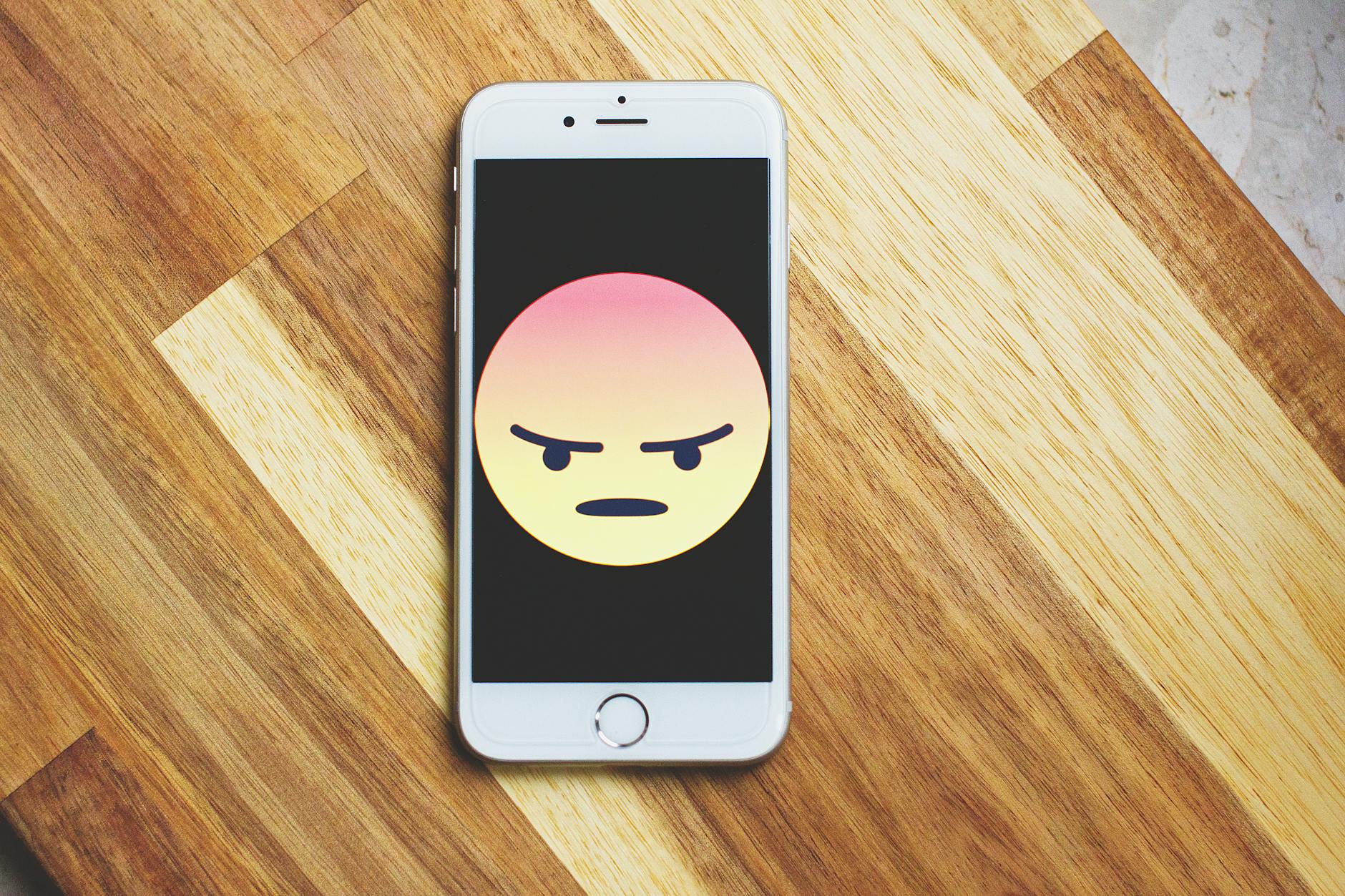 Photo by freestocks.org
Common reasons emojis won’t appear
There are several everyday culprits that keep new emojis from showing up. Here are 3 to 5 typical scenarios, with plain explanations and fast fixes. Each point notes factors like device model, OS version, app version, and font settings so you can pinpoint what to adjust.
- Old OS or app versions on your device
- Why it happens: The emoji you want lives in a newer Unicode version that your OS or keyboard library doesn’t include yet.
- Fast fix: Update the operating system first. Then update the emoji keyboard or any messaging apps that ship their own font assets.
- Quick check: Settings > General > Software Update on iPhone; Settings > System > System update on Android.
- Keyboard or font assets not refreshed
- Why it happens: Some emojis come through font assets. If the font cache or emoji font isn’t refreshed, new icons won’t render.
- Fast fix: Update or switch the keyboard, then restart the device to refresh font caches.
- Quick check: Update built-in keyboard fonts in the App Store or Google Play, and open a messaging app to confirm.
- Third party keyboards with delayed emoji updates
- Why it happens: A non-default keyboard may lag behind the OS emoji set, or display icons differently.
- Fast fix: Install a trusted keyboard with frequent emoji updates, then test across several apps.
- Quick check: Enable the new keyboard in Settings > Keyboards and test in Messages, social apps, and email.
- Font settings or display issues
- Why it happens: If a font pack or custom font is active, it can affect how emojis render in certain apps.
- Fast fix: Revert to the system font for emoji, or remove the font pack and reboot.
- Quick check: In Android, review font apps or settings; on iPhone, check any font customization options in Settings.
- Regional or carrier rollout delays
- Why it happens: Even when a Unicode release is global, some regions or carriers receive updates later.
- Fast fix: Wait a short period and ensure you’re on the latest OS and app versions. In many cases, icons appear within days or weeks.
- Quick check: Note update notes from Apple or Google and compare with Emojipedia coverage for your region.
For additional context and real-world scenarios, see discussions and guides that cover iPhone emoji changes and Android emoji display issues from trusted sources: Apple support and Emojipedia timelines and practical Android emoji updates guides like Lifewire. You’ll find concrete troubleshooting steps that match the symptoms you’re seeing.
Simple steps to fix missing emojis
If you want a fast, actionable path to recover or access new emojis, follow this concise checklist. Each step is short, but deliberate, so you can complete it quickly and regain a full emoji set across your apps.
- Check for the latest OS update
- iPhone: Settings > General > Software Update. Install if available.
- Android: Settings > System > System update. Install if available.
- Update your emoji and keyboard apps
- Open the App Store or Google Play Store.
- Update your native keyboard (iPhone or Android) and any third party keyboard you use, such as Gboard or SwiftKey.
- Refresh or reinstall the keyboard
- Disable and re-enable the keyboard in Settings, or uninstall and reinstall the app.
- Restart your device
- A quick reboot clears font caches and reinitializes emoji libraries.
- Test across multiple apps
- Look in Messages, social apps, and emails to confirm the new icons render consistently.
- Consider switching keyboards temporarily
- If the built-in keyboard still shows old icons, try a trusted third party like Gboard or SwiftKey to access newer emoji packs.
- Check font and emoji font assets
- If you’ve experimented with custom fonts, revert to the default font to restore standard emoji rendering.
- Watch for regional updates
- If you don’t see a new emoji yet, monitor official channels or Emojipedia for rollouts in your area.
If you want a deeper dive into the OS and keyboard update paths, these sources provide detailed guidance and timelines: update notes for iOS and Android platforms, along with emoji-specific coverage from Emojipedia. For example, you can explore iOS update notes and emoji changelogs on Apple’s support pages and Emojipedia’s platform coverage to stay in the loop.
- iOS update notes and emoji changes: https://support.apple.com/en-us/121161
- Emojipedia iOS emoji coverage: https://blog.emojipedia.org/apple-ios-18-4-emoji-changelog/
If you prefer Android focused guidance, you can use these resources to verify steps and tips that align with your device model and carrier. They cover emoji rendering, font behavior, and practical fixes you can apply now.
- Android emoji guidance and font considerations: https://developer.android.com/develop/ui/views/text-and-emoji/emoji2
- Gboard on Android updates and emoji handling: https://play.google.com/store/apps/details?id=com.google.android.inputmethod.latin&hl=en_US
In practice, most users resolve missing emoji issues by combining a system update with a keyboard update, then rechecking in several apps. If you’d like, I can tailor these steps to your exact device model and OS version in the next section.
Conclusion
You now have clear paths to grab new emojis on your iPhone or Android: update your smartphone software first, refresh or switch keyboards like Gboard or SwiftKey, and test emoji fonts or packs for quick changes. Combine these steps with troubleshooting checks to skip delays from old OS versions or app lags. Keep your device current and experiment with a few methods to match fresh icons to your chats right away.
Share your emoji wins or fixes in the comments below. What new symbol did you add today?
He Was Drowning in Bills and Burnout Until a Simple Daily Ritual Rewired His Brain for Wealth in Less Than a Week
>>> Start Your Shift Today <<<