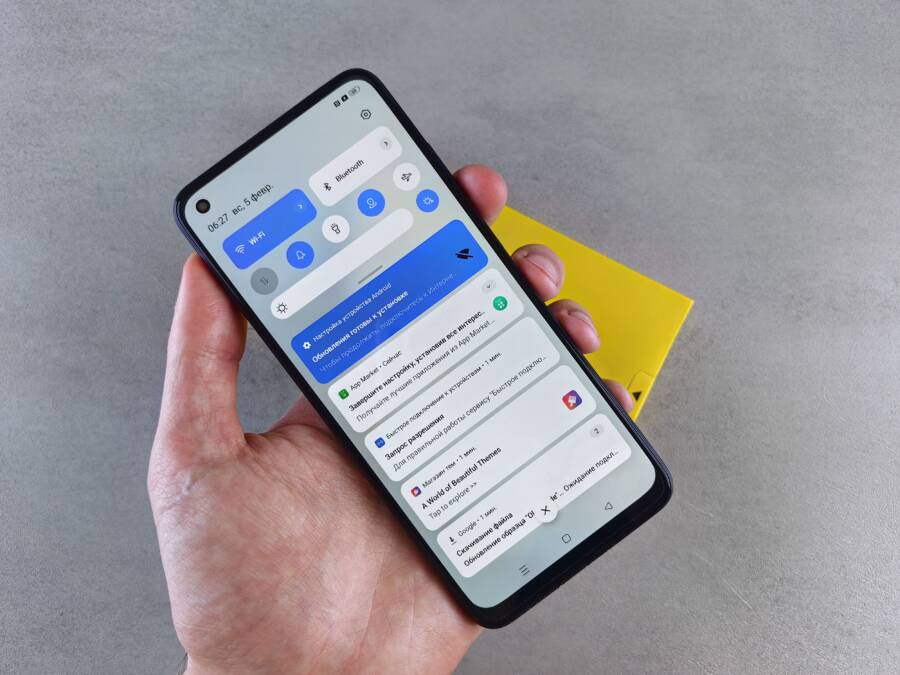
You can fix a phone that refuses to forget a Bluetooth accessory by clearing the cache, resetting network settings, or performing a hard restart on your smartphone. These glitches usually stem from corrupted system files or outdated configuration data that prevents the device from dropping a specific connection.
Modern smartphones often struggle with persistent Bluetooth links because background processes sometimes fail to clear the device memory. When your phone keeps trying to reconnect to a device you have already removed, the software remains stuck in a loop.
You can resolve this annoyance by following a few targeted troubleshooting steps to force your system to clear the cached profile. The guide below walks you through the exact methods to restore your connection settings and regain control over your hardware.
Common Reasons Your Smartphone Holds Onto Bluetooth Connections
Your smartphone often maintains persistent Bluetooth connections because of cached configuration files that refuse to update. When you disconnect a device, your phone keeps a digital record of the accessory in its memory. Sometimes this data becomes corrupted or stuck. Your phone then attempts to re-establish the link automatically because it believes the connection is still active and necessary.
Corrupted System Cache
The Bluetooth controller on your smartphone relies on a temporary storage area to manage paired devices. If this cache contains outdated or conflicting information, the system fails to register the removal of an accessory correctly. You might notice your phone keeps searching for speakers or headphones that are nowhere near you. Clearing the system Bluetooth cache forces your device to rebuild its connection list from scratch, which often resolves the issue immediately.
Background Synchronization Loops
Many modern accessories stay active to keep your data synced. Your smartphone maintains a low-energy handshake with these devices to ensure they are ready to use. If an accessory stays in a discovery state, your phone might get caught in a loop where it tries to re-pair after you manually disconnect. This happens frequently with smartwatches and fitness trackers that demand constant, stable links to function. Turning off the specific app that controls the device usually breaks this cycle.
Conflicting Network Profiles
Operating system updates sometimes change how your hardware interprets saved Bluetooth profiles. If you updated your smartphone recently, older profile data might clash with the new software requirements. Your device does not know how to handle these mismatches properly, so it defaults to trying the last known configuration. You can usually fix this by resetting the network settings, which wipes away these stubborn profiles and allows for a clean start.
Interference from Multi-Point Features
Some advanced Bluetooth devices support multi-point connections, meaning they pair with multiple units at once. If your smartphone has trouble identifying which device holds priority, it may keep trying to hijack the signal from another source. This behavior manifests as your phone constantly asking to connect to an accessory that is currently being used by a laptop or tablet. Manually disabling multi-point features within the companion app often stops the smartphone from interfering with other active connections.
Quick Fixes for Stubborn Bluetooth Accessories
Sometimes your smartphone refuses to let go of an old connection. When a device stays paired even after you select remove, the software needs a more direct nudge. These manual interventions clear out the residual data preventing a clean break between your devices.
The Right Way to Unpair Devices in Settings
You must navigate to the correct menu to force a full disconnection. Each platform has a dedicated list that tracks every accessory your smartphone remembers.
On Android, follow these steps:
Open the Settings app and tap on Connected devices.
Select Connection preferences and then tap Bluetooth.
Locate your device in the list of previously connected or active items.
Tap the gear icon or the settings symbol next to the device name.
Choose the Forget or Unpair option to wipe the profile from your phone memory.
For iPhone users, the process is equally straightforward:
Launch the Settings app and tap the Bluetooth menu.
Find the device in your list of My Devices.
Tap the blue information icon located next to the accessory name.
Select Forget This Device to confirm your choice.
Tap the prompt again to finalize the removal from your system.
Performing these actions removes the unique handshake data your smartphone holds for that specific accessory. If the device still attempts to connect, you might need to power cycle your phone to clear the temporary memory buffer.
Clearing the Bluetooth Cache to Reset Connections
Persistent connection errors often stem from a corrupted system cache on Android. This hidden storage holds temporary files that keep old pairing data alive, even after you delete the device from your settings. You can wipe this data manually to force the Bluetooth hardware to start fresh.
Follow this sequence to clear the cache:
Go to your phone Settings and tap Apps or Application Manager.
Look for the three-dot menu in the corner and select Show system apps.
Find Bluetooth in the list of applications.
Select Storage and tap Clear cache.
Restart your smartphone immediately after to allow the system to rebuild the connection files correctly.
iPhone users do not have a direct button to clear individual app caches. Instead, you can achieve the same result by resetting your entire network environment. Navigate to Settings, then General, and find Transfer or Reset iPhone. Choose Reset and then tap Reset Network Settings. This action wipes all saved Wi-Fi passwords and Bluetooth pairings, returning your wireless radios to their factory default state. This step is a reliable final resort when a specific accessory refuses to disconnect despite your best efforts.
Advanced Methods When Standard Troubleshooting Fails
If standard unpairing and cache clearing steps fail to resolve your Bluetooth issues, your smartphone might require more aggressive intervention. These problems often indicate deep-seated configuration errors within the system partition or a physical hardware conflict. You can force the software to relinquish control of the accessory by using developer options, safe mode, or full factory resets. These strategies remove stubborn ghosts in the machine that basic settings menus cannot reach.
Using Safe Mode for Third-Party Conflicts
Sometimes a background application interferes with your Bluetooth stack. Safe mode disables all third-party software, leaving only the operating system and essential functions active. You can determine if a specific app is the culprit by checking your connection while in this restricted state.
On many Android devices, you can enter safe mode by holding the power button until the power menu appears, then long-pressing the power-off icon. Your smartphone will reboot with a label indicating it is in safe mode. If the Bluetooth accessory no longer appears or stays disconnected, you know a third-party app is to blame. You can then remove recently installed apps until the problem ceases.
Rebuilding Connection Tables via Developer Options
Advanced users can sometimes fix persistent issues by toggling specific Bluetooth settings hidden in the Developer Options menu. This hidden section of your smartphone allows you to adjust how the system handles audio codecs and connection priority.
Navigate to your device information in settings and tap the build number seven times to activate this menu. Once active, look for the Networking section. You may find settings for Bluetooth AVRCP version or MAP version. Changing these values forces your smartphone to negotiate a different handshake protocol with the accessory. This change often prompts the device to drop an old, incompatible connection and restart the discovery process.
Performing a Factory Data Reset
A factory reset is the final option when software corruption prevents normal operation. This process erases all personal data, apps, and system configurations, effectively returning the phone to its original state. You should only use this method after backing up your photos and important files to a cloud service or external drive.
After the reset completes, set up your smartphone as a new device rather than restoring from an old backup. Restoring an old backup often brings the corrupted Bluetooth configuration file back into the system. Testing the connection immediately after the reset helps you confirm if the hardware itself is functioning correctly. If the accessory still forces a connection, the issue is likely with the accessory hardware rather than your phone.
Troubleshooting Questions and Final Summary
Persistent Bluetooth issues often feel like a digital ghost is haunting your hardware. When your smartphone refuses to release a connection, it usually points to a conflict between the system software and the stored device profile. Most users solve these problems by following the standard unpairing process, but some situations require deeper investigation.
Answers to Common Bluetooth Connection Issues
Users frequently ask how to handle specific scenarios where accessories behave unpredictably. These questions address the most common obstacles encountered during the troubleshooting process.
Why does my phone still detect a device after I removed it?
Your smartphone might have a secondary profile saved under a different system menu or within a specific manufacturer app. Check your installed apps to see if a dedicated controller holds a separate connection permission that overrides your main system settings.Does a hard restart affect my other data?
No, a standard restart or even a forced power cycle does not delete your personal files, photos, or messages. It simply clears the temporary memory used by the operating system to manage active processes and background radios.Should I reset network settings if only one device is failing?
Resetting your network settings is a broad action that clears every Wi-Fi password and Bluetooth link. Reserve this step for when multiple accessories fail to connect or when a single device continues to reconnect after you have deleted its profile multiple times.Will updating my smartphone software fix Bluetooth bugs?
Software updates often include patches for known radio communication errors. If you consistently face connection drops, check for a pending system update that might address these underlying compatibility issues.
Final Steps for Connection Stability
Achieving a clean slate with your Bluetooth hardware relies on persistence and a methodical approach. Start with the simplest actions, like toggling the Bluetooth radio off and on, before moving to cache management or full network resets. Most of the time, the software just needs a reminder that the old device is no longer authorized to communicate with your hardware.
Keep your operating system current to avoid conflicts with modern accessories that use complex handshake protocols. If you find that a specific accessory creates these problems across multiple devices, the hardware itself might have a faulty firmware version. You can reach out to the device manufacturer to see if they offer a way to flash the accessory software or perform a hard factory reset on the unit itself.
By removing corrupted configuration files and keeping your system software refreshed, you regain full authority over which devices talk to your smartphone. If the issue remains after you have tried every step, consider testing the device with a different phone to determine if the accessory requires a replacement. Mastering these steps ensures your wireless audio and data transfers stay stable throughout your daily routine.
Conclusion
Most Bluetooth connection problems on your smartphone are software-related. These glitches usually occur when corrupted cache files or outdated network profiles interfere with your device memory. You can resolve these issues by clearing the Bluetooth system cache or resetting your network settings to wipe away lingering data.
Keeping your operating system updated prevents many of these pairing conflicts from occurring. Regular software updates include patches that improve radio stability and device compatibility for your smartphone.
If you continue to face connection loops after trying these steps, test the accessory with another device. This simple verification helps you decide if the problem requires a hardware replacement rather than further software troubleshooting.