Picture this: you go to bed with 80% battery on your phone. You wake up to find it drained to 20%. Frustrating, right? This happens when your phone fails to enter deep sleep mode. Deep sleep mode lets your device drop into a low-power state when idle, screen off, and not in use. It cuts power to most components to save battery.
Phones rely on this mode for solid battery life. Android devices call it deep sleep; iPhones use a similar idle drain reduction. Without it, your battery suffers. Common signs include overnight drain, high standby usage in battery stats, or the phone feeling warm when idle.
Many users face this on daily drivers. Rogue apps or settings often cause it. Good news: simple steps fix it for most. You’ll learn causes first, then quick fixes, advanced options, and prevention. These work on both Android and iPhone. Follow along; you’ll reclaim battery life fast.
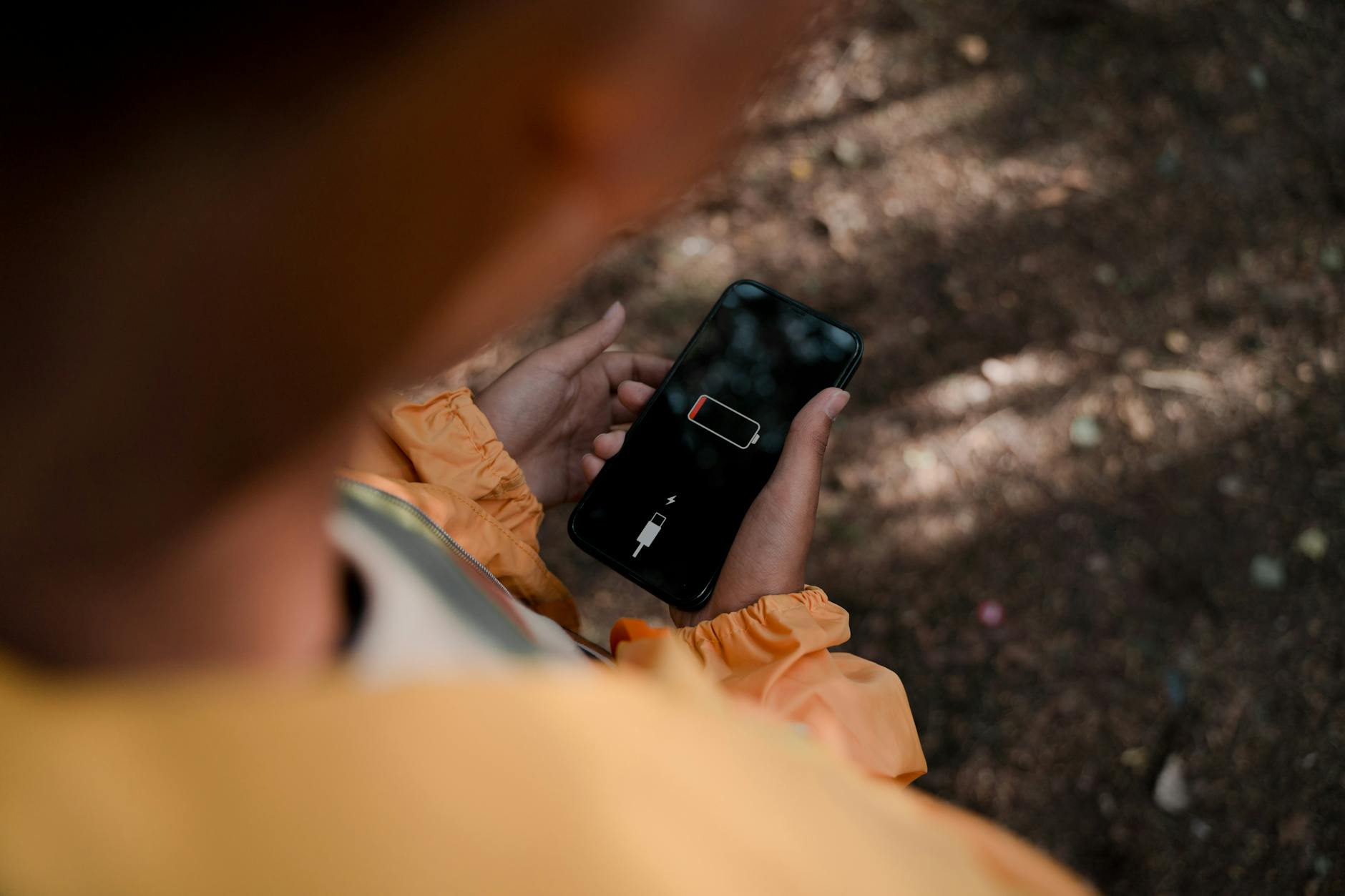
Photo by Ron Lach
Common Causes of Phone Deep Sleep Failure
Phones skip deep sleep for specific reasons. Spot them early to fix fast. Top culprits include apps, settings, and software glitches. Each keeps the processor or radios active.
Apps That Keep Your Phone Awake
Apps grab wake locks to stay active. This blocks deep sleep. Social media like Facebook or trackers like Google Maps run in the background. They sync data nonstop.
Check battery stats. Look for apps with high “wakeups” or foreground time. Signs include:
- Constant notifications.
- Location access always on.
- Fitness apps polling steps every minute.
On Android, use developer options to see wake locks. iPhones show it in Settings > Battery. Smartphones take the biggest hit here; one bad app drains 20% overnight.
Battery Settings Gone Wrong
Features meant to help can backfire. Optimized charging holds charge at 80% too long. Adaptive battery learns wrong habits. Short screen timeout wakes the device often.
Always-on display keeps pixels lit. It prevents full idle. Signs:
- Battery saver off by default.
- Adaptive brightness fights sleep.
- Location services poll frequently.
Toggle these in settings. A quick check reveals mismatches.
Software Bugs and Outdated Apps
OS updates introduce glitches. Apps not updated clash with new rules. Weak Wi-Fi or mobile data keeps radios searching.
Post-update bugs spike idle drain. Old apps ignore sleep rules. Network flips prevent deep sleep entry.
Signs point to:
- Recent update timing.
- High “Android System” or kernel usage.
- Frequent app crashes.
Update everything. Restart clears temporary hitches.
Quick Fixes to Get Your Phone Back to Deep Sleep
Start here. These no-risk steps work fast. Most users see improvement right away. Try them in order.
Restart and Wipe Cache Partition
Restart clears memory junk. It forces apps to release wake locks.
For Android:
- Hold power button, select Restart.
- For cache: Power off. Hold volume up + power to enter recovery. Wipe cache partition. Reboot.
iPhone: Hold volume + side button till slider. Slide to power off. Wait 30 seconds, turn on. Offload unused apps in Settings > General > iPhone Storage.
This removes temp files blocking sleep. Battery stabilizes quick. Users report 10-15% better standby.
Review and Limit Battery Hogs
Open battery usage stats. Spot top drainers.
Steps:
- Settings > Battery. Note apps with high usage.
- Tap app > Force stop or restrict background.
- Set to “deep sleep” or “optimized” only.
Android: Battery > App battery usage > Restricted. iPhone: Low Power Mode or Background App Refresh off.
Target email, maps, browsers first. Limit cuts wakeups by half.
Toggle Power Saving Features
Flip switches for instant gains.
- Enable Battery Saver: Settings > Battery > Turn on.
- Extend screen timeout to 30 seconds.
- Lower brightness. Disable Bluetooth, Wi-Fi scanning if unused.
iPhone: Settings > Battery > Low Power Mode. Turn off Always On if available.
These force idle states. Phone enters deep sleep easier. Expect longer life between charges.
Advanced Steps for Stubborn Deep Sleep Problems
Basics not enough? Go deeper. Backup data first. These target root issues.
Test in Safe Mode
Safe mode runs only stock apps. It isolates third-party trouble.
Android:
- Hold power button. Long-press “Power off” till Safe Mode prompt.
- Reboot. Test overnight drain.
If battery holds, a downloaded app causes it. Uninstall suspects.
iPhone lacks true safe mode. Use Airplane Mode overnight. Test Background Refresh off too. Pinpoints bad apps quick.
Clear System Cache and Reset Settings
Cache builds corruption. Reset flushes it without data loss.
Android: Recovery mode > Wipe cache (as before). For settings: Settings > System > Reset options > Reset app preferences.
iPhone: Settings > General > Transfer or Reset > Reset > Reset All Settings.
No files lost. Resets permissions blocking sleep. Last resort before factory reset: backup, then erase all.
Developer options help: enable, check “Stay awake” off. ADB lists wake locks simply via apps like Wake Lock Detector.
Prevent Deep Sleep Issues on Your Phone Long-Term
Habits keep problems away. Update OS and apps weekly. They patch sleep bugs.
Manage apps smart. Uninstall unused ones. Review permissions monthly: revoke location, background for non-essentials.
Charge to 80-90% max. Use apps like AccuBattery to monitor drain. It shows wakeups clearly.
Turn off auto-sync for email if possible. Use Wi-Fi over data for stability. Limit widgets; they poll often.
For smartphones, schedule battery checks. Factory reset yearly if needed, after backup.
These steps extend battery health. What’s your biggest battery thief?
Conclusion
Phone deep sleep failures stem from apps, settings, or bugs. Check battery hogs first, restart, toggle savers. Quick fixes solve 80% of cases. Stubborn ones need safe mode or resets.
Try steps in order. Most regain full standby power. Enjoy days without plugs.
Share your fix in comments. Did an app cause yours? Check our battery tips or app guides next. Your smartphone deserves better runtime.
(Word count: 1492)