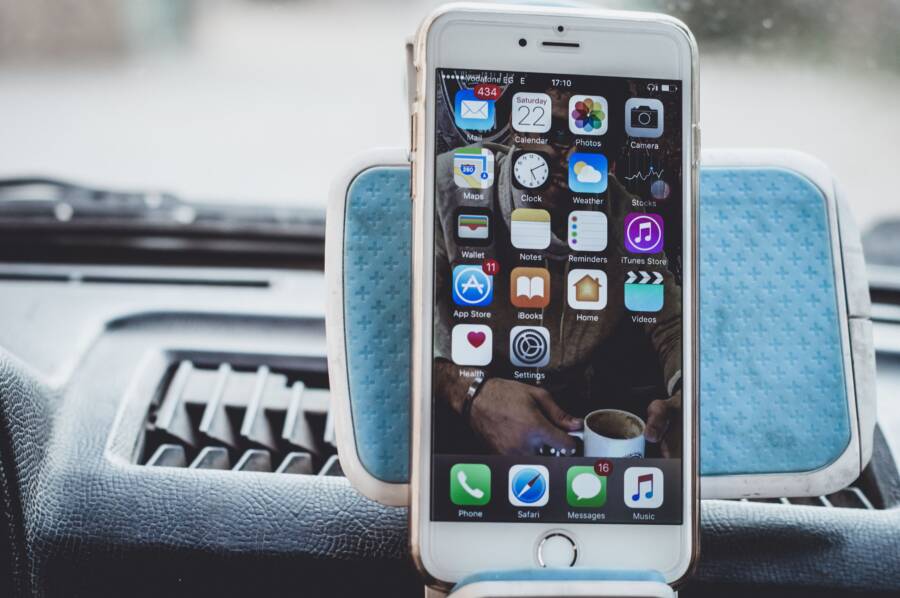
Your smartphone home screen is a primary driver of your daily behavior. By rearranging your apps, you can manipulate friction to make productive habits easier and distractions more difficult to access.
Most people leave their home screen in a chaotic state that invites mindless scrolling. You can regain control of your attention by organizing your device to support your goals rather than your impulses.
The following steps show you how to redesign your layout for better habits.
Why Your Smartphone Layout Shapes Your Daily Habits
Your phone layout is not just a collection of icons. It is a control panel for your attention. Every time you unlock your smartphone, your eyes scan the screen for visual cues. These tiny signals trigger automatic responses. If your social media app sits in the bottom corner, your thumb finds it without thought. If your meditation app hides inside a folder, you rarely open it. Your screen layout acts as a map that directs your daily energy. By changing where apps live, you control your impulses.
The Science of Friction and Digital Cues
Psychologists often talk about friction as a way to build or break habits. Low friction means an action happens with minimal effort. When you place a messaging app on your main home screen, you remove all barriers to entry. You open the app because it is physically present. This accessibility invites mindless habits. You start scrolling before you decide to check a message.
High friction does the opposite. You create this when you make an action require more steps. You can hide distracting apps inside folders or move them to the second page of your home screen. This tiny pause allows your brain to catch up. When you must swipe or search for an app, you switch from autopilot to conscious choice. Use this tactic to protect your time:
- Move distracting apps into a folder labeled “Utility” or “Focus.”
- Keep essential tools like your calendar or notes on the primary screen.
- Remove all app notifications for non-essential services to reduce visual clutter.
Understanding Your Digital Intentions
Most people build a home screen based on what they think they should have. They fill it with news apps, social feeds, and email clients. These apps demand your focus. They force your smartphone to act as a reactive device. You react to alerts instead of using the phone for your own goals. Start by asking what you actually need from your device.
Do you want your phone to help you learn? Do you want it to help you track health data? Once you list these goals, check your current layout. Does your home screen match your desired lifestyle? If you want to read more, put a reading app front and center. If you want to exercise, place your fitness tracker on the dock. You define your smartphone experience by choosing which apps earn a spot on your home screen. Remove everything else that does not serve your daily plan.
Practical Steps to Redesign Your Home Screen for Success
Your home screen layout dictates your initial interaction with your smartphone. You can transform this space into a tool for growth by stripping away excess visual noise. A clean interface prevents reflexive app opening and directs your focus toward intentional tasks.
The One-Page Rule for Peak Productivity
The one-page rule limits your visible app count to a single screen. When you restrict your home screen to essential icons, you create a dedicated workspace that discourages aimless scrolling. You gain clarity by removing the temptation of secondary pages filled with secondary apps.
Move all non-essential applications into folders on a hidden page or place them inside the App Library. Keep only the tools you use multiple times every day on your primary screen. This setup reduces the immediate availability of distracting games or social media feeds. Your thumb should only land on items that serve your goals, such as your calendar, task manager, or meditation timer.
If you find yourself opening an app out of boredom, hide it in the App Library immediately. You will quickly notice that the extra step of searching for an icon discourages mindless usage. This simple physical constraint helps you reclaim your time from the passive cycle of constant notification checking.
Grouping Apps by Purpose and Frequency
You can organize your remaining apps by assigning them into categories based on their function. This intentional structure turns your device into a reliable partner for your daily objectives. Instead of a scattered mess, your phone becomes a sorted library of resources.
Group your applications into four core buckets to maintain a balanced digital life:
- Creation: Include apps for writing, photography, design, or project management here. These tools allow you to produce work and share your ideas.
- Learning: Place your e-book readers, language platforms, or educational podcasts in this category. Accessing knowledge becomes a priority when these apps sit in a prominent location.
- Communication: Keep your primary email or messaging apps together. Check these during specific time blocks rather than responding to every ping as it arrives.
- Utilities: Store your banking, transit, health, and weather apps in this folder. You only open these when a specific life situation requires them.
Organize these buckets by frequency of use. If you need a calendar check every morning, that app sits on your main dock. Conversely, if you only review your bank balance weekly, tuck that utility app away. This logic ensures your most valuable tools remain within reach while secondary apps stay out of your way until you truly need them.
Using Widgets and Automation to Build Better Routines
Your smartphone home screen functions best when it adapts to your schedule. Instead of keeping a static layout, you can use widgets and automation to change your display based on the time of day. This method keeps relevant tools in view exactly when you need them. You reduce clutter by hiding apps that serve no purpose during specific hours.
Leveraging Smart Stacks for Contextual Access
Smart Stacks allow you to place multiple widgets in the same space on your home screen. You can set them to cycle through information automatically. This feature keeps your interface clean while providing quick access to essential data.
You can configure these stacks to rotate based on your daily flow. During the morning hours, you might set a calendar widget to appear first so you see your agenda immediately. As you move into the workday, the stack can shift to show your task manager or project boards. By the evening, the stack adjusts to display a reading app or a meditation tracker.
Follow these steps to set up your own stacks:
- Long-press on your home screen until the icons jiggle.
- Drag a widget on top of another widget of the same size.
- Tap the stack to enable the Smart Rotate feature.
- Arrange the order by dragging each widget to your preferred position.
This setup ensures your smartphone presents only the tools that match your current environment. You no longer have to dig through menus or swipe through pages to find the right resource. The screen provides the input you need at the moment you need it, which helps you stay focused on your specific daily goals.
Automation tools also complement these stacks by managing your app access. You can set a time-based trigger that hides distracting apps during work hours and reveals them only after you finish your tasks. This creates a soft barrier that reminds you of your intent throughout the day. When your phone transitions from a work tool to a personal assistant, your habits follow that change naturally.
How to Maintain Your New Digital Environment
A smartphone home screen requires regular care to stay functional. Without periodic updates, clutter returns and original intentions fade. A consistent maintenance routine prevents your device from reverting into a source of distraction.
The Weekly Reset Routine
Set aside five minutes each weekend to audit your apps. This brief window helps you remove software you no longer use and improves your overall layout efficiency. Treating this as a recurring task keeps your smartphone aligned with your current goals.
Follow these simple steps during your weekly review:
- Look through your app list for any tools you haven’t opened in the last seven days.
- Delete these unused apps to clear visual and storage space.
- Check your primary home screen for any icons that no longer serve a specific daily purpose.
- Move any secondary apps into folders or the App Library.
- Reorder your widgets if your schedule for the upcoming week requires a different focus.
This practice stops app accumulation before it becomes a problem. When you curate your screen weekly, you ensure your digital workspace supports your habits instead of testing your willpower. You will find that a clean, intentional interface makes it much easier to avoid mindless habits during busy workdays.
Conclusion
Your smartphone is a tool, not a master of your attention. You possess the power to define its role in your life by limiting your access to distractions.
Simple adjustments to your layout often produce significant changes in your daily habits. By prioritizing the apps that support your goals, you take back control of your time. Start by removing the clutter today. You will soon notice a shift in how you interact with your device.