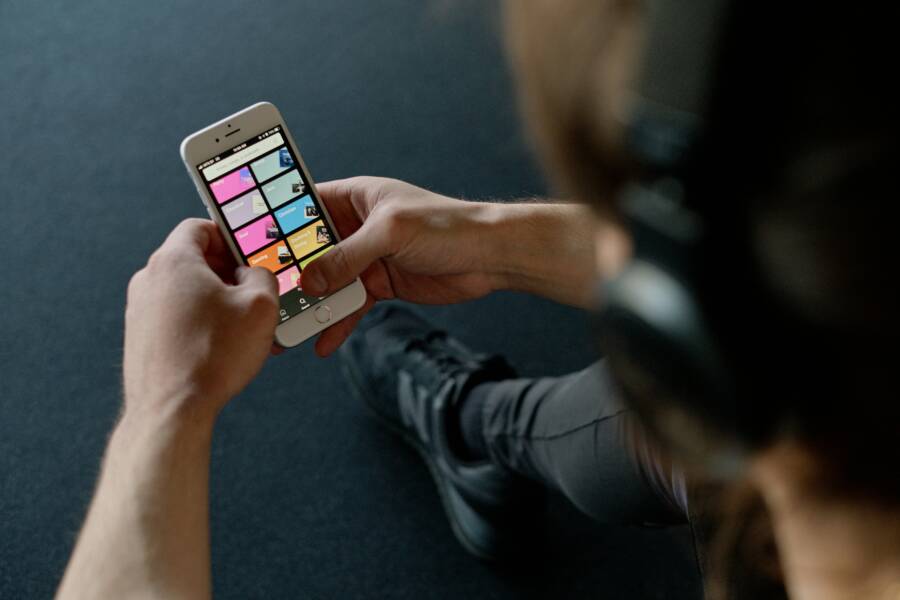
Picture this: You’re on your commute, headphones in, ready to lose yourself in a Spotify playlist or Netflix podcast. The visuals pop, but the sound turns tinny and flat. That drop in audio quality hits hard, right? Streaming apps like Spotify, Netflix, and YouTube often lower quality to save data or cope with spotty connections. They use tricks like adaptive bitrate, which adjusts sound based on your signal strength. It’s smart for them, but frustrating for you.
The good news? You can fix this on your phone with simple steps. We’ll cover why it happens, how to test your internet, tweak app settings, and update software. Most issues stem from easy-to-spot problems like weak WiFi or hidden data savers. By the end, you’ll enjoy crisp, full audio every time. No tech degree needed, just follow along.
Why Streaming Apps Lower Audio Quality on Your Phone
Streaming apps cut audio quality for practical reasons. They watch your data use, battery life, and connection speed. Poor choices lead to muffled sound or compressed tracks that lose detail.
Weak internet tops the list. Apps drop to low-bitrate audio, around 96kbps, when speeds dip below needs. Data saver modes throttle quality too. Battery limits kick in to stretch power. Outdated software misses fixes for these glitches.
Spot these causes fast to pick the right fix. Apps don’t always warn you; they just adjust quietly.
Spot Poor Internet as the Main Culprit
Weak WiFi or mobile data forces apps to lower quality. High audio, like Spotify’s Very High at 320kbps, needs stable speeds of at least 5Mbps. Below that, it switches to basic modes.
Test it: Play a track and watch the quality indicator, if shown. Buffering or pixelated video often pairs with bad sound. Public spots like cafes worsen this with crowded networks. Run a speed check during playback to confirm.
Check Data Saver and Battery Features
Data saver in apps caps quality to 160kbps or less. Signs include a data mode icon or sudden drops on mobile data.
Battery saver on your phone restricts background tasks, including high-quality streaming. Look for low-power mode alerts. These features help conserve resources but rob your ears of rich bass and clarity.
Test and Fix Your Internet Connection
A solid connection fixes most audio drops. Start here, as it’s the biggest issue. Free tools make it quick.
Download a speed test app and check during your usual streaming time. Restart gear if speeds lag. Switch networks next. These steps restore high-bitrate audio in minutes.
Public WiFi often fails due to limits or interference. Toggle to mobile data for a boost.
Run a Quick Speed Test
Grab Speedtest by Ookla from your app store. It’s free and accurate.
Open it, tap Begin, and let it run. Aim for 5Mbps download or higher for top audio. Upload matters less. Test near your router or on data.
Low results? Note the numbers. Retry after fixes. Apps like Netflix show quality bars; match them to speeds.
Switch Networks for Better Results
Forget bad WiFi: Go to Settings > WiFi, tap the network, select Forget. Reconnect if stronger.
Toggle Airplane Mode on for 10 seconds to refresh. Switch to 5G if your carrier supports it; go to Settings > Cellular > Voice & Data.
Test audio after each swap. Play the same track. Stronger signals keep quality high.
Tweak App and Phone Settings for Better Sound
Apps hide toggles that lock in low quality. Flip them off for immediate gains.
Phone-wide options matter too. Your smartphone’s low data mode affects all apps. Steps work on Android and iOS.
Set everything to high or always high. Test playback right away to hear the difference.
Disable Data Saver in Your Streaming App
In Spotify: Tap profile > Settings > Data Saver, toggle off. For mobile, set Streaming Quality to Very High.
Netflix: Account > App Settings > Data Usage > High. Turn off Cellular Data Usage.
YouTube: Profile > Settings > Video quality preferences > Advanced > Turn off Data saver. Premium users get more control.
Restart the app and play. Crisp sound returns.
Boost Audio Quality Settings
Spotify again: Under Playback, set Audio quality to Very High on WiFi, High on data. Enable Download using WiFi only if picky.
Netflix downloads: Set to High in app settings.
Phone level: iOS Settings > Cellular > App name > toggle off Low Data Mode. Android: Settings > Network & internet > Data Saver > turn off, or per-app.
Lock WiFi-only for best results.
Update Software and Clear Phone Clutter
Old apps and OS versions cause bugs that throttle audio. Updates patch them.
Clear cache frees resources. Background apps hog bandwidth too.
Restart seals it. Low storage forces cuts; free space helps.
Last, reinstall stubborn apps.
Update Your Streaming App and OS
Open Google Play or App Store. Search the app, tap Update if available. Enable auto-updates in store settings.
For OS: Android Settings > System > System update. iOS Settings > General > Software Update.
Smartphone patches often fix streaming glitches. Install and restart.
Clear Cache and Restart for a Fresh Start
Android: Settings > Apps > [App] > Storage > Clear Cache. Force stop too.
iOS: Offload app via Settings > General > iPhone Storage > [App] > Offload, then reinstall.
Close backgrounds: Swipe up, clear all. Restart phone: Hold power, select Restart.
Test audio. Fresh setup prevents drops.
Wrap-Up: Get Crisp Audio Back Today
You now know why streaming apps lower audio: bad internet, data savers, battery modes, and old software. Start with a speed test and network switch. Tweak app settings next, then update and clear cache.
Build habits like sticking to strong WiFi and enabling auto-updates. Check quality indicators often.
Try these fixes during your next session. Your ears deserve full, vibrant sound. Share in comments what worked for you or if issues linger. Enjoy the upgrade!
(Word count: 1487)