Tired of your phone dying at the end of the day just because new emails keep arriving? Push email is convenient, but it can quietly drain standby power if your settings push nonstop notifications and background syncing. The good news is you can tune things up without losing the alert you want. This guide walks you through practical steps for both Android and iPhone users, so you can reclaim battery life while staying on top of your inbox.
Push email saves you the wait for new messages, but it can also keep the radio and apps in a constant hold. If you notice your device runs hot or shows a weak battery even when you hardly use it, standby drain from email is a likely culprit. By adjusting how you fetch, sync, and notify you can reduce energy use without turning email off entirely.
What you’ll gain from this guide:
- Clear, platform-specific steps to cut standby drain
- Quick checks to confirm what’s draining power
- A few simple habits that keep email alerts smart, not pushy
- Tips that apply beyond email to other apps that wake your phone
What causes standby drain from push email
Standby drain happens when your phone uses energy while it sits idle. Email apps that keep a persistent connection or check for updates too frequently can keep components active. Modern devices optimize battery life, but a handful of settings can nudge them toward faster drainage.
Two big culprits are:
- Persistent connections that stay open to receive new mail in real time
- Frequent background activity and notifications that wake the screen or CPU
A practical way to picture it is this: every time an email arrives or a notification pops, your phone may briefly wake from sleep, pull data, and push a notification to your eyes and ears. Do this constantly and the battery wears down faster than you expect.
Image: Battery drain scenario
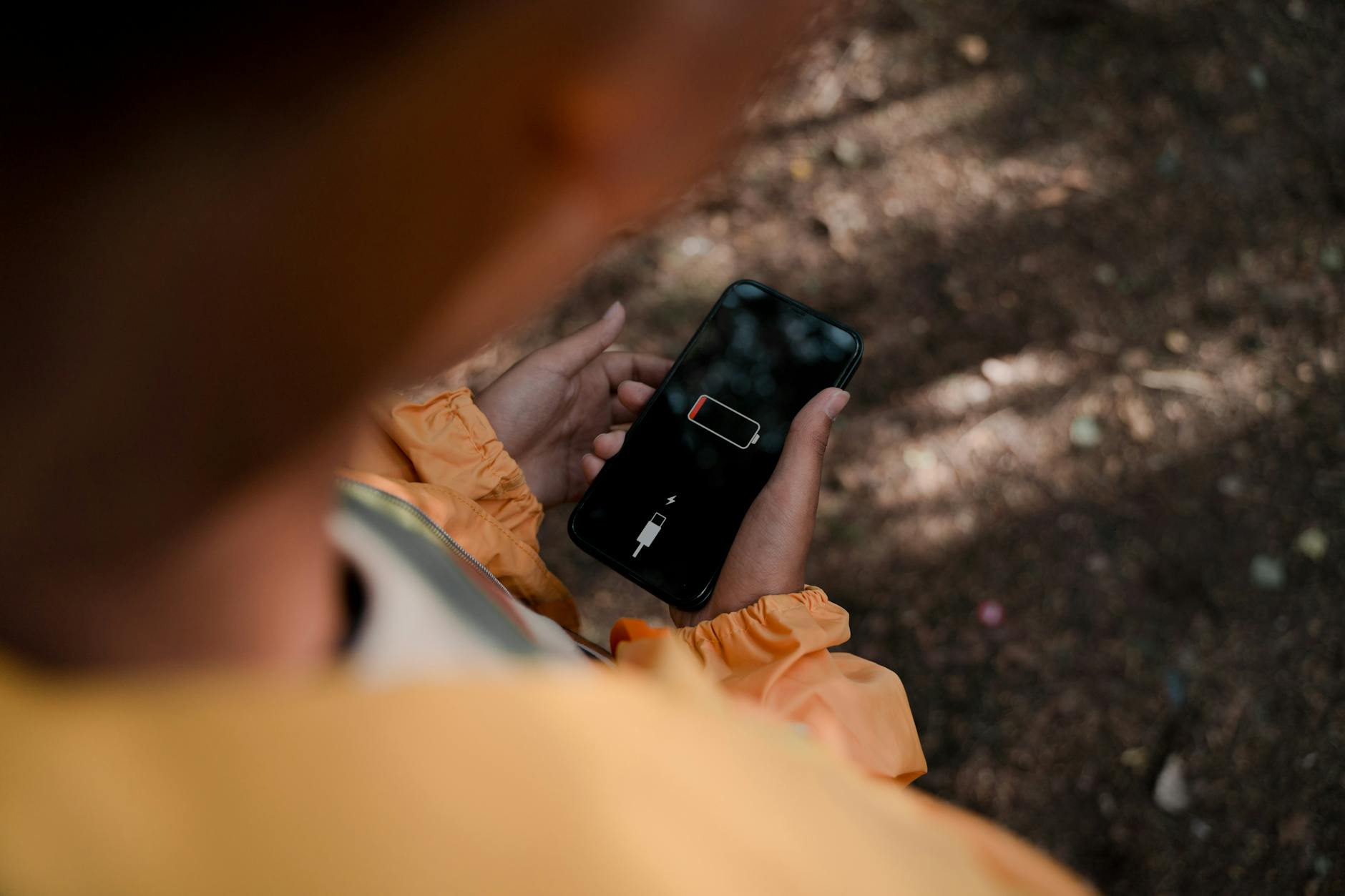 Photo by Ron Lach
https://www.pexels.com/@ron-lach
Photo by Ron Lach
https://www.pexels.com/@ron-lach
Now that you understand the core idea, you can apply targeted fixes that fit your device and how you use email.
Quick checks to pinpoint the drain
Before you adjust settings, do a quick audit. This helps you know if push email is the main issue or if another app is stealing power.
- Check battery usage by app
- On Android: Settings > Battery > Battery usage. Look for the email app and note how much power it uses over the last 24 hours.
- On iPhone: Settings > Battery. Scroll to Battery Usage by App and check the email client’s share of power.
- See if notifications wake the screen
- If you notice the display lighting up often in your pocket or bag, notifications could be the trigger.
- Review wake-up events
- Some devices show a “wakelock” or a chart of foreground vs background activity. If your mail app is a frequent wakener, you’ll want to adjust it.
- Check account activity
- If you have multiple accounts, an inbox with large attachments or a mailbox that’s always syncing can raise drain. Identify the accounts that push the most data.
Android users: Reduce standby drain without missing messages
Android provides granular controls for how and when apps stay online. Tailor push email so you get new mail when you want, not every moment.
Adjust push and sync settings
- Open your email app and switch from Push to a longer Fetch interval for less frequent checks.
- If your account supports it, set a limit on how many messages are fetched per sync. A compact fetch reduces data and battery load.
- Consider disabling push for less important accounts or disable push for all accounts during certain hours, like nighttime.
Limit background activity
- Go to Settings > Apps > [Your Email App] > Battery > Background activity. Turn off or limit background usage if possible.
- Some devices offer a “Restricted background activity” option. Enable it for the mail app if your OS allows.
Tweak notifications
- Limit the types of notifications that wake the screen. For example, show only when new mail arrives from VIP senders or after a minimal alert.
- Turn off rich notifications if your device is not receiving many important details. A simple banner with sound only can save energy.
Use a lighter email client or optimize data usage
- If your current app remains heavy on resources, try a lighter alternative. Some apps offer simplified sync and fewer background tasks.
- Disable auto-download of attachments for large messages. Attachments can be a big energy drain.
Enable power saving modes and scheduled pause
- Use a built-in power saver feature during low-battery periods. Some devices let you tailor what’s paused when power saver is on.
- Schedule a daily quiet period where email fetch is paused. This can be a powerful routine for long battery days.
iPhone users: Keep mail alerts healthy for all-day power
iPhone energy management centers on balancing fetch settings, background activity, and notification behavior. The goal is to keep mail alerts reliable without keeping the device perpetually awake.
Switch from Push to Fetch or Schedule
- In Settings > Mail > Accounts > Fetch New Data, switch from Push to Fetch and set a longer fetch interval like every 30 minutes or hourly for less critical accounts.
- If you keep Push for essential accounts, use Fetch for less important ones. This reduces background traffic while staying informed.
Manage Background App Refresh
- Go to Settings > General > Background App Refresh. Turn it off for apps that don’t need to update while not in use.
- If you prefer some refresh, limit it to Wi-Fi only to save cellular energy.
Fine-tune notifications and lock screen behavior
- In Settings > Notifications > Mail, choose to deliver notifications quietly or disable banners and sounds for nonessential accounts.
- Turn off lock screen previews for sensitive mail, but keep essential alerts visible. Reducing the frequency of screen wakes helps energy use.
Energy-smart habits within Mail app
- Avoid auto-download of attachments on mobile data. Keep heavy downloads on Wi-Fi.
- Archive or delete old messages periodically. A lean inbox reduces the volume of data to sync.
- Consider turning off Push for newsletters or promotional mail if they arrive constantly and are not urgent.
Cross-platform tips to prevent future drain
Some steps work across both platforms and can help you keep standby power in check.
Update all software
- Keep your OS and mail app up to date. Patches often include power management improvements and bug fixes that affect standby drain.
Check for server-side issues
- Sometimes the root cause is a server sending idle connections or pushing notifications too aggressively. If you notice across devices or accounts, check provider status pages or forums for known issues.
Use a single, reliable mail app
- A single app with good optimization can be kinder to your battery than multiple clients. If you must run more than one, stagger their update times so they aren’t all pinging servers simultaneously.
Limit large attachments and media
- Attachments, images, and large files consume data and CPU during downloads. Save large messages for when you have a solid Wi-Fi connection.
Consider hardware health and charging habits
- Old batteries wear out faster. If your device ages, standby drain can become more noticeable. A battery health check can reveal if a replacement is in order.
- Avoid exposing your phone to extreme temperatures, which magnify battery drain.
When problems persist and what to do next
If you’ve trimmed push email activity but still see rapid standby drain, try a more deliberate approach.
- Test changes in stages. Make one adjustment at a time and monitor battery life for a day or two.
- Check for rogue apps. A battery-draining app may not be as obvious as your email client. Review recent installs and permissions.
- Consider a factory reset only after you’ve backed up data. If none of the changes help, a clean slate might fix stubborn issues.
- If you rely on email for work, create a short incident plan. Identify which accounts must push and which can tolerate Fetch, then align your device settings accordingly.
Practical example to illustrate the approach
Imagine you have two email accounts on an Android phone: work and personal. The work account uses Push for instant delivery, while the personal account is set to Fetch every 15 minutes. Over a week, you notice the battery lasts an extra 6 hours per day after changing the personal fetch to hourly and turning off background refresh for newsletters. The work account still delivers quickly, but the overall energy footprint drops because the system isn’t waking up with every new email from every account.
A few final reminders
- Keep notifications meaningful. If every ping triggers a wake, you’ll feel the drain even when you think you aren’t using the phone.
- Don’t rely on a single fix. A combination of settings usually yields the best balance between responsiveness and battery life.
- Periodically review your setup. Email habits can change with seasons, job duties, or app updates.
Conclusion
Push email is convenient, but it shouldn’t steal your battery at the worst moments. By tuning fetch intervals, limiting background activity, and refining notifications, you can keep alerts reliable while extending standby time. Android and iPhone users have plenty of options to tailor their mail experience without sacrificing speed or awareness.
If you found this guide helpful, try implementing one change today. Monitor how your device performs over the next few days, then decide which combination works best for you. The goal is simple: a smartphone that stays awake when you need it and stays asleep when you don’t. Your inbox will still be there, and your battery will thank you.