There Is a Frequency That the Wealthiest Families Have Used for Generations and Most People Will Never Know It Exists
>>> Open the Door <<<

Are your Slack notifications stubbornly silent on your phone, leaving you out of the loop at crucial moments? If so, you’re not alone, and a quick fix is closer than you think.
This guide helps team members, students, and remote workers who rely on timely alerts to stay connected. You’ll learn a practical, step by step approach to identify the cause and restore reliable alerts.
By the end, you’ll know how to check notification settings, speed up delivery, and avoid common pitfalls that mute messages. We’ll keep things simple with clear actions you can follow today, so you don’t miss another message.
Quick checks to fix Slack notifications on your phone
If Slack alerts vanish on your phone, a quick sweep of settings usually brings them back. These checks are simple, practical, and work whether you’re using Android or iPhone. Start with the basics and move to device specific tweaks as needed. By following these steps, you’ll improve the odds of getting timely alerts without babysitting the app.
He Was Drowning in Bills and Burnout Until a Simple Daily Ritual Rewired His Brain for Wealth in Less Than a Week
>>> Start Your Shift Today <<<

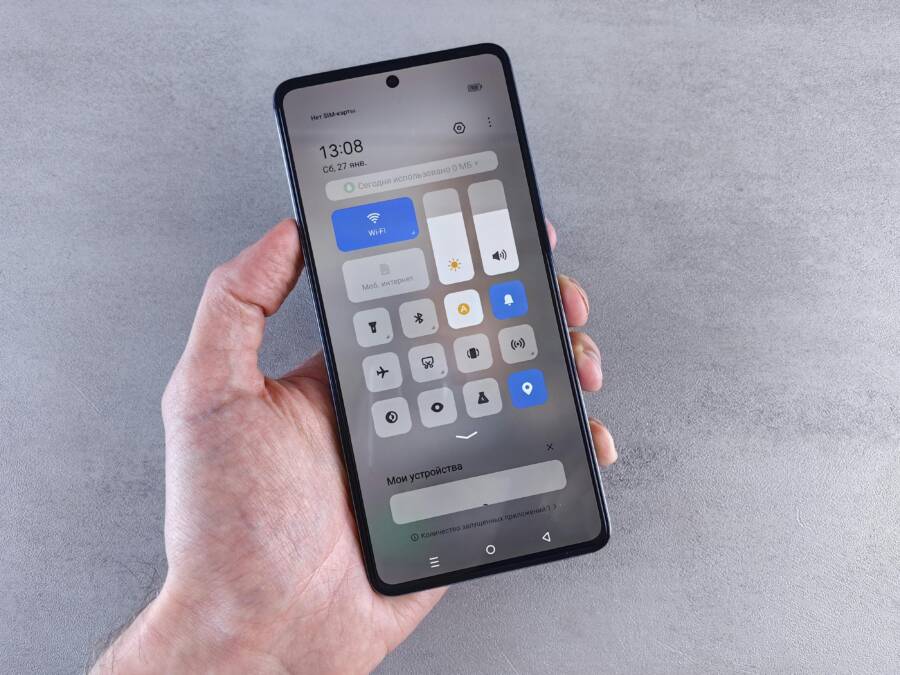
 Photo by Andrey Matveev
Ensure Slack can send notifications on your phone
First, make sure Slack has permission to show notifications in your phone’s system settings. The process is similar on Android and iOS, but the wording differs a bit, so follow along.
- Android
- Open the phone’s Settings app.
- Go to Apps & notifications (or just Apps on some models) and find Slack.
- Tap Notifications and ensure they are turned on. Confirm that you’re allowed to show notification dots, banners, and sounds.
- Check the option to show notifications on the lock screen if your device hides content when locked.
- In Slack itself, open the app, go to Settings & administration > Preferences > Notifications and verify that you have alerts enabled for channels, mentions, and direct messages. If you’re using multiple Slack workspaces, confirm that each has notifications turned on.
- iPhone (iOS)
- Open the Settings app and select Slack.
- Tap Notifications and switch on Allow Notifications.
- Choose your alert style: Banners, Alerts, or both, depending on your preference.
- Enable Sounds, Badges, and Show on Lock Screen.
- In Slack, go to Your profile > Preferences > Notifications and ensure you’ve enabled the right alerts for channels, mentions, and DMs. If you use Do Not Disturb, review the Do Not Disturb schedule there as well.
Why this matters: if the OS blocks Slack notifications or the app’s own settings mute alerts, you’ll miss messages. It’s the most common reason people miss Slack notices. For quick reference, Slack’s own help articles walk you through configuring notifications on both Android and iOS. See: Configure your Slack notifications, Guide to Slack notifications, and troubleshooting Slack notifications for more details.
Check Do Not Disturb and quiet hours on phone and in Slack
Do Not Disturb (DND) can silence alerts at the device level, while Slack can also suppress alerts during quiet hours. Both need to be aligned to ensure you receive messages when you expect them.
- Do Not Disturb on the device
- On Android: swipe down to access Quick Settings and tap the DND icon, or open Settings > Sound > Do Not Disturb to inspect schedules and exceptions. Ensure Slack is not blocked and that the rule does not blanket all apps.
- On iPhone: open Settings > Focus (or Do Not Disturb on older iOS) > Do Not Disturb. Check if it’s active and what apps are allowed. If Slack isn’t allowed, enable Slack in the allowed apps list.
- Slack quiet hours and Do Not Disturb
- In Slack, go to Preferences > Notifications and look for the Do Not Disturb settings. Disable any active schedule if you want alerts outside those hours.
- If you do want DND, set a precise window and add Slack to the allowed notifications when DND is on. This keeps work chats from waking you up at night unless you choose to allow them.
- Practical tips
- Create a narrow DND window that covers your sleep hours, but allows urgent channels to ping you if needed.
- Whitelist Slack in your device’s DND exceptions if possible, then test by sending a message during a normally muted period.
- If your phone supports multiple profiles or user accounts, ensure Slack is configured in the primary profile where you use notifications most.
If you want more detail, Slack’s guide to pausing notifications and managing quiet hours is a solid reference, and you can also review how to troubleshoot Slack notifications for a deeper dive.
Test notification by sending a sample message
The fastest way to confirm everything is working is to send a test message in Slack and listen for the alert. Here’s a quick, reliable method.
- Send a test message
- Open Slack and in any workspace, send a direct message to yourself or post in a channel you follow. If you’re testing on a team channel, mention yourself to trigger a notification.
- Check the result
- On your phone, you should see a notification banner or alert with the Slack sound (if you’ve enabled sounds). The lock screen should show the message if you’ve allowed it.
- If you don’t hear or see anything, re-check the previous steps: app permissions, OS alerts, and Slack’s in-app notifications.
- If no alert appears
- Return to Slack’s notification settings and ensure the channel or DM you tested is included in alerts.
- Verify your device’s notification delivery for Slack is not turned off by a system rule or app-specific setting.
- Review Do Not Disturb and Focus settings again to confirm the test message isn’t blocked by a schedule.
- As a fallback, reinstall Slack or sign out and back in to refresh the permission states.
For additional guidance on testing and troubleshooting, Slack’s help center offers a dedicated Troubleshoot Slack notifications page, plus step by step instructions for Android and iPhone users.
Sources and deeper reads:
- Configure your Slack notifications
- Guide to Slack notifications
- Troubleshoot Slack notifications
- How to troubleshoot notifications with Slack on Android
If you’d like a quick checklist to keep handy, here’s a compact one you can print or save on your phone:
- OS notifications enabled for Slack (Android or iOS)
- Slack notifications enabled in Slack app preferences
- Do Not Disturb or Focus not blocking Slack
- Slack is whitelisted in any DND or quiet hours
- Test message delivers with sound and visible banner
- Lock screen visibility enabled if you rely on it
By running through these checks, you’ll reduce the chances of missing important messages. If you still run into trouble, consider checking any device-specific forums or contacting Slack support with details about your device model and OS version.
Adjust Slack app settings for reliable alerts
When your Slack notifications drift offline, it’s easy to assume the fault lies with the network or the device. In reality, a few well-chosen tweaks inside the app and on your phone can restore dependable alerts. This section walks you through practical adjustments that keep important messages front and center, whether you’re at your desk, on the road, or juggling multiple channels. Expect clear steps, useful examples, and quick checks you can perform on a smartphone or tablet to stay in sync with your team.
Notification preferences inside Slack
Your Slack notifications inside the app control what you actually see and hear. Start by checking the basics and then fine-tune for the most important messages.
- Access paths
- Open Slack and go to your profile or workspace menu, then choose Preferences. From there, select Notifications. Here you decide when to be alerted and what events trigger a notification.
- For channel specific behavior, you can adjust alerts per channel or direct message by visiting the channel settings or the “More” options in a channel and choosing Notification preferences.
- Banner, alert styles, and sounds
- Banners: Choose whether you want banners for all messages or only for mentions and direct messages. Banners appear briefly at the top of the screen; they’re ideal when you’re actively using the app.
- Alerts: You can switch between banner alerts, sound alerts, or both. If you frequently miss sounds, combining both options helps.
- Sounds: Pick a distinct tone for Slack messages or turn off sounds if you prefer silent alerts in meetings. A unique sound helps you distinguish Slack from other apps.
- Show on lock screen: Enable this if you want a quick peek of messages without unlocking your device.
- Do Not Disturb and focus
- Use the Do Not Disturb setting to silence alerts when you need concentration. It can still allow notifications from certain people or channels if you configure exceptions.
- For a smartphone workflow, set a DND window that covers deep focus times but allows urgent Slack messages if needed.
- Visual cues and impact
- Badges on the app icon can remind you to check messages when you miss a banner. Use banner previews and lock screen visibility to ensure you don’t overlook important mentions.
- The impact of these options is immediate: more relevant alerts reduce noise, while missing essential messages becomes a problem of the past.
- Quick tips
- If you work across multiple workspaces, review notification settings for each one. A workspace with muted alerts can still deliver important messages to the others.
- Use sample tests after changes. A quick test message helps you confirm whether the chosen settings deliver the banner, sound, and lock screen preview you expect.
For deeper guidance on these options, see Slack’s official guidance on configuring notifications and customizing them for your needs: Configure your Slack notifications, and Customize your notifications in Slack. These resources cover common scenarios and give you a solid baseline for reliable alerts.
Tip: keep a simple checklist handy. Confirm you have enabled OS notifications, Slack app alerts, and the correct in-app channel settings. Then run a quick test to verify the flow from channel message to banner and sound.
Mentions, keywords, and alert rules
Smart notifications rely on how you set up mentions and keywords. This ensures you’re alerted for the messages that truly matter, without getting overwhelmed by noise.
- How mentions work
- Mentions are triggered when someone uses @yourname, @here, or @channel in a message. If you’re part of a busy team, limiting alerts to mentions can dramatically reduce interruptions while ensuring you don’t miss critical notes.
- Direct messages always generate a notification, regardless of channel settings. If you want extra visibility, you can pair DMs with a sound or banner.
- Keywords and alert rules
- Slack lets you tailor alerts around keywords. Add words or phrases that signal urgency or relevance to your role. For example, a support agent might track keywords like “urgent,” “asap,” or client names to stay responsive.
- You can set keywords not only in channels you monitor but also across your direct messages, depending on how you want to balance awareness and distraction.
- Practical keyword examples by role
- Software developer: keywords like “bug,” “deploy,” “production,” “rollback”
- Sales or customer success: keywords such as “renewal,” “contract,” “delivery,” “deadline”
- Project manager: keywords like “blocker,” “risk,” “deadline,” “handoff”
- Support engineer: keywords such as “outage,” “incident,” “SLA,” “urgent”
- How to configure
- In Slack, go to Preferences > Notifications and select My keywords. Enter terms you want to be alerted about. You can add multiple terms and specify if you want a banner, sound, or both for each keyword.
- For per-channel control, adjust the channel’s notification settings to either follow global rules or override with channel-specific rules.
- Why this matters
- Well-chosen keywords act like a smart filter. They catch the messages that could affect your work without forcing you to watch every channel all day.
- Real-world example
- A project lead sets keywords like “blocked,” “escalate,” and the client name for critical channels. Any message containing these terms triggers an immediate alert, making it easier to respond quickly during a high-priority incident.
In practice, these settings turn Slack into a precision tool rather than a blanket alert system. Slack’s help articles on notifications and mentions show how to tailor alerts effectively, including how to use mentions and keywords to your advantage.
Sound, vibration, and lock screen behavior
The last mile of reliable alerts happens with how you hear and see them. A practical setup here keeps you in the loop without waking others or draining battery life.
- Notification sound
- Pick a sound that’s easy to distinguish from other alerts. The right tone helps you recognize Slack messages at a glance, even if you’re not actively looking at your phone.
- If you share a device, consider a softer or shorter tone to avoid disturbing others.
- Vibration patterns
- Customize how your device vibrates for Slack messages. A brief pattern might indicate quick messages, while a longer vibration can signal you’ve missed a time-sensitive alert.
- Use consistent patterns for Slack to reduce the mental load of distinguishing between apps.
- Lock screen behavior
- Decide what shows on the lock screen. If you rely on the lock screen for quick glances, allow message previews. If privacy is a concern, keep previews off and review messages after unlocking.
- Some devices offer separate settings for vibrating and silent lock screen alerts. Align these with your Slack preferences for a coherent experience.
- Practical testing
- After making changes, send a test message from Slack and verify the alert on your smartphone. Confirm that the sound plays, the vibration occurs, and the lock screen shows a preview if enabled.
- If nothing appears, re-check OS notification permissions, then review Slack’s in-app settings again.
- Privacy and battery considerations
- If you’re on a battery saver mode, Slack might throttle background activity. Ensure Slack is allowed to run in the background for timely delivery, especially if you rely on silent or low-power alerts.
For more on how to adjust sounds and lock screen behavior, you can explore guides like How to fully customize iPhone notifications and How to change Slack notification sound. These sources provide detailed steps for common devices and help ensure your settings match your daily workflow.
Putting it all together, the combination of in-app preferences, keyword rules, and thoughtful sound and lock screen choices creates a reliable alert system. A quick review of these three subsections each time you adjust your devices will help you stay in the loop without feeling overwhelmed.
Recommended quick actions
- Review and tighten your notification preferences in Slack to ensure mentions and DMs are surfaced the way you want.
- Build a concise set of keywords that flag urgent work items and test with a real message.
- Choose a distinct notification sound, configure vibration patterns, and decide how much of the message you want to preview on the lock screen.
If you want to dive deeper, Slack’s help center offers detailed articles on notifications, mentions, and customizing alerts, including step-by-step instructions for Android and iOS. Consider bookmarking these resources for quick reference during setup or when you upgrade your device.
Tweak Android and iOS notification permissions
To keep Slack alerts reliable, you need to align what the OS allows with how Slack delivers them. This section walk you through Android notification channels and permissions, then cover iOS notification settings and Focus modes. The goal is simple: ensure Slack can push banners, sounds, and badges when you expect them, no guesswork required.
Android notification channels and permissions
Android uses notification channels to group alerts from each app. If a channel is muted or blocked, Slack can’t deliver that type of notification, even if the app is allowed to send other alerts. Here’s how to verify every layer is open and ready.
- Find Slack’s notification channels
- Open your device’s Settings and navigate to Apps & notifications or Apps.
- Tap Slack, then go to Notifications. You should see a list of channels or categories (for example, Direct Messages, Mentions, and general channels). Each channel can be turned on or off independently.
- If you’re using multiple Slack workspaces, check the notification settings for each workspace. Some channels may be muted by default.
- Ensure all categories are allowed
- Within Slack’s Notifications, make sure the channels you care about are enabled. Enable banners, sounds, and notification dots if you want a quick visual cue on your home screen.
- If any channel is muted, re-enable it. This is especially important for channels where time-sensitive messages arrive.
- Check battery optimization exclusions
- Many Android devices block background activity to save power. If Slack is put to sleep, you might miss alerts. Go to Settings > Battery > Battery optimization and set Slack to “Not optimized” or “Unrestricted” so it can run in the background.
- Some devices have a Special App Access or Background Restriction area. Ensure Slack is allowed to run in the background and is not restricted by any battery saver rules.
- Quick test
- Send a direct message to yourself or mention yourself in a channel to confirm a banner, sound, and lock screen preview appear. If not, revisit the steps above and test again.
If you want more precise guidance from Slack, see their articles on managing notifications for specific channels and-direct messages. These resources explain how to tailor alerts so you’re only pinged when it matters.
- Manage notifications for specific channels and direct messages: https://slack.com/help/articles/360056534254-Manage-notifications-for-specific-channels-and-direct-messages
- Configure your Slack notifications: https://slack.com/help/articles/201355156-Configure-your-Slack-notifications
iOS notification settings and Focus modes
iPhone users often hit Focus modes or banner settings that mute Slack without a clear clue why. The fix is straightforward: ensure banners, sounds, and badges are enabled, and configure Focus modes to allow Slack during work and silences when appropriate.
- Enable banners, sounds, and badges in iPhone settings
- Open Settings and select Slack.
- Tap Notifications and ensure Allow Notifications is on.
- Choose your alert style: Banners, Alerts, or both, depending on your preference.
- Turn on Sounds, Badges, and Show on Lock Screen.
- In Slack, go to Your profile > Preferences > Notifications and verify the right alerts for channels, mentions, and DMs.
- Focus modes that may silence Slack and how to allow Slack during focus times
- Focus modes extend Do Not Disturb by letting you tailor which apps can notify you during a given focus.
- Go to Settings > Focus and pick a mode (for example Work or Personal).
- In the Focus settings, allow Slack from the list of apps during the chosen Focus. If Slack isn’t allowed, messages won’t break through.
- You can also set who can notify you within Focus. If you need urgent Slack messages, add specific contacts to the Allowed People list.
- Practical tips for Focus management
- Create a dedicated Work Focus that allows Slack and blocks nonessential apps. This keeps you productive while still getting essential alerts.
- If you use multiple Focus modes, verify Slack’s permission in each one. A mismatch is a common source of missed notifications.
For deeper context on Focus modes, refer to guidance on fixing Focus issues and how to manage Focus on iOS. You can also review Apple’s official guidance on allowing or silencing notifications for a Focus.
- Allowing App Notifications Only On Specific Focus: https://discussions.apple.com/thread/255043786
- Allow or silence notifications for a Focus on iPhone: https://support.apple.com/en-is/guide/iphone/iph21d43af5b/ios
- Fixing Focus Modes on iOS – iMarc: https://www.imarc.co.uk/2023/12/03/fixing-focus-modes-on-ios/
- Slack resources for iOS notifications
- Customize your notifications in Slack: https://slack.com/resources/using-slack/customize-your-notifications-in-slack
- Configure your Slack notifications: https://slack.com/help/articles/201355156-Configure-your-Slack-notifications
- General iPhone notification guidance
- How to customize Slack notifications on iPhone: https://www.idownloadblog.com/2018/08/07/customize-slack-notifications-on-iphone/
Test and verify
What If the Only Thing Between You and the Life You Deserve Is a Hidden Wealth Code Waiting to Be Activated
>>> Open the Door <<<

- After adjusting a Focus mode or banner settings, quickly test by sending a message to yourself or a channel you monitor. Ensure the banner appears, the sound plays, and the lock screen preview shows if enabled.
- If Slack still doesn’t alert you, recheck the Focus settings and the per-channel in-app notification preferences. A small misconfiguration often hides in one place.
Putting it all together, the right combination of OS permissions, in-app preferences, and Focus configurations creates a dependable alert system. A quick review of these steps before you start your day can save countless missed messages.
Recommended quick actions
- Confirm OS notifications are enabled for Slack on iOS and Android.
- Review Slack’s in-app notification preferences for channels and DMs.
- Set up a focused workflow that allows Slack during work hours and suppresses noise at other times.
- Run real-world tests by sending messages and listening for banners, sounds, and lock screen previews.
If you want more in-depth guidance, Slack’s help center provides detailed steps for notifications and Focus-specific setups, including Android and iOS scenarios. Bookmark these resources for quick reference as you fine-tune your alerts.
Address OS level issues and background activity
Your phone’s operating system and how apps run in the background can quietly mute Slack alerts. This section helps you audit background data usage, power management, and system rules that may block notifications. Think of it like clearing a congested hallway so Slack can deliver messages when they arrive. We’ll cover practical checks for both Android and iOS, plus quick tests to confirm everything flows smoothly on your smartphone.
Background data, battery saver and app refresh
Background activity is essential for timely Slack alerts, but several OS features can throttle it. If Slack isn’t allowed to run in the background, you may miss messages even when you’re online.
- How background data works
- On Android, background data lets Slack receive messages even when the app isn’t open. If background data is disabled, Slack may only fetch when you open the app.
- On iPhone, background refresh keeps Slack up to date so you see new messages as soon as you unlock the screen.
- Common blockers and fixes
- Battery saver or low power mode can throttle background tasks. Turn off or loosen these modes for Slack to ensure timely alerts.
- Battery optimization settings on some devices may mark Slack as a low-priority app. Exclude Slack from optimization so it can run in the background.
- App refresh limits can prevent Slack from updating reliably. Ensure Slack is allowed to refresh in the background.
- Quick actions you can take
- Android: Settings > Apps & notifications > Slack > Battery > Battery optimization > Not optimized. Then verify Slack has background activity allowed in the app’s notification settings.
- iOS: Settings > General > Background App Refresh > Slack. Make sure it’s enabled and that cellular data is allowed if you’re not on WiFi.
- Real-world check
- After adjusting, send a message in Slack and wait a minute. You should see a banner or notification with the message if Slack can run in the background.
Useful references for deeper steps:
- Troubleshooting Slack notifications on Android and iOS: https://slack.com/help/articles/360001559367-Troubleshoot-Slack-notifications
- Manage notifications for specific channels and direct messages: https://slack.com/help/articles/360056534254-Manage-notifications-for-specific-channels-and-direct-messages
Do Not Disturb and Focus modes
DND and Focus modes can be powerful, but they often silence Slack by default. Align these modes with your actual work times to avoid gaps in alerts.
- Device level DND and Focus
- Android: Check Quick Settings or Settings > Sound > Do Not Disturb. Ensure Slack isn’t blocked by a global rule and that exceptions exist for urgent messages.
- iPhone: Settings > Focus. Select a Focus mode and review allowed apps. If Slack isn’t allowed, alerts won’t come through during that Focus.
- Slack in-app quiet hours and DND
- In Slack, Preferences > Notifications, review any Do Not Disturb schedules. If you want alerts outside those hours, disable the schedule or add Slack as an allowed app during Focus.
- If you prefer a strict break, keep DND active but whitelist Slack so urgent messages can still come through.
- Practical setup tips
- Create a dedicated Work Focus that allows Slack while silencing nonessential apps.
- Whitelist Slack in any DND exceptions on both devices to avoid missing critical messages.
- If you share a device, ensure Slack is allowed in Focus modes on all user profiles you use.
Helpful reference for Focus management and notifications:
- Focus mode guidance and how to manage Focus on iOS: https://support.apple.com/en-is/guide/iphone/iph21d43af5b/ios
Network conditions and data usage
A flaky connection or data saver features can delay or block Slack alerts. Stable delivery depends on both the network and how much data Slack is permitted to use.
- Network health and Slack
- A weak WiFi or cellular connection can slow message delivery. When the network improves, Slack should push notifications more reliably.
- Data saver and background activity
- Data saver modes may restrict background data usage, delaying alerts. Ensure Slack is exempt from data saver rules if you rely on real-time alerts.
- Quick resolution steps
- Switch to a stable WiFi network if the current connection is unstable.
- Temporarily disable data saver for Slack to test notification delivery.
- After testing, monitor performance and switch back if needed to conserve data.
External resources for network and notification troubleshooting:
- Troubleshoot Slack notifications for general guidance: https://slack.com/help/articles/360001559367-Troubleshoot-Slack-notifications
Practical test you can perform
- On a spotty connection, try sending a message from Slack and observe whether the alert arrives once the network stabilizes. If delays persist, rule out OS and in-app settings first, then revisit network considerations.
Key takeaway
- OS background activity, DND/Focus rules, and network health all influence Slack alerts. A quick audit across these areas prevents silent notifications and helps you stay in the loop.
Recommended quick actions
- Review each device’s background data and battery settings to permit Slack to run in the background.
- Verify no conflicting Do Not Disturb or Focus rules block Slack during work hours.
- Test alerts under different network conditions to confirm reliable delivery.
- Keep a small, ready-to-use checklist on your phone for quick reference during setup.
If you want more detailed guidance, Slack’s official resources and general troubleshooting guides provide step-by-step instructions for both Android and iPhone contexts. Bookmark these links for handy reference as you fine-tune your setup.
She Pressed Play on a Strange Audio Track and Within Days Her Financial Reality Started Shifting in Ways She Could Not Explain
>>> See How It Works <<<

Advanced troubleshooting and when to seek help
When Slack notifications still don’t arrive on your phone after trying the basics, it’s time for a deeper, methodical approach. This section helps you troubleshoot with a systematic mindset and know when it’s worth reaching out to support. You’ll walk through updating or reinstalling, verifying service status, and gathering the right information to get fast help. A calm, planned process saves time and prevents guesswork.
Update or reinstall Slack
Keeping Slack up to date is a common fix for notification issues. If you’re running an older version, it may miss newer background rules or security prompts that affect delivery. Here’s how to update or reinstall without losing your work.
- Update steps
- On Android: open the Google Play Store, search for Slack, and tap Update if available. Let the store finish syncing data and re-open Slack to test.
- On iOS: open the App Store, go to your profile, and pull to refresh, then look for Slack and tap Update. After updating, sign back in if prompted.
- Reinstall steps
- Back up essential data: Slack messages are stored on Slack’s servers, but you may want to confirm you can re-login smoothly. If you rely on local media or cached files, save any critical pieces outside the app first.
- Uninstall Slack: remove the app from your device.
- Reinstall Slack: download from the Google Play Store or the Apple App Store and sign back in.
- Re-login and test: after reinstall, open Slack, sign in, and send a test message to yourself or a monitored channel.
- Post-install checks
- Recheck OS permissions: ensure Slack can show notifications and access the necessary system features.
- Validate in-app settings: go to Preferences > Notifications and confirm you’ve enabled alerts for channels and DMs.
- Run a test: send a message and confirm a banner or alert appears with a sound if you enabled it.
Why this helps: updates fix underlying bugs, improve background activity, and align with newer OS notification frameworks. If you prefer a quick reference, Slack’s own guidance covers updating and troubleshooting notifications across Android and iOS.
- Slack help on configuring notifications: Configure your Slack notifications
- Troubleshooting Slack notifications: Troubleshoot Slack notifications
If you encounter a problem during reinstall, consider gathering logs before you start. This makes it easier for support to pinpoint the issue without asking for the same details repeatedly.
Check Slack status and known outages
A service outage can affect deliveries even when everything on your end is correct. Before chasing settings, confirm Slack’s system status. Outages or degraded performance can block notifications or delay them across all devices.
- How to check
- Slack System Status pages provide real-time and historical information about uptime and incidents. If Slack is reporting a degraded service or an outage, your best move is to wait for a fix from Slack and avoid chasing non-issues on your device.
- Official social channels often post updates during major incidents. Quick checks on Slack’s official status feeds can save you time.
- What to look for
- Any incident marked as affecting notifications or mobile delivery.
- The duration of the outage and ETA for a fix.
- Any recommended workarounds from Slack support during the incident.
- Next steps if there is an outage
- Enable notifications for critical channels once service resumes.
- Monitor the status page for updates and test again after the incident closes.
- If you’re in a critical role, set up alternative channels (like email alerts) for truly time-sensitive information during outages.
For quick reference, Slack’s status resources and uptime alerts can be helpful to bookmark. If you want ongoing updates, you can also subscribe to incident notices. See Slack System Status and related official channels for details.
- Slack System Status: https://slack-status.com/
- Get updates on Slack’s uptime alerts: https://slack.com/help/articles/360001997548-Get-updates-on-Slacks-uptime-alerts
Contact support and gather logs
If you still can’t resolve the issue after updates and status checks, gather the right information before reaching out. A clear, concise report helps support diagnose the problem faster and reduces back-and-forth.
- Information to collect
- Device model and make (for example, iPhone 13 Pro or Samsung Galaxy S23).
- OS version and build number (Android or iOS).
- Slack version and whether the issue happens across all workspaces or a specific one.
- Steps to reproduce the problem: what you did, what you expected to happen, and what actually occurred.
- Time of day and network conditions when the issue occurs.
- Logs and screenshots
- Share in-app logs if Slack offers a way to export them. If not, describe recent errors in as much detail as possible.
- Screenshots are often helpful to show permission prompts, in-app notification settings, or error messages.
- How to contact
- Use Slack’s official contact or support request form. If you’re already in a Slack workspace, you can start a support request from the help center link.
- Attach your gathered information and any relevant logs or images to the ticket to speed up diagnosis.
When you present the issue, include a brief summary at the top: “Notifications not arriving on Android after the latest update; Tested on two workspaces; Issue occurs with both DMs and mentions; Background data allowed; Do Not Disturb disabled during testing.” A precise report reduces the back-and-forth and gets you answers faster.
If you need direct help, Slack’s support resources guide you through the contact process and what to include in your request. You’ll often find faster resolution when you attach the logs or screenshots that show the exact permissions and in-app settings at the time of the issue.
- Contact Slack support: Contact Us
- Slack troubleshooting resources: Troubleshoot Slack notifications
- Slack in-app logs and developer docs: Logging function and app behavior
Key takeaways for advanced troubleshooting
- Start with updating or reinstalling to clear out old data and corrupt files.
- Always verify Slack’s system status before digging deep into settings.
- Gather precise device and app details, plus a well-documented reproduction path.
- Share logs and screenshots to speed up support.
These steps help you determine whether the problem is on the device, with Slack, or due to a service outage. If you still don’t get the expected results after following this guidance, consider scheduling time with a tech support person who can walk through your exact setup.
Recommended quick actions
- Verify you’re on the latest Slack version or reinstall as needed.
- Check Slack system status and official updates before deep troubleshooting.
- Collect device details and steps to reproduce before contacting support.
- Attach logs or screenshots when you open a support ticket for faster resolution.
If you want more in-depth guidance, Slack’s help center offers step-by-step instructions for notifications, status updates, and how to export logs where available. Bookmark these resources for quick reference during setup or when you upgrade your device.
Conclusion
Fixing Slack notifications on your smartphone comes down to a few solid checks. Start with OS permissions, then verify Slack in-app settings, and finally test with a real message. A well-tuned setup makes your smartphone a reliable alert tool again. If you still have issues, reach out for help and we’ll troubleshoot together.
Simple, actionable checklist
- Enable OS notifications for Slack on your device (Android or iOS)
- Turn on Slack alerts in the app preferences for channels and DMs
- Check Do Not Disturb or Focus modes and whitelist Slack
- Confirm Slack can run in the background with no battery saver blocks
- Send a quick test message and verify banner or sound
- If problems persist, reinstall Slack or contact support with device details
Helpful note: run the test on your smartphone after each step to confirm delivery. If you’re still facing issues, I’m happy to help review your exact setup and suggest targeted fixes.
Thousands of People Were Struggling With Money Until They Discovered This One Ancient Secret Hidden in Sound
>>> Unlock It Now <<<
