He Was Drowning in Bills and Burnout Until a Simple Daily Ritual Rewired His Brain for Wealth in Less Than a Week
>>> Start Your Shift Today <<<

Tired of missing important messages because Microsoft Teams notifications don’t show up on your phone? This guide spots the common culprits like app permissions, OS level settings, battery optimization, account status, and connectivity, then gives you a simple, practical fix you can try right away. Follow these quick steps, and you’ll see a clear difference on both Android and iPhone, with reliable alerts that keep you in the loop.
Start with the right phone level checks to fix missing Teams alerts
When notifications still don’t appear on your smartphone, the problem is often at the phone level, not in the Teams app alone. This section walks you through practical checks you can perform quickly to restore reliable alerts. Start with permissions, then move to Do Not Disturb and battery settings. A few well-placed tweaks can get your Teams notifications back in action across both Android and iPhone.
 Photo by Watford London Media
Check device notification permissions for Microsoft Teams
Verifying notification permissions on both Android and iPhone is the fastest way to ensure alerts reach your device. On Android, open Settings, then go to Apps, find Teams, and select Notifications. Make sure all relevant toggles are on, including:
She Pressed Play on a Strange Audio Track and Within Days Her Financial Reality Started Shifting in Ways She Could Not Explain
>>> See How It Works <<<

- Alert banners
- Sounds
- Badges
- Lock screen notices
On iPhone, go to Settings, locate Teams, and open Notifications. Enable the same items: banners, sounds, badges, and lock screen alerts. After enabling, send yourself a quick test message to confirm that the notification arrives as expected.
If you want deeper guidance, Microsoft’s official troubleshooting articles cover common permission paths and how to reset entitlement if needed. For a step-by-step, see their guidance on managing notifications in Teams and troubleshooting mobile alerts. Troubleshoot notifications in Microsoft Teams mobile apps and related articles like Manage notifications in Teams. If you hit a wall, the Microsoft Q&A thread on notifications not working can offer additional troubleshooting steps. notifications are not working – Microsoft Q&A
Tip: after you enable notifications, open Teams and send a message to yourself or a buddy to confirm the alert pattern (sound, banner, and badge) behaves as expected.
Disable Do Not Disturb and Focus modes that block alerts
Do Not Disturb (DND) and Focus modes can quietly silence Teams, even when everything else is configured correctly. Check both Android and iPhone settings for any active schedules or rules.
- Android: Open Settings > Sound & vibration > Do Not Disturb. Review any schedules or exceptions. If a routine is silencing notifications during work hours, disable it or add Teams to the “Allowed interruptions” list.
- iPhone: Open Settings > Focus. Look for any active Focus modes (Work, Sleep, Personal) and examine the allowed people and apps. If Teams is blocked or set to silent during certain times, adjust the rules or temporarily turn off Focus during your workday.
During busy days, a Focus mode can silence alerts from several apps at once. If you rely on Focus for other tasks, consider creating a dedicated work Focus with Teams allowed and notifications set to Always. This keeps your workflow intact while preventing other distractions.
If you’re unsure about the settings, a quick check of any active Focus modes during work hours can save you from missing urgent chats. Microsoft’s guidance on notification behavior across mobile platforms can help confirm the expected results. You can also review articles on Focus Assist and mobile notification troubleshooting for broader context. Troubleshoot notifications in the Phone Link and Focus help sections
Check power saving or battery optimization modes
Battery optimization can throttle background activity, which may delay or prevent Teams notifications from arriving promptly. Adjust these settings to keep Teams active in the background.
- Android: Go to Settings > Battery > Battery optimization. Find Teams and set it to “Not optimized” or “All apps, not optimized.” This ensures Teams can wake up in the background to fetch messages.
- iPhone: Ensure Low Power Mode is off when you expect notifications to come in live. Go to Settings > Battery and toggle Off under Low Power Mode if you’re actively using Teams during work hours. Additionally, verify that Background App Refresh is enabled for Teams in Settings > General > Background App Refresh.
A quick tip: allow uninterrupted background activity for Teams in both platforms so it can receive messages as they come in, even when you’re not actively using the app.
Bringing these checks together helps you identify whether a phone-level constraint is at fault or if a deeper app-level issue exists. When permission, DND, and battery settings align, you should see a notable improvement in the reliability of your Teams alerts on both Android and iPhone.
Recommended resources for deeper setup and edge cases:
- Troubleshoot notifications in Microsoft Teams mobile apps
- Manage notifications in Microsoft Teams
- Troubleshoot notifications on Android with the Teams app
Links cited in this section provide official guidance and user-to-user insights, helping you verify settings and apply fixes quickly.
Verify Teams app settings and account status
Before chasing deeper issues, verify that your Teams app settings and account status are healthy. This section helps you confirm that notifications are enabled at the app level, that chat and channel alerts are configured sensibly, and that your account is signed in and in good standing. A quick check can save hours of frustration and prevent misdiagnosis.
Enable push notifications inside the Teams app
Push notifications must be active within the Teams app for alerts to reach you. Start by opening Teams, then navigate to Settings, choose Notifications, and ensure Push is on for the types you care about. If you rely on all messages or at least mentions and direct messages, enable push for those categories. After saving, test by sending a quick message to yourself or a trusted contact to confirm the pattern (sound, banner, badge) appears correctly.
- In Teams: Settings > Notifications > Push notifications. Confirm they’re enabled for “All messages” or at minimum for mentions and direct messages.
- Save changes and test with a new message to verify that banners, sounds, and badges appear as expected.
If you want official guidance, Microsoft documents how to troubleshoot mobile notifications and manage app notifications. This helps you verify the exact paths and options on your device:
- Troubleshoot notifications in Microsoft Teams mobile apps
- Manage notifications in Microsoft Teams
Tip: after you adjust the settings, a quick in-app test makes sure everything is wired correctly.
Fine tune chat and channel alert preferences
Smart focus on what truly matters helps you avoid notification overload. Configure alerts for chats, mentions, and channel activity with sensible defaults that fit your workflow. For example, you might want all new mentions to notify you, while channel posts in lower-traffic teams can be set to a “notify me for important posts” approach.
- Chats: Enable alerts for new messages and mentions.
- Mentions: Ensure you receive direct notifications when someone tags you.
- Channel activity: Choose between all posts, replies to your posts, or only posts in channels you follow.
A practical approach is to review per chat or per channel settings occasionally. Some chats may flood you with alerts, while others remain quiet. Microsoft’s guidance covers how to customize channel notifications, which is especially helpful if you manage multiple teams. Consider using channel-specific settings to tailor alerts without turning off critical updates for the whole workspace:
- Customize channel notifications in Microsoft Teams
- Manage channel notifications in Microsoft Teams
By keeping defaults modest and then expanding only where needed, you prevent notification fatigue while staying in the loop.
Make sure your account is signed in and in good standing
If you’ve signed in and still don’t receive alerts, the issue could be sign-in related. Common signs of trouble include repeated prompts to sign in, error codes, or Teams not loading messages properly. On mobile, you might see a message that the account isn’t signed in or that your organization isn’t recognized.
To fix sign-in issues on Android and iPhone:
- Sign out of Teams, then sign back in.
- If sign-out doesn’t resolve it, remove the account from the device and re-add it, then sign in again.
- Ensure the app is updated to the latest version from the Google Play Store or the Apple App Store.
After signing back in, perform a quick check: open a chat and send yourself a message to confirm you receive the notification promptly. If problems persist, you may need to re-add your account or verify organizational access. For context, see guidance on common sign-in problems and how to resolve them:
- Can’t sign in to Teams Mobile App
- How to fix signing-in error in ms teams application on mobile
- Not able to sign in Teams on mobile phone
If you still can’t sign in, it may be worth verifying broader account status with your IT department, especially if your organization uses conditional access or device compliance policies. A clean sign-in restores both access and the associated notification flow.
What If the Only Thing Between You and the Life You Deserve Is a Hidden Wealth Code Waiting to Be Activated
>>> Open the Door <<<

Extra tips for a smoother experience:
- Keep the Teams app updated to avoid known bugs that impact notifications.
- Check that your device date and time are correct, as authentication relies on accurate timing.
- If your organization uses policy-based controls, some notification behavior may be restricted. In that case, consult your admin or IT support for suitable exceptions.
External resources for deeper checks and common pitfalls:
- Can’t sign in to Teams Mobile App
- Manage notifications in Microsoft Teams
Be mindful that the exact steps can vary slightly by device and OS version. If you run into a sign-in roadblock, the official Microsoft support articles offer detailed, step-by-step instructions tailored to Android and iPhone environments.
Troubleshoot common issues that stop alerts
When Teams notifications still don’t appear on your phone, the原因 is often right at your fingertips. This section walks you through practical, easy-to-follow fixes for the most common blockers. You’ll learn how to keep alerts timely across both Android and iPhone, from updating software to reauthorizing your account. Think of these steps as a quick health check for your notification pipeline.
Update Teams and the phone OS
Outdated software can block notifications from reaching your device. Apps and operating systems evolve, and missed updates can leave you with compatibility gaps that mute alerts. Start by updating both the Teams app and your phone’s OS, then verify the update finished successfully.
- On Android
- Open the Google Play Store, search for Microsoft Teams, and tap Update if available.
- Check that your device’s OS is up to date by going to Settings > System > System update. Install any pending updates and restart your phone if prompted.
- On iPhone
- Open the App Store, tap your profile icon, and update Teams if shown.
- Check for iOS updates under Settings > General > Software Update. Install any available updates and restart if required.
How to verify updates completed successfully
What If the Only Thing Between You and the Life You Deserve Is a Hidden Wealth Code Waiting to Be Activated
>>> Open the Door <<<
- After updating, launch Teams and perform a quick test by sending a message to yourself or a trusted contact.
- Confirm you receive banners, sounds, and badges as expected within a minute or two.
- On Android, you can confirm OS updates finished by revisiting Settings > About phone > Software information to see the latest build number. On iPhone, go to Settings > General > About to confirm the iOS version matches the latest release.
If you want deeper guidance, see official guidance on updating Teams and troubleshooting mobile alerts. These resources walk you through the exact steps on both platforms and explain how to verify entitlement and notification delivery:
- Update Microsoft Teams
- Troubleshoot notifications in Microsoft Teams mobile apps
- Troubleshoot notifications in Microsoft Teams mobile apps (additional context)
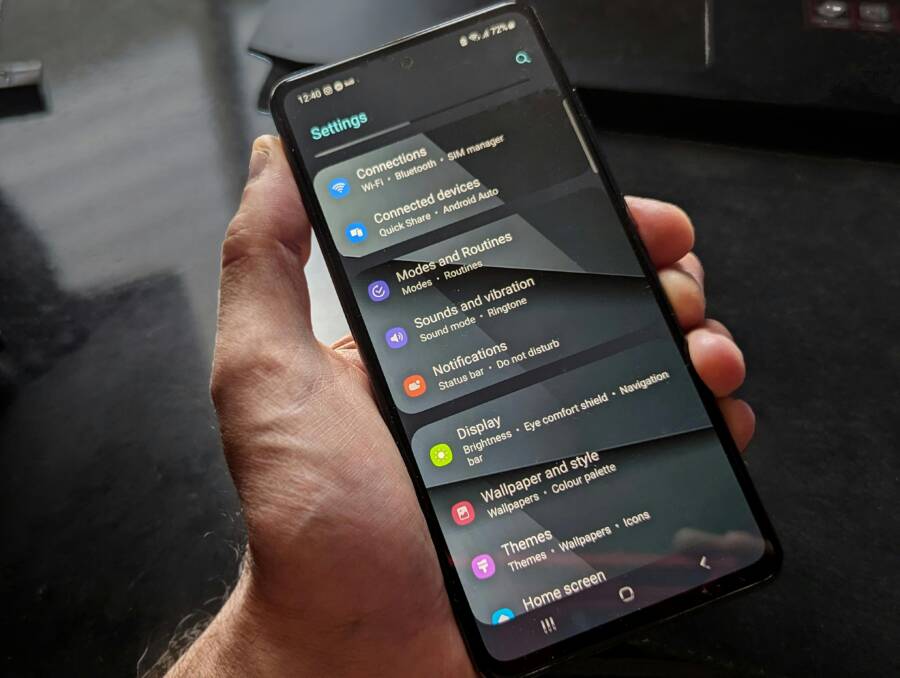
Photo: Close-up of a smartphone showing DND settings, highlighting how phone-level controls can silence alerts. Photo by Daniel Moises Magulado https://www.pexels.com/@daniel-moises-magulado-199841
Clear cache or reinstall the Teams app
Cache data or corrupted app files can block the notification channel from opening correctly. Clearing the Teams cache on Android or reinstalling the app on iPhone resolves many stubborn issues. Remember that clearing cache does not delete your messages, but a reinstall on iPhone can require re-syncing data.
- Android: Clear Teams cache
- Go to Settings > Apps > Teams > Storage > Clear cache.
- If you still see issues, you can also Clear storage, then reopen Teams (you may need to sign in again).
- iPhone: Reinstall Teams
- Press and hold the Teams app icon, choose Remove App, then Delete App.
- Reinstall from the App Store and sign in again.
Data safety and backups
- Your chat history remains on the cloud, tied to your account. If you’re worried about important chats, you can forward essential messages or take screenshots as a temporary backup.
- If you rely on local message exports, consider saving key conversations before a reinstall.
Backing up guidance
- If you use Teams on a work or school account, your org may have data retention rules. For personal use, confirm that important messages are mirrored in your chat threads in the cloud.
For deeper steps, see Microsoft’s official guidance on clearing the Teams cache and related reinstall paths:
- Clear the Teams client cache
- Troubleshoot notifications in Microsoft Teams mobile apps
Photo: Smartphone with a clear cache illustration (no image needed if not relevant to the content).
Sign out and back in or reset app preferences
Signing out and back in can fix token or server issues that block notification delivery. This simple reset often clears stuck permissions or stale session data without affecting your chats.
Android and iPhone steps
- Sign out then sign back in
- In Teams, open your profile, choose Sign out, then sign back in with the same or a different account as needed.
- If sign-out doesn’t fix it, remove the account from the device and re-add it, then sign in again.
- After re-signing in, test by sending a message to yourself to verify the alert pattern (sound, banner, badge) is restored.
If you recently reinstalled the app, you’ll need to re-sign in to restore notification flow. After re-authenticating, perform a quick test by messaging yourself or a trusted contact.
Account status checks
- Confirm your account is active and in good standing with your IT department if you’re using a corporate or school account.
- Ensure that device management policies or conditional access rules allow Teams notifications from the mobile app.
Helpful official guidance and related topics
- Troubleshoot notifications in Microsoft Teams mobile apps
- Sign out of Microsoft Teams
Tip: after performing these steps, watch for a clean notification bounce in the first few minutes. If the issue persists, it may be time to pair these steps with a broader check of device and app permissions.
External resources for deeper checks and common pitfalls
- Troubleshoot Microsoft Teams Free notifications
- Sign out of Microsoft Teams
Photo: Smartphone on a desk with a notification icon visible (optional image if relevant).
Links cited in this section come from official Microsoft guidance and reputable forums to help you verify steps and apply fixes quickly:
- https://support.microsoft.com/en-us/office/troubleshoot-notifications-in-microsoft-teams-mobile-apps-6d125ac2-e440-4fab-8e4c-2227a52d460c
- https://support.microsoft.com/en-us/office/manage-notifications-in-microsoft-teams-1cc31834-5fe5-412b-8edb-43fecc78413d
- https://learn.microsoft.com/en-us/answers/questions/5617023/notifications-are-not-working
Notes for readers
- If you’re using a corporate device, some notification behavior may be controlled by your IT policy. In that case, reach out to your admin for an exception or policy adjustment.
Images and visuals
- Photo by Daniel Moises Magulado (Pexels) illustrating how phone settings can silence alerts.
Smart workarounds and best practices for reliable alerts
Getting reliable notifications on mobile can feel like chasing ghosts. The right micro-strategies help you stay informed without scrolling through dozens of alerts. In this section, you’ll learn practical, easy-to-implement methods focused on smart notification management. You’ll see how to balance staying connected with preserving focus, so you never miss something important.
Use notification summaries and quiet hours wisely
Quiet hours and notification summaries are powerful tools when used thoughtfully. They help you maintain focus during meetings, off hours, or deep work blocks while still ensuring critical alerts come through when they matter most. The goal is to silence the trivial and surface the urgent.
- Set up quiet hours for off-work times: This locks down routine silences so you can recharge without missing essential messages during business hours. On mobile, Teams lets you block notifications within a schedule. For example, you can mute during evenings and weekends, then resume alerts when your workday starts again. This helps reduce fatigue without making you blind to important activity. For a step-by-step, see the guidance on Quiet Time in Teams for mobile devices. Quiet time in Microsoft Teams for mobile devices
- Create a smart notification summary: Instead of getting every ping instantly, you can set your phone to deliver a concise summary at scheduled times. This keeps you informed about top-level activity without interrupting every message, which is especially useful during long meetings or when you’re presenting. When a real-time alert does come through, it still appears with the expected sound or banner so you don’t miss it. For more on managing notifications across devices, review Microsoft’s guidance on notification behavior and quiet time. Notifications and settings in Microsoft Teams
- Use Do Not Disturb strategically during meetings: If you’re in a video call, you can rely on a scheduled quiet time to mute everything except priority messages. A practical pattern is to allow alerts only for direct mentions or urgent chats during a meeting, while normal chatter stays muted. If DND clashes with work, you can toggle back to normal briefly or create a dedicated work-focused focus with Teams allowed. For related guidance on how DND interacts with Teams alerts, see the article on muting Teams notifications when status is Do Not Disturb. Mute Teams Notifications When Status is set to Do Not Disturb
- Test after each change: A quick test message to yourself or a trusted colleague confirms that banners, sounds, and badges behave as expected. This keeps you in the loop and helps you tune the timing and priority of alerts. If you want a broader setup reference, explore options for quiet hours and how it works across devices. How can I learn more about using Quiet Time across …
Extra notes for real-world use:
- Quiet Time works best when aligned with your work rhythm. If you alternate between focused sprints and collaboration windows, schedule quiet hours for deep work and allow urgent notifications during those windows.
- Keep the default level of alerting modest. Too many exceptions can defeat the purpose of quiet time and leave you overwhelmed when alerts resume.
- If you’re using a corporate account, some Quiet Time features may be limited by policy. When in doubt, check with your IT admin about exceptions or policy tweaks. For further context on enterprise setup, review Microsoft’s enterprise guidance on quiet time across devices. Quiet time across devices with Outlook mobile guidance
Key takeaway: Use quiet hours to protect your focus, then pair them with a smart summary approach so you still get the big picture at a glance.
Keep parallel alerts on desktop or web
Mobile alerts are essential, but they aren’t the only way you stay in the loop. Keeping Microsoft Teams open on a computer or using the web app creates a robust, cross-device alert path. This redundancy helps you catch important messages when your phone misses them, and it gives you a seamless bridge between devices.
- Maintain a lightweight desktop presence: If you often work at a desk, leaving Teams running on your PC or Mac can ensure you don’t miss direct messages or mentions. Even when your phone’s notifications are quiet, the desktop app can surface alerts in real time. This is especially useful for time-sensitive conversations or quick decisions.
- Use the web app when not on a dedicated machine: The web version of Teams is fast to load and keeps you connected without installing another client. It also syncs with mobile in near real time, so you won’t miss threads you started on one device.
- Benefit from cross-device sync: When you receive a message on one device, the corresponding activity appears across all signed-in devices. This makes it easier to catch up and respond promptly, regardless of the device you happen to be using.
Practical setup tips:
- Keep at least one device always signed in to Teams. If you’re on the go, a laptop or tablet can serve as your steadier alert source during long commutes or office hours.
- Pin critical chats and channels on desktop: This keeps important conversations at the top of your feed, reducing the chance you’ll miss a key message when your phone is busy.
- Check notification settings on both platforms: Align your preferences so that critical messages push to both devices. If you’re unsure where to start, Microsoft’s manage notifications page provides central control points. Manage notifications in Microsoft Teams
A quick real-world scenario:
- You’re in a morning stand-up on your laptop. A teammate tags you in a channel post. The desktop alert appears with a banner and a sound. Later, you receive a follow-up direct message on your phone, which your mobile notification settings already allow. You respond from whichever device you’re closest to, maintaining momentum across the team.
Why this matters:
- Cross-device alerts reduce the chance of missing urgent updates.
- Desktop or web presence lowers the risk of notification gaps when you’re away from your phone.
- You can tailor device-specific priorities while keeping a unified thread of activity across devices. For deeper insights, see guidance on syncing notifications between mobile and desktop. Teams notifications – sync between mobile and desktop
Real-world best practice:
- Set a default behavior where direct messages and mentions trigger immediate mobile alerts, while less urgent channel posts are surfaced on desktop first. This keeps your attention on what matters most without overwhelming your pocket.
External resources to deepen this practice:
- Teams notifications on phone when active on desktop. Teams notifications on phone when active on desktop
- Best practices for notification management in Teams. Best practices for notifications in Microsoft Teams
Bottom line: By maintaining parallel alerts and aligning cross-device behavior, you build a resilient notification system. You stay in the loop without sacrificing focus, and you’re less likely to miss critical updates as you switch between devices.
Conclusion
Fixing Microsoft Teams notifications on your smartphone comes down to quick, targeted checks you can run in minutes. When you align phone level permissions, Do Not Disturb rules, battery optimization, and app settings, your alerts become reliable again across both iPhone and Android.
Quick wins you can save for future problems
- Confirm push notifications are enabled in both the device and the Teams app.
- Check and disable any active Do Not Disturb or Focus modes during work hours.
- Keep Teams updated and allow background activity so the app can fetch messages in real time.
If you test each step with a quick message to yourself, you’ll know fast whether the fix worked. Save these steps for any future notification hiccups, and feel free to share your results or other tips in the comments.
There Is a Frequency That the Wealthiest Families Have Used for Generations and Most People Will Never Know It Exists
>>> Open the Door <<<
